
How to connect TradingView to Cloud MT5
This guide covers the complete AlgoWay Cloud MT5 workflow: create a TradingView webhook, verify your MT5 broker server, connect a trading account, launch the hosted terminal, configure EA 2.21 automation and read the Journal or Experts logs.
Cloud MT5 is different from installing AlgoWay's desktop MT5 EA. You do not download or attach an EA to your own MetaTrader terminal for this workflow. AlgoWay manages a hosted instance, and you provide the broker account and trading instructions.
1. Before you begin
Have an AlgoWay account, a supported MetaTrader 5 broker account with its login, password and exact broker server name, and a TradingView strategy or indicator capable of producing webhook alerts. Test in a demo broker account before using live funds.
2. Create a Cloud MT5 connection
Open Trade Webhooks
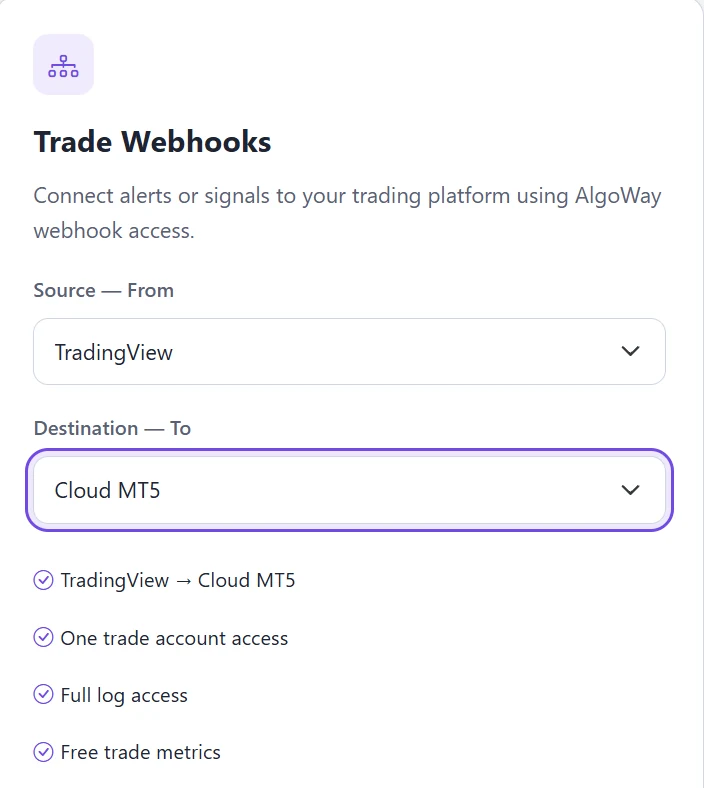
In the AlgoWay Store, choose TradingView under Source — From, and Cloud MT5 under Destination — To. Select a trial where eligible or purchase the Cloud MT5 webhook.
Enter the broker server
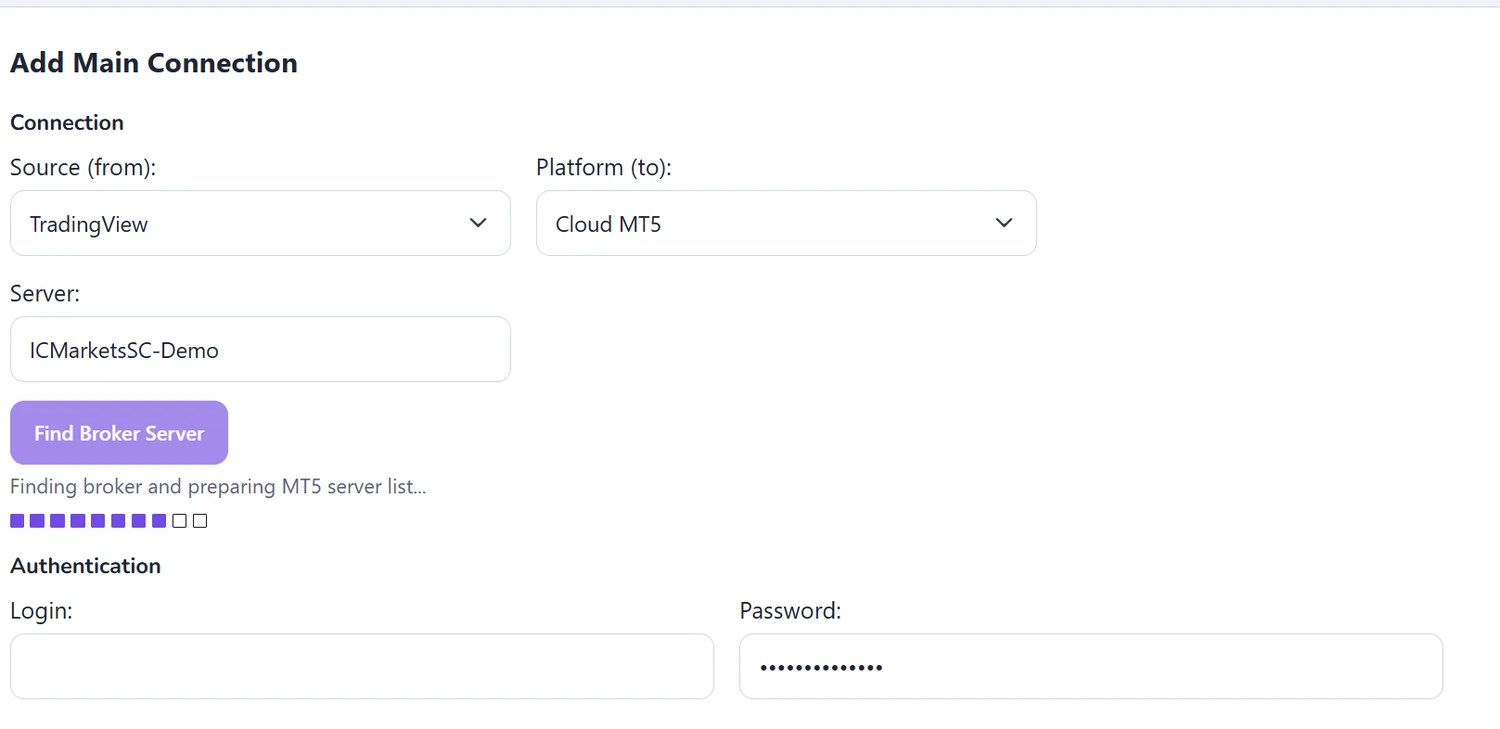
In the connection form, type the exact MT5 broker server name (for example, the server shown by your MT5 account). Click Find Broker Server and wait for verification before continuing.
Enter MT5 credentials
Supply the broker account's numeric login and password, and confirm the verified broker server. This is your MT5 broker login — not your AlgoWay account password.
Finish the webhook setup
Review News Filter and Prevent Duplicate Alerts as needed, then create the webhook. You can later edit the connection from the dashboard.
News Filter and duplicate-alert protection
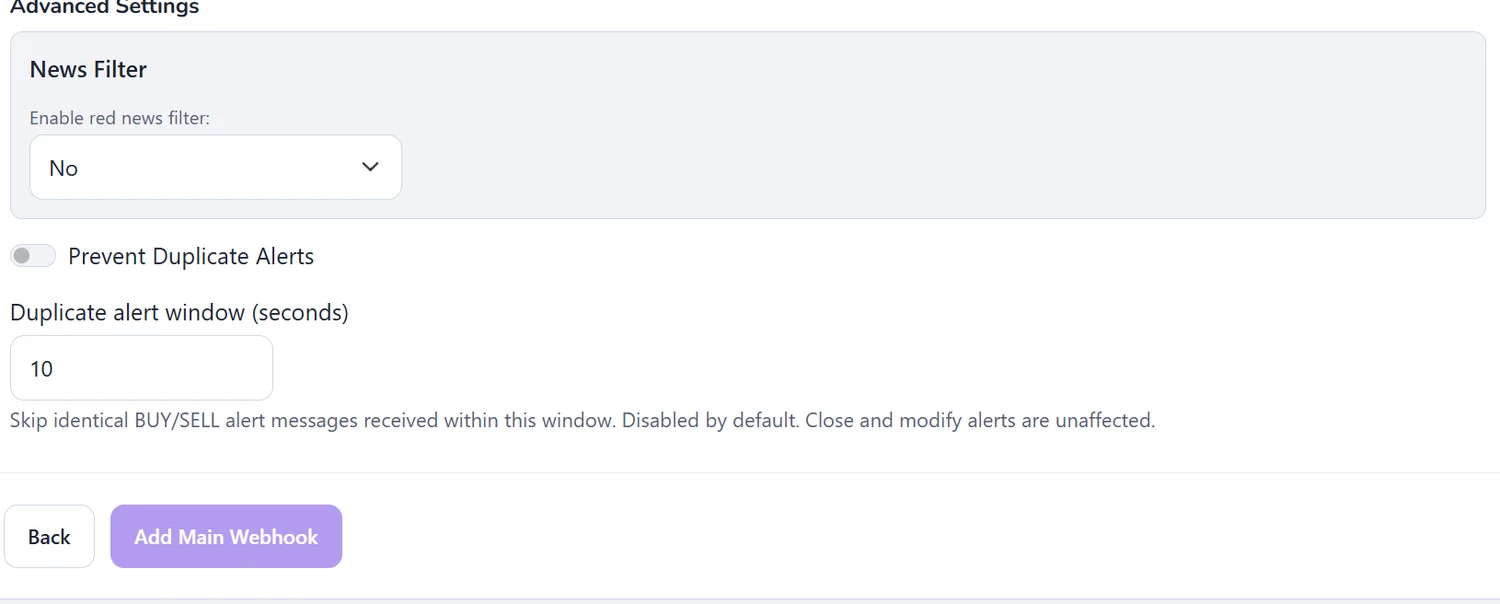
The connection form includes a News Filter selector and a separate Prevent Duplicate Alerts switch. Duplicate protection defaults to off; its window defaults to 10 seconds. When enabled, the configured window skips identical BUY/SELL alerts. Close and modify alerts are unaffected by that window.
3. Start Cloud MT5 and confirm readiness
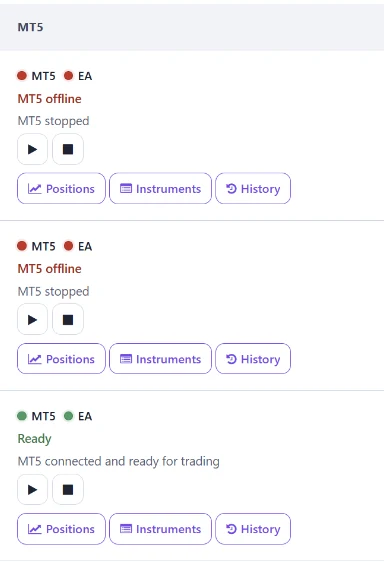
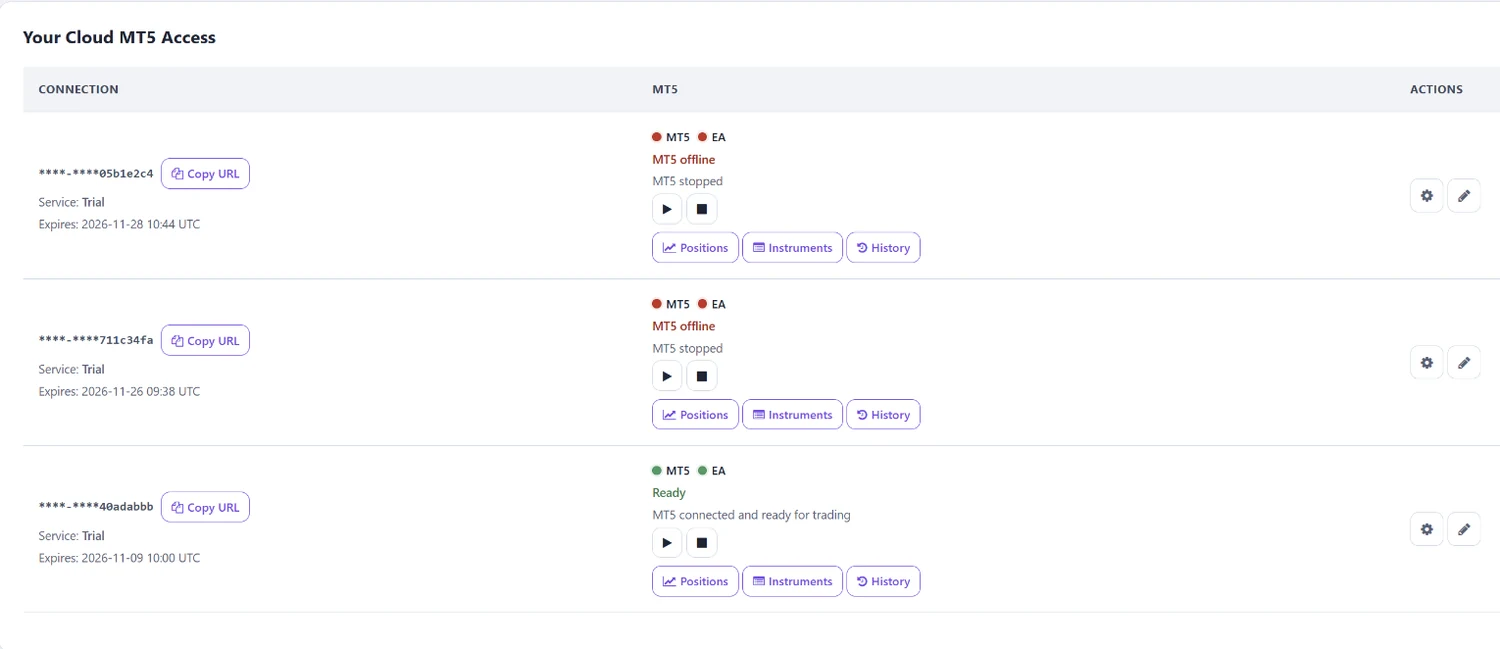
Open Workspace → Cloud MT5. The dashboard lists each connection, its trial or subscription expiry, MT5 status, EA status and terminal controls.
- Click Start MT5 (play icon) for the correct connection.
- Allow the terminal to prepare, authenticate with the broker and connect the EA.
- Confirm both MT5 and EA indicators are green and the status reads Ready.
- Use Copy URL for the webhook URL that will go into TradingView.
- Use Positions, Instruments and History to inspect the broker account.
Use the gear icon for Automation Settings and the pencil icon to edit the webhook/connection details.

4. Configure your TradingView webhook alert
Create an alert on the intended TradingView strategy or indicator. In TradingView's notification settings, enable the Webhook URL option and paste the URL copied with Copy URL from your Cloud MT5 connection. In the Message field, use JSON appropriate for your strategy and configured sizing.
Strategy alert example
{
  "platform_name": "cloudmt5",
  "ticker": "{{ticker}}",
  "order_action": "{{strategy.order.action}}",
  "order_contracts": "{{strategy.order.contracts}}"
}
The double-curly TradingView placeholders are replaced by TradingView when an alert fires. Common actions include buy and sell; make sure your actual strategy action values match the webhook's supported handling. For a non-strategy alert, replace the placeholders with values produced by that alert. Never use a placeholder that your chosen alert type does not provide.
Example fixed-size demo alert
{
  "platform_name": "cloudmt5",
  "ticker": "EURUSD",
  "order_action": "buy",
  "order_contracts": "0.01"
}After the test, verify the webhook activity, MT5 Positions and History, and Experts log. A successful webhook delivery does not by itself guarantee broker execution.
5. Cloud MT5 Automation Settings — complete reference
Click the gear icon for your Cloud MT5 connection. The Automation Settings screen contains nine sections and 75 fields, matching the Cloud MT5 EA 2.21 settings schema. The defaults below are for new connections; saved settings can differ.

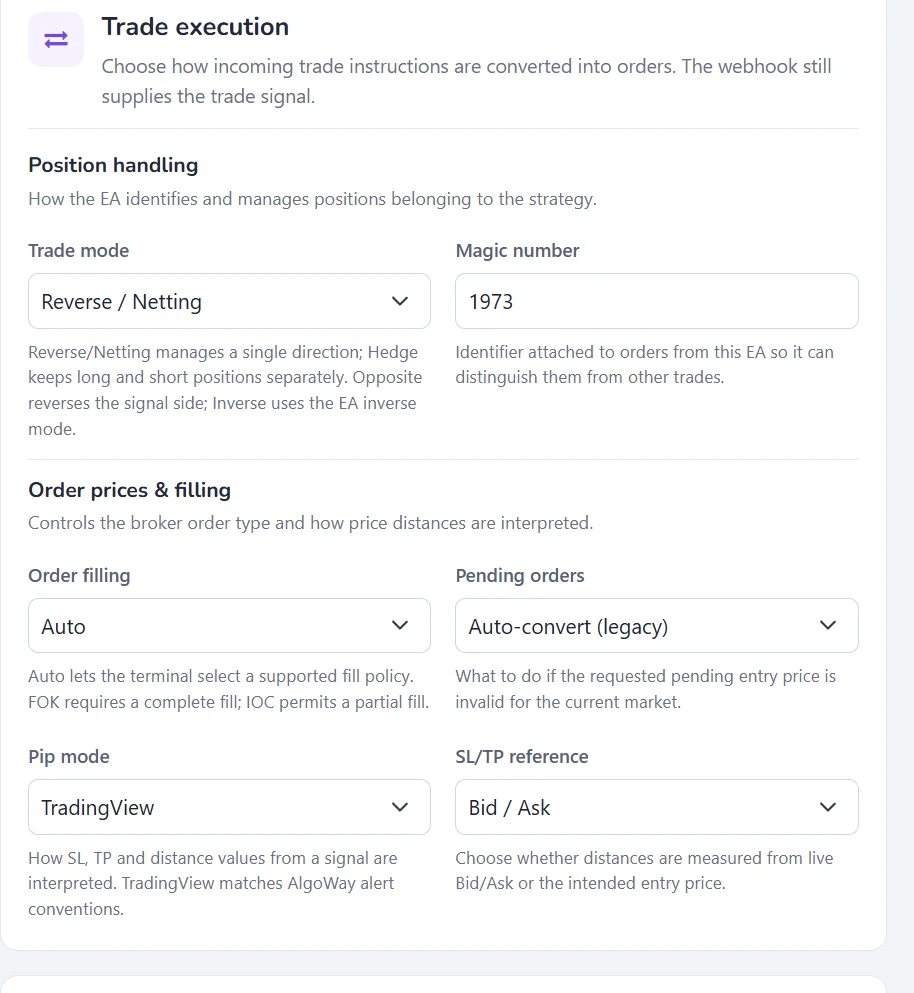
Trade execution
Core routing and broker order interpretation. Values shown below are the schema defaults, not recommendations for every broker or strategy.
These settings are stored per Cloud MT5 connection. Enable a switch only when you want the EA to apply its related controls.
| Setting / key | Default | How it works |
|---|---|---|
Trade modetrade_mode | Reverse / Netting | Reverse/Netting manages one direction; Hedge can keep both sides on hedging accounts; Opposite changes signal direction; Inverse applies the EA inverse logic. |
Magic numbermagic_number | 1973 | EA identifier used to distinguish its orders from other trading activity. |
Order fillingorder_filling_type | Auto | Auto selects a supported policy; FOK requires a complete fill; IOC allows a partial fill. |
Pending orderspending_order_handling | Auto-convert (legacy) | Invalid pending entry price: auto-convert, reject, or chase price. Choose deliberately when using pending orders. |
Pip modepip_calc_mode | TradingView | Broker AUTO, TradingView, Percent or Points. Defines how the EA interprets incoming pip and distance values. |
SL/TP referencepip_calc_style | Bid / Ask | Reference incoming distances to live Bid/Ask or to the intended entry price. |
Position size & partial closes
Entry lots, scaling and close instructions. Values shown below are the schema defaults, not recommendations for every broker or strategy.
Position sizing: a webhook size of 0.10 lots multiplied by 2 gives 0.20 lots before broker rounding. Risk-based sizing needs valid entry and stop information. Confirm your broker's permitted volume step.
| Setting / key | Default | How it works |
|---|---|---|
Sizing modeposition_size_mode | Lots from webhook | Lots from the alert, Risk % of account, or Balance %; risk sizing requires meaningful entry/SL information. |
Lot multiplierorder_size_coefficient | 1 | Multiplies the requested volume; 0.5 halves it, 2 doubles it before broker volume rules. |
Override webhook lot sizeuse_internal_lot_size | Off | Use fixed lots for new entries rather than the quantity in the alert. |
Fixed lot sizeinternal_lot_size | 0.10 | Entry volume when fixed-lot override is enabled. |
Close size modeclose_volume_mode | Lots | Partial-close quantities are either absolute lots or percent of the initial position. |
Legacy force risk modeuse_risk_percent | Off | Compatibility switch for legacy workflows; normally leave disabled. |
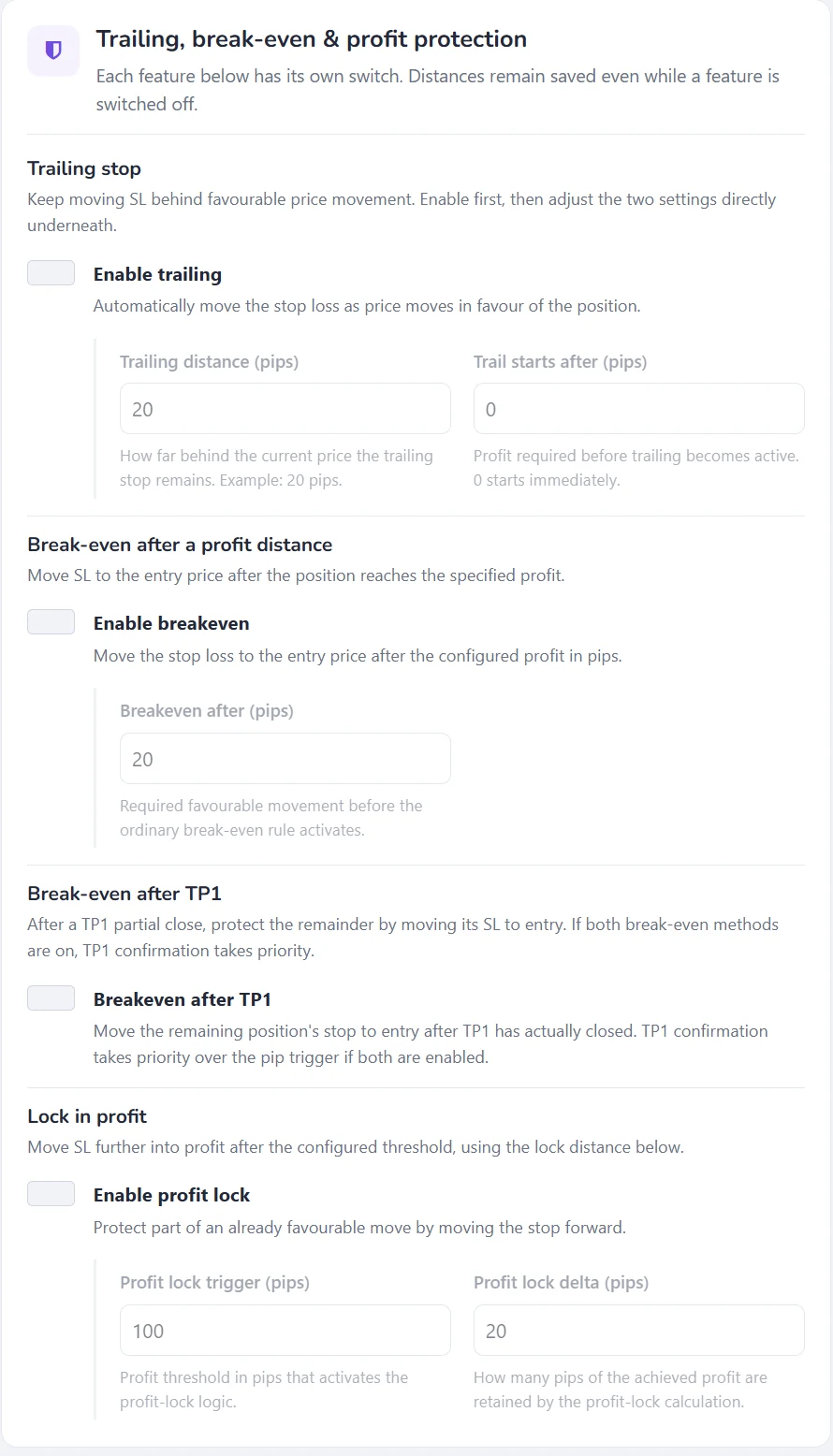
Trailing, break-even & profit protection
Protecting open trades through the EA. Values shown below are the schema defaults, not recommendations for every broker or strategy.
These settings are stored per Cloud MT5 connection. Enable a switch only when you want the EA to apply its related controls.
| Setting / key | Default | How it works |
|---|---|---|
Enable trailingenable_trailing_stop | Off | Move Stop Loss behind favourable market price action. |
Trailing distance (pips)trailing_step | 20 | Desired distance between current price and trailing stop. |
Trail starts after (pips)trail_points | 0 | Profit threshold to start trailing; 0 starts without an additional profit threshold. |
Enable breakevenenable_breakeven | Off | Move Stop Loss to entry when the configured profit distance is reached. |
Breakeven after (pips)breakeven_after_pips | 20 | Favourable move required for ordinary break-even. |
Breakeven after TP1breakeven_after_tp1 | Off | Move the remaining position stop to entry after TP1 actually closes; TP1 confirmation takes priority if both breakeven methods are enabled. |
Enable profit lockenable_profit_lock | Off | Protect part of a favourable move by moving the stop further into profit. |
Profit lock trigger (pips)profit_lock_pips | 100 | Profit threshold for activating profit-lock behaviour. |
Profit lock delta (pips)profit_lock_delta_trigger | 20 | Amount of achieved profit that the locking calculation aims to retain. |
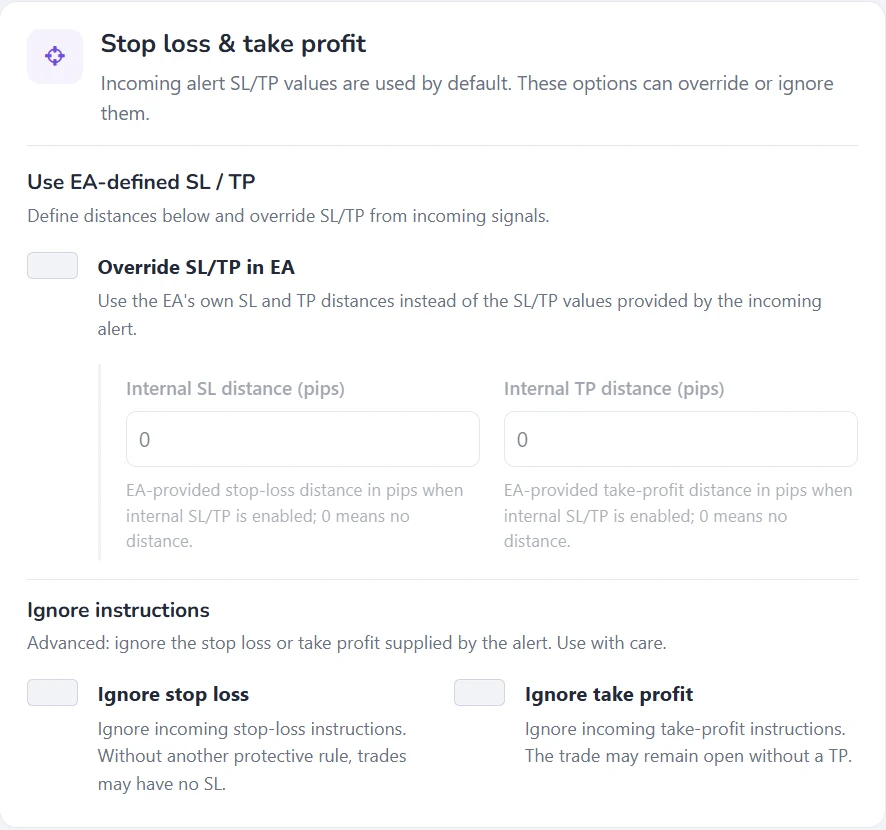
Stop loss & take profit
Override or ignore stop instructions. Values shown below are the schema defaults, not recommendations for every broker or strategy.
These settings are stored per Cloud MT5 connection. Enable a switch only when you want the EA to apply its related controls.
| Setting / key | Default | How it works |
|---|---|---|
Override SL/TP in EAuse_internal_sltp | Off | Use the distances below instead of incoming webhook SL/TP values. |
Internal SL distance (pips)internal_sl_pips | 0 | Stop distance when internal SL/TP is enabled; zero means no distance. |
Internal TP distance (pips)internal_tp_pips | 0 | Target distance when internal SL/TP is enabled; zero means no distance. |
Ignore stop lossignore_stop_loss | Off | Ignore SL instructions from alerts; can leave trades unprotected if no other rule applies. |
Ignore take profitignore_take_profit | Off | Ignore TP instructions from alerts; positions can remain open without a TP. |
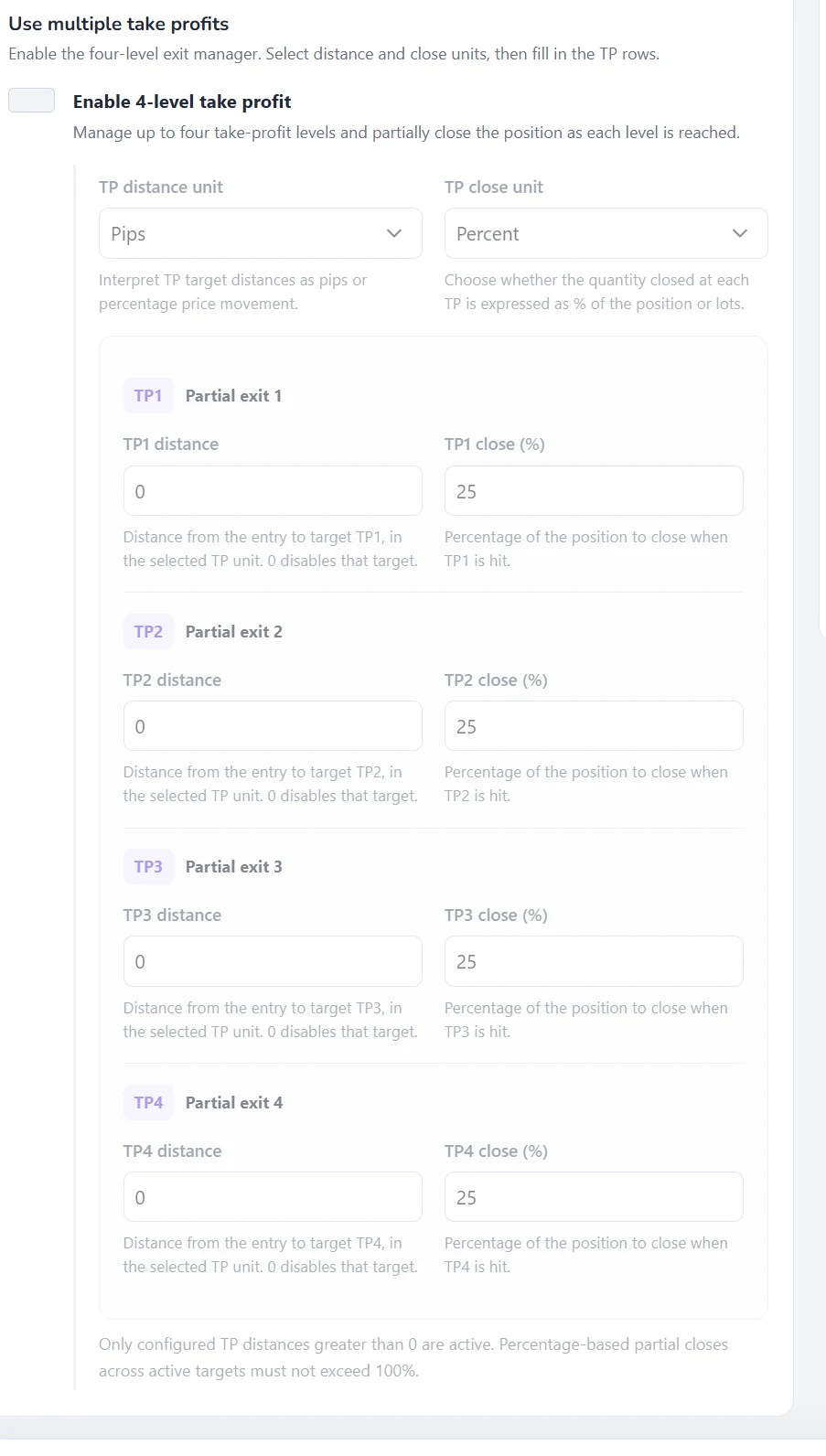
Multiple take-profit levels
Up to four partial exits. Values shown below are the schema defaults, not recommendations for every broker or strategy.
These settings are stored per Cloud MT5 connection. Enable a switch only when you want the EA to apply its related controls.
| Setting / key | Default | How it works |
|---|---|---|
Enable 4-level take profitenable_multiple_take_profit | Off | Enable EA-managed TP1 through TP4; at least one target distance must be greater than zero. |
TP distance unitmultiple_take_profit_mode | Pips | Measure target distances in pips or percent price movement. |
TP close unitmultiple_take_profit_close_mode | Percent | Close each target by percentage of position or by an absolute number of lots. |
TP1 distancemultiple_tp1 | 0 | Distance from entry to TP1. Zero disables this target. |
TP1 close (%)multiple_tp1_close_percent | 25 | Percent of position closed on TP1 when percentage mode is selected. |
TP1 close lotsmultiple_tp1_close_lots | 0 | Lot volume to close on TP1 when lots mode is selected. |
TP2 distancemultiple_tp2 | 0 | Distance from entry to TP2. Zero disables this target. |
TP2 close (%)multiple_tp2_close_percent | 25 | Percent of position closed on TP2 when percentage mode is selected. |
TP2 close lotsmultiple_tp2_close_lots | 0 | Lot volume to close on TP2 when lots mode is selected. |
TP3 distancemultiple_tp3 | 0 | Distance from entry to TP3. Zero disables this target. |
TP3 close (%)multiple_tp3_close_percent | 25 | Percent of position closed on TP3 when percentage mode is selected. |
TP3 close lotsmultiple_tp3_close_lots | 0 | Lot volume to close on TP3 when lots mode is selected. |
TP4 distancemultiple_tp4 | 0 | Distance from entry to TP4. Zero disables this target. |
TP4 close (%)multiple_tp4_close_percent | 25 | Percent of position closed on TP4 when percentage mode is selected. |
TP4 close lotsmultiple_tp4_close_lots | 0 | Lot volume to close on TP4 when lots mode is selected. |
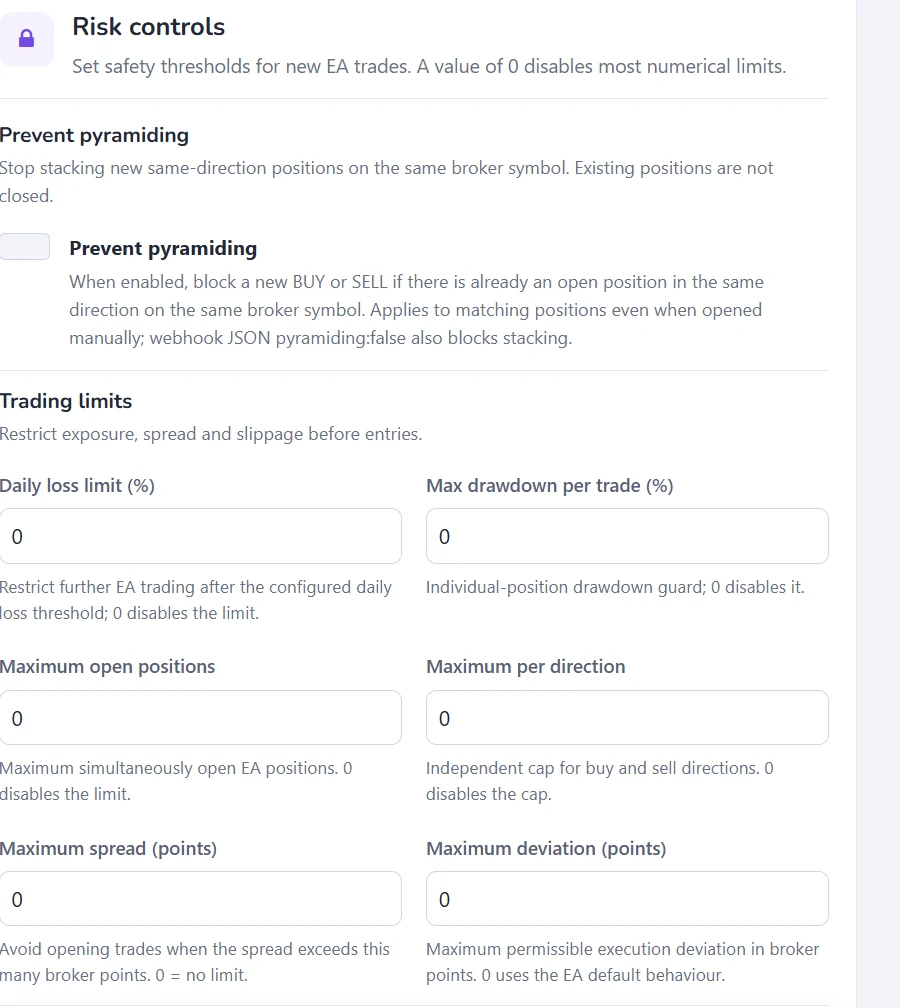
Risk controls
Exposure, execution limits and optional progression. Values shown below are the schema defaults, not recommendations for every broker or strategy.
These settings are stored per Cloud MT5 connection. Enable a switch only when you want the EA to apply its related controls.
| Setting / key | Default | How it works |
|---|---|---|
Prevent pyramidingprevent_pyramiding | Off | Block new same-direction entries where an open position already exists on the broker symbol, including matching manually opened positions. |
Daily loss limit (%)daily_loss_limit_percent | 0 | Restrict further EA trading after the loss threshold; zero disables the limit. |
Max drawdown per trade (%)max_drawdown_per_trade_percent | 0 | Per-position drawdown guard; zero disables it. |
Maximum open positionsmax_open_positions | 0 | Total simultaneously open EA positions; zero means unrestricted by this setting. |
Maximum per directionmax_open_positions_per_direction | 0 | Separate cap for buys and sells; zero disables the cap. |
Maximum spread (points)max_spread_points | 0 | Block entries above the broker-point spread limit; zero disables it. |
Maximum deviation (points)max_price_deviation_points | 0 | Maximum requested execution deviation in broker points; zero uses EA default. |
Enable martingaleenable_martingale | Off | Increase sizing according to the EA martingale progression; this amplifies exposure. |
Martingale multipliermartingale_multiplier | 1.5 | Multiplier for martingale progression when enabled. |
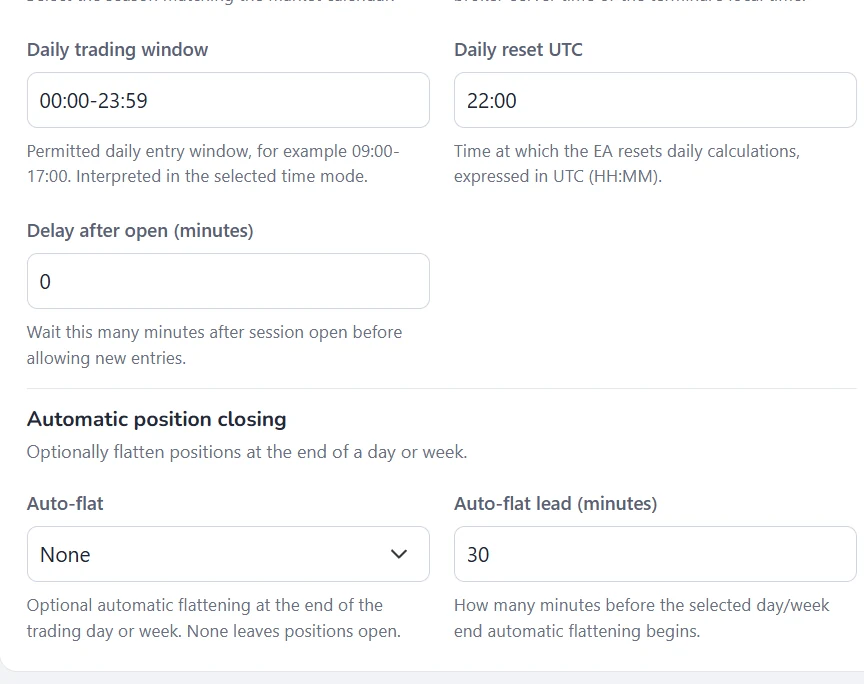
Trading hours & scheduling
Session filters, windows, reset and automatic flat. Values shown below are the schema defaults, not recommendations for every broker or strategy.
These settings are stored per Cloud MT5 connection. Enable a switch only when you want the EA to apply its related controls.
| Setting / key | Default | How it works |
|---|---|---|
London sessiontrade_london | On | Allow entries in the EA London session. |
New York sessiontrade_newyork | On | Allow entries in the EA New York session. |
Tokyo sessiontrade_tokyo | On | Allow entries in the EA Tokyo session. |
New York seasonnew_york_season | Winter | Winter or Summer session schedule; set according to applicable DST season. |
Daily window timezonedaily_window_time_mode | UTC | UTC, broker-server time, or terminal local time for daily entry window. |
Daily trading windowdaily_time_window_utc | 00:00-23:59 | Allowed entry window HH:MM-HH:MM interpreted in the selected timezone. |
Daily reset UTCdaily_reset_time_utc | 22:00 | Daily calculation reset in UTC, HH:MM. |
Delay after open (minutes)start_trading_after_open_minutes | 0 | Hold new entries this many minutes after a session opens. |
Auto-flatauto_close | None | Optional end-of-day or end-of-week flattening; None leaves positions open. |
Auto-flat lead (minutes)auto_close_lead_minutes | 30 | Start automatic flattening this many minutes before the selected day or week end. |
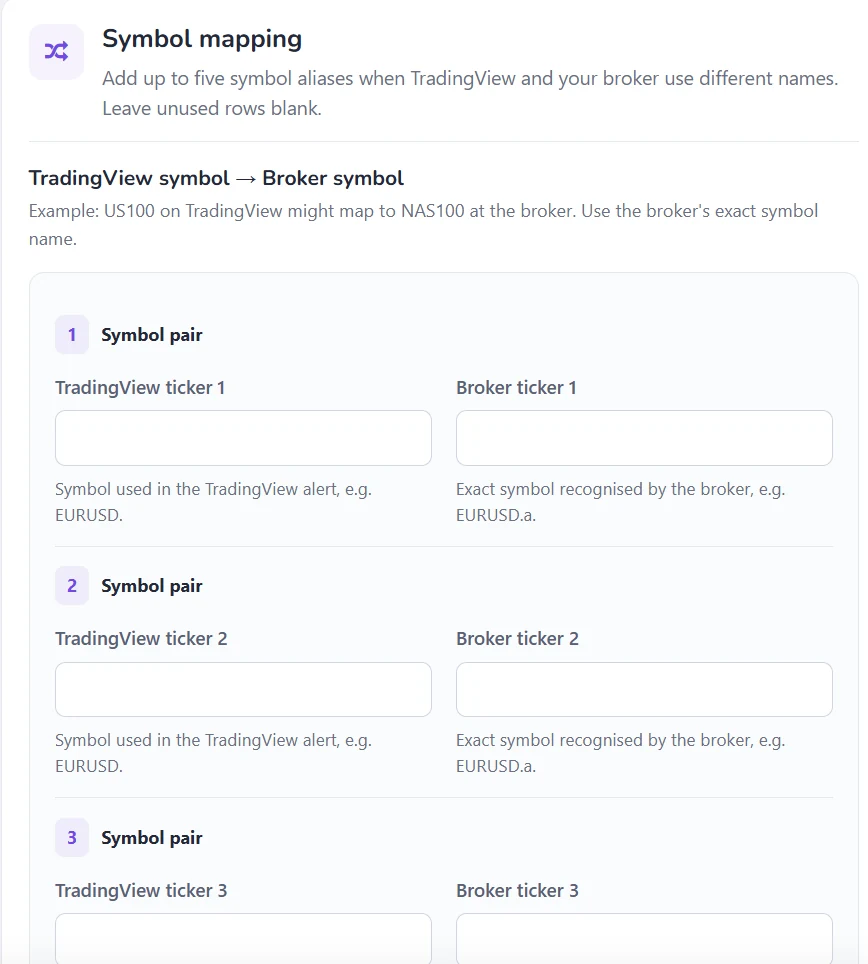
Symbol mapping
Broker-specific instrument aliases. Values shown below are the schema defaults, not recommendations for every broker or strategy.
These settings are stored per Cloud MT5 connection. Enable a switch only when you want the EA to apply its related controls.
| Setting / key | Default | How it works |
|---|---|---|
TradingView ticker 1tv_ticker1 | Blank | Source symbol for mapping pair 1; e.g. US100. |
Broker ticker 1broker_ticker1 | Blank | Exact broker instrument name for mapping pair 1; e.g. NAS100. |
TradingView ticker 2tv_ticker2 | Blank | Source symbol for mapping pair 2; e.g. US100. |
Broker ticker 2broker_ticker2 | Blank | Exact broker instrument name for mapping pair 2; e.g. NAS100. |
TradingView ticker 3tv_ticker3 | Blank | Source symbol for mapping pair 3; e.g. US100. |
Broker ticker 3broker_ticker3 | Blank | Exact broker instrument name for mapping pair 3; e.g. NAS100. |
TradingView ticker 4tv_ticker4 | Blank | Source symbol for mapping pair 4; e.g. US100. |
Broker ticker 4broker_ticker4 | Blank | Exact broker instrument name for mapping pair 4; e.g. NAS100. |
TradingView ticker 5tv_ticker5 | Blank | Source symbol for mapping pair 5; e.g. US100. |
Broker ticker 5broker_ticker5 | Blank | Exact broker instrument name for mapping pair 5; e.g. NAS100. |
Telegram alerts & diagnostics
Saved notification preferences and debug option. Values shown below are the schema defaults, not recommendations for every broker or strategy.
These settings are stored per Cloud MT5 connection. Enable a switch only when you want the EA to apply its related controls.
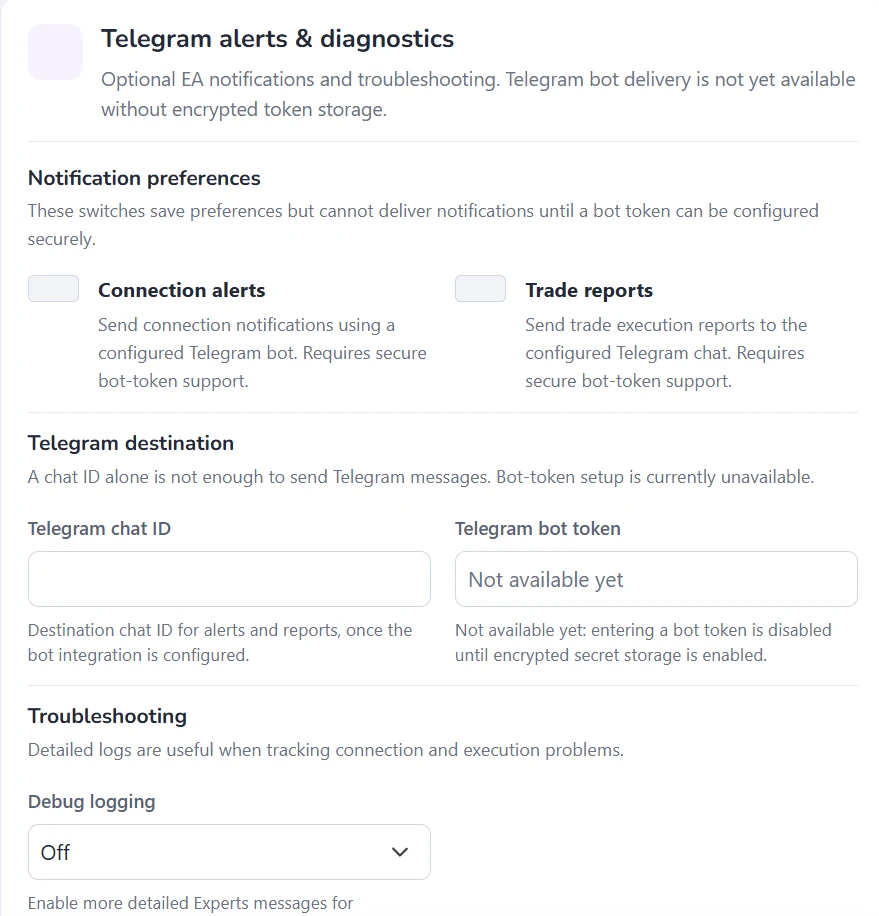
| Setting / key | Default | How it works |
|---|---|---|
Connection alertsenable_telegram_notifications | Off | Notification preference only; bot delivery is not available until encrypted token storage is implemented. |
Trade reportsenable_telegram_trade_reports | Off | Trade-report preference; does not currently send Telegram messages. |
Telegram chat IDtelegram_chat_id | Blank | Chat destination preference; a chat ID alone cannot send messages. |
Telegram bot tokentelegram_bot_token | Unavailable | Input is disabled pending encrypted secret storage; do not describe it as operational. |
Debug loggingdebug_logging | Off | Enable more detailed MT5 Experts output for troubleshooting. |
6. Monitoring, logs and diagnosing trade execution
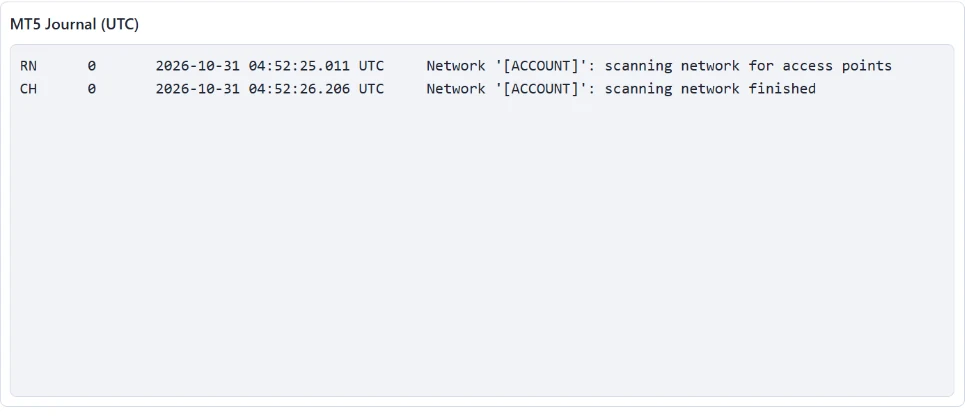
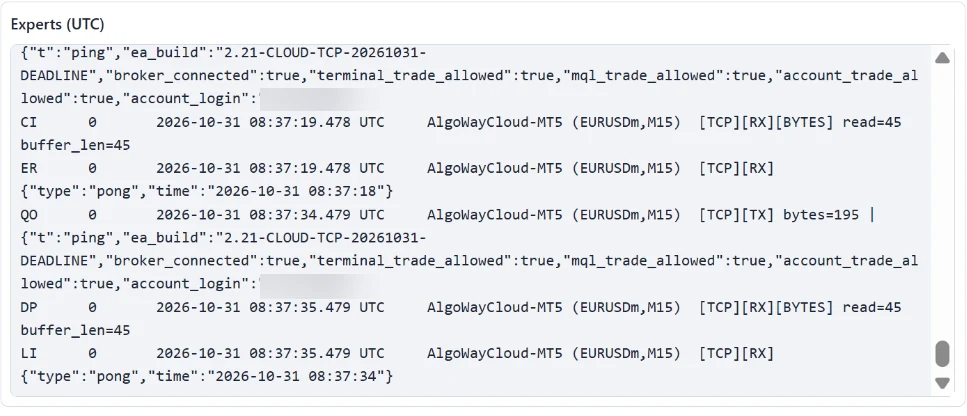
The Cloud MT5 dashboard gives you two separate read-only diagnostic panes. Select the required connection in Cloud MT5 Debug Logs, then use Refresh or allow the interface to update automatically approximately every 6 seconds.
| Symptom | Checks | What to do |
|---|---|---|
| MT5 offline / stopped | Subscription active, Start action and terminal status | Start the connection and wait for broker authorization; inspect Journal if it fails. |
| EA status not green | EA health state and Experts entries | Verify terminal launch and EA connectivity before sending another alert. |
| Broker login rejected | Account number, password and verified broker server | Correct the broker details using connection editing and retry when appropriate. |
| Order not opened | Webhook activity, symbol, position mode, lot size, trading permission and Experts | Resolve the reported broker or EA error; a webhook accepted by AlgoWay is not a confirmed fill. |
| Unexpected order size | Webhook quantity, multiplier, fixed-lot override, sizing mode and broker volume step | Calculate the intended lot size and repeat with a controlled demo alert. |
| Invalid stop / price | Bid/Ask or entry-price reference, pip mode, SL/TP override and broker stop limits | Check the exact broker response and validate distances against current instrument rules. |
| New settings not active | Saved revision and last terminal start | Apply with a planned Stop → Start MT5; saving alone does not reload the EA. |
| Telegram alert missing | Whether bot-token configuration is available | Telegram sending is not yet supported in the current Cloud MT5 settings UI. |
7. Frequently asked questions
Is this the same as installing the MT5 EA on my laptop?
No. Cloud MT5 runs the terminal and EA in a hosted environment. You manage its connection and settings from the AlgoWay website.
Why does the settings page say changes apply after the next start?
Saving stores a revision for the connection. A running terminal continues with its currently loaded settings until MT5 is started again.
Why does my webhook show an alert but not a filled position?
Check the MT5 and EA indicators, broker login and trading permissions, symbol mapping, order size, broker return codes and Experts log. Webhook receipt alone does not establish execution.
What if TradingView and my broker use different symbols?
Configure a TradingView ticker to exact broker ticker pair in Symbol mapping and confirm the instrument is offered by the broker.
Can I send trades when the terminal is stopped?
Do not expect live execution while MT5 and its EA are stopped. Start the connection and confirm both indicators show readiness before trading.
Can I enable Telegram trade reports?
The options are visible but sending Telegram notifications is not yet implemented because token setup is disabled.
Next step: test a complete entry and exit
Start with a demo account, verify an entry, then verify an intentional exit and the final position state. Once symbols, volumes and broker-specific restrictions are confirmed, enable additional EA management features deliberately.
For product details and billing, see Cloud MT5 automation overview. For the unrelated local-terminal installation workflow, use the dedicated MetaTrader 5 EA documentation rather than installing another EA for Cloud MT5.