
TradingView to MT5: Install AlgoWayWS-MT5 EA
AlgoWayWS-MT5 EA is the MetaTrader 5 Expert Advisor used by AlgoWay to receive TradingView webhook commands and execute them inside an MT5 broker account. This guide shows the complete installation process: how to install the EA, enable the required MT5 permissions, enter your AlgoWay webhook UUID, confirm the WebSocket connection, and send a safe test order before using live TradingView alerts.
The current AlgoWay MT5 automation route is:
TradingView alert -> AlgoWay webhook -> AlgoWayWS-MT5 EA -> MetaTrader 5 broker accountThis page focuses on setup and connection. For full EA behavior, JSON fields, SL/TP, trailing stop, breakeven, profit lock, trade modes and risk settings, use the detailed guide: AlgoWayWS-MT5 EA 2.10 user guide.
Last updated: 2026-10-19 • Author: AlgoWay
Using several TradingView charts or strategies with the same MT5 account? You do not need an EA on every chart. See how one AlgoWay webhook UUID and one MT5 EA can receive multiple TradingView alerts, and how to separate strategies with comment or individual trades with tv_order_id.
Quick Install Summary
If you already know MetaTrader 5, the process is simple. Create a MetaTrader 5 webhook in AlgoWay, install the EA, allow MT5 to run Expert Advisors and DLL imports, paste the webhook UUID into the EA inputs, wait for the connection message, and then send a small test webhook.
- Create a MetaTrader 5 webhook in the AlgoWay dashboard.
- Download and run the AlgoWayWS-MT5 Auto Installer.
- Close MetaTrader 5 before installation.
- Enable Allow algorithmic trading and Allow DLL imports in MT5.
- Attach AlgoWayWS-MT5 to a chart.
- Paste your AlgoWay webhook UUID into the EA inputs.
- Confirm the connection in the MT5 Experts tab.
- Send a small test webhook before live trading.
Video Tutorial: Connect TradingView to MetaTrader 5
This video shows the complete TradingView to MT5 workflow: AlgoWay webhook creation, EA installation, MT5 setup, JSON message, TradingView webhook URL and final test.
What You Need Before Starting
Before installing the EA, prepare your AlgoWay account and your MetaTrader 5 terminal. You need an active AlgoWay account, a MetaTrader 5 broker account, and a webhook created in the AlgoWay dashboard. The webhook must be created for the MetaTrader 5 platform because this UUID will be used by the EA to identify which AlgoWay route belongs to this terminal.
You also need access to the Windows machine where MT5 is installed. If you use a VPS, remote desktop, or a cloud Windows server, run the installer on that same machine. Installing the EA on your local computer will not connect a different VPS terminal.
- MetaTrader 5 installed on Windows;
- access to the AlgoWay dashboard;
- a MetaTrader 5 webhook created in AlgoWay;
- your AlgoWay webhook UUID;
- permission to install EA and DLL files;
- Microsoft Visual C++ Redistributable installed if required.
What Gets Installed
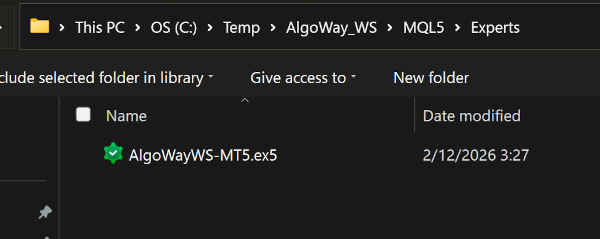
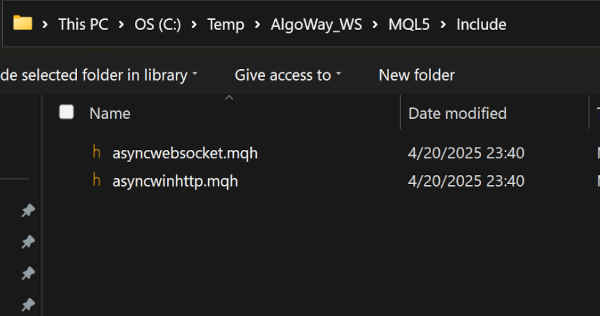
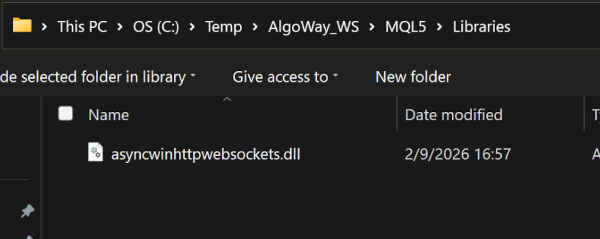
The AlgoWayWS-MT5 setup installs the Expert Advisor file, include files and the WebSocket DLL library required by the EA. These files must be placed inside the correct MetaTrader 5 Data Folder, not just inside the visible installation folder under Program Files.
| File | Destination folder |
|---|---|
AlgoWayWS-MT5.ex5 |
MQL5\Experts\ |
asyncwinhttp.mqh |
MQL5\Include\ |
asyncwebsocket.mqh |
MQL5\Include\ |
asyncwinhttpwebsockets.dll |
MQL5\Libraries\ |
Step 1 — Create the MT5 Webhook in AlgoWay
Open your AlgoWay dashboard and create a new webhook for MetaTrader 5. After the webhook is created, AlgoWay will show a webhook URL and a UUID. For the EA input you need the UUID only, not the full webhook URL.
A webhook URL usually contains the UUID inside it. The EA does not need the full URL because the connection is established through the AlgoWay WebSocket server. The UUID tells AlgoWay which route should deliver commands to this exact MT5 terminal.
b7534616-6c8c-4582-8af4-7c143d323231Copy this value carefully. A missing character, extra space or wrong UUID will prevent the terminal from receiving the expected trading commands.
Step 2 — Install with the Auto Installer
For most users, the Auto Installer is the correct method because it copies all required files into the MetaTrader 5 Data Folder automatically.
Download: AlgoWayWS-MT5-Setup.exe
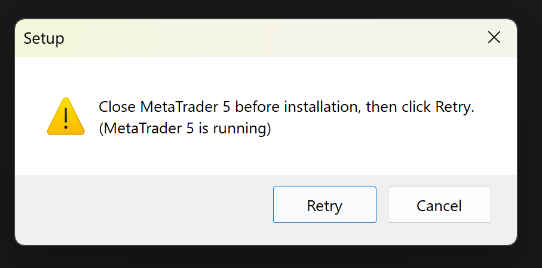
Close MetaTrader 5
Before running the installer, close every running MT5 terminal. If several MT5 terminals are open, close all of them. This prevents locked files and helps the installer detect the correct environment.
Run the Installer
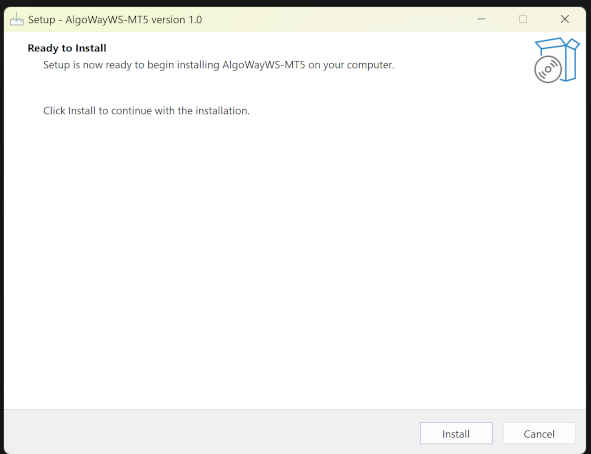
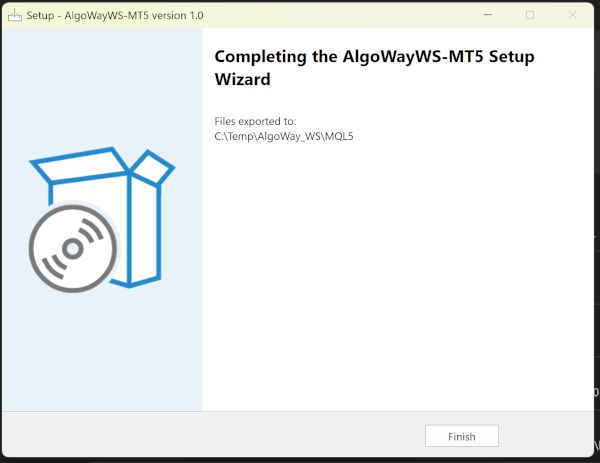
Launch the installer and follow the setup windows. If Windows asks whether the file should be kept or allowed, confirm only if the installer was downloaded from AlgoWay. If SmartScreen opens a blue warning window, click More info, then Run anyway.
Step 3 — Manual Install if the Installer Cannot Be Used
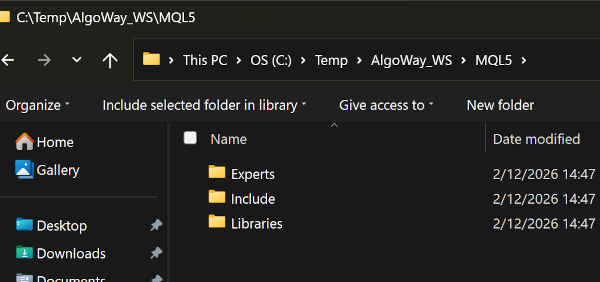
Use manual installation only if you cannot run the Auto Installer. The important part is to copy files into the real MT5 Data Folder. Do not guess the Windows path manually.
Manual package: EA_payload.zip
- Open MetaTrader 5.
- Click File.
- Click Open Data Folder.
- Open the
MQL5directory. - Copy each file into the matching folder shown above.
- Restart MetaTrader 5 or refresh Navigator.
Alternative Installation — AlgoWay Universal Build (UB) with Native Socket
AlgoWay Universal Build (UB) is the full-featured MT5 Expert Advisor using native MQL5 sockets. It is designed for macOS and Linux MetaTrader 5 installations (including Wine-based environments), also works on Windows, and can be tried whenever the standard AlgoWayWS-MT5 EA produces an error. Download AlgoWayUB-MT5.ex5. Install it by opening MT5 >> File >> Open Data Folder >> MQL5 >> Experts, copying AlgoWayUB-MT5.ex5 into the folder, and restarting MT5 or refreshing Navigator. Attach AlgoWayUB-MT5 to a chart, enter the same AlgoWay webhook UUID in EA Inputs, enable algorithmic trading and verify its connection in the Experts tab. Unlike the standard WebSocket EA, UB requires no third-party DLL, DLL import permission or separate Microsoft Visual C++ Redistributable. The standard DLL/runtime steps below do not apply to UB; consult Experts/Journal for any remaining broker-side errors.
Native Socket connections must be explicitly allowed in MetaTrader 5.
Open Tools > Options > Expert Advisors,
enable Allow WebRequest for listed URL, and add
mt5.algoway.co to the allowed addresses.
Click OK and restart or reattach the UB Expert Advisor.
Without this permission, Universal Build cannot establish its socket connection.
This requirement applies even though UB does not use external DLLs.
Step 4 — Install Microsoft Visual C++ Runtime
The WebSocket DLL may require Microsoft Visual C++ Redistributable. If the EA loads but the DLL cannot be used, install the current VC++ v14 redistributable package for your Windows architecture.
- x64 for 64-bit MT5: vc_redist.x64.exe
- x86 only for 32-bit MT5: vc_redist.x86.exe
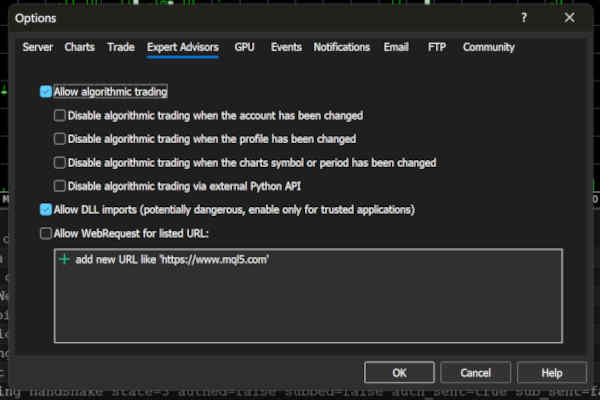
Step 5 — Enable Required MT5 Options
Open MetaTrader 5 and go to:
Tools >> Options >> Expert AdvisorsEnable these options:
- Allow algorithmic trading
- Allow DLL imports
Click OK. These settings are required because the EA must be allowed to run trading logic and load the WebSocket DLL library.
Step 6 — Attach AlgoWayWS-MT5 EA to a Chart
Open any chart in MetaTrader 5. The chart symbol is not the main routing rule because the webhook JSON controls the symbol, but the EA must be attached to a chart to run.
- Open Navigator.
- Open Expert Advisors.
- Find AlgoWayWS-MT5.
- Drag it onto a chart.
- Open the Inputs tab.
- Paste your AlgoWay webhook UUID.
Step 7 — Confirm the WebSocket Connection
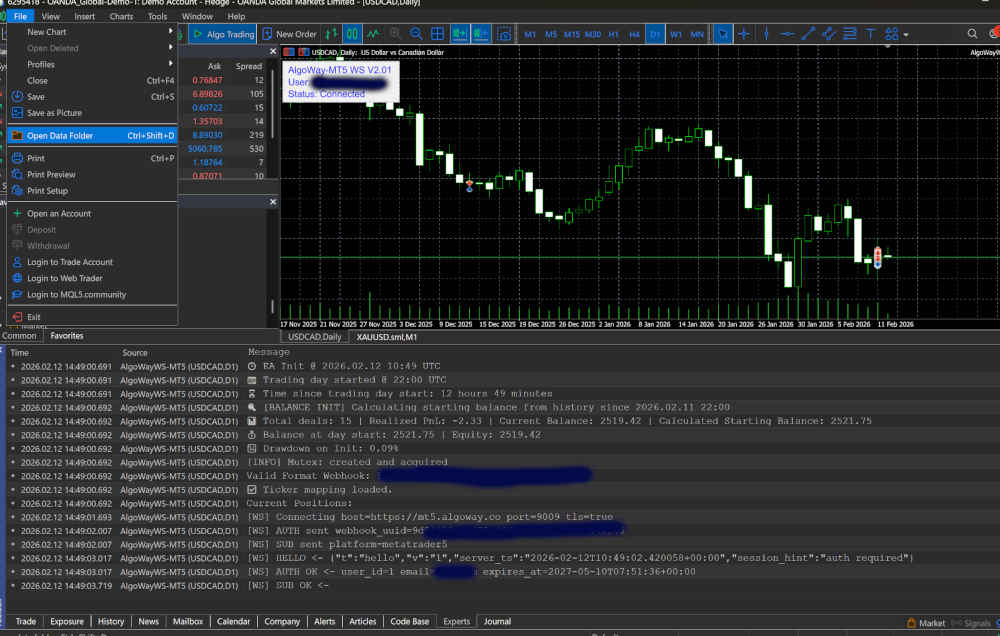
After clicking OK, check the MT5 Experts tab. The EA should print connection messages. Also check the Journal tab for terminal-level errors such as blocked DLL imports or missing runtime libraries.
If the EA is not connected, do not test live TradingView alerts yet. First check the UUID, MT5 permissions, internet connection, DLL permission and AlgoWay webhook status.
Step 8 — Send a Small Test Command
After the EA is connected, send a small test message from AlgoWay or from your webhook source. Use a small order size and a symbol that exists in your MT5 Market Watch.
{
  "platform_name": "metatrader5",
  "ticker": "EURUSD",
  "order_contracts": 0.01,
  "order_action": "buy"
}
Check the result in two places:
- AlgoWay Webhook Logs — confirms that AlgoWay received and routed the command.
- MT5 Experts / Journal — confirms whether MT5 accepted or rejected the execution.
Step 9 — Connect TradingView After MT5 Is Ready
Only after the EA is installed, connected and tested should you activate the TradingView alert. In TradingView, paste your AlgoWay webhook URL into the webhook URL field and use a valid JSON message.
{
  "platform_name": "metatrader5",
  "ticker": "{{ticker}}",
  "order_contracts": "{{strategy.order.contracts}}",
  "order_action": "{{strategy.market_position}}",
  "price": "{{close}}"
}
Full guide: How to connect TradingView to MetaTrader 5 with AlgoWay EA.
MT5 money sizing and Breakeven after TP1
The updated MT5 EA accepts optional JSON sizing modes money_fixed (a fixed USD margin budget) and money_risk (an intended USD loss budget at Stop Loss). These are MetaTrader 5 only *, use the broker's quotes and symbol rules to calculate lots, and are also selectable for MT5 in Telegram Copier Settings. They are different from percentage sizing and the cryptocurrency Fixed Money mode.
The EA also has a BreakevenAfterTP1 input. With Enable Breakeven and EA-managed Enable Multiple Take Profit active, it moves SL to the position entry price after TP1 partial close, not to the TP1 price. Details and examples: MT5 EA money modes, TP1-triggered breakeven and JSON schema.
Multiple TradingView Charts and Strategies with One MT5 EA
One MT5 account, one AlgoWay webhook UUID, and one running AlgoWayWS-MT5 EA are enough to receive signals from multiple TradingView charts, indicators, strategies, and alerts. You do not need one Expert Advisor per TradingView chart. The EA receives each message through its AlgoWay WebSocket connection and reads the ticker, action, quantity, and optional trade identifiers from the incoming JSON.
This is an important distinction between a TradingView webhook request and an AlgoWay webhook connection. You can create many TradingView alerts and point every one of them to the same AlgoWay webhook URL. That URL contains one UUID, and the single EA attached to your MT5 terminal uses that UUID in its inputs.
TradingView chart 1: Strategy A >>
TradingView chart 2: Strategy B >> Same AlgoWay webhook URL / UUID >> One AlgoWayWS-MT5 EA >> One MT5 account
TradingView chart 3: Indicator  >>
How to Connect Several TradingView Charts to the Same MT5 Account
- Create one MetaTrader 5 webhook in your AlgoWay dashboard and copy its webhook URL and UUID.
- Install and attach one AlgoWayWS-MT5 EA to a single chart in the MT5 terminal logged in to the intended trading account. Enter the UUID in the EA inputs and confirm the connection.
- Open each TradingView chart or strategy and create its alert. Set Webhook URL to the same AlgoWay URL in every TradingView alert.
- Give each alert its own valid JSON message. Use
tickerto choose the MT5 instrument and, when required, a stablecommentortv_order_idto identify the trades that message should manage. - Test one alert at a time on a demo account and verify the result in AlgoWay webhook logs and the MT5 Experts tab before enabling all alerts together.
UUID vs Magic Number vs comment vs tv_order_id
| Identifier | What it does | Where to set it |
|---|---|---|
Webhook UUID | Connects the AlgoWay webhook route to the intended running MT5 EA. All TradingView alerts for this connection use the same AlgoWay webhook URL. | AlgoWay dashboard and EA Inputs |
MAGIC_NUMBER | Marks orders and positions as belonging to this EA, so it can filter the trades it manages. The source default is 1973. It does not create a separate EA or strategy per chart. | EA Inputs |
comment | A stable identifier for the strategy or group of positions. Send the same value in entry and corresponding management or closing alerts. | TradingView alert JSON |
tv_order_id | An identifier for an individual trade or order. Reuse the same unique identifier when managing that specific trade. | TradingView alert JSON |
Identifier precedence matters: AlgoWayWS-MT5 reads comment first and uses tv_order_id only when comment is empty or omitted. They are not two independent filters applied simultaneously. Use a stable strategy-level comment or a unique trade-level tv_order_id for the relevant workflow; do not expect tv_order_id to override a nonempty comment.
Example: Two Strategies, Two TradingView Alerts, One Webhook URL
Assume TradingView strategy A trades EURUSD and strategy B trades GBPUSD. Both alerts point to the same AlgoWay webhook URL, and both execute through the same EA and MT5 account. Their comment values distinguish the strategies.
TradingView alert for strategy A:
{
  "platform_name": "metatrader5",
  "ticker": "EURUSD",
  "order_action": "buy",
  "order_contracts": 0.01,
  "comment": "STRATEGY-A"
}
TradingView alert for strategy B:
{
  "platform_name": "metatrader5",
  "ticker": "GBPUSD",
  "order_action": "sell",
  "order_contracts": 0.01,
  "comment": "STRATEGY-B"
}
When strategy A sends a closing alert, use the matching comment to target its positions, not the comment used by strategy B. The following example asks MT5 to close 0.01 lots of matching EURUSD exposure:
{
  "platform_name": "metatrader5",
  "ticker": "EURUSD",
  "order_action": "flat",
  "order_contracts": 0.01,
  "comment": "STRATEGY-A"
}
One strategy can open several trades with the same comment. In that case, the comment identifies the strategy's matching positions, not necessarily exactly one trade. To manage a particular trade, use a distinct tv_order_id as shown below.
Example: Identify and Close One Specific MT5 Trade with tv_order_id
Use a unique, stable order identifier for the entry. Supply exactly the same identifier on the follow-up closing or modification alert. In this example the comment field is deliberately omitted so tv_order_id becomes the EA's matching identifier.
Entry:
{
  "platform_name": "metatrader5",
  "ticker": "EURUSD",
  "order_action": "buy",
  "order_contracts": 0.01,
  "tv_order_id": "EURUSD-TRADE-0001"
}
Close the matching trade:
{
  "platform_name": "metatrader5",
  "ticker": "EURUSD",
  "order_action": "flat",
  "order_contracts": 0.01,
  "tv_order_id": "EURUSD-TRADE-0001"
}
Keep the identifier unchanged across the trade's lifecycle, and give a new trade a new ID. Do not send a different identifier in the exit alert and expect the EA to guess the original position.
Common Installation Problems
EA Does Not Appear in Navigator
Confirm that AlgoWayWS-MT5.ex5 is inside MQL5\Experts\. Restart MT5 or refresh the Navigator panel.
DLL Cannot Be Loaded
Check that asyncwinhttpwebsockets.dll is inside MQL5\Libraries\, Allow DLL imports is enabled, and the required Microsoft Visual C++ runtime is installed.
EA Loads but Does Not Connect
Check the webhook UUID, internet access, AlgoWay webhook status and MT5 Experts log.
TradingView Fires but MT5 Does Not Trade
Check whether AlgoWay received the webhook, whether the EA is connected, whether Algo Trading is enabled, and whether MT5 returned an execution error.
Error 4752
Error 4752 means MT5 is blocking Expert Advisor trading. Read: How to fix MT5 Error 4752.
Error 4756
Error 4756 means the trade request failed or was rejected. Read: How to fix MT5 Error 4756.
Webhook Error 415
Error 415 usually means the TradingView alert message is not valid JSON. Read: How to fix AlgoWay webhook Error 415.
Where to Find Full EA Documentation
- AlgoWayWS-MT5 EA 2.21 guide
- AlgoWay JSON schema guide
- Advanced risk management and trade automation
- How AlgoWay handles opposite trading signals
- MetaTrader 5 common errors in AlgoWay
Why This URL Still Says v10
The filename algoway-mt5-ws-v10-overview.html was retained from an earlier version of the AlgoWayWS-MT5 documentation. The content is now maintained as the current AlgoWayWS-MT5 installation guide for TradingView-to-MT5 automation.
Final Summary
AlgoWayWS-MT5 EA installation has two safe paths: Auto Installer for most users, and manual Data Folder installation for advanced cases. After the files are installed, enable algorithmic trading and DLL imports, attach the EA to a chart, paste the AlgoWay webhook UUID, confirm the WebSocket connection, and test a small JSON command before using live TradingView alerts.
Frequently Asked Questions
Does AlgoWay work with MetaTrader 5 on Mac?
Yes. Use the AlgoWay Universal Build with the desktop version of MetaTrader 5 on macOS. MT5 on Mac uses a Wine-based compatibility environment, and Universal Build uses native MQL5 sockets without external DLLs or Microsoft Visual C++ Redistributable. Keep the MT5 desktop terminal running for automated trading.
Does AlgoWay work with the web-based version of MT5?
No. MetaTrader 5 WebTerminal cannot run Expert Advisors. Install and run AlgoWay in the MT5 desktop terminal on a computer or VPS. You can still access the same trading account through MT5 WebTerminal to monitor positions and manage trades while the EA is running.
What is AlgoWay Universal Build, and does it require DLLs or Visual C++?
AlgoWay Universal Build is a standalone MT5 Expert Advisor that uses native MQL5 sockets instead of external WebSocket DLLs. It does not require third-party DLL libraries, a separate Microsoft Visual C++ Redistributable installation, or Windows-specific runtime components for the EA. It is suitable for MT5 desktop environments on Windows and Wine-based Linux or macOS installations.
Why does the AlgoWay MT5 EA fail to connect from my VPS?
Some VPS providers block outbound connections on non-standard ports through their firewalls, even when normal internet access works. The AlgoWay EA requires an outbound TCP connection to the AlgoWay MT5 server on port 9009. If the EA reports connection errors, ask your VPS provider to allow outbound TCP connections on port 9009. You do not need to open inbound port 9009 on your VPS. This requirement applies to both the standard WebSocket EA and Universal Build.
Do I need one MT5 EA for each TradingView chart?
No. Attach one AlgoWayWS-MT5 EA to one MT5 chart and connect it using the webhook UUID. All your TradingView alerts for that account can use the same AlgoWay webhook URL.
Can several TradingView strategies use the same AlgoWay webhook UUID?
Yes. Each strategy can send independent JSON alerts to that webhook. Use comment to distinguish strategy-level trades and a unique tv_order_id when you need trade-level identification.
Does MAGIC_NUMBER select which TradingView strategy receives an alert?
No. The EA uses its Magic Number to identify and manage its own MT5 trades. The incoming JSON and its optional trade identifiers determine how individual strategy signals are handled.
Can I run the same UUID on a second MT5 trading account?
No. A competing activation from another account blocks the active EA connections associated with that webhook. Keep one UUID associated with its intended account connection.
Can I trade several strategies on the same EURUSD symbol?
Yes, but independent positions on the same symbol require attention to your MT5 account mode. Hedging supports separate positions; Netting merges exposure into one position per symbol.
What happens if I send comment and tv_order_id together?
In AlgoWayWS-MT5, a nonempty comment has priority. The tv_order_id is used as the identifier only when comment is not provided.
Can a single MT5 EA trade all symbols and currency pairs from one chart?
Yes. The EA can receive commands for broker-supported symbols through the same webhook even when it runs on only one MT5 chart. The ticker field in each JSON alert selects the instrument.
What are the maximum BUY and SELL position limits?
In EA Inputs, MaxOpenPositions = 0 removes the EA-defined total position limit, while MaxOpenPositionsPerDirection = 0 removes its per-direction limit. Positive values impose limits on positions managed by the EA's Magic Number, across symbols and strategies. Broker and account restrictions still apply.
For all available parameters and supported closing or modification commands, see the AlgoWay JSON schema guide and the complete MT5 EA guide.