
How to Connect TradingView to cTrader with AlgoWay: FIX-P or OAuth O-API
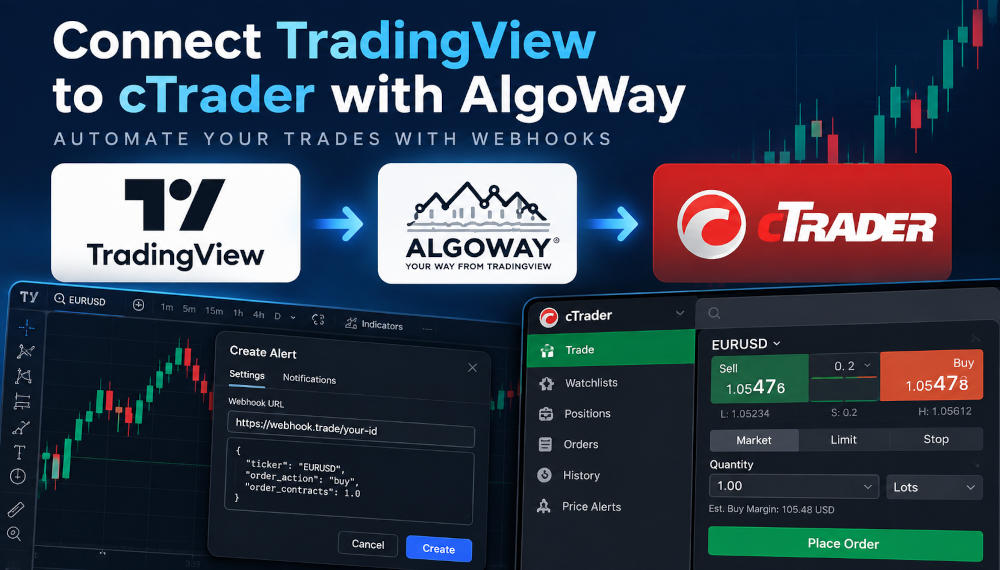
AlgoWay can deliver TradingView trading alerts to cTrader through two different connections: cTrader FIX-P and cTrader O-API (Open API with OAuth). Both use a webhook URL in TradingView, but the authorization process and available order-management features are different.
Choose cTrader O-API if your strategy needs Stop Loss, Take Profit or trailing stop management. The AlgoWay cTrader FIX-P route is intended for basic trade execution and does not support SL, TP or trailing stops. This is a limitation of the FIX-P route offered in AlgoWay, not a claim that every FIX implementation has the same capabilities.
TradingView alert -> AlgoWay webhook -> cTrader FIX-P or O-API -> trading accountLast updated: 2026-10-10 • Author: AlgoWay
Quick Answer: Which cTrader Connection Should You Use?
Use cTrader O-API for trading automation that includes position protection and management. OAuth lets you grant AlgoWay permission to trade on a selected cTrader account without entering your account password or FIX credentials. Choose cTrader FIX-P for basic order execution using dedicated FIX session credentials when SL, TP and trailing stops are not required from this connection.
| Feature | cTrader FIX-P in AlgoWay | cTrader O-API in AlgoWay |
|---|---|---|
| Authorization | FIX server, port, SenderCompID and FIX password | cTrader OAuth account authorization |
| Open and close trades | Yes, for supported order operations | Yes, for supported order operations |
| Stop Loss (SL) | Not supported | Supported |
| Take Profit (TP) | Not supported | Supported |
| Trailing stop | Not supported | Supported for applicable orders and configurations |
| Best for | Basic entry and exit automation | Strategies requiring SL/TP or position management |
Choose FIX-P or O-API in the AlgoWay Dashboard
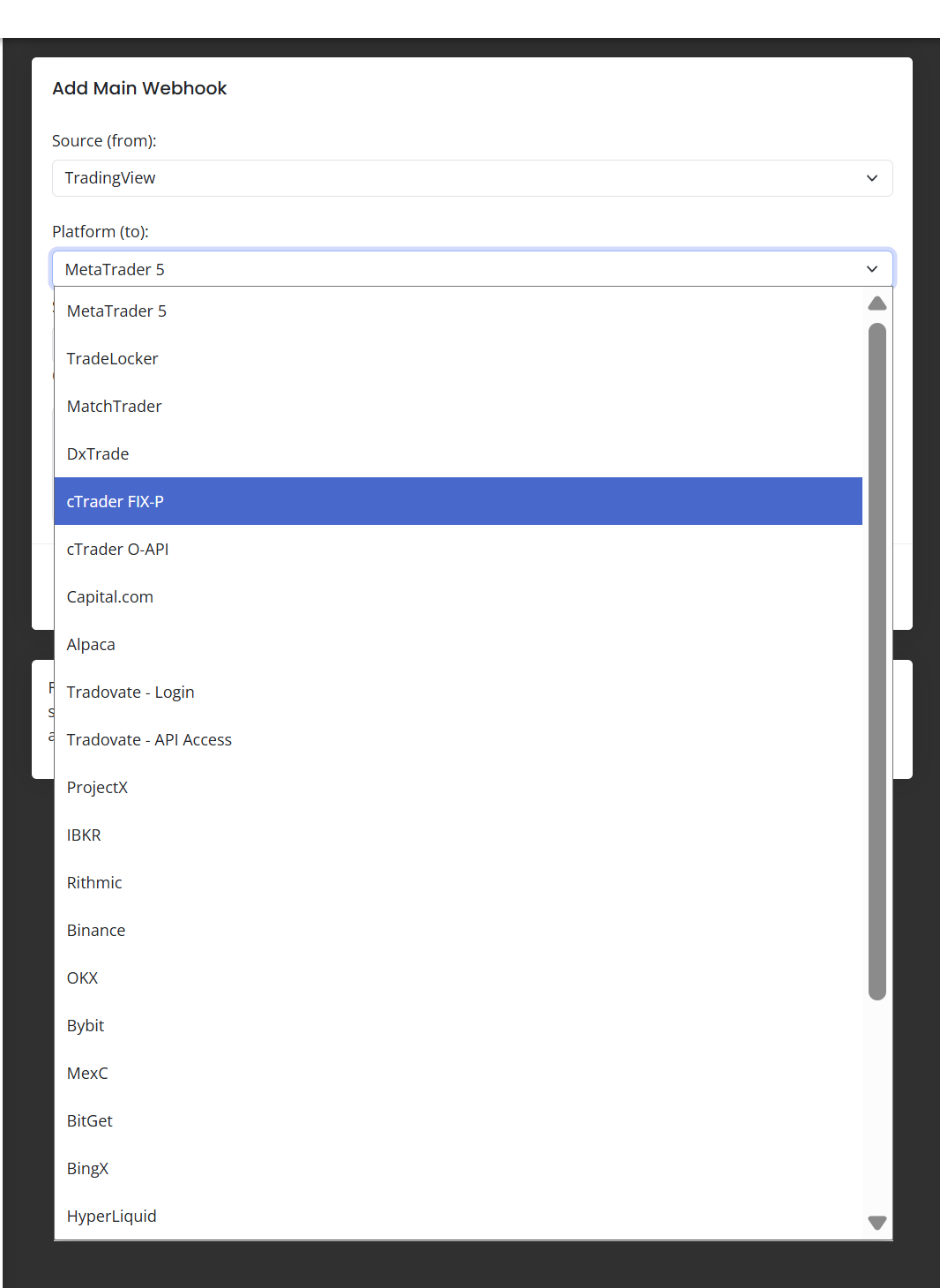
In the AlgoWay webhook creation form, choose TradingView under Source (from). Under Platform (to), the cTrader integration appears as two separate destinations: cTrader FIX-P and cTrader O-API. They are not interchangeable, and the authentication form changes with your selection.
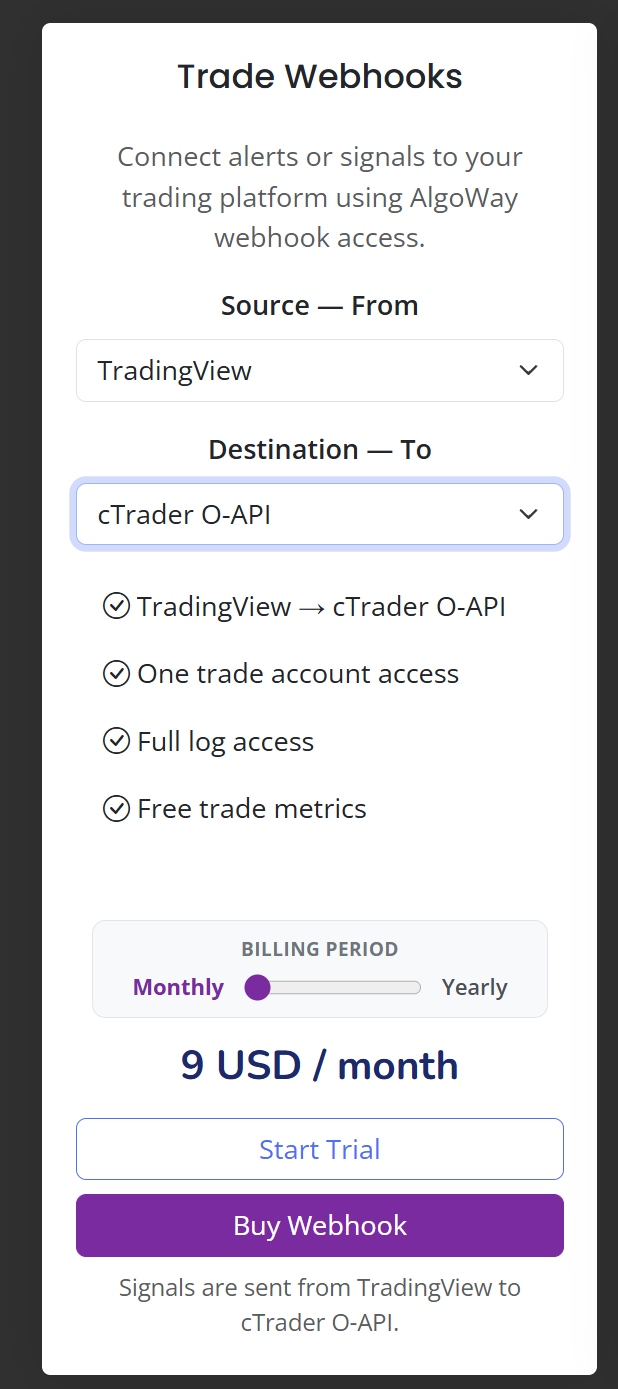
The same selection is available when starting a new webhook from the connection or trial screen. The next screenshot shows TradingView -> cTrader O-API selected, with trial and subscription actions below. Current billing terms are shown in your dashboard.
What You Need Before Starting
Prepare a cTrader trading account, an AlgoWay account and a TradingView strategy or alert with webhook delivery enabled. Start on a demo account where practical. You will create a separate AlgoWay webhook for the cTrader account you connect.
For O-API, you need access to the cTrader login that owns the account and permission to authorize AlgoWay via OAuth. For FIX-P, your broker must make FIX API access available, and you need that account's trade session credentials and a dedicated FIX password.
Method 1. Connect cTrader O-API with OAuth
This is the recommended route for strategies that need automated Stop Loss, Take Profit or trailing stop behavior. It uses cTrader Open API and an explicit permission screen, rather than the FIX trade session details.
Step 1. Select cTrader O-API
- Sign in to AlgoWay and open the webhook creation form (trial or standard webhook, according to your account).
- Select TradingView under Source (from).
- Select cTrader O-API under Platform (to), not cTrader FIX-P.
- Review Quantity Multiplier, Trade Type and other optional settings for your strategy.
Step 2. Authorize Your cTrader Account
- In the O-API connection form, click Get Token from cTrader.
- A cTrader authorization window opens at id.ctrader.com. Sign in there when prompted.
- Review the requested permission to place orders and manage positions. Select the specific Demo or Live trading account you intend AlgoWay to use.
- Click Allow access to authorize AlgoWay for the selected account.
- Return to the webhook form and confirm that the Account ID, Account Type, Access Token, Refresh Token and Access Token Expires At (UTC) correspond to the authorized connection.
Step 3. Review the Connection and Save
- Match the Account ID to the account you allowed in the cTrader authorization window.
- Select the corresponding Demo or Live value in Account Type.
- Check Quantity Multiplier, Trade Type and optional Symbol Mapping so that the TradingView quantity and symbol are interpreted correctly.
- Save using Add Main Webhook or Add Trial Webhook, depending on the form you opened.
- Locate the new webhook URL and the JSON message template on the AlgoWay dashboard.
OAuth authorizes the selected account; it does not authorize all accounts connected to a cTrader login. If you select a different account in AlgoWay, make sure that account was included in the permission granted to AlgoWay.
Step 4. Use O-API for Protective Orders
For SL, TP or trailing stop management, use the fields and settings supported by the AlgoWay cTrader O-API connection and your chosen order type. Open API can handle these protective-order operations where the account and order configuration permit them; they are not available through AlgoWay's cTrader FIX-P route. Check the executed position and its actual protection in cTrader after testing an alert. Do not assume that a successful entry means every protective order was also created.
Method 2. Connect cTrader FIX-P
Choose FIX-P for basic trade execution without AlgoWay-managed SL, TP or trailing stops. This method uses FIX credentials from the cTrader platform, rather than the cTrader OAuth permission window.
Step 1. Sign In to cTrader
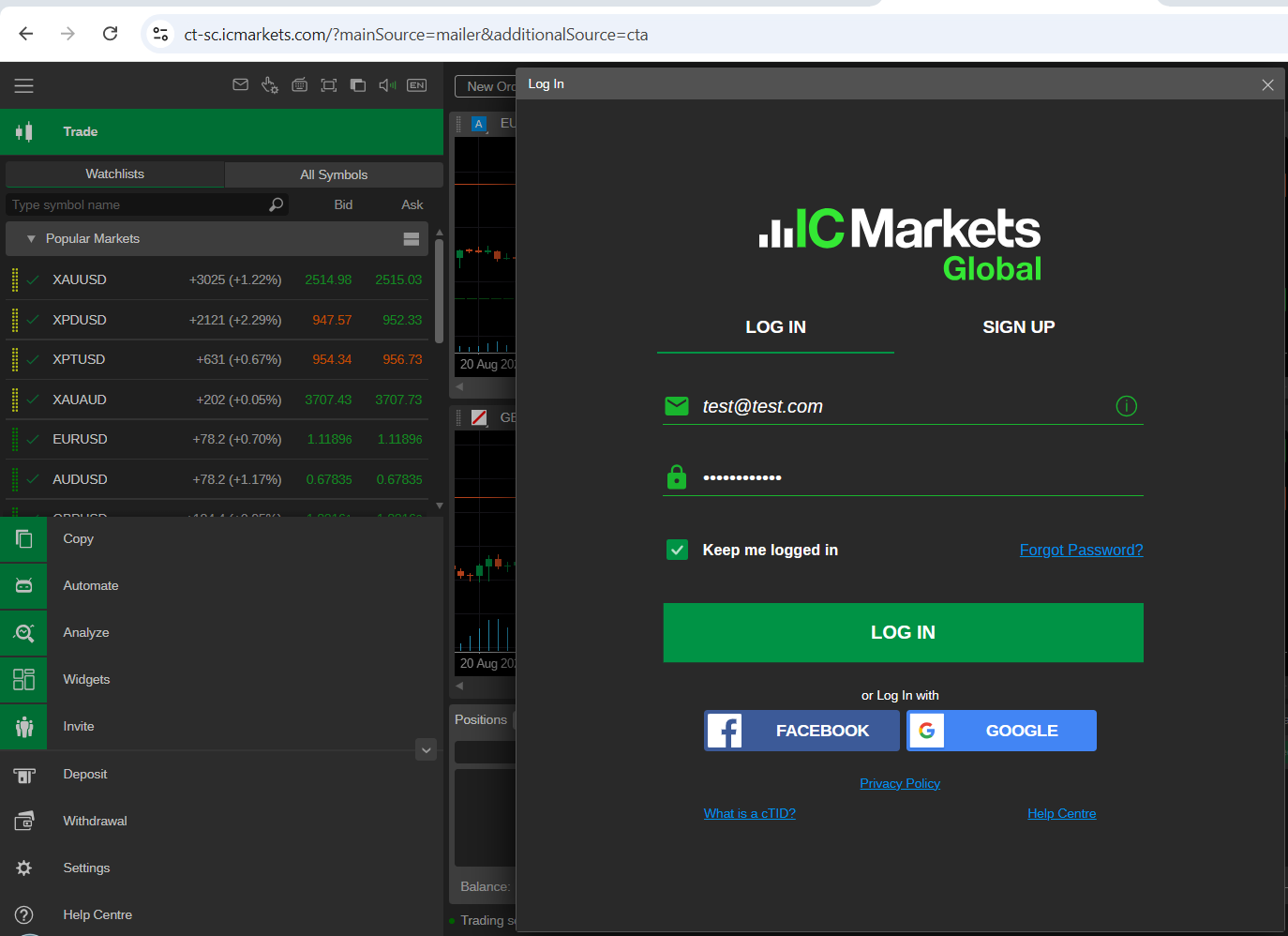
Open cTrader through your broker, sign in and select the trading account you want to automate. Demo and live accounts can have different FIX API credentials.
Step 2. Obtain FIX-P Trade Session Credentials
- In cTrader, open Settings > FIX API.
- Find the FIX connection details for your selected account.
- Use the trade connection, not the separate price connection.
- Copy the Server, Port and SenderCompID from the trading session.
- Set a separate FIX API password using Change password. Do not enter your ordinary cTrader login password into the FIX-P form.
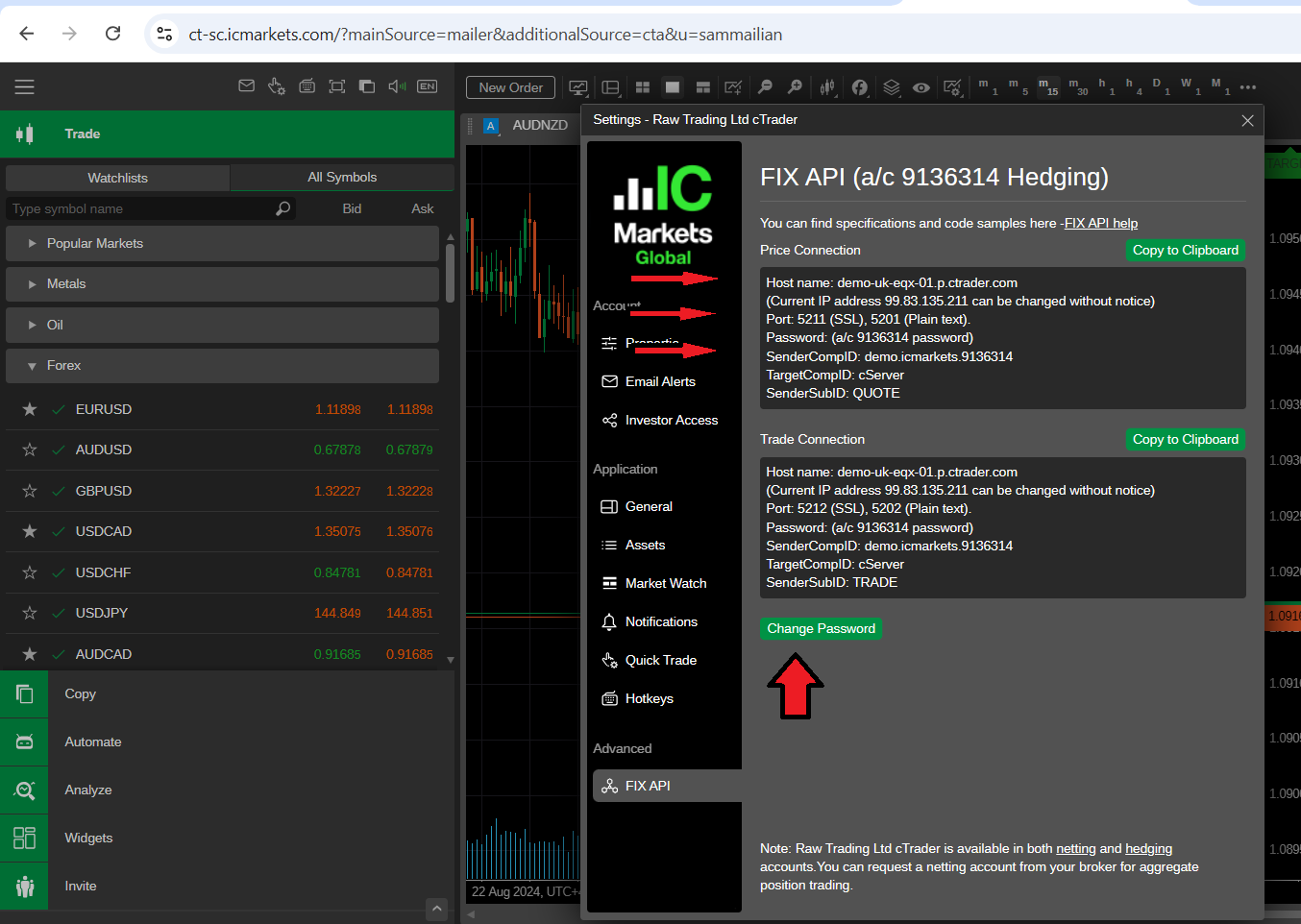
See the official cTrader FIX credentials documentation for the difference between price and trade connections.
Step 3. Create the cTrader FIX-P Webhook in AlgoWay
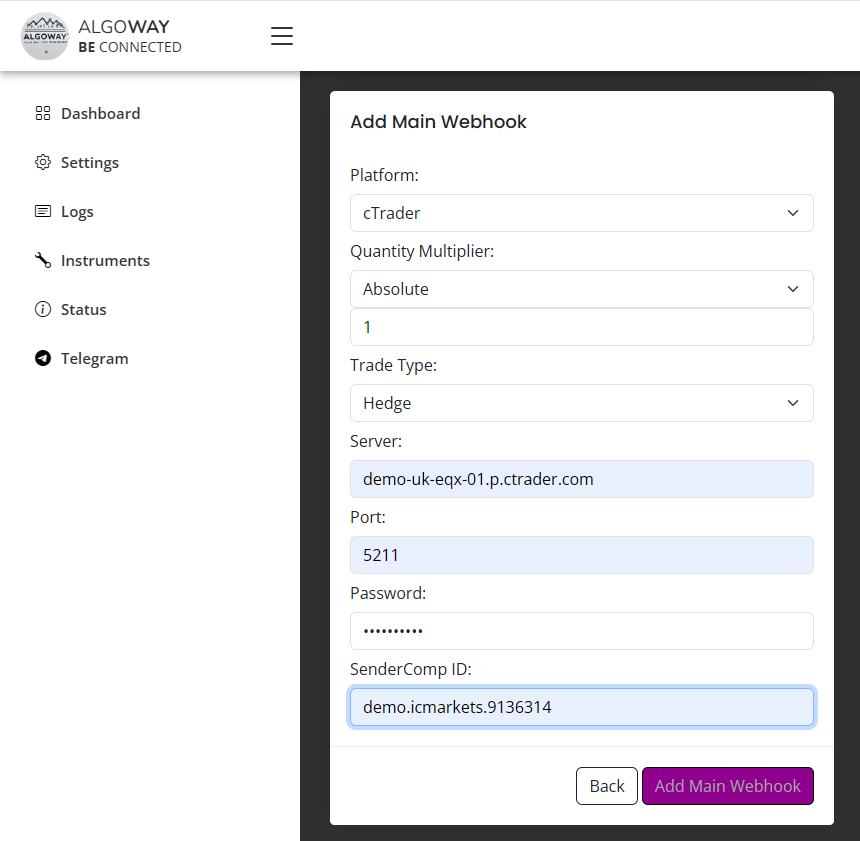
- In the AlgoWay dashboard, click Add Main Webhook.
- Select TradingView under Source (from).
- Select cTrader FIX-P under Platform (to).
- Enter the FIX trade connection details from cTrader, including the dedicated FIX password.
- Review quantity, trading mode and symbol mapping, then save the webhook.
Step 4. Verify the Webhook in the Dashboard
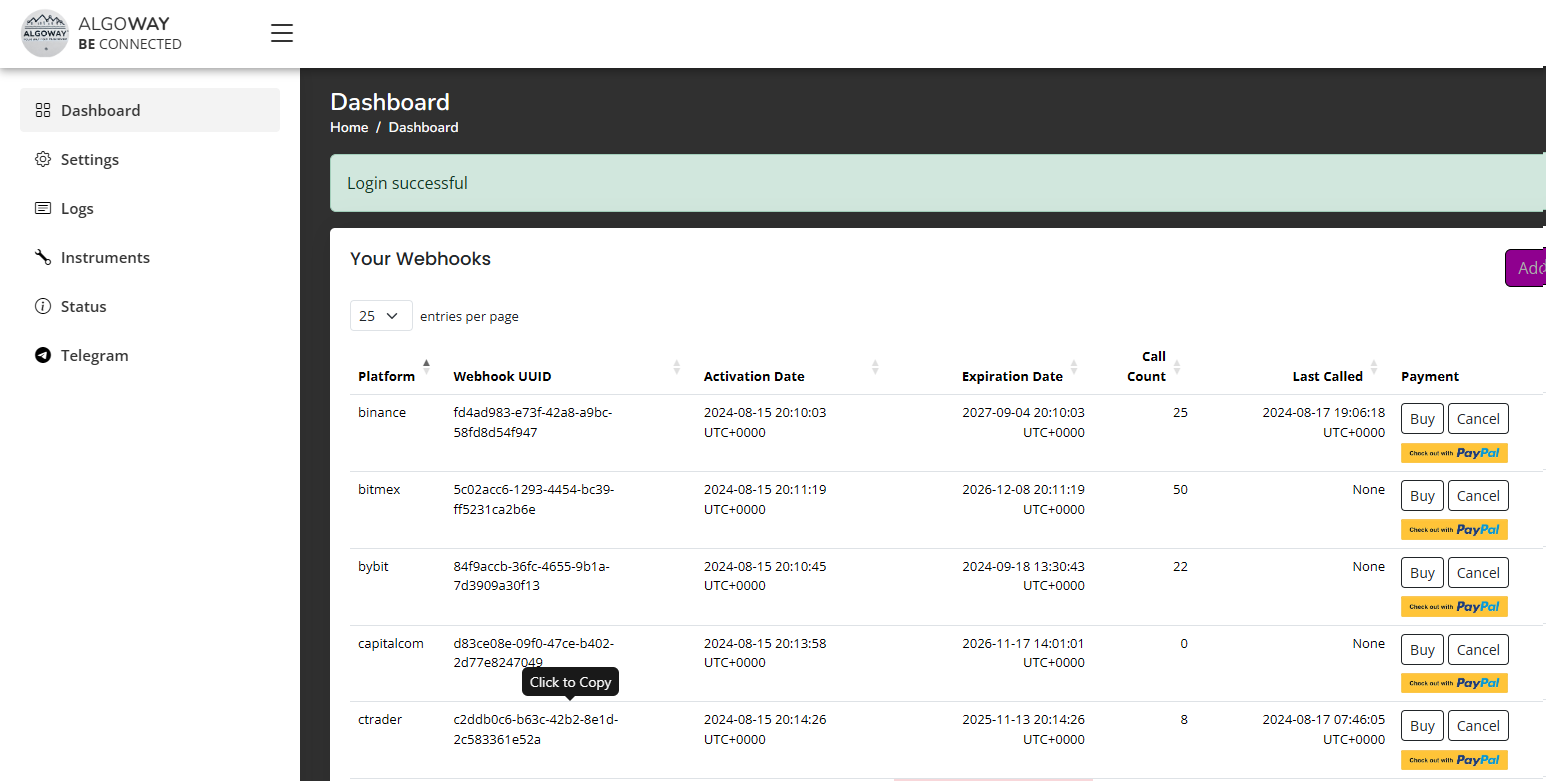
After saving, find the cTrader FIX-P webhook in your AlgoWay dashboard. Confirm the intended account and the unique webhook URL. Keep that URL private.
Set Up TradingView Alerts for Either cTrader Connection
Once you have saved one cTrader connection (FIX-P or O-API), the TradingView side follows the same basic pattern. Each webhook has its own unique URL; paste the URL and JSON message from the specific AlgoWay route you want to use.
Step 1. Create the TradingView Alert and JSON
- Open your TradingView chart, strategy or indicator and create an alert with the intended trigger condition.
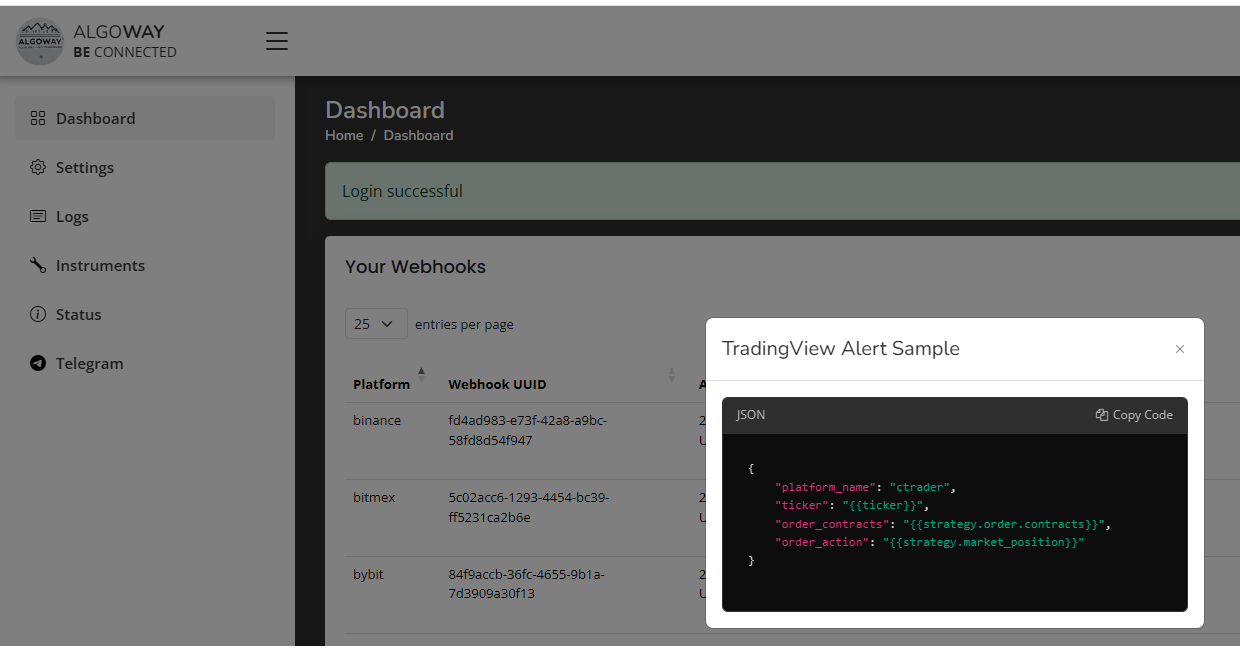
- Open the JSON example for your newly created webhook in the AlgoWay dashboard.
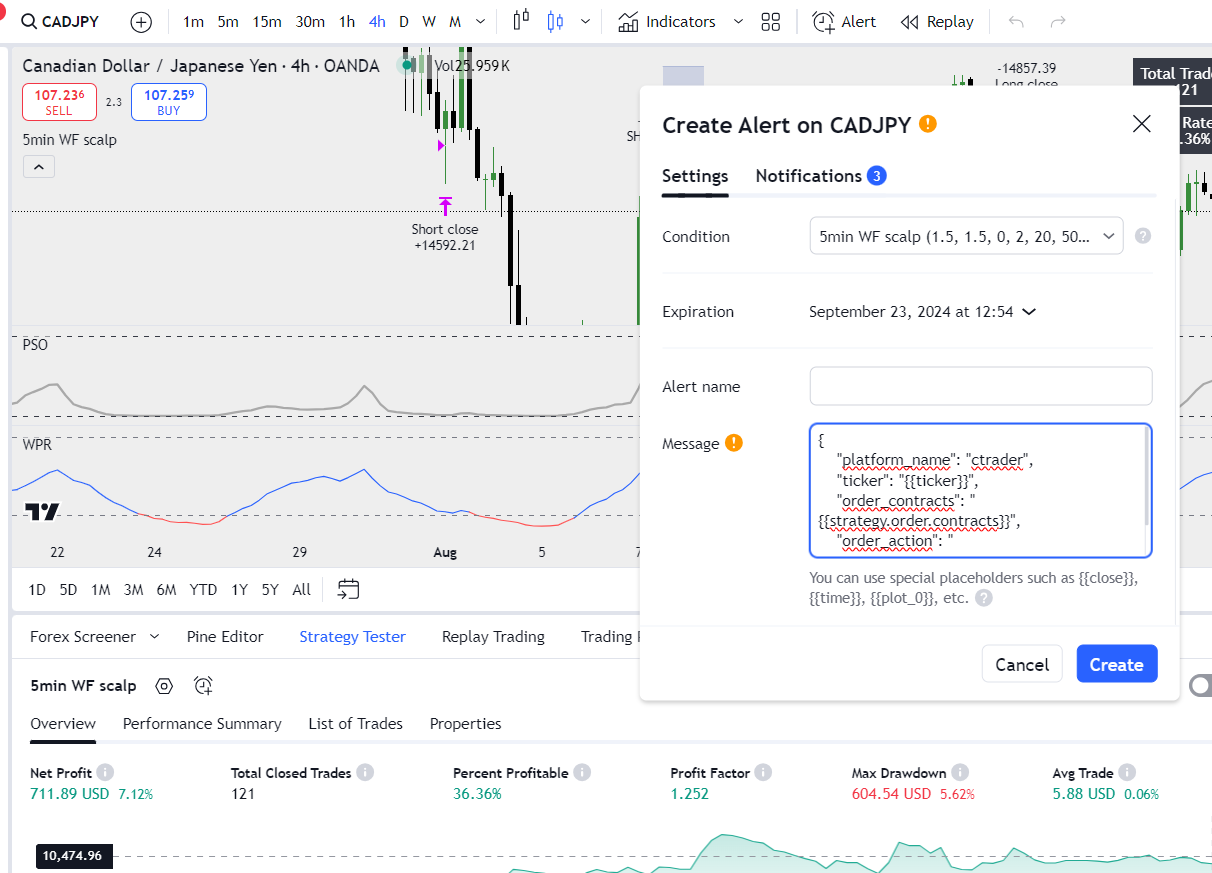
- Copy the JSON into TradingView's Message field.
- For a TradingView strategy order-fill alert, a basic AlgoWay order message uses the following fields:
{"ticker":"{{ticker}}","order_action":"{{strategy.order.action}}","order_contracts":"{{strategy.order.contracts}}"}This example is for strategy order-fill alerts. Other alert sources may use different values. The JSON shown in your AlgoWay dashboard takes precedence over a generic sample. Do not add OAuth credentials or a FIX API password to the message.
Step 2. Insert the AlgoWay Webhook URL
In TradingView's alert notifications, enable Webhook URL and paste the URL for the correct AlgoWay cTrader connection.
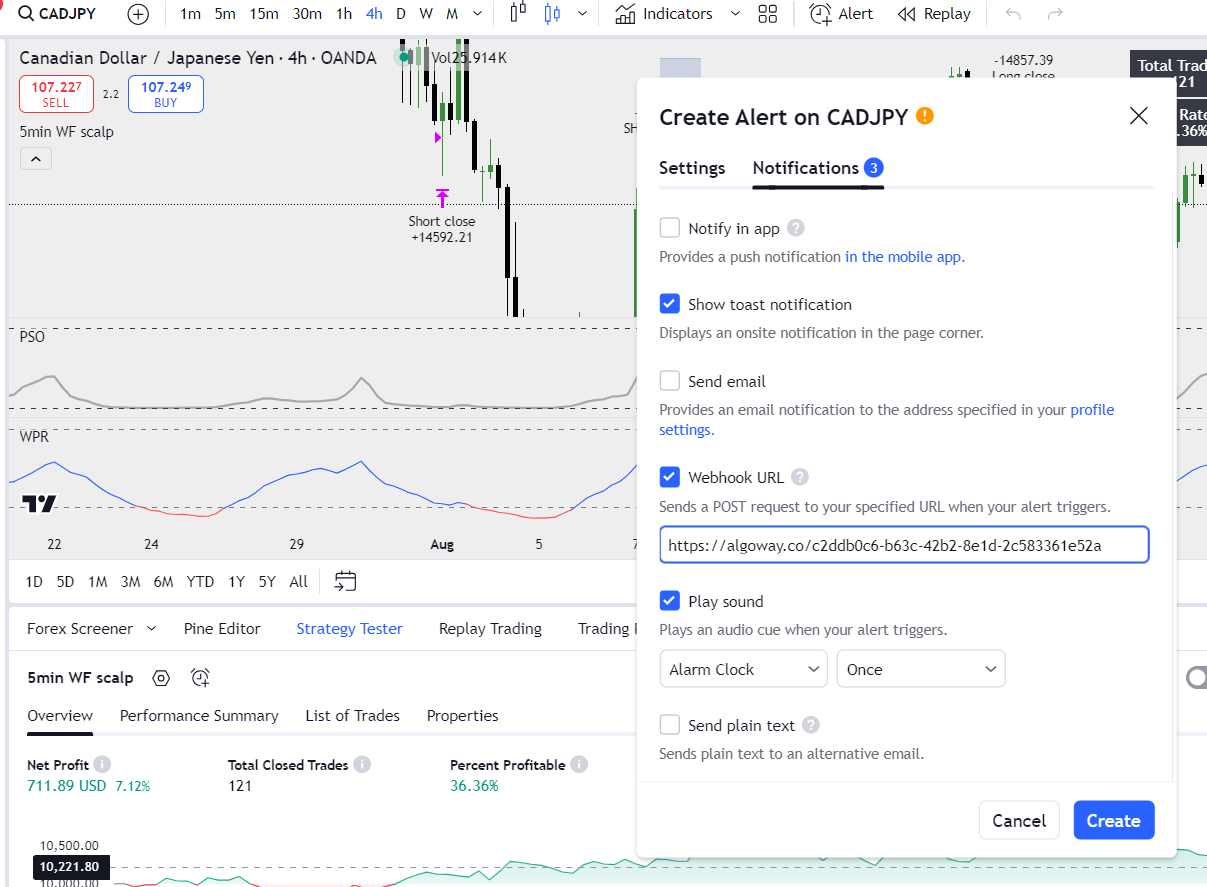
Review the trigger condition, message, webhook URL and alert frequency, then click Create.
Test TradingView to cTrader Execution
- Use a Demo account and a small valid position size for the first test.
- Trigger a controlled TradingView alert and verify it was received in the AlgoWay webhook logs.
- Check the order execution response and confirm the symbol, direction and size in the corresponding cTrader account.
- For O-API, where applicable, also verify that the requested SL, TP and trailing protection is actually present and updates correctly.
- For FIX-P, do not expect AlgoWay to create or adjust SL, TP or trailing stops.
An alert marked as delivered in TradingView is not proof that an order executed in cTrader. Use the AlgoWay log and the destination account to verify the result.
Common cTrader Connection Problems
Stop Loss, Take Profit or Trailing Stop Does Not Work
First check the webhook's destination. cTrader FIX-P does not implement these functions in AlgoWay. Use cTrader O-API for supported position protection and management, and verify the order configuration and execution logs.
OAuth Permission Was Not Granted
Return to the O-API connection form, click Get Token from cTrader, sign in to the correct cTrader account and approve Allow access. Check that the account in the authorization window matches the account selected in AlgoWay.
Expired or Missing O-API Token
Inspect the webhook connection and the exact AlgoWay log message. Use the cTrader authorization flow again when necessary. Never paste an access or refresh token into a publicly visible support post.
Account ID or Demo/Live Mismatch
For O-API, compare the Account ID and Account Type in AlgoWay with the account selected in the cTrader OAuth permissions screen. A demo account must not be configured as live, or vice versa.
FIX Credentials Are Rejected
Verify the trade connection server, port, SenderCompID and dedicated FIX password under cTrader > Settings > FIX API. Do not use the separate price connection or the ordinary platform login password.
TradingView Symbol or Order Quantity Is Rejected
Check instrument naming and quantity constraints for the connected cTrader account. Review the Symbol Mapping and Quantity Multiplier in AlgoWay, then use a supported order size and symbol for a small test.
TradingView Alert Arrives, but No Trade Appears
Check the complete response in your AlgoWay webhook logs. Confirm that the URL belongs to the intended cTrader FIX-P or O-API connection, and that the correct account and credentials or OAuth authorization are active.
Frequently Asked Questions
What is the difference between cTrader FIX-P and O-API in AlgoWay?
FIX-P authenticates with dedicated FIX session settings for basic trade execution. O-API uses cTrader OAuth account permission and supports position protection such as SL/TP and applicable trailing stops.
Does AlgoWay support Stop Loss and Take Profit on cTrader FIX-P?
No. The AlgoWay cTrader FIX-P integration does not provide SL or TP management. Use cTrader O-API when the strategy requires them.
Does cTrader FIX-P support trailing stops in AlgoWay?
No. Trailing stops are not supported by the AlgoWay cTrader FIX-P route. Use the O-API connection for supported trailing-stop operations.
Do I need to share my cTrader account password for OAuth?
No. Authorize AlgoWay in cTrader's own OAuth permission window. Access and refresh tokens should remain private and should not appear in TradingView alerts.
Can I use a cTrader demo account first?
Yes. Select and authorize a demo account under O-API, or obtain its dedicated FIX settings for FIX-P, then verify the results with a small test order.
Can the same TradingView alert point to both cTrader routes?
Each AlgoWay webhook is a distinct account connection with its own URL. Choose the route that the TradingView alert is intended to execute on; do not treat the two destinations as a single combined account.
Related AlgoWay Guides
- How to automate TradingView alerts to a broker with AlgoWay
- How to create a webhook in TradingView
- AlgoWay JSON schema guide
- How to fix AlgoWay webhook Error 415
Final Summary
Choose cTrader O-API for trading strategies that need SL, TP or trailing stops, and authorize the selected trading account through OAuth. For basic orders that do not need those features, cTrader FIX-P connects through dedicated FIX trading credentials. In either case, finish by creating the TradingView alert using the unique AlgoWay webhook URL and JSON message, then verify the outcome on a demo account.
[an error occurred while processing this directive]