
How to Copy Trades from MT5 to Other Trading Platforms with AlgoWay
An Expert Advisor can make perfectly good trading decisions inside MetaTrader 5 and still be useless to an account running on another platform. AlgoWay MT5 CopierBot closes that gap. It observes trading activity in the source MT5 terminal and forwards supported trading instructions through an AlgoWay webhook to the selected destination. This guide uses a real MT5-to-TradeLocker configuration, with screenshots from CopierBot 1.40 and both terminals.
Updated October 15, 2026 · Source: MetaTrader 5 · Example destination: TradeLocker · EA: AlgoWay-MT5-CopierBot 1.40
MT5 account / MQL5 Expert Advisor >> AlgoWay MT5 CopierBot >> AlgoWay webhook route >> TradeLocker accountWhat is actually being copied?
MT5 is the source; it is not the destination in this tutorial. An existing MQL5 strategy, a commercial Expert Advisor or a manual MT5 order can create trading activity on that source account. AlgoWay-MT5-CopierBot reads the supported trading events and sends instructions to the webhook selected in its settings. AlgoWay applies the destination's symbol, position mode and quantity configuration before requesting execution through the destination connection.
The publicly documented MT5 source capabilities include market entries and exits, reversal transactions, Buy Limit and Sell Limit orders, Buy Stop and Sell Stop orders, pending-order deletion, optional forwarding of entry price and SL/TP, and up to ten source-to-destination symbol mappings. Actual execution support depends on the receiving platform and account. See the AlgoWay capabilities reference.
Do not confuse the two MT5 EAs. AlgoWay-MT5-CopierBot is the source-side copier used here. AlgoWayWS-MT5 is a different, destination-side EA for executing signals in an MT5 account. Installing the destination EA alone will not copy existing MT5 trades outward.
Before you begin
Prepare an AlgoWay account, an MT5 terminal logged into the source trading account, the official AlgoWay-MT5-CopierBot 1.40 EA file, and credentials for the intended destination. For the example below you need the TradeLocker environment URL, login email, password, broker server name and numeric Account ID. Use a demo destination and the smallest sensible order size while checking the setup.
You do not need to modify your existing MQL5 trading strategy or turn it into a webhook script. The CopierBot is attached to the source MT5 terminal and works as a separate EA. The first configuration step, however, takes place in AlgoWay—not in MetaTrader.
1. Create a MetaTrader 5 source webhook
Open the AlgoWay Store, then choose Trade Webhooks. Under Source — From, select MetaTrader 5. Under Destination — To, select TradeLocker. Confirm that the route summary reads MetaTrader 5 >> TradeLocker. The Store shows the trial and subscription options; choose the one appropriate to your account and continue. The example screenshot shows a monthly price of $7, which is a snapshot rather than a promise of future pricing.
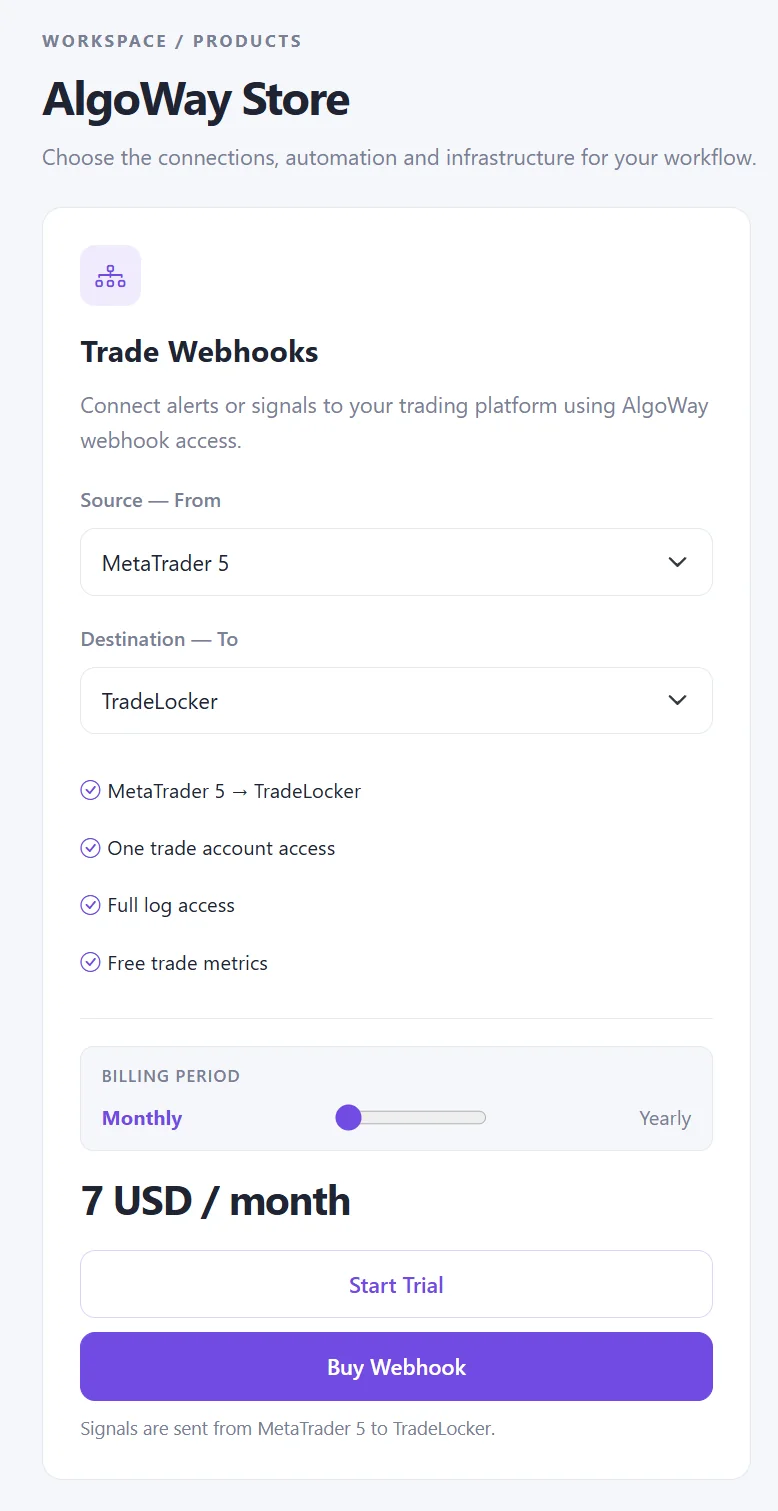
On the webhook creation page, the source label may appear simply as MetaTrader. This is the same MT5-originated workflow shown in the Store. The important part is the selected receiving platform and its account configuration.
2. Configure the destination account
The illustrated Add Trial Webhook form is configured for TradeLocker. Choose MetaTrader under Source and TradeLocker under Platform. The form then exposes the settings used to identify and control the receiving account.
| Field | Meaning in this example |
|---|---|
| Quantity Multiplier | Absolute with value 1 is the illustrated starting configuration. Check actual destination exposure before live copying. |
| Trade Type | Hedge/Dual side is selected in the screenshot. Choose a mode supported by your destination account and desired reversal behavior. |
| URL | The TradeLocker environment URL, such as the demo environment shown in the form. |
| Email / Password | Credentials for the receiving TradeLocker account. |
| Server | The TradeLocker broker server name, not the source MT5 server. |
| Account ID | The numeric identifier of the destination account. |
| Symbol Mapping | Optional FROM:TO pairs when source and destination instrument names differ. |
| News Filter | A separate route setting. It is No in the illustrated setup. |
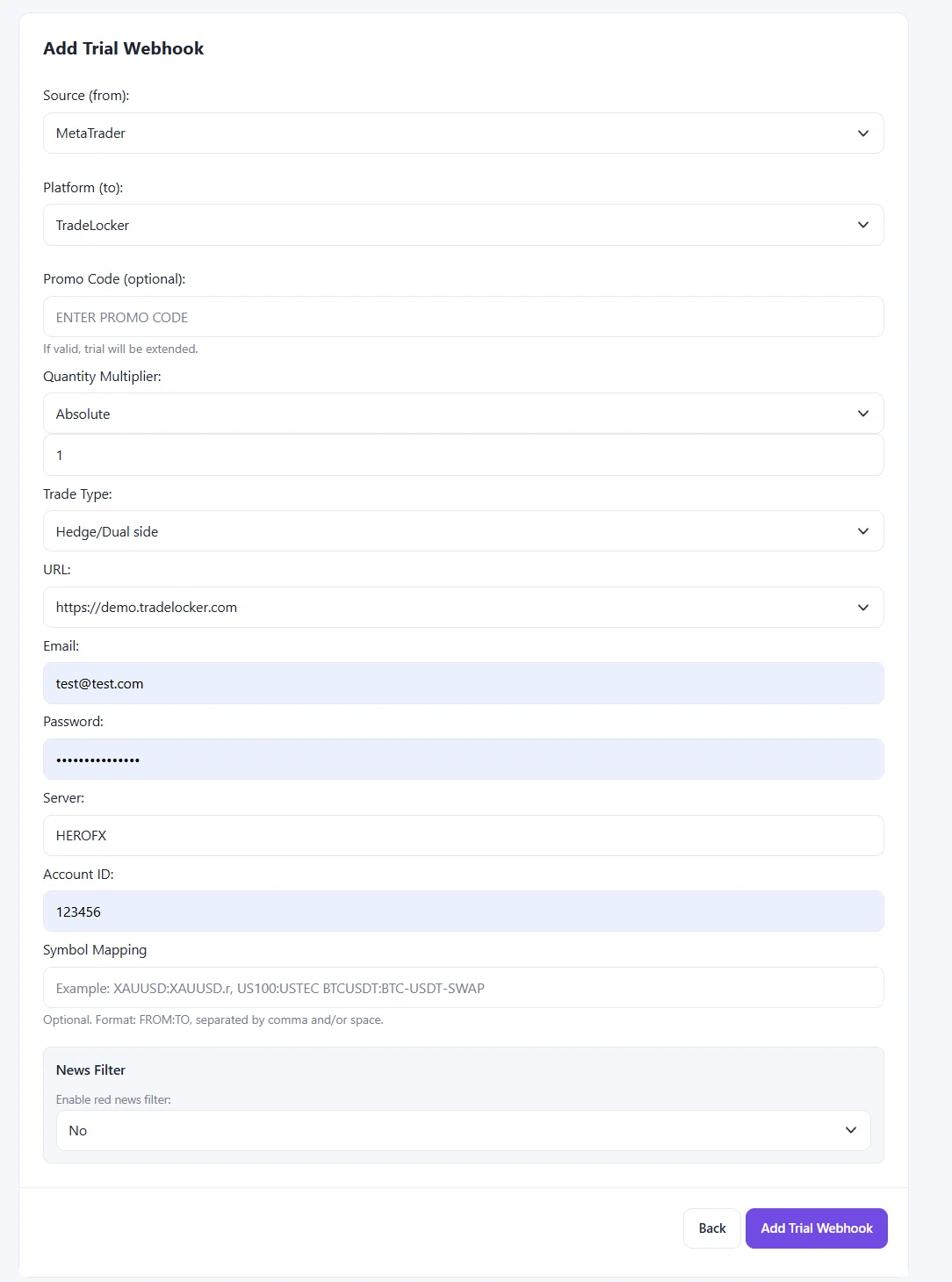
For a first test using identical symbol names, leave Symbol Mapping empty. When the source and destination use different tickers, enter the corresponding mapping before sending an order. Save the route using Add Trial Webhook (or the equivalent button for your subscription).
Quantity is not automatically identical exposure. A 0.01-lot MT5 forex position, a futures contract and a crypto quantity are not interchangeable units. Even when a route uses Absolute / 1, verify the actual size, symbol specification and account risk on the receiving platform.
3. Find the new connection and its webhook URL
After saving, AlgoWay opens Connections and confirms that the webhook was added. The example displays a new row with source METATRADER and destination TradeLocker. Use the connection's own webhook identifier or full URL for CopierBot; do not copy the UUID of another route.
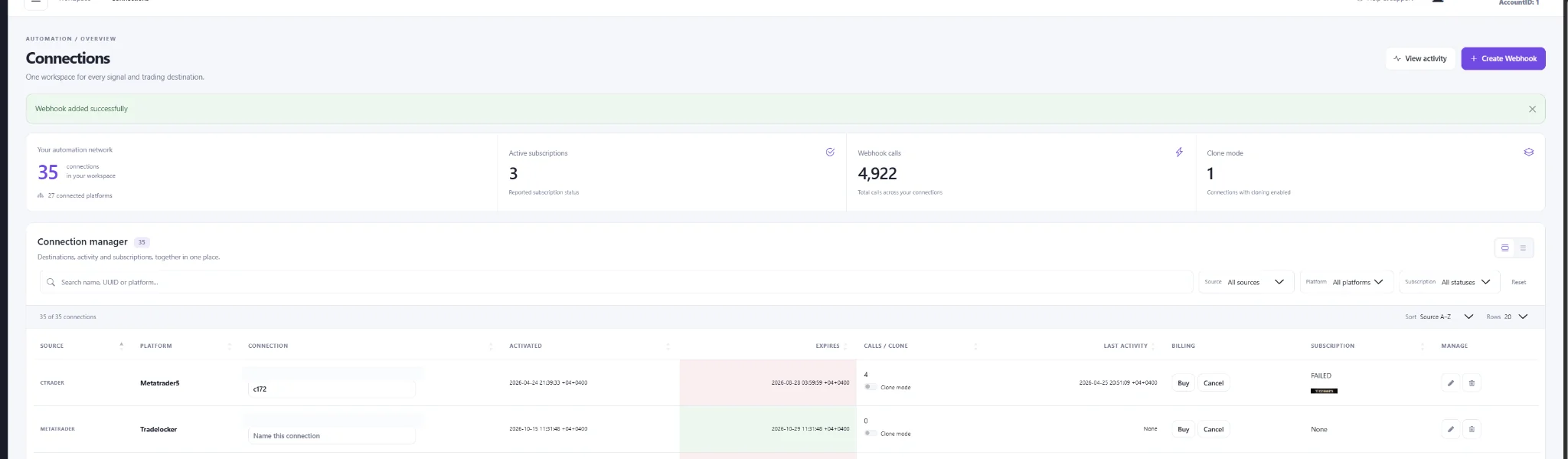
The CopierBot setting is explicitly named AlgoWay Webhook (UUID or FULL URL), so either the route UUID or the complete webhook address can be used. The full URL is the easiest option to check visually. Its format is shown below, but you must copy your own generated value:
https://algoway.co/<your-route-uuid>Treat that value as a private routing credential. Do not publish a live webhook UUID inside articles, screenshots, forum posts or public source code.
4. Install CopierBot in the source MT5 terminal
Use the official AlgoWay-MT5-CopierBot 1.40 file supplied by AlgoWay. In MetaTrader 5, open File >> Open Data Folder, navigate to MQL5/Experts and place the EA file there. Refresh the Expert Advisors section in Navigator, or restart the terminal if the EA is not listed. Then drag AlgoWay-MT5-CopierBot onto a chart in the source MT5 account.
The screenshot shows the copier attached to BTCUSD, H1, while the illustrated test trade is on EURUSD. The chart hosting the EA is therefore not the instrument that must be copied: the purpose of this EA is to mirror supported account trading events to AlgoWay.
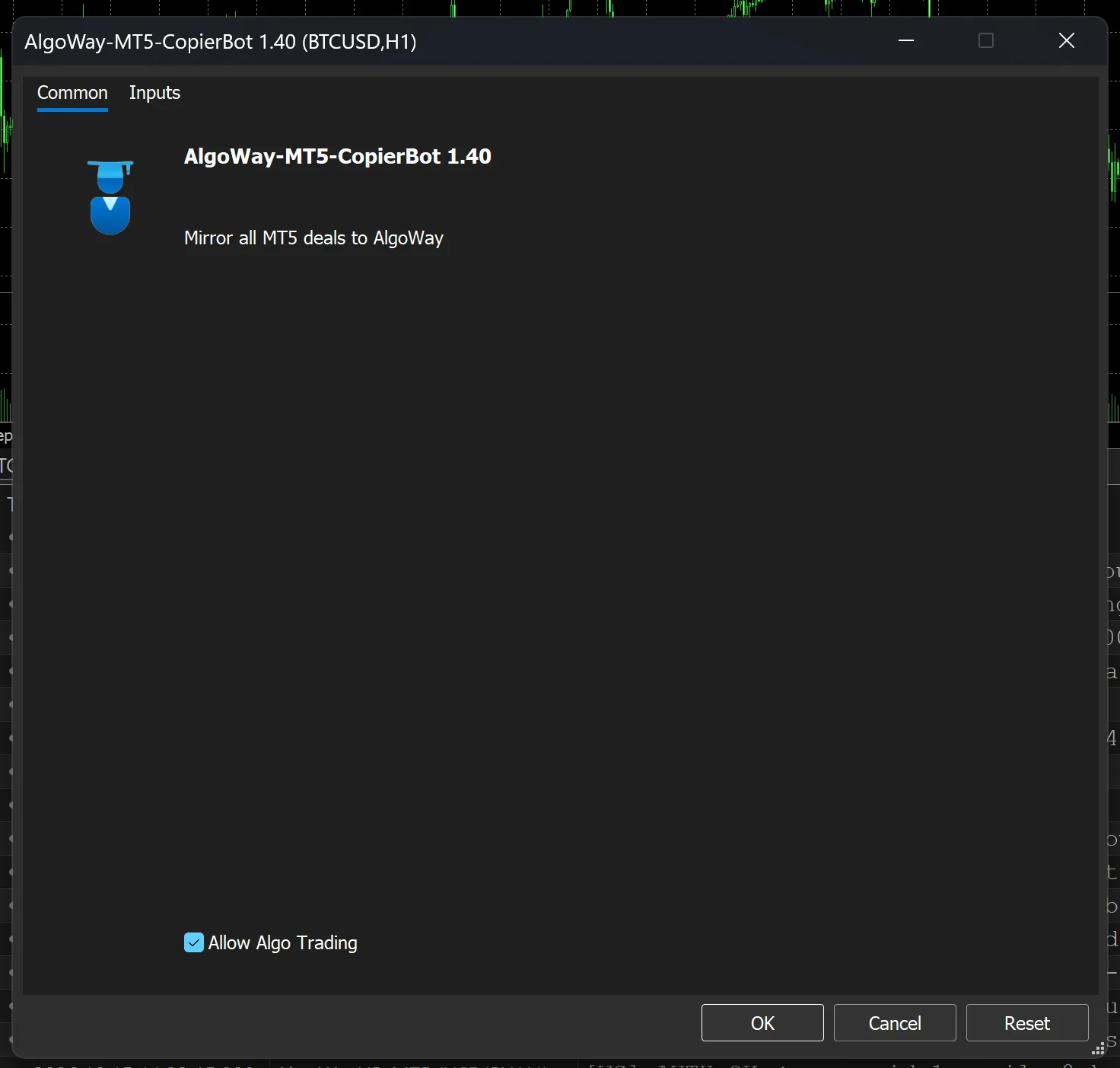
Make sure algorithmic trading is also allowed globally in MT5. The Common tab and global MT5 setting are separate controls; the EA may be configured correctly while the terminal still prevents it from operating.
5. Enter the webhook and select copier options
Open the EA's Inputs tab. In AlgoWay Webhook (UUID or FULL URL), paste the UUID or complete address of the connection created earlier. This tells the EA precisely which AlgoWay route should receive the source trading activity.
SendPrice and SendSLTPonOpen are both set to true in the supplied screenshot. SendPrice enables forwarding of the source price information; it does not force the receiving broker to fill at that price. SendSLTPonOpen enables forwarding available stop-loss and take-profit values on opening instructions, subject to the target connector's capabilities and broker restrictions.
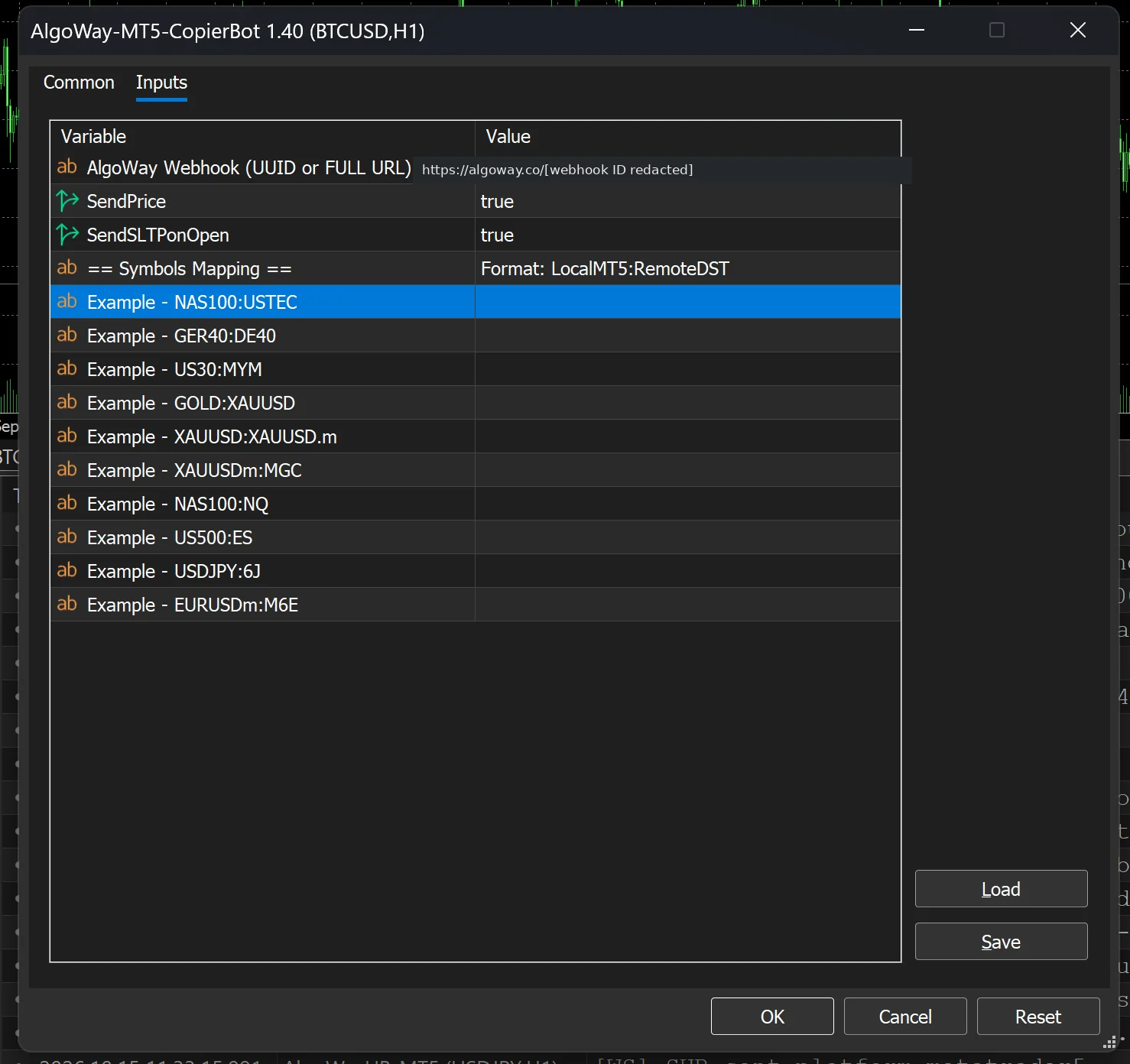
LocalMT5:RemoteDST syntax.Optional: map instruments inside CopierBot
Not every broker calls an instrument by the same name. The EA presents a Symbols Mapping section with the format LocalMT5:RemoteDST and examples such as NAS100:USTEC, GOLD:XAUUSD and XAUUSD:XAUUSD.m. Enter the required source-to-target pair into an available mapping input. The examples shown in the left-hand labels are illustrations of the accepted syntax, not proof that these markets are interchangeable.
The public capabilities reference describes up to ten EA-side symbol mappings. There is also a separate Symbol Mapping field on the destination webhook form. For the first test, configure a needed mapping in one place and verify the resulting ticker. Avoid creating two independent rules for the same source symbol until you have confirmed their interaction.
6. Allow AlgoWay WebRequest in MetaTrader 5
This step is essential. In MT5, open Tools >> Options >> Expert Advisors. Enable Allow algorithmic trading and Allow WebRequest for listed URL. Add algoway.co to the allowed host list, following the exact host shown by CopierBot's diagnostic message. Without this permission, the EA cannot reach the required AlgoWay endpoint through MT5 WebRequest.
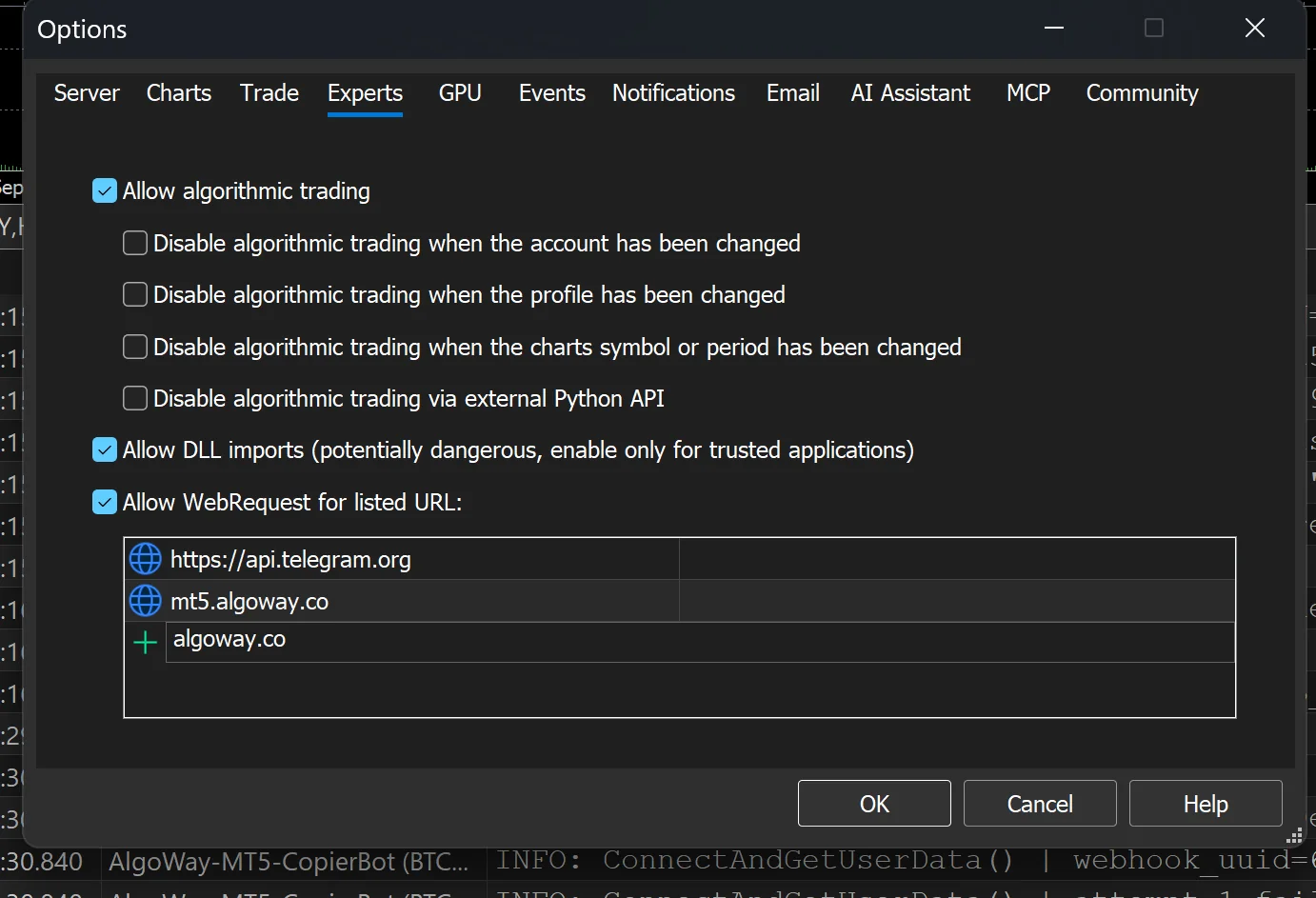
algoway.co; other hosts shown in this user's list belong to other tools.After adding the host, click OK, then reinitialize the EA as needed and check its Experts log. The screenshot also happens to show Allow DLL imports enabled. That checkbox is not established as a universal CopierBot requirement by this example; only allow DLL imports when the trusted build you are installing actually requires them.
7. Confirm that the copier is connected
Return to the source chart and open the MT5 Toolbox >> Experts tab. The example log contains a useful before-and-after sequence. Initially, ConnectAndGetUserData() failed with last_error=4014 and the message cannot reach licensing endpoint. The next lines instruct the user to allow WebRequest and add algoway.co. After the configuration was corrected, the log reported status=Connected, copy_to=tradelocker and AlgoWay MT5 Webhook Mirror ready.
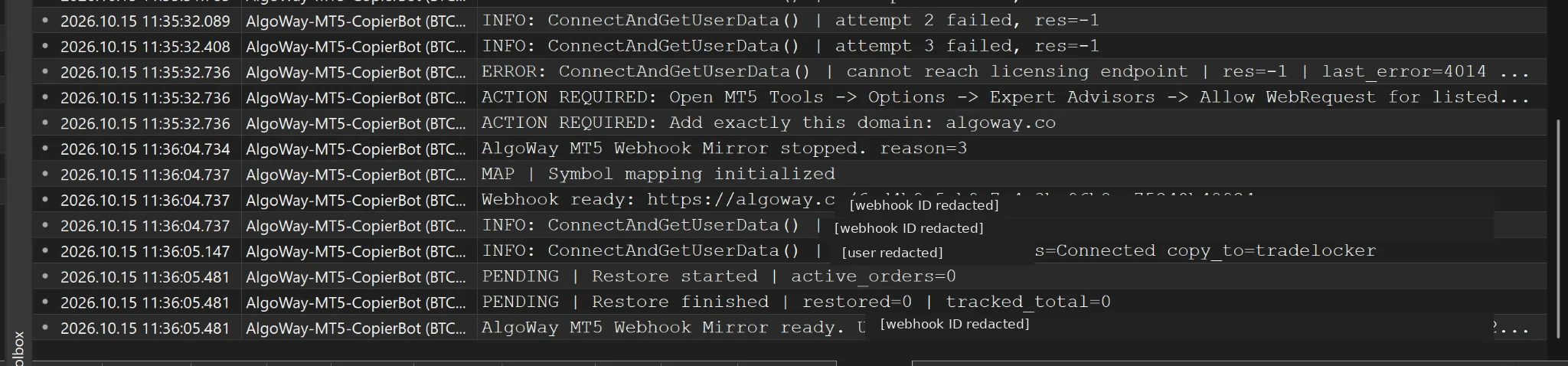
The source chart also shows an AlgoWay status overlay with Status: Connected and Copy to: tradelocker. This confirms that the EA recognizes its configured target route. It does not prove that a new order was accepted or filled by TradeLocker.
Connection checkpoint: the source EA is active, the webhook route is recognized and the copier says it is ready. The next checkpoint must happen in the destination trading account.
8. Open a small MT5 test trade and inspect the destination
With both source and destination accounts set up, place a small market order in the source MT5 terminal or let your existing EA generate one. The provided MT5 screenshot shows a BUY 0.01 EURUSD position with an entry displayed at 1.12102. This is the source-side record, not an AlgoWay execution report.
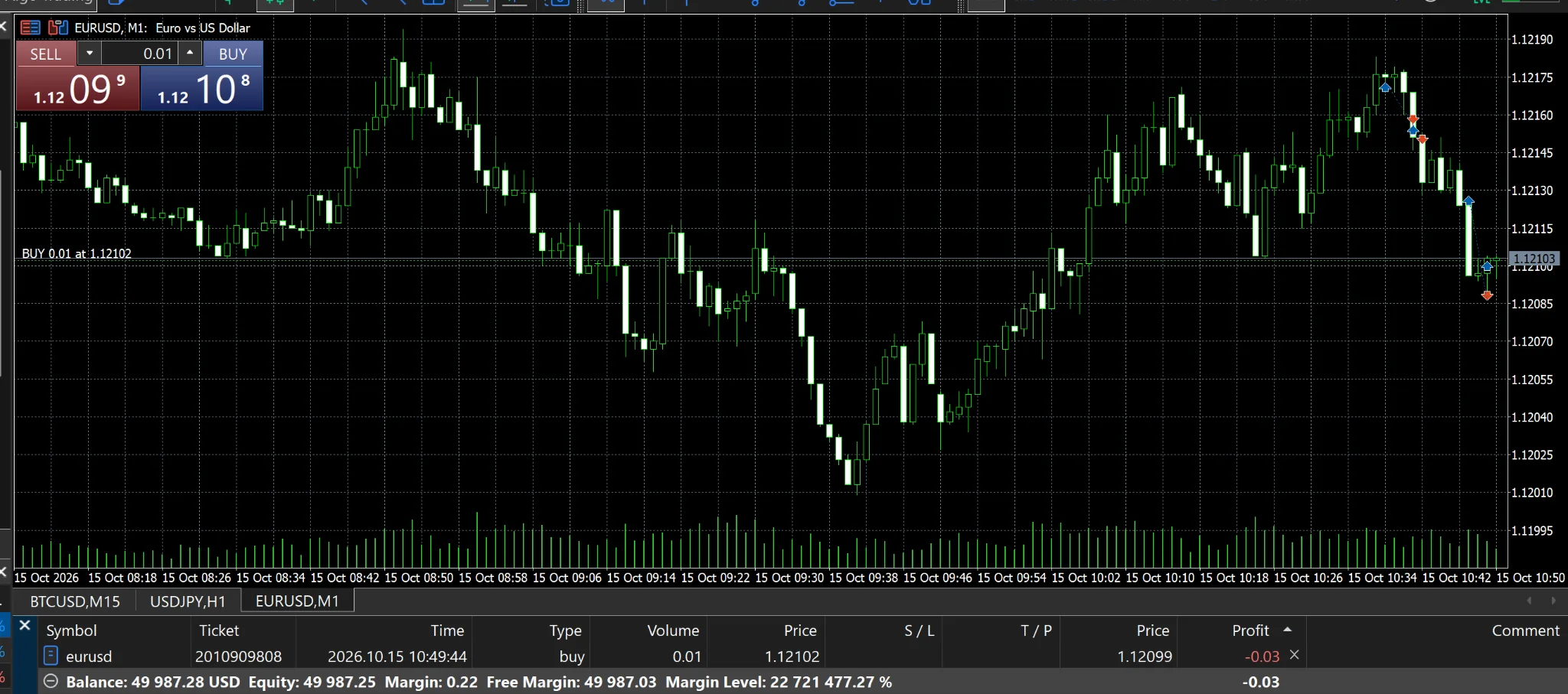
Next open the receiving TradeLocker account. In the supplied destination screenshot, a green notification reports Position Opened, and the positions panel shows EURUSD BUY 0.01 with entry 1.12106. The chart visible behind that position is EURCAD; the relevant evidence is the EURUSD position row, not the chart header.
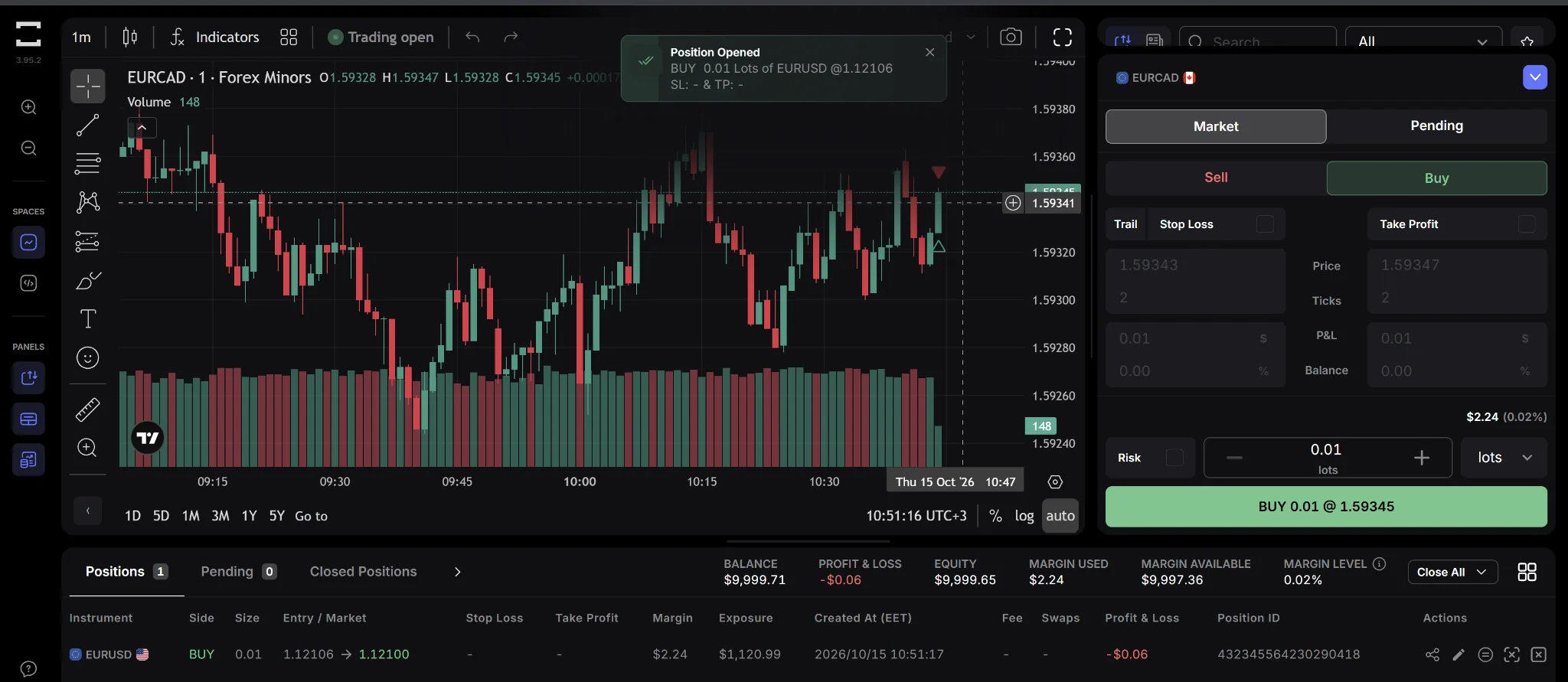
These screenshots show a 0.01 EURUSD buy on each side, but images alone do not establish which webhook event produced a particular TradeLocker order or measure propagation latency. To verify a specific copy operation, correlate the source MT5 trade time with the AlgoWay Webhook Logs and the receiving account's order history. Confirm the mapped symbol, direction, actual size and order identifier. Then test a close and, where needed, pending orders and SL/TP handling separately.
Different prices are normal; unexplained orders are not. MT5 displays 1.12102 for the illustrated source entry and TradeLocker 1.12106 for the illustrated destination entry. The screenshots cannot establish the cause of that difference. Spread, quote timing, slippage and execution rules can all matter. Always validate by order records, not by assuming matching positions have identical fills.
Symbol mapping, order sizes and position modes
The most important part of cross-platform copying is not the webhook URL. It is translating a trading instruction into an instrument and quantity the receiving account understands. The source might use GOLD while the destination expects XAUUSD, or the source might send NAS100 where the target lists USTEC. In the destination webhook, Symbol Mapping accepts pairs in FROM:TO form, separated by commas or spaces. In CopierBot, the corresponding EA section uses LocalMT5:RemoteDST.
GOLD:XAUUSD, NAS100:USTECThe mapping above is a configuration example, not a record of a successfully executed trade. Check that the underlying instrument, contract value, quotation currency and trading hours really match. A correct text replacement can still route to the wrong market exposure.
Likewise, compare quantities by financial exposure rather than typography. 0.01 is meaningful only in the destination's own sizing model. Choose Hedge/Dual side or another supported Trade Type deliberately; two opposite instructions may create separate positions on one account and offset existing exposure on another. A successful copied entry is only half the test: verify how the platform handles a reduction, close or reversal after the original position exists.
The current public MT5 source capability reference covers four common pending order types and deletion events. It does not establish identical pending-order semantics on every AlgoWay destination. Test each order type needed by your strategy against the actual selected integration.
When the MT5 copier does not work
“Cannot reach licensing endpoint” or error 4014
First inspect Tools >> Options >> Expert Advisors. The illustrated failure explicitly asks for WebRequest permission and the host algoway.co. Check the allowed URL list, save the change and review a fresh Experts log. Do not interpret repeated connection attempts as successful authorization.
Connected, but nothing appears in TradeLocker
Check that the EA points to the intended webhook UUID, the Connections row identifies METATRADER >> TradeLocker, the destination credentials and Account ID are correct, and the destination allows trading in the mapped instrument. Open AlgoWay's webhook activity/logs and inspect the downstream response. Connected describes the copier's connection state, not the broker's acceptance of an individual trade.
Wrong symbol or wrong size
Compare the original MT5 symbol against both the CopierBot mapping and the destination webhook Symbol Mapping field. Temporarily keep mapping in only one location for an easier diagnosis. Review the destination's contract specification and the route's Quantity Multiplier; do not increase size to “fix” an apparent rejection before finding its cause.
Entry succeeds, but SL/TP or close behaves differently
Check SendSLTPonOpen, target instrument minimum-distance rules, existing destination exposure and the configured Trade Type. Verify individual actions in the destination order history. Receiving an HTTP request or showing a webhook activity entry does not prove that every protective order was accepted. Where the source and destination positions have diverged, later close commands need especially careful verification.
Using the same MT5 source with another trading platform
TradeLocker is the worked example because the supplied source and receiving account screenshots show its configuration and an open position. The architecture is not limited to TradeLocker. To target another AlgoWay-supported platform, create a route whose Source is MetaTrader 5 and whose Destination is the required platform, complete that destination's own connection instructions, then point CopierBot to the new route's UUID or URL.
For example, the available destinations include cTrader, supported futures platforms and crypto exchange connectors. The route changes, but the source-side role of CopierBot does not. The destination's symbol format, quantity units, supported order types and account permissions must be reviewed afresh; a TradeLocker configuration cannot simply be copied verbatim into a futures or crypto account.
This separation is useful for existing MQL5 systems: their trading logic can remain in MetaTrader while AlgoWay translates supported trading activity for another execution environment. It is also the boundary of the system. The copier does not change a strategy's profitability, guarantee the same fill, or make every external platform behave like MT5. A complete setup is one where you can trace the source event, the AlgoWay routing result and the broker's final order state.
Related references: TradeLocker account and webhook configuration · AlgoWay trade copying overview · Supported source actions and route capabilities.
Screenshots illustrate an MT5 CopierBot 1.40 configuration and source/destination account views supplied on October 15, 2026. Personal credentials and webhook identifiers have been redacted. Operational behavior must be checked on the actual destination account before live trading.