
How to Connect TradingView to Hyperliquid via AlgoWay
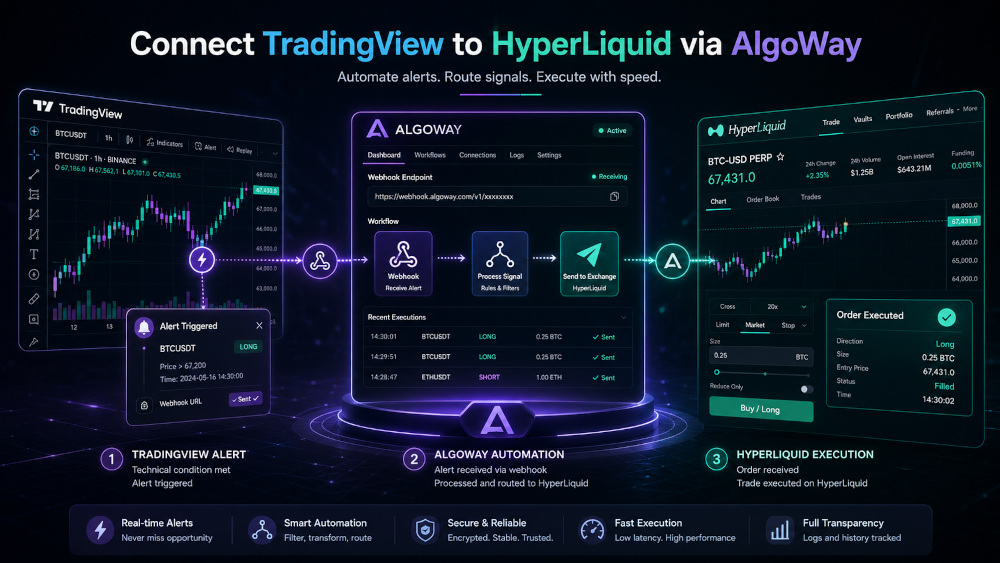
AlgoWay connects TradingView alerts to Hyperliquid through webhook automation. You create and authorize an API wallet in Hyperliquid, save its private key, connect the master wallet address and API private key in AlgoWay, and then use the AlgoWay webhook URL inside a TradingView alert.
This guide explains the complete TradingView to Hyperliquid setup, including API wallet authorization, the correct wallet address, AlgoWay webhook configuration, a test order, TradingView JSON and webhook notification settings.
The automation route is:
TradingView alert -> AlgoWay webhook -> Hyperliquid API wallet -> Hyperliquid orderWhat AlgoWay Does in a Hyperliquid Automation Setup
TradingView generates the signal. Hyperliquid executes the order. AlgoWay receives the TradingView webhook request, validates the JSON message and routes the command to the Hyperliquid connection selected by your webhook UUID.
AlgoWay helps you:
- receive TradingView strategy, indicator or manual webhook alerts;
- route each alert to your Hyperliquid account;
- use a dedicated Hyperliquid API wallet instead of exposing the main wallet private key;
- configure quantity, margin and trade behavior in the AlgoWay webhook;
- send a test order before enabling live TradingView automation;
- inspect received alerts and execution responses in Webhook Logs;
- avoid building and maintaining a custom webhook server and Hyperliquid API integration.
AlgoWay automates execution. The entry logic, exit logic, position size and alert conditions still come from your TradingView strategy, indicator or manually prepared alert.
Before You Start
Prepare the following before creating the connection:
- an active AlgoWay account;
- a Hyperliquid account;
- access to the Hyperliquid API page;
- a TradingView strategy, indicator or manual alert;
- a clear decision about quantity, margin mode and trade type;
- a small test quantity for the first order.
Keep the API private key confidential. Copy it only into the authorized AlgoWay webhook form and store a secure backup because Hyperliquid does not show it again after the authorization window is closed.
Step 1. Create an API Wallet in Hyperliquid
- Log in to your Hyperliquid account and open the API page from the top menu.
- Click Authorize API Wallet and enter a name, for example
algoway. - Set Days Valid, or press MAX to use the full available authorization period.
- Click Authorize.
- Hyperliquid will display a red box containing the new Private Key.
- Copy the private key and store it securely before closing the window.
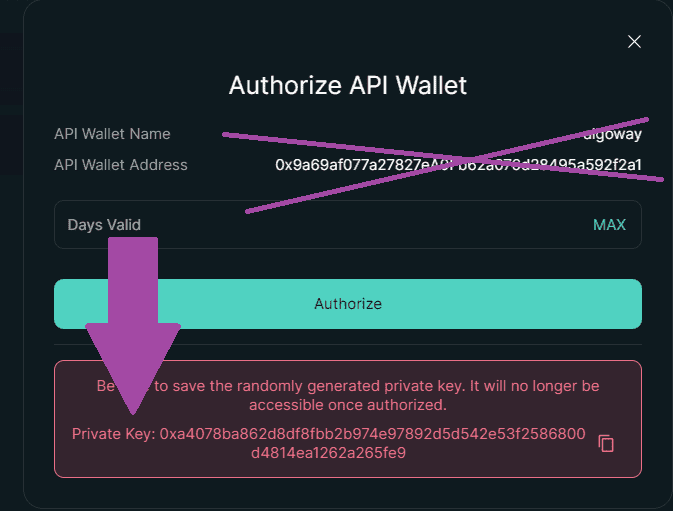
The private key created in this step belongs to the authorized API wallet. Do not replace it with the private key of your main wallet.
Step 2. Find Your Master Wallet Address
- Remain on the Hyperliquid API page after authorizing the API wallet.
- You will see the authorized API wallets in a table, including the row named
algoway. - Do not use the address from that table in the AlgoWay Master Wallet Address field. The table shows the agent wallet address.
- Open the account menu in the top-right corner of Hyperliquid.
- Copy the long address displayed under your email, for example
0x8b89...FB4A. - Use this address as the Master Wallet Address in AlgoWay.
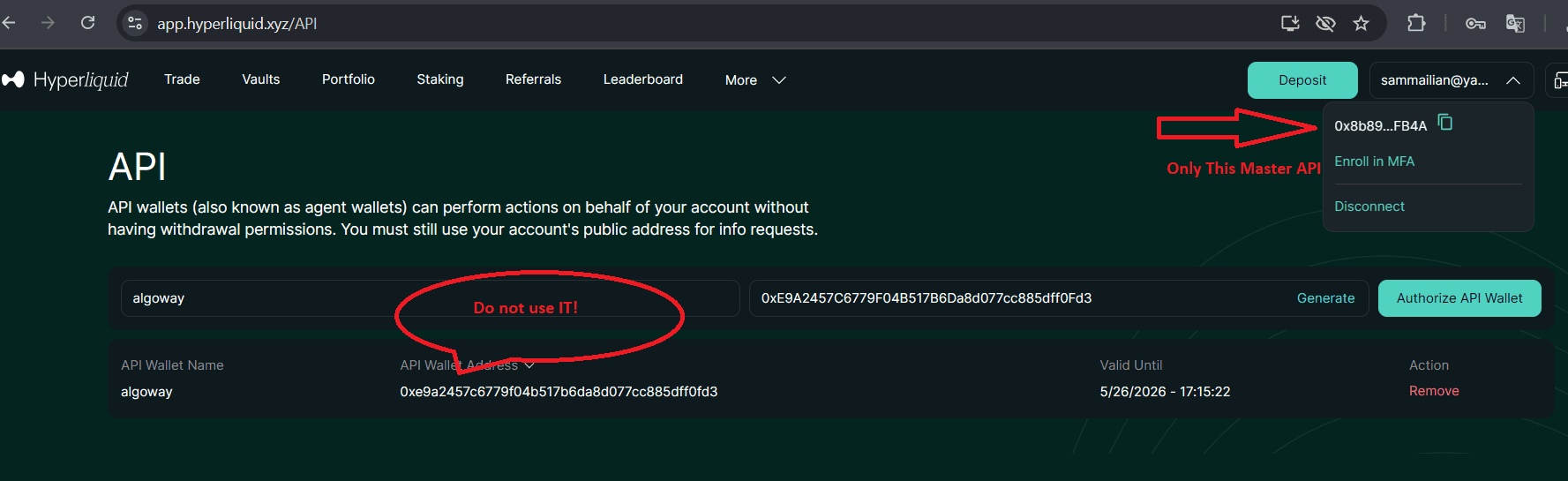
This distinction is important. AlgoWay needs the master wallet address for account information requests, while order authorization uses the API private key created in Step 1.
Step 3. Add a Hyperliquid Webhook in AlgoWay
- Log in to your AlgoWay account.
- Open Dashboard >> Add Trial Webhook or Dashboard >> Add Main Webhook.
- Select TradingView as the source.
- Select Hyperliquid as the destination platform.
- Paste the master wallet address from Step 2.
- Paste the API private key from Step 1.
- Review the quantity, market, margin and trade settings.
- Click Add Trial Webhook or the corresponding button for your main webhook.
Main Hyperliquid webhook fields:
- Source (from): TradingView
- Platform (to): Hyperliquid
- Quantity Multiplier: Absolute, or another mode required by your setup
- Market Type: Futures/Perpetual
- Margin Mode: Cross or Isolated
- Trade Type: Reverse, Hedge or One-way according to the intended execution logic
- Account Type: Live, or the available test environment when applicable
- Master Wallet Address: the address copied from the Hyperliquid account menu
- API Private Key: the private key generated by Authorize API Wallet
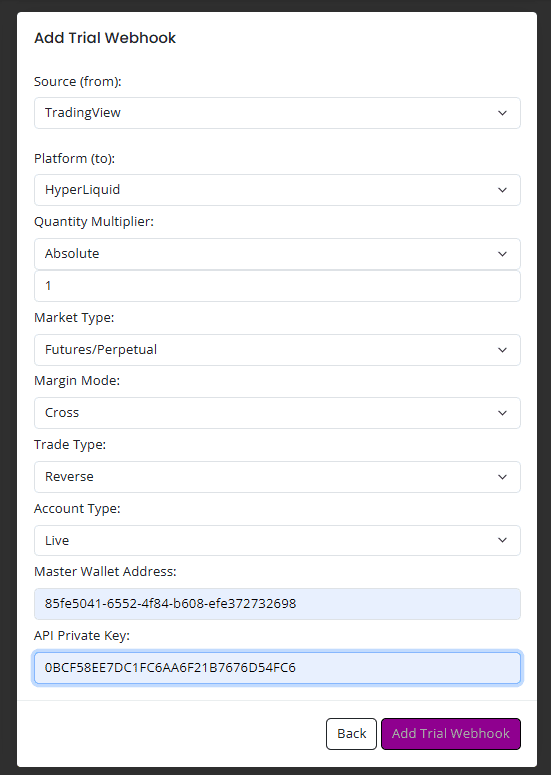
After the form is saved, the new Hyperliquid connection appears in Dashboard >> Your Webhooks.
Step 4. Send an Optional Test Webhook from AlgoWay
Testing from AlgoWay before connecting TradingView verifies that the wallet address, private key, market settings, symbol and quantity are accepted.
- Open Webhook Logs in AlgoWay.
- Click Test Webhook.
- Select your hyperliquid webhook from the dropdown.
- Enter a test ticker, for example
BTCUSDT.P. - Enter a small quantity and select Buy or Sell.
- Click Send.
- Review the new record in Webhook Logs and verify the result in Hyperliquid.
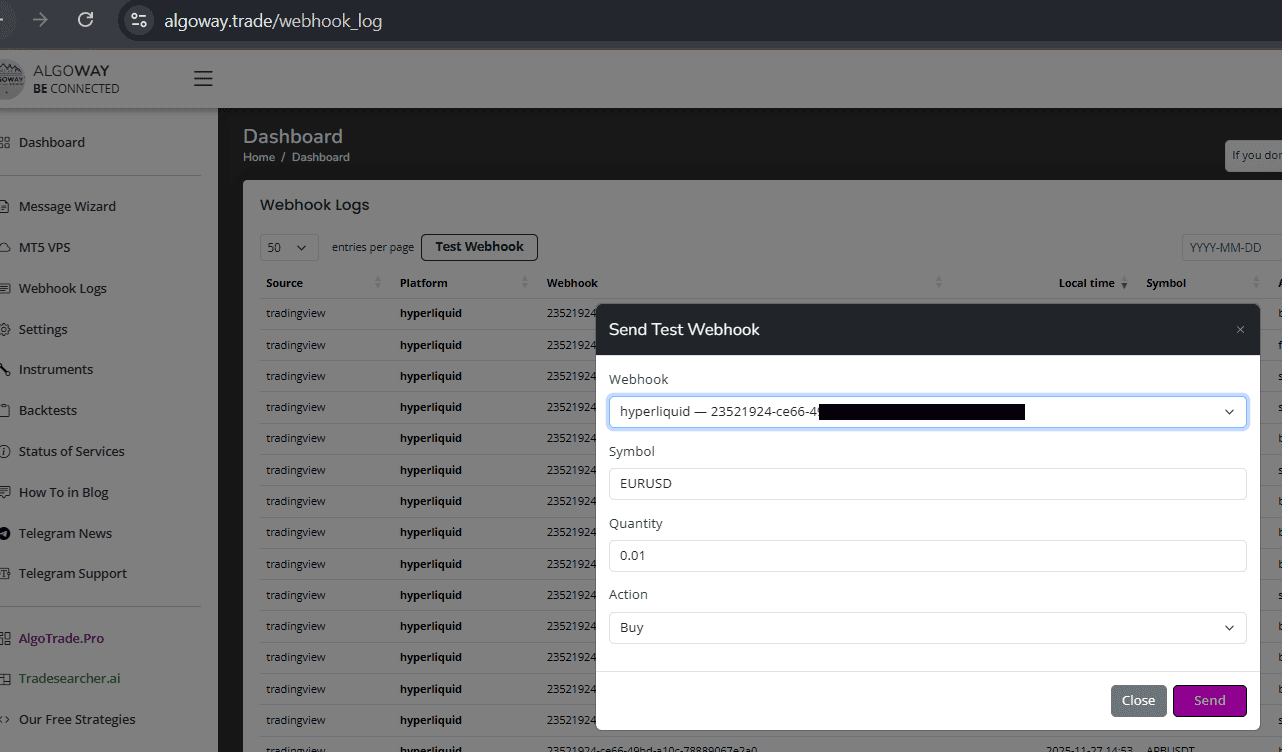
If the test fails, do not continue with a live TradingView alert until the log shows the exact cause and the connection has been corrected.
Step 5. Copy the AlgoWay Webhook URL
- Open Dashboard >> Your Webhooks.
- Find the entry where the platform is hyperliquid.
- Click the Webhook UUID or its copy icon.
- AlgoWay copies the complete webhook URL to your clipboard.
- Keep this URL ready for the TradingView alert notification settings.
The webhook URL contains the unique UUID that identifies your AlgoWay connection. TradingView must send the alert to this exact URL.
Step 6. Add the Hyperliquid JSON to TradingView
Open the TradingView alert editor and paste this JSON into the alert message field:
{
  "platform_name": "hyperliquid",
  "ticker": "{{ticker}}",
  "order_contracts": "{{strategy.order.contracts}}",
  "order_action": "{{strategy.market_position}}",
  "price": "{{close}}"
}
TradingView replaces each placeholder with the live value when the alert fires:
{{ticker}}inserts the chart ticker;{{strategy.order.contracts}}inserts the strategy order size;{{strategy.market_position}}inserts the strategy position state;{{close}}inserts the closing price available when the alert is triggered.
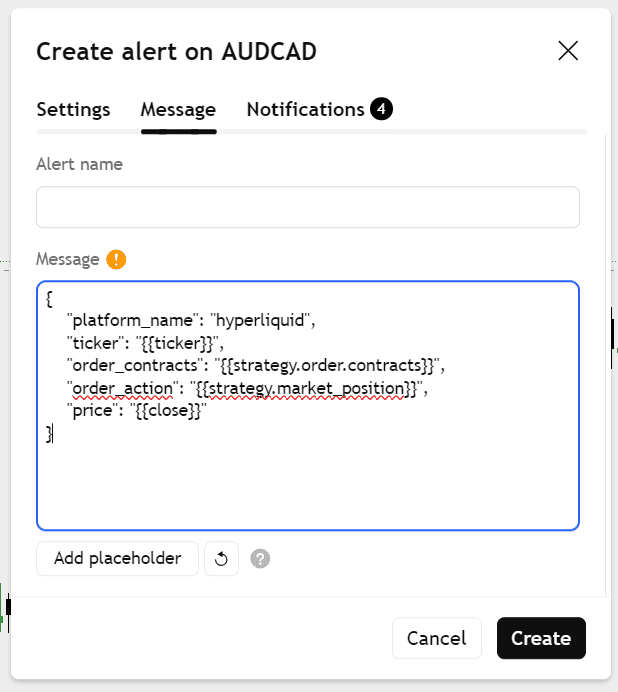
Keep the message as valid JSON. Use double quotes, preserve commas and braces, and do not add comments inside the JSON object.
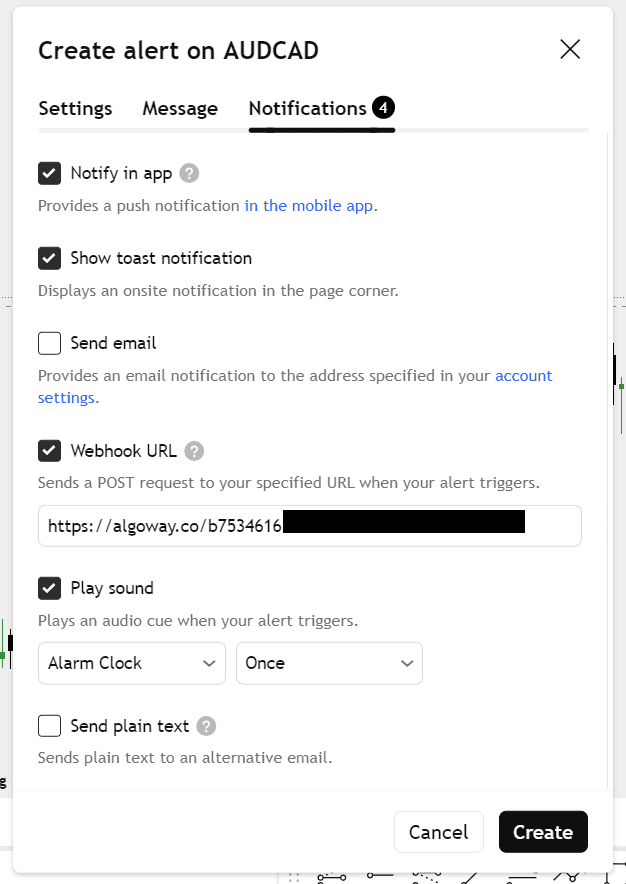
Step 7. Add the Webhook URL to the TradingView Alert
- In the same TradingView alert window, open the Notifications tab.
- Enable Webhook URL.
- Paste the AlgoWay webhook URL copied in Step 5.
- Optionally keep app, popup or sound notifications enabled for additional alert confirmation.
- Click Create to save the alert.
Required JSON Fields for Hyperliquid Automation
| Field | Example | Purpose |
|---|---|---|
platform_name |
hyperliquid |
Routes the command to the Hyperliquid webhook. |
ticker |
BTCUSDT.P |
Defines the TradingView symbol that AlgoWay must process. |
order_contracts |
0.001 |
Defines the order quantity before any configured AlgoWay quantity logic is applied. |
order_action |
long |
Defines the position direction or action sent by TradingView. |
price |
118500.25 |
Provides the TradingView close price for logging or supported execution logic. |
Strategy Alerts, Indicator Alerts and Manual Alerts
The JSON above uses TradingView strategy placeholders. It is intended for an alert created from a strategy that exposes values such as {{strategy.order.contracts}} and {{strategy.market_position}}.
An indicator alert may not provide those strategy placeholders. In that case, the alert message must use values and placeholders that the indicator actually supports. The final message received by AlgoWay must still contain valid values for platform_name, ticker, order_contracts and order_action.
For a manual test alert, you can replace TradingView placeholders with fixed values:
{
  "platform_name": "hyperliquid",
  "ticker": "BTCUSDT.P",
  "order_contracts": "0.001",
  "order_action": "buy",
  "price": "118500.25"
}
Always use a small quantity when validating a new alert format.
Common TradingView to Hyperliquid Problems
The Agent Wallet Address Was Used as the Master Address
The address shown in the API wallet table is the agent wallet address. Return to the top-right account menu and copy the master wallet address displayed under the account email.
The API Private Key Was Not Saved
Hyperliquid shows the API private key only during authorization. When it is no longer available, create and authorize a new API wallet, then update the AlgoWay webhook with the new key after verifying the existing configuration.
The API Wallet Authorization Expired
The authorization period is defined by Days Valid. When the API wallet expires, Hyperliquid can reject new requests. Authorize a new API wallet and replace the expired credentials in AlgoWay.
Invalid TradingView JSON
Missing quotes, commas or braces can prevent AlgoWay from parsing the alert. Copy the JSON exactly and modify only the values that are required by your strategy.
The Webhook URL Was Added to the Message Field
The JSON belongs in the alert message. The AlgoWay URL belongs in Notifications >> Webhook URL. Both are required.
The TradingView Symbol Does Not Match the Expected Market
Check the ticker received in AlgoWay Webhook Logs. A TradingView perpetual symbol may contain a suffix such as .P. Confirm that the symbol is being normalized or mapped as intended before sending a larger order.
The Quantity Is Rejected
Review the quantity multiplier, submitted contracts and the Hyperliquid response in Webhook Logs. Use a quantity accepted by the selected market and consistent with the webhook configuration.
Why Use AlgoWay for TradingView to Hyperliquid Automation?
A direct TradingView to Hyperliquid integration requires a public webhook endpoint, JSON parsing, wallet signing, symbol handling, order routing, error handling, secure credential storage and execution logs.
AlgoWay provides this execution layer through its dashboard. You create the Hyperliquid webhook, enter the authorized API wallet credentials, copy the generated webhook URL into TradingView and monitor every request in Webhook Logs.
This gives you:
- a no-code TradingView to Hyperliquid webhook bridge;
- a dedicated Hyperliquid connection inside AlgoWay;
- structured JSON processing;
- test webhook functionality;
- centralized request and execution logs;
- one dashboard for Hyperliquid and other supported trading destinations.
Related AlgoWay Guides
- How to create a webhook in TradingView
- TradingView webhook alerts and automation basics
- AlgoWay JSON schema for automated trading webhooks
- How to fix TradingView webhook Error 415
- AlgoWay webhook pricing guide
Key Takeaway
To connect TradingView to Hyperliquid, authorize an API wallet in Hyperliquid, save its private key, copy the master wallet address from the account menu, create a Hyperliquid webhook in AlgoWay, test the connection, and add the AlgoWay JSON and webhook URL to TradingView.
AlgoWay turns TradingView alerts into Hyperliquid API commands without requiring you to operate your own webhook server.
Need a PDF? Print this page to PDF with Ctrl/Cmd+P.
[an error occurred while processing this directive]