How to Connect TradingView Alerts to Kraken with AlgoWay
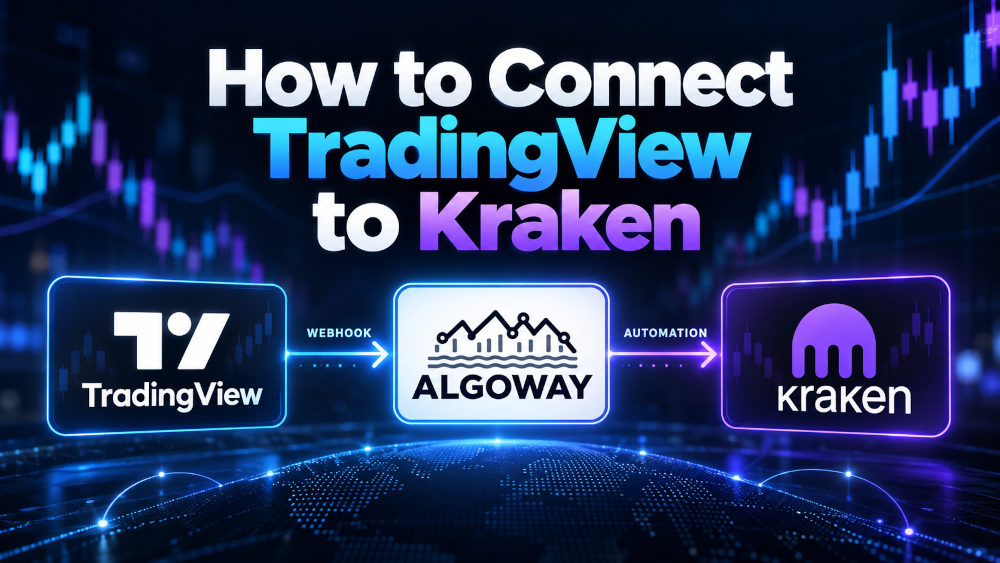
Connect a Kraken Futures API key to AlgoWay, create a TradingView webhook route, and send a valid JSON alert to automate orders in your Kraken Futures account. The signal begins in TradingView, AlgoWay receives it at your private webhook URL, and Kraken handles order execution via your own exchange API credentials.
TradingView alert -> AlgoWay webhook -> Kraken Futures accountThis is an automated order-routing setup, not a manual TradingView broker connection. The instructions below follow the Kraken API workflow shown in the existing AlgoWay setup manual.
Before You Start
Prepare an active Kraken account with access to Futures trading, an AlgoWay account, and a TradingView indicator or strategy capable of generating alerts. You will also need access to the exchange API settings to create a trading key. Protect API secrets and do not enable withdrawal permissions.
Step 1. Create a Kraken Futures API Key
- Log in to Kraken and open Profile > Connections & API.
- Find the Futures API area (separate from Spot API) and click Add Futures API key.
- For the key in the existing AlgoWay setup, set General API to Full access and Withdrawal API to No access.
- For IP-restricted access, enter the current AlgoWay server IP shown in your account. The example in the original manual is
103.241.67.174; always use the value displayed by your own connection. - Click Generate key and immediately save both the Public Key and Private Key. The private key may not be displayed again.
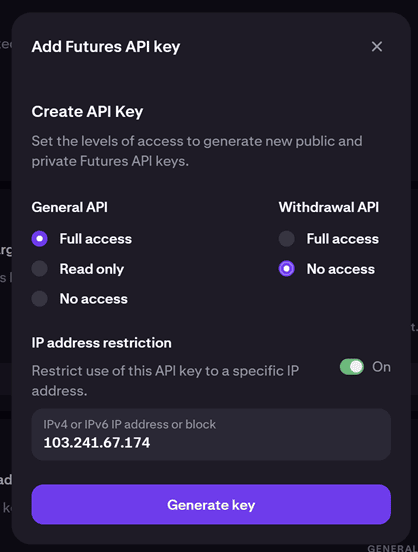
Why the Futures key matters: Kraken has separate API credential types. Using the Spot key in a Futures route will prevent the intended connection from working. A trading key does not need withdrawal permission.
Step 2. Create the Kraken Connection in AlgoWay
- Log in to AlgoWay. Start a TradingView > Kraken connection through the Store or the Add Trial Webhook / Add Main Webhook action shown in your dashboard.
- Choose TradingView as the signal source and Kraken as the destination.
- Select Futures/Perpetual for Market Type, and choose a trade mode that fits your strategy (for example, Reverse, Hedge or One-way, where available in the connection form).
- Set Quantity Multiplier to Absolute for direct order quantities, or use the sizing mode you intentionally configured.
- Paste Kraken's Public Key in API Public Key and Private Key in API Private Key. Save the connection.
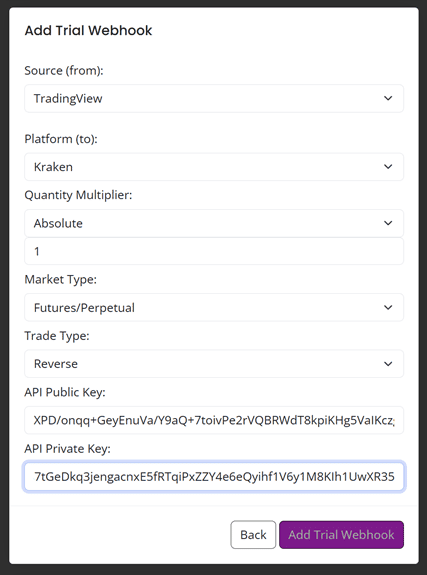
These keys stay associated with your Kraken route in AlgoWay. You do not put the keys into TradingView alert messages.
Step 3. Test Your Kraken Futures Route
- Open Webhook Logs in AlgoWay and select Test Webhook.
- Choose the kraken route, then provide a valid Kraken Futures symbol, the order side and a small test quantity accepted by that market.
- Send the test and check the AlgoWay result and the corresponding Kraken Futures account. A successful webhook receipt alone is not proof that the exchange accepted the trade.
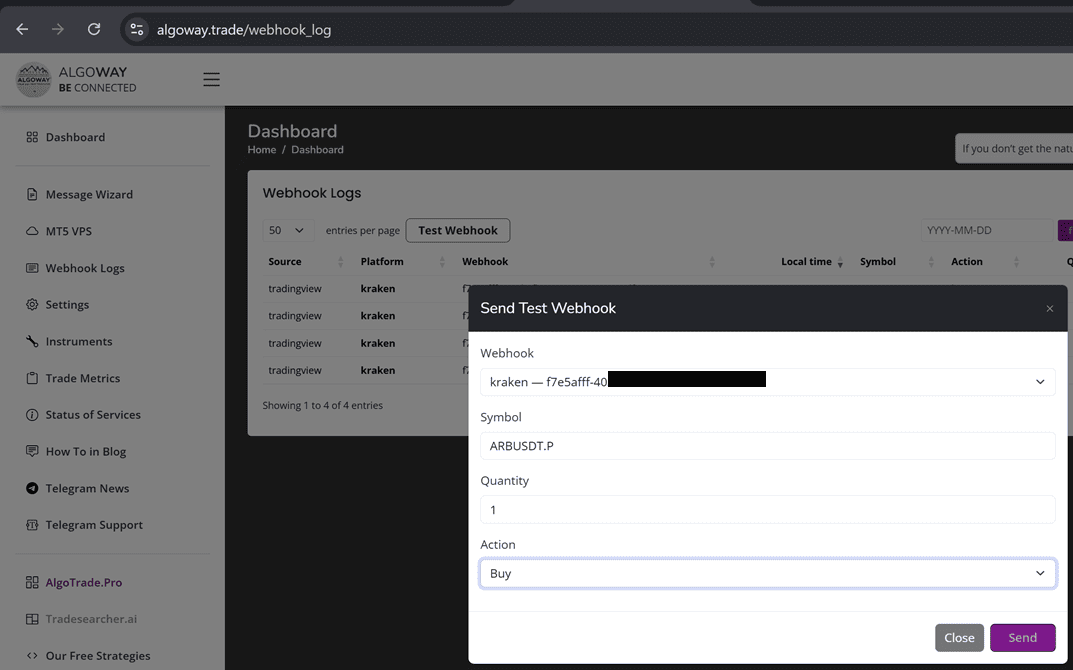
Step 4. Copy the AlgoWay Webhook URL
- In AlgoWay open Trade Webhooks or Dashboard > Your Webhooks.
- Locate the destination marked kraken and copy its unique webhook URL using the UUID or copy control.
- Use this URL only for the matching Kraken connection; do not substitute a link copied from another route.
Step 5. Set the TradingView Alert JSON
In the TradingView Message field, enter the AlgoWay JSON payload for this route. The example below is for a TradingView strategy alert using strategy placeholders:
{
  "platform_name": "kraken",
  "ticker": "{{ticker}}",
  "order_contracts": "{{strategy.order.contracts}}",
  "order_action": "{{strategy.market_position}}",
  "price": "{{close}}"
}
{{ticker}} supplies the TradingView chart ticker; {{strategy.order.contracts}} supplies the strategy's configured size; {{strategy.market_position}} supplies the market position direction; and {{close}} supplies the price. These placeholders must be used in a strategy context that actually produces the expected values.
Check that the ticker maps to a valid Kraken Futures contract. TradingView symbol names and exchange contract identifiers can differ. Use symbol mapping in AlgoWay when your connection offers it, and verify the symbol before sending a live order.
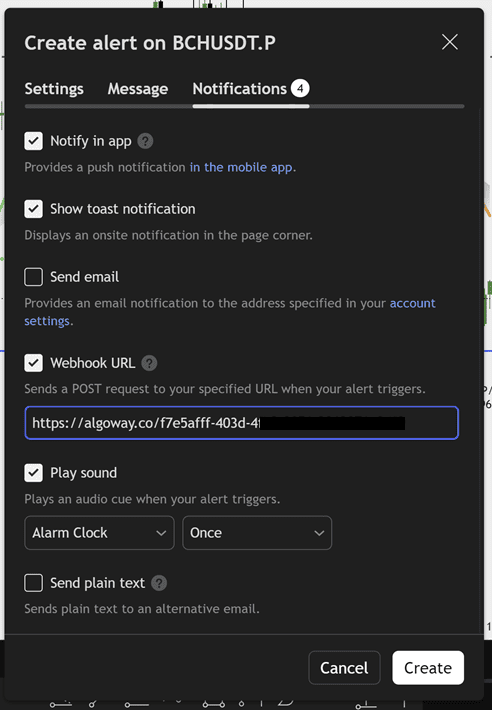
Step 6. Enable the Webhook URL in TradingView
- Open your chart in TradingView and create an alert for the relevant strategy or condition.
- Paste the JSON above into the alert Message field, adjusting it to the selected alert type.
- In Notifications, enable Webhook URL and paste the exact AlgoWay Kraken URL from Step 4.
- Save the alert and confirm that both a triggering alert and an accepted exchange order appear during testing.
Common Problems and Checks
The API credentials are rejected
Recheck the Public Key and Private Key. Confirm that the key was created for Kraken Futures, not a different API area. Verify the trusted IP restriction against the IP displayed in AlgoWay. A newly created key may also require time to become active.
The TradingView alert fires but no order appears
Open AlgoWay Webhook Logs to determine whether the webhook arrived, whether the JSON was accepted and whether Kraken returned an exchange-side error. Check market permissions, the Futures symbol, order quantity, market status and your account's ability to place trades.
The trade size or direction is unexpected
Inspect the TradingView placeholder values, the quantity multiplier in AlgoWay and the connection's trading mode. Different strategies may use buy, sell, long or short differently; confirm the resulting JSON in the logs before running unattended.
Related AlgoWay Guides
- Create TradingView webhook alerts with AlgoWay
- AlgoWay webhook JSON schema and parameters
- TradingView to Binance automation setup
- TradingView to KuCoin webhook integration
Key takeaway: Create the correct Kraken Futures API credentials, save the Kraken connection in AlgoWay, copy its private webhook URL, and use the matching JSON in a TradingView alert. Test both webhook delivery and exchange execution before enabling live automation.
Frequently Asked Questions
Does the AlgoWay Kraken connection use a Spot API key?
No. The process in this guide uses a Kraken Futures API key from the Futures API section of Kraken account settings.
Which Kraken API credentials are needed?
AlgoWay needs the Public Key and Private Key generated for the Kraken Futures API connection.
Do I need to allow withdrawals for Kraken automation?
No. The Kraken API setup shown here uses General API full access and Withdrawal API no access.
Where do I find the webhook URL for TradingView?
Copy the unique Kraken webhook URL or UUID from the AlgoWay Trade Webhooks dashboard after creating the connection.
[an error occurred while processing this directive]