
How to Copy Telegram Trading Signals to TradeLocker
Telegram supplies the signal; AlgoWay normalizes and routes the trading command to your TradeLocker account. No TradingView alert setup or hand-written webhook JSON is necessary.
Telegram channel >> AlgoWay Telegram Copier >> TradeLockerThis guide shows how to connect your TradeLocker account and choose the Telegram signal channel, with a video demonstration. After that, configure the copying behavior in the shared Telegram Copier settings reference; these parameters do not need to be repeated for each broker. Open Telegram Copier Parameters.
Video: Copy Telegram Signals to TradeLocker
This tutorial demonstrates Telegram signal processing and automated TradeLocker orders with Stop Loss and Take Profit. Open the standalone video page.
Step 1. Find TradeLocker credentials and Account ID
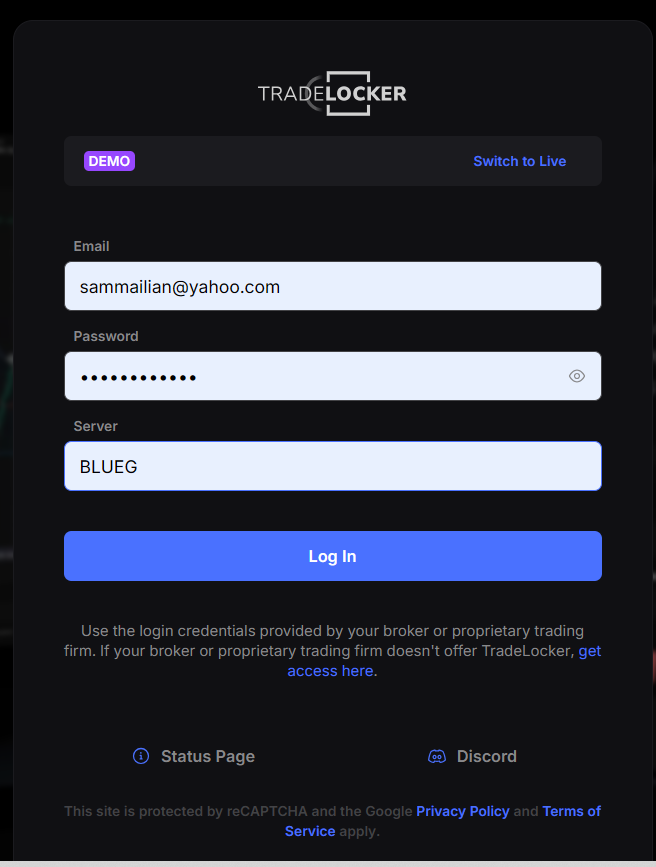
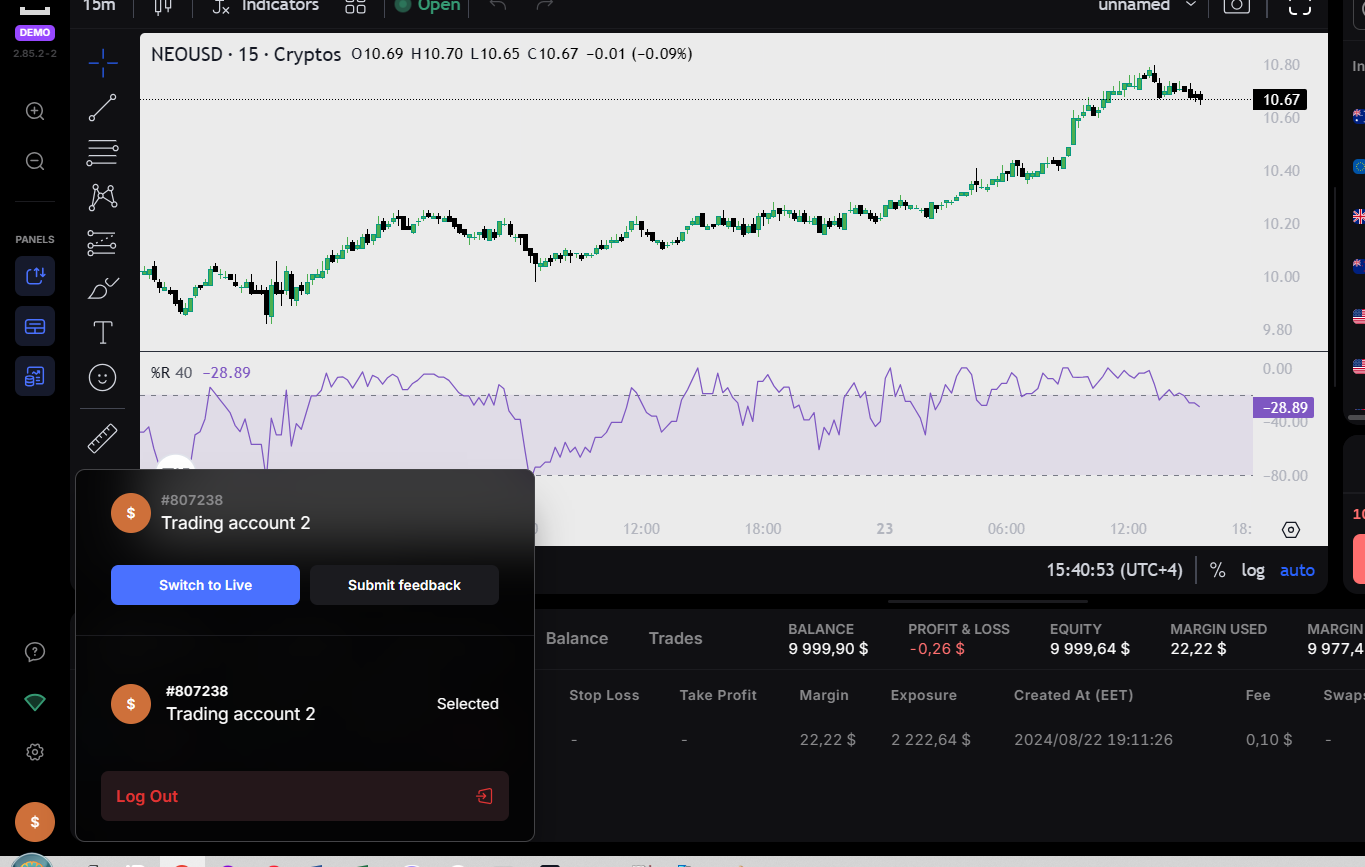
Sign in through the TradeLocker portal supplied by your broker or prop firm. You will need the platform/broker URL, login Email, Password, broker Server and numeric Account ID. Open the account selector near the lower-left corner to find the Account ID; enter digits only.
Step 2. Create a Telegram to TradeLocker route
- In AlgoWay open Telegram Copier and select Create New Telegram Copier. Choose the available trial or subscription option.
- Set Source (from) to Telegram and Platform (to) to TradeLocker.
- Enter your TradeLocker URL, Email, Password, Server and numeric Account ID; review Trade Type (Hedge or Reverse) and route sizing, then create the route.
- On the Telegram Copier dashboard the gear icon opens Telegram Copier Settings; the pencil icon opens the destination Webhook Settings, including Symbol Mapping.
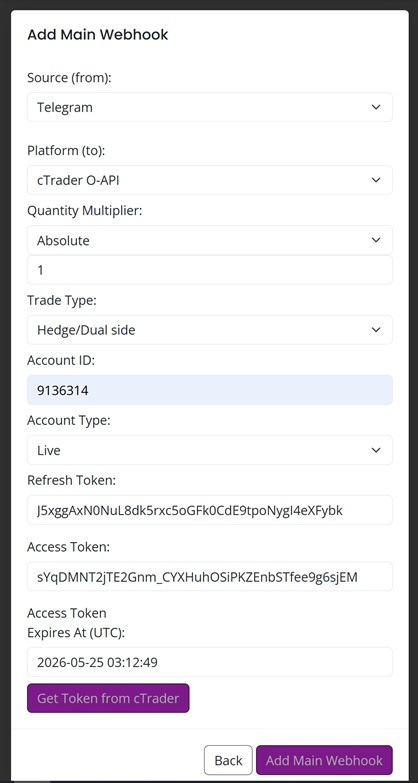
If your signal provider uses XAUUSD while the broker accepts GOLD, set XAUUSD:GOLD under Webhook Settings via the pencil icon, not in the Telegram channel settings.
Connect your Telegram account and signal channel
Connect the Telegram account that already has access to your signal channel. Telegram Copier Settings supports two login methods:
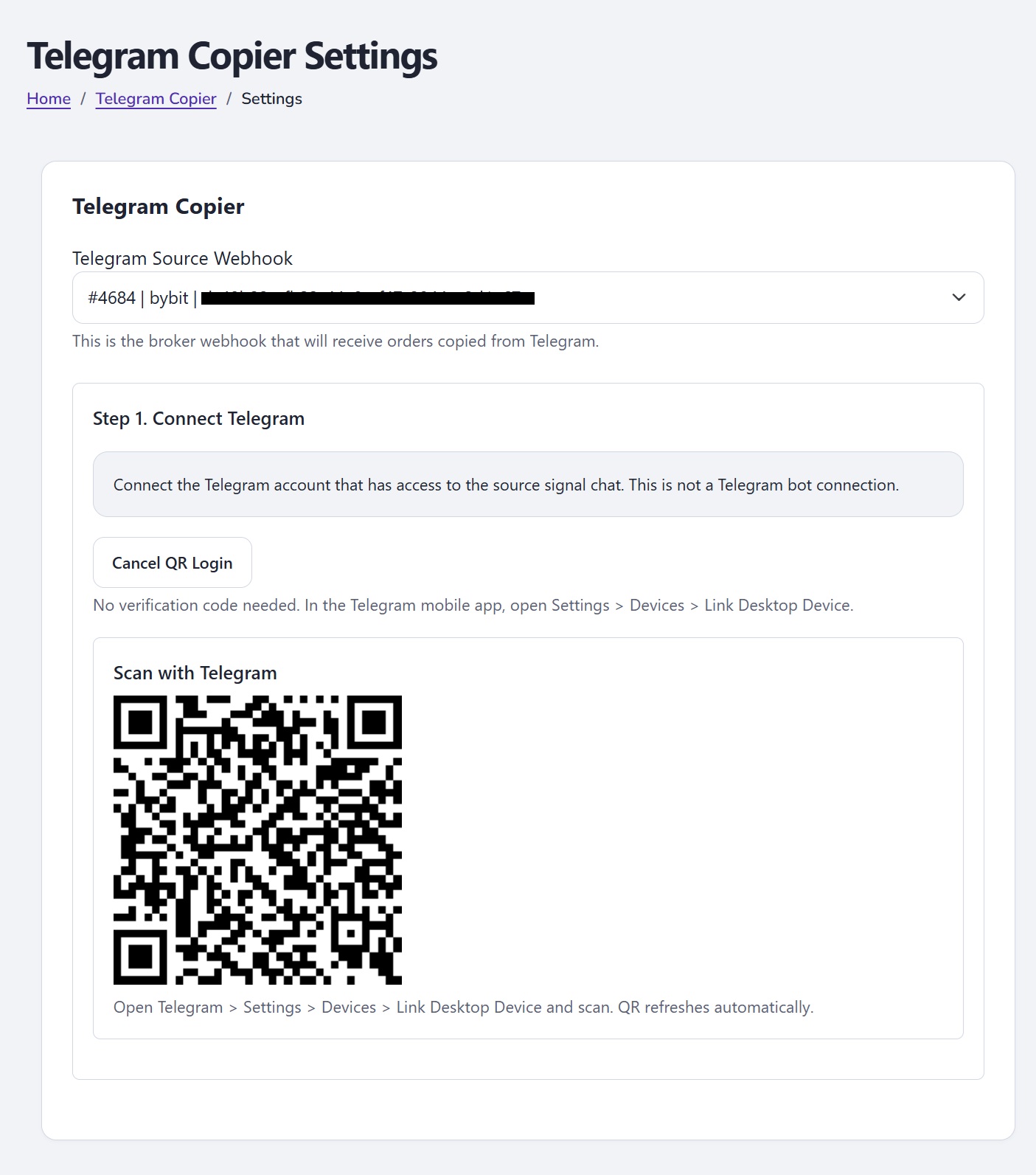
- On the Telegram Copier dashboard, click the gear icon for the new route and choose the correct Telegram Source Webhook.
- Option 1 — Verification code: Enter your Telegram phone number with country code and click Send Code. Check the official Telegram service chat on your active devices or SMS if Telegram offers that delivery method. Enter the code in Verification Code, provide the 2FA Password if required, and click Connect Telegram. A successful request does not necessarily mean that Telegram delivered a code.
- Option 2 — QR code: Click Connect with QR Code. On your phone, open Telegram > Settings > Devices > Link Desktop Device, scan the QR displayed in AlgoWay and confirm the login. The QR refreshes automatically. If Telegram requires your two-step verification password, enter it in AlgoWay. No verification-code message is required for this method.
- Once Telegram is connected, under Step 2. Select Source Chat, click Load My Chats, select the channel or group that publishes signals, review the copy settings, select Enable Telegram Copier and click Save Copier. You will return to the Telegram Copier dashboard.
Code not arriving? If no code appears after about one minute, use QR login instead. When switching from an already connected Telegram account, click Disconnect Telegram before starting a new login. Do not scan a QR from any documentation screenshot: always generate a fresh QR on your own settings page.
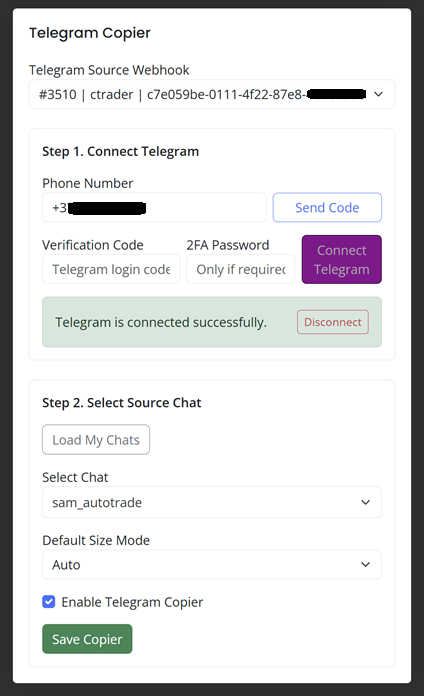
The Telegram account must already have access to the channel. Connecting the account without selecting a source chat does not activate trade copying.
Telegram Copier settings
Next step — adjust the copying rules. Open Telegram Copier Settings & Parameters after finishing the TradeLocker connection and Telegram channel selection.
Examples for TradeLocker: If a Telegram provider sends XAUUSD but TradeLocker lists GOLD, use Symbol Mapping in destination Webhook Settings. If a signal contains TP1 and TP2, read Multi Take-Profit Mode. For order size when a signal omits lots, read Default Size Mode.
To start copying, select Enable Telegram Copier and click Save Copier. Double-check the source chat and destination account before allowing live orders. After saving, AlgoWay returns to the Telegram Copier dashboard.
Other Telegram destinations: Telegram to MT5 · Telegram to cTrader.
Last updated: October 20, 2026