
How to Copy Telegram Trading Signals to MetaTrader 5
Telegram is the signal source, and MetaTrader 5 is the trading destination. AlgoWay reads signals from your selected Telegram channel and routes them to the standard AlgoWayWS-MT5 Expert Advisor in your broker account. You do not need a TradingView account, TradingView alerts or another Telegram-specific EA.
Telegram channel >> AlgoWay Telegram Copier >> AlgoWayWS-MT5 EA >> MetaTrader 5This guide connects your MT5 broker account to a Telegram channel, including the Expert Advisor and UUID. Once the connection is working, continue with the shared Telegram Copier settings reference; there is no need to configure any TradingView alert. Open Telegram Copier Parameters.
Step 1. Create the Telegram to MT5 route
- Sign in to AlgoWay and open Telegram Copier > Create New Telegram Copier.
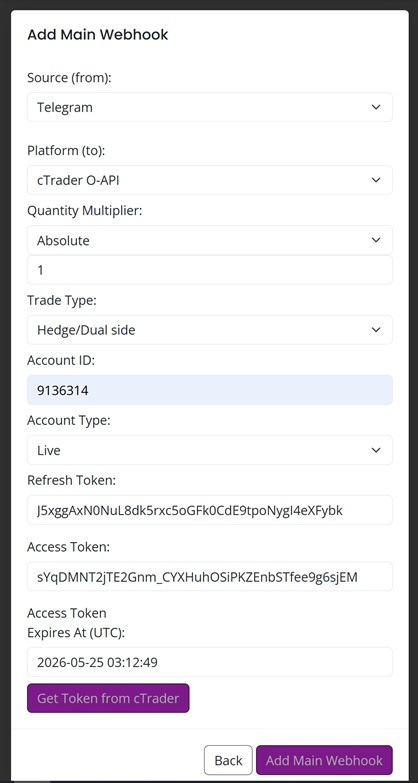
- Choose the applicable access option. In the connection form, select Telegram under Source (from) and MetaTrader 5 under Platform (to).
- Review the MT5 route settings, create the route and copy its unique webhook UUID. You need the UUID, not the full webhook URL, for the EA Inputs.
Step 2. Install AlgoWayWS-MT5 on the trading terminal
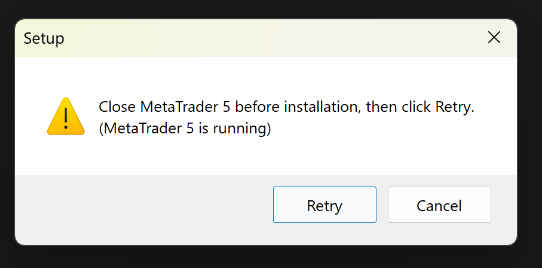
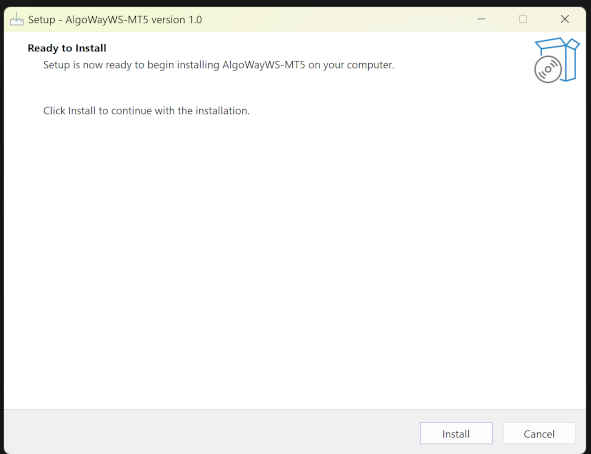
Prepare a running MT5 broker account on Windows or a Windows VPS. Close MT5 before installing the EA. Download the AlgoWayWS-MT5 Auto Installer, run it on the same Windows machine where your MT5 account will execute the orders, and follow the installer steps.
Manual installation when the installer cannot be used
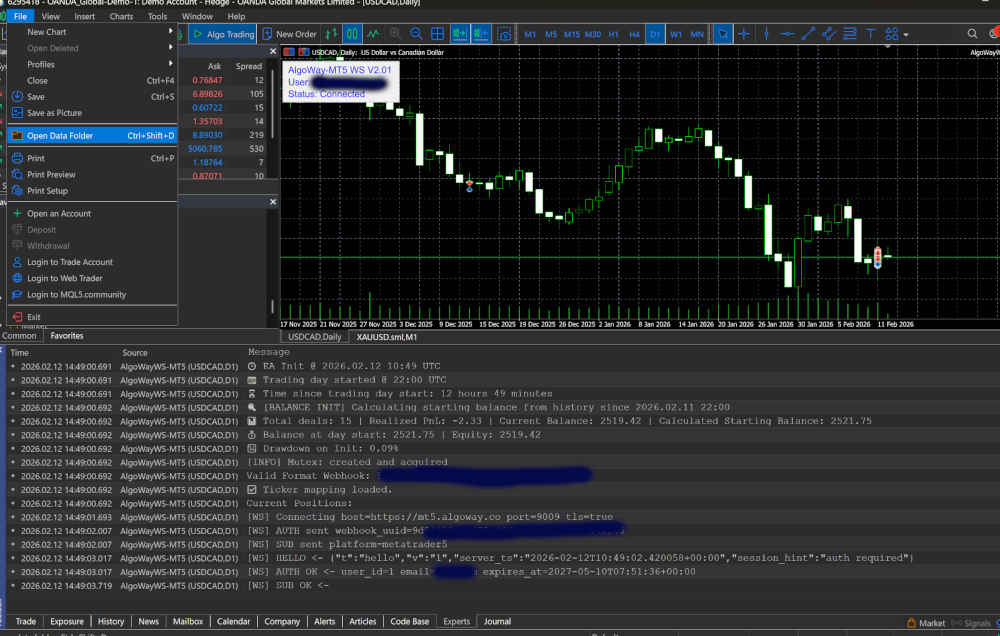
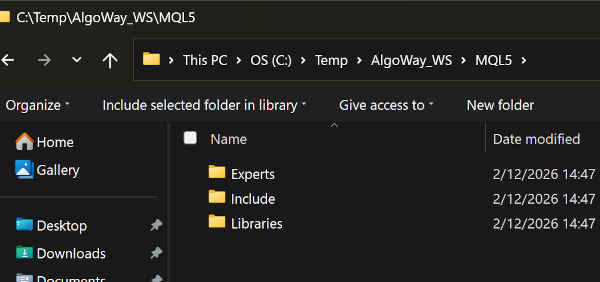
Download EA_payload.zip. Open MT5 and choose File > Open Data Folder. Extract the files from the package into the correct folders in this Data Folder, then restart MT5 or refresh Navigator.
| File | Folder |
|---|---|
AlgoWayWS-MT5.ex5 | MQL5\Experts\ |
asyncwinhttp.mqh and asyncwebsocket.mqh | MQL5\Include\ |
asyncwinhttpwebsockets.dll | MQL5\Libraries\ |
If the DLL cannot load, install the appropriate Microsoft Visual C++ v14 Redistributable: x64 for 64-bit MT5 or x86 for 32-bit MT5.
Universal Build (UB): Native Socket EA for Mac, Linux and Windows
AlgoWay Universal Build (UB) is the full-featured native-socket MT5 Expert Advisor for macOS and Linux (including Wine-based MT5 environments); Windows users can use it too, and it is a useful alternative to try if the standard AlgoWayWS-MT5 EA reports any error. Download AlgoWayUB-MT5.ex5. To install, open MT5 and choose File >> Open Data Folder >> MQL5 >> Experts, copy AlgoWayUB-MT5.ex5 there, then restart MT5 or refresh Navigator. Attach AlgoWayUB-MT5 to a chart and enter the same Telegram-to-MT5 webhook UUID in EA Inputs. Enable algorithmic trading and verify the connection in Experts. UB does not require an external WebSocket DLL, DLL imports or a separate Microsoft Visual C++ Redistributable. The standard EA's DLL instructions below do not apply to UB; broker-side errors still need to be checked in MT5 Experts/Journal.
IMPORTANT — REQUIRED FOR UNIVERSAL BUILD (UB):
Native Socket connections must be explicitly allowed in MetaTrader 5.
Open Tools > Options > Expert Advisors,
enable Allow WebRequest for listed URL, and add
mt5.algoway.co to the allowed addresses.
Click OK and restart or reattach the UB Expert Advisor.
Without this permission, Universal Build cannot establish its socket connection.
This requirement applies even though UB does not use external DLLs.
Step 3. Enable MetaTrader 5 trading permissions
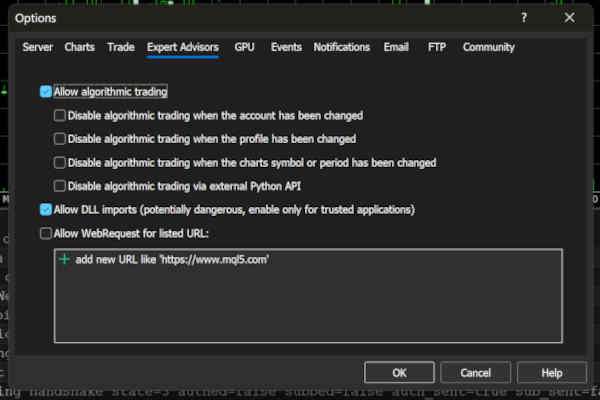
Open Tools > Options > Expert Advisors and enable Allow algorithmic trading. For the standard DLL-based AlgoWayWS-MT5 EA, also enable Allow DLL imports. Universal Build (UB) does not need DLL imports, but requires mt5.algoway.co in Allow WebRequest for listed URL, as detailed in the UB section above.
Step 4. Attach EA, enter the UUID and verify WebSocket
- Open any chart in the target MT5 terminal, then locate AlgoWayWS-MT5 under Navigator > Expert Advisors.
- Attach it to the chart and open the EA Inputs tab.
- Paste the UUID of the Telegram to MT5 route created in Step 1 and confirm the settings.
- Check the Experts tab for the WebSocket connection. Inspect Journal for terminal and DLL errors.
Step 5. Connect Telegram and select the signal channel
Connect the Telegram account that already has access to your signal channel. Telegram Copier Settings supports two login methods:
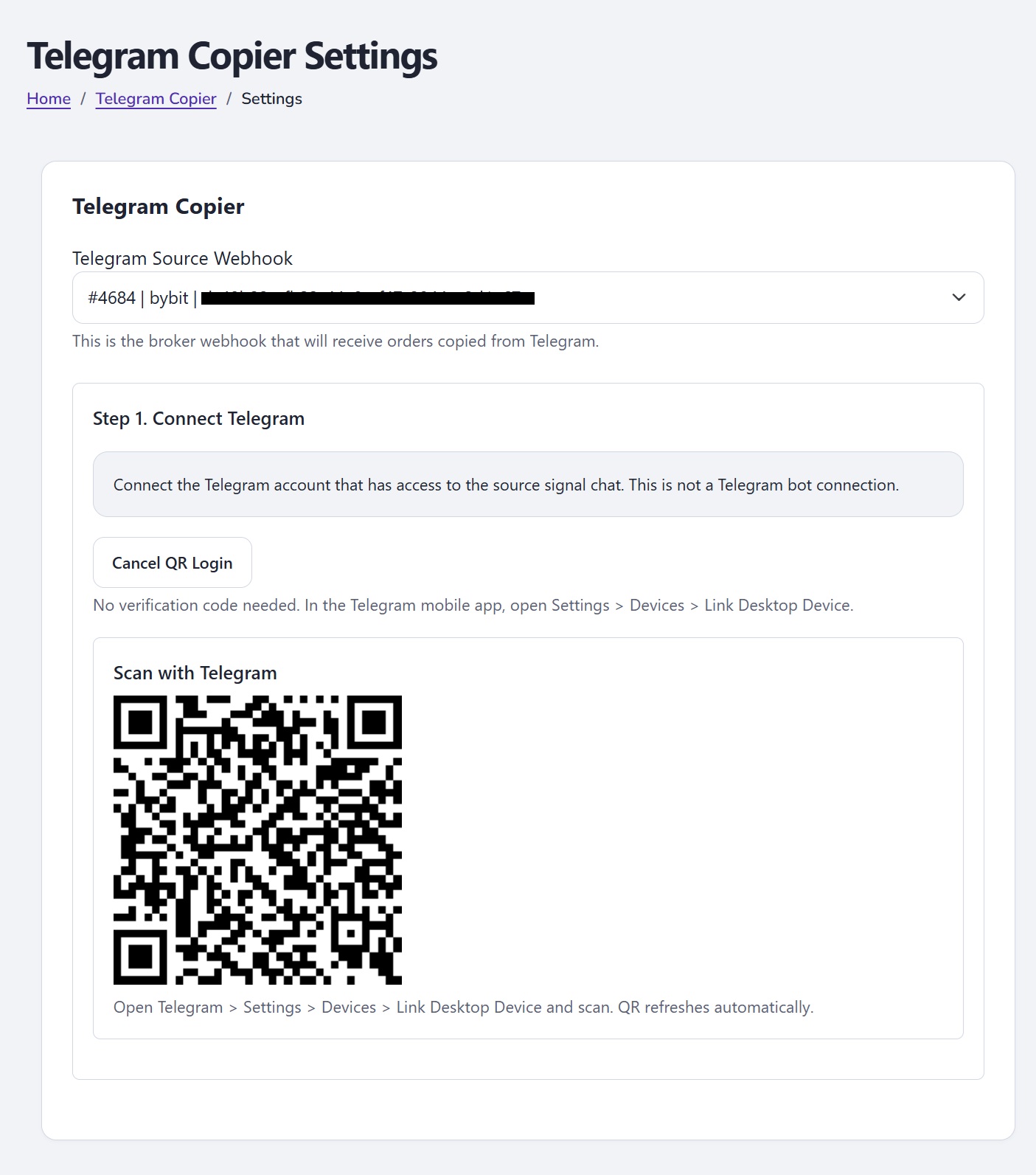
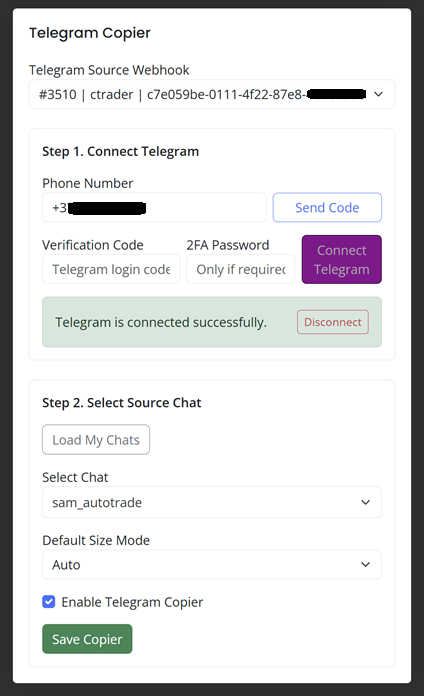
- On the Telegram Copier dashboard, click the gear icon for the new route and choose the correct Telegram Source Webhook.
- Option 1 — Verification code: Enter your Telegram phone number with country code and click Send Code. Check the official Telegram service chat on your active devices or SMS if Telegram offers that delivery method. Enter the code in Verification Code, provide the 2FA Password if required, and click Connect Telegram. A successful request does not necessarily mean that Telegram delivered a code.
- Option 2 — QR code: Click Connect with QR Code. On your phone, open Telegram > Settings > Devices > Link Desktop Device, scan the QR displayed in AlgoWay and confirm the login. The QR refreshes automatically. If Telegram requires your two-step verification password, enter it in AlgoWay. No verification-code message is required for this method.
- Once Telegram is connected, under Step 2. Select Source Chat, click Load My Chats, select the channel or group that publishes signals, review the copy settings, select Enable Telegram Copier and click Save Copier. You will return to the Telegram Copier dashboard.
Code not arriving? If no code appears after about one minute, use QR login instead. When switching from an already connected Telegram account, click Disconnect Telegram before starting a new login. Do not scan a QR from any documentation screenshot: always generate a fresh QR on your own settings page.
Telegram Copier settings
Next step — adjust the copying rules. Open Telegram Copier Settings & Parameters after finishing the MT5 connection and Telegram channel selection.
Examples for an MT5 account: If the signal includes no lot size, see Default Size Mode. If it has several Take Profit levels, see Multi Take-Profit Mode. If your broker uses GOLD instead of XAUUSD, see Symbol Mapping. MT5 connection errors are diagnosed in the EA's Experts and Journal tabs, not in these copier parameters.
New: USD-based money sizing for MT5
In Default Size Mode, select Money Fixed (USD margin) (money_fixed) or Money Risk (USD at Stop Loss) (money_risk) for an MT5 destination. * These values are currently MT5-only. Enter the amount in USD. For example, Money Fixed = 100 budgets approximately $100 of margin, whereas Money Risk = 100 targets approximately $100 loss at the Stop Loss. These settings override any lot number in the Telegram message and use MT5 broker specifications rather than a Telegram entry-price estimate.
Money Risk requires a usable SL from the channel, copier custom SL, or EA internal SL. The EA rejects entries that cannot be sized safely; broker minimum lots, slippage and costs can affect execution. See complete Telegram money-sizing settings and MT5 EA money-sizing behavior.
Breakeven after TP1: two different controls
Forced after TP1 in Telegram Copier responds to a TP1 hit message in the source channel. BreakevenAfterTP1 in the MT5 EA responds to the EA's own TP1 partial close when Enable Breakeven and Enable Multiple Take Profit are active. Both aim to move SL to the entry price, not to the TP1 price. See Telegram trigger details and EA trigger details.
To start copying, select Enable Telegram Copier and click Save Copier. Double-check the source chat and destination account before allowing live orders. After saving, AlgoWay returns to the Telegram Copier dashboard.
Other Telegram destinations: Telegram to TradeLocker · Telegram to cTrader.
Last updated: October 20, 2026