
How to Connect MT5 to Binance with AlgoWay
MetaTrader 5 trade copier guide · Binance Futures · Live and Demo setup · Updated October 22, 2026
Copy supported trades from MetaTrader 5 (MT5) to Binance Futures without rewriting an existing MQL5 strategy. AlgoWay-MT5-CopierBot runs in the source MT5 terminal and forwards trading events to an AlgoWay webhook, which routes them to the Binance account configured for that connection.
Connection path: MetaTrader 5 >> AlgoWay-MT5-CopierBot >> AlgoWay webhook >> Binance Futures.
This walk-through starts with the Binance API key, creates the receiving webhook, installs CopierBot in MT5, and explains how to check the EA status and verify an actual copied order. The main worked example uses a Binance Futures Demo account. Live connections require separate live API credentials.
1. Create a Binance API key for the receiving account
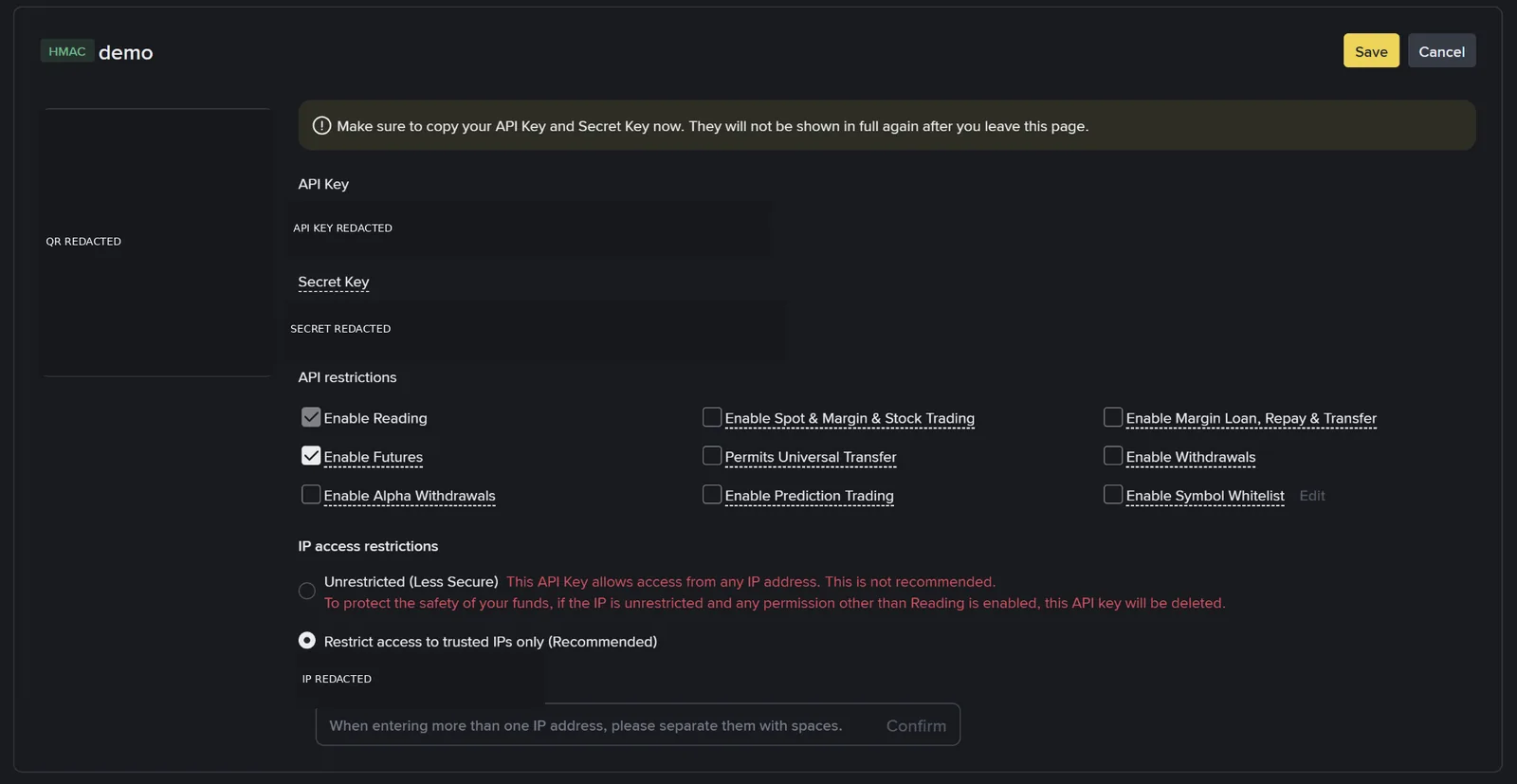
Start in Binance Demo Trading if you are testing with simulated funds. Log in to the demo trading environment, open the profile menu, choose API Management, and select Create API. Give your key a recognizable name and create an HMAC key, which provides both an API Key and an API Secret. Binance may require account security verification.
Turn on Enable Reading and Enable Futures for Futures trading. Keep Enable Withdrawals disabled. Where IP restrictions are enabled, allow the actual outbound IP used for the relevant AlgoWay integration; do not copy an IP address from somebody else's screenshot. Click Save to apply the permissions.
Copy both values immediately. Binance normally displays the full Secret Key only when it is created. A Demo API Key must be created in Binance Demo Trading: an API Key created in the live environment is not interchangeable with a Demo key.
For Binance's current walkthrough, see How to Test Functions on Binance Spot Testnet and Futures Demo Trading.
2. Create a MetaTrader 5 >> Binance webhook
Sign in at AlgoWay. Open Store >> Trade Webhooks and select MetaTrader 5 as the source and Binance as the destination. Continue to the trial or subscription webhook form. On the creation page, the source field is labeled MetaTrader.
Use these fields for the Futures Demo example:
| Field | Setting |
|---|---|
| Source (from) | MetaTrader |
| Platform (to) | Binance |
| Account Type | Demo for simulated trading, or Live for an actual funded Binance account |
| Market Type | Futures/Perpetual for this tutorial |
| Trade Type | Select the mode that corresponds to your Binance Futures position mode: Hedge/Dual side, Reverse/Netting, or the appropriate supported mode |
| Margin Mode / Leverage | Choose Cross or Isolated and a leverage value compatible with your account and contract |
| Trigger Price Type | MARK_PRICE or CONTRACT_PRICE according to how you want conditional triggers evaluated |
| API Key / API Secret | Paste the credentials created for the same Binance account type (Demo or Live) |
| Quantity Multiplier | Choose the sizing method and multiplier intentionally; Absolute / 1 is a form example, not a promise of identical financial exposure |
| Symbol Mapping | Optional; leave empty if you plan to map MT5 symbols within CopierBot instead |
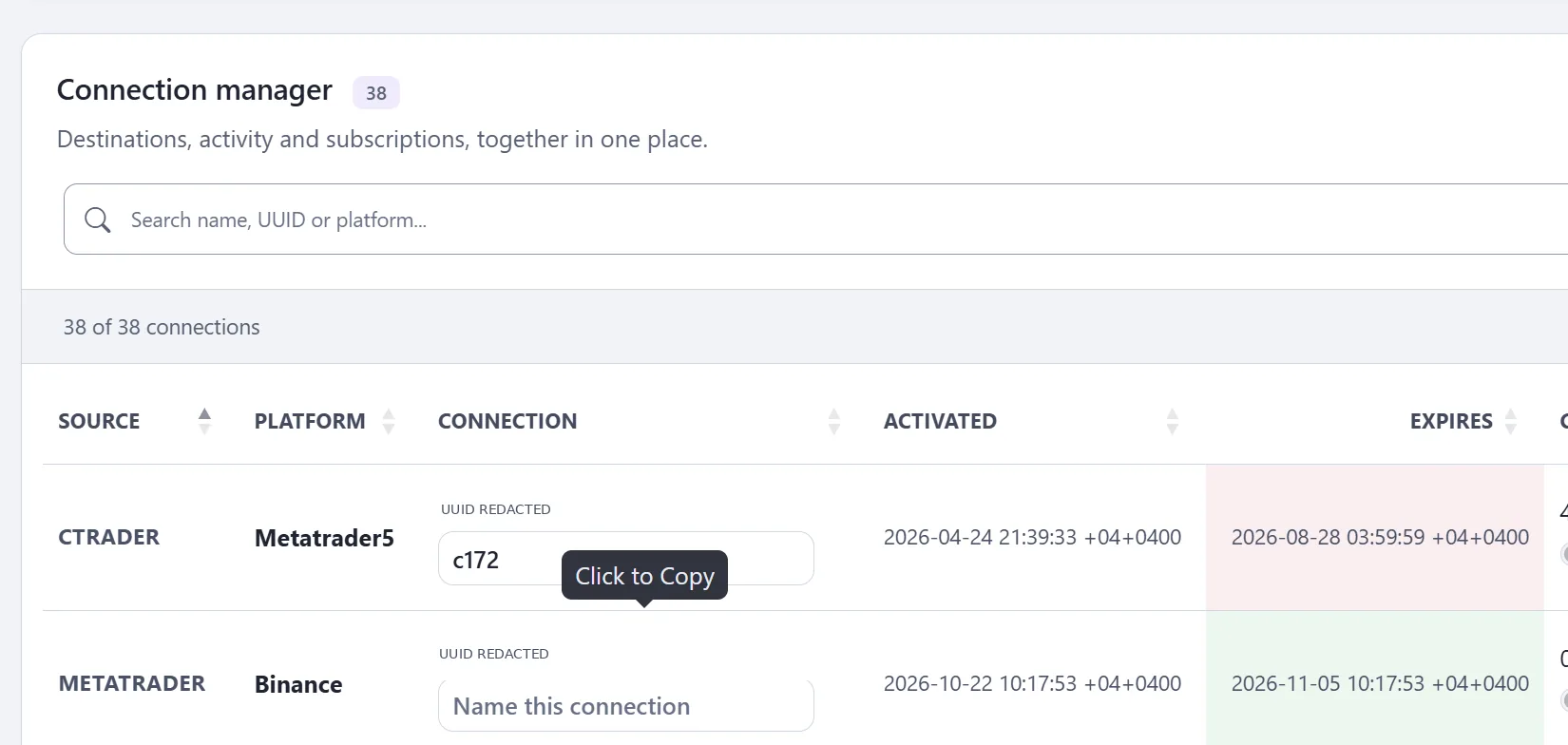
Click Add Trial Webhook (or the corresponding button for your plan). AlgoWay should show a new connection with source METATRADER and platform Binance.
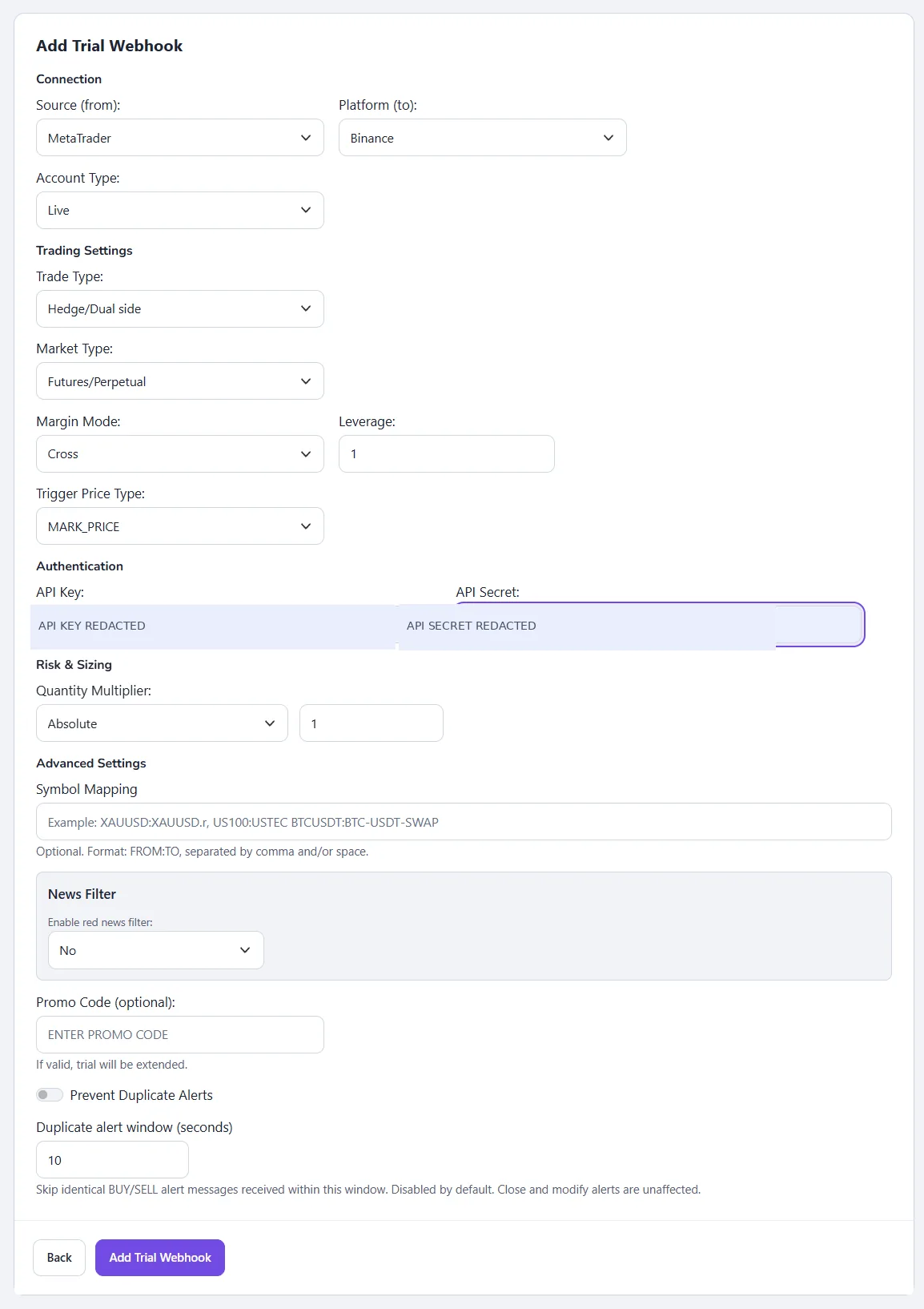
Important sizing distinction: MT5 lots and Binance cryptocurrency quantities are different units. Before enabling real money, verify the resulting Binance quantity, minimum order value, contract type, and leverage. Do not assume that 0.01 MT5 lots means 0.01 BTC on Binance.
3. Copy the newly created webhook URL
In Connections, locate the row for METATRADER >> Binance and copy its webhook UUID or complete URL. Each connection has its own value; do not use an identifier belonging to another destination.
https://algoway.co/<your-webhook-uuid>The domain for this CopierBot setup is algoway.co. The webhook accepts either the full URL or its UUID in the corresponding EA input. Keep the real webhook address private.
4. Download and install AlgoWay-MT5-CopierBot
Download the AlgoWay-MT5-CopierBot.ex5 Expert Advisor from AlgoWay. This is the source-side MT5 copier, not the AlgoWay MT5 destination EA.
- In the source MetaTrader 5 terminal, click File >> Open Data Folder.
- Open MQL5 >> Experts and copy
AlgoWay-MT5-CopierBot.ex5into this folder. - Return to MT5 and open Navigator >> Expert Advisors. Right-click and choose Refresh if the copier is not yet visible.
- Drag AlgoWay-MT5-CopierBot onto any chart in the source MT5 terminal. A BTCUSD chart is fine, but the chart instrument does not restrict which supported account trade events the copier observes.
- In the EA Common tab, allow algorithmic trading; then open its Inputs tab.
5. Enter the webhook and configure the EA
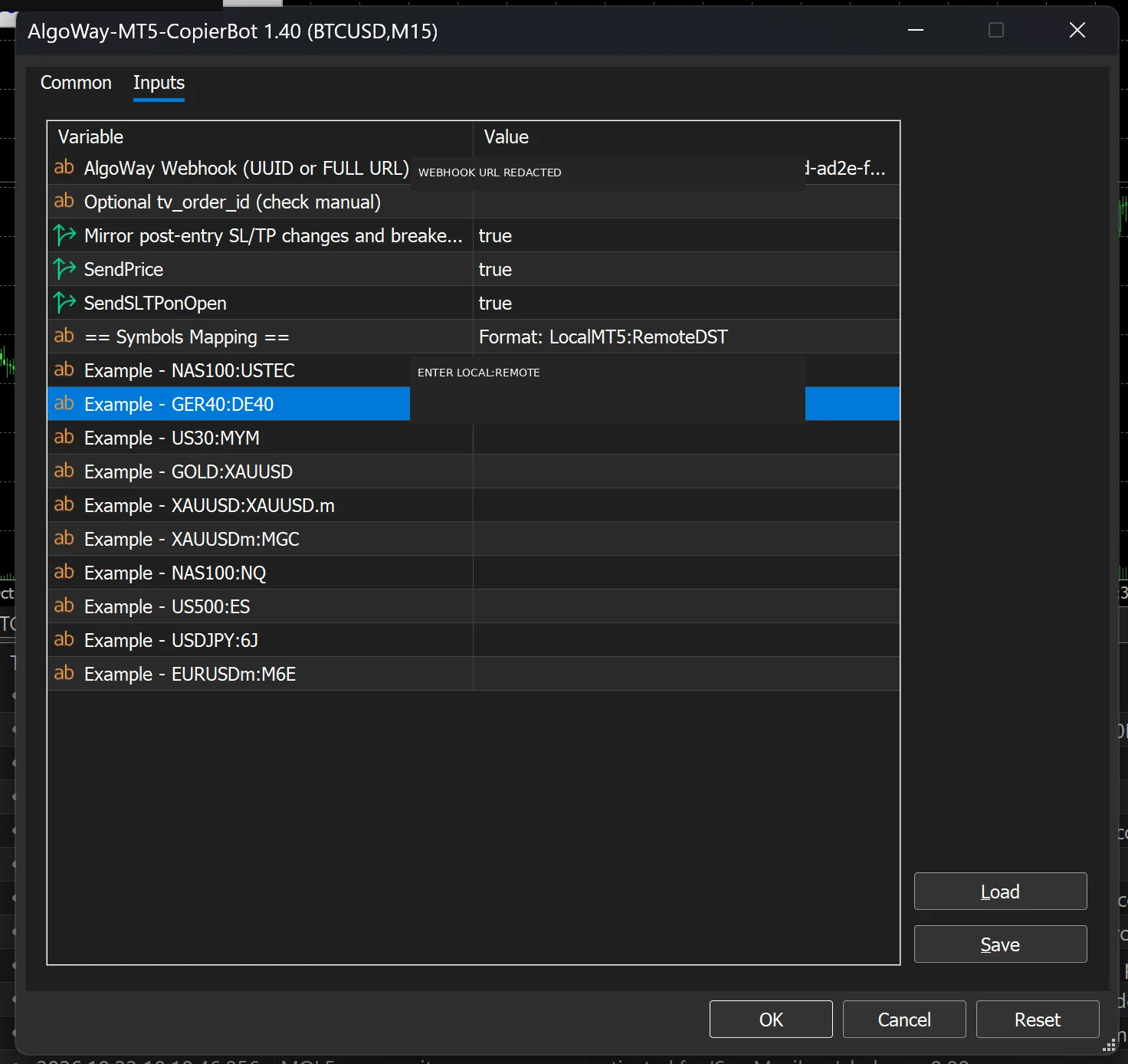
In the EA's Inputs tab, set AlgoWay Webhook (UUID or FULL URL) to the connection you just created. The optional tv_order_id can remain empty if you do not need to distinguish multiple strategies on the same symbol.
Mirror post-entry SL/TP changes and breakeven controls forwarding of supported subsequent protection changes. SendPrice enables price information in source instructions; it does not guarantee identical execution prices on Binance. SendSLTPonOpen controls whether available initial SL and TP levels are forwarded. The receiving connector and exchange must still accept these actions.
Symbol mapping: MT5 ticker to Binance ticker
If your MT5 broker calls Bitcoin BTCUSD but your Binance USDⓈ-M Futures contract is BTCUSDT, enter the mapping below into one of the EA mapping fields:
BTCUSD:BTCUSDTThe required format is LOCAL:REMOTE. Entering only BTCUSD or only BTCUSDT.P is not valid mapping syntax and the EA skips such lines. Check the exact Binance contract name before mapping; BTCUSDT is the symbol used in this example. Configure a needed mapping in either the EA or the webhook first, then verify the resulting order symbol before combining rules.
6. Allow the MT5 terminal to contact AlgoWay
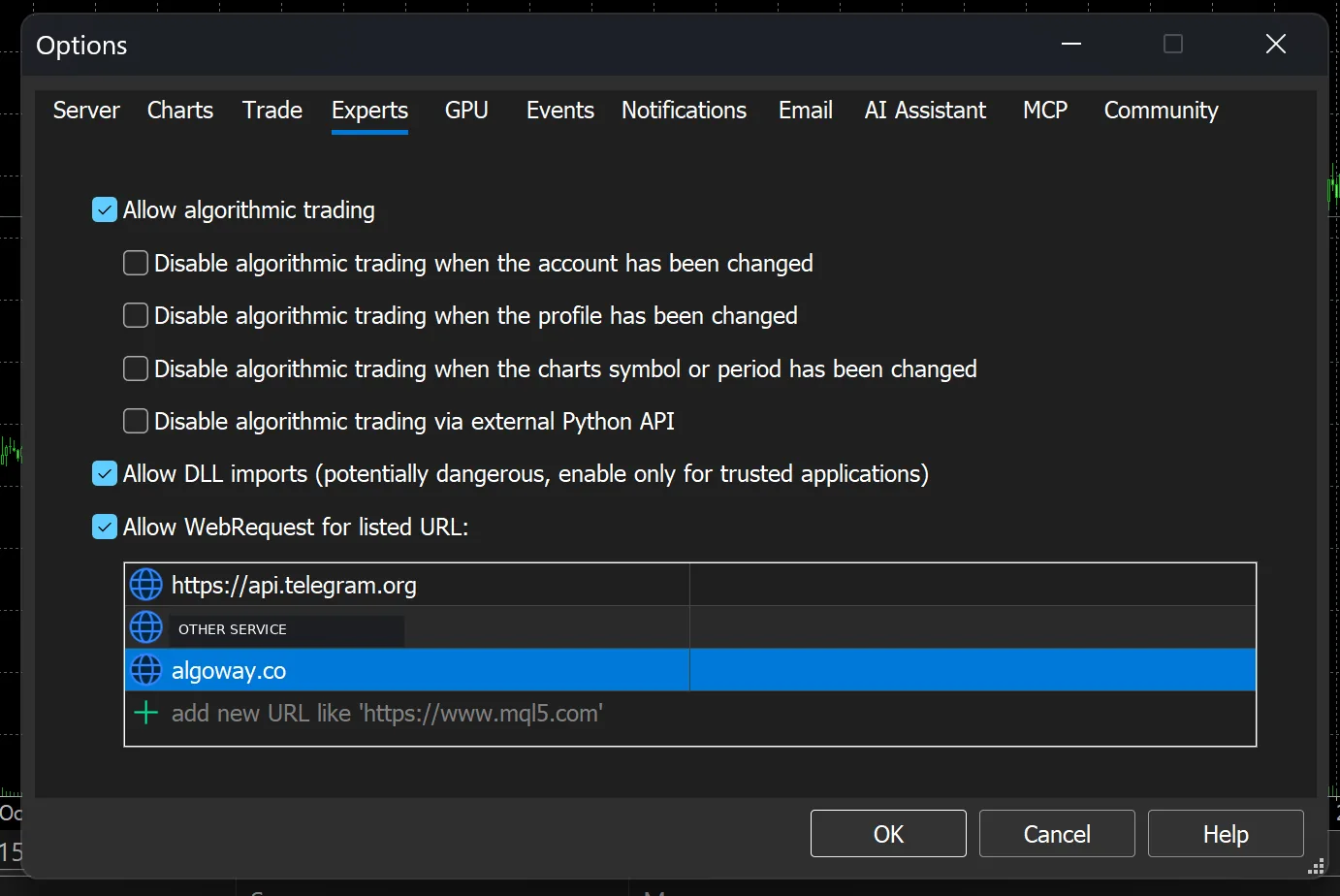
In MT5, open Tools >> Options >> Expert Advisors. Check Allow algorithmic trading and Allow WebRequest for listed URL. Add https://algoway.co to the allowed WebRequest URL list and save the changes. Do not substitute mt5.algoway.co: CopierBot's webhook and licensing requests use algoway.co.
You may see other hosts already listed for other integrations. They are not required for this connection. The Allow DLL imports setting is not a general requirement just because it appears enabled in somebody else's MT5 screenshot.
7. Confirm the CopierBot connection status
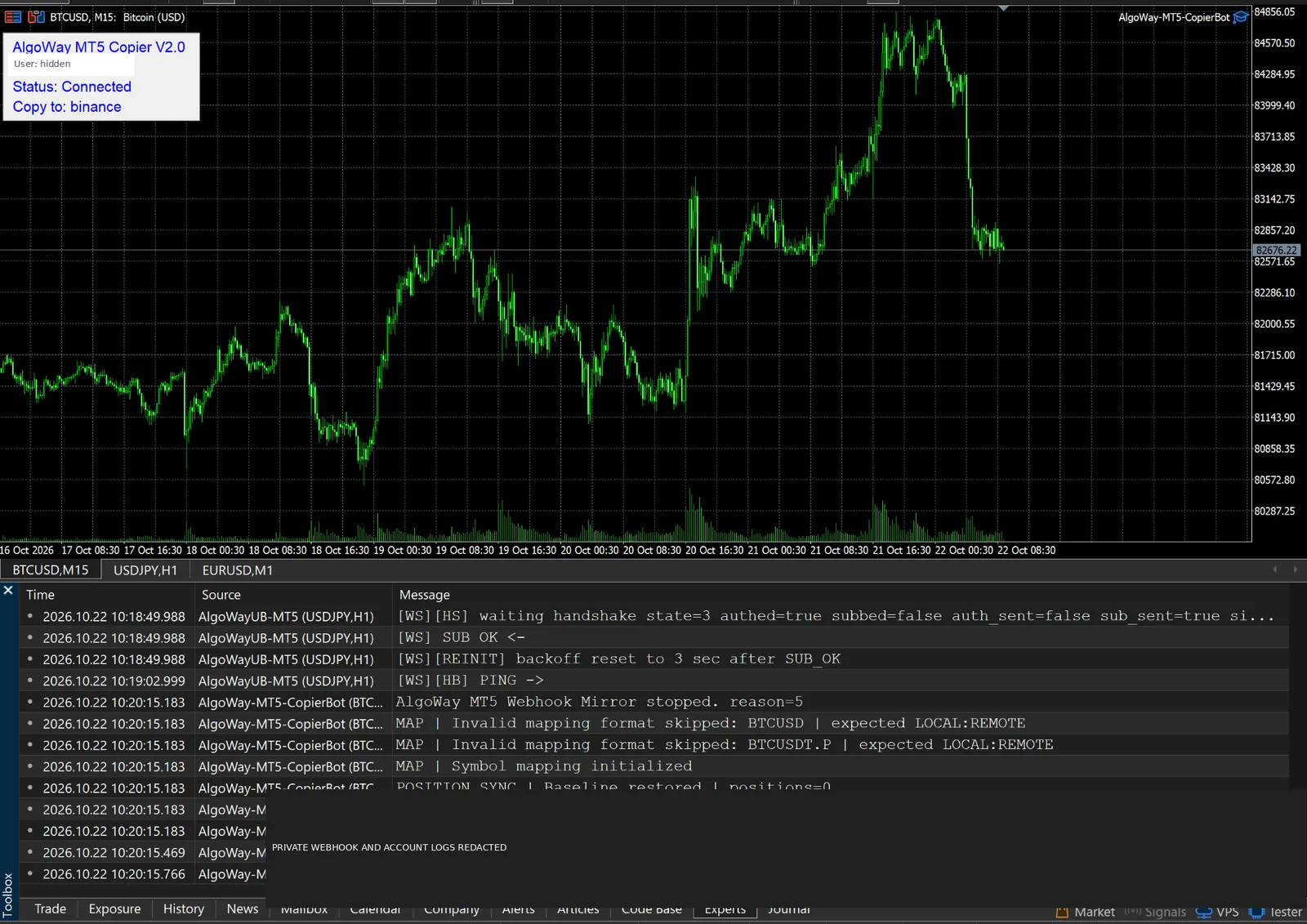
Return to the chart where CopierBot is attached. Its status panel displays the username, connection status and destination:
- Blue text: Status: Connected means the EA has connected and recognized the webhook; the destination line should read Copy to: binance.
- Red text: Status: Not Connected means the copier is not connected. Recheck the webhook URL, AlgoWay authentication, EA permissions and WebRequest settings before proceeding.
Open Toolbox >> Experts. For a connected source EA, the log should contain messages such as status=Connected, copy_to=binance, and AlgoWay MT5 Webhook Mirror ready. A blue Connected panel verifies the copier's connection—not that Binance accepted a particular order.
8. Test an MT5 trade and inspect Binance
Use the smallest sensible demo order and an instrument supported by the selected Binance market. Create an order on the source MT5 account manually or through an existing EA. Open the AlgoWay Webhook Logs for the new connection and examine its request and execution response. Then open Binance Demo Trading >> Futures >> Orders/Positions and confirm that the order actually arrived.
Check the symbol, side, traded quantity, final order status and any rejection details. Test a close separately. If your strategy uses SL/TP updates or pending orders, verify those behaviors individually rather than assuming they are identical to MT5 execution.
A successful CopierBot handshake is not the same as successful Binance order execution. A destination authentication error, market filter, quantity rule, or wrong Demo endpoint can still prevent the order from being accepted.
Troubleshooting MT5 to Binance copying
Status: Not Connected (red)
Confirm that the EA uses the newly created Binance webhook, that MT5 algorithmic trading is allowed, and that the WebRequest list includes https://algoway.co. Read the Experts log for the actual error; a missing WebRequest permission may produce MT5 error 4014.
Connected (blue), but no Binance position appears
Inspect the AlgoWay webhook execution log and the response from Binance. Match Demo keys to the Demo account type and confirm that the Futures API permission is enabled. Binance's current Futures Demo documentation identifies https://demo-fapi.binance.com as its REST endpoint; an outdated testnet endpoint may fail even if the MT5 copier itself is connected.
Invalid symbol mapping
Use a complete LOCAL:REMOTE pair such as BTCUSD:BTCUSDT. A single unpaired ticker is ignored. Check the actual source symbol spelling and the destination's futures symbol.
Quantity or risk differs from MT5
MT5 lots, Binance base-asset quantities, leverage, exchange minimums and account balance are not automatically equivalent. Check the webhook's Quantity Multiplier and the exchange's contract specification before adjusting the order size.
API permission or IP restriction error
Verify that Binance API Management saved the Reading and Futures permissions, and that the allowlisted IP matches the server handling this connection. Never enable withdrawals to solve a trading permission error.
Related guides: TradingView to Binance integration · MT5 CopierBot overview · Binance Demo Trading FAQ.