AlgoWay Free Alerts Chrome Extension: Complete User Guide
AlgoWay Free Alerts connects an open TradingView chart to an AlgoWay webhook directly from Chrome. It has two independent modes: Free Alerts forwards TradingView alert messages; Auto Monitor reads an indicator's entry, stop-loss and take-profit setup and manages trading commands as prices change.
This guide covers version 0.5.1, using actual extension screenshots. Start with a demo account and confirm each webhook command in AlgoWay and your destination platform before using live funds.
Last updated: October 24, 2026 · Product: AlgoWay Free Alerts for Chrome
How the Two Modes Work
| Feature | Free Alerts | Auto Monitor |
|---|---|---|
| Source | TradingView alert messages received in the open chart tab. | The selected chart indicator, including detectable entry/SL/TP levels. |
| Sending | Forwards a triggered alert to the configured AlgoWay webhook. | Creates trading commands for ENTRY, SL, take-profit events and optional breakeven management. |
| Activation | Top ON/OFF switch on the Free Alerts tab. | Separate Indicator Auto Monitor switch on the Auto Monitor tab. |
| Relationship | Independent modes: Free Alerts can stay OFF while Auto Monitor is ON, and vice versa. | |
The path is TradingView chart >> Chrome extension >> AlgoWay webhook >> configured destination. The extension does not replace the broker connection or confirm a completed fill by itself.
Before You Start
- Google Chrome with the AlgoWay Free Alerts extension installed.
- An open TradingView chart.
- An AlgoWay account, a configured destination platform and a webhook route created for ChromeExtension.
- For Auto Monitor, an indicator on the chart that exposes a readable trading setup. Not every indicator can supply reliable Entry, SL and TP information.
- A demo account or safe test environment and access to Webhook Logs on AlgoWay.
Step 1. Install and Connect the Chrome Extension
- Install AlgoWay Free Alerts from Chrome Web Store when its listing is available.
- Open a TradingView chart in Chrome, select the correct symbol and timeframe, and leave that tab open.
- Click the Chrome Extensions icon and open AlgoWay Free Alerts. Pinning the extension makes it easier to access.
- The popup has three tabs: Free Alerts, Auto Monitor and Alert Log.
- Configure the appropriate mode below. Automatic connection is supported for open TradingView tabs; if data does not appear, see troubleshooting.
Neither mode requires you to paste a TradingView-native webhook notification URL into every alert. The extension sends the webhook from Chrome instead.
Step 2. Create Your AlgoWay Webhook URL
- Sign in to AlgoWay and open your webhook configuration.
- Create an alert/webhook route using ChromeExtension as the source, and configure the account or trading platform that should receive the commands.
- Copy the route's unique webhook URL. It follows the format
https://algoway.co/[your-webhook-uuid]. - Paste it into Webhook UUID URL Here on the Free Alerts tab or AlgoWay webhook URL on Auto Monitor. The modes share the URL setting.
Use only the address generated for your account. A webhook URL can authorize trading commands and must not be shared publicly. The URLs in the screenshots below have been replaced with examples.
Step 3. Use Free Alerts to Forward TradingView Alerts
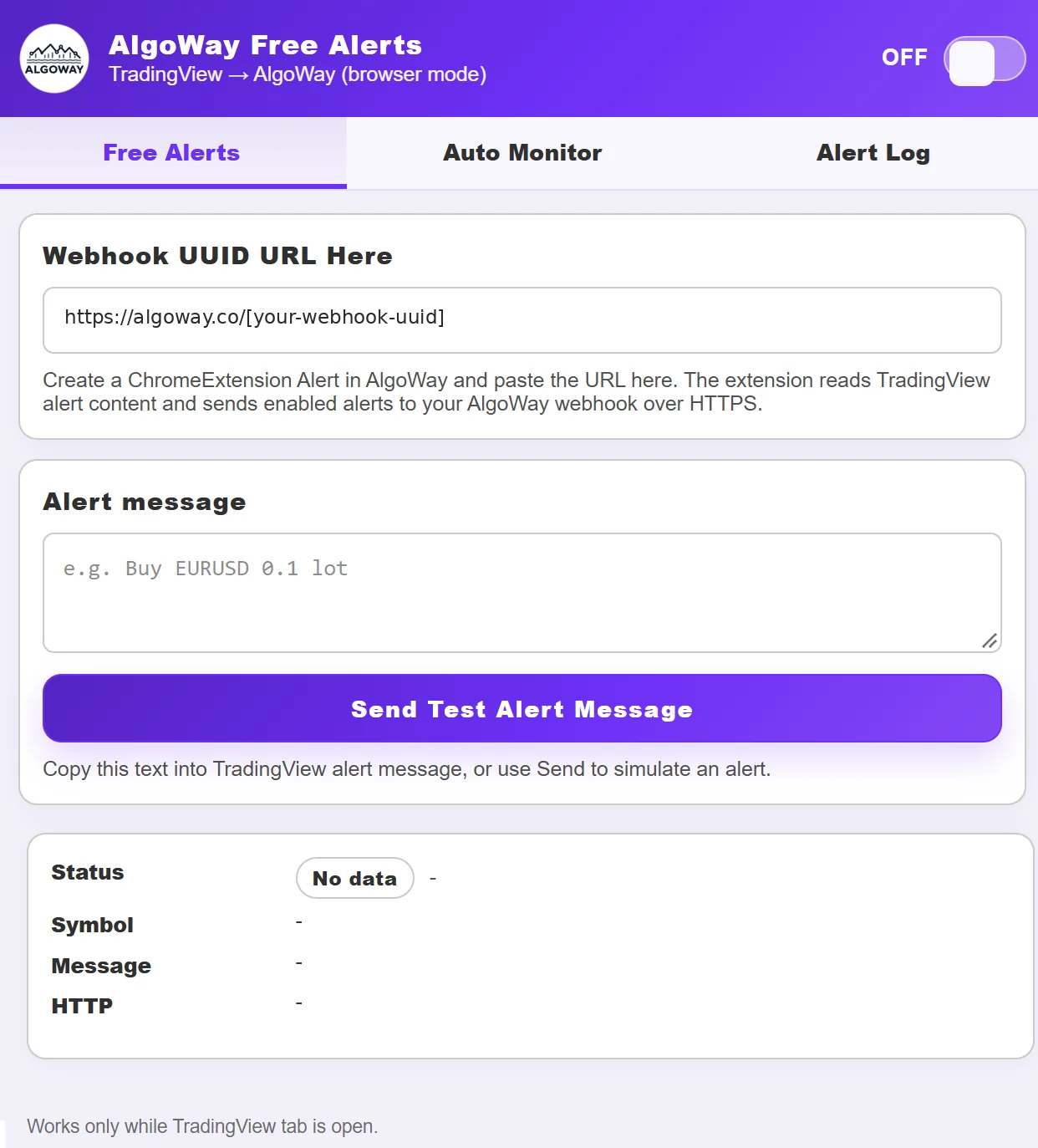
- Open the Free Alerts tab and paste the AlgoWay webhook URL.
- In TradingView, create an alert for the symbol or indicator condition you want to forward. Configure the alert's Message field with the trading instruction expected by your ChromeExtension route.
- Turn the extension's main Free Alerts switch to ON. The chart must remain open for the extension to receive the alert event.
- When the TradingView alert fires, check Status, Symbol, Message and HTTP in the popup.
Test a Message Without Waiting for an Alert
The Alert message field on this screen is a manual test input. Enter a message supported by your route and click Send Test Alert Message. This sends the message directly to the webhook even if the automatic Free Alerts switch is OFF. It is not necessary to copy every live TradingView alert into this field.
Successful delivery is shown with an HTTP response. An HTTP 200 confirms a successful HTTP response from the webhook endpoint, not necessarily a completed broker order. Confirm execution in AlgoWay Webhook Logs and the destination platform.
Free alert limit: this version includes a daily cap of 5 sent Free Alerts, including messages sent with the manual test button. Auto Monitor has separate processing logic.
Step 4. Configure Indicator Auto Monitor
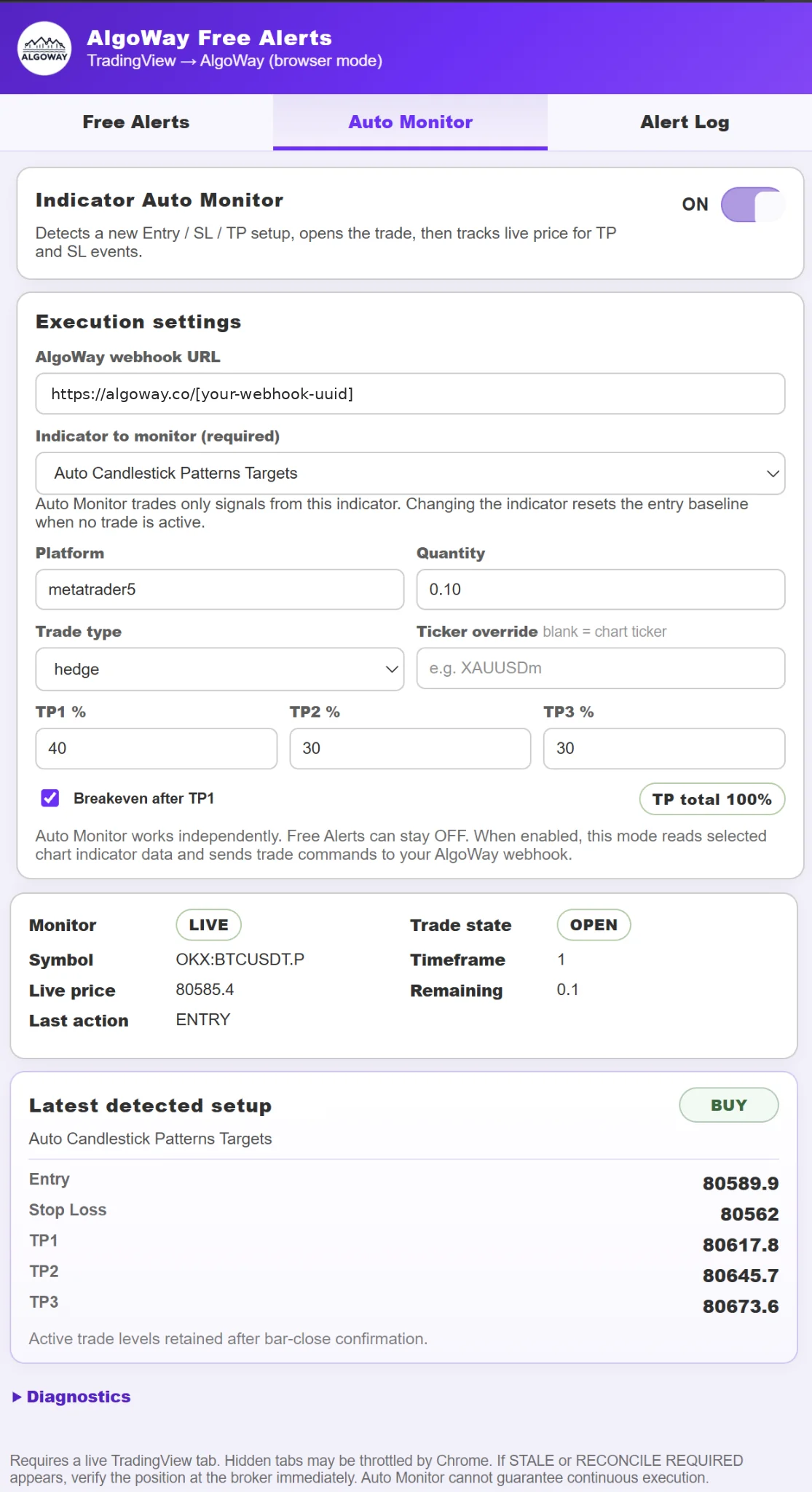
Auto Monitor looks for a new entry setup from one selected indicator. It waits for bar confirmation, then uses the browser's live chart information for subsequent trade management.
- Open the TradingView chart containing the indicator you want to use.
- In the popup open Auto Monitor and choose Indicator to monitor (required). The selector discovers readable indicators even when Auto Monitor is OFF.
- Paste or confirm the AlgoWay webhook URL, then fill in Platform, Quantity and Trade type.
- Use Ticker override if the broker symbol differs from the chart symbol. If blank, the chart symbol is used.
- Set TP1 %, TP2 % and TP3 % to distribute the position size. The displayed total must equal 100%.
- Enable Breakeven after TP1 if you want the extension to request a stop adjustment after the first take profit.
- After verifying the settings and demo destination, switch Indicator Auto Monitor to ON.
| Setting | What it controls |
|---|---|
| Indicator to monitor | The only study from which Auto Monitor will process trading setups. Select an indicator with reliable signals and price levels. |
| Platform | The destination identifier used in the generated webhook JSON, for example metatrader5. |
| Quantity | Initial trading size. Units depend on the destination platform; verify lot size or contract size before trading. |
| Trade type | The AlgoWay position-handling mode, such as hedge. Match it to your account and intended behavior. |
| Ticker override | Explicit destination symbol; useful when TradingView's ticker does not match the broker symbol. |
| TP1 / TP2 / TP3 % | Percentages of the original position to close at the successive profit targets. For example 40 / 30 / 30. |
| Breakeven after TP1 | Requests a stop-loss move to breakeven after the TP1 event; actual handling depends on destination support and confirmation. |
Step 5. Read Monitor Status and the Latest Setup
The live panel separates the chart data from the current trade state:
| Indicator | Meaning |
|---|---|
| Monitor LIVE | Fresh TradingView snapshots are reaching the extension. This does not guarantee that every broker order was filled. |
| Starting / WAIT | The monitor is not yet receiving sufficient chart data. |
| Trade state IDLE | No active trade is recorded in this extension's local runtime. |
| Trade state OPEN | The extension is tracking an active trade; verify the corresponding position in the destination platform. |
| Last action | The most recent action handled by the monitor, for example ENTRY. |
| Remaining | The size remaining according to the monitor's local trade state. |
| Latest detected setup | Direction, Entry, Stop Loss and TP1/TP2/TP3 values reported or reconstructed from the selected indicator. |
In the screenshot, the selected indicator is Auto Candlestick Patterns Targets. The example setup is BUY, Entry 80589.9, SL 80562, and TP1/TP2/TP3 at 80617.8, 80645.7 and 80673.6. These are historical demonstration values, not trading recommendations.
Expand Diagnostics to inspect execution events, detected studies and recent chart changes when monitoring is not behaving as expected.
Step 6. Read the Alert Log and Verify Execution
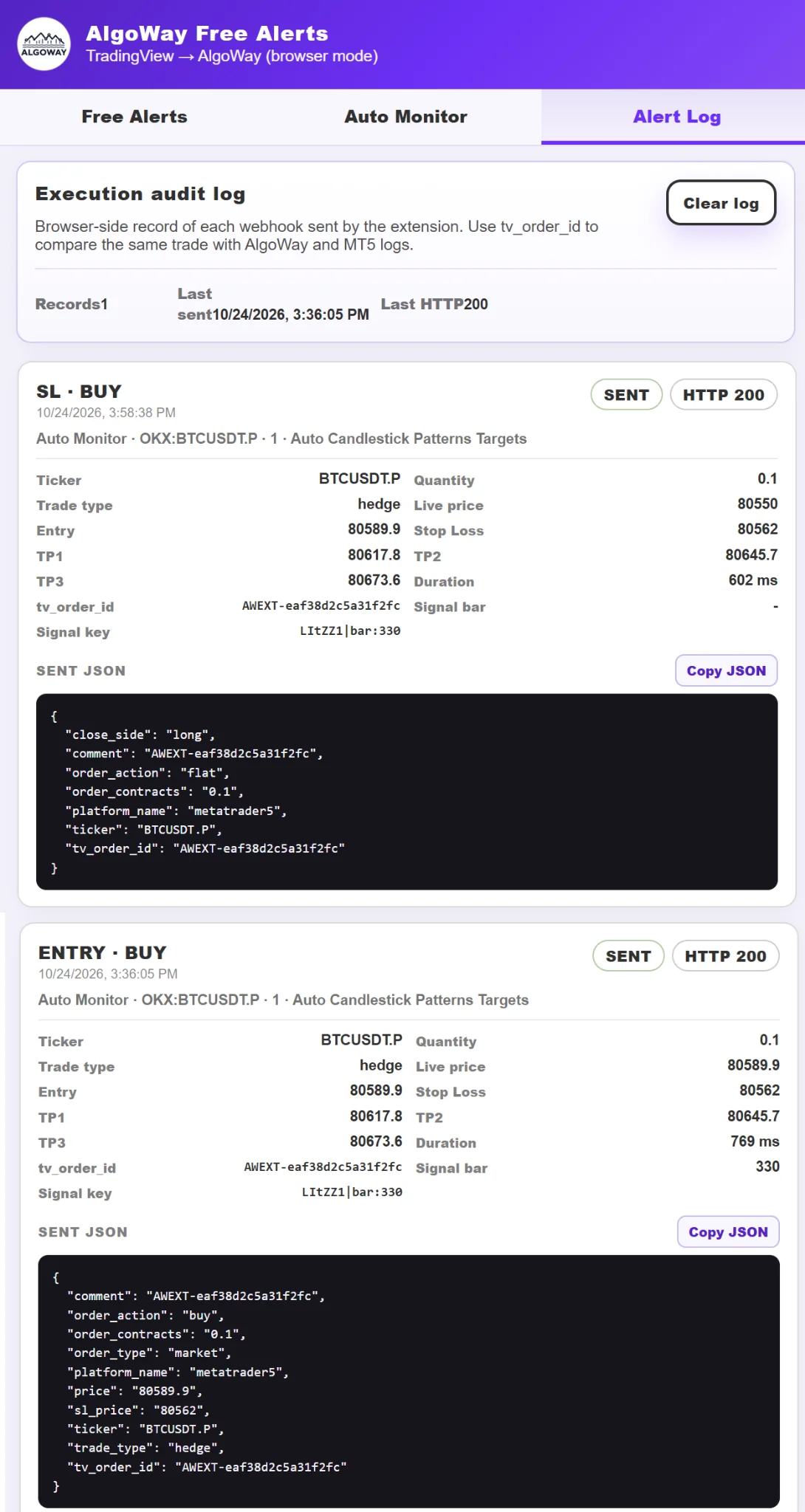
Open Alert Log to inspect individual deliveries from both Free Alerts and Auto Monitor. For each record, check the action (ENTRY, SL or another event), direction, timestamp, ticker, quantity, price levels, HTTP status, duration and tv_order_id.
Copy JSON copies the request payload for support and comparison with the AlgoWay Webhook Logs. Clear log removes the browser's local audit history; it does not cancel or close a broker position.
The example shows an ENTRY BUY and a later SL BUY command for the same tv_order_id. That shared identifier lets you correlate events for the tracked trade. The audit shows what the browser submitted and the returned HTTP status; always verify order execution at the destination.
Browser Operation and Trading Safety
Keep the TradingView tab open. Auto Monitor reads chart data in the browser; it is not a continuously running server-side risk engine. Chrome may slow timers in hidden or background tabs, and the computer, browser or network can disconnect.
STALE means snapshots are no longer fresh (the configured threshold in this version is about five seconds). RECONCILE REQUIRED means the outcome of a command is uncertain. In either case, check the actual open position and orders at the broker immediately; do not assume SL/TP/BE management is continuing normally.
On initial entry Auto Monitor includes the detected sl_price in its webhook JSON where available. Browser-managed take-profit events and breakeven requests are still dependent on ongoing chart data and successful delivery. Do not rely exclusively on the browser for risk protection.
Updating the extension normally attempts to reconnect to already open charts. If the popup shows RELOAD REQUIRED, reload the TradingView tab before depending on further automatic processing. Reloading or reinstalling the extension does not prove that existing broker positions are synchronized with local state.
Troubleshooting
| Problem | What to check |
|---|---|
| Indicator selector is empty | Open the chart tab in the foreground, confirm the indicator is loaded and wait for discovery. Some indicators do not expose readable study data. |
| Monitor stays at Starting | Confirm the TradingView chart is open, the correct tab is active and the bridge is connected. Check Diagnostics and reconnect/reload the chart only if necessary. |
| Monitor is LIVE but setup stays WAITING | The selected indicator has not produced a new complete setup after baseline synchronization. Existing setups are ignored to avoid historical entries. |
| Wrong symbol or quantity | Verify Platform, Quantity and Ticker override, plus the destination platform's instrument rules. |
| Free Alerts shows No data | Confirm the Free Alerts switch is ON and that a new TradingView alert actually fired. For manual testing, use Send Test Alert Message. |
| HTTP FAIL or unexpected status | Check URL, destination connection, AlgoWay Webhook Logs and broker logs. An HTTP error does not always prove that no execution occurred; reconcile before resending. |
| STALE or RECONCILE REQUIRED | Verify the position directly in the destination platform before making further changes or attempting recovery. |
| Free Alerts stops sending | Confirm the tab is open, the daily free limit has not been reached and the extension is enabled. |
See also TradingView webhook setup, AlgoWay JSON reference, and TradingView to MetaTrader 5.
Final Checklist
Before connecting live funds, confirm the Chrome extension is installed, TradingView is open, the ChromeExtension webhook points to the intended destination, the correct indicator and quantity are selected, TP allocations total 100%, and both entry and exit commands have been tested on a demo account. Monitor execution status in the extension, AlgoWay and your broker.