[Original HTML page](https://docs.algoway.trade/telegram-to-mt5.html)
dateModified: 2026-10-29
# How to Copy Telegram Trading Signals to MetaTrader 5
**Telegram is the signal source, and MetaTrader 5 is the trading destination.** AlgoWay reads signals from your selected Telegram channel and routes them to the standard AlgoWayWS-MT5 Expert Advisor in your broker account. You do not need a TradingView account, TradingView alerts or another Telegram-specific EA.
``` text
Telegram channel >> AlgoWay Telegram Copier >> AlgoWayWS-MT5 EA >> MetaTrader 5
```
This guide connects your MT5 broker account to a Telegram channel, including the Expert Advisor and UUID. Once the connection is working, continue with the shared Telegram Copier settings reference; there is no need to configure any TradingView alert. [**Open Telegram Copier Parameters**](https://docs.algoway.trade/ai-telegram-signals-manual.html).
## Step 1. Create the Telegram to MT5 route
1. Sign in to AlgoWay and open **Telegram Copier \> Create New Telegram Copier**.
2. Choose the applicable access option. In the connection form, select **Telegram** under **Source (from)** and **MetaTrader 5** under **Platform (to)**.
3. Review the MT5 route settings, create the route and copy its unique **webhook UUID**. You need the UUID, not the full webhook URL, for the EA Inputs.
## Step 2. Install AlgoWayWS-MT5 on the trading terminal
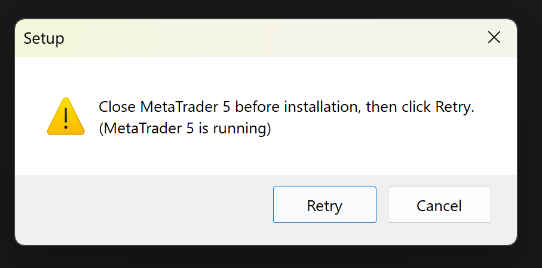
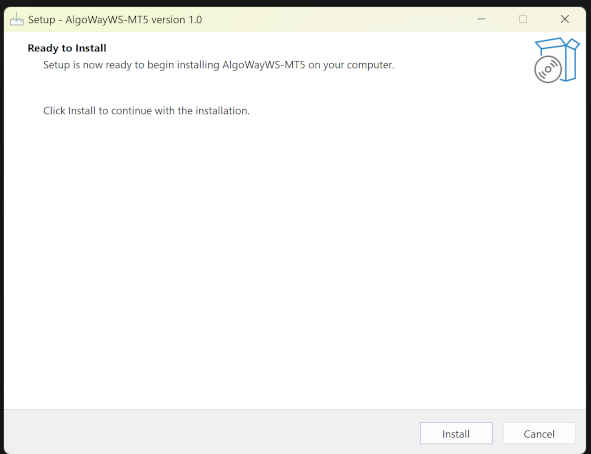
Prepare a running MT5 broker account on Windows or a Windows VPS. **Close MT5** before installing the EA. Download the [**AlgoWayWS-MT5 Auto Installer**](https://algoway.trade/downloads/AlgoWayWS-MT5-Setup.exe), run it on the **same Windows machine** where your MT5 account will execute the orders, and follow the installer steps.
### Manual installation when the installer cannot be used
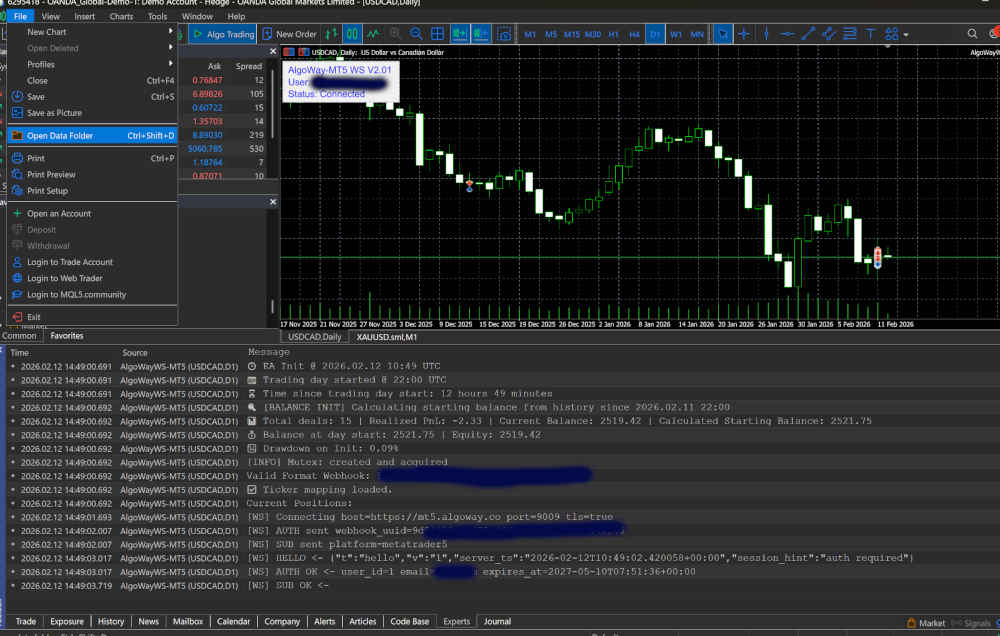
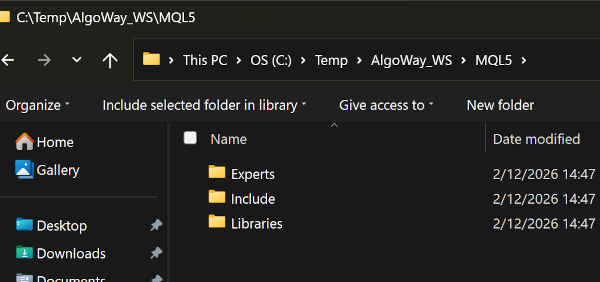
Download [EA_payload.zip](https://algoway.trade/downloads/EA_payload.zip). Open MT5 and choose **File \> Open Data Folder**. Extract the files from the package into the correct folders in this Data Folder, then restart MT5 or refresh Navigator.
| File | Folder |
|---------------------------------------------|-------------------|
| `AlgoWayWS-MT5.ex5` | `MQL5\Experts\` |
| `asyncwinhttp.mqh` and `asyncwebsocket.mqh` | `MQL5\Include\` |
| `asyncwinhttpwebsockets.dll` | `MQL5\Libraries\` |
If the DLL cannot load, install the appropriate Microsoft Visual C++ v14 Redistributable: x64 for 64-bit MT5 or x86 for 32-bit MT5.
### Universal Build (UB): Native Socket EA for Mac, Linux and Windows
**AlgoWay Universal Build (UB)** is the full-featured native-socket MT5 Expert Advisor for **macOS and Linux** (including Wine-based MT5 environments); **Windows** users can use it too, and it is a useful alternative to try if the standard AlgoWayWS-MT5 EA reports any error. **[Download AlgoWayUB-MT5.ex5](https://algoway.trade/downloads/AlgoWayUB-MT5.ex5).** To install, open MT5 and choose **File \>\> Open Data Folder \>\> MQL5 \>\> Experts**, copy `AlgoWayUB-MT5.ex5` there, then restart MT5 or refresh Navigator. Attach **AlgoWayUB-MT5** to a chart and enter the **same Telegram-to-MT5 webhook UUID** in EA Inputs. Enable algorithmic trading and verify the connection in Experts. UB does **not** require an external WebSocket DLL, DLL imports or a separate Microsoft Visual C++ Redistributable. The standard EA's DLL instructions below do not apply to UB; broker-side errors still need to be checked in MT5 Experts/Journal.
**IMPORTANT — REQUIRED FOR UNIVERSAL BUILD (UB):** Native Socket connections must be explicitly allowed in MetaTrader 5. Open **Tools \> Options \> Expert Advisors**, enable **Allow WebRequest for listed URL**, and add **`mt5.algoway.co`** to the allowed addresses. Click **OK** and restart or reattach the UB Expert Advisor. **Without this permission, Universal Build cannot establish its socket connection.** This requirement applies even though UB does not use external DLLs.
## Step 3. Enable MetaTrader 5 trading permissions
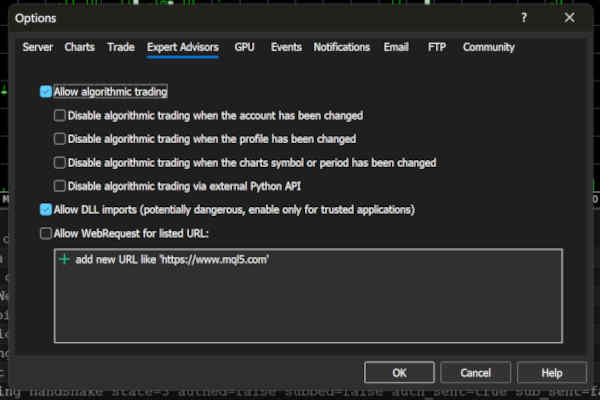
Open **Tools \> Options \> Expert Advisors** and enable **Allow algorithmic trading**. For the standard DLL-based AlgoWayWS-MT5 EA, also enable **Allow DLL imports**. Universal Build (UB) does **not** need DLL imports, but requires `mt5.algoway.co` in **Allow WebRequest for listed URL**, as detailed in the UB section above.
## Step 4. Attach EA, enter the UUID and verify WebSocket
1. Open any chart in the target MT5 terminal, then locate **AlgoWayWS-MT5** under **Navigator \> Expert Advisors**.
2. Attach it to the chart and open the EA **Inputs** tab.
3. Paste the **UUID of the Telegram to MT5 route** created in Step 1 and confirm the settings.
4. Check the **Experts** tab for the WebSocket connection. Inspect **Journal** for terminal and DLL errors.
**IMPORTANT — USE HEDGE MODE FOR TELEGRAM TO MT5: In the EA Inputs, set "Reverse / Hedge / Opposite / Inverse" to "Hedge". Do not use "Reverse" when copying independent BUY and SELL signals from Telegram. Reverse can close an existing opposite position instead of placing the new pending order. Hedge lets opposite positions coexist on an MT5 hedging account.**
## Step 5. Connect Telegram and select the signal channel
Connect the Telegram account that already has access to your signal channel. **Telegram Copier Settings** supports two login methods:
1. On the **Telegram Copier** dashboard, click the **gear icon** for the new route and choose the correct **Telegram Source Webhook**.
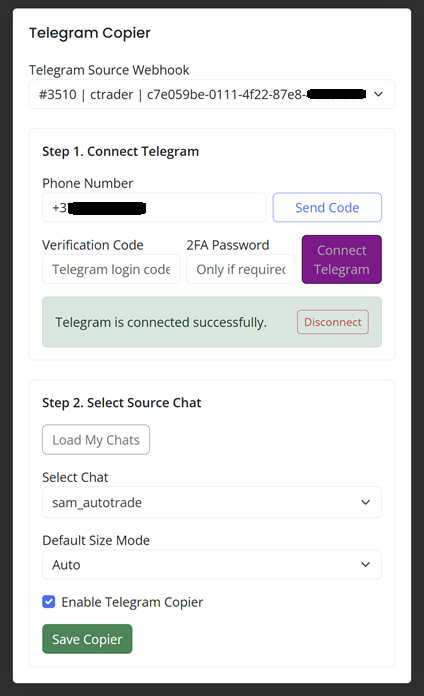
2. **Option 1 — Verification code:** Enter your Telegram phone number with country code and click **Send Code**. Check the official Telegram service chat on your active devices or SMS if Telegram offers that delivery method. Enter the code in **Verification Code**, provide the **2FA Password** if required, and click **Connect Telegram**. A successful request does not necessarily mean that Telegram delivered a code.
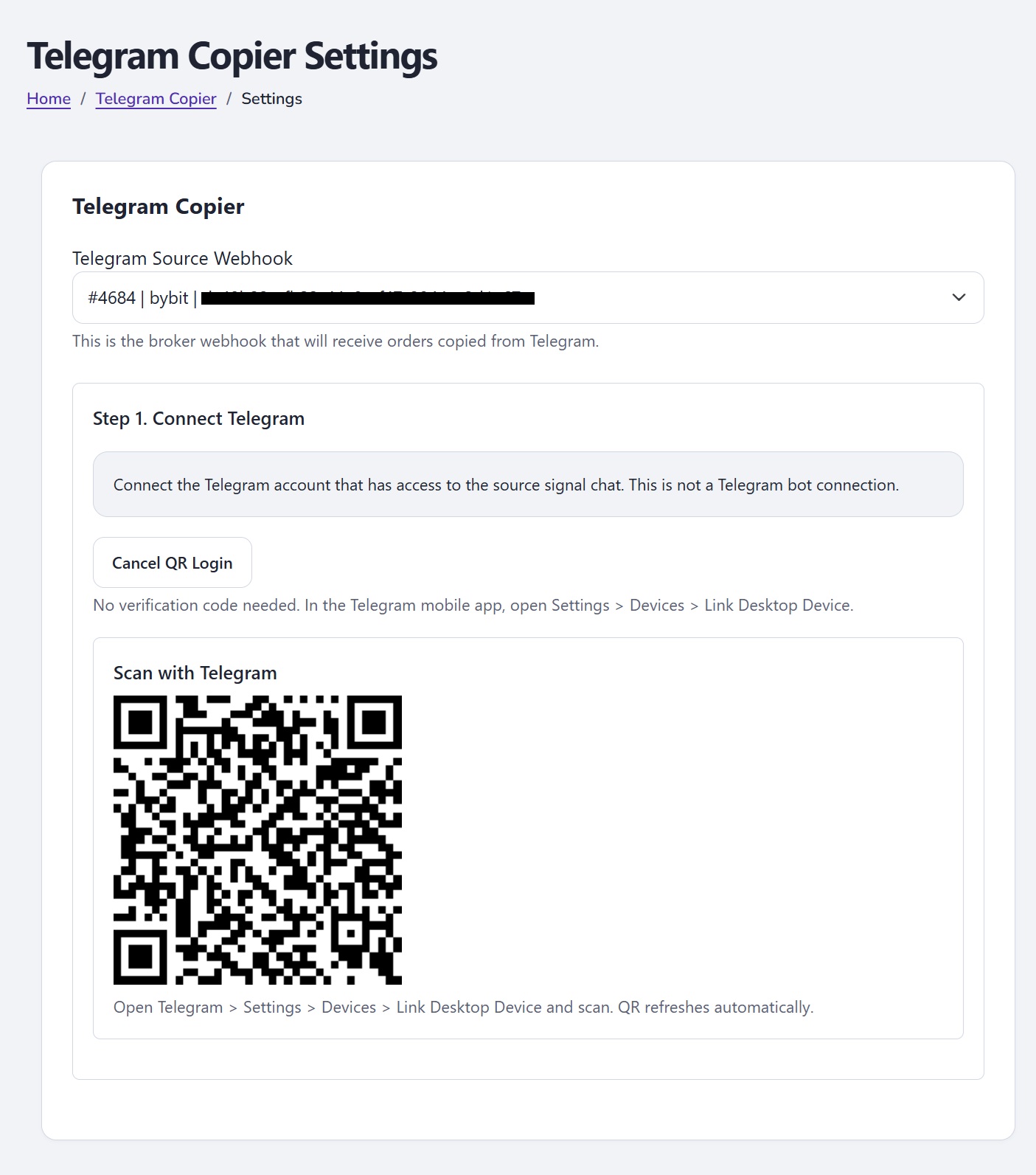
3. **Option 2 — QR code:** Click **Connect with QR Code**. On your phone, open **Telegram \> Settings \> Devices \> Link Desktop Device**, scan the QR displayed in AlgoWay and confirm the login. The QR refreshes automatically. If Telegram requires your two-step verification password, enter it in AlgoWay. **No verification-code message is required** for this method.
4. Once Telegram is connected, under **Step 2. Select Source Chat**, click **Load My Chats**, select the channel or group that publishes signals, review the copy settings, select **Enable Telegram Copier** and click **Save Copier**. You will return to the Telegram Copier dashboard.
**Code not arriving?** If no code appears after about one minute, use QR login instead. When switching from an already connected Telegram account, click **Disconnect Telegram** before starting a new login. Do not scan a QR from any documentation screenshot: always generate a fresh QR on your own settings page.
Example of the QR login screen. Scan a fresh QR generated for your account in AlgoWay, not the screenshot above.
## Telegram Copier settings
**Next step — adjust the copying rules.** Open [Telegram Copier Settings & Parameters](https://docs.algoway.trade/ai-telegram-signals-manual.html) after finishing the MT5 connection and Telegram channel selection.
**Examples for an MT5 account:** If the signal includes no lot size, see [Default Size Mode](https://docs.algoway.trade/ai-telegram-signals-manual.html#default-size-mode). If it has several Take Profit levels, see [Multi Take-Profit Mode](https://docs.algoway.trade/ai-telegram-signals-manual.html#multi-tp-mode). If your broker uses `GOLD` instead of `XAUUSD`, see [Symbol Mapping](https://docs.algoway.trade/ai-telegram-signals-manual.html#symbol-mapping). MT5 connection errors are diagnosed in the EA's Experts and Journal tabs, not in these copier parameters.
### New: USD-based money sizing for MT5
In **Default Size Mode**, select **Money Fixed (USD margin)** (`money_fixed`) or **Money Risk (USD at Stop Loss)** (`money_risk`) for an MT5 destination. **\* These values are currently MT5-only.** Enter the amount in USD. For example, `Money Fixed = 100` budgets approximately \$100 of margin, whereas `Money Risk = 100` targets approximately \$100 loss at the Stop Loss. These settings override any lot number in the Telegram message and use MT5 broker specifications rather than a Telegram entry-price estimate.
**Money Risk requires a usable SL** from the channel, copier custom SL, or EA internal SL. The EA rejects entries that cannot be sized safely; broker minimum lots, slippage and costs can affect execution. See [complete Telegram money-sizing settings](https://docs.algoway.trade/ai-telegram-signals-manual.html#mt5-money-sizing) and [MT5 EA money-sizing behavior](https://docs.algoway.trade/algoway-mt5-v206-overview.html#mt5-money-sizing).
### Breakeven after TP1: two different controls
**Forced after TP1** in Telegram Copier responds to a TP1 hit *message* in the source channel. **BreakevenAfterTP1** in the MT5 EA responds to the EA's own TP1 partial close when **Enable Breakeven** and **Enable Multiple Take Profit** are active. Both aim to move SL to the **entry price**, not to the TP1 price. See [Telegram trigger details](https://docs.algoway.trade/ai-telegram-signals-manual.html#forced-be-tp1) and [EA trigger details](https://docs.algoway.trade/algoway-mt5-v206-overview.html#mt5-be-after-tp1).
To start copying, select **Enable Telegram Copier** and click **Save Copier**. Double-check the source chat and destination account before allowing live orders. After saving, AlgoWay returns to the Telegram Copier dashboard.
**Other Telegram destinations:** [Telegram to TradeLocker](https://docs.algoway.trade/telegram-to-tradelocker.html) · [Telegram to cTrader](https://docs.algoway.trade/telegram-to-ctrader.html).
Last updated: October 29, 2026