[Original HTML page](https://docs.algoway.trade/setting-up-access-for-tradingview-to-metatrader-5.html)
dateModified: 2026-10-19T00:00:00+00:00
datePublished: 2026-05-12T00:00:00+00:00
uploadDate: 2026-02-20T00:00:00+00:00
Last updated: October 19, 2026 · Platform: AlgoWay · Destination: MetaTrader 5 · Source: TradingView alerts
# **TradingView to MT5 Automation: Connect TradingView Alerts to MetaTrader 5 with AlgoWay**
**AlgoWay connects TradingView alerts to MetaTrader 5 by receiving a webhook alert from TradingView, validating the JSON message, and forwarding the trade command to a connected AlgoWay MT5 Expert Advisor. Universal Build (UB) is the recommended EA.** This gives you a practical TradingView to MT5 automation workflow without manually copying alerts into MetaTrader 5.
Traders usually search for this setup as **TradingView to MT5**, **TradingView webhook MT5**, **automate TradingView alerts**, **MT5 webhook trading**, or **TradingView alert to MetaTrader 5**. The technical idea is the same: TradingView remains the signal source, AlgoWay receives the webhook, and MetaTrader 5 executes through an EA.
**Use this page if you want to:** install the recommended Universal Build (UB) EA or the DLL-based AlgoWayWS-MT5 alternative, connect a TradingView alert to MT5, send a webhook JSON message, test order execution, check MT5 logs, or build a stable TradingView-to-MetaTrader automation setup for demo or live trading.
## **Quick Answer: How TradingView to MT5 Automation Works**
TradingView can send an alert message to an external webhook URL. MetaTrader 5 does not receive that alert directly, so a bridge is required. In AlgoWay, the bridge is split into two parts: the AlgoWay webhook server and a connected MT5 Expert Advisor. Universal Build (UB) is the recommended choice. For an overview of supported workflows, see [TradingView to MT5 automation](https://algoway.trade/tradingview-to-mt5).
| Part | Role in the TradingView to MT5 workflow |
|---------------------------|------------------------------------------------------------------------------------------------------------------|
| **TradingView alert** | Sends the alert message from a strategy, indicator, price condition or custom Pine Script alert. |
| **AlgoWay webhook URL** | Receives the webhook request and reads the JSON trading command. |
| **AlgoWay routing layer** | Validates the command, selects the destination platform, and prepares the MT5 execution instruction. |
| **AlgoWay MT5 Expert Advisor (UB or WS)** | Receives commands in MT5: UB uses native MQL5 sockets; the alternative WS edition uses an external WebSocket DLL. |
| **MetaTrader 5 account** | Executes the final market order, close command, pending order, Stop Loss, Take Profit or supported trade action. |
## **Why TradingView Needs a Bridge to Trade on MetaTrader 5**
TradingView is excellent for charting, indicators, Pine Script strategies and alerts. MetaTrader 5 is where many forex, CFD, index, commodity and prop-firm accounts are actually executed. The gap is execution: a TradingView alert by itself does not open a trade inside MT5 unless another system receives the alert and sends the instruction to MetaTrader.
AlgoWay receives the TradingView alert, validates the message and delivers the command to the connected MT5 Expert Advisor. Universal Build (UB) uses native MQL5 sockets; the older WS option uses a DLL. The MT5 terminal must remain running while the automation is active.
## **Why Use AlgoWay for TradingView Webhook MT5 Automation?**
A basic TradingView-to-MT5 bridge usually focuses only on one path: TradingView alert to MetaTrader. AlgoWay is built as a broader webhook automation layer. The same alert format can be used for MetaTrader 5, TradeLocker, Match-Trader, cTrader, DxTrade, Tradovate, Alpaca, Binance, Bybit, OKX, Gate.io and other supported destinations.
| Feature | Single MT5 bridge | AlgoWay |
|------------------------------|-------------------------------|----------------------------------------------------------------------------------------|
| TradingView to MT5 execution | Usually supported | **Supported through AlgoWay MT5 Expert Advisors** |
| Webhook JSON routing | Often locked to one syntax | **Structured JSON with platform routing** |
| Multiple destination types | Usually limited to MetaTrader | **MT5, prop platforms, crypto exchanges, stocks and futures routes** |
| Logs and debugging | Usually EA-side only | **Webhook-side processing plus MT5 Experts and Journal logs** |
| Signal sources | Usually TradingView only | **TradingView alerts, webhook requests, Telegram signals and other supported sources** |
## **What Can Be Automated from TradingView to MT5?**
The simplest alert opens a buy or sell order. A complete TradingView webhook message can also include position size, Stop Loss, Take Profit, trailing stop settings and supported execution options. The exact fields depend on your AlgoWay MT5 configuration and the current AlgoWay MT5 EA documentation.
- **Market orders:** buy, sell, long or short actions from TradingView alerts.
- **Close actions:** flat or close commands when your TradingView strategy exits.
- **Risk parameters:** order size, Stop Loss, Take Profit and trailing settings when supported by the selected route.
- **Strategy placeholders:** dynamic values such as `{{ticker}}`, `{{strategy.order.action}}` and `{{strategy.order.contracts}}`.
- **Testing workflow:** send a small demo alert, read AlgoWay processing, then confirm the MT5 Experts and Journal logs.
## **TradingView to MetaTrader 5 Workflow**
1. Create an AlgoWay webhook for the MetaTrader 5 destination.
2. Install the recommended AlgoWayUB-MT5 Expert Advisor in the MetaTrader 5 terminal.
3. Enter your AlgoWay webhook UUID in the EA inputs.
4. Confirm the EA connection in the MT5 Experts log.
5. Create a TradingView alert and enable Webhook URL.
6. Paste your AlgoWay webhook URL and JSON message into TradingView.
7. Trigger the alert and confirm execution in AlgoWay and MT5 logs.
------------------------------------------------------------------------
## **Option A — AlgoWay Universal Build (UB): Recommended MT5 EA**
**AlgoWay Universal Build (UB)** is the recommended MT5 Expert Advisor for Windows, macOS and Linux (including Wine-based setups). It uses native MQL5 sockets and requires **one EX5 file only** — no external DLLs, DLL imports or separate Visual C++ Redistributable.
1. **Download** [AlgoWayUB-MT5.ex5](https://docs.algoway.trade/downloads/AlgoWayUB-MT5.ex5).
2. In MetaTrader 5, open **File > Open Data Folder > MQL5 > Experts** and copy `AlgoWayUB-MT5.ex5` into `Experts`. Refresh **Navigator** or restart MT5.
3. Open **Tools > Options > Expert Advisors**, enable algorithmic trading, and allow the server address `mt5.algoway.co` as explained in the warning below.
4. Open a chart and attach **AlgoWayUB-MT5** from **Navigator > Expert Advisors**. Enter the UUID of your AlgoWay MT5 webhook in the EA **Inputs** and click **OK**.
5. Check the MT5 **Experts** tab for connection messages. If an order is rejected, check **Experts** and **Journal** for the broker error.
**IMPORTANT — REQUIRED FOR UNIVERSAL BUILD (UB):** Native Socket connections must be explicitly allowed in MetaTrader 5. Open **Tools \> Options \> Expert Advisors**, enable **Allow WebRequest for listed URL**, and add **`mt5.algoway.co`** to the allowed addresses. Click **OK** and restart or reattach the UB Expert Advisor. **Without this permission, Universal Build cannot establish its socket connection.** This requirement applies even though UB does not use external DLLs.
------------------------------------------------------------------------
## **Alternative — AlgoWayWS-MT5 (requires DLL)**
Before installing AlgoWayWS-MT5, make sure you have the required components for a TradingView alert to MetaTrader 5 automation workflow.
- MetaTrader 5 installed on Windows or Windows VPS
- An AlgoWay account
- An AlgoWay webhook UUID for your MT5 integration
- Permission to enable algorithmic trading in MT5
- Permission to enable DLL imports in MT5
- A TradingView alert that can send either webhook or email-based alerts, depending on your chosen AlgoWay setup
### **Required Microsoft Visual C++ Runtime**
**Required before installing AlgoWayWS-MT5:** install **Microsoft Visual C++ Redistributable (VC++ v14)**. If it is not installed, the EA/DLL can fail to load and errors will appear in the MT5 **Experts** log.
- **x64 for 64-bit MT5:** vc_redist.x64.exe
- **x86 only for 32-bit MT5:** vc_redist.x86.exe
**Note:** The latest supported VC++ v14 package supports **Windows 10/11** and **Windows Server 2016/2019/2022/2025**. On **Windows 7** this installer may not run.
------------------------------------------------------------------------
## **Option B — Auto Installer for AlgoWayWS-MT5**
For AlgoWayWS-MT5, the recommended installation method is the automatic installer. It places the EA, include files, and DLL into the correct MetaTrader 5 Data Folder.
Download the installer: [AlgoWayWS-MT5-Setup.exe](https://docs.algoway.trade/downloads/AlgoWayWS-MT5-Setup.exe)
### **Windows may warn about the download or installer**
Sometimes Windows Defender or SmartScreen may flag the file as suspicious. If Windows blocks the download, click **Keep** or **Allow** so the file can be downloaded.
If a blue SmartScreen window appears when you launch the installer, click **More info**, then click **Run anyway** to allow the installer to start.
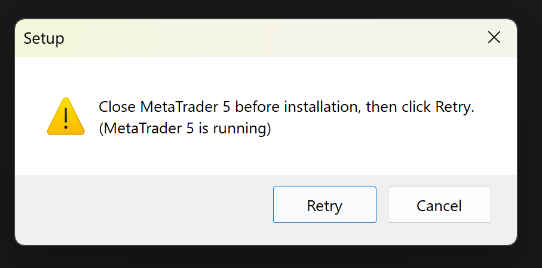
### **Close MetaTrader 5 before installing**
Close MT5 before starting the installer. If MetaTrader 5 is open, some files can be locked and the installer may stop.
The installer will wait until MetaTrader 5 is closed.
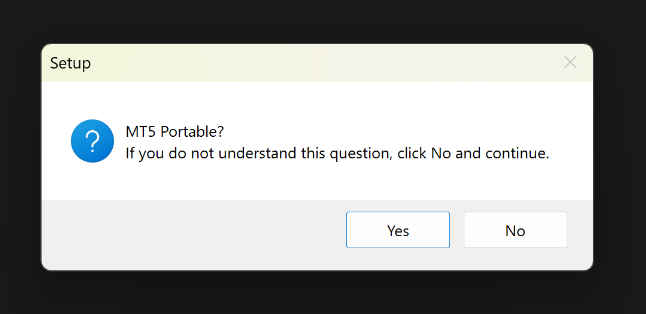
### **Portable mode question**
If you do not intentionally use MT5 portable mode, click **No**. Portable mode is for advanced users running MT5 from a custom folder.
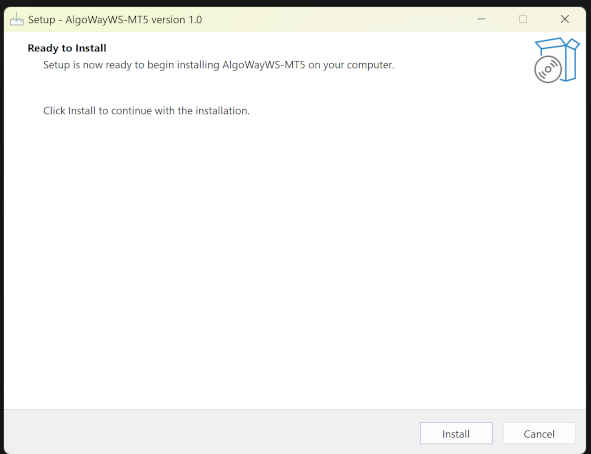
### **Install and finish setup**
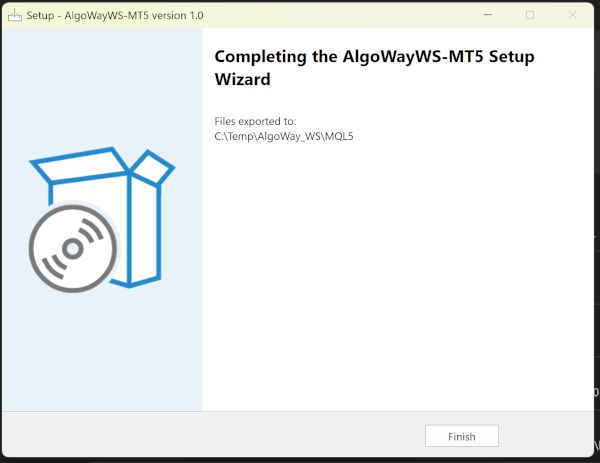
Continue the installation and click **Finish** when the setup is complete.
The finish screen confirms where the MT5 EA files were installed or exported.
------------------------------------------------------------------------
## **Option C — Manual Install for AlgoWayWS-MT5**
Use manual installation only if you cannot run the automatic installer. Manual install copies the same EA, include files, and WebSocket DLL into the MT5 Data Folder.
Download the manual installation package: [EA_payload.zip](https://docs.algoway.trade/downloads/EA_payload.zip)
### **Open MT5 Data Folder**
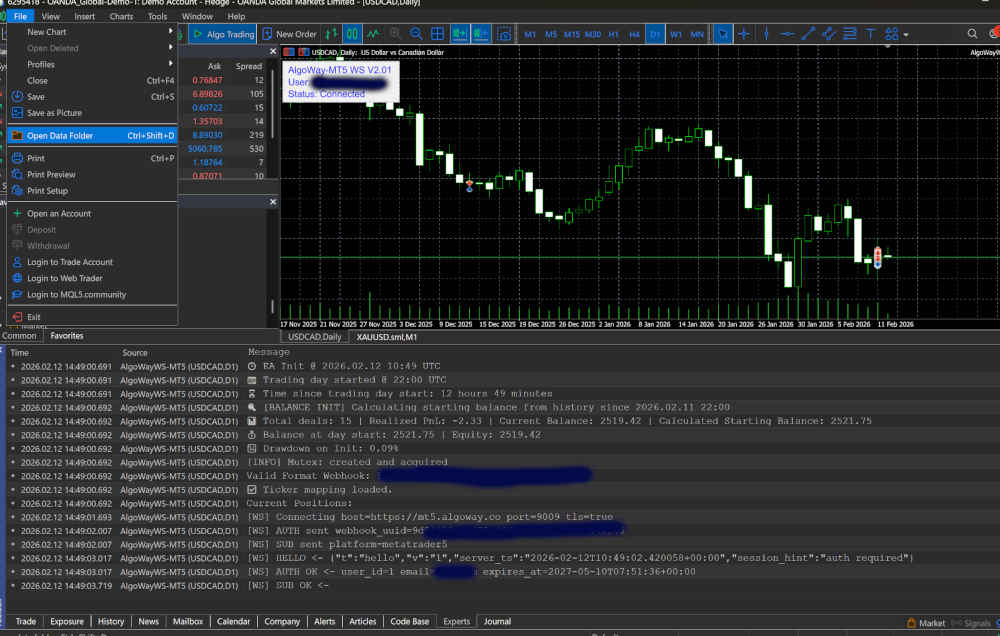
- Open MetaTrader 5
- Go to **File** → **Open Data Folder**
- Open the `MQL5` directory
### **Copy files into the correct MT5 folders**
Copy each file into its exact folder:
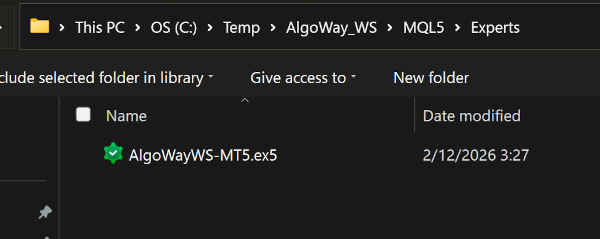
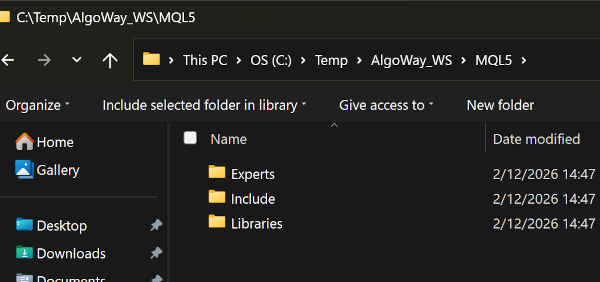
- **Experts** → `AlgoWayWS-MT5.ex5`
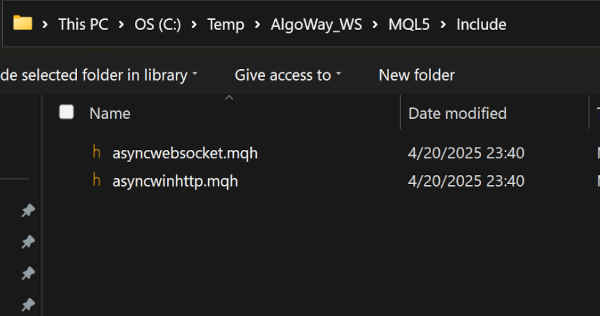
- **Include** → `asyncwinhttp.mqh`, `asyncwebsocket.mqh`
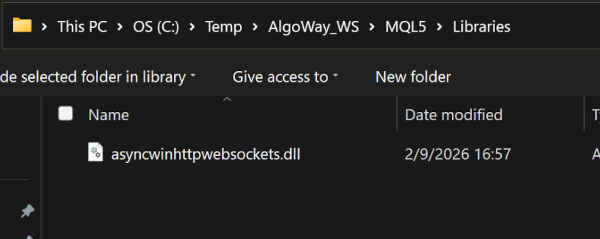
- **Libraries** → `asyncwinhttpwebsockets.dll`
After manual copy, **restart MetaTrader 5** or refresh Navigator so the EA appears.
------------------------------------------------------------------------
## **What AlgoWayWS-MT5 Installs**
The AlgoWayWS-MT5 setup installs four files into your MetaTrader 5 Data Folder:
- `MQL5\Experts\AlgoWayWS-MT5.ex5`
- `MQL5\Include\asyncwinhttp.mqh`
- `MQL5\Include\asyncwebsocket.mqh`
- `MQL5\Libraries\asyncwinhttpwebsockets.dll`
These files allow MT5 to load the Expert Advisor and maintain the WebSocket connection used by AlgoWay.
------------------------------------------------------------------------
## **Required MT5 Options for AlgoWayWS-MT5**
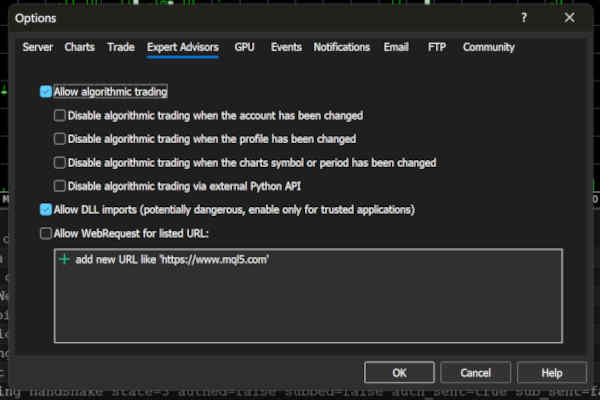
Before using the EA, open **MT5 → Tools → Options → Expert Advisors**.
### **Enable algorithmic trading and DLL imports**
- Enable **Allow algorithmic trading**
- Enable **Allow DLL imports**
- Click **OK**
------------------------------------------------------------------------
## **Activate AlgoWayWS-MT5 in MetaTrader 5**
### **Attach AlgoWayWS-MT5 to a chart**
1. Open any chart in MetaTrader 5.
2. Open **Navigator** → **Expert Advisors**.
3. Drag **AlgoWayWS-MT5** onto the chart.
### **Enter your AlgoWay webhook UUID**
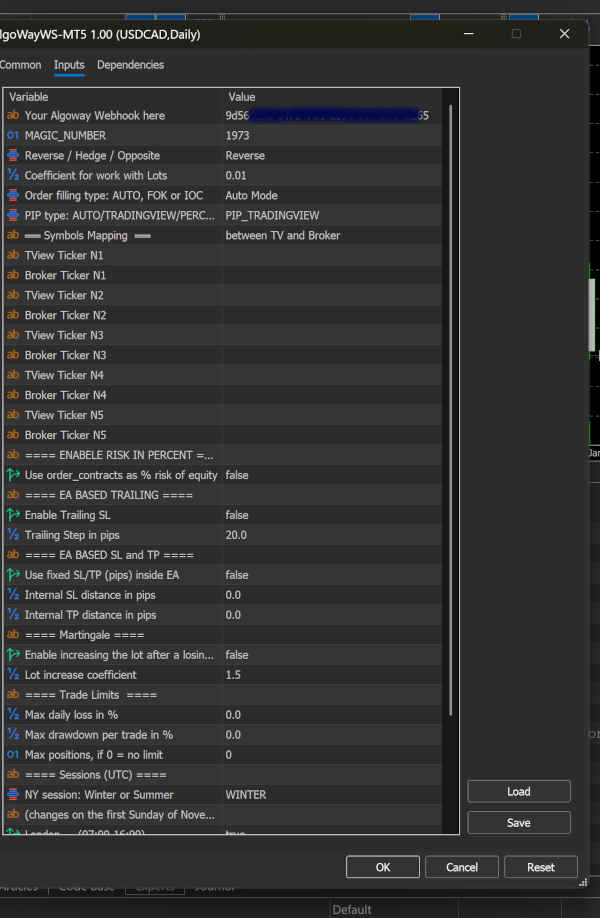
In the EA **Inputs** tab, fill `Your Algoway Webhook here` with your AlgoWay webhook **UUID**, then click **OK**.
------------------------------------------------------------------------
## **Confirm the AlgoWayWS-MT5 Connection**
After the EA is attached to the chart, confirm that the connection is active before sending real TradingView alerts.
- Open the MT5 **Experts** tab.
- Check the EA logs for WebSocket connection messages.
- Check the chart label/status for **Connected**.
- Confirm that the AlgoWay webhook UUID in the EA input is the same UUID used by your AlgoWay webhook.
When the EA shows connected status, AlgoWay can deliver TradingView webhook signals to your MetaTrader 5 terminal.
------------------------------------------------------------------------
## **Video Tutorial — AlgoWayWS-MT5 (DLL-based version)**
##### **TradingView to MT5 WebSocket EA setup**
[Watch this video on a dedicated tutorial page](https://docs.algoway.trade/videos/tradingview-to-mt5-websocket-ea.html)
------------------------------------------------------------------------
## **TradingView Webhook Message Example for MT5**
After the MT5 EA is connected, your TradingView alert can send a JSON message to your AlgoWay webhook URL. A basic MT5 market order message can use this structure:
``` text
{
"platform_name": "metatrader5",
"ticker": "{{ticker}}",
"order_action": "{{strategy.order.action}}",
"order_contracts": "{{strategy.order.contracts}}"
}
```
AlgoWay receives the TradingView webhook, processes the JSON, and forwards the execution command to the connected AlgoWay MT5 Expert Advisor.
### **Example with Stop Loss and Take Profit**
If your MT5 route is configured to use Stop Loss and Take Profit values from the webhook, include them in the JSON message. Use the field format supported by your current AlgoWay MT5 documentation.
``` text
{
"platform_name": "metatrader5",
"ticker": "{{ticker}}",
"order_action": "{{strategy.order.action}}",
"order_contracts": "{{strategy.order.contracts}}",
"stop_loss": "50",
"take_profit": "100"
}
```
### **Strategy placeholders vs fixed values**
| Value type | Example | When to use it |
|--------------------|--------------------------------|---------------------------------------------------------------------------|
| TradingView symbol | `{{ticker}}` | Use when the alert should pass the chart symbol to AlgoWay. |
| Strategy action | `{{strategy.order.action}}` | Use when a TradingView strategy controls buy, sell or close direction. |
| Strategy quantity | `{{strategy.order.contracts}}` | Use when the order size comes from Strategy Tester logic. |
| Fixed size | `"order_contracts": "0.10"` | Use when every alert should send the same MT5 lot size or quantity value. |
The exact JSON fields depend on your strategy and EA settings. For advanced options such as absolute Stop Loss, absolute Take Profit, trailing stop, sessions, mapping and risk settings, use the full MT5 EA documentation.
------------------------------------------------------------------------
## **Create the TradingView Alert**
1. Open the TradingView chart or strategy you want to automate.
2. Create a new alert from the alert panel.
3. Set the condition, for example a strategy order event or an indicator alert condition.
4. Enable **Webhook URL** and paste your AlgoWay webhook URL.
5. Paste the JSON message into the alert message field.
6. Save the alert and trigger a demo test before using live size.
For strategy-based automation, the most common condition is the strategy alert event that sends the JSON message whenever the strategy creates an order. For indicator-based automation, the message may use fixed values or custom Pine Script values generated by your indicator logic.
## **Safe Testing Checklist Before Live MT5 Automation**
- Start with a demo account or very small test size.
- Confirm that the MT5 EA status is connected.
- Confirm that TradingView sends valid JSON.
- Confirm that the symbol name matches your MT5 broker symbol format.
- Check the AlgoWay webhook response and MT5 Experts log after each test.
- Test buy, sell and close behavior before using the setup for live execution.
------------------------------------------------------------------------
## **Troubleshooting TradingView to MT5 Automation**
### **EA does not appear in Navigator**
- Restart MetaTrader 5.
- For UB, check `AlgoWayUB-MT5.ex5` in `MQL5\Experts`; for WS, check `AlgoWayWS-MT5.ex5`.
- If you used manual install, confirm that you copied the file into the correct MT5 Data Folder, not into the program installation folder.
### **EA does not connect**
- Check that the webhook UUID was entered correctly.
- Check the MT5 **Experts** tab for connection logs.
- Confirm that internet access is available inside the VPS or Windows machine.
- For UB, check the allowed server address `mt5.algoway.co`; for WS, verify that DLL imports are enabled.
### **DLL error appears in MT5 (AlgoWayWS-MT5 only)**
- Confirm that **Allow DLL imports** is enabled.
- Confirm that `asyncwinhttpwebsockets.dll` is inside `MQL5\Libraries`.
- Install Microsoft Visual C++ Redistributable if it is missing.
### **TradingView alert is sent but no trade opens**
- Check that the EA status is **Connected**.
- Check the AlgoWay webhook settings.
- Check the JSON message sent by TradingView.
- Check the MT5 **Experts** and **Journal** tabs.
- Check whether the broker symbol requires a suffix or custom mapping.
### **TradingView sends the alert but JSON is rejected**
- Validate that the alert message is valid JSON.
- Confirm that `platform_name` is `metatrader5`.
- Confirm that required fields such as `ticker`, `order_action` and `order_contracts` are present.
- Do not mix strategy placeholders with indicator alerts unless the alert source actually provides those placeholders.
------------------------------------------------------------------------
## **New MT5 Sizing and Breakeven after TP1**
The updated MT5 EA supports `order_size_type: "money_fixed"` (USD margin budget) and `order_size_type: "money_risk"` (USD risk at Stop Loss). For both modes, `order_contracts` means a **USD amount** rather than lots. **\* These new values are currently MT5-only**; install a compatible updated EA and see the [JSON sizing table and examples](https://docs.algoway.trade/json-schema-guide.html#order-size-type).
``` text
{
"platform_name": "metatrader5",
"ticker": "EURUSD",
"order_action": "buy",
"order_contracts": 100,
"order_size_type": "money_risk",
"sl_price": 1.0800
}
```
For TP1-related management, **BreakevenAfterTP1** is an EA input requiring **Enable Breakeven** and EA-managed multiple TP; it moves SL to the original entry price after TP1 partial closure. This is not a JSON parameter and should not be confused with the Telegram Copier's **Forced after TP1** option triggered by TP1 hit messages. Read the [complete MT5 description](https://docs.algoway.trade/algoway-mt5-v206-overview.html#mt5-be-after-tp1) and [Telegram configuration reference](https://docs.algoway.trade/ai-telegram-signals-manual.html#forced-be-tp1).
## **Full MT5 EA Documentation**
This page focuses on installation, connection setup and the TradingView webhook workflow. For the full AlgoWay MT5 Expert Advisor documentation, including risk settings, trailing stop, mapping, sessions and advanced execution options, use:
- [AlgoWay MT5 EA full documentation and parameters](https://algoway.trade/blog/algoway-mt5-v206-overview.html)
## **Related AlgoWay Guides**
- [How to create a TradingView webhook alert for automated trading](https://docs.algoway.trade/guide-to-creating-a-webhook-in-tradingview.html)
- [How to automate TradingView alerts to any broker with AlgoWay](https://algoway.trade/blog/automate-tradingview-alerts-to-any-broker-with-algoway.html)
- [AlgoWay JSON schema guide for webhook trading](https://algoway.trade/blog/json-schema-guide.html)
- [Common MetaTrader 5 EA errors and fixes](https://algoway.trade/blog/algowaymt5-user-guide-for-metatrader-5-common-errors.html)
- [TradingView webhook free alternative with AlgoWay email alerts](https://algoway.trade/blog/tradingview-free-webhook-alerts.html)
------------------------------------------------------------------------
## **FAQ: TradingView to MT5 with AlgoWay**
### **Can TradingView connect directly to MetaTrader 5?**
TradingView does not execute trades directly inside MetaTrader 5 by default. AlgoWay provides the webhook routing layer, and a connected AlgoWay MT5 Expert Advisor (UB or WS) receives instructions for execution.
### **Do I need to keep MetaTrader 5 open?**
Yes. MetaTrader 5 must remain running with the selected AlgoWay Expert Advisor attached to a chart so it can receive and execute signals.
### **Do I need a VPS or must my computer stay on for TradingView to MT5 automation?**
MetaTrader 5 and the selected AlgoWay Expert Advisor must remain running to execute TradingView alerts. Use a computer or compatible VPS with MT5 installed and running. The MT5 web terminal cannot run the EA.
### **Do I need to enable DLL imports?**
**No for Universal Build (UB).** Only the AlgoWayWS-MT5 alternative requires **Allow DLL imports** and an external WebSocket DLL.
### **Can I use the installer instead of copying files manually?**
The Auto Installer is available for the alternative AlgoWayWS-MT5 edition. For the recommended Universal Build (UB), copy the single `AlgoWayUB-MT5.ex5` file into `MQL5\Experts`.
### **Where do I enter my AlgoWay webhook UUID?**
Enter the AlgoWay MT5 webhook UUID in the EA **Inputs** when attaching the selected EA to a chart. In AlgoWayWS-MT5 the field is named `Your Algoway Webhook here`.
### **Can the same TradingView strategy be connected to more than one broker or account?**
Yes. AlgoWay is designed as a routing layer, so the same TradingView alert logic can be used with different supported destinations, depending on how your webhooks and integrations are configured.
Published: May 12, 2026 Last updated: May 12, 2026
 The installer will wait until MetaTrader 5 is closed.
### **Portable mode question**
If you do not intentionally use MT5 portable mode, click **No**. Portable mode is for advanced users running MT5 from a custom folder.
 ### **Install and finish setup**
Continue the installation and click **Finish** when the setup is complete.
 The finish screen confirms where the MT5 EA files were installed or exported.
------------------------------------------------------------------------
## **Option C — Manual Install for AlgoWayWS-MT5**
Use manual installation only if you cannot run the automatic installer. Manual install copies the same EA, include files, and WebSocket DLL into the MT5 Data Folder.
Download the manual installation package: [EA_payload.zip](https://docs.algoway.trade/downloads/EA_payload.zip)
### **Open MT5 Data Folder**
- Open MetaTrader 5
- Go to **File** → **Open Data Folder**
- Open the `MQL5` directory
### **Copy files into the correct MT5 folders**
Copy each file into its exact folder:
- **Experts** → `AlgoWayWS-MT5.ex5`
- **Include** → `asyncwinhttp.mqh`, `asyncwebsocket.mqh`
- **Libraries** → `asyncwinhttpwebsockets.dll`
 After manual copy, **restart MetaTrader 5** or refresh Navigator so the EA appears.
------------------------------------------------------------------------
## **What AlgoWayWS-MT5 Installs**
The AlgoWayWS-MT5 setup installs four files into your MetaTrader 5 Data Folder:
- `MQL5\Experts\AlgoWayWS-MT5.ex5`
- `MQL5\Include\asyncwinhttp.mqh`
- `MQL5\Include\asyncwebsocket.mqh`
- `MQL5\Libraries\asyncwinhttpwebsockets.dll`
These files allow MT5 to load the Expert Advisor and maintain the WebSocket connection used by AlgoWay.
------------------------------------------------------------------------
## **Required MT5 Options for AlgoWayWS-MT5**
Before using the EA, open **MT5 → Tools → Options → Expert Advisors**.
### **Enable algorithmic trading and DLL imports**
- Enable **Allow algorithmic trading**
- Enable **Allow DLL imports**
- Click **OK**
 ------------------------------------------------------------------------
## **Activate AlgoWayWS-MT5 in MetaTrader 5**
### **Attach AlgoWayWS-MT5 to a chart**
1. Open any chart in MetaTrader 5.
2. Open **Navigator** → **Expert Advisors**.
3. Drag **AlgoWayWS-MT5** onto the chart.
 ### **Enter your AlgoWay webhook UUID**
In the EA **Inputs** tab, fill `Your Algoway Webhook here` with your AlgoWay webhook **UUID**, then click **OK**.
 ------------------------------------------------------------------------
## **Confirm the AlgoWayWS-MT5 Connection**
After the EA is attached to the chart, confirm that the connection is active before sending real TradingView alerts.
- Open the MT5 **Experts** tab.
- Check the EA logs for WebSocket connection messages.
- Check the chart label/status for **Connected**.
- Confirm that the AlgoWay webhook UUID in the EA input is the same UUID used by your AlgoWay webhook.
When the EA shows connected status, AlgoWay can deliver TradingView webhook signals to your MetaTrader 5 terminal.
------------------------------------------------------------------------
## **Video Tutorial — AlgoWayWS-MT5 (DLL-based version)**
##### **TradingView to MT5 WebSocket EA setup**
[Watch this video on a dedicated tutorial page](https://docs.algoway.trade/videos/tradingview-to-mt5-websocket-ea.html)
------------------------------------------------------------------------
## **TradingView Webhook Message Example for MT5**
After the MT5 EA is connected, your TradingView alert can send a JSON message to your AlgoWay webhook URL. A basic MT5 market order message can use this structure:
``` text
{
"platform_name": "metatrader5",
"ticker": "{{ticker}}",
"order_action": "{{strategy.order.action}}",
"order_contracts": "{{strategy.order.contracts}}"
}
```
AlgoWay receives the TradingView webhook, processes the JSON, and forwards the execution command to the connected AlgoWay MT5 Expert Advisor.
### **Example with Stop Loss and Take Profit**
If your MT5 route is configured to use Stop Loss and Take Profit values from the webhook, include them in the JSON message. Use the field format supported by your current AlgoWay MT5 documentation.
``` text
{
"platform_name": "metatrader5",
"ticker": "{{ticker}}",
"order_action": "{{strategy.order.action}}",
"order_contracts": "{{strategy.order.contracts}}",
"stop_loss": "50",
"take_profit": "100"
}
```
### **Strategy placeholders vs fixed values**
| Value type | Example | When to use it |
|--------------------|--------------------------------|---------------------------------------------------------------------------|
| TradingView symbol | `{{ticker}}` | Use when the alert should pass the chart symbol to AlgoWay. |
| Strategy action | `{{strategy.order.action}}` | Use when a TradingView strategy controls buy, sell or close direction. |
| Strategy quantity | `{{strategy.order.contracts}}` | Use when the order size comes from Strategy Tester logic. |
| Fixed size | `"order_contracts": "0.10"` | Use when every alert should send the same MT5 lot size or quantity value. |
The exact JSON fields depend on your strategy and EA settings. For advanced options such as absolute Stop Loss, absolute Take Profit, trailing stop, sessions, mapping and risk settings, use the full MT5 EA documentation.
------------------------------------------------------------------------
## **Create the TradingView Alert**
1. Open the TradingView chart or strategy you want to automate.
2. Create a new alert from the alert panel.
3. Set the condition, for example a strategy order event or an indicator alert condition.
4. Enable **Webhook URL** and paste your AlgoWay webhook URL.
5. Paste the JSON message into the alert message field.
6. Save the alert and trigger a demo test before using live size.
For strategy-based automation, the most common condition is the strategy alert event that sends the JSON message whenever the strategy creates an order. For indicator-based automation, the message may use fixed values or custom Pine Script values generated by your indicator logic.
## **Safe Testing Checklist Before Live MT5 Automation**
- Start with a demo account or very small test size.
- Confirm that the MT5 EA status is connected.
- Confirm that TradingView sends valid JSON.
- Confirm that the symbol name matches your MT5 broker symbol format.
- Check the AlgoWay webhook response and MT5 Experts log after each test.
- Test buy, sell and close behavior before using the setup for live execution.
------------------------------------------------------------------------
## **Troubleshooting TradingView to MT5 Automation**
### **EA does not appear in Navigator**
- Restart MetaTrader 5.
- For UB, check `AlgoWayUB-MT5.ex5` in `MQL5\Experts`; for WS, check `AlgoWayWS-MT5.ex5`.
- If you used manual install, confirm that you copied the file into the correct MT5 Data Folder, not into the program installation folder.
### **EA does not connect**
- Check that the webhook UUID was entered correctly.
- Check the MT5 **Experts** tab for connection logs.
- Confirm that internet access is available inside the VPS or Windows machine.
- For UB, check the allowed server address `mt5.algoway.co`; for WS, verify that DLL imports are enabled.
### **DLL error appears in MT5 (AlgoWayWS-MT5 only)**
- Confirm that **Allow DLL imports** is enabled.
- Confirm that `asyncwinhttpwebsockets.dll` is inside `MQL5\Libraries`.
- Install Microsoft Visual C++ Redistributable if it is missing.
### **TradingView alert is sent but no trade opens**
- Check that the EA status is **Connected**.
- Check the AlgoWay webhook settings.
- Check the JSON message sent by TradingView.
- Check the MT5 **Experts** and **Journal** tabs.
- Check whether the broker symbol requires a suffix or custom mapping.
### **TradingView sends the alert but JSON is rejected**
- Validate that the alert message is valid JSON.
- Confirm that `platform_name` is `metatrader5`.
- Confirm that required fields such as `ticker`, `order_action` and `order_contracts` are present.
- Do not mix strategy placeholders with indicator alerts unless the alert source actually provides those placeholders.
------------------------------------------------------------------------
## **New MT5 Sizing and Breakeven after TP1**
The updated MT5 EA supports `order_size_type: "money_fixed"` (USD margin budget) and `order_size_type: "money_risk"` (USD risk at Stop Loss). For both modes, `order_contracts` means a **USD amount** rather than lots. **\* These new values are currently MT5-only**; install a compatible updated EA and see the [JSON sizing table and examples](https://docs.algoway.trade/json-schema-guide.html#order-size-type).
``` text
{
"platform_name": "metatrader5",
"ticker": "EURUSD",
"order_action": "buy",
"order_contracts": 100,
"order_size_type": "money_risk",
"sl_price": 1.0800
}
```
For TP1-related management, **BreakevenAfterTP1** is an EA input requiring **Enable Breakeven** and EA-managed multiple TP; it moves SL to the original entry price after TP1 partial closure. This is not a JSON parameter and should not be confused with the Telegram Copier's **Forced after TP1** option triggered by TP1 hit messages. Read the [complete MT5 description](https://docs.algoway.trade/algoway-mt5-v206-overview.html#mt5-be-after-tp1) and [Telegram configuration reference](https://docs.algoway.trade/ai-telegram-signals-manual.html#forced-be-tp1).
## **Full MT5 EA Documentation**
 This page focuses on installation, connection setup and the TradingView webhook workflow. For the full AlgoWay MT5 Expert Advisor documentation, including risk settings, trailing stop, mapping, sessions and advanced execution options, use:
- [AlgoWay MT5 EA full documentation and parameters](https://algoway.trade/blog/algoway-mt5-v206-overview.html)
## **Related AlgoWay Guides**
- [How to create a TradingView webhook alert for automated trading](https://docs.algoway.trade/guide-to-creating-a-webhook-in-tradingview.html)
- [How to automate TradingView alerts to any broker with AlgoWay](https://algoway.trade/blog/automate-tradingview-alerts-to-any-broker-with-algoway.html)
- [AlgoWay JSON schema guide for webhook trading](https://algoway.trade/blog/json-schema-guide.html)
- [Common MetaTrader 5 EA errors and fixes](https://algoway.trade/blog/algowaymt5-user-guide-for-metatrader-5-common-errors.html)
- [TradingView webhook free alternative with AlgoWay email alerts](https://algoway.trade/blog/tradingview-free-webhook-alerts.html)
------------------------------------------------------------------------
## **FAQ: TradingView to MT5 with AlgoWay**
### **Can TradingView connect directly to MetaTrader 5?**
TradingView does not execute trades directly inside MetaTrader 5 by default. AlgoWay provides the webhook routing layer, and a connected AlgoWay MT5 Expert Advisor (UB or WS) receives instructions for execution.
### **Do I need to keep MetaTrader 5 open?**
Yes. MetaTrader 5 must remain running with the selected AlgoWay Expert Advisor attached to a chart so it can receive and execute signals.
### **Do I need a VPS or must my computer stay on for TradingView to MT5 automation?**
MetaTrader 5 and the selected AlgoWay Expert Advisor must remain running to execute TradingView alerts. Use a computer or compatible VPS with MT5 installed and running. The MT5 web terminal cannot run the EA.
### **Do I need to enable DLL imports?**
**No for Universal Build (UB).** Only the AlgoWayWS-MT5 alternative requires **Allow DLL imports** and an external WebSocket DLL.
### **Can I use the installer instead of copying files manually?**
The Auto Installer is available for the alternative AlgoWayWS-MT5 edition. For the recommended Universal Build (UB), copy the single `AlgoWayUB-MT5.ex5` file into `MQL5\Experts`.
### **Where do I enter my AlgoWay webhook UUID?**
Enter the AlgoWay MT5 webhook UUID in the EA **Inputs** when attaching the selected EA to a chart. In AlgoWayWS-MT5 the field is named `Your Algoway Webhook here`.
### **Can the same TradingView strategy be connected to more than one broker or account?**
Yes. AlgoWay is designed as a routing layer, so the same TradingView alert logic can be used with different supported destinations, depending on how your webhooks and integrations are configured.
Published: May 12, 2026 Last updated: May 12, 2026