[Original HTML page](https://docs.algoway.trade/setting-up-a-webhook-for-matchtrader-on-the-algoway-platform.html)
dateModified: 2026-05-12T00:00:00+00:00
datePublished: 2026-05-12T00:00:00+00:00
uploadDate: 2025-09-15T00:00:00Z
# **How to Connect TradingView Alerts to Match-Trader with AlgoWay Webhook Automation**
**AlgoWay lets you connect TradingView alerts to Match-Trader through webhook automation.** You create a Match-Trader webhook in AlgoWay, enter the broker platform URL, email and password, optionally enter Account ID, use **Auto detect** to fill Broker ID, and then paste the AlgoWay webhook URL and JSON message into TradingView.
This guide explains the complete TradingView-to-Match-Trader setup: configuring the broker URL and credentials, detecting Broker ID, creating the AlgoWay webhook, preparing strategy or manual alert JSON, selecting Hedge or Reverse behavior, and verifying the result through logs.
The execution route is:
``` text
TradingView alert -> AlgoWay webhook -> Match-Trader platform connection -> Match-Trader order execution
```
TradingView creates the signal. AlgoWay receives and validates the webhook JSON. Match-Trader receives the final trading command through the platform URL, account credentials, Account ID if required, and Broker ID configured in AlgoWay.
Last updated: 2026-05-12 • Author: AlgoWay
##### **Video Tutorial: How to Connect TradingView to Match-Trader**
[Watch this video on a dedicated tutorial page](https://docs.algoway.trade/videos/tradingview-to-match-trader.html)
**Contents**
- [Quick answer](https://docs.algoway.trade/setting-up-a-webhook-for-matchtrader-on-the-algoway-platform.html#quick-answer)
- [Why automate Match-Trader with TradingView alerts?](https://docs.algoway.trade/setting-up-a-webhook-for-matchtrader-on-the-algoway-platform.html#why-matchtrader)
- [Before you start](https://docs.algoway.trade/setting-up-a-webhook-for-matchtrader-on-the-algoway-platform.html#before)
- [Create Match-Trader webhook in AlgoWay](https://docs.algoway.trade/setting-up-a-webhook-for-matchtrader-on-the-algoway-platform.html#algoway)
- [Auto detect Broker ID](https://docs.algoway.trade/setting-up-a-webhook-for-matchtrader-on-the-algoway-platform.html#broker-id)
- [Manual Broker ID fallback](https://docs.algoway.trade/setting-up-a-webhook-for-matchtrader-on-the-algoway-platform.html#manual-broker-id)
- [Copy AlgoWay webhook URL](https://docs.algoway.trade/setting-up-a-webhook-for-matchtrader-on-the-algoway-platform.html#url)
- [TradingView strategy JSON](https://docs.algoway.trade/setting-up-a-webhook-for-matchtrader-on-the-algoway-platform.html#json)
- [Manual price alert JSON](https://docs.algoway.trade/setting-up-a-webhook-for-matchtrader-on-the-algoway-platform.html#manual-alerts)
- [Create TradingView alert](https://docs.algoway.trade/setting-up-a-webhook-for-matchtrader-on-the-algoway-platform.html#alert)
- [Hedge, Reverse and flat logic](https://docs.algoway.trade/setting-up-a-webhook-for-matchtrader-on-the-algoway-platform.html#modes)
- [SL/TP and risk fields](https://docs.algoway.trade/setting-up-a-webhook-for-matchtrader-on-the-algoway-platform.html#sltp)
- [Testing and logs](https://docs.algoway.trade/setting-up-a-webhook-for-matchtrader-on-the-algoway-platform.html#verify)
- [Common problems](https://docs.algoway.trade/setting-up-a-webhook-for-matchtrader-on-the-algoway-platform.html#problems)
## Quick Answer: TradingView to Match-Trader with AlgoWay
To automate Match-Trader from TradingView, you need:
1. your Match-Trader broker platform URL;
2. your Match-Trader account email;
3. your Match-Trader account password;
4. optional Account ID if you know it or if your broker requires it;
5. Broker ID filled by the **Auto detect** button or entered manually;
6. an AlgoWay webhook where **Source** is TradingView and **Platform** is MatchTrader;
7. Hedge / Dual side or Reverse trade mode selected according to your strategy;
8. a TradingView alert with valid Match-Trader JSON;
9. the AlgoWay webhook URL enabled in TradingView Notifications.
After setup, a TradingView alert can become a Match-Trader order through AlgoWay.
## Why Automate Match-Trader with TradingView Alerts?
Match-Trader is widely used by brokers and prop trading firms. Traders often use TradingView for strategy logic, indicators and alerts, while the execution account is hosted on Match-Trader. AlgoWay connects the two through a webhook route.
This is useful when you want to:
- turn TradingView strategy alerts into Match-Trader orders;
- automate Forex, CFD or prop-firm Match-Trader accounts;
- use TradingView as the signal engine and Match-Trader as the execution destination;
- avoid building your own Match-Trader connector;
- track received webhook payloads and execution responses in AlgoWay logs;
- use one AlgoWay dashboard for Match-Trader and other supported platforms.
AlgoWay does not create a profitable strategy. It automates the execution route after your TradingView strategy, indicator or manual alert sends the command.
## Before You Start
Prepare the following:
- AlgoWay account;
- Match-Trader broker login URL;
- Match-Trader email and password;
- Account ID if your broker provides it;
- Broker ID or ability to use **Auto detect** in AlgoWay;
- TradingView strategy, indicator or manual alert;
- TradingView plan with webhook alert support;
- small test size;
- valid AlgoWay JSON message.
**Important:** use the exact Match-Trader broker URL without a trailing slash. Example: `https://mtr-platform.fundingpips.com`, not `https://mtr-platform.fundingpips.com/`.
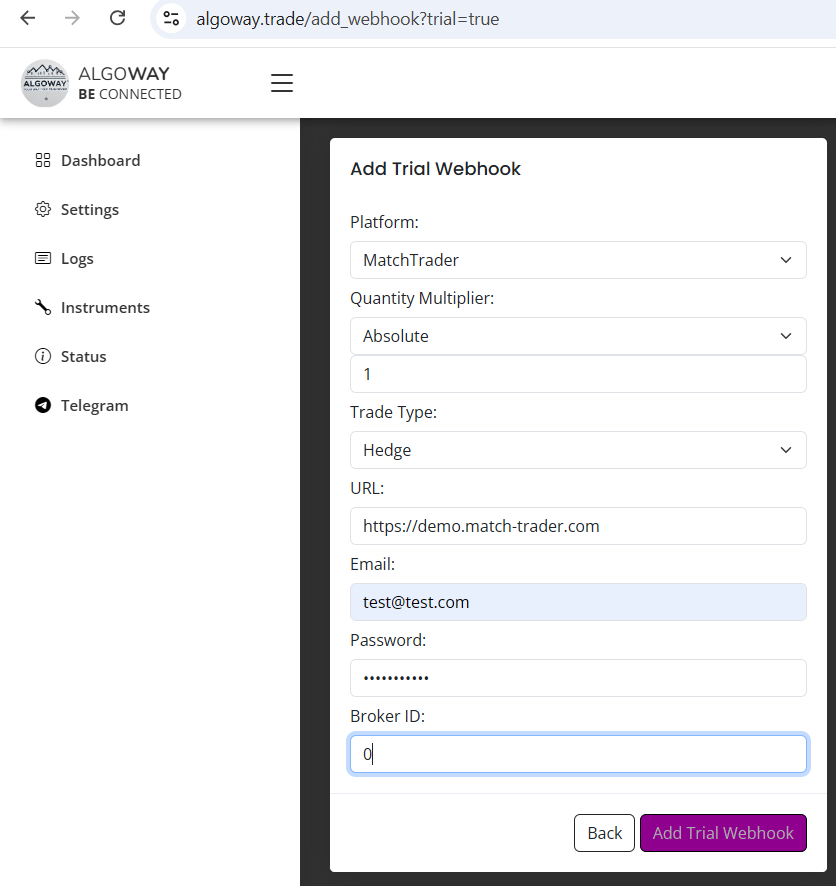
## Step 1. Create a Match-Trader Webhook in AlgoWay
Open the AlgoWay dashboard and create a Match-Trader webhook route.
1. Open **AlgoWay Dashboard**.
2. Click **Add Trial Webhook** or **Add Main Webhook**.
3. Set **Source (from)** to **TradingView**.
4. Set **Platform (to)** to **MatchTrader**.
5. Enter a promo code if you have one.
6. Set **Quantity Multiplier**. For direct values, use **Absolute** and `1`.
7. Select **Trade Type**, for example **Hedge / Dual side** or Reverse mode.
8. Enter the broker platform URL without a trailing slash.
9. Enter your Match-Trader email.
10. Enter your Match-Trader password.
11. Enter **Account ID** if you know it. If you do not know it, leave the field empty.
12. Use **Auto detect** near the Broker ID field to fill Broker ID automatically.
13. Click **Add Trial Webhook** or save the main webhook.
### Main AlgoWay Match-Trader Fields
| Field | Recommended value | Purpose |
|---------------------|--------------------------------------------|--------------------------------------------------------------------|
| Source (from) | TradingView | The alert source. |
| Platform (to) | MatchTrader | The execution destination. |
| Promo Code | Optional | Can extend trial access if valid. |
| Quantity Multiplier | Absolute -\> 1 | Uses incoming JSON quantity directly. |
| Trade Type | Hedge / Dual side or Reverse | Controls how opposite signals and open exposure are handled. |
| URL | Broker platform URL without trailing slash | Defines which Match-Trader broker environment AlgoWay connects to. |
| Email | Your Match-Trader login email | Used for platform authentication. |
| Password | Your Match-Trader password | Used for platform authentication. |
| Account ID | Optional if you know it | Can help select the exact account when several accounts exist. |
| Broker ID | Auto detect or manual value | Identifies the broker environment. |
## Step 2. Auto Detect Broker ID
The current AlgoWay Match-Trader webhook form includes an **Auto detect** button next to the **Broker ID** field. This is now the recommended way to fill Broker ID.
1. Enter the broker platform URL in the **URL** field.
2. Make sure the URL has no trailing slash.
3. Enter your Match-Trader email and password.
4. Enter Account ID only if you know it or if your broker requires it.
5. Click **Auto detect** next to the Broker ID field.
6. Check that Broker ID is filled.
7. Continue webhook creation.
Example broker URL:
``` text
https://mtr-platform.fundingpips.com
```
If the Auto detect button cannot determine Broker ID, use the manual fallback below.
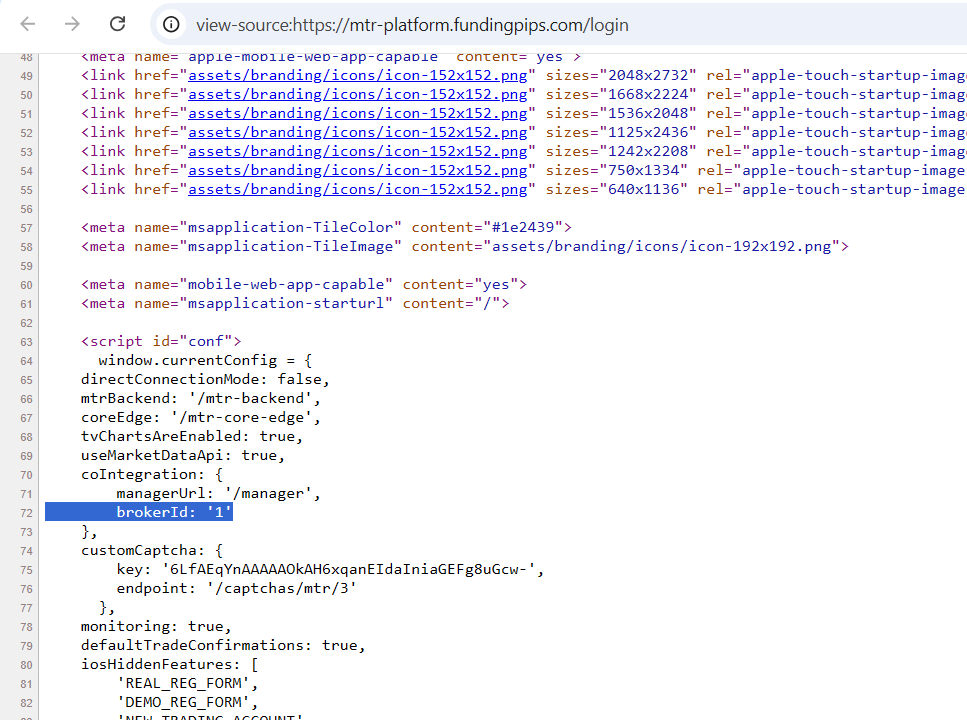
## Manual Broker ID Fallback
Manual Broker ID retrieval is only needed when Auto detect does not work for your broker environment.
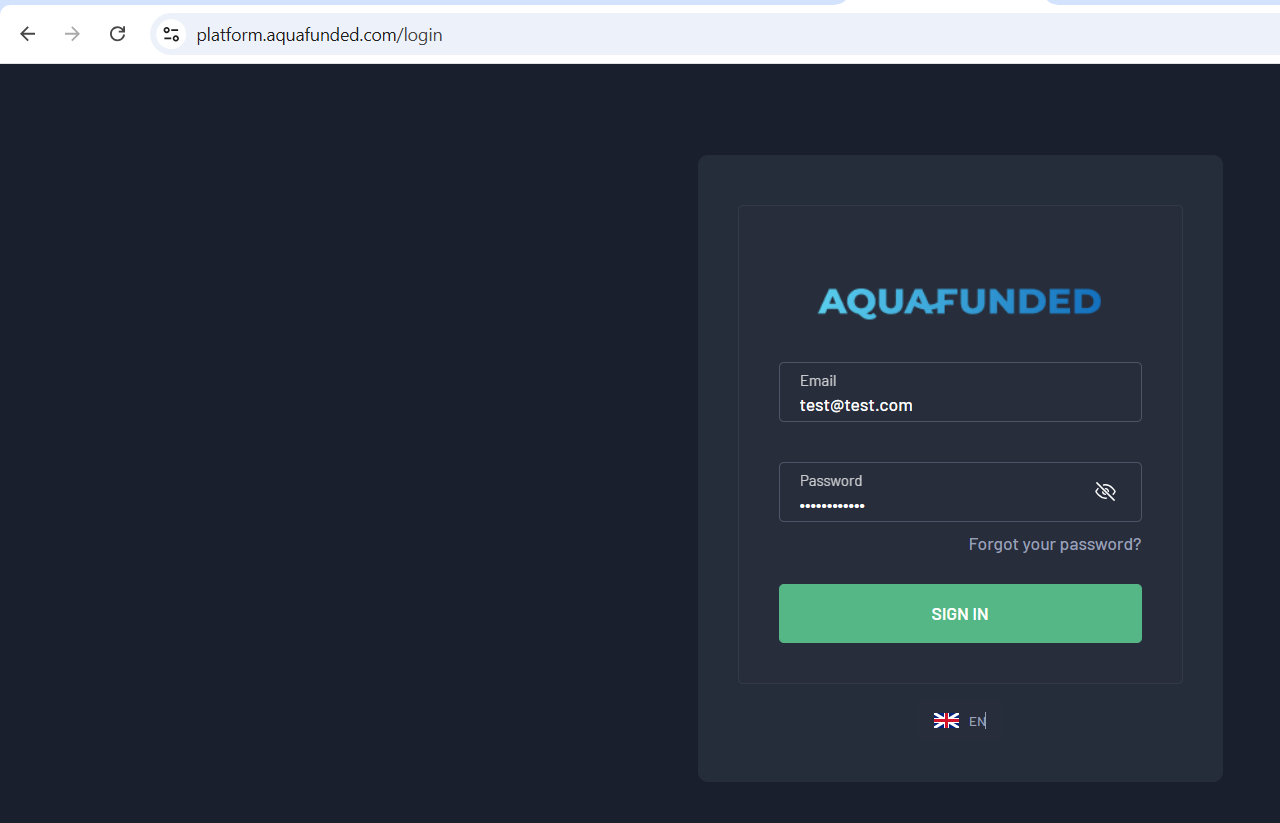
1. Open your broker's Match-Trader login page.
2. Right-click the page and choose **View Page Source** or use browser developer tools.
3. Search for `brokerId` or `BrokerID`.
4. Copy the numeric value.
5. Paste it into the **Broker ID** field in AlgoWay.
Example value in source code:
``` text
brokerId: '1'
```
In this example, Broker ID is:
``` text
1
```
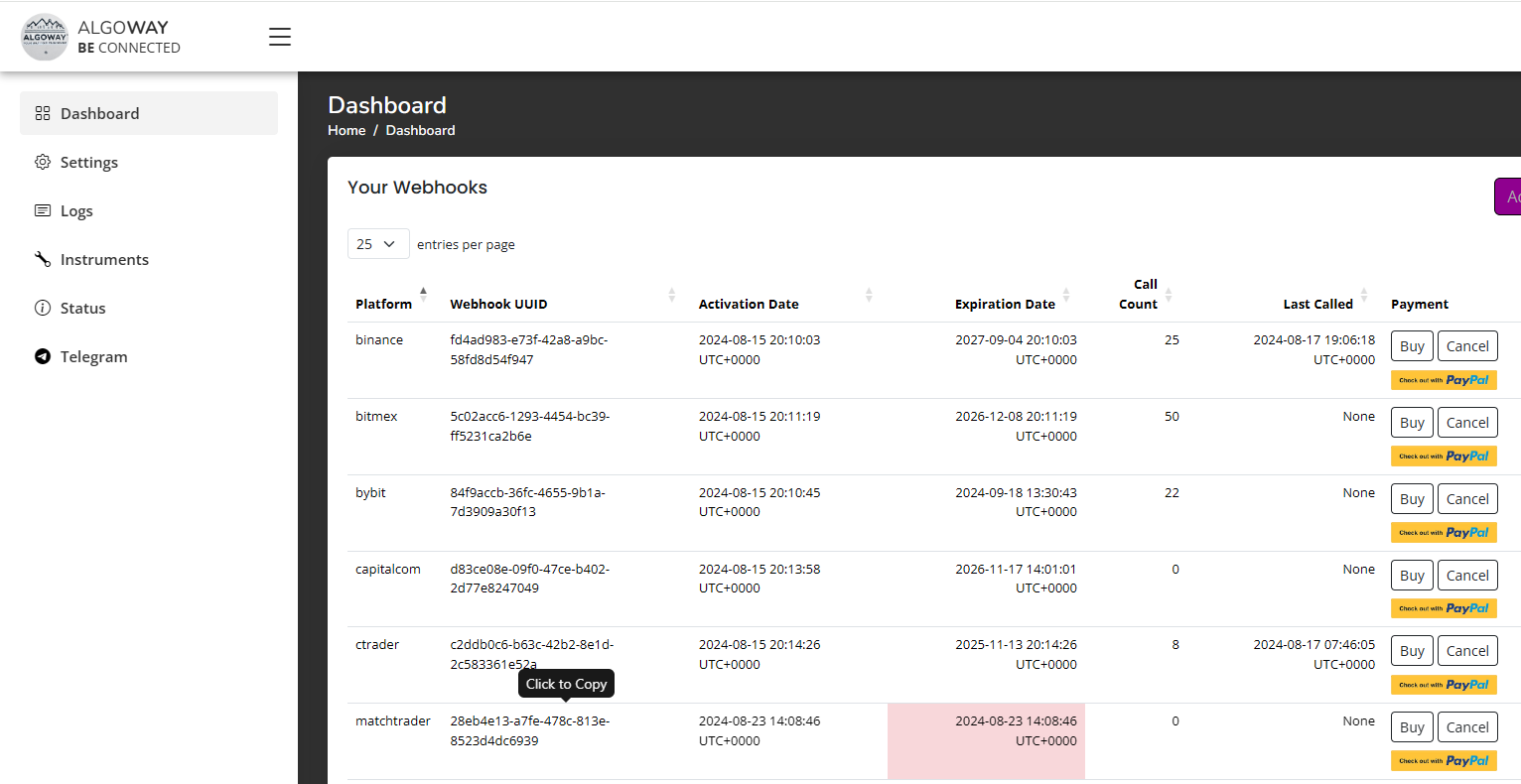
## Step 3. Copy the AlgoWay Webhook URL
After saving the Match-Trader webhook, open the webhook list and copy the unique AlgoWay webhook URL.
1. Open **Dashboard \>\> Your Webhooks**.
2. Find the row where **Platform** is MatchTrader.
3. Copy the webhook UUID or full webhook URL.
Webhook URL format:
``` text
https://algoway.co/your-webhook-uuid
```
**Do not publish your webhook URL.** Treat the UUID as a private execution endpoint.
## Step 4. TradingView Strategy JSON for Match-Trader
For TradingView strategy alerts, use this JSON in the alert message field:
``` text
{
"platform_name": "matchtrader",
"ticker": "{{ticker}}",
"order_contracts": "{{strategy.order.contracts}}",
"order_action": "{{strategy.market_position}}",
"price": "{{close}}"
}
```
TradingView replaces the placeholders when the alert fires:
- `{{ticker}}` - current chart ticker;
- `{{strategy.order.contracts}}` - strategy order size;
- `{{strategy.market_position}}` - current strategy state;
- `{{close}}` - close price at alert time.
## Manual Price Alert JSON for Match-Trader
If you use a manual TradingView condition such as price crossing a level, use fixed values instead of strategy placeholders.
### Manual BUY Alert
``` text
{
"platform_name": "matchtrader",
"ticker": "{{ticker}}",
"order_contracts": "1",
"order_action": "buy",
"price": "{{close}}"
}
```
### Manual SELL Alert
``` text
{
"platform_name": "matchtrader",
"ticker": "{{ticker}}",
"order_contracts": "1",
"order_action": "sell",
"price": "{{close}}"
}
```
### Manual FLAT / Close Alert
``` text
{
"platform_name": "matchtrader",
"ticker": "{{ticker}}",
"order_action": "flat",
"order_contracts": "1"
}
```
Supported common values for `order_action`:
- `buy`
- `sell`
- `long`
- `short`
- `flat`
## Step 5. Create the TradingView Alert
Now create the alert in TradingView.
1. Open the TradingView chart with your strategy or condition.
2. Click **Add Alert**.
3. For strategy automation, select the strategy as the alert condition.
4. Paste the Match-Trader JSON into the **Message** field.
5. Open **Notifications**.
6. Enable **Webhook URL**.
7. Paste your AlgoWay Match-Trader webhook URL.
8. Click **Create**.
## Hedge, Reverse and flat Logic
The **Trade Type** setting controls how AlgoWay handles existing positions when a new signal arrives.
| Mode | Behavior | Use case |
|-------------------|-----------------------------------------------------------------------------------------|-----------------------------------------------|
| Hedge / Dual side | Allows separate long-side and short-side behavior when supported by the account. | Strategies that intentionally use both sides. |
| Reverse | Opposite signal can close or replace the current direction depending on route behavior. | One-direction strategies. |
| flat | Close or flatten matching exposure for the symbol. | Exit signals and manual close alerts. |
Full explanation: [How AlgoWay handles opposite trading signals](https://algoway.trade/blog/algoway-modes-article.html).
## SL/TP and Risk Fields
If your Match-Trader route supports risk fields, you can send Stop Loss and Take Profit in the JSON. Test these fields with small size before live automation.
### Distance-Style SL/TP
``` text
{
"platform_name": "matchtrader",
"ticker": "{{ticker}}",
"order_contracts": "{{strategy.order.contracts}}",
"order_action": "{{strategy.market_position}}",
"price": "{{close}}",
"stop_loss": "100",
"take_profit": "200"
}
```
### Trailing Stop
``` text
{
"platform_name": "matchtrader",
"ticker": "{{ticker}}",
"order_contracts": "{{strategy.order.contracts}}",
"order_action": "{{strategy.market_position}}",
"trailing_pips": "50"
}
```
**Risk-field rule:** confirm how your route interprets `stop_loss`, `take_profit` and `trailing_pips`. Units can depend on platform and route settings.
## Testing and Logs
Before using live size, test the route in layers.
1. Create the Match-Trader webhook in AlgoWay.
2. Use **Auto detect** to fill Broker ID.
3. Save the webhook.
4. Create a small TradingView alert or manual test alert.
5. Trigger the alert.
6. Open **AlgoWay Webhook Logs**.
7. Confirm the payload was received.
8. Check the Match-Trader platform for order or position result.
If AlgoWay receives the webhook but Match-Trader does not trade, check platform URL, credentials, Account ID, Broker ID, symbol, size, trade mode and platform response.
## Common Match-Trader Webhook Problems
### Broker ID Was Not Detected
Check that the broker platform URL is correct and has no trailing slash. If Auto detect still fails, use manual Broker ID fallback from the login page source code.
### Broker URL Has a Trailing Slash
Use `https://mtr-platform.fundingpips.com`, not `https://mtr-platform.fundingpips.com/`.
### Wrong Email or Password
AlgoWay must authenticate to the correct Match-Trader account. Verify credentials directly on the broker platform before saving the webhook.
### Account ID Is Missing or Wrong
Account ID is optional if you do not know it, but some broker environments or multi-account profiles may require the exact account. Enter it if your broker provides it.
### Invalid JSON
TradingView must send valid JSON. Broken commas, missing quotes or plain text can stop the route before Match-Trader receives anything. See: [How to fix AlgoWay webhook Error 415](https://algoway.trade/blog/algoway-415.html).
### Wrong platform_name
For this route, `platform_name` must be `matchtrader`.
### Wrong Symbol
TradingView ticker may not match the Match-Trader broker symbol. Check the exact instrument name in the broker platform.
### Invalid Size
Check minimum size, step size, leverage, margin and broker instrument rules.
### Webhook URL Is Not Enabled in TradingView
JSON in the message field is not enough. Enable **Webhook URL** in TradingView Notifications and paste the AlgoWay URL.
## Why Use AlgoWay Instead of Building a TradingView to Match-Trader Bot?
You can build your own TradingView-to-Match-Trader connector, but it requires webhook receiving, JSON parsing, broker environment detection, authentication, symbol mapping, trade mode handling, error logging and ongoing maintenance.
AlgoWay gives you a ready route:
- TradingView webhook receiver;
- Match-Trader platform route;
- Broker ID Auto detect;
- dashboard-based setup;
- Hedge / Dual side and Reverse modes;
- JSON examples for strategy and manual alerts;
- webhook logs and platform response tracking;
- support for other brokers, exchanges and trading platforms.
This makes AlgoWay a no-code **TradingView to Match-Trader webhook connector** for traders who want automation without maintaining their own connector infrastructure.
## Related AlgoWay Guides
- [How to create a TradingView webhook alert](https://docs.algoway.trade/guide-to-creating-a-webhook-in-tradingview.html)
- [Manual TradingView webhook alerts](https://algoway.trade/blog/how-to-create-manual-alerts-for-webhooks-on-the-algoway-platform.html)
- [AlgoWay JSON schema guide](https://algoway.trade/blog/json-schema-guide.html)
- [How AlgoWay handles opposite trading signals](https://algoway.trade/blog/algoway-modes-article.html)
- [How to fix AlgoWay webhook Error 415](https://algoway.trade/blog/algoway-415.html)
- [TradingView to TradeLocker webhook automation](https://docs.algoway.trade/tradeLocker-setup-guide.html)
- [TradingView to DxTrade webhook automation](https://docs.algoway.trade/guide-to-creating-a-webhook-in-tradingview.html)
- [TradingView to cTrader webhook automation](https://algoway.trade/blog/how-the-ctrader-connector-logic-works.html)
- [TradingView to MetaTrader 5 with AlgoWay](https://docs.algoway.trade/setting-up-access-for-tradingview-to-metatrader-5.html)
## Final Summary
To connect TradingView to Match-Trader with AlgoWay, create a Match-Trader webhook, enter the broker URL, email and password, use **Auto detect** to fill Broker ID, optionally enter Account ID, copy the AlgoWay webhook URL, and create a TradingView alert with valid Match-Trader JSON.
**AlgoWay turns TradingView alerts into Match-Trader webhook automation without forcing you to build and maintain your own connector.**
## Frequently Asked Questions
### Do I need a VPS or to keep my computer on for automated trading?
Absolutely not. AlgoWay is a cloud-based service with centralized signal processing and order routing. You do not need a VPS, an always-on computer, or a locally running trading app. Your TradingView alerts continue to work even when your computer is shut down.
## Related TradingView Integration Guides
Explore step-by-step webhook setup guides for other supported trading platforms.
- [Connect TradingView to DXtrade with webhook automation](https://docs.algoway.trade/guide-to-creating-a-webhook-in-tradingview.html)
- [Connect TradingView to cTrader with webhook automation](https://docs.algoway.trade/how-to-connect-tradingview-to-ctrader.html)
- [Connect TradingView to Capital.com with webhook automation](https://docs.algoway.trade/how-to-connect-tradingview-to-capitalcom.html)
- [Connect TradingView to TradeLocker with webhook automation](https://docs.algoway.trade/tradeLocker-setup-guide.html)
Published: May 12, 2026 Last updated: May 12, 2026
 ### Main AlgoWay Match-Trader Fields
| Field | Recommended value | Purpose |
|---------------------|--------------------------------------------|--------------------------------------------------------------------|
| Source (from) | TradingView | The alert source. |
| Platform (to) | MatchTrader | The execution destination. |
| Promo Code | Optional | Can extend trial access if valid. |
| Quantity Multiplier | Absolute -\> 1 | Uses incoming JSON quantity directly. |
| Trade Type | Hedge / Dual side or Reverse | Controls how opposite signals and open exposure are handled. |
| URL | Broker platform URL without trailing slash | Defines which Match-Trader broker environment AlgoWay connects to. |
| Email | Your Match-Trader login email | Used for platform authentication. |
| Password | Your Match-Trader password | Used for platform authentication. |
| Account ID | Optional if you know it | Can help select the exact account when several accounts exist. |
| Broker ID | Auto detect or manual value | Identifies the broker environment. |
## Step 2. Auto Detect Broker ID
The current AlgoWay Match-Trader webhook form includes an **Auto detect** button next to the **Broker ID** field. This is now the recommended way to fill Broker ID.
1. Enter the broker platform URL in the **URL** field.
2. Make sure the URL has no trailing slash.
3. Enter your Match-Trader email and password.
4. Enter Account ID only if you know it or if your broker requires it.
5. Click **Auto detect** next to the Broker ID field.
6. Check that Broker ID is filled.
7. Continue webhook creation.
Example broker URL:
``` text
https://mtr-platform.fundingpips.com
```
If the Auto detect button cannot determine Broker ID, use the manual fallback below.
## Manual Broker ID Fallback
Manual Broker ID retrieval is only needed when Auto detect does not work for your broker environment.
1. Open your broker's Match-Trader login page.
2. Right-click the page and choose **View Page Source** or use browser developer tools.
3. Search for `brokerId` or `BrokerID`.
4. Copy the numeric value.
5. Paste it into the **Broker ID** field in AlgoWay.
Example value in source code:
``` text
brokerId: '1'
```
In this example, Broker ID is:
``` text
1
```
 ## Step 3. Copy the AlgoWay Webhook URL
After saving the Match-Trader webhook, open the webhook list and copy the unique AlgoWay webhook URL.
1. Open **Dashboard \>\> Your Webhooks**.
2. Find the row where **Platform** is MatchTrader.
3. Copy the webhook UUID or full webhook URL.
Webhook URL format:
``` text
https://algoway.co/your-webhook-uuid
```
**Do not publish your webhook URL.** Treat the UUID as a private execution endpoint.
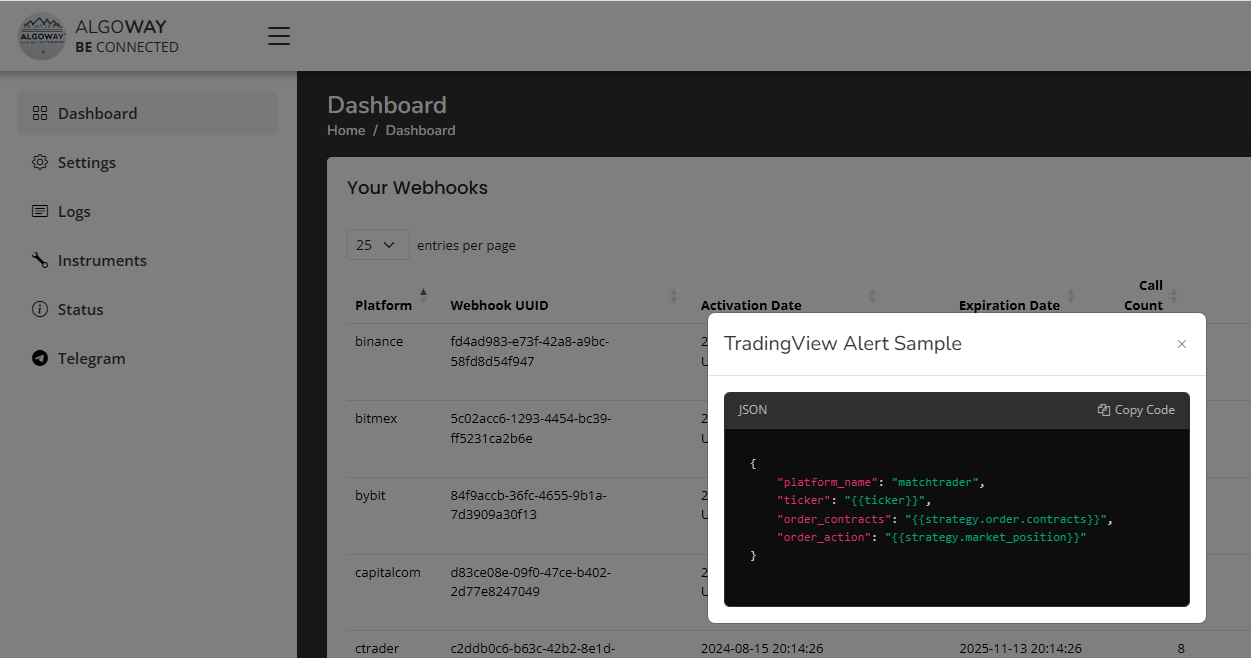
 ## Step 4. TradingView Strategy JSON for Match-Trader
For TradingView strategy alerts, use this JSON in the alert message field:
``` text
{
"platform_name": "matchtrader",
"ticker": "{{ticker}}",
"order_contracts": "{{strategy.order.contracts}}",
"order_action": "{{strategy.market_position}}",
"price": "{{close}}"
}
```
TradingView replaces the placeholders when the alert fires:
- `{{ticker}}` - current chart ticker;
- `{{strategy.order.contracts}}` - strategy order size;
- `{{strategy.market_position}}` - current strategy state;
- `{{close}}` - close price at alert time.
 ## Manual Price Alert JSON for Match-Trader
If you use a manual TradingView condition such as price crossing a level, use fixed values instead of strategy placeholders.
### Manual BUY Alert
``` text
{
"platform_name": "matchtrader",
"ticker": "{{ticker}}",
"order_contracts": "1",
"order_action": "buy",
"price": "{{close}}"
}
```
### Manual SELL Alert
``` text
{
"platform_name": "matchtrader",
"ticker": "{{ticker}}",
"order_contracts": "1",
"order_action": "sell",
"price": "{{close}}"
}
```
### Manual FLAT / Close Alert
``` text
{
"platform_name": "matchtrader",
"ticker": "{{ticker}}",
"order_action": "flat",
"order_contracts": "1"
}
```
Supported common values for `order_action`:
- `buy`
- `sell`
- `long`
- `short`
- `flat`
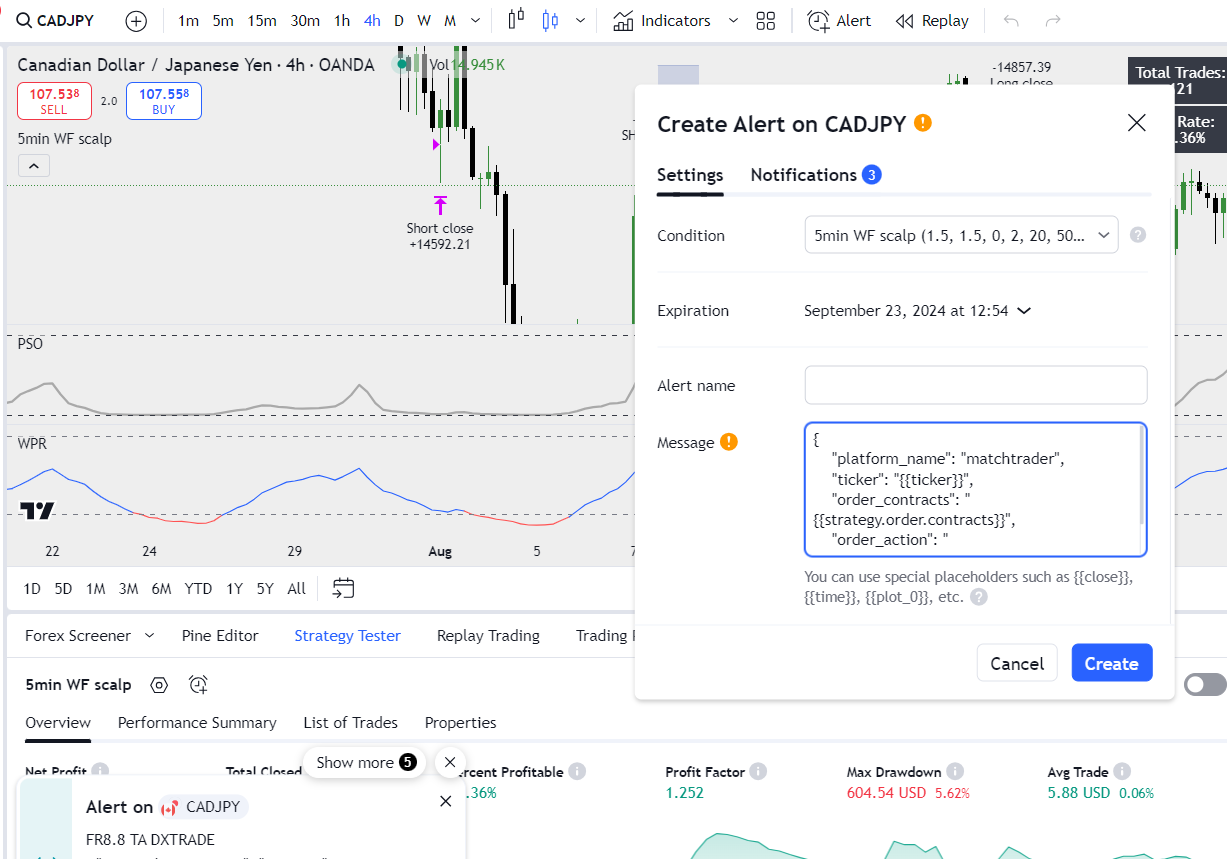
## Step 5. Create the TradingView Alert
Now create the alert in TradingView.
1. Open the TradingView chart with your strategy or condition.
2. Click **Add Alert**.
3. For strategy automation, select the strategy as the alert condition.
4. Paste the Match-Trader JSON into the **Message** field.
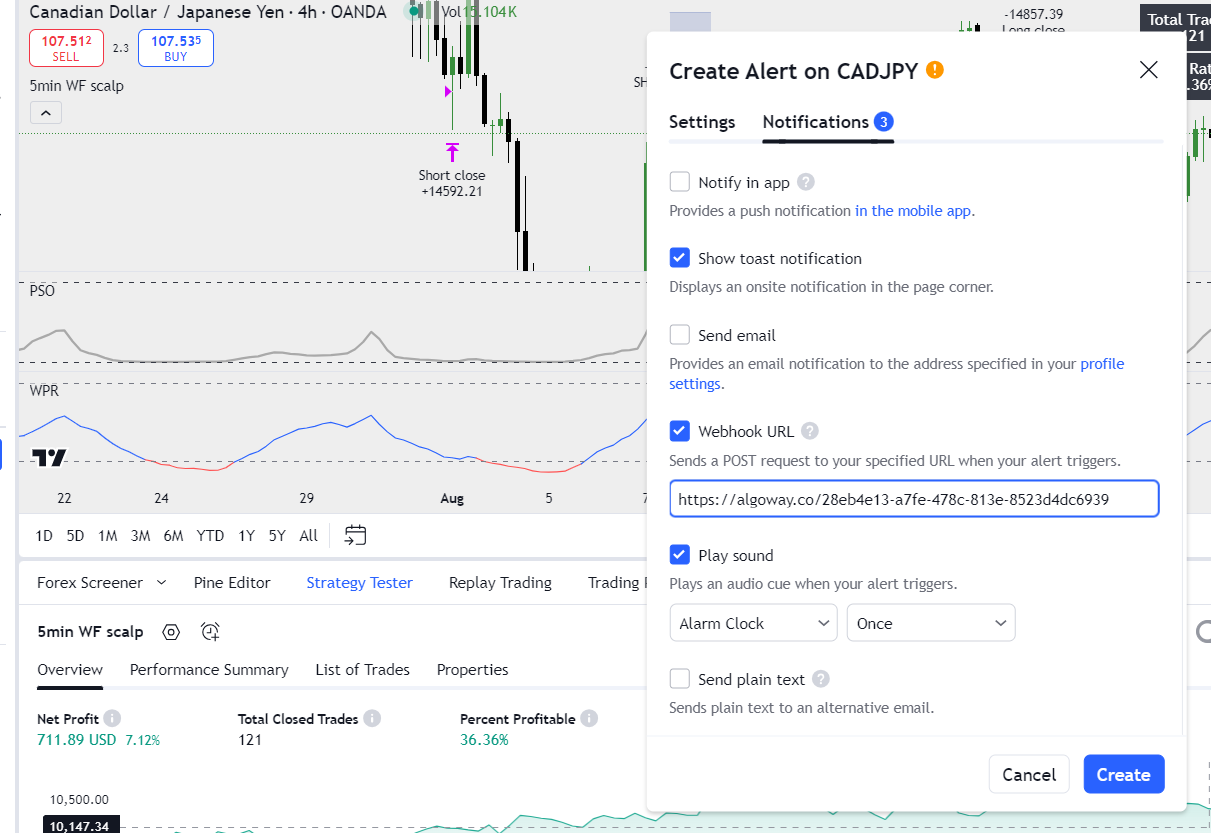
5. Open **Notifications**.
6. Enable **Webhook URL**.
7. Paste your AlgoWay Match-Trader webhook URL.
8. Click **Create**.
 ## Hedge, Reverse and flat Logic
The **Trade Type** setting controls how AlgoWay handles existing positions when a new signal arrives.
| Mode | Behavior | Use case |
|-------------------|-----------------------------------------------------------------------------------------|-----------------------------------------------|
| Hedge / Dual side | Allows separate long-side and short-side behavior when supported by the account. | Strategies that intentionally use both sides. |
| Reverse | Opposite signal can close or replace the current direction depending on route behavior. | One-direction strategies. |
| flat | Close or flatten matching exposure for the symbol. | Exit signals and manual close alerts. |
Full explanation: [How AlgoWay handles opposite trading signals](https://algoway.trade/blog/algoway-modes-article.html).
## SL/TP and Risk Fields
If your Match-Trader route supports risk fields, you can send Stop Loss and Take Profit in the JSON. Test these fields with small size before live automation.
### Distance-Style SL/TP
``` text
{
"platform_name": "matchtrader",
"ticker": "{{ticker}}",
"order_contracts": "{{strategy.order.contracts}}",
"order_action": "{{strategy.market_position}}",
"price": "{{close}}",
"stop_loss": "100",
"take_profit": "200"
}
```
### Trailing Stop
``` text
{
"platform_name": "matchtrader",
"ticker": "{{ticker}}",
"order_contracts": "{{strategy.order.contracts}}",
"order_action": "{{strategy.market_position}}",
"trailing_pips": "50"
}
```
**Risk-field rule:** confirm how your route interprets `stop_loss`, `take_profit` and `trailing_pips`. Units can depend on platform and route settings.
## Testing and Logs
Before using live size, test the route in layers.
1. Create the Match-Trader webhook in AlgoWay.
2. Use **Auto detect** to fill Broker ID.
3. Save the webhook.
4. Create a small TradingView alert or manual test alert.
5. Trigger the alert.
6. Open **AlgoWay Webhook Logs**.
7. Confirm the payload was received.
8. Check the Match-Trader platform for order or position result.
If AlgoWay receives the webhook but Match-Trader does not trade, check platform URL, credentials, Account ID, Broker ID, symbol, size, trade mode and platform response.
## Common Match-Trader Webhook Problems
### Broker ID Was Not Detected
Check that the broker platform URL is correct and has no trailing slash. If Auto detect still fails, use manual Broker ID fallback from the login page source code.
### Broker URL Has a Trailing Slash
Use `https://mtr-platform.fundingpips.com`, not `https://mtr-platform.fundingpips.com/`.
### Wrong Email or Password
AlgoWay must authenticate to the correct Match-Trader account. Verify credentials directly on the broker platform before saving the webhook.
### Account ID Is Missing or Wrong
Account ID is optional if you do not know it, but some broker environments or multi-account profiles may require the exact account. Enter it if your broker provides it.
### Invalid JSON
TradingView must send valid JSON. Broken commas, missing quotes or plain text can stop the route before Match-Trader receives anything. See: [How to fix AlgoWay webhook Error 415](https://algoway.trade/blog/algoway-415.html).
### Wrong platform_name
For this route, `platform_name` must be `matchtrader`.
### Wrong Symbol
TradingView ticker may not match the Match-Trader broker symbol. Check the exact instrument name in the broker platform.
### Invalid Size
Check minimum size, step size, leverage, margin and broker instrument rules.
### Webhook URL Is Not Enabled in TradingView
JSON in the message field is not enough. Enable **Webhook URL** in TradingView Notifications and paste the AlgoWay URL.
## Why Use AlgoWay Instead of Building a TradingView to Match-Trader Bot?
You can build your own TradingView-to-Match-Trader connector, but it requires webhook receiving, JSON parsing, broker environment detection, authentication, symbol mapping, trade mode handling, error logging and ongoing maintenance.
AlgoWay gives you a ready route:
- TradingView webhook receiver;
- Match-Trader platform route;
- Broker ID Auto detect;
- dashboard-based setup;
- Hedge / Dual side and Reverse modes;
- JSON examples for strategy and manual alerts;
- webhook logs and platform response tracking;
- support for other brokers, exchanges and trading platforms.
This makes AlgoWay a no-code **TradingView to Match-Trader webhook connector** for traders who want automation without maintaining their own connector infrastructure.
## Related AlgoWay Guides
- [How to create a TradingView webhook alert](https://docs.algoway.trade/guide-to-creating-a-webhook-in-tradingview.html)
- [Manual TradingView webhook alerts](https://algoway.trade/blog/how-to-create-manual-alerts-for-webhooks-on-the-algoway-platform.html)
- [AlgoWay JSON schema guide](https://algoway.trade/blog/json-schema-guide.html)
- [How AlgoWay handles opposite trading signals](https://algoway.trade/blog/algoway-modes-article.html)
- [How to fix AlgoWay webhook Error 415](https://algoway.trade/blog/algoway-415.html)
- [TradingView to TradeLocker webhook automation](https://docs.algoway.trade/tradeLocker-setup-guide.html)
- [TradingView to DxTrade webhook automation](https://docs.algoway.trade/guide-to-creating-a-webhook-in-tradingview.html)
- [TradingView to cTrader webhook automation](https://algoway.trade/blog/how-the-ctrader-connector-logic-works.html)
- [TradingView to MetaTrader 5 with AlgoWay](https://docs.algoway.trade/setting-up-access-for-tradingview-to-metatrader-5.html)
## Final Summary
To connect TradingView to Match-Trader with AlgoWay, create a Match-Trader webhook, enter the broker URL, email and password, use **Auto detect** to fill Broker ID, optionally enter Account ID, copy the AlgoWay webhook URL, and create a TradingView alert with valid Match-Trader JSON.
**AlgoWay turns TradingView alerts into Match-Trader webhook automation without forcing you to build and maintain your own connector.**
## Frequently Asked Questions
### Do I need a VPS or to keep my computer on for automated trading?
Absolutely not. AlgoWay is a cloud-based service with centralized signal processing and order routing. You do not need a VPS, an always-on computer, or a locally running trading app. Your TradingView alerts continue to work even when your computer is shut down.
## Related TradingView Integration Guides
Explore step-by-step webhook setup guides for other supported trading platforms.
- [Connect TradingView to DXtrade with webhook automation](https://docs.algoway.trade/guide-to-creating-a-webhook-in-tradingview.html)
- [Connect TradingView to cTrader with webhook automation](https://docs.algoway.trade/how-to-connect-tradingview-to-ctrader.html)
- [Connect TradingView to Capital.com with webhook automation](https://docs.algoway.trade/how-to-connect-tradingview-to-capitalcom.html)
- [Connect TradingView to TradeLocker with webhook automation](https://docs.algoway.trade/tradeLocker-setup-guide.html)
Published: May 12, 2026 Last updated: May 12, 2026