[Original HTML page](https://docs.algoway.trade/okx-api.html)
dateModified: 2026-05-12T00:00:00+00:00
datePublished: 2026-05-12T00:00:00+00:00
# **How to Connect TradingView Alerts to OKX with AlgoWay Webhook Automation**
**AlgoWay lets you connect TradingView alerts to OKX through secure webhook automation.** You create an OKX API key, enable **Read** and **Trade** permissions, bind the API key to the AlgoWay IP address, create a passphrase, add the credentials to AlgoWay, and then send valid TradingView JSON to your AlgoWay webhook URL.
This guide covers the complete TradingView-to-OKX workflow, including API key creation, permissions, IP allowlisting, AlgoWay webhook setup, futures settings, JSON alerts, testing and troubleshooting.
The execution route is:
``` text
TradingView alert -> AlgoWay webhook -> OKX API -> OKX Futures / Perpetual order
```
TradingView creates the signal. AlgoWay receives and validates the webhook JSON. OKX receives the final trading request through the API Key, Secret Key and Passphrase configured in AlgoWay.
Last updated: 2026-05-12 • Author: AlgoWay
**Contents**
- [Quick answer](https://docs.algoway.trade/okx-api.html#quick-answer)
- [Why automate OKX with TradingView alerts?](https://docs.algoway.trade/okx-api.html#why-okx)
- [Before you start](https://docs.algoway.trade/okx-api.html#before)
- [Create OKX API key](https://docs.algoway.trade/okx-api.html#api-key)
- [Create OKX webhook in AlgoWay](https://docs.algoway.trade/okx-api.html#algoway)
- [Copy webhook URL](https://docs.algoway.trade/okx-api.html#url)
- [TradingView JSON message](https://docs.algoway.trade/okx-api.html#json)
- [Create TradingView alert](https://docs.algoway.trade/okx-api.html#alert)
- [SL / TP / trailing stop](https://docs.algoway.trade/okx-api.html#sltp)
- [Close positions with flat](https://docs.algoway.trade/okx-api.html#flat)
- [Verification and logs](https://docs.algoway.trade/okx-api.html#verify)
- [Common problems](https://docs.algoway.trade/okx-api.html#problems)
## Quick Answer: TradingView to OKX with AlgoWay
To automate OKX from TradingView through AlgoWay, you need:
1. an OKX account with the required trading market enabled;
2. an OKX API key created for API trading;
3. **Read** and **Trade** permissions enabled;
4. the AlgoWay IP address added to the OKX IP allowlist;
5. API Key, Secret Key and Passphrase saved securely;
6. an AlgoWay webhook where **Source** is TradingView and **Platform** is OKX;
7. Futures/Perpetual market type and correct margin mode selected in AlgoWay;
8. a TradingView alert with valid OKX JSON and the AlgoWay webhook URL.
After setup, a TradingView strategy alert can be routed by AlgoWay to OKX as an automated futures or perpetual order.
## Why Automate OKX with TradingView Alerts?
TradingView is widely used for charts, Pine Script strategies, indicators and alert logic. OKX provides API access for crypto trading, including derivatives and perpetual markets. AlgoWay connects these systems with a webhook route and exchange API execution layer.
This is useful when you want to:
- turn TradingView strategy alerts into OKX orders;
- automate BTCUSDT, ETHUSDT, ARBUSDT and other OKX markets;
- use TradingView as the signal engine and OKX as the execution venue;
- avoid maintaining your own OKX API server;
- use webhook logs for debugging incoming JSON and exchange responses;
- run OKX together with other AlgoWay-supported exchanges and brokers.
AlgoWay does not create a profitable strategy. It automates the route after your TradingView strategy, indicator or manual alert sends the command.
## Before You Start
Prepare the following:
- OKX account;
- OKX trading market you want to automate, usually Futures / Perpetual;
- AlgoWay account with access to the Webhooks dashboard;
- TradingView strategy, indicator or manual alert;
- TradingView plan that supports webhook alerts;
- AlgoWay server IP address from your dashboard;
- small test quantity;
- valid AlgoWay JSON message.
**Security note:** enable only **Read** and **Trade** permissions for AlgoWay. Do not enable withdrawal permissions. Bind the API key to the AlgoWay IP address.
## Step 1. Create an OKX API Key
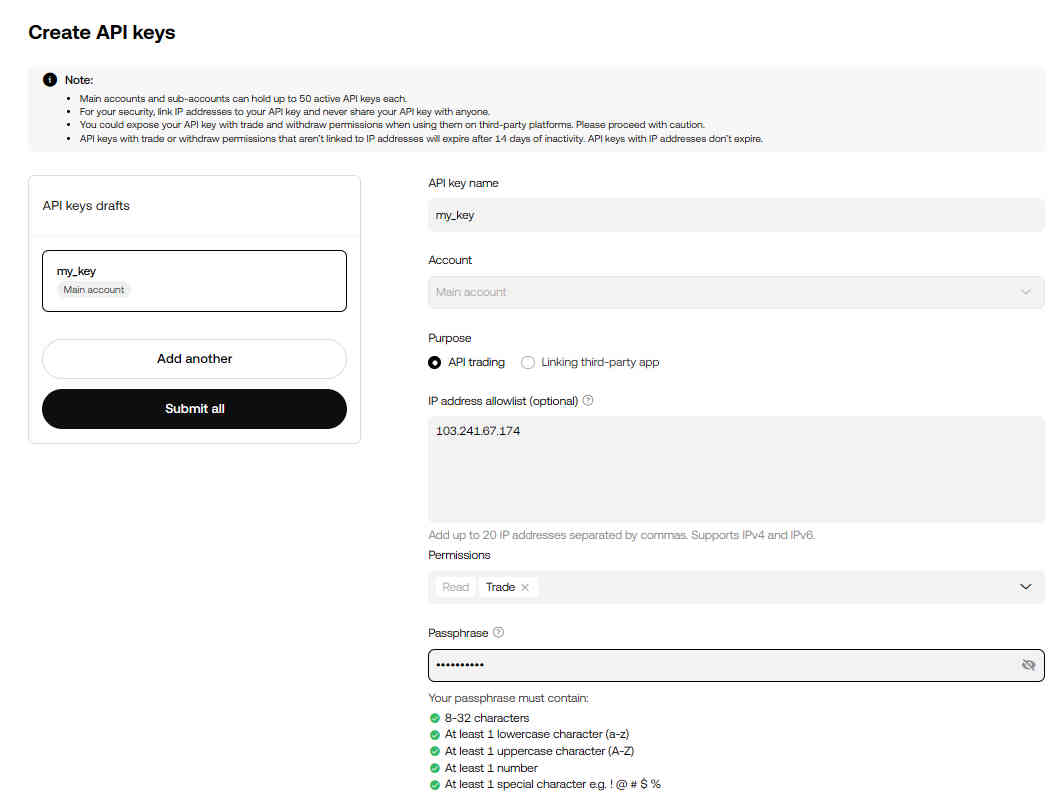
Open OKX API settings and create a dedicated API key for AlgoWay.
1. Log in to OKX.
2. Open your profile and go to **API** or **API and connections**.
3. Click **Create API key**.
4. Set a clear API name, for example `ALGOWAY-OKX`.
5. Set the purpose to **API trading**.
6. Add the AlgoWay IP address to the IP allowlist.
7. Enable **Read** and **Trade** permissions.
8. Create and save your **Passphrase**.
9. Complete OKX security verification.
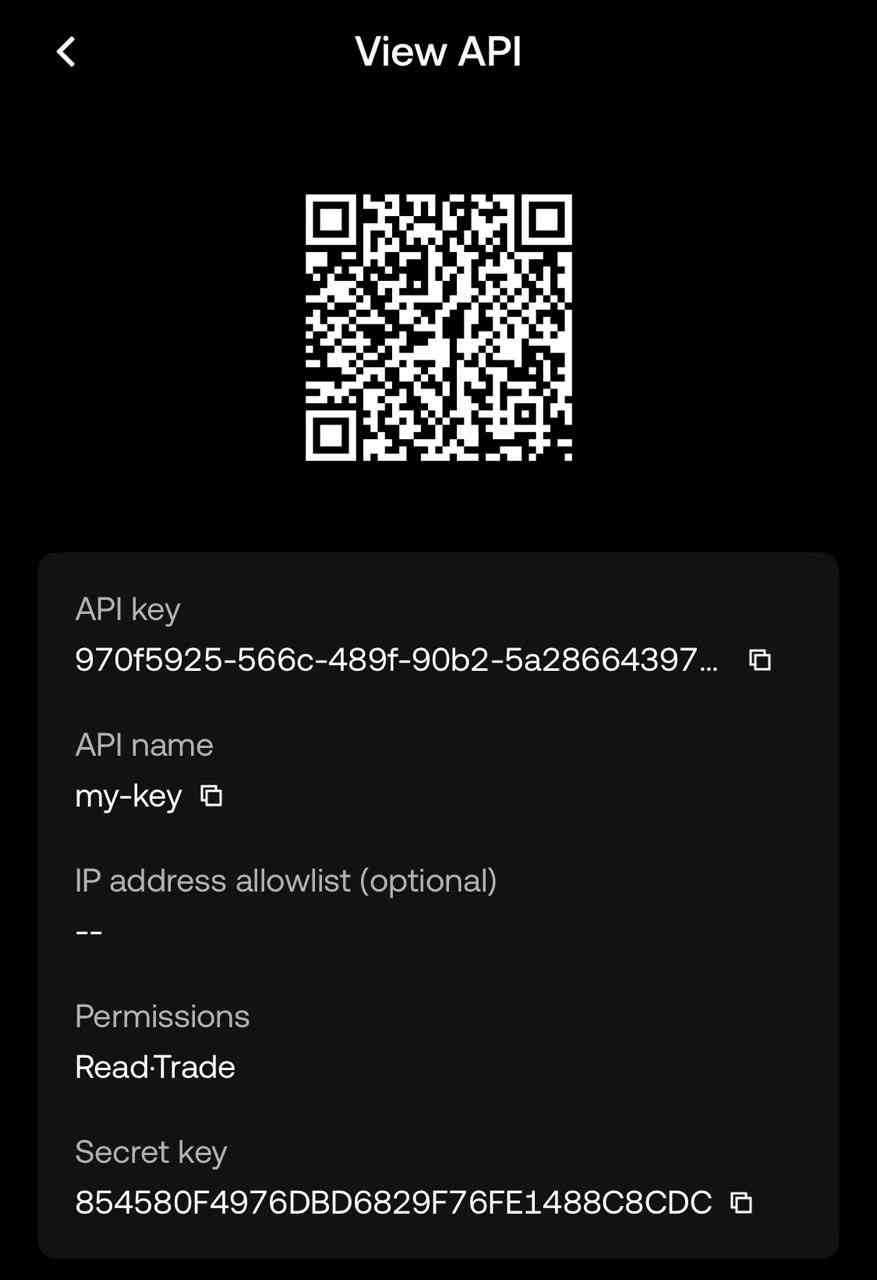
10. Copy the **API Key**, **Secret Key** and **Passphrase**.
**AlgoWay IP to allow:**
``` text
103.241.67.174
```
If your AlgoWay dashboard shows a different IP, use the IP shown in your dashboard.
Create an OKX API key for AlgoWay and bind it to the AlgoWay IP address.Save the API Key, Secret Key and Passphrase. The Secret Key is shown only once.
### Recommended OKX API Permissions
| Permission | Use it? | Purpose |
|------------|---------|---------------------------------------------------------|
| Read | Yes | Needed for account, balance, order and position checks. |
| Trade | Yes | Needed to place and manage OKX trading orders. |
| Withdraw | No | Not required for AlgoWay webhook trading automation. |
**Important:** if the Secret Key or Passphrase is exposed, delete the OKX API key and create a new one.
## Step 2. Create an OKX Webhook in AlgoWay
After the OKX API key is ready, create the OKX route in AlgoWay.
1. Open the **AlgoWay Dashboard**.
2. Click **Add Trial Webhook** or **Add Main Webhook**.
3. Select **TradingView** as the source.
4. Select **OKX** as the platform.
5. Set **Quantity Multiplier**, usually **Absolute: 1** for direct quantity usage.
6. Select **Futures / Perpetual** as the market type if you are automating perpetual swaps.
7. Choose **Cross** or **Isolated** margin mode.
8. Choose the trade type, for example **Hedge**, if your strategy and account require separate long and short exposure.
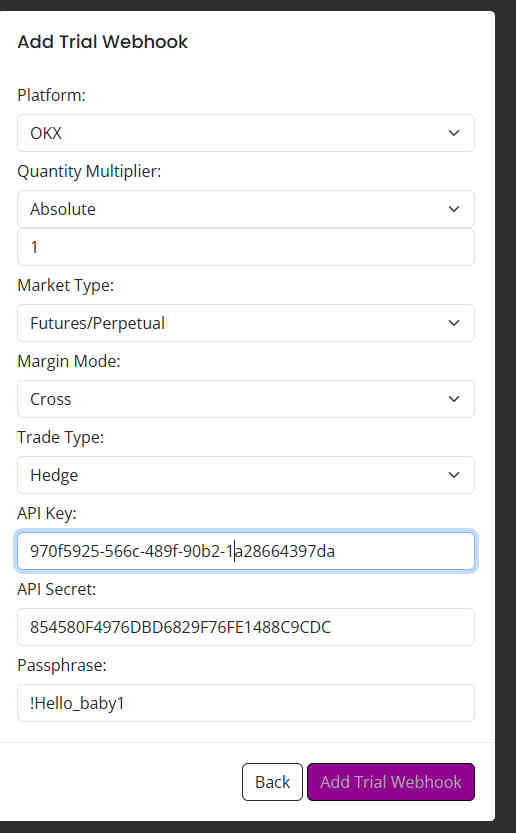
9. Paste the OKX API Key, Secret Key and Passphrase.
10. Save the webhook.
Set Platform to OKX, choose market type, margin mode and trade type, then paste API credentials.
### Main AlgoWay OKX Fields
| AlgoWay field | Recommended value | Purpose |
|---------------------|-----------------------------------|---------------------------------------------------------------------|
| Source | TradingView | The signal source. |
| Platform | OKX | The exchange destination. |
| Quantity Multiplier | Absolute: 1 or your route setting | Controls how incoming strategy quantity is interpreted. |
| Market Type | Futures / Perpetual | Used for OKX perpetual swap automation. |
| Margin Mode | Cross or Isolated | Defines margin behavior for the order route. |
| Trade Type | Hedge / Reverse / selected mode | Defines how AlgoWay handles existing exposure and opposite signals. |
| API Key | OKX API Key | Used for API authentication. |
| Secret Key | OKX Secret Key | Used for request signing. |
| Passphrase | Your OKX API passphrase | Required by OKX API authentication. |
## Step 3. Copy the AlgoWay Webhook URL
After saving the OKX webhook, open the webhook list in AlgoWay and copy the unique webhook URL.
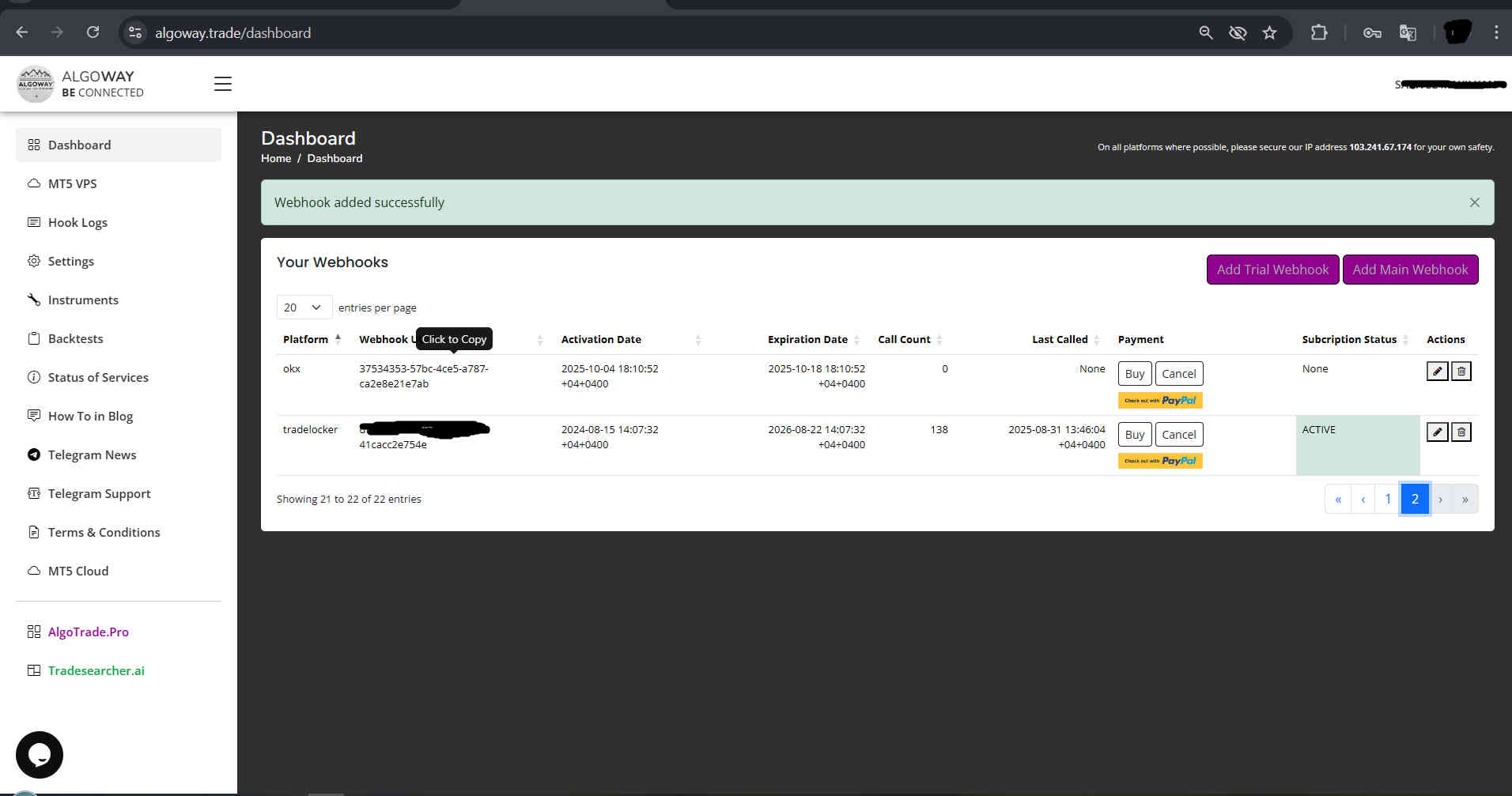
1. Open **Dashboard \>\> Your Webhooks**.
2. Find the row where **Platform** is OKX.
3. Copy the webhook UUID or full webhook URL.
Copy the OKX webhook URL from the AlgoWay dashboard.
Webhook URL format:
``` text
https://algoway.co/your-webhook-uuid
```
**Do not publish your webhook URL.** Treat the UUID as a private execution endpoint.
## Step 4. TradingView Webhook JSON for OKX
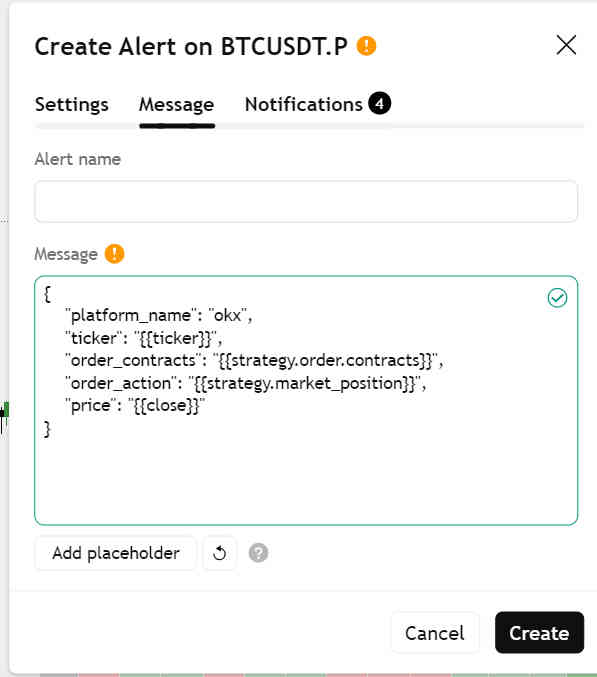
TradingView must send valid JSON. AlgoWay expects structured fields, not plain text.
**Recommended TradingView strategy alert JSON:**
``` text
{
"platform_name": "okx",
"ticker": "{{ticker}}",
"order_contracts": "{{strategy.order.contracts}}",
"order_action": "{{strategy.market_position}}",
"price": "{{close}}"
}
```
TradingView replaces these placeholders when the alert fires:
- `{{ticker}}` — chart ticker;
- `{{strategy.order.contracts}}` — strategy order size;
- `{{strategy.market_position}}` — strategy position state;
- `{{close}}` — close price at alert time.
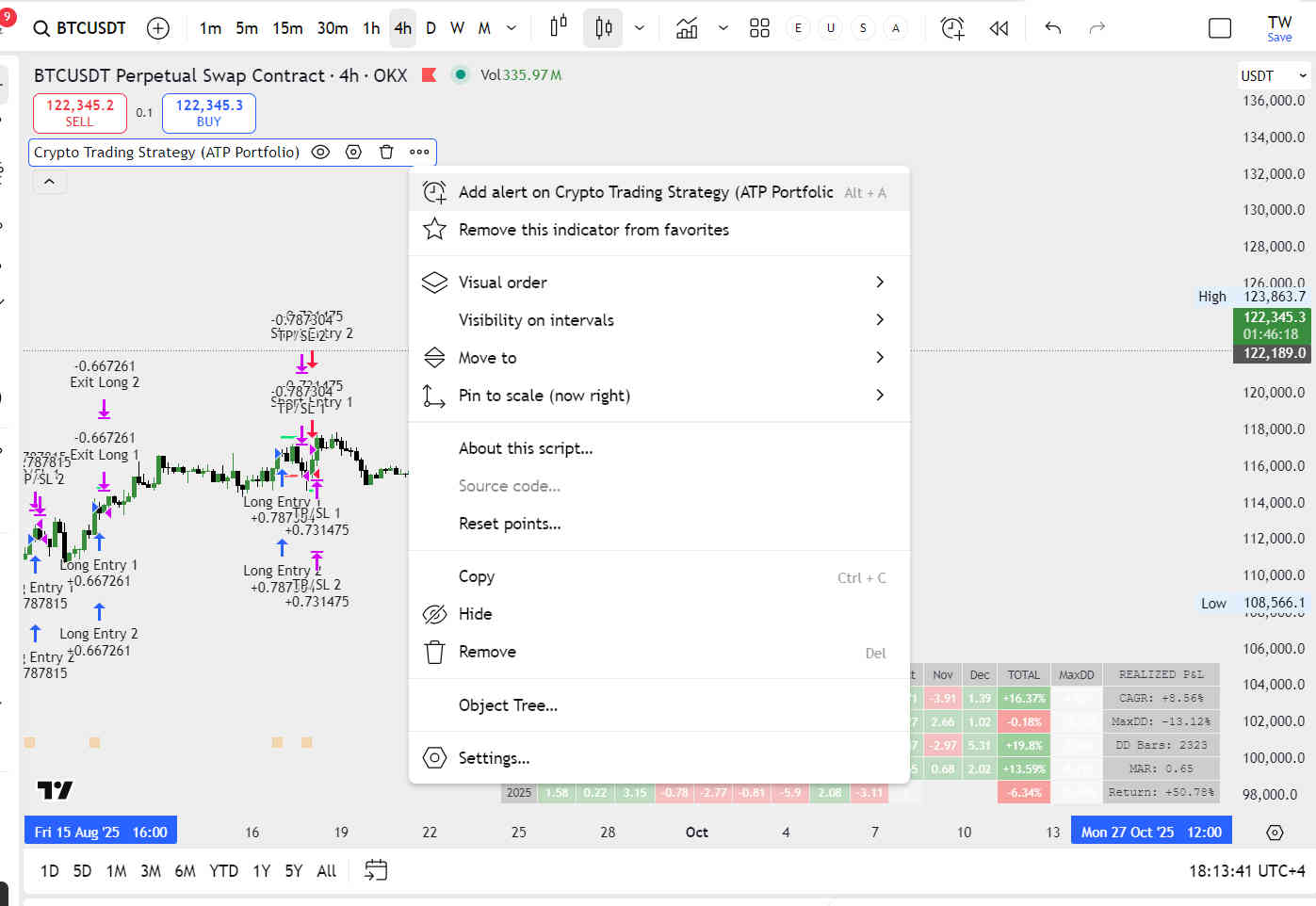
Create or edit the TradingView strategy alert for the OKX route.The TradingView message field must contain one valid JSON object.
**platform_name must be exactly:** `okx`. If it does not match the route, the alert may not be routed correctly.
### Fixed Test JSON
For a controlled test, use a fixed OKX symbol and small valid quantity:
``` text
{
"platform_name": "okx",
"ticker": "BTCUSDT.P",
"order_contracts": 0.01,
"order_action": "buy"
}
```
Use the exact symbol format accepted by your OKX route. If the order is rejected, check symbol, quantity, market type, margin mode, position mode and account permissions.
## Step 5. Create the TradingView Alert
After the OKX JSON and AlgoWay webhook URL are ready, create or edit the TradingView alert.
1. Open the OKX symbol on TradingView, for example `BTCUSDT.P`.
2. Right-click the strategy or open the alert panel.
3. Create an alert from your strategy, indicator or manual condition.
4. Paste the OKX JSON message into the **Message** field.
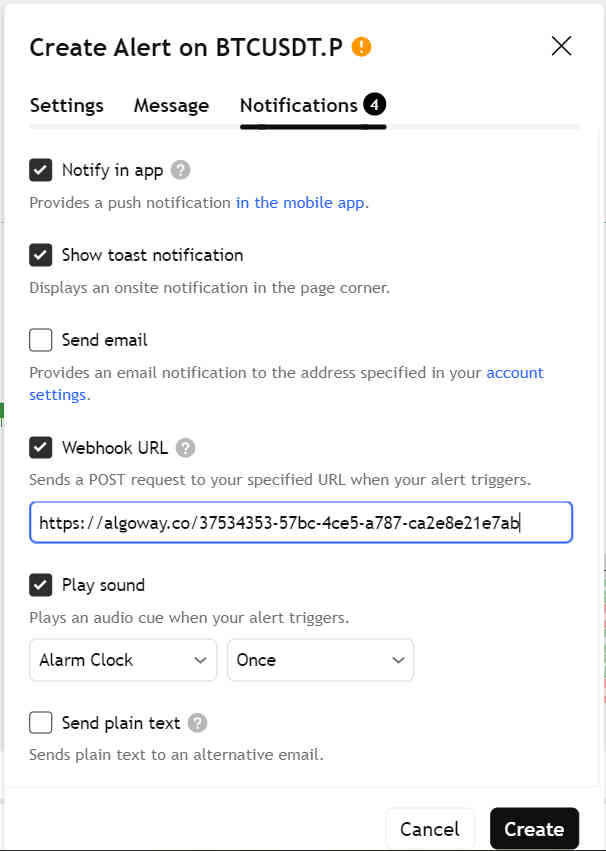
5. Open **Notifications**.
6. Enable **Webhook URL**.
7. Paste your AlgoWay OKX webhook URL.
8. Click **Create** or **Apply**.
Enable Webhook URL and paste the AlgoWay OKX webhook URL.
For many strategies, **Once per bar close** is safer than intra-bar alert execution unless your system is intentionally designed for intrabar signals.
## Step 6. Add SL / TP / Trailing Stop for OKX
AlgoWay's OKX route can use absolute SL/TP prices and distance-style fields. Test every risk field on small size before using live orders.
### Absolute SL/TP Prices
``` text
{
"platform_name": "okx",
"ticker": "ETHUSDT.P",
"order_action": "buy",
"order_contracts": 1,
"sl_price": 1800,
"tp_price": 1850
}
```
### Offsets in Pips / Tick-Based Distance
``` text
{
"platform_name": "okx",
"ticker": "BTCUSDT.P",
"order_action": "sell",
"order_contracts": 0.5,
"stop_loss": 50,
"take_profit": 100
}
```
### Trailing Stop
``` text
{
"platform_name": "okx",
"ticker": "ARBUSDT.P",
"order_action": "buy",
"order_contracts": 10,
"trailing_pips": 50
}
```
**Risk-field rule:** if both absolute price fields and distance fields are provided, follow the current route behavior shown in AlgoWay. In the OKX guide flow, absolute prices are treated as the stronger instruction. Always verify in logs.
When trailing stop is used, the route can still allow Take Profit depending on current OKX handler behavior. Stop Loss may be omitted because trailing stop handles dynamic exit protection.
## Step 7. Close Positions with flat
Use `"order_action": "flat"` when the signal should close an existing position instead of opening a new one.
``` text
{
"platform_name": "okx",
"ticker": "BTCUSDT.P",
"order_action": "flat",
"order_contracts": 1
}
```
In Hedge mode, long and short legs can be handled according to the route and size you send. If you need side-specific closing, check the current AlgoWay JSON schema and route behavior before using live size.
Full mode guide: [How AlgoWay handles opposite trading signals](https://algoway.trade/blog/algoway-modes-article.html).
## Verification and Logs
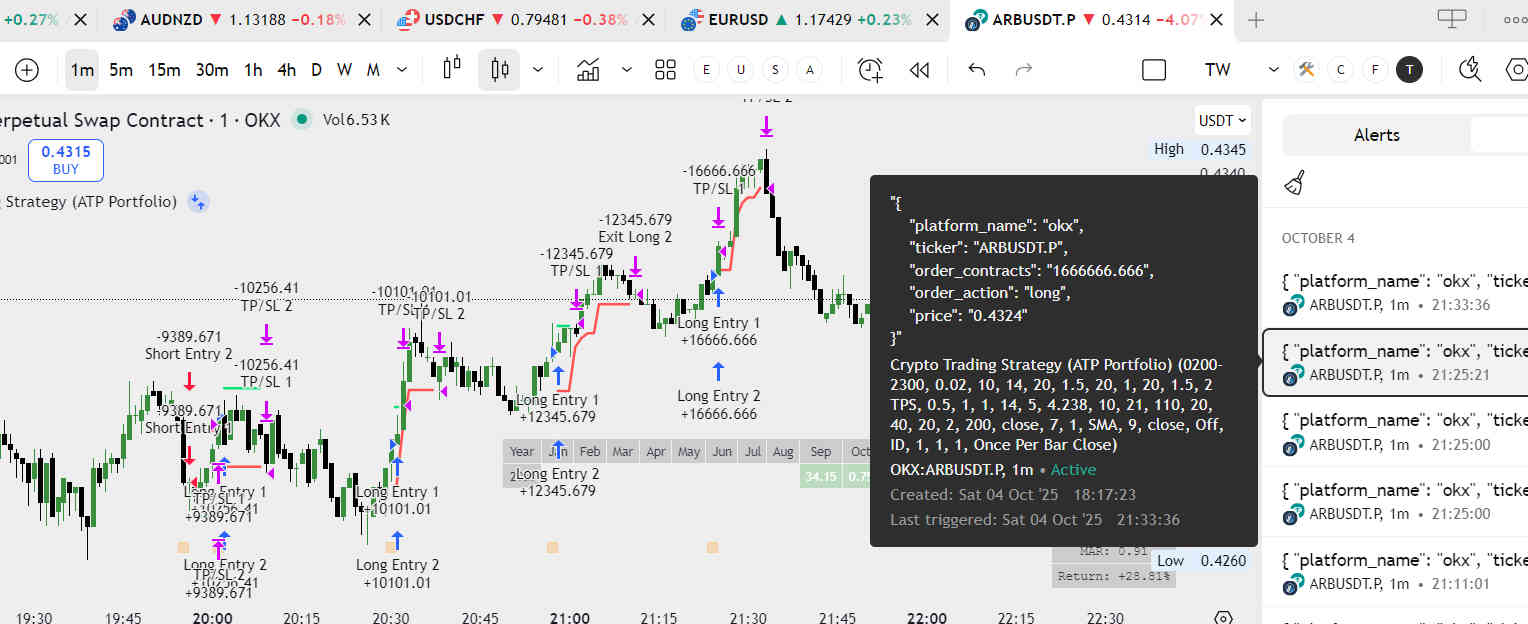
After the TradingView alert is created, test the route with small size.
- Trigger a small test alert first.
- Open **Webhook Logs** in AlgoWay.
- Verify the incoming JSON payload.
- Review the OKX response.
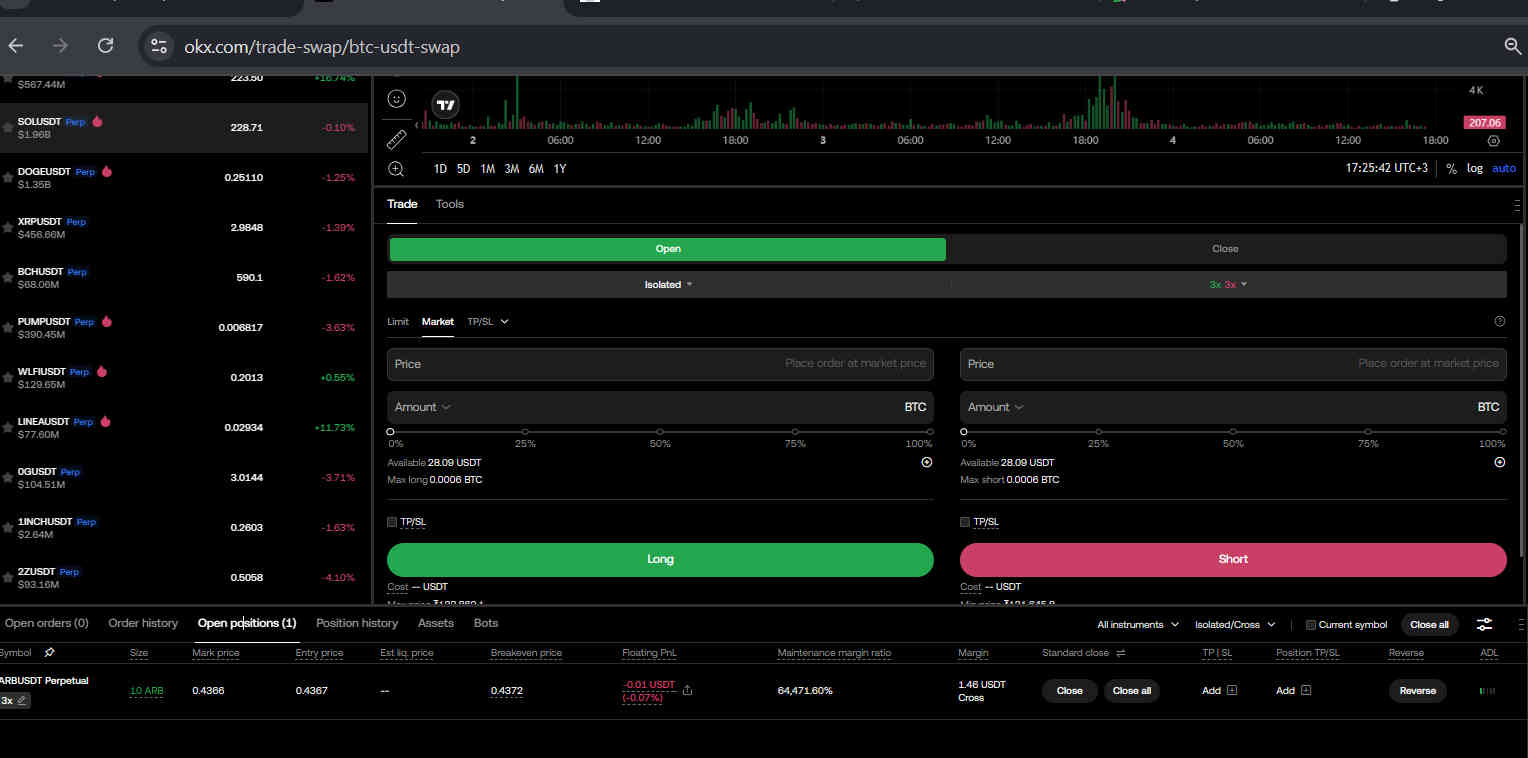
- Open your OKX trading panel and check open positions, orders and attached TP/SL/trailing algos.
Check OKX order and trading panels after a test alert.Verify open positions and attached management orders in OKX.
If AlgoWay receives the webhook but OKX does not open a trade, check API permissions, passphrase, IP allowlist, symbol, margin mode, quantity, market session, account mode and exchange response.
## Common OKX Webhook Problems
### Wrong Passphrase
OKX API authentication requires the passphrase created with the API key. It is not your OKX account password.
### Secret Key Was Lost
OKX shows the Secret Key only once. If it is lost, create a new API key and update AlgoWay.
### IP Allowlist Is Missing or Wrong
If the API key is bound to the wrong IP, OKX can reject requests from AlgoWay. Add the AlgoWay IP address shown in your dashboard.
### Read / Trade Permission Missing
Enable Read and Trade permissions for this automation route. Withdrawal permission is not required.
### Wrong Market Type
Spot, margin, futures and perpetual routes are not the same. Match the AlgoWay market type with the OKX market you want to automate.
### Wrong Margin Mode
Cross and Isolated have different margin behavior. If the account state or symbol configuration does not match the requested route, OKX can reject the order.
### Wrong Symbol Format
TradingView symbols and OKX instrument identifiers may differ. Check the exact symbol format used by AlgoWay for your OKX route.
### Invalid Quantity
Order size must satisfy OKX minimum quantity, lot size and contract rules. Test with minimal valid size first.
### Invalid JSON
TradingView must send valid JSON. Broken commas, missing quotes or plain text can stop automation before OKX receives anything. See: [How to fix AlgoWay webhook Error 415](https://algoway.trade/blog/algoway-415.html).
### TradingView Webhook URL Is Missing
JSON in the message field is not enough. Enable **Webhook URL** in the TradingView Notifications tab and paste the AlgoWay URL.
## Why Use AlgoWay Instead of Building a TradingView to OKX Bot?
You can build your own TradingView-to-OKX bot. That requires a public webhook server, JSON parser, OKX API signing, passphrase handling, symbol mapping, futures order routing, SL/TP logic, trailing logic, logs and ongoing monitoring.
AlgoWay gives you a ready route:
- TradingView webhook receiver;
- structured JSON workflow;
- OKX API credential routing;
- dashboard-based webhook setup;
- Futures / Perpetual route settings;
- Cross and Isolated margin mode selection;
- SL/TP and trailing examples;
- webhook logs and exchange response tracking;
- support for multiple exchanges and brokers from the same dashboard.
This makes AlgoWay a no-code **TradingView to OKX webhook connector** for traders who want crypto automation without maintaining their own OKX API server.
## Related AlgoWay Guides
- [How to create a TradingView webhook alert](https://docs.algoway.trade/guide-to-creating-a-webhook-in-tradingview.html)
- [How to automate TradingView alerts to any broker with AlgoWay](https://algoway.trade/blog/automate-tradingview-alerts-to-any-broker-with-algoway.html)
- [AlgoWay JSON schema guide](https://algoway.trade/blog/json-schema-guide.html)
- [How to fix AlgoWay webhook Error 415](https://algoway.trade/blog/algoway-415.html)
- [How to connect TradingView to MEXC with AlgoWay](https://docs.algoway.trade/mexc-api.html)
- [How to connect TradingView to Binance with AlgoWay](https://docs.algoway.trade/algoway-binance-integration-guide.html)
- [How to connect TradingView to Bybit with AlgoWay](https://docs.algoway.trade/algoway-bybit-integration-guide.html)
- [How to connect TradingView to Bitget with AlgoWay](https://docs.algoway.trade/bitget-api.html)
- [How to connect TradingView to BingX with AlgoWay](https://docs.algoway.trade/bingx-api.html)
- [How to connect TradingView to Coinbase with AlgoWay](https://docs.algoway.trade/coinbase-api.html)
- [How to copy TradingView alerts to multiple accounts](https://algoway.trade/blog/algoway-tradecopier-for-diversification-trading.html)
## Final Summary
To automate OKX from TradingView, create an OKX API key with Read and Trade permissions, bind the AlgoWay IP address, save the API Key, Secret Key and Passphrase, create an OKX webhook in AlgoWay, copy the webhook URL, and send valid TradingView JSON.
**AlgoWay turns TradingView alerts into OKX webhook automation without forcing you to build and maintain your own crypto trading bot infrastructure.**
## Frequently Asked Questions
### Do I need a VPS or to keep my computer on for automated trading?
Absolutely not. AlgoWay is a cloud-based service with centralized signal processing and order routing. You do not need a VPS, an always-on computer, or a locally running trading app. Your TradingView alerts continue to work even when your computer is shut down.
## Related TradingView Integration Guides
Explore step-by-step webhook setup guides for other supported trading platforms.
- [Connect TradingView to Bitget with webhook automation](https://docs.algoway.trade/bitget-api.html)
- [Connect TradingView to MEXC with webhook automation](https://docs.algoway.trade/mexc-api.html)
- [Connect TradingView to Hyperliquid with webhook automation](https://docs.algoway.trade/how-to-connect-tradingview-to-hyperliquid-via-algoway.html)
- [Connect TradingView to Bybit with webhook automation](https://docs.algoway.trade/algoway-bybit-integration-guide.html)
Published: May 12, 2026 Last updated: May 12, 2026
 **AlgoWay lets you connect TradingView alerts to OKX through secure webhook automation.** You create an OKX API key, enable **Read** and **Trade** permissions, bind the API key to the AlgoWay IP address, create a passphrase, add the credentials to AlgoWay, and then send valid TradingView JSON to your AlgoWay webhook URL.
This guide covers the complete TradingView-to-OKX workflow, including API key creation, permissions, IP allowlisting, AlgoWay webhook setup, futures settings, JSON alerts, testing and troubleshooting.
The execution route is:
``` text
TradingView alert -> AlgoWay webhook -> OKX API -> OKX Futures / Perpetual order
```
TradingView creates the signal. AlgoWay receives and validates the webhook JSON. OKX receives the final trading request through the API Key, Secret Key and Passphrase configured in AlgoWay.
Last updated: 2026-05-12 • Author: AlgoWay
**Contents**
- [Quick answer](https://docs.algoway.trade/okx-api.html#quick-answer)
- [Why automate OKX with TradingView alerts?](https://docs.algoway.trade/okx-api.html#why-okx)
- [Before you start](https://docs.algoway.trade/okx-api.html#before)
- [Create OKX API key](https://docs.algoway.trade/okx-api.html#api-key)
- [Create OKX webhook in AlgoWay](https://docs.algoway.trade/okx-api.html#algoway)
- [Copy webhook URL](https://docs.algoway.trade/okx-api.html#url)
- [TradingView JSON message](https://docs.algoway.trade/okx-api.html#json)
- [Create TradingView alert](https://docs.algoway.trade/okx-api.html#alert)
- [SL / TP / trailing stop](https://docs.algoway.trade/okx-api.html#sltp)
- [Close positions with flat](https://docs.algoway.trade/okx-api.html#flat)
- [Verification and logs](https://docs.algoway.trade/okx-api.html#verify)
- [Common problems](https://docs.algoway.trade/okx-api.html#problems)
## Quick Answer: TradingView to OKX with AlgoWay
To automate OKX from TradingView through AlgoWay, you need:
1. an OKX account with the required trading market enabled;
2. an OKX API key created for API trading;
3. **Read** and **Trade** permissions enabled;
4. the AlgoWay IP address added to the OKX IP allowlist;
5. API Key, Secret Key and Passphrase saved securely;
6. an AlgoWay webhook where **Source** is TradingView and **Platform** is OKX;
7. Futures/Perpetual market type and correct margin mode selected in AlgoWay;
8. a TradingView alert with valid OKX JSON and the AlgoWay webhook URL.
After setup, a TradingView strategy alert can be routed by AlgoWay to OKX as an automated futures or perpetual order.
## Why Automate OKX with TradingView Alerts?
TradingView is widely used for charts, Pine Script strategies, indicators and alert logic. OKX provides API access for crypto trading, including derivatives and perpetual markets. AlgoWay connects these systems with a webhook route and exchange API execution layer.
This is useful when you want to:
- turn TradingView strategy alerts into OKX orders;
- automate BTCUSDT, ETHUSDT, ARBUSDT and other OKX markets;
- use TradingView as the signal engine and OKX as the execution venue;
- avoid maintaining your own OKX API server;
- use webhook logs for debugging incoming JSON and exchange responses;
- run OKX together with other AlgoWay-supported exchanges and brokers.
AlgoWay does not create a profitable strategy. It automates the route after your TradingView strategy, indicator or manual alert sends the command.
## Before You Start
Prepare the following:
- OKX account;
- OKX trading market you want to automate, usually Futures / Perpetual;
- AlgoWay account with access to the Webhooks dashboard;
- TradingView strategy, indicator or manual alert;
- TradingView plan that supports webhook alerts;
- AlgoWay server IP address from your dashboard;
- small test quantity;
- valid AlgoWay JSON message.
**Security note:** enable only **Read** and **Trade** permissions for AlgoWay. Do not enable withdrawal permissions. Bind the API key to the AlgoWay IP address.
## Step 1. Create an OKX API Key
Open OKX API settings and create a dedicated API key for AlgoWay.
1. Log in to OKX.
2. Open your profile and go to **API** or **API and connections**.
3. Click **Create API key**.
4. Set a clear API name, for example `ALGOWAY-OKX`.
5. Set the purpose to **API trading**.
6. Add the AlgoWay IP address to the IP allowlist.
7. Enable **Read** and **Trade** permissions.
8. Create and save your **Passphrase**.
9. Complete OKX security verification.
10. Copy the **API Key**, **Secret Key** and **Passphrase**.
**AlgoWay IP to allow:**
``` text
103.241.67.174
```
If your AlgoWay dashboard shows a different IP, use the IP shown in your dashboard.