[Original HTML page](https://docs.algoway.trade/mt5-to-other-platforms-trade-copier.html)
datePublished: 2026-10-15
dateModified: 2026-10-15
# How to Copy Trades from MT5 to Other Trading Platforms with AlgoWay
An Expert Advisor can make perfectly good trading decisions inside MetaTrader 5 and still be useless to an account running on another platform. AlgoWay MT5 CopierBot closes that gap. It observes trading activity in the source MT5 terminal and forwards supported trading instructions through an AlgoWay webhook to the selected destination. This guide uses a real MT5-to-TradeLocker configuration, with screenshots from CopierBot 1.40 and both terminals.
Updated October 15, 2026 · Source: MetaTrader 5 · Example destination: TradeLocker · EA: AlgoWay-MT5-CopierBot 1.40
``` text
MT5 account / MQL5 Expert Advisor >> AlgoWay MT5 CopierBot >> AlgoWay webhook route >> TradeLocker account
```
**Contents**
- [What this copier does](https://docs.algoway.trade/mt5-to-other-platforms-trade-copier.html#overview)
- [Before you begin](https://docs.algoway.trade/mt5-to-other-platforms-trade-copier.html#requirements)
- [Create the webhook route](https://docs.algoway.trade/mt5-to-other-platforms-trade-copier.html#create-route)
- [Configure TradeLocker](https://docs.algoway.trade/mt5-to-other-platforms-trade-copier.html#configure-route)
- [Get the webhook URL](https://docs.algoway.trade/mt5-to-other-platforms-trade-copier.html#get-webhook)
- [Install MT5 CopierBot](https://docs.algoway.trade/mt5-to-other-platforms-trade-copier.html#install-ea)
- [Configure CopierBot](https://docs.algoway.trade/mt5-to-other-platforms-trade-copier.html#inputs)
- [Allow MT5 WebRequest](https://docs.algoway.trade/mt5-to-other-platforms-trade-copier.html#webrequest)
- [Check connection status](https://docs.algoway.trade/mt5-to-other-platforms-trade-copier.html#connected)
- [Verify a copied trade](https://docs.algoway.trade/mt5-to-other-platforms-trade-copier.html#test)
- [Symbol mapping and sizing](https://docs.algoway.trade/mt5-to-other-platforms-trade-copier.html#mapping)
- [Troubleshooting](https://docs.algoway.trade/mt5-to-other-platforms-trade-copier.html#troubleshooting)
- [Other destinations](https://docs.algoway.trade/mt5-to-other-platforms-trade-copier.html#other-platforms)
## What is actually being copied?
MT5 is the **source**; it is not the destination in this tutorial. An existing MQL5 strategy, a commercial Expert Advisor or a manual MT5 order can create trading activity on that source account. **AlgoWay-MT5-CopierBot** reads the supported trading events and sends instructions to the webhook selected in its settings. AlgoWay applies the destination's symbol, position mode and quantity configuration before requesting execution through the destination connection.
The publicly documented MT5 source capabilities include market entries and exits, reversal transactions, Buy Limit and Sell Limit orders, Buy Stop and Sell Stop orders, pending-order deletion, optional forwarding of entry price and SL/TP, and up to ten source-to-destination symbol mappings. Actual execution support depends on the receiving platform and account. [See the AlgoWay capabilities reference](https://algoway.trade/capabilities).
**Do not confuse the two MT5 EAs.** AlgoWay-MT5-CopierBot is the *source-side* copier used here. AlgoWayWS-MT5 is a different, *destination-side* EA for executing signals *in* an MT5 account. Installing the destination EA alone will not copy existing MT5 trades outward.
## Before you begin
Prepare an AlgoWay account, an MT5 terminal logged into the **source trading account**, the official AlgoWay-MT5-CopierBot 1.40 EA file, and credentials for the intended destination. For the example below you need the TradeLocker environment URL, login email, password, broker server name and numeric Account ID. Use a demo destination and the smallest sensible order size while checking the setup.
You do not need to modify your existing MQL5 trading strategy or turn it into a webhook script. The CopierBot is attached to the source MT5 terminal and works as a separate EA. The first configuration step, however, takes place in AlgoWay—not in MetaTrader.
## 1. Create a MetaTrader 5 source webhook
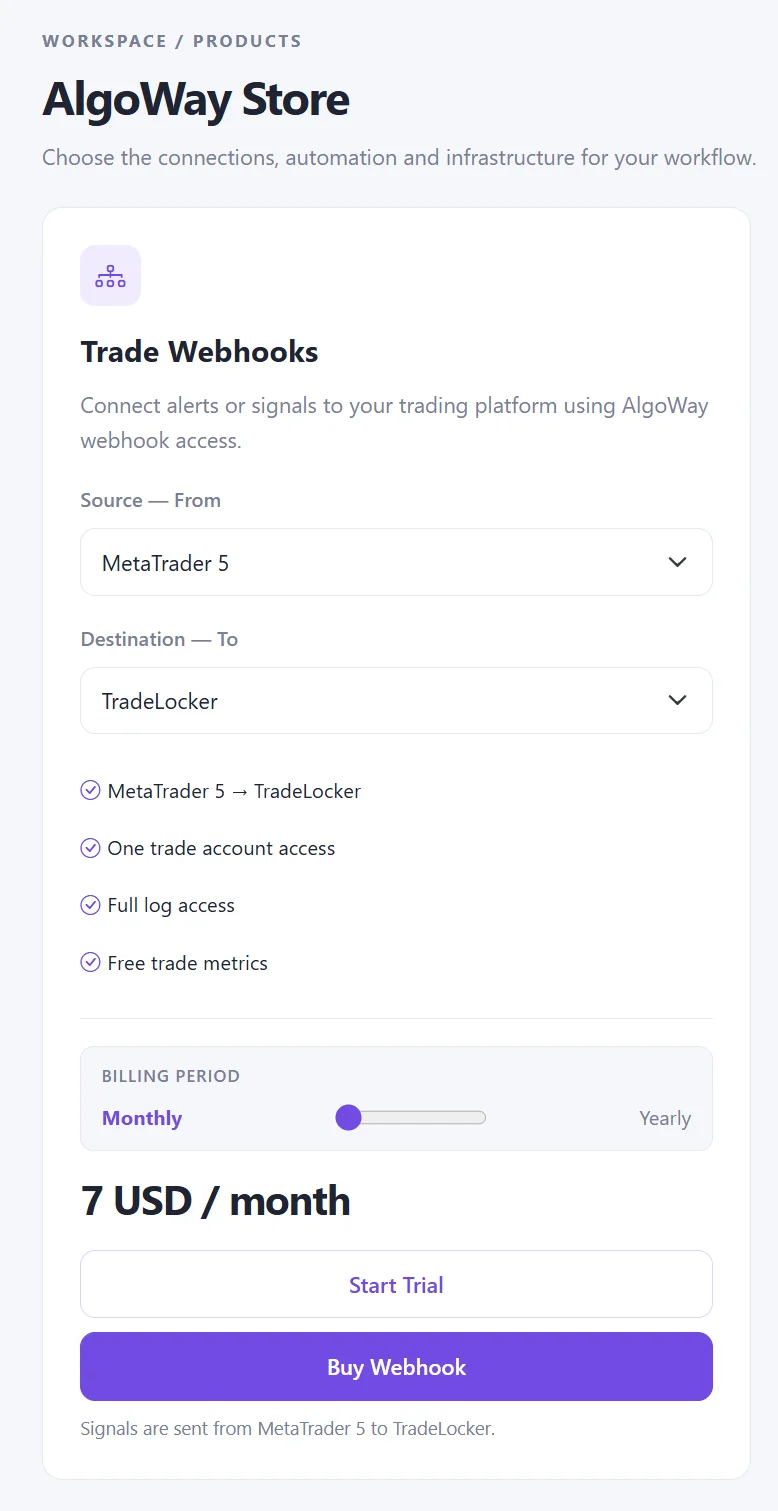
Open the AlgoWay **Store**, then choose **Trade Webhooks**. Under **Source — From**, select **MetaTrader 5**. Under **Destination — To**, select **TradeLocker**. Confirm that the route summary reads **MetaTrader 5 \>\> TradeLocker**. The Store shows the trial and subscription options; choose the one appropriate to your account and continue. The example screenshot shows a monthly price of \$7, which is a snapshot rather than a promise of future pricing.
Figure 1. Source and destination are independent fields. The direction matters: MetaTrader 5 sends; TradeLocker receives.
On the webhook creation page, the source label may appear simply as **MetaTrader**. This is the same MT5-originated workflow shown in the Store. The important part is the selected receiving platform and its account configuration.
## 2. Configure the destination account
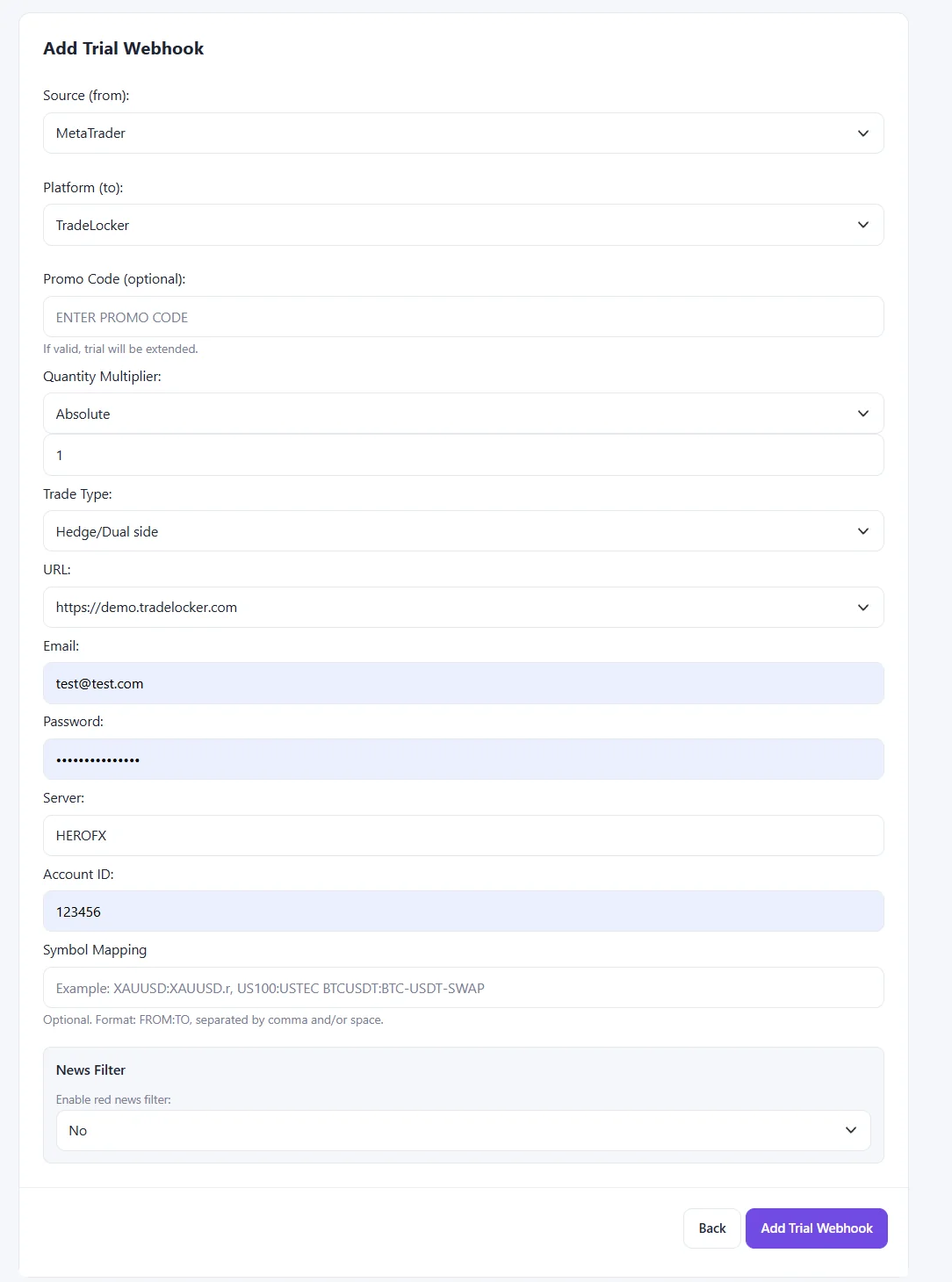
The illustrated **Add Trial Webhook** form is configured for TradeLocker. Choose **MetaTrader** under Source and **TradeLocker** under Platform. The form then exposes the settings used to identify and control the receiving account.
| Field | Meaning in this example |
|-------------------------|-------------------------------------------------------------------------------------------------------------------------------------|
| **Quantity Multiplier** | `Absolute` with value `1` is the illustrated starting configuration. Check actual destination exposure before live copying. |
| **Trade Type** | `Hedge/Dual side` is selected in the screenshot. Choose a mode supported by your destination account and desired reversal behavior. |
| **URL** | The TradeLocker environment URL, such as the demo environment shown in the form. |
| **Email / Password** | Credentials for the receiving TradeLocker account. |
| **Server** | The TradeLocker broker server name, not the source MT5 server. |
| **Account ID** | The numeric identifier of the *destination* account. |
| **Symbol Mapping** | Optional `FROM:TO` pairs when source and destination instrument names differ. |
| **News Filter** | A separate route setting. It is `No` in the illustrated setup. |
Figure 2. The TradeLocker webhook form. Credentials in this documentation screenshot are demonstration values, not reusable login details.
For a first test using identical symbol names, leave Symbol Mapping empty. When the source and destination use different tickers, enter the corresponding mapping before sending an order. Save the route using **Add Trial Webhook** (or the equivalent button for your subscription).
**Quantity is not automatically identical exposure.** A 0.01-lot MT5 forex position, a futures contract and a crypto quantity are not interchangeable units. Even when a route uses `Absolute / 1`, verify the actual size, symbol specification and account risk on the receiving platform.
## 3. Find the new connection and its webhook URL
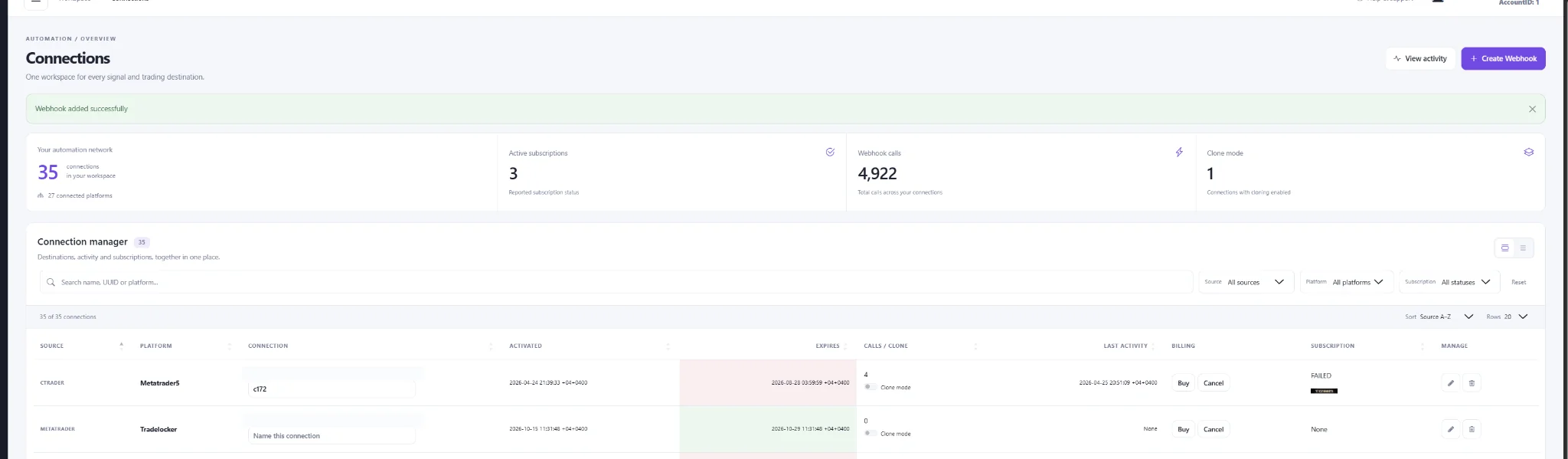
After saving, AlgoWay opens **Connections** and confirms that the webhook was added. The example displays a new row with source **METATRADER** and destination **TradeLocker**. Use the connection's own webhook identifier or full URL for CopierBot; do not copy the UUID of another route.
Figure 3. The created MetaTrader >> TradeLocker connection appears in the Connections manager.
The CopierBot setting is explicitly named **AlgoWay Webhook (UUID or FULL URL)**, so either the route UUID or the complete webhook address can be used. The full URL is the easiest option to check visually. Its format is shown below, but **you must copy your own generated value**:
``` text
https://algoway.co/
```
Treat that value as a private routing credential. Do not publish a live webhook UUID inside articles, screenshots, forum posts or public source code.
## 4. Install CopierBot in the source MT5 terminal
Use the official **AlgoWay-MT5-CopierBot 1.40** file supplied by AlgoWay. In MetaTrader 5, open **File \>\> Open Data Folder**, navigate to `MQL5/Experts` and place the EA file there. Refresh the **Expert Advisors** section in Navigator, or restart the terminal if the EA is not listed. Then drag **AlgoWay-MT5-CopierBot** onto a chart in the *source* MT5 account.
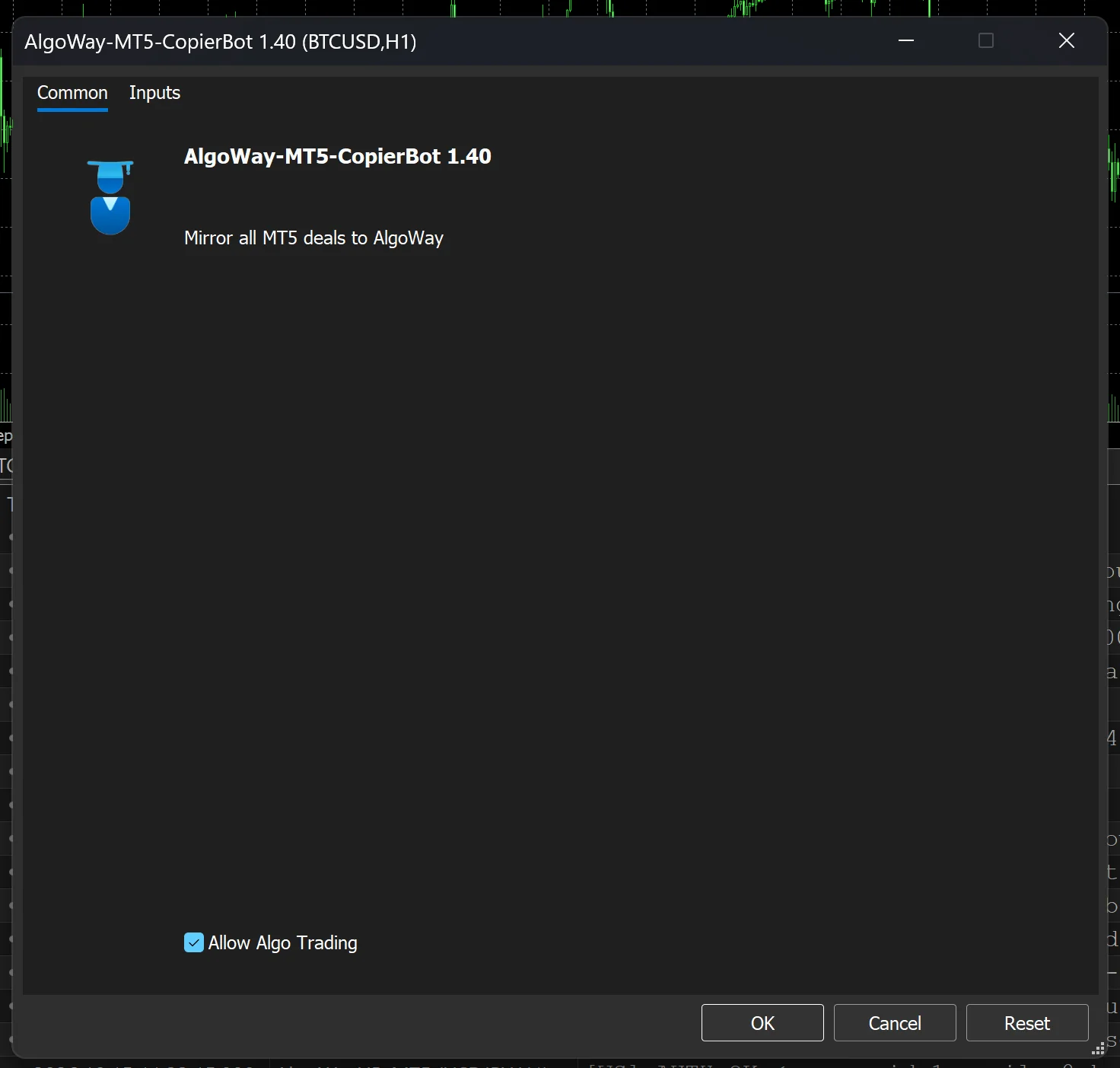
The screenshot shows the copier attached to **BTCUSD, H1**, while the illustrated test trade is on EURUSD. The chart hosting the EA is therefore not the instrument that must be copied: the purpose of this EA is to mirror supported account trading events to AlgoWay.
Figure 4. CopierBot 1.40 on a source MT5 chart. Enable Allow Algo Trading in its Common tab.
Make sure algorithmic trading is also allowed globally in MT5. The Common tab and global MT5 setting are separate controls; the EA may be configured correctly while the terminal still prevents it from operating.
## 5. Enter the webhook and select copier options
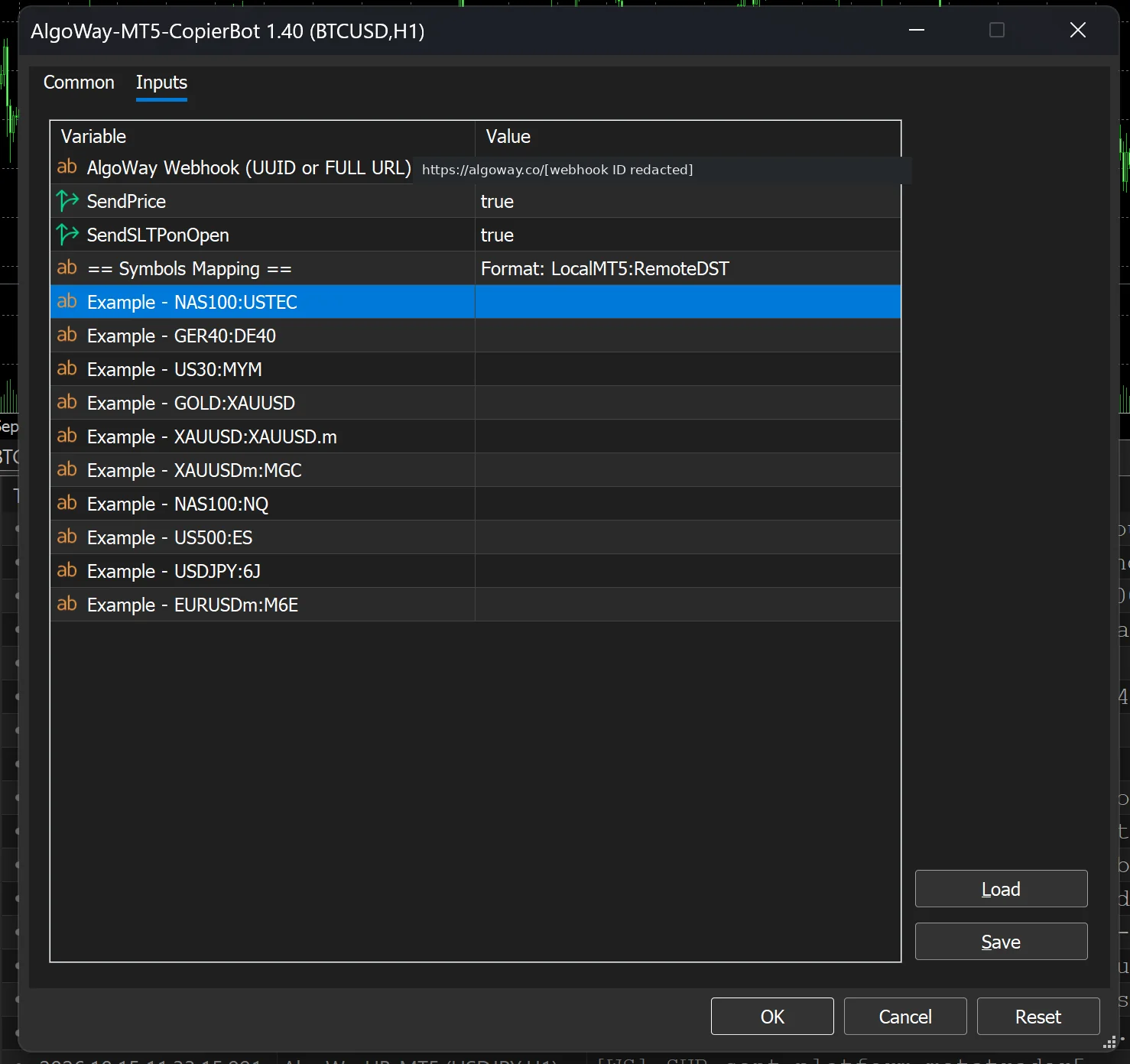
Open the EA's **Inputs** tab. In **AlgoWay Webhook (UUID or FULL URL)**, paste the UUID or complete address of the connection created earlier. This tells the EA precisely which AlgoWay route should receive the source trading activity.
**SendPrice** and **SendSLTPonOpen** are both set to `true` in the supplied screenshot. SendPrice enables forwarding of the source price information; it does *not* force the receiving broker to fill at that price. SendSLTPonOpen enables forwarding available stop-loss and take-profit values on opening instructions, subject to the target connector's capabilities and broker restrictions.
Figure 5. CopierBot Inputs. The real webhook identifier has been hidden. The symbol-mapping section shows the documented LocalMT5:RemoteDST syntax.
### Optional: map instruments inside CopierBot
Not every broker calls an instrument by the same name. The EA presents a **Symbols Mapping** section with the format `LocalMT5:RemoteDST` and examples such as `NAS100:USTEC`, `GOLD:XAUUSD` and `XAUUSD:XAUUSD.m`. Enter the required source-to-target pair into an available mapping input. The examples shown in the left-hand labels are illustrations of the accepted syntax, not proof that these markets are interchangeable.
The public capabilities reference describes up to **ten EA-side symbol mappings**. There is also a separate **Symbol Mapping** field on the destination webhook form. For the first test, configure a needed mapping in *one* place and verify the resulting ticker. Avoid creating two independent rules for the same source symbol until you have confirmed their interaction.
## 6. Allow AlgoWay WebRequest in MetaTrader 5
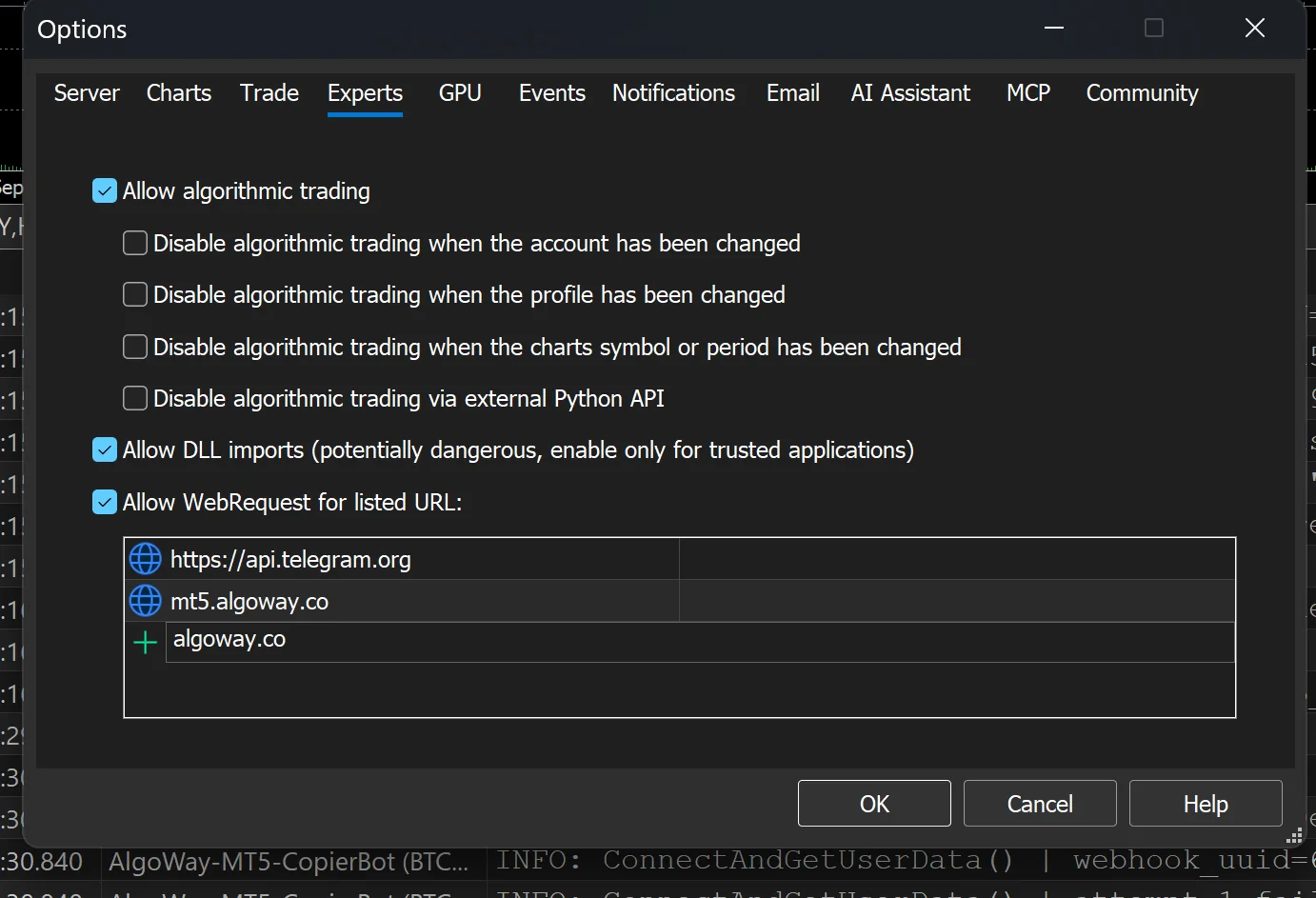
This step is essential. In MT5, open **Tools \>\> Options \>\> Expert Advisors**. Enable **Allow algorithmic trading** and **Allow WebRequest for listed URL**. Add **`algoway.co`** to the allowed host list, following the exact host shown by CopierBot's diagnostic message. Without this permission, the EA cannot reach the required AlgoWay endpoint through MT5 WebRequest.
Figure 6. MT5 Expert Advisors options. The CopierBot diagnostic specifically requires algoway.co; other hosts shown in this user's list belong to other tools.
After adding the host, click **OK**, then reinitialize the EA as needed and check its **Experts** log. The screenshot also happens to show **Allow DLL imports** enabled. That checkbox is *not* established as a universal CopierBot requirement by this example; only allow DLL imports when the trusted build you are installing actually requires them.
## 7. Confirm that the copier is connected
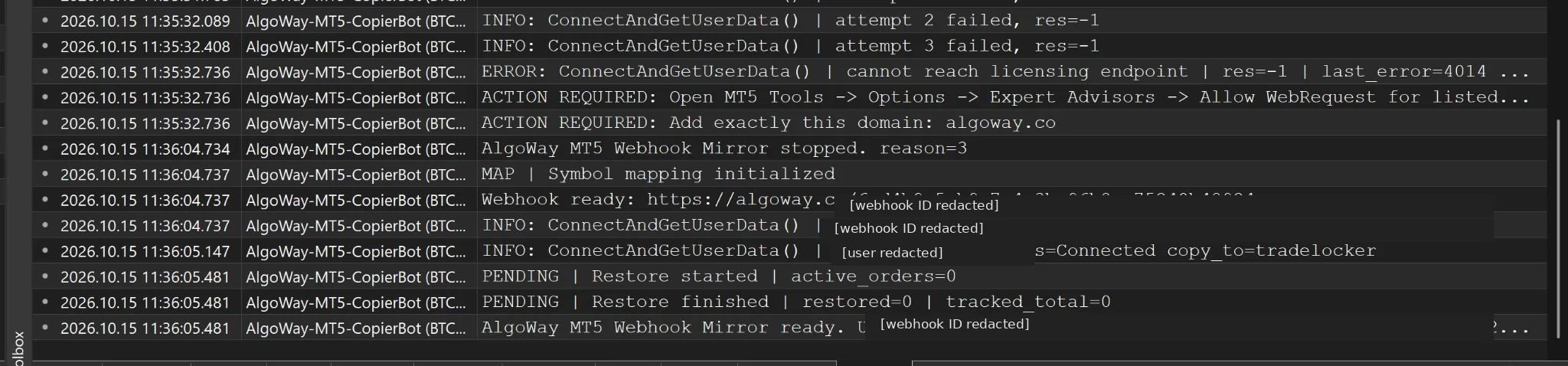
Return to the source chart and open the MT5 **Toolbox \>\> Experts** tab. The example log contains a useful before-and-after sequence. Initially, `ConnectAndGetUserData()` failed with `last_error=4014` and the message `cannot reach licensing endpoint`. The next lines instruct the user to allow WebRequest and add `algoway.co`. After the configuration was corrected, the log reported `status=Connected`, `copy_to=tradelocker` and `AlgoWay MT5 Webhook Mirror ready`.
Figure 7. An actual MT5 Experts log excerpt. Personal login and webhook identifiers are redacted. Connection readiness is not yet a trade execution confirmation.
The source chart also shows an AlgoWay status overlay with **Status: Connected** and **Copy to: tradelocker**. This confirms that the EA recognizes its configured target route. It does *not* prove that a new order was accepted or filled by TradeLocker.
**Connection checkpoint:** the source EA is active, the webhook route is recognized and the copier says it is ready. The next checkpoint must happen in the destination trading account.
## 8. Open a small MT5 test trade and inspect the destination
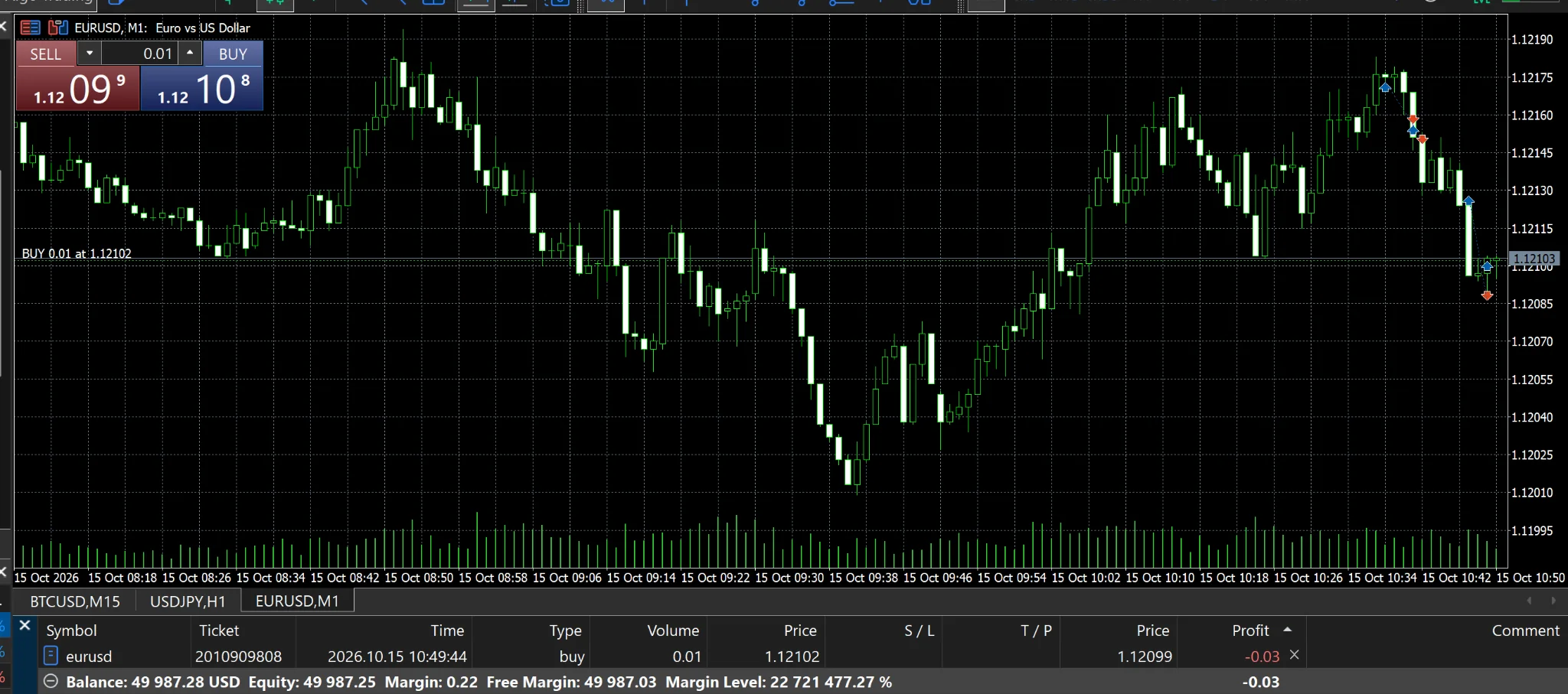
With both source and destination accounts set up, place a small market order in the source MT5 terminal or let your existing EA generate one. The provided MT5 screenshot shows a **BUY 0.01 EURUSD** position with an entry displayed at **1.12102**. This is the source-side record, not an AlgoWay execution report.
Figure 8. Example source order: MT5 shows a BUY position in EURUSD with volume 0.01.
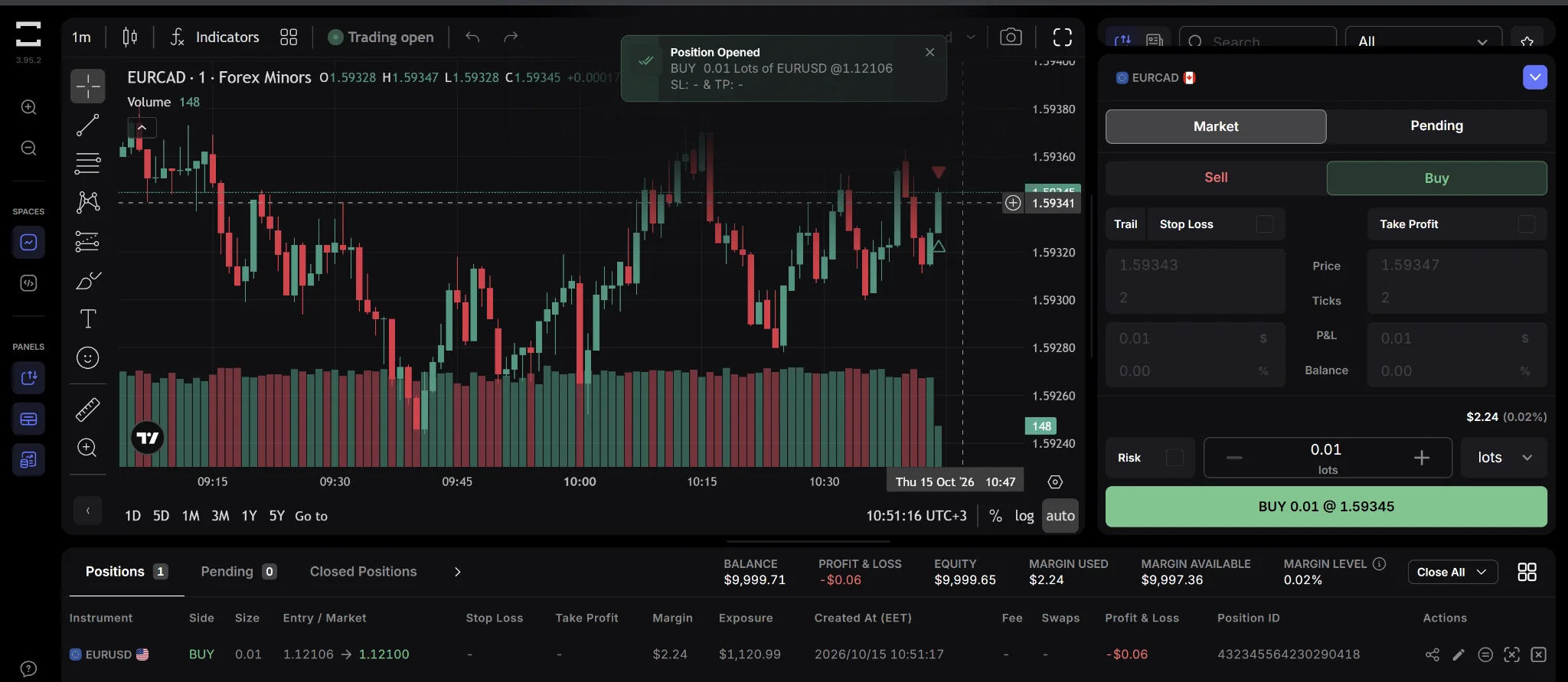
Next open the receiving TradeLocker account. In the supplied destination screenshot, a green notification reports **Position Opened**, and the positions panel shows **EURUSD BUY 0.01** with entry **1.12106**. The chart visible behind that position is EURCAD; the relevant evidence is the *EURUSD position row*, not the chart header.
Figure 9. Example receiving account: TradeLocker reports an opened EURUSD BUY position of 0.01. The entry price differs from the MT5 source screenshot.
These screenshots show a 0.01 EURUSD buy on each side, but images alone do not establish which webhook event produced a particular TradeLocker order or measure propagation latency. To verify a specific copy operation, correlate the source MT5 trade time with the AlgoWay **Webhook Logs** and the receiving account's order history. Confirm the mapped symbol, direction, actual size and order identifier. Then test a close and, where needed, pending orders and SL/TP handling separately.
**Different prices are normal; unexplained orders are not.** MT5 displays 1.12102 for the illustrated source entry and TradeLocker 1.12106 for the illustrated destination entry. The screenshots cannot establish the cause of that difference. Spread, quote timing, slippage and execution rules can all matter. Always validate by order records, not by assuming matching positions have identical fills.
## Symbol mapping, order sizes and position modes
The most important part of cross-platform copying is not the webhook URL. It is translating a trading instruction into an instrument and quantity the receiving account understands. The source might use `GOLD` while the destination expects `XAUUSD`, or the source might send `NAS100` where the target lists `USTEC`. In the destination webhook, Symbol Mapping accepts pairs in `FROM:TO` form, separated by commas or spaces. In CopierBot, the corresponding EA section uses `LocalMT5:RemoteDST`.
``` text
GOLD:XAUUSD, NAS100:USTEC
```
The mapping above is a **configuration example**, not a record of a successfully executed trade. Check that the underlying instrument, contract value, quotation currency and trading hours really match. A correct text replacement can still route to the wrong market exposure.
Likewise, compare quantities by financial exposure rather than typography. `0.01` is meaningful only in the destination's own sizing model. Choose **Hedge/Dual side** or another supported Trade Type deliberately; two opposite instructions may create separate positions on one account and offset existing exposure on another. A successful copied entry is only half the test: verify how the platform handles a reduction, close or reversal after the original position exists.
The current public MT5 source capability reference covers four common pending order types and deletion events. It does not establish identical pending-order semantics on every AlgoWay destination. Test each order type needed by your strategy against the actual selected integration.
## When the MT5 copier does not work
### “Cannot reach licensing endpoint” or error 4014
First inspect **Tools \>\> Options \>\> Expert Advisors**. The illustrated failure explicitly asks for WebRequest permission and the host `algoway.co`. Check the allowed URL list, save the change and review a fresh Experts log. Do not interpret repeated connection attempts as successful authorization.
### Connected, but nothing appears in TradeLocker
Check that the EA points to the intended webhook UUID, the Connections row identifies **METATRADER \>\> TradeLocker**, the destination credentials and Account ID are correct, and the destination allows trading in the mapped instrument. Open AlgoWay's webhook activity/logs and inspect the downstream response. `Connected` describes the copier's connection state, not the broker's acceptance of an individual trade.
### Wrong symbol or wrong size
Compare the original MT5 symbol against both the CopierBot mapping and the destination webhook Symbol Mapping field. Temporarily keep mapping in only one location for an easier diagnosis. Review the destination's contract specification and the route's Quantity Multiplier; do not increase size to “fix” an apparent rejection before finding its cause.
### Entry succeeds, but SL/TP or close behaves differently
Check `SendSLTPonOpen`, target instrument minimum-distance rules, existing destination exposure and the configured Trade Type. Verify individual actions in the destination order history. Receiving an HTTP request or showing a webhook activity entry does not prove that every protective order was accepted. Where the source and destination positions have diverged, later close commands need especially careful verification.
## Using the same MT5 source with another trading platform
TradeLocker is the worked example because the supplied source and receiving account screenshots show its configuration and an open position. The architecture is not limited to TradeLocker. To target another AlgoWay-supported platform, create a route whose **Source** is MetaTrader 5 and whose **Destination** is the required platform, complete that destination's own connection instructions, then point CopierBot to the new route's UUID or URL.
For example, the available destinations include [cTrader, supported futures platforms and crypto exchange connectors](https://docs.algoway.trade/). The route changes, but the source-side role of CopierBot does not. The destination's symbol format, quantity units, supported order types and account permissions must be reviewed afresh; a TradeLocker configuration cannot simply be copied verbatim into a futures or crypto account.
This separation is useful for existing MQL5 systems: their trading logic can remain in MetaTrader while AlgoWay translates supported trading activity for another execution environment. It is also the boundary of the system. The copier does not change a strategy's profitability, guarantee the same fill, or make every external platform behave like MT5. A complete setup is one where you can trace the source event, the AlgoWay routing result and the broker's final order state.
**Related references:** [TradeLocker account and webhook configuration](https://docs.algoway.trade/tradeLocker-setup-guide.html) · [AlgoWay trade copying overview](https://docs.algoway.trade/algoway-tradecopier-for-diversification-trading.html) · [Supported source actions and route capabilities](https://algoway.trade/capabilities).
Screenshots illustrate an MT5 CopierBot 1.40 configuration and source/destination account views supplied on October 15, 2026. Personal credentials and webhook identifiers have been redacted. Operational behavior must be checked on the actual destination account before live trading.
Published: October 15, 2026 Last updated: October 15, 2026