[Original HTML page](https://docs.algoway.trade/ibkr-api.html)
datePublished: 2026-06-17T00:00:00+00:00
dateModified: 2026-07-22T00:00:00+00:00
# **How to Connect TradingView Alerts to Interactive Brokers with AlgoWay Webhook Automation**
**AlgoWay connects TradingView alerts to Interactive Brokers through webhook automation.** The setup has five important parts: create an IBKR webhook in AlgoWay, enter your IBKR credentials, authorize the IBKR session, test the webhook, and send valid TradingView JSON to the AlgoWay webhook URL.
This guide describes the complete route shown in the screenshots: the AlgoWay webhook creation modal, the IBKR webhook form, the IBKR authorization modal, Mobile Approval and Challenge/Response, the AlgoWay test webhook modal, the TradingView alert message, and the TradingView webhook URL configuration.
The execution route is:
``` text
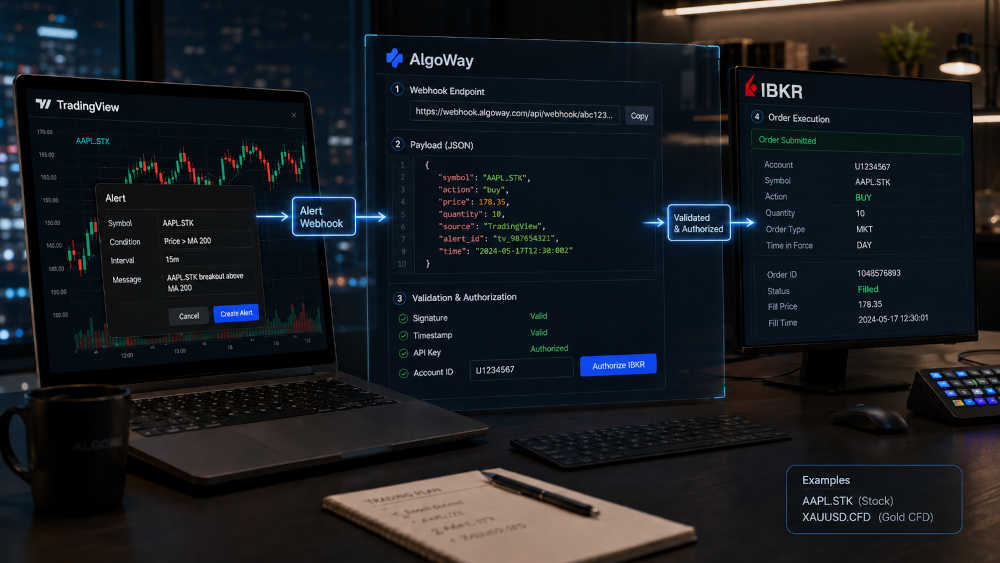
TradingView alert → AlgoWay webhook URL → AlgoWay validation → IBKR authorized session → Interactive Brokers order
```
TradingView creates the signal. AlgoWay receives the webhook payload, validates the JSON, applies the selected webhook settings, checks the IBKR session, and sends the order to the selected Interactive Brokers account.
Last updated: 2026-07-22 • Author: AlgoWay
**Contents**
- [Quick answer](https://docs.algoway.trade/ibkr-api.html#quick-answer)
- [Setup route](https://docs.algoway.trade/ibkr-api.html#setup-route)
- [Before you start](https://docs.algoway.trade/ibkr-api.html#before)
- [Step 1. Create an IBKR webhook in AlgoWay](https://docs.algoway.trade/ibkr-api.html#create-webhook)
- [Step 2. Enter IBKR credentials](https://docs.algoway.trade/ibkr-api.html#credentials)
- [Step 3. Authorize IBKR](https://docs.algoway.trade/ibkr-api.html#authorize)
- [Step 4. Confirm IBKR account ID](https://docs.algoway.trade/ibkr-api.html#account-id)
- [Step 5. Use the correct IBKR symbol format](https://docs.algoway.trade/ibkr-api.html#symbols)
- [Step 6. Optional symbol mapping](https://docs.algoway.trade/ibkr-api.html#mapping)
- [Step 7. Important IBKR session rule](https://docs.algoway.trade/ibkr-api.html#session-rule)
- [Step 8. Test the IBKR webhook in AlgoWay](https://docs.algoway.trade/ibkr-api.html#test)
- [Step 9. Prepare TradingView JSON](https://docs.algoway.trade/ibkr-api.html#json)
- [Step 10. Create the TradingView alert](https://docs.algoway.trade/ibkr-api.html#tradingview-alert)
- [Optional SL, TP, trailing and limit fields](https://docs.algoway.trade/ibkr-api.html#risk-fields)
- [Verification and logs](https://docs.algoway.trade/ibkr-api.html#verification)
- [Common IBKR webhook problems](https://docs.algoway.trade/ibkr-api.html#problems)
- [FAQ](https://docs.algoway.trade/ibkr-api.html#faq)
## Quick Answer: TradingView to Interactive Brokers with AlgoWay
To automate Interactive Brokers from TradingView with AlgoWay, complete this checklist:
1. Create a new AlgoWay webhook.
2. Select **TradingView** as the source.
3. Select **IBKR** as the platform.
4. Enter your IBKR username, password and account ID.
5. Click **Authorize IBKR**, keep the authorization modal open, and complete Mobile Approval or Challenge/Response when requested.
6. Add the trial or paid webhook after authorization.
7. Use IBKR symbols with explicit suffixes such as `.CFD` or `.STK`.
8. Send a small test webhook from AlgoWay.
9. Copy the AlgoWay webhook URL.
10. Paste the webhook URL and valid JSON into your TradingView alert.
**Important:** for IBKR execution, do not send bare symbols such as `AAPL` or `XAUUSD`. Use explicit suffixes such as `AAPL.STK` or `XAUUSD.CFD`.
## Setup Route
AlgoWay works as the automation bridge between TradingView and Interactive Brokers:
- **TradingView** sends the alert and JSON message.
- **AlgoWay** receives the webhook, checks the payload, reads the webhook settings and routes the request.
- **Interactive Brokers** receives the order through the authorized IBKR session.
The IBKR username, password, account ID, authorization state and symbol format must all match the same trading route.
## Before You Start
Prepare the following before you create the IBKR webhook:
- Interactive Brokers account credentials;
- IBKR account ID for the account that should receive trades;
- AlgoWay account with access to the Webhooks dashboard;
- TradingView chart, strategy, indicator or manual alert;
- TradingView plan with webhook alert support;
- correct IBKR symbol format for your instruments;
- small test quantity for the first order;
- closed manual IBKR sessions using the same username;
- IBKR Mobile available for Mobile Approval or Challenge/Response.
**Do not test with large size first.** Start with a small order and confirm the route in AlgoWay logs and in your IBKR account.
## Step 1. Create an IBKR Webhook in AlgoWay
Open the AlgoWay dashboard and create a new webhook route.
1. Log in to your **AlgoWay** account.
2. Go to **Dashboard**.
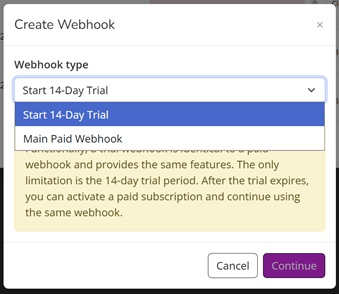
3. Click **Add Trial Webhook** or **Add Main Webhook**.
4. Select the webhook type:
- **Start 14-Day Trial**
- **Main Paid Webhook**
5. Click **Continue**.
AlgoWay create webhook modal. Select Trial or Main Paid Webhook before opening the IBKR webhook form.
## Step 2. Enter Your IBKR Credentials
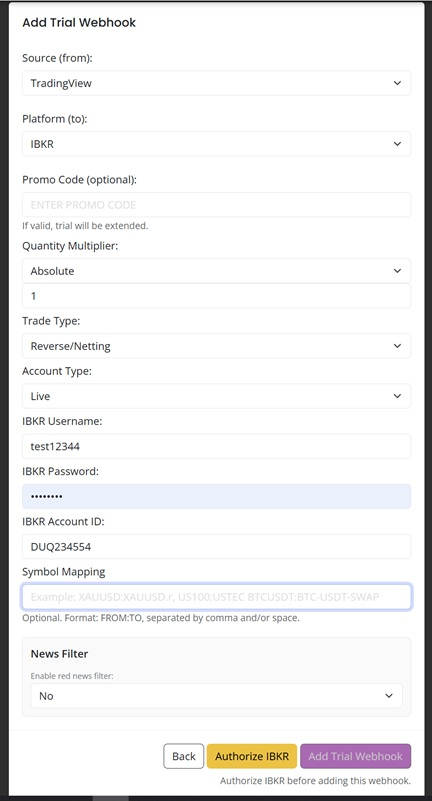
Fill in the IBKR webhook form in AlgoWay.
1. Set **Source (from)** to **TradingView**.
2. Set **Platform (to)** to **IBKR**.
3. Choose the quantity multiplier mode.
4. Choose the trade type, for example **Reverse / Netting**.
5. Select **Live** or the required account type.
6. Enter your **IBKR Username**.
7. Enter your **IBKR Password**.
8. Enter the **IBKR Account ID**.
9. Add optional symbol mapping only if your TradingView symbols must be converted.
AlgoWay IBKR webhook form. Enter IBKR credentials, account ID, trade type and optional symbol mapping.
## Step 3. Authorize IBKR
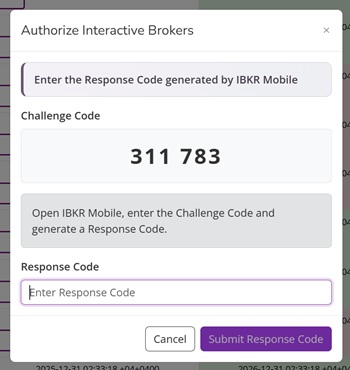
After all IBKR fields are filled, click **Authorize IBKR**. AlgoWay will open the authorization modal and show the current IBKR authentication phase.
AlgoWay IBKR authorization modal. Keep this window open while IBKR completes Mobile Approval or Challenge/Response authentication.
### How IBKR authorization works
Interactive Brokers can use two authentication methods. The method and timing are selected by IBKR and can differ between live and paper accounts.
1. Click **Authorize IBKR**.
2. Keep the AlgoWay authorization modal open.
3. If the modal asks you to open IBKR Mobile, open the app and approve the login notification.
4. If Mobile Approval succeeds, AlgoWay completes authorization automatically. A Challenge Code is not required.
5. If the notification is not received or Mobile Approval is not completed, continue waiting with the modal open.
6. Some live IBKR accounts can remain in the Mobile Approval phase for approximately two minutes before Challenge/Response becomes available.
7. When Challenge/Response becomes available, AlgoWay displays a six-digit **Challenge Code** and a field for the **Response Code**.
8. Open IBKR Mobile, enter the Challenge Code in the IB Key Challenge/Response section, and generate the Response Code.
9. Enter the generated Response Code in the AlgoWay modal and click **Submit Response Code**.
10. Wait until AlgoWay confirms that IBKR has been authorized successfully.
11. After successful authorization, click **Add Trial Webhook** or create the selected paid webhook.
**Mobile Approval and Challenge/Response are alternative authentication methods.** If the mobile notification is approved successfully, the Challenge Code will not appear. If Mobile Approval is not completed, Challenge/Response may appear later.
**Do not close the authorization modal while waiting.** The modal remains active while AlgoWay checks the IBKR session. Some live accounts can take approximately two minutes before Challenge/Response appears.
If authorization fails, verify the IBKR username, password, account type and account ID. Also check whether another TWS, IBKR Gateway, Client Portal, IBKR Web or IBKR Mobile trading session is using the same username.
## Step 4. Confirm IBKR Account ID
The **IBKR Account ID** tells AlgoWay which Interactive Brokers account should receive orders.
Example:
``` text
DUQ234554
```
If your IBKR username has more than one trading account, enter the exact account ID manually. This prevents TradingView alerts from being routed to the wrong account.
**Recommendation:** always use the exact IBKR account ID when the IBKR username has multiple accounts.
## Step 5. Use the Correct IBKR Symbol Format
IBKR requires clear instrument routing. For AlgoWay IBKR webhooks, send symbols with explicit suffixes.
Use symbols such as:
``` text
XAUUSD.CFD
AAPL.STK
MSFT.STK
TSLA.STK
```
Do not send bare symbols such as:
``` text
XAUUSD
AAPL
MSFT
TSLA
```
**Important:** bare symbols can create routing ambiguity. Use `.CFD` for CFD instruments and `.STK` for stocks.
### IBKR symbol examples
| Instrument | TradingView or user symbol | IBKR symbol for AlgoWay |
|-----------------|----------------------------|-------------------------|
| Gold CFD | XAUUSD | `XAUUSD.CFD` |
| Apple stock | AAPL | `AAPL.STK` |
| Microsoft stock | MSFT | `MSFT.STK` |
| Tesla stock | TSLA | `TSLA.STK` |
## Step 6. Optional Symbol Mapping
The **Symbol Mapping** field is optional. Use it only when TradingView sends one symbol format and IBKR needs another format.
Format:
``` text
FROM:TO
```
Multiple mappings can be separated by comma or space.
Example:
``` text
AAPL:AAPL.STK, XAUUSD:XAUUSD.CFD
```
In this example, if TradingView sends `AAPL`, AlgoWay sends `AAPL.STK` to IBKR. If TradingView sends `XAUUSD`, AlgoWay sends `XAUUSD.CFD` to IBKR.
## Step 7. Important IBKR Session Rule
Opening IBKR Mobile to approve the login notification or generate a Challenge/Response code during authorization is expected. However, after AlgoWay authorization is complete, a separate IBKR trading session using the same username can interrupt the AlgoWay session.
This can happen when the same username is opened in:
- IBKR Web;
- TWS;
- IBKR Gateway;
- IBKR Mobile;
- Client Portal.
If another session takes over the login, AlgoWay can receive a session error.
Example error:
``` text
IBKR session is not active. Another IBKR platform may be using the same username. Close the other session, then return to AlgoWay and authorize IBKR again.
```
**Important:** use IBKR Mobile during authorization to approve the notification or generate the Response Code. After authorization succeeds, do not keep a separate IBKR trading session open with the same username while automated trading is active.
## Step 8. Test the IBKR Webhook in AlgoWay
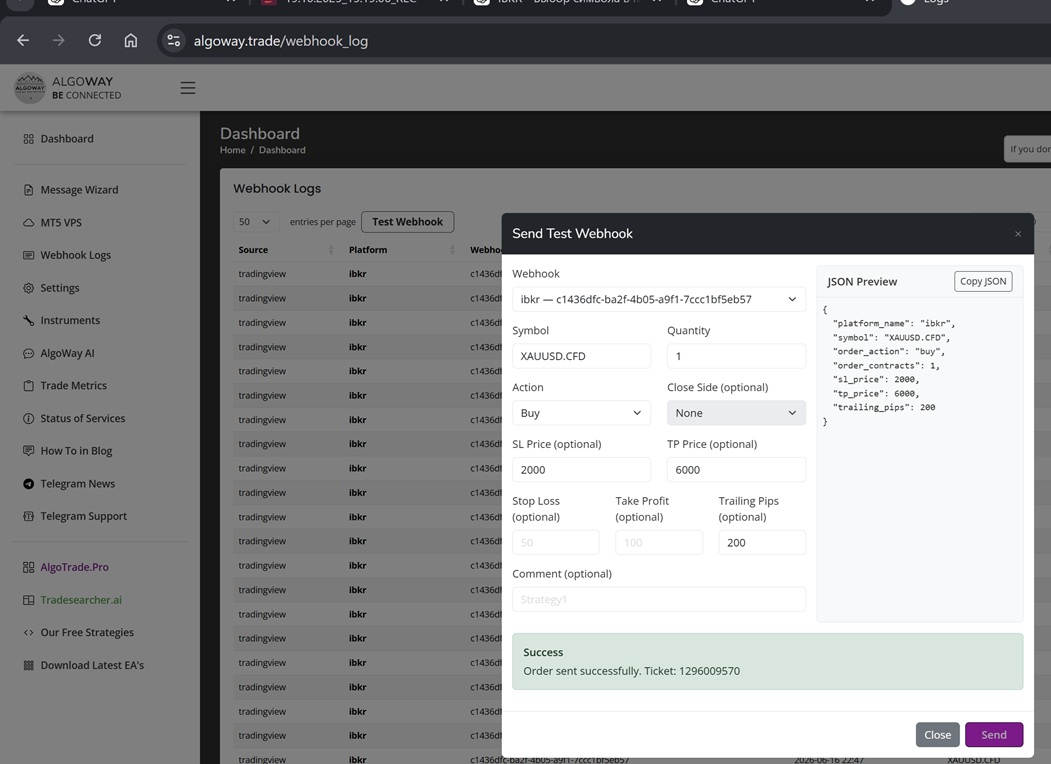
Before connecting live TradingView alerts, test the IBKR route from AlgoWay with a small order.
1. Open **Webhook Logs** in AlgoWay.
2. Click **Test Webhook**.
3. Select the IBKR webhook from the dropdown.
4. Enter an IBKR symbol with suffix, for example `XAUUSD.CFD`.
5. Enter a small quantity.
6. Select Buy or Sell.
7. Add optional SL, TP or trailing values only if required.
8. Review the JSON Preview.
9. Click **Send**.
10. Check AlgoWay logs and the IBKR account.
AlgoWay test webhook modal. Select the IBKR webhook, enter symbol, quantity, action, optional risk fields, review JSON Preview and send the test.
Example test JSON:
``` text
{
"platform_name": "ibkr",
"symbol": "XAUUSD.CFD",
"order_action": "buy",
"order_contracts": 1,
"sl_price": 2000,
"tp_price": 6000,
"trailing_pips": 200
}
```
**Use a valid IBKR instrument for your test.** If the symbol is wrong or the market is closed, IBKR execution can be rejected.
## Step 9. Prepare TradingView JSON for IBKR
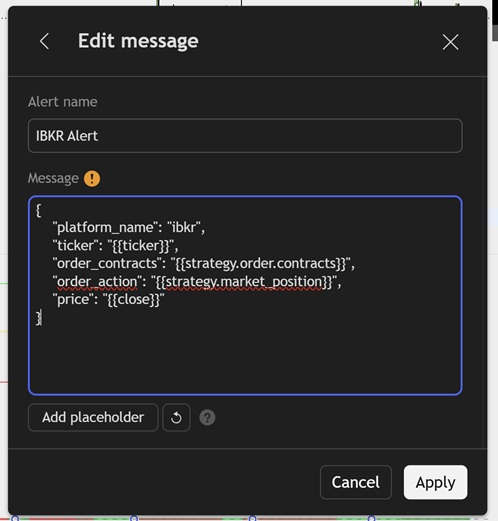
TradingView must send one valid JSON object. AlgoWay expects structured fields, not plain text.
### Recommended TradingView strategy alert JSON
``` text
{
"platform_name": "ibkr",
"ticker": "{{ticker}}",
"order_contracts": "{{strategy.order.contracts}}",
"order_action": "{{strategy.market_position}}",
"price": "{{close}}"
}
```
TradingView replaces these placeholders when the alert fires:
- `{{ticker}}` — chart ticker;
- `{{strategy.order.contracts}}` — strategy order size;
- `{{strategy.market_position}}` — strategy position state;
- `{{close}}` — close price at alert time.
TradingView message configuration. Paste one valid IBKR JSON object into the TradingView alert message field.
### Fixed test JSON
For a controlled test, use a fixed symbol and small valid quantity:
``` text
{
"platform_name": "ibkr",
"ticker": "AAPL.STK",
"order_contracts": 1,
"order_action": "buy"
}
```
For CFD testing, use an IBKR CFD symbol with the `.CFD` suffix:
``` text
{
"platform_name": "ibkr",
"ticker": "XAUUSD.CFD",
"order_contracts": 1,
"order_action": "buy"
}
```
## Step 10. Create the TradingView Alert
After the webhook URL and JSON are ready, create or edit the TradingView alert.
1. Open the TradingView chart used by your strategy.
2. Create a new alert or edit an existing strategy alert.
3. In the message area, paste the IBKR JSON.
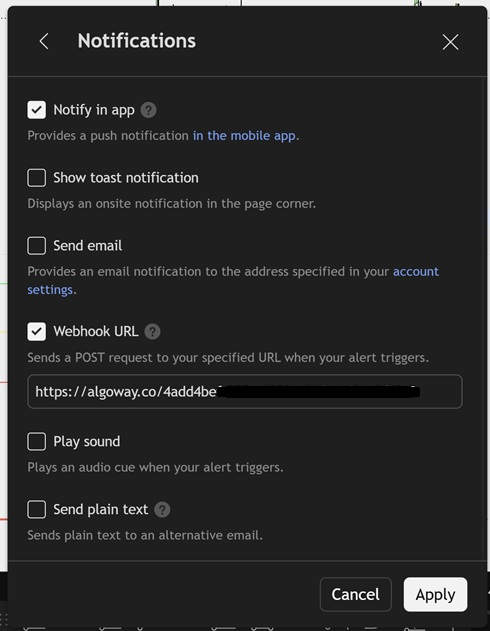
4. Open the alert **Notifications** section.
5. Enable **Webhook URL**.
6. Paste the AlgoWay IBKR webhook URL.
7. Save the alert.
Webhook URL format:
``` text
https://algoway.co/your-webhook-uuid
```
TradingView notifications screen. Enable Webhook URL and paste the AlgoWay webhook endpoint for the IBKR route.
**Do not publish your webhook URL.** Treat the UUID as a private execution endpoint.
## Optional SL, TP, Trailing and Limit Fields
AlgoWay supports optional IBKR risk-management and order fields according to the AlgoWay JSON format.
### Price-based stop-loss, take-profit and trailing
``` text
{
"platform_name": "ibkr",
"ticker": "XAUUSD.CFD",
"order_action": "buy",
"order_contracts": 1,
"sl_price": 2000,
"tp_price": 6000,
"trailing_pips": 200
}
```
### Distance-based stop-loss and take-profit
``` text
{
"platform_name": "ibkr",
"ticker": "XAUUSD.CFD",
"order_action": "buy",
"order_contracts": 1,
"stop_loss": 50,
"take_profit": 100
}
```
### Limit order example
``` text
{
"platform_name": "ibkr",
"ticker": "AAPL.STK",
"order_action": "buy",
"order_contracts": 1,
"order_type": "limit",
"price": 190.50
}
```
**Important:** use SL, TP, trailing and limit fields only when the values are valid for the selected IBKR instrument and current market conditions.
## Verification and Logs
After the TradingView alert is created, trigger a small test and verify each layer:
1. Confirm the alert fired in TradingView.
2. Open AlgoWay **Webhook Logs**.
3. Check that AlgoWay received the webhook payload.
4. Check that the JSON fields are correct.
5. Review the IBKR response.
6. Open IBKR and confirm order or position status.
If no order appears in IBKR, do not immediately edit the TradingView strategy. First check whether AlgoWay received the webhook. If AlgoWay received it, check IBKR authorization, active sessions, account ID, symbol suffix, quantity, order type and market session.
## Common IBKR Webhook Problems
### IBKR Is Not Authorized
If IBKR authorization is not completed, the webhook cannot send orders to the IBKR account. Return to the webhook form, click **Authorize IBKR**, keep the modal open, and complete Mobile Approval or Challenge/Response when requested.
### Another IBKR Session Is Open
If the same username is open in IBKR Web, TWS, IBKR Gateway, IBKR Mobile or Client Portal, the AlgoWay IBKR session can be interrupted. Log out from the other session, then return to the AlgoWay dashboard and click **Authorize IBKR** again.
### Wrong IBKR Account ID
If the account ID is wrong, the order can be rejected or routed incorrectly. Confirm the exact IBKR account ID before enabling TradingView alerts.
### Wrong Symbol Format
IBKR webhooks require explicit symbol suffixes. Use `.STK` for stocks and `.CFD` for CFD instruments.
### Invalid JSON
TradingView must send one valid JSON object. Broken commas, missing quotes, invalid placeholders or plain text can stop the automation before IBKR receives anything. See: [How to fix AlgoWay webhook Error 415](https://algoway.trade/blog/algoway-415.html).
### Invalid Quantity
The order size must be valid for the selected IBKR instrument. Start with a small test quantity and check the response in AlgoWay logs.
### Market Is Closed
IBKR instruments follow their own market sessions. If the selected instrument is closed, AlgoWay can reject market execution instead of leaving a market order queued at the broker.
### Limit Price Is Missing
If `order_type` is set to `limit`, the JSON must include a valid `price` value.
### TradingView Alert Fires Too Often
Check the TradingView alert frequency. For many strategy alerts, **Once per bar close** is safer than intrabar execution.
## FAQ
### Do I need a VPS or to keep my computer on for automated trading?
Absolutely not. AlgoWay is a cloud-based service with centralized signal processing and order routing. You do not need a VPS, an always-on computer, or a locally running trading app. Your TradingView alerts continue to work even when your computer is shut down.
### Can I connect TradingView alerts to Interactive Brokers with AlgoWay?
Yes. AlgoWay can receive TradingView webhook alerts and route structured JSON commands to Interactive Brokers through an IBKR webhook created in the AlgoWay dashboard.
### Do I need to authorize IBKR before creating the webhook?
Yes. Click **Authorize IBKR**, keep the modal open and complete the authentication method requested by IBKR. This can be Mobile Approval or Challenge/Response.
### Why does the IBKR Challenge Code sometimes appear after approximately two minutes?
Some live IBKR accounts first require Mobile Approval. If the mobile notification is not received or approved, IBKR can continue waiting before making Challenge/Response available. AlgoWay displays the Challenge Code as soon as IBKR provides it.
### What happens if I approve the IBKR Mobile notification?
If Mobile Approval succeeds, AlgoWay completes authorization automatically and the Challenge Code does not appear. Challenge/Response is used only when IBKR makes that alternative method available.
### Which IBKR symbol format should I use?
Use explicit suffixes such as `AAPL.STK` for stocks and `XAUUSD.CFD` for CFD instruments.
### Can I use symbol mapping?
Yes. Use the **Symbol Mapping** field when TradingView sends one symbol format and IBKR requires another format. Example: `AAPL:AAPL.STK`.
### Can I use SL, TP and trailing with IBKR?
Yes. AlgoWay supports optional IBKR fields such as `sl_price`, `tp_price`, `stop_loss`, `take_profit` and `trailing_pips`.
### Can I send limit orders to IBKR?
Yes. Use `order_type` set to `limit` and include a valid `price` value.
### Why did my IBKR webhook return a session error?
The most common reason is another active IBKR session using the same username. Log out from IBKR Web, TWS, IBKR Gateway, IBKR Mobile or Client Portal, then return to AlgoWay and click **Authorize IBKR** again.
## Related AlgoWay Guides
- [How to create a TradingView webhook alert](https://docs.algoway.trade/guide-to-creating-a-webhook-in-tradingview.html)
- [How to automate TradingView alerts to any broker with AlgoWay](https://algoway.trade/blog/automate-tradingview-alerts-to-any-broker-with-algoway.html)
- [AlgoWay JSON schema guide](https://algoway.trade/blog/json-schema-guide.html)
- [How to fix AlgoWay webhook Error 415](https://algoway.trade/blog/algoway-415.html)
- [AlgoWay as a TradersPost alternative](https://algoway.trade/traderspost-alternative)
- [AlgoWay as a PineConnector alternative](https://algoway.trade/pineconnector-alternative)
- [How to copy TradingView alerts to multiple accounts](https://algoway.trade/blog/algoway-tradecopier-for-diversification-trading.html)
## Final Summary
To connect TradingView alerts to Interactive Brokers with AlgoWay, create an IBKR webhook, enter your IBKR credentials, complete Mobile Approval or Challenge/Response in the authorization modal, confirm the IBKR account ID, use symbols with explicit suffixes, test the route, copy the webhook URL, and send valid JSON from TradingView.
**The two most important IBKR setup rules are authorization and symbol suffixes.** The IBKR session must be active in AlgoWay, and symbols must clearly identify the instrument type, such as `.STK` or `.CFD`.
## Related TradingView Integration Guides
Explore step-by-step webhook setup guides for other supported trading platforms.
- [Connect TradingView to MetaTrader 5 with webhook automation](https://docs.algoway.trade/algoway-mt5-ws-v10-overview.html)
- [Connect TradingView to Alpaca with webhook automation](https://docs.algoway.trade/algoway-alpaca-integration-guide.html)
- [Connect TradingView to TradeLocker with webhook automation](https://docs.algoway.trade/tradeLocker-setup-guide.html)
- [Connect TradingView to Capital.com with webhook automation](https://docs.algoway.trade/how-to-connect-tradingview-to-capitalcom.html)
Published: June 17, 2026 Last updated: July 22, 2026
 **AlgoWay connects TradingView alerts to Interactive Brokers through webhook automation.** The setup has five important parts: create an IBKR webhook in AlgoWay, enter your IBKR credentials, authorize the IBKR session, test the webhook, and send valid TradingView JSON to the AlgoWay webhook URL.
This guide describes the complete route shown in the screenshots: the AlgoWay webhook creation modal, the IBKR webhook form, the IBKR authorization modal, Mobile Approval and Challenge/Response, the AlgoWay test webhook modal, the TradingView alert message, and the TradingView webhook URL configuration.
The execution route is:
``` text
TradingView alert → AlgoWay webhook URL → AlgoWay validation → IBKR authorized session → Interactive Brokers order
```
TradingView creates the signal. AlgoWay receives the webhook payload, validates the JSON, applies the selected webhook settings, checks the IBKR session, and sends the order to the selected Interactive Brokers account.
Last updated: 2026-07-22 • Author: AlgoWay
**Contents**
- [Quick answer](https://docs.algoway.trade/ibkr-api.html#quick-answer)
- [Setup route](https://docs.algoway.trade/ibkr-api.html#setup-route)
- [Before you start](https://docs.algoway.trade/ibkr-api.html#before)
- [Step 1. Create an IBKR webhook in AlgoWay](https://docs.algoway.trade/ibkr-api.html#create-webhook)
- [Step 2. Enter IBKR credentials](https://docs.algoway.trade/ibkr-api.html#credentials)
- [Step 3. Authorize IBKR](https://docs.algoway.trade/ibkr-api.html#authorize)
- [Step 4. Confirm IBKR account ID](https://docs.algoway.trade/ibkr-api.html#account-id)
- [Step 5. Use the correct IBKR symbol format](https://docs.algoway.trade/ibkr-api.html#symbols)
- [Step 6. Optional symbol mapping](https://docs.algoway.trade/ibkr-api.html#mapping)
- [Step 7. Important IBKR session rule](https://docs.algoway.trade/ibkr-api.html#session-rule)
- [Step 8. Test the IBKR webhook in AlgoWay](https://docs.algoway.trade/ibkr-api.html#test)
- [Step 9. Prepare TradingView JSON](https://docs.algoway.trade/ibkr-api.html#json)
- [Step 10. Create the TradingView alert](https://docs.algoway.trade/ibkr-api.html#tradingview-alert)
- [Optional SL, TP, trailing and limit fields](https://docs.algoway.trade/ibkr-api.html#risk-fields)
- [Verification and logs](https://docs.algoway.trade/ibkr-api.html#verification)
- [Common IBKR webhook problems](https://docs.algoway.trade/ibkr-api.html#problems)
- [FAQ](https://docs.algoway.trade/ibkr-api.html#faq)
## Quick Answer: TradingView to Interactive Brokers with AlgoWay
To automate Interactive Brokers from TradingView with AlgoWay, complete this checklist:
1. Create a new AlgoWay webhook.
2. Select **TradingView** as the source.
3. Select **IBKR** as the platform.
4. Enter your IBKR username, password and account ID.
5. Click **Authorize IBKR**, keep the authorization modal open, and complete Mobile Approval or Challenge/Response when requested.
6. Add the trial or paid webhook after authorization.
7. Use IBKR symbols with explicit suffixes such as `.CFD` or `.STK`.
8. Send a small test webhook from AlgoWay.
9. Copy the AlgoWay webhook URL.
10. Paste the webhook URL and valid JSON into your TradingView alert.
**Important:** for IBKR execution, do not send bare symbols such as `AAPL` or `XAUUSD`. Use explicit suffixes such as `AAPL.STK` or `XAUUSD.CFD`.
## Setup Route
AlgoWay works as the automation bridge between TradingView and Interactive Brokers:
- **TradingView** sends the alert and JSON message.
- **AlgoWay** receives the webhook, checks the payload, reads the webhook settings and routes the request.
- **Interactive Brokers** receives the order through the authorized IBKR session.
The IBKR username, password, account ID, authorization state and symbol format must all match the same trading route.
## Before You Start
Prepare the following before you create the IBKR webhook:
- Interactive Brokers account credentials;
- IBKR account ID for the account that should receive trades;
- AlgoWay account with access to the Webhooks dashboard;
- TradingView chart, strategy, indicator or manual alert;
- TradingView plan with webhook alert support;
- correct IBKR symbol format for your instruments;
- small test quantity for the first order;
- closed manual IBKR sessions using the same username;
- IBKR Mobile available for Mobile Approval or Challenge/Response.
**Do not test with large size first.** Start with a small order and confirm the route in AlgoWay logs and in your IBKR account.
## Step 1. Create an IBKR Webhook in AlgoWay
Open the AlgoWay dashboard and create a new webhook route.
1. Log in to your **AlgoWay** account.
2. Go to **Dashboard**.
3. Click **Add Trial Webhook** or **Add Main Webhook**.
4. Select the webhook type:
- **Start 14-Day Trial**
- **Main Paid Webhook**
5. Click **Continue**.