[Original HTML page](https://docs.algoway.trade/how-to-connect-tradingview-to-kucoin.html)
datePublished: 2026-10-12T00:00:00+04:00
dateModified: 2026-10-12T00:00:00+04:00
# **How to Connect TradingView Alerts to KuCoin with AlgoWay**
**Create a KuCoin Futures trading API key, save the key, secret and passphrase, configure an AlgoWay webhook, and connect it to TradingView alerts.** The signal begins in TradingView, AlgoWay receives it at your private webhook URL, and KuCoin handles order execution via your own exchange API credentials.
``` text
TradingView alert -> AlgoWay webhook -> KuCoin Futures account
```
This is an automated order-routing setup, not a manual TradingView broker connection. The instructions below follow the KuCoin API workflow shown in the existing AlgoWay setup manual.
## Before You Start
Prepare an active KuCoin account with access to Futures trading, an AlgoWay account, and a TradingView indicator or strategy capable of generating alerts. You will also need access to the exchange API settings to create a trading key. Protect API secrets and do not enable withdrawal permissions.
## Step 1. Create a KuCoin Futures API Key
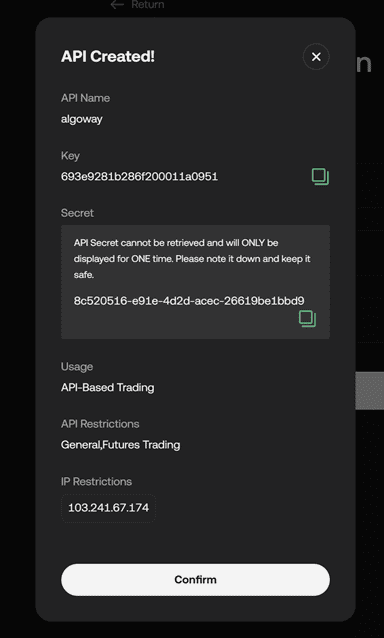
1. Log in to KuCoin, open **API Management** and select **Create API** or **Create API Key**.
2. Give the key a recognizable name, such as `algoway`, and create an **API Passphrase**. Save the passphrase exactly as entered.
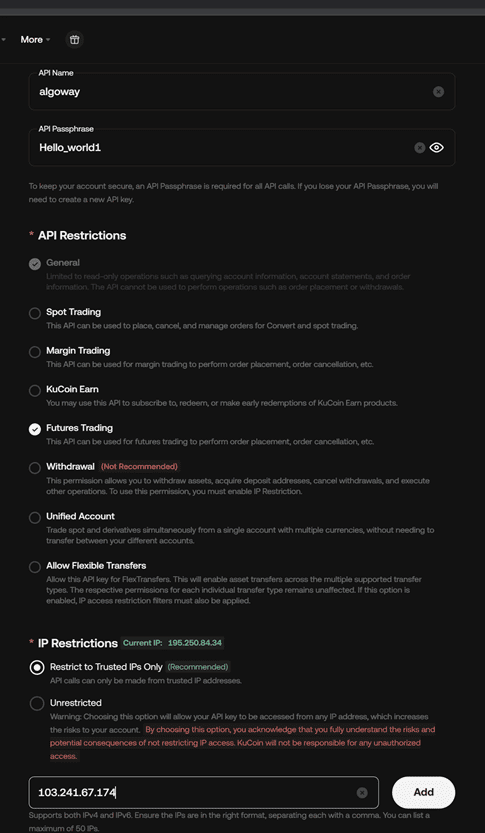
3. Under API Restrictions enable **Futures Trading**, which is required for this Futures/Perpetual route. The original setup also recommends **General** access.
4. Leave **Withdrawal** disabled. To restrict API access to the AlgoWay server, enable trusted-IP restrictions and supply the current IP from your AlgoWay account. The manual's example IP is `103.241.67.174`.
5. Complete KuCoin's confirmation steps and save the **API Key**, **API Secret** and your original **API Passphrase**. The secret may only be shown once.
Enable Futures Trading and keep withdrawal permission disabled.Store the API Secret immediately after key creation.
**Do not confuse the three fields:** the passphrase is not the API Secret. AlgoWay requires all three values for the KuCoin connection.
## Step 2. Configure the KuCoin Webhook in AlgoWay
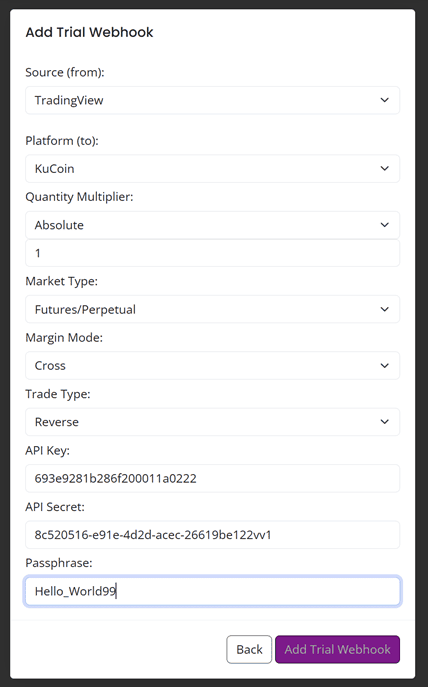
1. Log in to AlgoWay and create a TradingView \> KuCoin connection in the **Store**, or use the existing **Add Trial Webhook** / **Add Main Webhook** dashboard action.
2. Select **TradingView** as the source, **KuCoin** as the destination and **Futures/Perpetual** as Market Type.
3. Choose **Absolute** Quantity Multiplier for direct quantity routing, the desired **Cross / Isolated** margin mode and an appropriate trade mode (Reverse, Hedge or One-way as offered).
4. Enter your KuCoin **API Key**, **API Secret** and **API Passphrase** in the matching fields, then save the connection.
Make sure the KuCoin API Passphrase matches the one created with the key.
## Step 3. Test the KuCoin Futures Connection
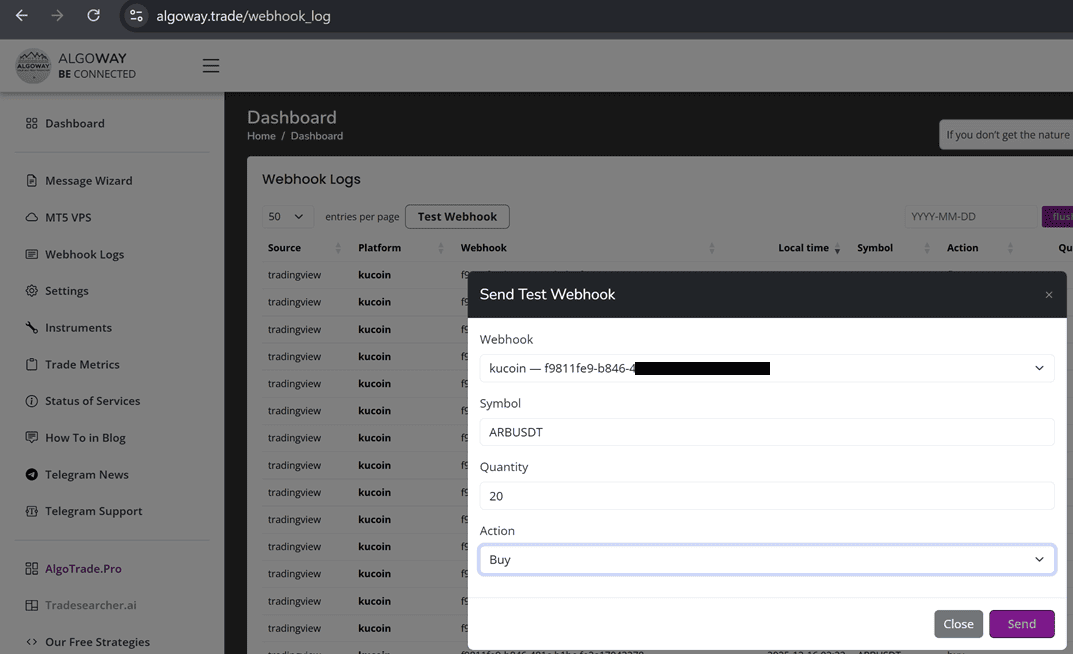
1. Open **Webhook Logs** and choose **Test Webhook**.
2. Select your **kucoin** route and enter a supported KuCoin Futures symbol, direction and a valid small quantity.
3. Send the test. Inspect the webhook result and verify whether the corresponding order actually appears in the KuCoin Futures account.
Confirm that KuCoin accepted the test order rather than only checking delivery.
## Step 4. Copy the AlgoWay Webhook URL
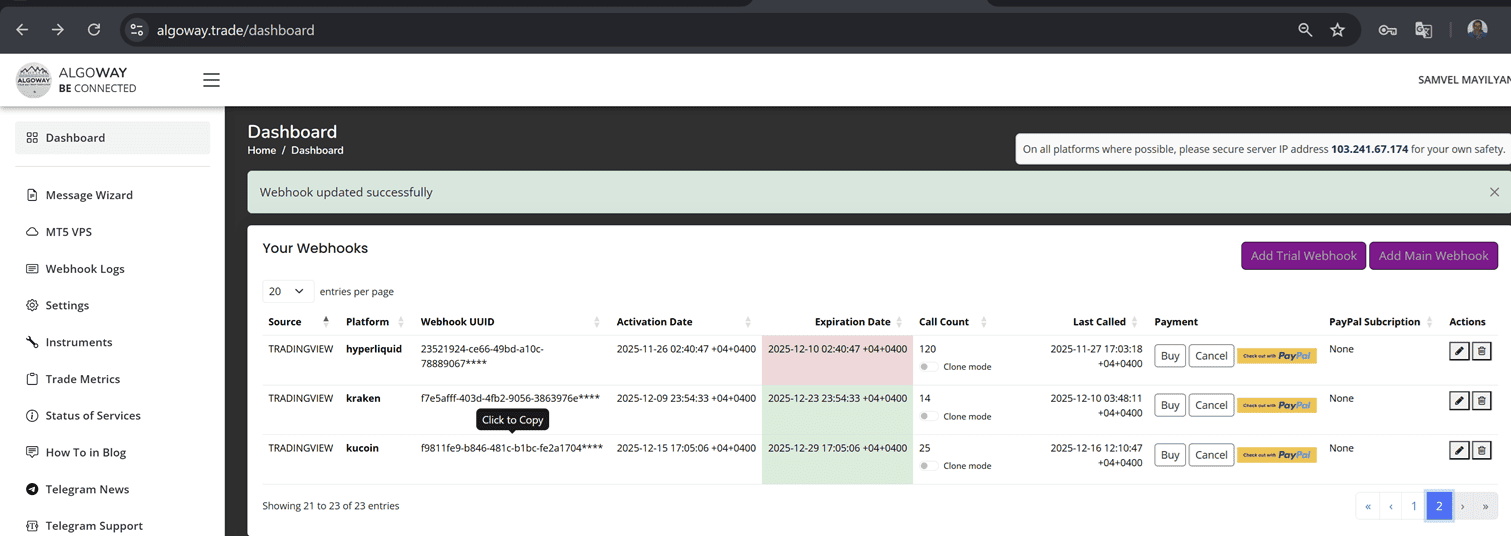
1. In AlgoWay open **Trade Webhooks** or **Dashboard \> Your Webhooks**.
2. Locate the destination marked **kucoin** and copy its unique webhook URL using the UUID or copy control.
3. Use this URL only for the matching KuCoin connection; do not substitute a link copied from another route.
Copy the webhook URL for the KuCoin route.
## Step 5. Set the TradingView Alert JSON
In the TradingView **Message** field, enter the AlgoWay JSON payload for this route. The example below is for a **TradingView strategy alert** using strategy placeholders:
``` text
{
"platform_name": "kucoin",
"ticker": "{{ticker}}",
"order_contracts": "{{strategy.order.contracts}}",
"order_action": "{{strategy.market_position}}",
"price": "{{close}}"
}
```
`{{ticker}}` supplies the TradingView chart ticker; `{{strategy.order.contracts}}` supplies the strategy's configured size; `{{strategy.market_position}}` supplies the market position direction; and `{{close}}` supplies the price. These placeholders must be used in a strategy context that actually produces the expected values.
Check that the ticker maps to a valid KuCoin Futures contract. TradingView symbol names and exchange contract identifiers can differ. Use symbol mapping in AlgoWay when your connection offers it, and verify the symbol before sending a live order.
## Step 6. Enable the Webhook URL in TradingView
1. Open your chart in TradingView and create an alert for the relevant strategy or condition.
2. Paste the JSON above into the alert **Message** field, adjusting it to the selected alert type.
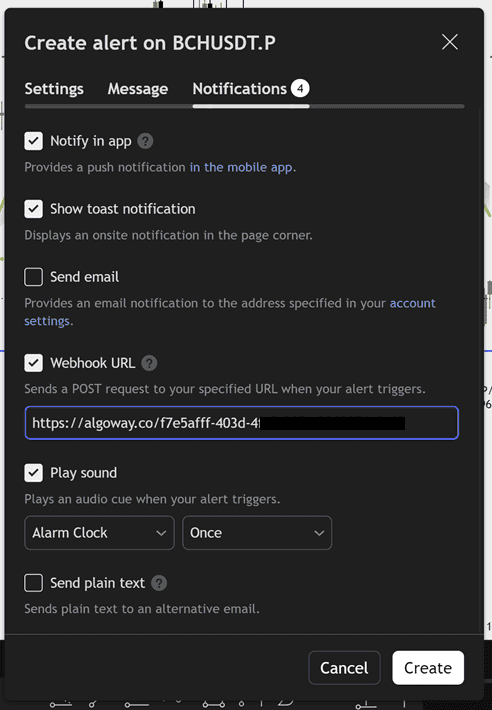
3. In **Notifications**, enable **Webhook URL** and paste the exact AlgoWay KuCoin URL from Step 4.
4. Save the alert and confirm that both a triggering alert and an accepted exchange order appear during testing.
Turn on Webhook URL in TradingView and paste the KuCoin AlgoWay route.
## Common Problems and Checks
### The API credentials are rejected
Recheck the API Key, API Secret and API Passphrase. Confirm that the key was created for KuCoin Futures, not a different API area. Verify the trusted IP restriction against the IP displayed in AlgoWay. A newly created key may also require time to become active.
### The TradingView alert fires but no order appears
Open AlgoWay Webhook Logs to determine whether the webhook arrived, whether the JSON was accepted and whether KuCoin returned an exchange-side error. Check market permissions, the Futures symbol, order quantity, market status and your account's ability to place trades.
### The trade size or direction is unexpected
Inspect the TradingView placeholder values, the quantity multiplier in AlgoWay and the connection's trading mode. Different strategies may use `buy`, `sell`, `long` or `short` differently; confirm the resulting JSON in the logs before running unattended.
## Related AlgoWay Guides
- [Create TradingView webhook alerts with AlgoWay](https://docs.algoway.trade/guide-to-creating-a-webhook-in-tradingview.html)
- [AlgoWay webhook JSON schema and parameters](https://algoway.trade/blog/json-schema-guide.html)
- [TradingView to Binance automation setup](https://docs.algoway.trade/algoway-binance-integration-guide.html)
- [TradingView to Kraken webhook integration](https://docs.algoway.trade/how-to-connect-tradingview-to-kraken.html)
**Key takeaway:** Create the correct KuCoin Futures API credentials, save the KuCoin connection in AlgoWay, copy its private webhook URL, and use the matching JSON in a TradingView alert. Test both webhook delivery and exchange execution before enabling live automation.
## Frequently Asked Questions
### Do I need a VPS or to keep my computer on for automated trading?
Absolutely not. AlgoWay is a cloud-based service with centralized signal processing and order routing. You do not need a VPS, an always-on computer, or a locally running trading app. Your TradingView alerts continue to work even when your computer is shut down.
### Does the KuCoin webhook require an API passphrase?
Yes. Use the same API Passphrase that you created with the KuCoin API key, in addition to the API Key and API Secret.
### Which KuCoin API permission is required for Futures?
Enable Futures Trading in KuCoin API Restrictions. General access is recommended in the current AlgoWay setup instructions.
### Can I use a KuCoin Spot-only API key for this guide?
No. The automation route described in this guide is for KuCoin Futures or perpetual contracts and requires Futures Trading permission.
### Where can I test the KuCoin TradingView webhook?
Use Test Webhook in the AlgoWay Webhook Logs area and inspect the response and the matching KuCoin Futures account.
## Related TradingView Integration Guides
Explore step-by-step webhook setup guides for other supported trading platforms.
- [Connect TradingView to Binance with webhook automation](https://docs.algoway.trade/algoway-binance-integration-guide.html)
- [Connect TradingView to Kraken with webhook automation](https://docs.algoway.trade/how-to-connect-tradingview-to-kraken.html)
- [Connect TradingView to Bybit with webhook automation](https://docs.algoway.trade/algoway-bybit-integration-guide.html)
- [Connect TradingView to WEEX with webhook automation](https://docs.algoway.trade/algoway-weex-integration-guide.html)
Published: October 12, 2026 Last updated: October 12, 2026
 **Create a KuCoin Futures trading API key, save the key, secret and passphrase, configure an AlgoWay webhook, and connect it to TradingView alerts.** The signal begins in TradingView, AlgoWay receives it at your private webhook URL, and KuCoin handles order execution via your own exchange API credentials.
``` text
TradingView alert -> AlgoWay webhook -> KuCoin Futures account
```
This is an automated order-routing setup, not a manual TradingView broker connection. The instructions below follow the KuCoin API workflow shown in the existing AlgoWay setup manual.
## Before You Start
Prepare an active KuCoin account with access to Futures trading, an AlgoWay account, and a TradingView indicator or strategy capable of generating alerts. You will also need access to the exchange API settings to create a trading key. Protect API secrets and do not enable withdrawal permissions.
## Step 1. Create a KuCoin Futures API Key
1. Log in to KuCoin, open **API Management** and select **Create API** or **Create API Key**.
2. Give the key a recognizable name, such as `algoway`, and create an **API Passphrase**. Save the passphrase exactly as entered.
3. Under API Restrictions enable **Futures Trading**, which is required for this Futures/Perpetual route. The original setup also recommends **General** access.
4. Leave **Withdrawal** disabled. To restrict API access to the AlgoWay server, enable trusted-IP restrictions and supply the current IP from your AlgoWay account. The manual's example IP is `103.241.67.174`.
5. Complete KuCoin's confirmation steps and save the **API Key**, **API Secret** and your original **API Passphrase**. The secret may only be shown once.