[Original HTML page](https://docs.algoway.trade/how-to-connect-tradingview-to-capitalcom.html)
dateModified: 2026-08-25T00:00:00+00:00
datePublished: 2026-08-25T00:00:00+00:00
# **How to Connect TradingView Alerts to Capital.com with AlgoWay Webhook Automation**
**AlgoWay lets you route TradingView alerts to a Capital.com trading account through webhook automation.** The setup requires a Capital.com API key, the custom API password created for that key, your Capital.com login email, the exact trading **Account Name**, and the correct Demo or Live API mode.
This guide is based on the Capital.com connection flow used in the AlgoWay dashboard and expands the original quick manual with the missing **Account Name** step.
The execution route is:
``` text
TradingView alert -> AlgoWay webhook -> Capital.com API -> Capital.com trading account
```
You can also open the [Capital.com integration section on AlgoWay](https://algoway.trade/#capital.com) before starting the setup.
Last updated: 2026-08-25 • Author: AlgoWay
**Contents**
- [Quick answer](https://docs.algoway.trade/how-to-connect-tradingview-to-capitalcom.html#quick-answer)
- [Prerequisites](https://docs.algoway.trade/how-to-connect-tradingview-to-capitalcom.html#prerequisites)
- [Create or select a Capital.com account](https://docs.algoway.trade/how-to-connect-tradingview-to-capitalcom.html#capital-account)
- [Create a Capital.com API key](https://docs.algoway.trade/how-to-connect-tradingview-to-capitalcom.html#api-key)
- [Find your Capital.com Account Name](https://docs.algoway.trade/how-to-connect-tradingview-to-capitalcom.html#account-name)
- [Create the Capital.com webhook in AlgoWay](https://docs.algoway.trade/how-to-connect-tradingview-to-capitalcom.html#algoway-webhook)
- [Create the TradingView alert](https://docs.algoway.trade/how-to-connect-tradingview-to-capitalcom.html#tradingview-alert)
- [Add the TradingView JSON message](https://docs.algoway.trade/how-to-connect-tradingview-to-capitalcom.html#json)
- [Testing and monitoring](https://docs.algoway.trade/how-to-connect-tradingview-to-capitalcom.html#testing)
- [Common problems](https://docs.algoway.trade/how-to-connect-tradingview-to-capitalcom.html#problems)
## Quick Answer: TradingView to Capital.com with AlgoWay
To connect TradingView to Capital.com through AlgoWay, you need:
1. a Capital.com Live or Demo trading account;
2. Two-Factor Authentication enabled on Capital.com;
3. a Capital.com API key and its custom API password;
4. the exact **Account Name** shown under **Settings \> My accounts**;
5. the matching **API Mode** in AlgoWay: Demo for a demo account, Live for a live account;
6. an AlgoWay Capital.com webhook;
7. a TradingView alert containing the AlgoWay webhook URL and the JSON message copied from AlgoWay.
**Important:** the AlgoWay **Account Name** field is the visible name of the trading account, not Capital.com's internal numeric account ID. Examples can look like `USDAccount`, `EURAccount` or simply `Account`.
## Prerequisites
Prepare these items before creating the webhook:
- Capital.com account;
- AlgoWay account with access to the Webhooks dashboard;
- TradingView alert source: strategy, indicator or manual condition;
- TradingView plan that supports webhook alerts;
- 2FA enabled on Capital.com;
- Capital.com API key and custom API password;
- exact Capital.com Account Name;
- correct decision about Demo or Live mode;
- small test size for the first automation test.
**Recommended:** start with a Capital.com Demo account and a small test order before enabling live automation.
## Step 1. Create or Select a Capital.com Trading Account
1. Register on [Capital.com](https://www.capital.com/) and open a trading account.
2. Register on [AlgoWay.trade](https://algoway.trade/register) and log in.
3. Decide whether the integration will use a **Demo** account or a **Live** account.
4. Keep the selected environment consistent throughout the setup. A Demo account must use AlgoWay **API Mode: Demo**; a Live account must use **API Mode: Live**.
## Step 2. Create a Capital.com API Key
Capital.com requires Two-Factor Authentication before API key generation. Create a dedicated key for AlgoWay so the integration is easy to identify and manage later.
1. Log in to Capital.com.
2. Open **Settings**.
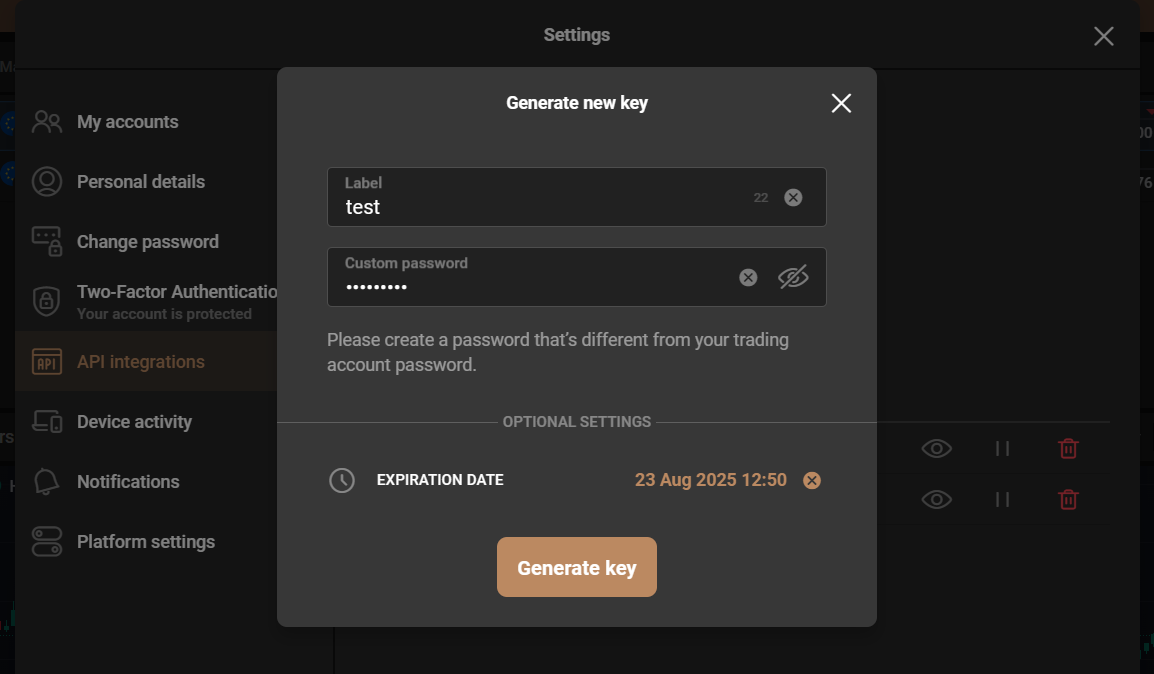
3. Select **API integrations**.
4. Click **Generate new key** or **Generate API key**.
Open Settings > API integrations in Capital.com.
When creating the key:
1. Enter a clear label for the API key, for example `AlgoWay`.
2. Create a **Custom password** for this API key.
3. Set an expiration date if required.
4. Confirm the action with your 2FA code.
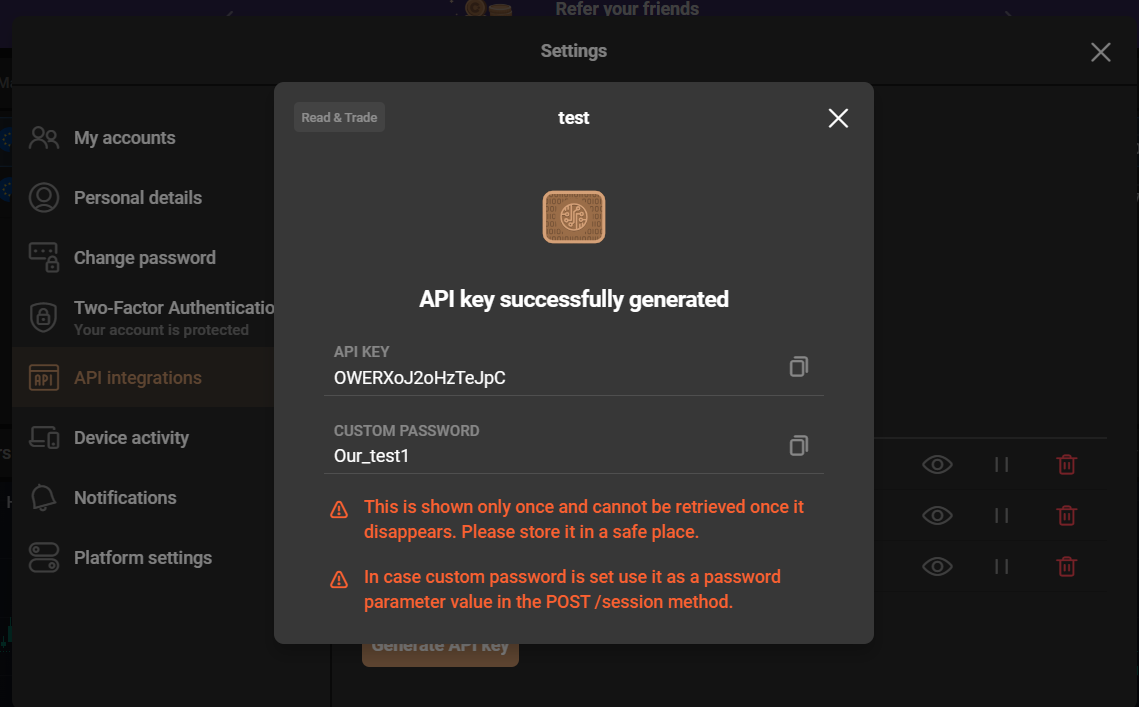
Create a dedicated API key and remember the Custom password. This custom password is the value entered into AlgoWay as API Password.After the key is generated, copy and store the API key securely. Capital.com masks the full key later, so save it when it is displayed.
**Do not confuse passwords:** AlgoWay's **API Password** field must contain the **Custom password created for the Capital.com API key**, not your normal Capital.com account login password.
Capital.com documents the same flow in its [Public API documentation](https://open-api.capital.com/).
## Step 3. Find Your Capital.com Account Name
This is the step that is easy to miss. AlgoWay asks for **Account Name**, and the value must match the name of the trading account shown in Capital.com.
1. In Capital.com, open **Settings**.
2. Select **My accounts**.
3. Open the tab that matches the environment you want to connect: **Live accounts** or **Demo accounts**.
4. Find the trading account you want AlgoWay to use.
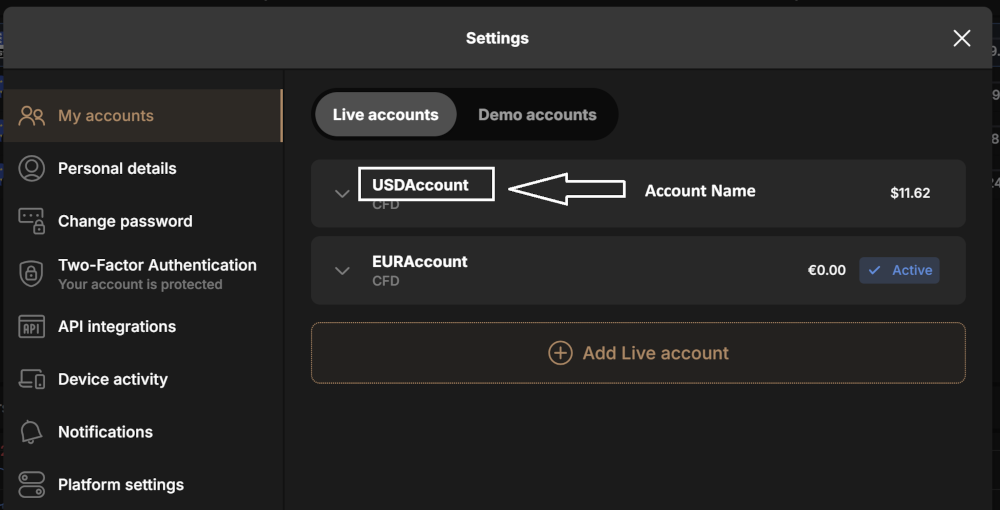
5. Copy the account name exactly as shown. For example: `USDAccount`, `EURAccount` or `Account`.
In Settings > My accounts, use the visible account name. In this example the account names are USDAccount and EURAccount.
**Do not enter `test`, `demo`, your email address or a made-up name.** Enter the exact account name shown in Capital.com. The Demo/Live environment is selected separately with the **API Mode** field in AlgoWay.
## Step 4. Create a Capital.com Webhook in AlgoWay
1. Log in to [AlgoWay.trade](https://www.algoway.trade/).
2. Open the **Dashboard**.
3. Click **Add Main Webhook** or the available webhook creation button.
4. Select **TradingView** as the source.
5. Select **Capital.com** as the platform.
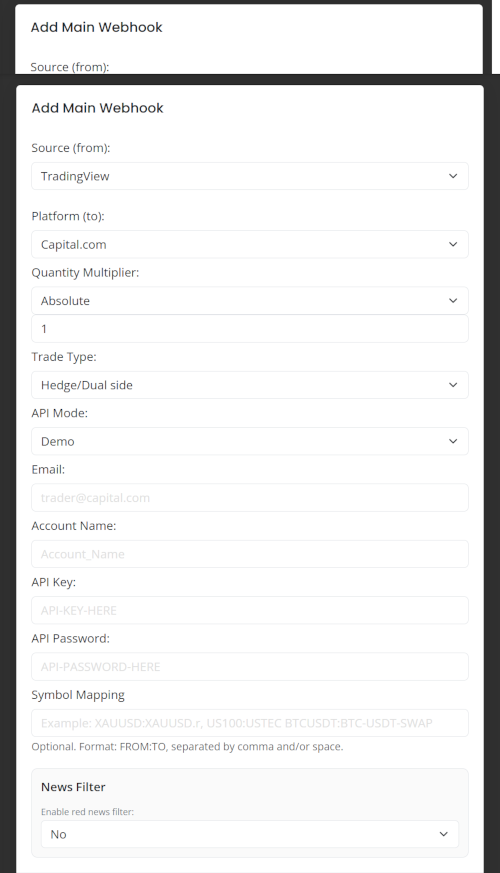
Create a new webhook in the AlgoWay dashboard and select Capital.com as the destination platform.
Fill in the Capital.com webhook settings:
- **Quantity Multiplier:** choose how TradingView quantity should be interpreted by the webhook.
- **Trade Type:** choose the behavior required by your strategy, for example Hedge/Dual side or Reverse.
- **API Mode:** select **Demo** for a Capital.com demo account or **Live** for a live account.
- **Email:** the email/login identifier used for Capital.com.
- **Account Name:** the exact visible account name from **Settings \> My accounts**.
- **API Key:** the generated Capital.com API key.
- **API Password:** the Custom password created for that API key.
- **Symbol Mapping:** optional mapping when the TradingView ticker and the Capital.com symbol do not match.
- **News Filter:** configure only if your AlgoWay workflow requires it.
For Capital.com, make sure API Mode, Email, Account Name, API Key and API Password all belong to the same Capital.com environment and account.
Click **Add Main Webhook** to save the configuration. AlgoWay will create a unique webhook URL for this connection.
**Keep the webhook URL private.** Treat it as an execution endpoint and do not publish it publicly.
## Step 5. Create a TradingView Alert
1. Open the desired chart in TradingView and configure your strategy, indicator or alert condition.
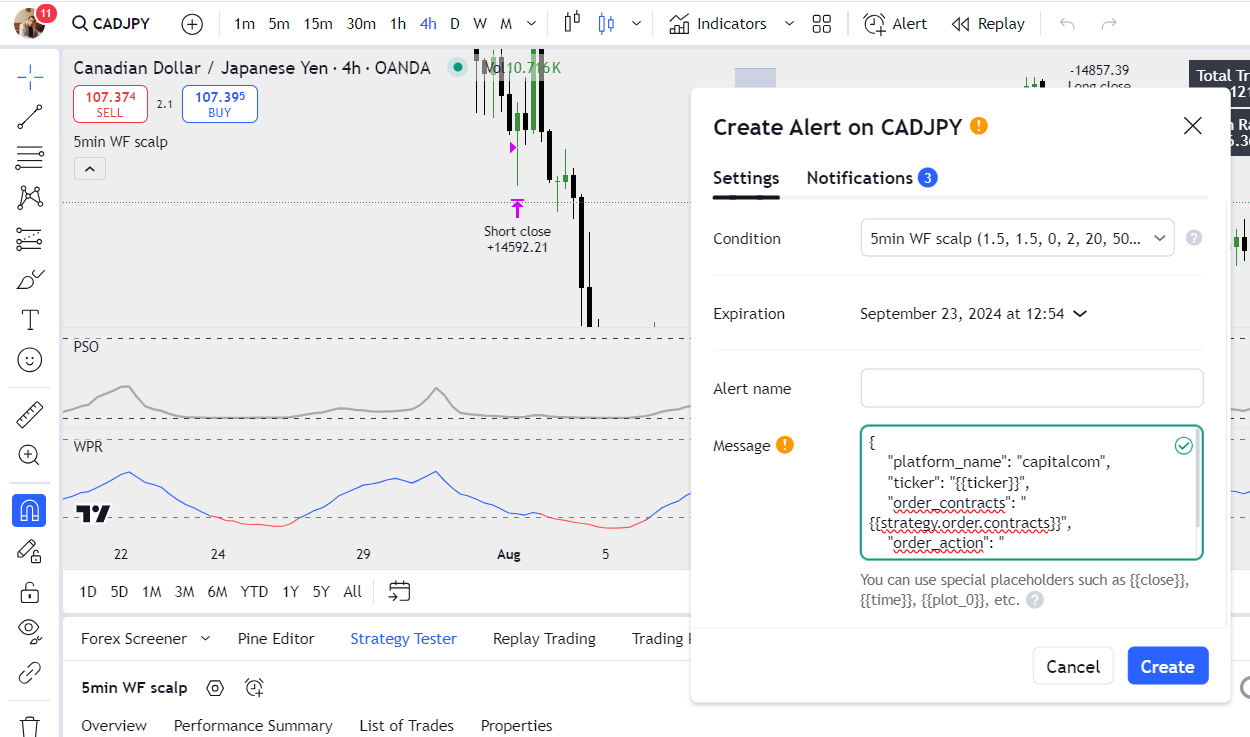
2. Create an alert by right-clicking the chart and selecting **Add Alert...**, or use the alert button in TradingView.
3. Choose the condition and alert frequency required by your strategy.
4. Open the alert notification/action settings.
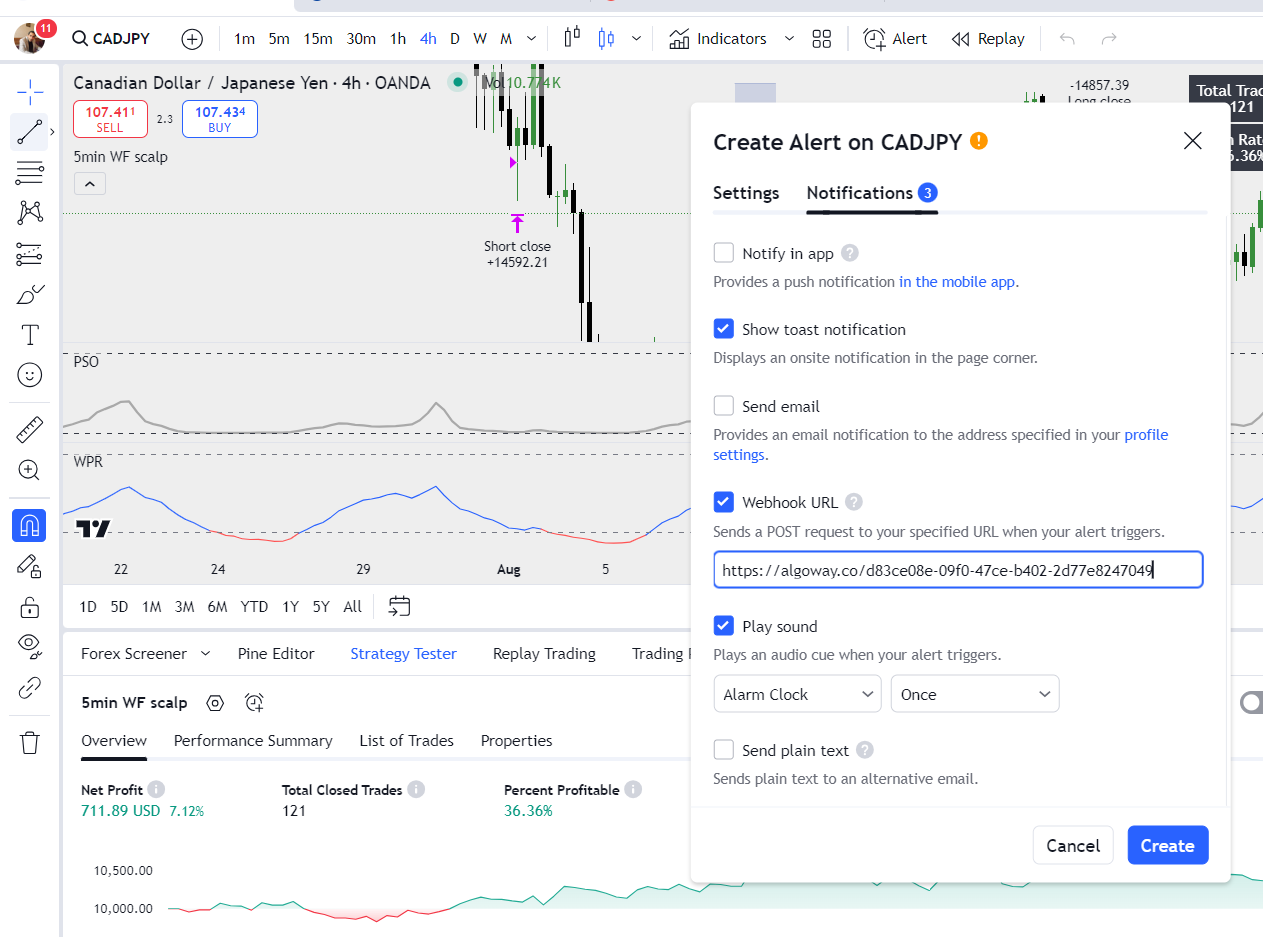
5. Enable **Webhook URL**.
6. Paste the webhook URL created by AlgoWay.
Enable Webhook URL in TradingView and paste the unique URL generated by AlgoWay.
## Step 6. Add the TradingView JSON Message
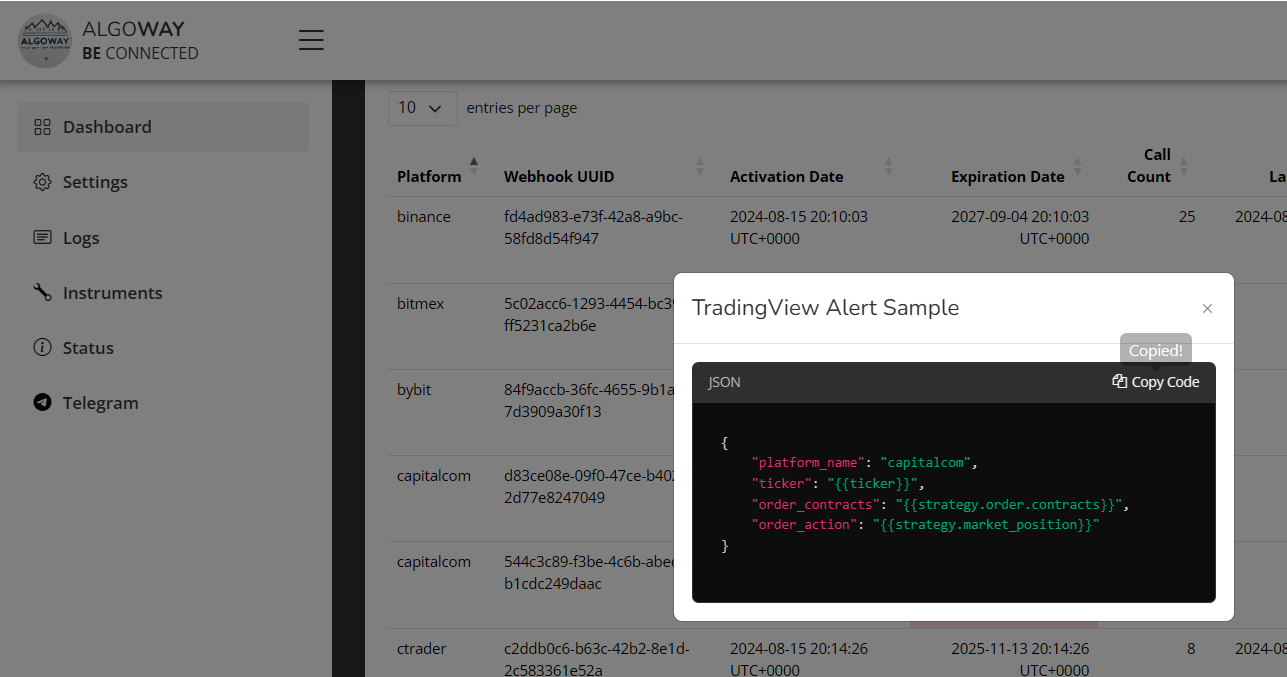
AlgoWay provides the JSON format for the webhook you created. Use that generated format instead of typing a Capital.com payload from memory.
1. Return to the AlgoWay **Dashboard**.
2. Find the Capital.com webhook.
3. Click the platform/webhook entry to display the TradingView JSON format.
4. Copy the JSON template.
5. Paste it into the TradingView alert **Message** field.
6. Review the placeholders and strategy quantity before saving the alert.
Copy the JSON generated for your AlgoWay Capital.com webhook and paste it into the TradingView alert Message field.
After reviewing the alert settings, click **Create** in TradingView.
## Step 7. Test and Monitor the Capital.com Webhook
Test the connection before relying on it for live automation.
1. Prefer **Demo** mode for the first test.
2. Use a small valid quantity for the selected Capital.com instrument.
3. Trigger a controlled TradingView alert.
4. Open AlgoWay webhook logs and confirm that the alert was received.
5. Check the execution result returned by Capital.com.
6. Open Capital.com and confirm that the position or order matches the intended symbol, direction and size.
If the order fails, inspect the exact AlgoWay log message first. Authentication, Account Name, Demo/Live mismatch and symbol mapping are easier to diagnose from the broker response than by changing the TradingView strategy.
## Common Capital.com Connection Problems
### Account Name Not Found
Open **Capital.com \> Settings \> My accounts** and copy the visible account name exactly. Do not use `test` or `demo` unless that is literally the account name.
### Demo / Live Mode Mismatch
If the account is under **Demo accounts**, select **API Mode: Demo** in AlgoWay. If the account is under **Live accounts**, use **API Mode: Live**.
### Wrong API Password
The Capital.com session uses the **Custom password created for the API key**. Do not substitute the normal Capital.com account password.
### API Key Was Not Saved
Capital.com displays the full API key when it is created and masks it afterward. If the full key was not saved, generate a new key and store it securely.
### API Key Is Paused or Expired
Open **Settings \> API integrations** in Capital.com and make sure the key is active and has not reached its expiration date.
### Wrong Symbol
If the TradingView ticker does not match the Capital.com symbol expected by the webhook route, use the AlgoWay **Symbol Mapping** field.
### Invalid Quantity
Capital.com instruments can have minimum size and size-increment rules. Test with a quantity that is valid for the selected instrument.
### TradingView Alert Reaches AlgoWay but No Trade Appears
Check the webhook log for the broker response. Verify API Mode, Email, Account Name, API Key, API Password, symbol mapping and quantity before changing strategy logic.
## Capital.com Account Name vs Internal Account ID
Capital.com internally identifies financial accounts with a numeric account ID, but AlgoWay users should not need to search for or enter that hidden identifier. The AlgoWay form uses the visible **Account Name** so the user can copy the value directly from the Capital.com interface.
That means the connection workflow is user-facing and simple:
``` text
Capital.com Settings -> My accounts -> copy Account Name -> AlgoWay Account Name
```
## Related AlgoWay Guides
- [How to automate TradingView alerts to any broker with AlgoWay](https://algoway.trade/blog/automate-tradingview-alerts-to-any-broker-with-algoway.html)
- [How to create a webhook in TradingView](https://docs.algoway.trade/guide-to-creating-a-webhook-in-tradingview.html)
- [AlgoWay JSON schema guide](https://algoway.trade/blog/json-schema-guide.html)
- [How to fix AlgoWay webhook Error 415](https://algoway.trade/blog/algoway-415.html)
- [How AlgoWay handles opposite trading signals](https://algoway.trade/blog/algoway-modes-article.html)
## Final Summary
To connect TradingView to Capital.com with AlgoWay, generate a Capital.com API key and Custom password, find the exact **Account Name** under **Settings \> My accounts**, choose the matching Demo or Live API mode in AlgoWay, create the Capital.com webhook, and paste its URL and generated JSON message into TradingView.
**The most important account-selection rule is simple: enter the visible Capital.com Account Name in AlgoWay, not an internal numeric account ID and not a generic value such as `test`.**
Start here: [AlgoWay Capital.com integration](https://algoway.trade/#capital.com).
## Frequently Asked Questions
### Do I need a VPS or to keep my computer on for automated trading?
Absolutely not. AlgoWay is a cloud-based service with centralized signal processing and order routing. You do not need a VPS, an always-on computer, or a locally running trading app. Your TradingView alerts continue to work even when your computer is shut down.
## Related TradingView Integration Guides
Explore step-by-step webhook setup guides for other supported trading platforms.
- [Connect TradingView to Alpaca with webhook automation](https://docs.algoway.trade/algoway-alpaca-integration-guide.html)
- [Connect TradingView to DXtrade with webhook automation](https://docs.algoway.trade/guide-to-creating-a-webhook-in-tradingview.html)
- [Connect TradingView to Interactive Brokers with webhook automation](https://docs.algoway.trade/ibkr-api.html)
- [Connect TradingView to Match-Trader with webhook automation](https://docs.algoway.trade/setting-up-a-webhook-for-matchtrader-on-the-algoway-platform.html)
Published: August 25, 2026 Last updated: August 25, 2026
 **AlgoWay lets you route TradingView alerts to a Capital.com trading account through webhook automation.** The setup requires a Capital.com API key, the custom API password created for that key, your Capital.com login email, the exact trading **Account Name**, and the correct Demo or Live API mode.
This guide is based on the Capital.com connection flow used in the AlgoWay dashboard and expands the original quick manual with the missing **Account Name** step.
The execution route is:
``` text
TradingView alert -> AlgoWay webhook -> Capital.com API -> Capital.com trading account
```
You can also open the [Capital.com integration section on AlgoWay](https://algoway.trade/#capital.com) before starting the setup.
Last updated: 2026-08-25 • Author: AlgoWay
**Contents**
- [Quick answer](https://docs.algoway.trade/how-to-connect-tradingview-to-capitalcom.html#quick-answer)
- [Prerequisites](https://docs.algoway.trade/how-to-connect-tradingview-to-capitalcom.html#prerequisites)
- [Create or select a Capital.com account](https://docs.algoway.trade/how-to-connect-tradingview-to-capitalcom.html#capital-account)
- [Create a Capital.com API key](https://docs.algoway.trade/how-to-connect-tradingview-to-capitalcom.html#api-key)
- [Find your Capital.com Account Name](https://docs.algoway.trade/how-to-connect-tradingview-to-capitalcom.html#account-name)
- [Create the Capital.com webhook in AlgoWay](https://docs.algoway.trade/how-to-connect-tradingview-to-capitalcom.html#algoway-webhook)
- [Create the TradingView alert](https://docs.algoway.trade/how-to-connect-tradingview-to-capitalcom.html#tradingview-alert)
- [Add the TradingView JSON message](https://docs.algoway.trade/how-to-connect-tradingview-to-capitalcom.html#json)
- [Testing and monitoring](https://docs.algoway.trade/how-to-connect-tradingview-to-capitalcom.html#testing)
- [Common problems](https://docs.algoway.trade/how-to-connect-tradingview-to-capitalcom.html#problems)
## Quick Answer: TradingView to Capital.com with AlgoWay
To connect TradingView to Capital.com through AlgoWay, you need:
1. a Capital.com Live or Demo trading account;
2. Two-Factor Authentication enabled on Capital.com;
3. a Capital.com API key and its custom API password;
4. the exact **Account Name** shown under **Settings \> My accounts**;
5. the matching **API Mode** in AlgoWay: Demo for a demo account, Live for a live account;
6. an AlgoWay Capital.com webhook;
7. a TradingView alert containing the AlgoWay webhook URL and the JSON message copied from AlgoWay.
**Important:** the AlgoWay **Account Name** field is the visible name of the trading account, not Capital.com's internal numeric account ID. Examples can look like `USDAccount`, `EURAccount` or simply `Account`.
## Prerequisites
Prepare these items before creating the webhook:
- Capital.com account;
- AlgoWay account with access to the Webhooks dashboard;
- TradingView alert source: strategy, indicator or manual condition;
- TradingView plan that supports webhook alerts;
- 2FA enabled on Capital.com;
- Capital.com API key and custom API password;
- exact Capital.com Account Name;
- correct decision about Demo or Live mode;
- small test size for the first automation test.
**Recommended:** start with a Capital.com Demo account and a small test order before enabling live automation.
## Step 1. Create or Select a Capital.com Trading Account
1. Register on [Capital.com](https://www.capital.com/) and open a trading account.
2. Register on [AlgoWay.trade](https://algoway.trade/register) and log in.
3. Decide whether the integration will use a **Demo** account or a **Live** account.
4. Keep the selected environment consistent throughout the setup. A Demo account must use AlgoWay **API Mode: Demo**; a Live account must use **API Mode: Live**.
## Step 2. Create a Capital.com API Key
Capital.com requires Two-Factor Authentication before API key generation. Create a dedicated key for AlgoWay so the integration is easy to identify and manage later.
1. Log in to Capital.com.
2. Open **Settings**.
3. Select **API integrations**.
4. Click **Generate new key** or **Generate API key**.