[Original HTML page](https://docs.algoway.trade/how-to-connect-mt5-to-binance.html)
datePublished: 2026-10-22
dateModified: 2026-10-22
# How to Connect MT5 to Binance with AlgoWay
MetaTrader 5 trade copier guide · Binance Futures · Live and Demo setup · Updated October 22, 2026
**Copy supported trades from MetaTrader 5 (MT5) to Binance Futures** without rewriting an existing MQL5 strategy. AlgoWay-MT5-CopierBot runs in the source MT5 terminal and forwards trading events to an AlgoWay webhook, which routes them to the Binance account configured for that connection.
**Connection path:** MetaTrader 5 \>\> AlgoWay-MT5-CopierBot \>\> AlgoWay webhook \>\> Binance Futures.
This walk-through starts with the Binance API key, creates the receiving webhook, installs CopierBot in MT5, and explains how to check the EA status and verify an actual copied order. The main worked example uses a **Binance Futures Demo** account. Live connections require separate live API credentials.
**Contents**
1. [Create Binance API credentials](https://docs.algoway.trade/how-to-connect-mt5-to-binance.html#binance-api)
2. [Create the MT5 to Binance webhook](https://docs.algoway.trade/how-to-connect-mt5-to-binance.html#new-webhook)
3. [Copy the webhook URL](https://docs.algoway.trade/how-to-connect-mt5-to-binance.html#copy-url)
4. [Download and install MT5 CopierBot](https://docs.algoway.trade/how-to-connect-mt5-to-binance.html#install-copier)
5. [Configure EA inputs and symbol mapping](https://docs.algoway.trade/how-to-connect-mt5-to-binance.html#copier-inputs)
6. [Enable algorithmic trading and WebRequest](https://docs.algoway.trade/how-to-connect-mt5-to-binance.html#mt5-permissions)
7. [Read the connection indicator](https://docs.algoway.trade/how-to-connect-mt5-to-binance.html#verify-connection)
8. [Verify an end-to-end demo trade](https://docs.algoway.trade/how-to-connect-mt5-to-binance.html#test-trade)
9. [Common issues](https://docs.algoway.trade/how-to-connect-mt5-to-binance.html#fixes)
## 1. Create a Binance API key for the receiving account
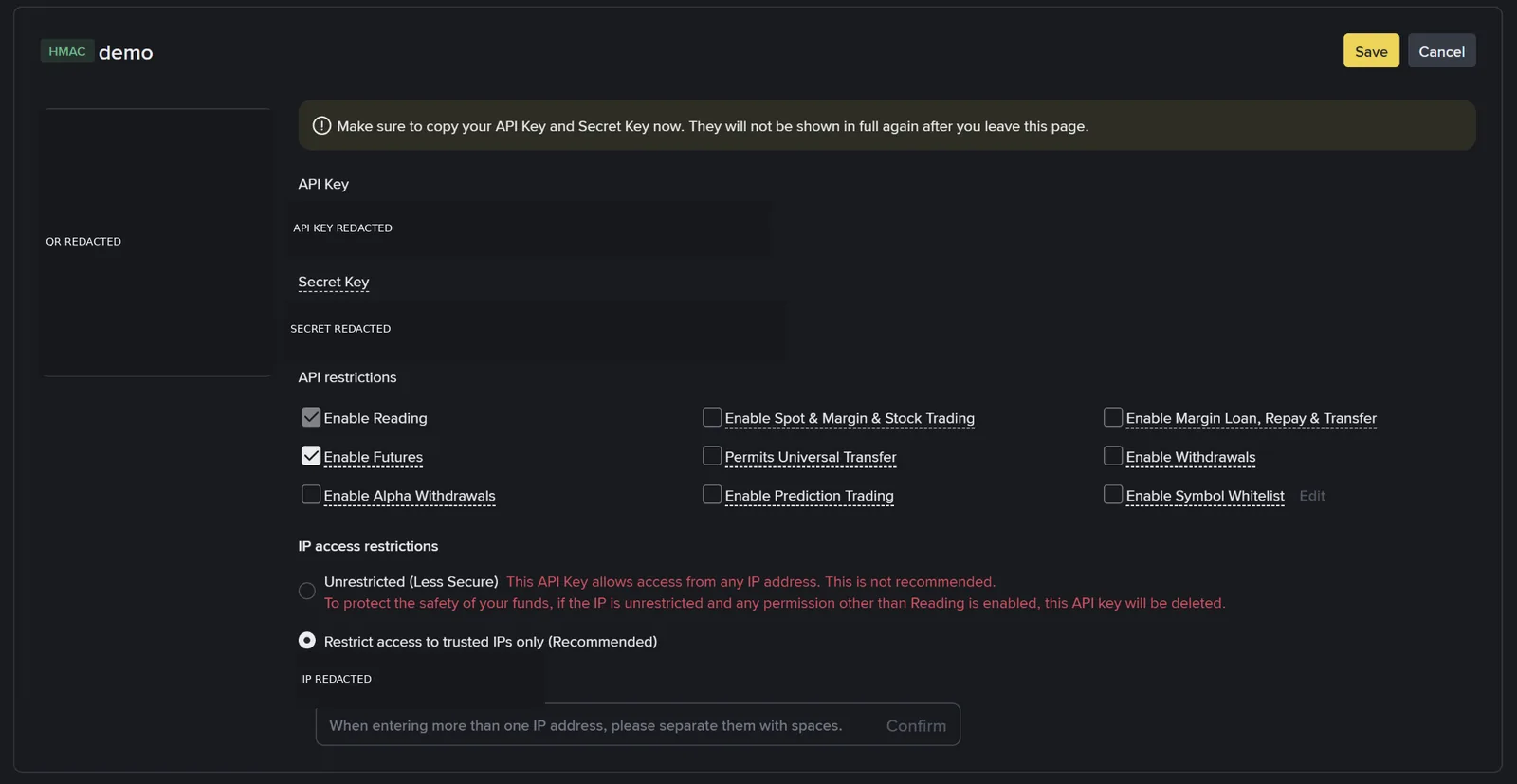
Start in Binance Demo Trading if you are testing with simulated funds. Log in to the demo trading environment, open the profile menu, choose **API Management**, and select **Create API**. Give your key a recognizable name and create an **HMAC** key, which provides both an **API Key** and an **API Secret**. Binance may require account security verification.
Turn on **Enable Reading** and **Enable Futures** for Futures trading. Keep **Enable Withdrawals** disabled. Where IP restrictions are enabled, allow the actual outbound IP used for the relevant AlgoWay integration; do not copy an IP address from somebody else's screenshot. Click **Save** to apply the permissions.
**Copy both values immediately.** Binance normally displays the full Secret Key only when it is created. A Demo API Key must be created in Binance Demo Trading: an API Key created in the live environment is not interchangeable with a Demo key.
Create an HMAC API key, enable Futures trading permission, and save the API restrictions.
For Binance's current walkthrough, see How to Test Functions on Binance Spot Testnet and Futures Demo Trading.
## 2. Create a MetaTrader 5 \>\> Binance webhook
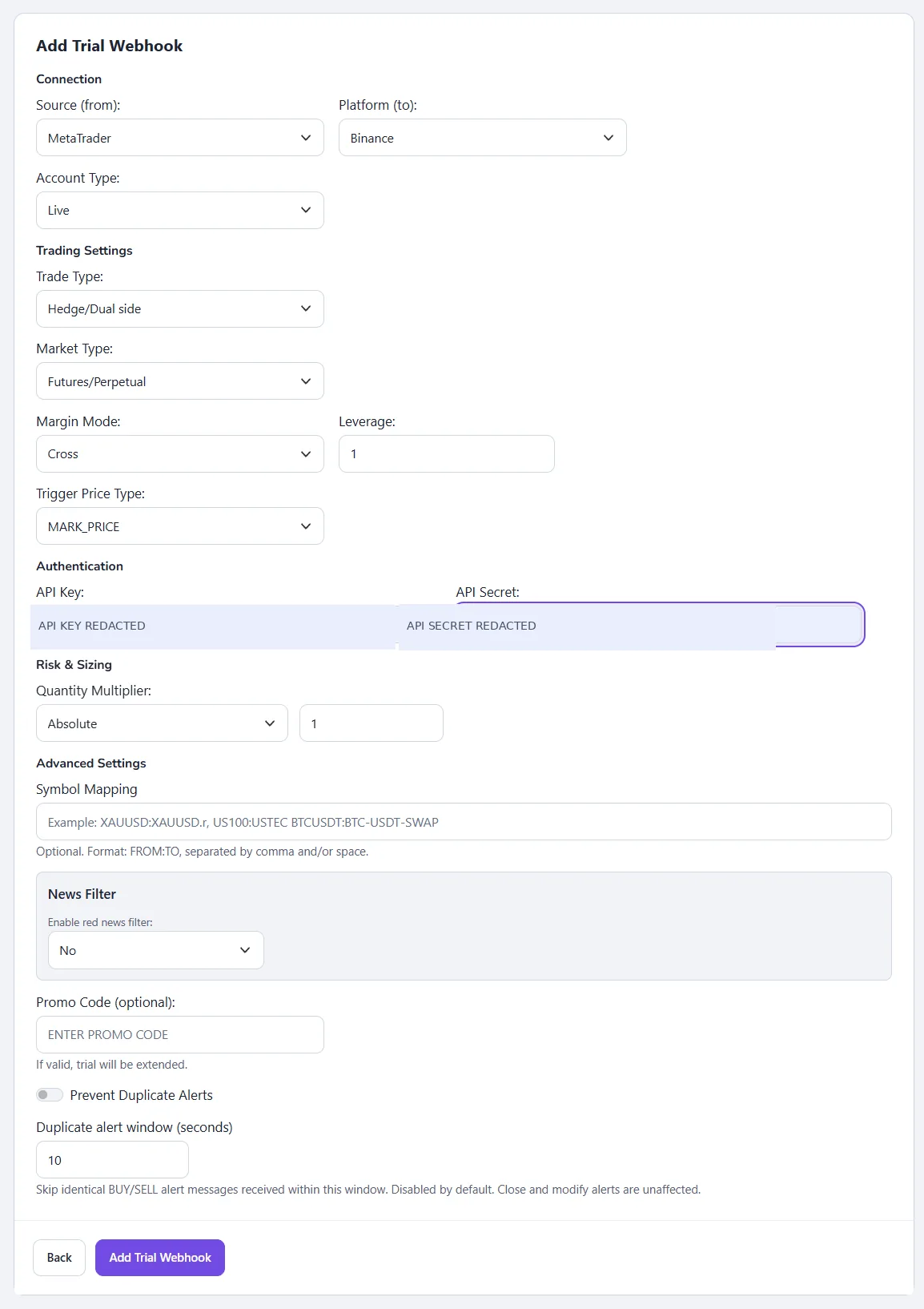
Sign in at AlgoWay. Open **Store \>\> Trade Webhooks** and select **MetaTrader 5** as the source and **Binance** as the destination. Continue to the trial or subscription webhook form. On the creation page, the source field is labeled **MetaTrader**.
Use these fields for the Futures Demo example:
| Field | Setting |
|------------------------|-----------------------------------------------------------------------------------------------------------------------------------------------------|
| Source (from) | **MetaTrader** |
| Platform (to) | **Binance** |
| Account Type | **Demo** for simulated trading, or **Live** for an actual funded Binance account |
| Market Type | **Futures/Perpetual** for this tutorial |
| Trade Type | Select the mode that corresponds to your Binance Futures position mode: **Hedge/Dual side**, **Reverse/Netting**, or the appropriate supported mode |
| Margin Mode / Leverage | Choose Cross or Isolated and a leverage value compatible with your account and contract |
| Trigger Price Type | **MARK_PRICE** or **CONTRACT_PRICE** according to how you want conditional triggers evaluated |
| API Key / API Secret | Paste the credentials created for the *same* Binance account type (Demo or Live) |
| Quantity Multiplier | Choose the sizing method and multiplier intentionally; **Absolute / 1** is a form example, not a promise of identical financial exposure |
| Symbol Mapping | Optional; leave empty if you plan to map MT5 symbols within CopierBot instead |
Click **Add Trial Webhook** (or the corresponding button for your plan). AlgoWay should show a new connection with source **METATRADER** and platform **Binance**.
Configure the MetaTrader source and Binance destination, select Futures/Perpetual, choose Demo for demo keys, and enter the Binance API credentials.
**Important sizing distinction:** MT5 lots and Binance cryptocurrency quantities are different units. Before enabling real money, verify the resulting Binance quantity, minimum order value, contract type, and leverage. Do not assume that 0.01 MT5 lots means 0.01 BTC on Binance.
## 3. Copy the newly created webhook URL
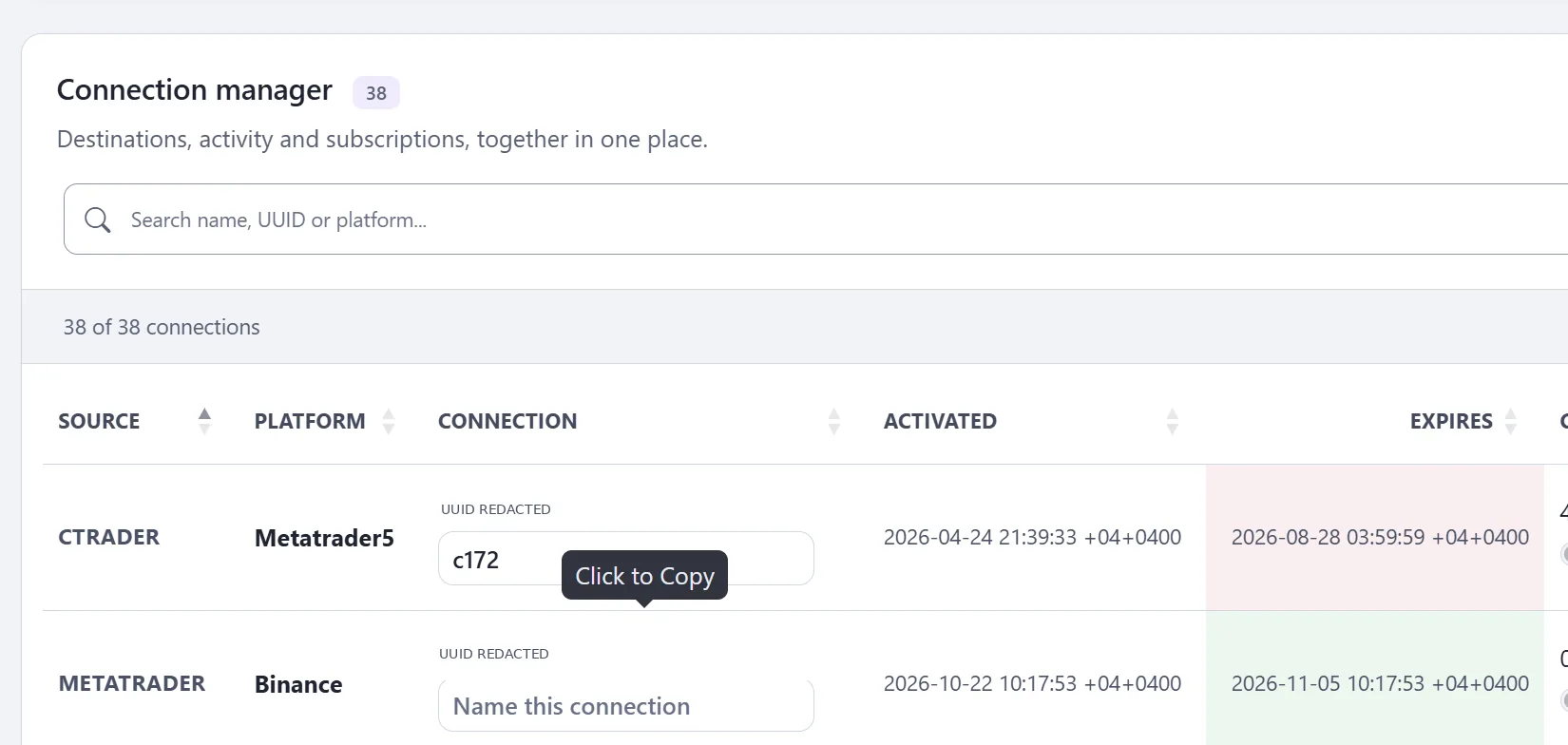
In **Connections**, locate the row for **METATRADER \>\> Binance** and copy its webhook UUID or complete URL. Each connection has its own value; do not use an identifier belonging to another destination.
``` text
https://algoway.co/
```
The domain for this CopierBot setup is **algoway.co**. The webhook accepts either the full URL or its UUID in the corresponding EA input. Keep the real webhook address private.
After saving the webhook, find the METATRADER >> Binance connection and copy its own webhook URL or UUID.
## 4. Download and install AlgoWay-MT5-CopierBot
Download the [**AlgoWay-MT5-CopierBot.ex5**](https://algoway.trade/downloads/AlgoWay-MT5-CopierBot.ex5) Expert Advisor from AlgoWay. This is the **source-side** MT5 copier, not the AlgoWay MT5 destination EA.
1. In the source MetaTrader 5 terminal, click **File \>\> Open Data Folder**.
2. Open **MQL5 \>\> Experts** and copy `AlgoWay-MT5-CopierBot.ex5` into this folder.
3. Return to MT5 and open **Navigator \>\> Expert Advisors**. Right-click and choose **Refresh** if the copier is not yet visible.
4. Drag **AlgoWay-MT5-CopierBot** onto any chart in the *source* MT5 terminal. A BTCUSD chart is fine, but the chart instrument does not restrict which supported account trade events the copier observes.
5. In the EA **Common** tab, allow algorithmic trading; then open its **Inputs** tab.
## 5. Enter the webhook and configure the EA
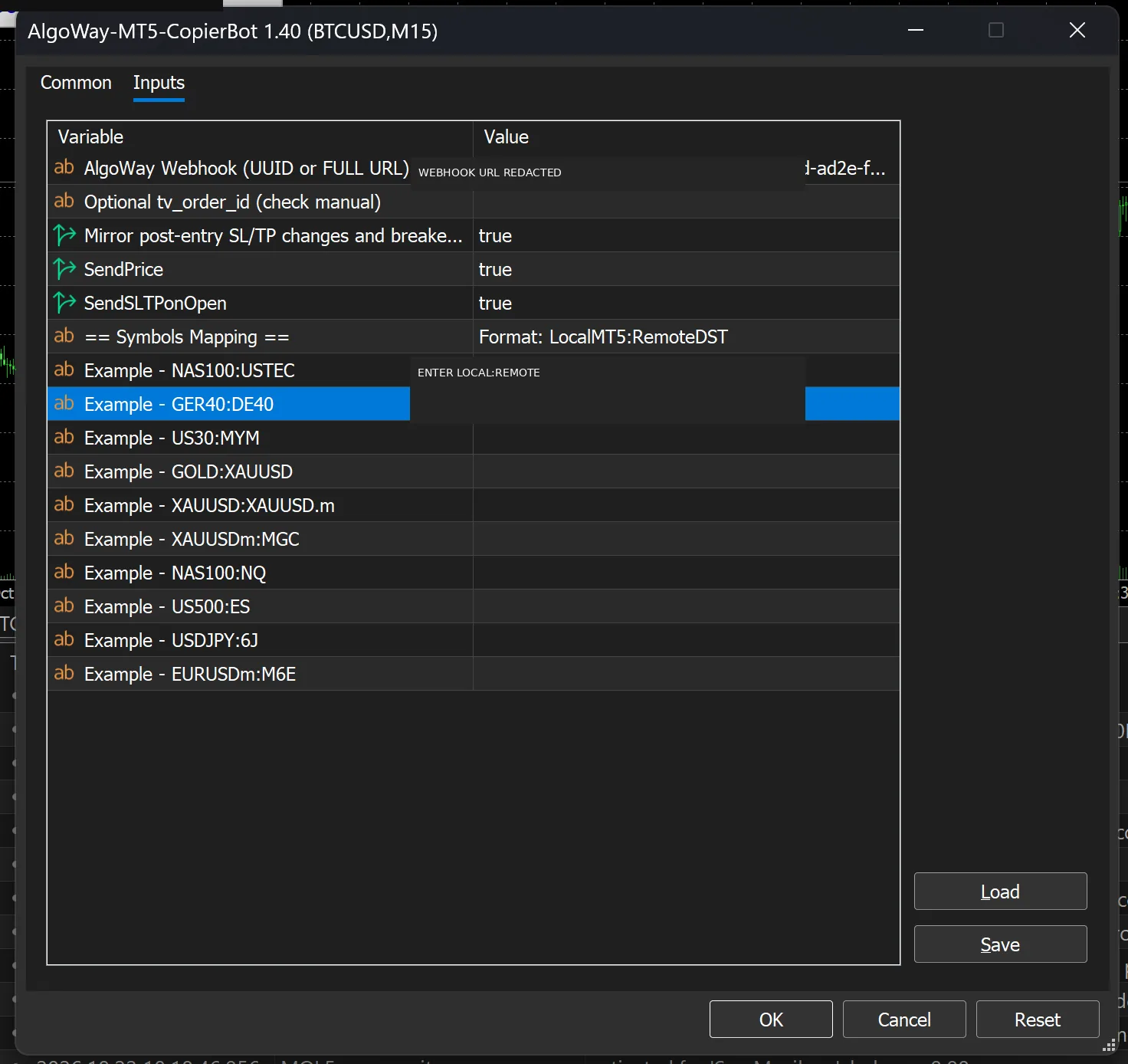
In the EA's **Inputs** tab, set **AlgoWay Webhook (UUID or FULL URL)** to the connection you just created. The optional **tv_order_id** can remain empty if you do not need to distinguish multiple strategies on the same symbol.
**Mirror post-entry SL/TP changes and breakeven** controls forwarding of supported subsequent protection changes. **SendPrice** enables price information in source instructions; it does not guarantee identical execution prices on Binance. **SendSLTPonOpen** controls whether available initial SL and TP levels are forwarded. The receiving connector and exchange must still accept these actions.
### Symbol mapping: MT5 ticker to Binance ticker
If your MT5 broker calls Bitcoin `BTCUSD` but your Binance USDⓈ-M Futures contract is `BTCUSDT`, enter the mapping below into one of the EA mapping fields:
``` text
BTCUSD:BTCUSDT
```
The required format is **LOCAL:REMOTE**. Entering only `BTCUSD` or only `BTCUSDT.P` is **not valid mapping syntax** and the EA skips such lines. Check the exact Binance contract name before mapping; `BTCUSDT` is the symbol used in this example. Configure a needed mapping in *either* the EA or the webhook first, then verify the resulting order symbol before combining rules.
Enter the AlgoWay webhook URL or UUID and configure optional LocalMT5:RemoteDST symbol mapping.
## 6. Allow the MT5 terminal to contact AlgoWay
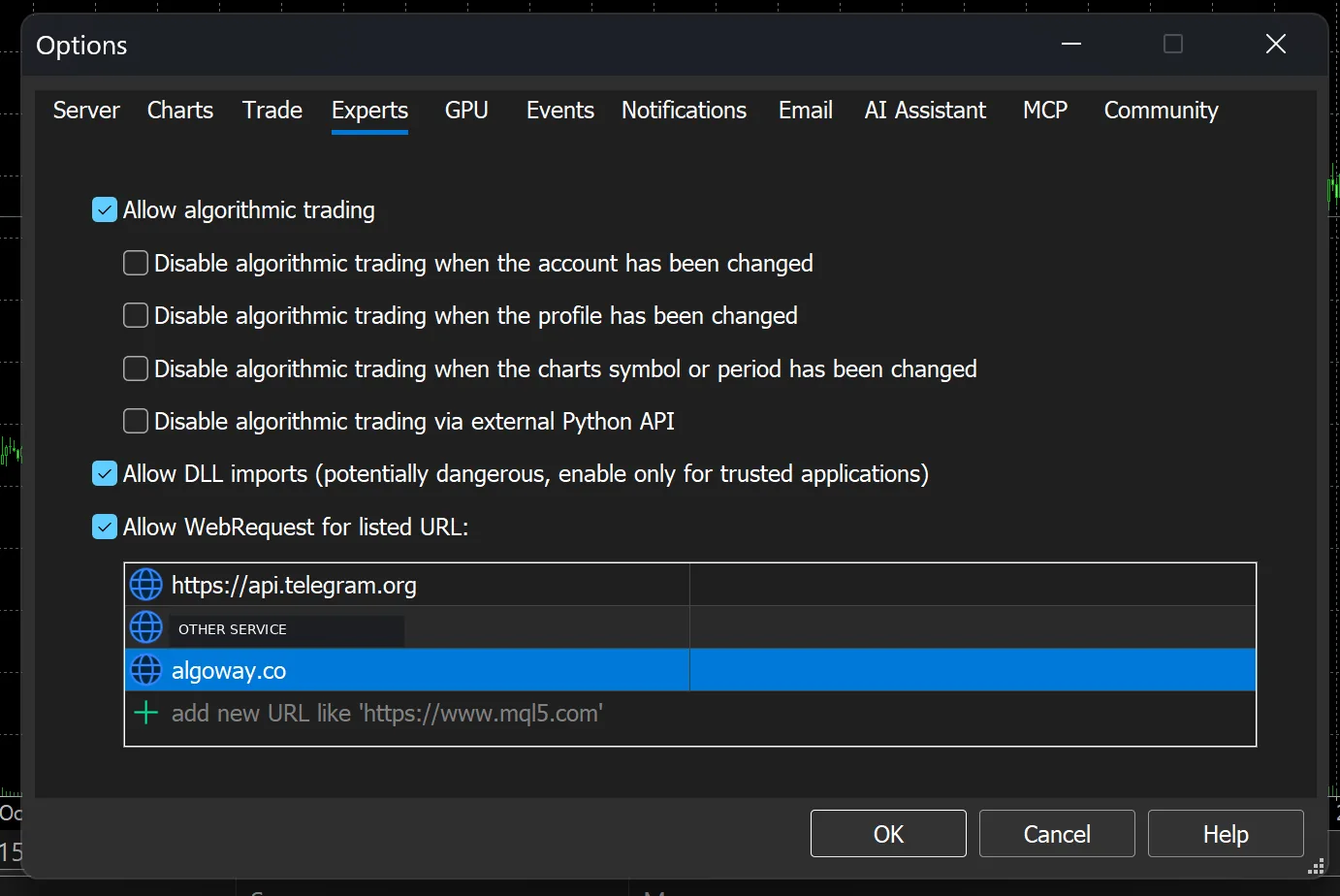
In MT5, open **Tools \>\> Options \>\> Expert Advisors**. Check **Allow algorithmic trading** and **Allow WebRequest for listed URL**. Add `https://algoway.co` to the allowed WebRequest URL list and save the changes. Do **not** substitute `mt5.algoway.co`: CopierBot's webhook and licensing requests use `algoway.co`.
You may see other hosts already listed for other integrations. They are not required for this connection. The **Allow DLL imports** setting is not a general requirement just because it appears enabled in somebody else's MT5 screenshot.
In MT5 Expert Advisors options, permit algorithmic trading and add https://algoway.co to the WebRequest allowlist.
## 7. Confirm the CopierBot connection status
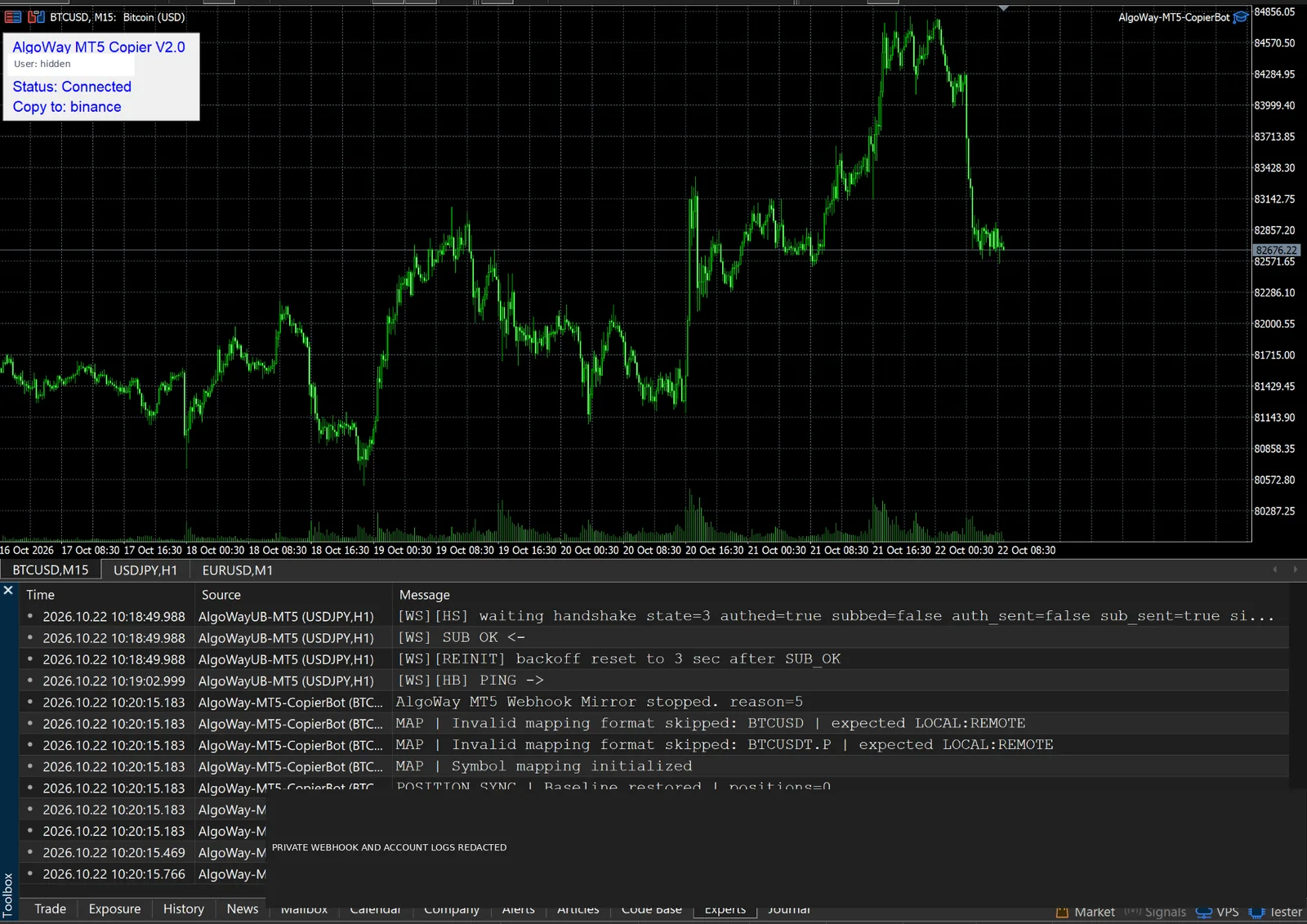
Return to the chart where CopierBot is attached. Its status panel displays the username, connection status and destination:
- **Blue text: Status: Connected** means the EA has connected and recognized the webhook; the destination line should read **Copy to: binance**.
- **Red text: Status: Not Connected** means the copier is not connected. Recheck the webhook URL, AlgoWay authentication, EA permissions and WebRequest settings before proceeding.
Open **Toolbox \>\> Experts**. For a connected source EA, the log should contain messages such as `status=Connected`, `copy_to=binance`, and `AlgoWay MT5 Webhook Mirror ready`. A blue *Connected* panel verifies the copier's connection—not that Binance accepted a particular order.
When connected, the chart status text is blue and shows Connected and Copy to: binance. When disconnected, the status is red and reads Not Connected.
## 8. Test an MT5 trade and inspect Binance
Use the smallest sensible demo order and an instrument supported by the selected Binance market. Create an order on the **source MT5 account** manually or through an existing EA. Open the AlgoWay **Webhook Logs** for the new connection and examine its request and execution response. Then open Binance **Demo Trading \>\> Futures \>\> Orders/Positions** and confirm that the order actually arrived.
Check the symbol, side, traded quantity, final order status and any rejection details. Test a close separately. If your strategy uses SL/TP updates or pending orders, verify those behaviors individually rather than assuming they are identical to MT5 execution.
**A successful CopierBot handshake is not the same as successful Binance order execution.** A destination authentication error, market filter, quantity rule, or wrong Demo endpoint can still prevent the order from being accepted.
## Troubleshooting MT5 to Binance copying
### Status: Not Connected (red)
Confirm that the EA uses the newly created Binance webhook, that MT5 algorithmic trading is allowed, and that the WebRequest list includes `https://algoway.co`. Read the **Experts** log for the actual error; a missing WebRequest permission may produce MT5 error `4014`.
### Connected (blue), but no Binance position appears
Inspect the AlgoWay webhook execution log and the response from Binance. Match **Demo** keys to the **Demo** account type and confirm that the **Futures** API permission is enabled. Binance's current Futures Demo documentation identifies `https://demo-fapi.binance.com` as its REST endpoint; an outdated testnet endpoint may fail even if the MT5 copier itself is connected.
### Invalid symbol mapping
Use a complete `LOCAL:REMOTE` pair such as `BTCUSD:BTCUSDT`. A single unpaired ticker is ignored. Check the actual source symbol spelling and the destination's futures symbol.
### Quantity or risk differs from MT5
MT5 lots, Binance base-asset quantities, leverage, exchange minimums and account balance are not automatically equivalent. Check the webhook's Quantity Multiplier and the exchange's contract specification before adjusting the order size.
### API permission or IP restriction error
Verify that Binance API Management saved the Reading and Futures permissions, and that the allowlisted IP matches the server handling this connection. Never enable withdrawals to solve a trading permission error.
**Related guides:** [TradingView to Binance integration](https://docs.algoway.trade/algoway-binance-integration-guide.html) · [MT5 CopierBot overview](https://docs.algoway.trade/mt5-to-other-platforms-trade-copier.html) · Binance Demo Trading FAQ.
Published: October 22, 2026 Last updated: October 22, 2026