[Original HTML page](https://docs.algoway.trade/bingx-api.html)
dateModified: 2026-05-12T00:00:00+00:00
datePublished: 2026-05-12T00:00:00+00:00
# **How to Connect TradingView Alerts to BingX with AlgoWay Webhook Automation**
**AlgoWay lets you connect TradingView alerts to BingX Perpetual Futures through webhook automation.** You create a BingX API key, enable the required trading permissions, restrict the API key to the AlgoWay IP address, create a BingX webhook in AlgoWay, paste the AlgoWay webhook URL into TradingView, and send a valid JSON alert message.
This guide shows the complete TradingView-to-BingX setup: creating a restricted API key, configuring a BingX webhook in AlgoWay, preparing the TradingView alert JSON, testing a small Perpetual Futures order and checking execution logs.
The execution route is:
``` text
TradingView alert -> AlgoWay webhook -> BingX API -> BingX Perpetual Futures order
```
TradingView creates the signal. AlgoWay receives and validates the webhook JSON. BingX receives the final trading command through the API key and permissions configured in AlgoWay.
Last updated: 2026-05-12 • Author: AlgoWay
**Contents**
- [Quick answer](https://docs.algoway.trade/bingx-api.html#quick-answer)
- [Why automate BingX with TradingView alerts?](https://docs.algoway.trade/bingx-api.html#why-bingx)
- [Prerequisites](https://docs.algoway.trade/bingx-api.html#prerequisites)
- [Create BingX API key](https://docs.algoway.trade/bingx-api.html#api-key)
- [Create BingX webhook in AlgoWay](https://docs.algoway.trade/bingx-api.html#algoway-webhook)
- [Create TradingView alert](https://docs.algoway.trade/bingx-api.html#tradingview-alert)
- [TradingView JSON message](https://docs.algoway.trade/bingx-api.html#json)
- [Testing and logs](https://docs.algoway.trade/bingx-api.html#logs)
- [Common problems](https://docs.algoway.trade/bingx-api.html#problems)
## Quick Answer: TradingView to BingX with AlgoWay
To automate BingX from TradingView, you need:
1. a BingX account with Perpetual Futures enabled;
2. a BingX API key with Read and Perpetual Futures Trading permissions;
3. IP restriction set to the AlgoWay IP address shown in your dashboard;
4. an AlgoWay BingX webhook;
5. a TradingView alert with the AlgoWay webhook URL and valid JSON message.
After setup, one TradingView alert can become an automated BingX Perpetual Futures order through AlgoWay.
## Why Automate BingX with TradingView Alerts?
TradingView is often used for strategy design, Pine Script, indicators, backtesting and alert logic. BingX is used for crypto spot and derivatives trading, especially Perpetual Futures. AlgoWay connects these two parts with a webhook pipeline.
This is useful when you want to:
- turn TradingView strategy alerts into BingX orders;
- automate BTCUSDT, ETHUSDT or other BingX Perpetual Futures workflows;
- use one AlgoWay dashboard for multiple exchanges and brokers;
- avoid maintaining your own webhook server and BingX API client;
- track received alerts, execution status and errors in logs;
- run a no-code TradingView to BingX trading bot workflow.
AlgoWay does not create a profitable strategy by itself. It automates the execution route after your TradingView strategy, indicator or manual alert sends the command.
## Prerequisites
Prepare these items before creating the BingX webhook:
- BingX account with Perpetual Futures enabled;
- AlgoWay account with access to the Webhooks dashboard;
- TradingView alert source: strategy, indicator or manual condition;
- TradingView plan that supports webhook alerts;
- AlgoWay IP address from your dashboard;
- clear decision about demo/testing vs live trading size;
- valid AlgoWay JSON message for the selected BingX route.
**Security note:** restrict the BingX API key to the AlgoWay IP address provided in your dashboard. Do not enable Withdraw permission for AlgoWay.
## Step 1. Create a BingX API Key
Open **API Management** in BingX and create a dedicated API key for AlgoWay. Use a clear label such as `ALGOWAY` or `ALGOWAY-BINGX` so you can identify this integration later.
1. Log in to BingX.
2. Open **API Management**.
3. Click **Create API Key**.
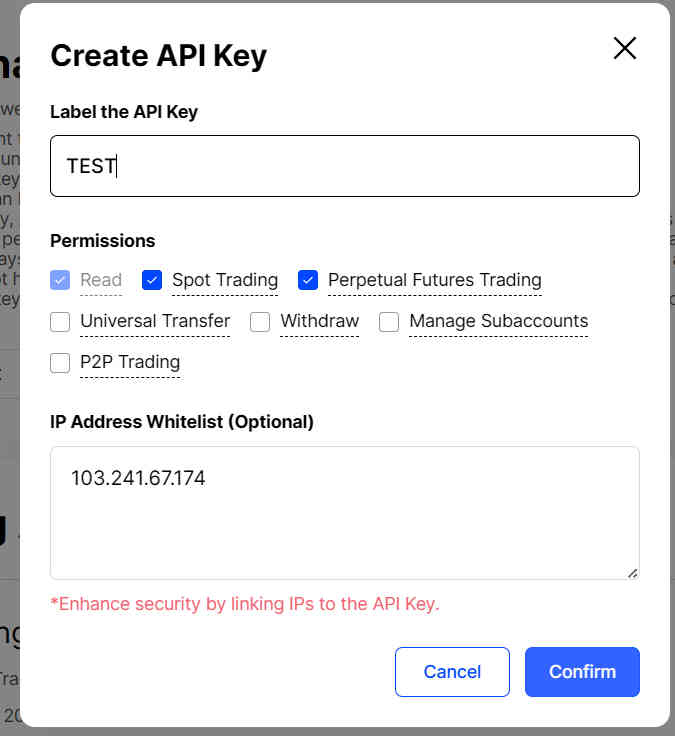
4. Set a label, for example `ALGOWAY`.
5. Enable the required permissions.
6. Add the AlgoWay IP address to the IP whitelist.
7. Complete BingX security verification.
8. Copy the API Key and Secret Key.
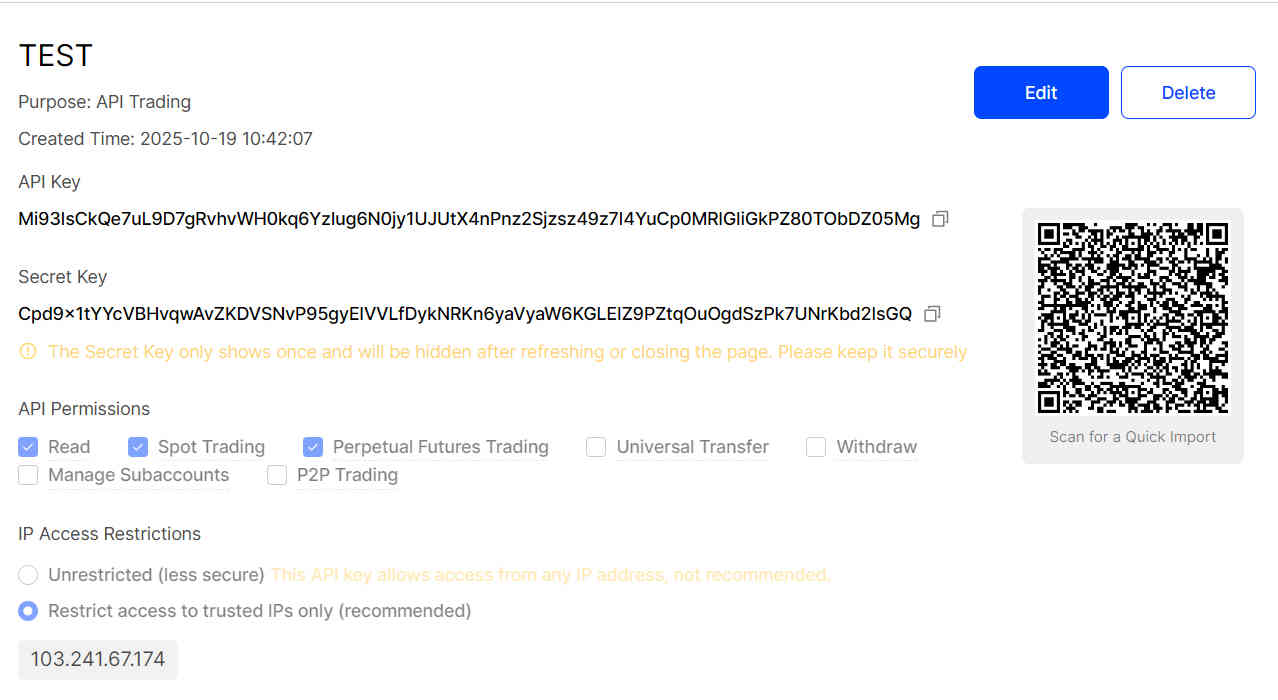
Create API Key >> enable Read and Perpetual Futures Trading. Spot Trading is optional if your route needs spot access.
### Recommended API Permissions
| Permission | Use it? | Reason |
|---------------------------|----------------------------|----------------------------------------------------------------|
| Read | Yes | Required for account, balance, symbol and order status checks. |
| Perpetual Futures Trading | Yes for futures automation | Required to place or manage BingX Perpetual Futures orders. |
| Spot Trading | Only if needed | Enable only if your AlgoWay route uses BingX Spot trading. |
| Withdraw | No | Not required for AlgoWay webhook trading automation. |
After creating the key, confirm that trading permissions and IP restriction are configured correctly.
**Do not enable Withdraw permission.** AlgoWay only needs the permissions required for trading automation and account/order checks.
## Step 2. Create a BingX Webhook in AlgoWay
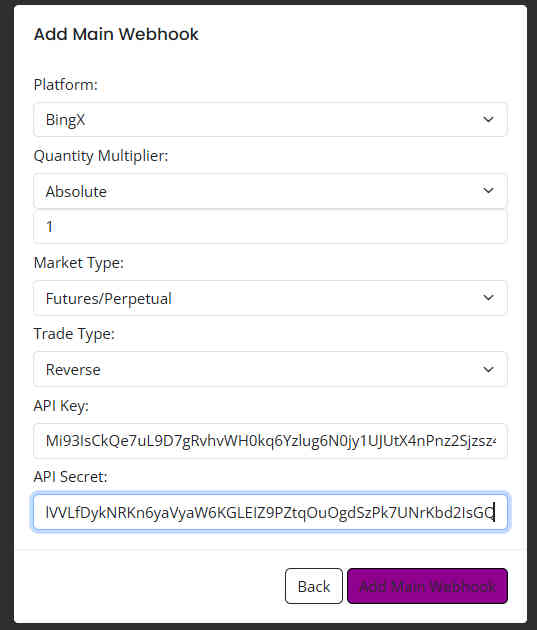
After the BingX API key is ready, create a BingX webhook in AlgoWay. This webhook will receive TradingView alerts and route them to BingX.
1. Open the **AlgoWay Dashboard**.
2. Click **Add Main Webhook** or create a trial webhook.
3. Select **TradingView** as the source.
4. Select **BingX** as the platform.
5. Choose the required market type, usually **Futures / Perpetual**.
6. Choose the required trade type, such as **Reverse**, if that is the strategy behavior you want.
7. Paste the BingX API Key and API Secret.
8. Save the webhook.
Set Platform to BingX, choose the market type, trade type and quantity logic, then paste the API credentials.
After saving the webhook, AlgoWay gives you a unique webhook URL. This URL is what TradingView will call when the alert is triggered.
``` text
https://algoway.co/your-webhook-uuid
```
**Do not publish your webhook URL.** Treat the UUID as a private execution endpoint.
## Step 3. Create a TradingView Alert for BingX
Open the TradingView chart for the instrument you want to automate. For BingX Perpetual Futures, make sure the TradingView symbol and BingX symbol are compatible or correctly mapped.
1. Open your TradingView chart.
2. Select the symbol and timeframe.
3. Open **Create Alert**.
4. Select your strategy, indicator or price condition.
5. Choose the alert frequency.
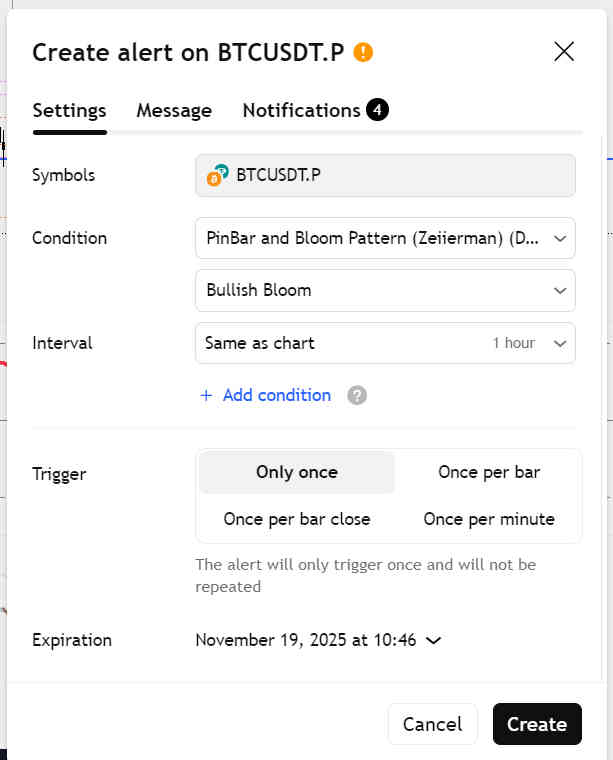
6. Paste the JSON message into the alert message box.
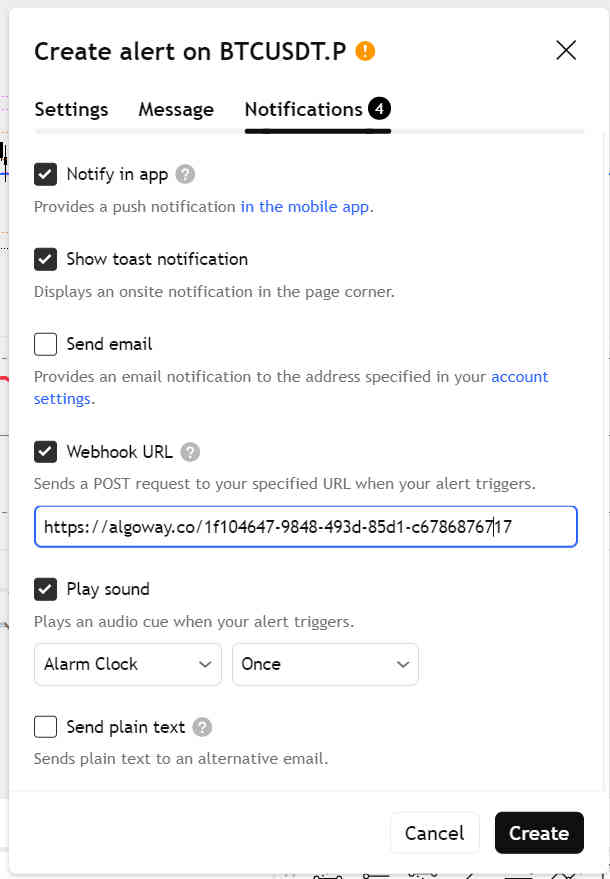
7. Open **Notifications**.
8. Enable **Webhook URL**.
9. Paste the AlgoWay webhook URL.
10. Save the alert.
Create the TradingView alert from the strategy, indicator or condition that should trigger BingX execution.The TradingView Webhook URL field is mandatory. Without it, the alert will not reach AlgoWay.
## Step 4. TradingView Webhook JSON for BingX
TradingView must send valid JSON. AlgoWay expects structured fields, not plain text.
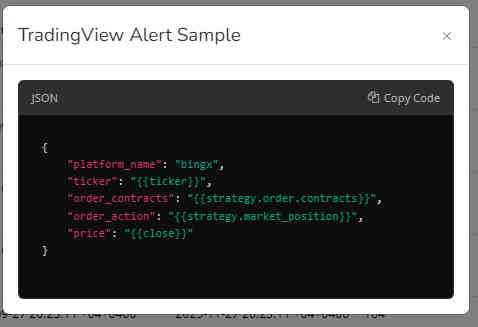
**Basic TradingView strategy alert JSON for BingX:**
``` text
{
"platform_name": "bingx",
"ticker": "{{ticker}}",
"order_contracts": "{{strategy.order.contracts}}",
"order_action": "{{strategy.market_position}}",
"price": "{{close}}"
}
```
TradingView replaces placeholders when the alert fires:
- `{{ticker}}` - chart ticker;
- `{{strategy.order.contracts}}` - strategy order size;
- `{{strategy.market_position}}` - strategy position state;
- `{{close}}` - close price at alert time.
You can copy the JSON template from AlgoWay and paste it into the TradingView alert message.
### Fixed Test JSON
For a controlled test, use a fixed symbol and small valid size:
``` text
{
"platform_name": "bingx",
"ticker": "BTCUSDT.P",
"order_contracts": 0.001,
"order_action": "buy"
}
```
Use the minimum valid quantity for the selected BingX market. If the order is rejected, check symbol format, quantity, margin, leverage and API permissions.
## Ticker Mapping for BingX Perpetual Futures
TradingView symbols and BingX symbols may not always match perfectly. For example, TradingView may use a perpetual futures symbol format such as `BTCUSDT.P`, while an exchange API may expect a different internal symbol format.
Before live trading, check:
- the exact symbol on the TradingView chart;
- the exact symbol accepted by BingX;
- the market type: Spot or Perpetual Futures;
- whether the contract is active and tradable;
- whether the AlgoWay route expects `ticker` from TradingView or a mapped value.
**Rule:** if the webhook is received but the order is not placed, symbol mismatch is one of the first things to check.
## Step 5. Test the BingX Webhook and Check Logs
Before using a live TradingView strategy, test the webhook with minimal size.
1. Create a small test alert or use AlgoWay's test webhook function.
2. Open **Webhook Logs** in AlgoWay.
3. Confirm the incoming JSON payload.
4. Confirm the outgoing order status.
5. Open BingX **Orders** or **Positions**.
6. Confirm that the action, symbol and size match your intended trade.
If the order does not appear, do not immediately change your strategy. First inspect the exact error in AlgoWay logs and BingX order response.
## Trade Type: Reverse, Hedge and Opposite Logic
Trade Type controls how AlgoWay handles direction and open position behavior. This is important for futures automation because the same incoming signal can be interpreted differently depending on your strategy design.
- **Reverse:** commonly used when the strategy should manage one net direction according to the latest signal logic.
- **Hedge:** used when long and short positions can exist separately, if the platform and account support it.
- **Opposite:** used when an opposite signal should close the current position and open the other side.
For a full explanation, read: [How AlgoWay handles opposite trading signals](https://algoway.trade/blog/algoway-modes-article.html).
## Common BingX Webhook Problems
### API Permission Missing
If **Perpetual Futures Trading** permission is not enabled, BingX can reject futures orders. Check API Management and update permissions if required.
### IP Whitelist Is Wrong
If the API key is restricted to the wrong IP address, AlgoWay cannot use the key. Make sure the BingX API whitelist contains the exact AlgoWay IP shown in your dashboard.
### Withdraw Permission Enabled
Withdraw permission is not required for AlgoWay. If it is enabled, create a safer API key with trading-only permissions.
### Wrong Market Type
A Spot symbol and a Perpetual Futures symbol are not the same market. Match the AlgoWay webhook market type with the BingX market you want to automate.
### Invalid JSON
TradingView must send valid JSON. Use double quotes, correct commas and supported field names. If the payload is plain text, the automation can fail before reaching BingX.
### Wrong Symbol Format
Check whether the TradingView ticker matches the BingX Perpetual Futures symbol expected by the route.
### Invalid Quantity
The order size must meet BingX minimum quantity and contract rules. Test with minimal valid size before using strategy size.
### Alert Fires Too Often
For bar-close strategies, use **Once per bar close** unless your logic intentionally needs intra-bar signals.
## Why Use AlgoWay Instead of Building a TradingView to BingX Bot?
You can build your own BingX automation system. That requires a public webhook server, JSON validation, API authentication, BingX order endpoint integration, position logic, error handling, logging, monitoring and ongoing maintenance.
AlgoWay gives traders a ready automation layer:
- TradingView webhook receiver;
- structured JSON workflow;
- BingX API credential routing;
- dashboard-based webhook setup;
- logs for payloads and execution responses;
- support for multiple platforms beyond BingX;
- trade modes and risk-aware execution logic.
This makes AlgoWay a no-code **TradingView to BingX webhook connector** for traders who want crypto futures automation without maintaining their own trading bot server.
## Related AlgoWay Guides
- [How to automate TradingView alerts to any broker with AlgoWay](https://algoway.trade/blog/automate-tradingview-alerts-to-any-broker-with-algoway.html)
- [How to create a webhook in TradingView](https://docs.algoway.trade/guide-to-creating-a-webhook-in-tradingview.html)
- [AlgoWay JSON schema guide](https://algoway.trade/blog/json-schema-guide.html)
- [How to fix AlgoWay webhook Error 415](https://algoway.trade/blog/algoway-415.html)
- [How to connect TradingView to Binance with AlgoWay](https://docs.algoway.trade/algoway-binance-integration-guide.html)
- [How to connect TradingView to Bybit with AlgoWay](https://docs.algoway.trade/algoway-bybit-integration-guide.html)
- [How to connect TradingView to Gate.io with AlgoWay](https://docs.algoway.trade/algoway-gateio-integration-guide.html)
- [How to copy TradingView alerts to multiple accounts](https://algoway.trade/blog/algoway-tradecopier-for-diversification-trading.html)
## Final Summary
To automate BingX with TradingView, create a restricted BingX API key, enable the required futures trading permission, create a BingX webhook in AlgoWay, add the AlgoWay webhook URL to TradingView, and send a valid JSON alert message.
**AlgoWay turns TradingView alerts into BingX Perpetual Futures webhook automation without forcing you to build and maintain your own crypto trading bot infrastructure.**
## Frequently Asked Questions
### Do I need a VPS or to keep my computer on for automated trading?
Absolutely not. AlgoWay is a cloud-based service with centralized signal processing and order routing. You do not need a VPS, an always-on computer, or a locally running trading app. Your TradingView alerts continue to work even when your computer is shut down.
## Related TradingView Integration Guides
Explore step-by-step webhook setup guides for other supported trading platforms.
- [Connect TradingView to Gate.io with webhook automation](https://docs.algoway.trade/algoway-gateio-integration-guide.html)
- [Connect TradingView to Hyperliquid with webhook automation](https://docs.algoway.trade/how-to-connect-tradingview-to-hyperliquid-via-algoway.html)
- [Connect TradingView to Coinbase with webhook automation](https://docs.algoway.trade/coinbase-api.html)
- [Connect TradingView to Bitget with webhook automation](https://docs.algoway.trade/bitget-api.html)
Published: May 12, 2026 Last updated: May 12, 2026
 **AlgoWay lets you connect TradingView alerts to BingX Perpetual Futures through webhook automation.** You create a BingX API key, enable the required trading permissions, restrict the API key to the AlgoWay IP address, create a BingX webhook in AlgoWay, paste the AlgoWay webhook URL into TradingView, and send a valid JSON alert message.
This guide shows the complete TradingView-to-BingX setup: creating a restricted API key, configuring a BingX webhook in AlgoWay, preparing the TradingView alert JSON, testing a small Perpetual Futures order and checking execution logs.
The execution route is:
``` text
TradingView alert -> AlgoWay webhook -> BingX API -> BingX Perpetual Futures order
```
TradingView creates the signal. AlgoWay receives and validates the webhook JSON. BingX receives the final trading command through the API key and permissions configured in AlgoWay.
Last updated: 2026-05-12 • Author: AlgoWay
**Contents**
- [Quick answer](https://docs.algoway.trade/bingx-api.html#quick-answer)
- [Why automate BingX with TradingView alerts?](https://docs.algoway.trade/bingx-api.html#why-bingx)
- [Prerequisites](https://docs.algoway.trade/bingx-api.html#prerequisites)
- [Create BingX API key](https://docs.algoway.trade/bingx-api.html#api-key)
- [Create BingX webhook in AlgoWay](https://docs.algoway.trade/bingx-api.html#algoway-webhook)
- [Create TradingView alert](https://docs.algoway.trade/bingx-api.html#tradingview-alert)
- [TradingView JSON message](https://docs.algoway.trade/bingx-api.html#json)
- [Testing and logs](https://docs.algoway.trade/bingx-api.html#logs)
- [Common problems](https://docs.algoway.trade/bingx-api.html#problems)
## Quick Answer: TradingView to BingX with AlgoWay
To automate BingX from TradingView, you need:
1. a BingX account with Perpetual Futures enabled;
2. a BingX API key with Read and Perpetual Futures Trading permissions;
3. IP restriction set to the AlgoWay IP address shown in your dashboard;
4. an AlgoWay BingX webhook;
5. a TradingView alert with the AlgoWay webhook URL and valid JSON message.
After setup, one TradingView alert can become an automated BingX Perpetual Futures order through AlgoWay.
## Why Automate BingX with TradingView Alerts?
TradingView is often used for strategy design, Pine Script, indicators, backtesting and alert logic. BingX is used for crypto spot and derivatives trading, especially Perpetual Futures. AlgoWay connects these two parts with a webhook pipeline.
This is useful when you want to:
- turn TradingView strategy alerts into BingX orders;
- automate BTCUSDT, ETHUSDT or other BingX Perpetual Futures workflows;
- use one AlgoWay dashboard for multiple exchanges and brokers;
- avoid maintaining your own webhook server and BingX API client;
- track received alerts, execution status and errors in logs;
- run a no-code TradingView to BingX trading bot workflow.
AlgoWay does not create a profitable strategy by itself. It automates the execution route after your TradingView strategy, indicator or manual alert sends the command.
## Prerequisites
Prepare these items before creating the BingX webhook:
- BingX account with Perpetual Futures enabled;
- AlgoWay account with access to the Webhooks dashboard;
- TradingView alert source: strategy, indicator or manual condition;
- TradingView plan that supports webhook alerts;
- AlgoWay IP address from your dashboard;
- clear decision about demo/testing vs live trading size;
- valid AlgoWay JSON message for the selected BingX route.
**Security note:** restrict the BingX API key to the AlgoWay IP address provided in your dashboard. Do not enable Withdraw permission for AlgoWay.
## Step 1. Create a BingX API Key
Open **API Management** in BingX and create a dedicated API key for AlgoWay. Use a clear label such as `ALGOWAY` or `ALGOWAY-BINGX` so you can identify this integration later.
1. Log in to BingX.
2. Open **API Management**.
3. Click **Create API Key**.
4. Set a label, for example `ALGOWAY`.
5. Enable the required permissions.
6. Add the AlgoWay IP address to the IP whitelist.
7. Complete BingX security verification.
8. Copy the API Key and Secret Key.