[Original HTML page](https://docs.algoway.trade/algoway-toobit-integration-guide.html)
datePublished: 2026-10-01
dateModified: 2026-10-15
# **How to Connect TradingView Alerts to Toobit with AlgoWay Webhook Automation**
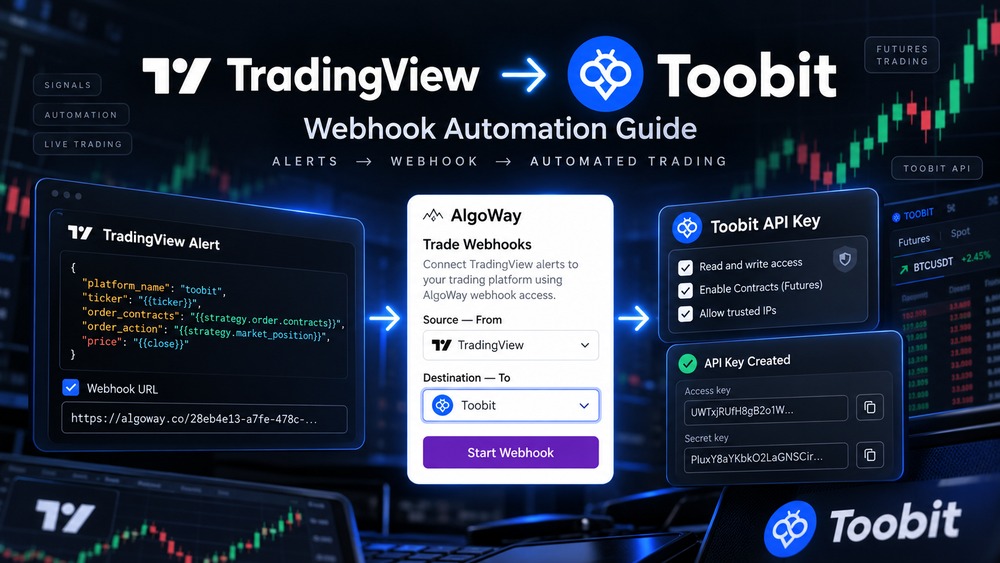 **This guide shows how to connect TradingView alerts to Toobit through AlgoWay.** The setup uses a standard Toobit API key with Contracts permission, an AlgoWay Toobit webhook, and a TradingView alert containing valid AlgoWay JSON.
You do not need to build or host your own Toobit trading bot. TradingView generates the signal, AlgoWay receives the webhook and applies the selected trading logic, and Toobit executes the order on the connected Futures account.
The basic route is:
``` text
TradingView alert -> AlgoWay webhook -> Toobit Futures account
```
This manual covers the complete setup: creating the Toobit API key, securing it with the AlgoWay server IP, creating the webhook from the AlgoWay Store, configuring the connection, finding the webhook and JSON examples in **Trade Webhooks**, creating the TradingView alert, and choosing between Hedge, Reverse, Opposite and Inverse execution modes.
## Before You Start
Prepare the following before creating the connection:
- an active Toobit account;
- access to Toobit API Management;
- any security checks required by your Toobit account;
- an AlgoWay account;
- a TradingView strategy, indicator, or alert condition;
- the AlgoWay server IP shown in your dashboard for the Toobit API allowlist.
The current AlgoWay Toobit integration shown in this guide is for **Futures/Perpetual** trading. In the Toobit API screen, enable **Contracts**. Spot permission is not required for the standard AlgoWay Toobit Futures route.
## Step 1. Open Toobit API Management and Create a New API Key
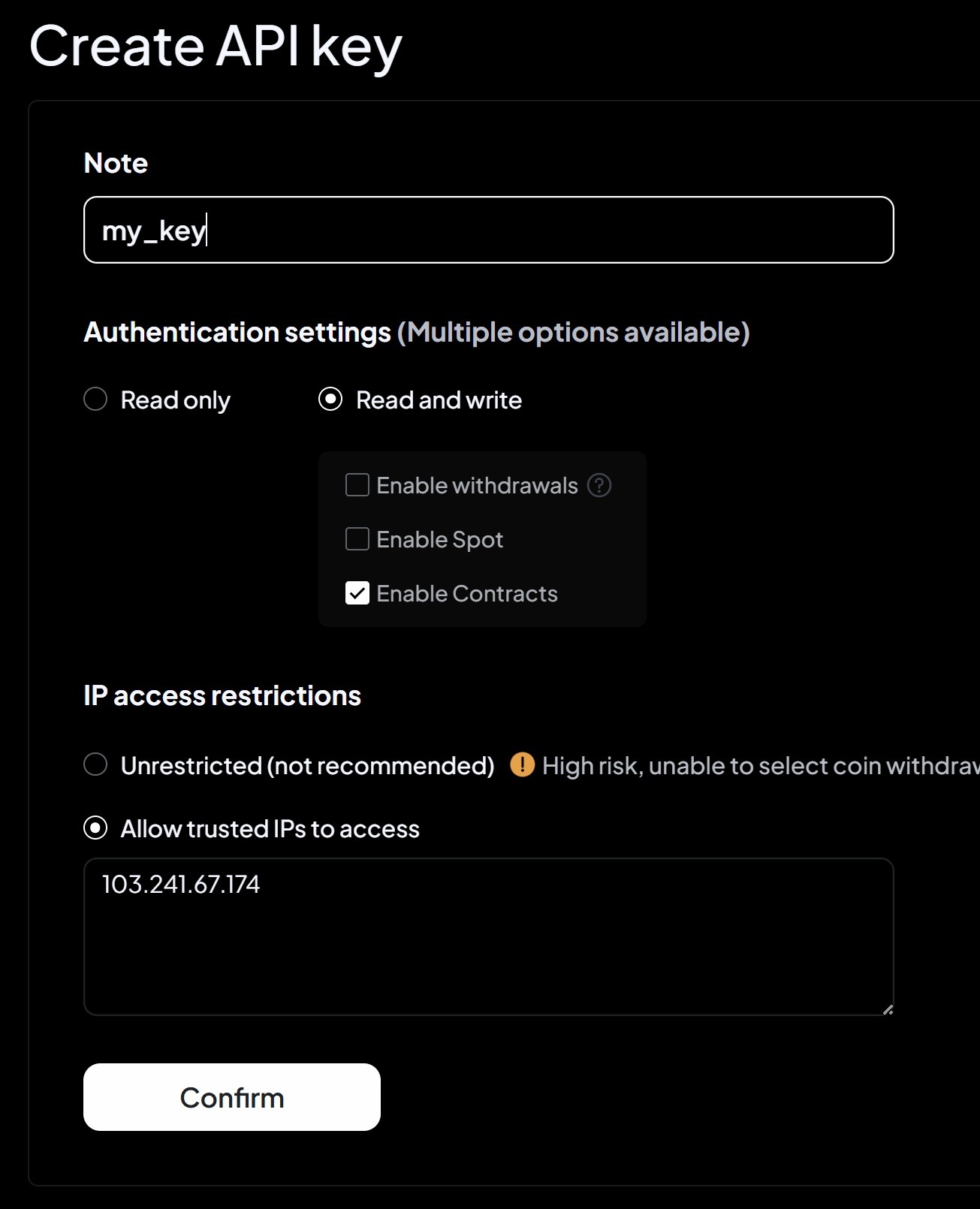
Log in to Toobit and open **API Management**. Click **Create API key**.
For the AlgoWay connection, fill in the form as follows:
- **Note:** use a clear name such as `algoway` or `my_key`;
- **Authentication settings:** select **Read and write**;
- **Enable Spot:** not required for the Futures connection in this guide;
- **Enable Contracts:** enable it;
- **Enable withdrawals:** leave disabled;
- **IP access restrictions:** choose **Allow trusted IPs to access**;
- **Trusted IP list:** enter the AlgoWay server IP shown in your dashboard.
In the screenshot below, the AlgoWay server IP is `103.241.67.174`. Always use the IP currently shown in your own AlgoWay dashboard in case the infrastructure changes later.
 ## Step 2. Save the Toobit Access Key and Secret Key
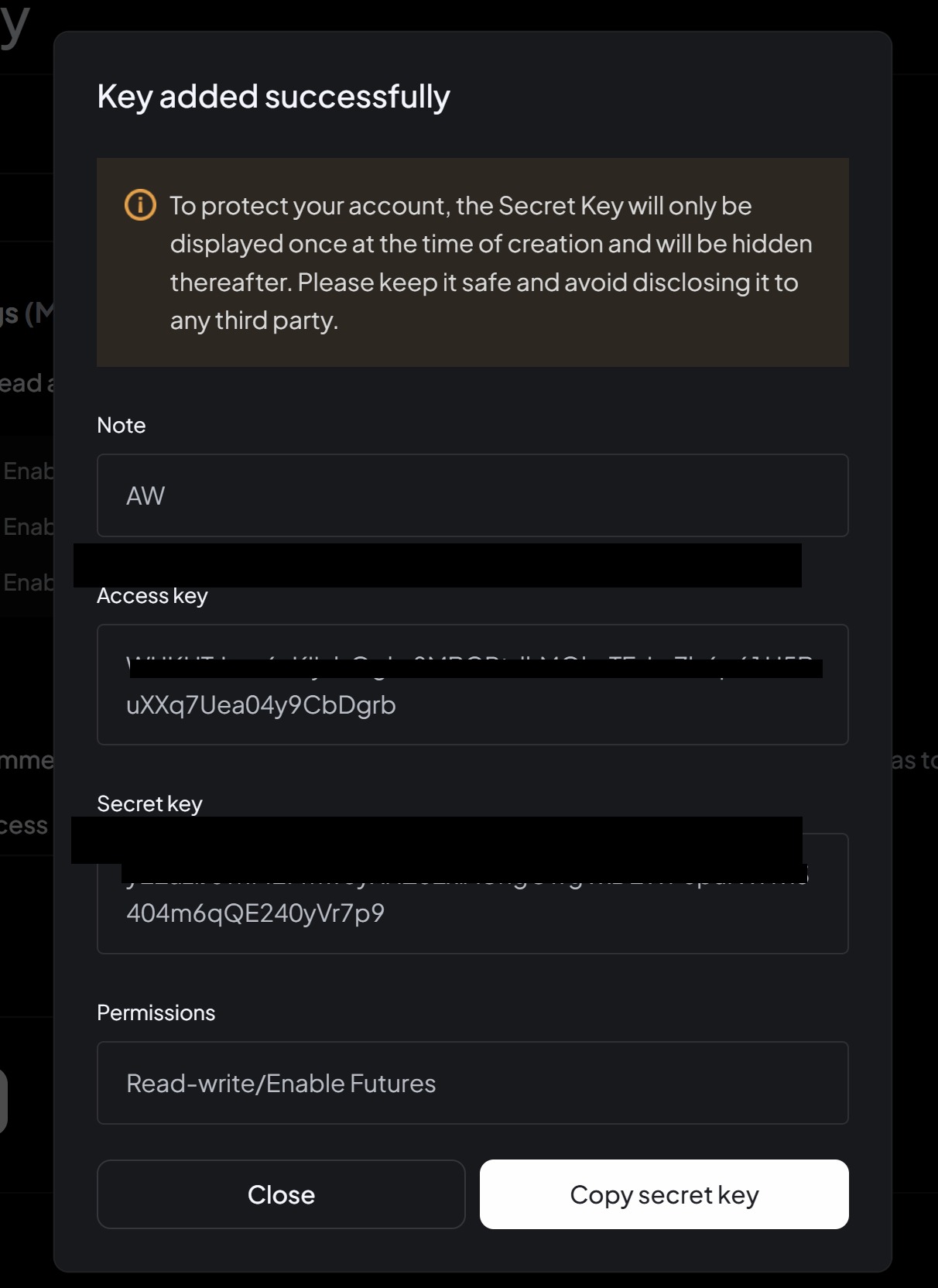
After the API is created, Toobit displays the new **Access key** and **Secret key**. Save them immediately.
AlgoWay needs the following values:
- **API Key** (the Toobit Access key)
- **API Secret** (the Toobit Secret key)
**The Secret key is shown only once at creation time.** If you close the window without saving it, create a new Toobit API key.
 ## Step 3. Create the TradingView to Toobit Webhook from the AlgoWay Store
AlgoWay lets you create the connection directly from the **Store** page.
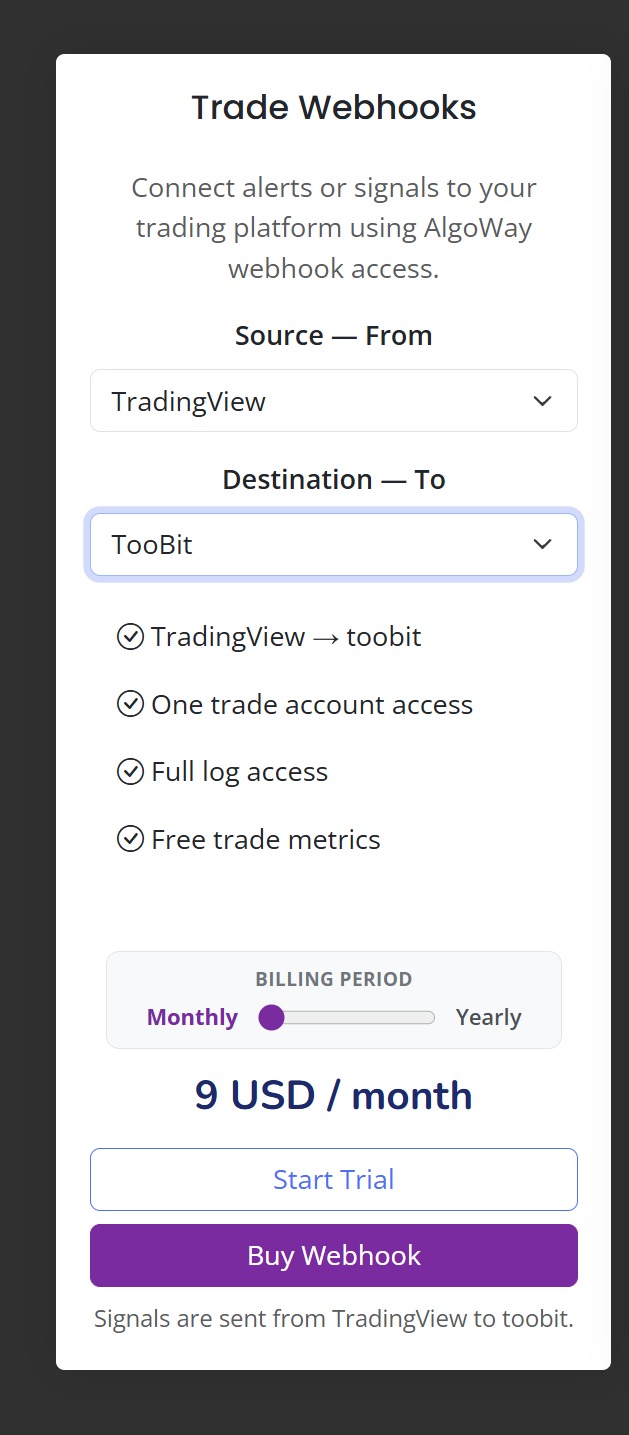
1. Open **Trade Webhooks** or the webhook store page in AlgoWay.
2. Under **Source - From**, select **TradingView**.
3. Under **Destination - To**, select **TooBit**.
4. Choose **Start Trial** or **Buy Webhook**.
After the webhook is created, the connection appears in the left-side **Trade Webhooks** section of the AlgoWay dashboard.
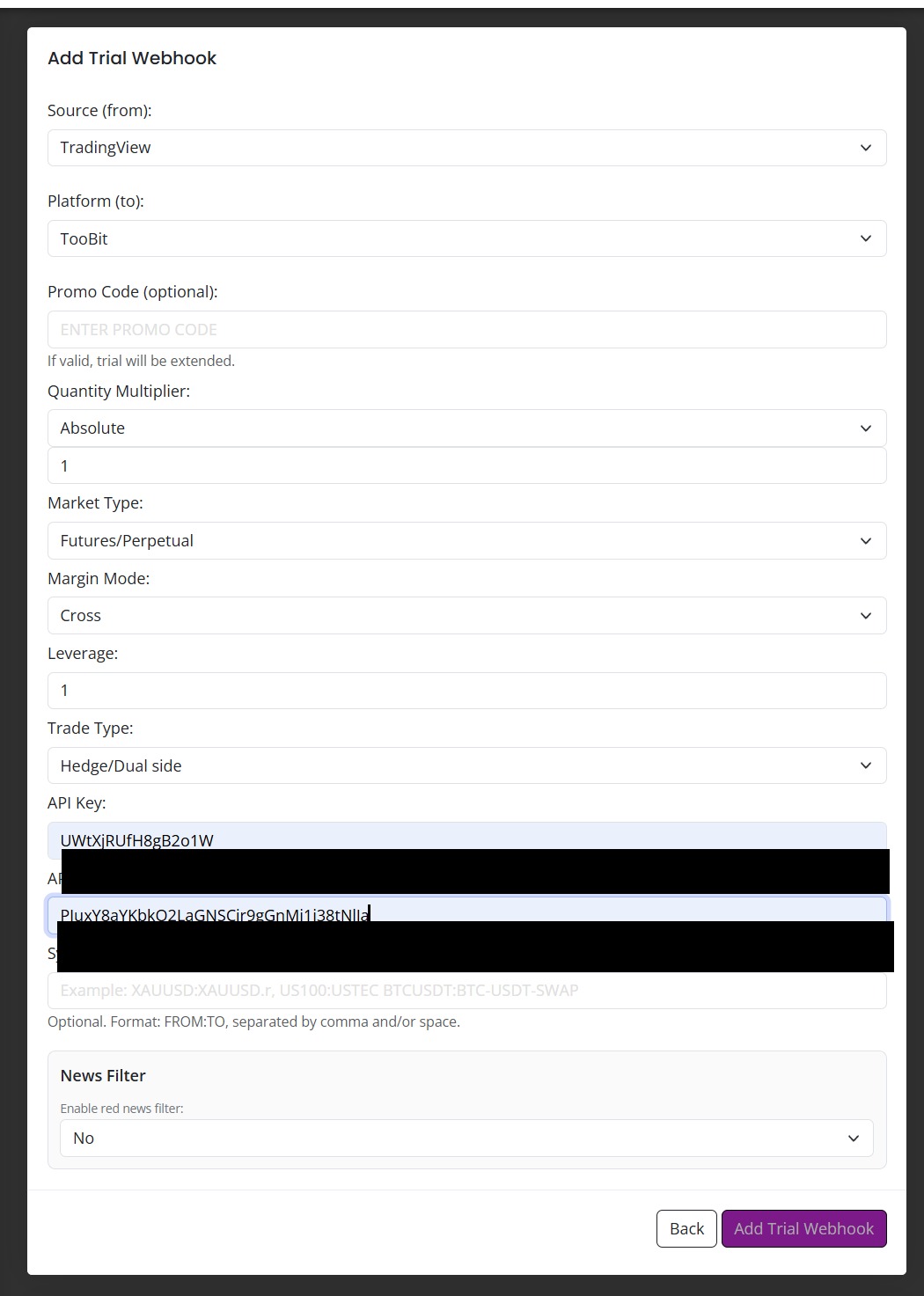
 ## Step 4. Configure the Toobit Connection in AlgoWay
Open the new Toobit webhook and fill in the connection settings.
Main Toobit fields:
- **Source:** TradingView
- **Platform:** TooBit / Toobit
- **Quantity Multiplier:** Absolute for direct quantity routing
- **Market Type:** Futures/Perpetual
- **Margin Mode:** Cross or Isolated
- **Leverage:** any positive integer supported by the selected Toobit contract
- **Trade Type:** Hedge/Dual side, Reverse, Opposite, or Inverse depending on your preferred execution logic
- **API Key:** paste the Toobit Access key
- **API Secret:** paste the Toobit Secret key
- **Symbol Mapping:** optional, used when a TradingView ticker needs to be translated to a different Toobit symbol
- **News Filter:** optional, used only if you want the webhook to ignore red-news periods
The **Margin Mode** selected here is used by the Toobit connection. You do not need to send Cross or Isolated in every TradingView JSON message.
The **Leverage** saved here is the default leverage. A different leverage can also be sent in a specific TradingView alert when needed.
 ## Step 5. Find the Toobit Webhook and JSON Examples in Trade Webhooks
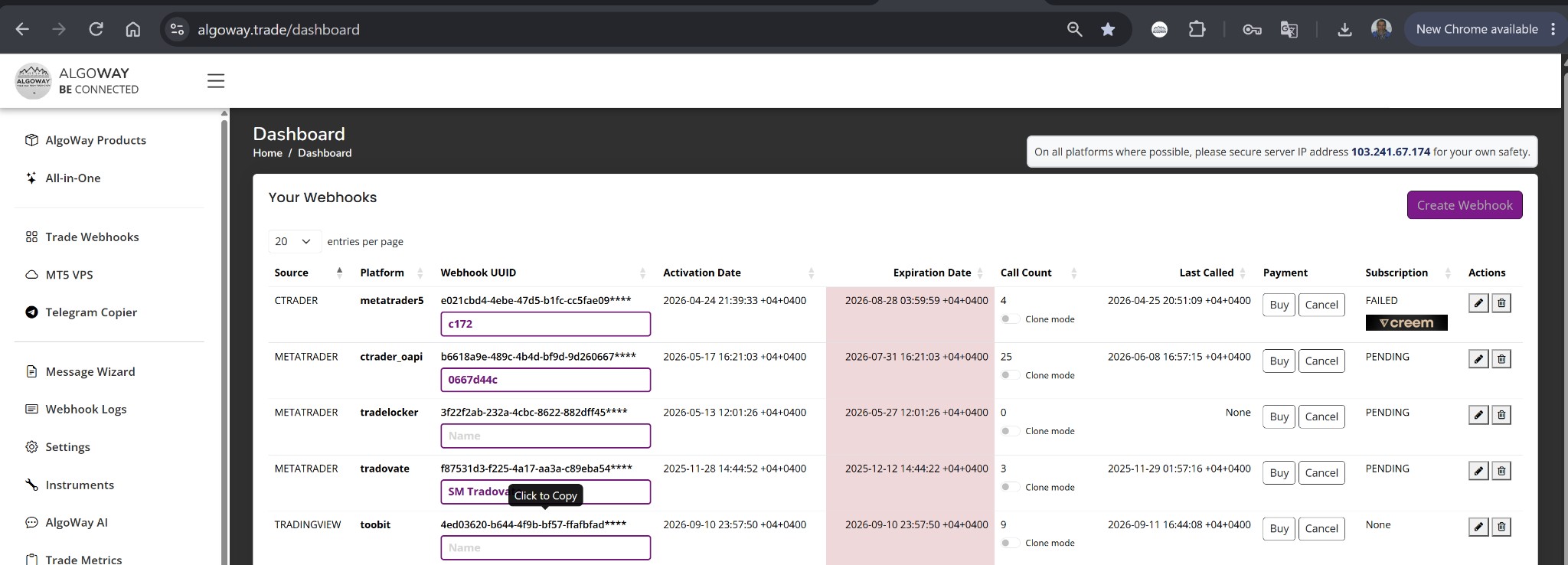
After the connection is saved, open **Trade Webhooks** from the AlgoWay left menu.
Your Toobit row contains the unique webhook UUID used by TradingView. The webhook editor also provides JSON examples that you can use as a starting point for TradingView alerts.
 ## Step 6. Create the TradingView Alert Message
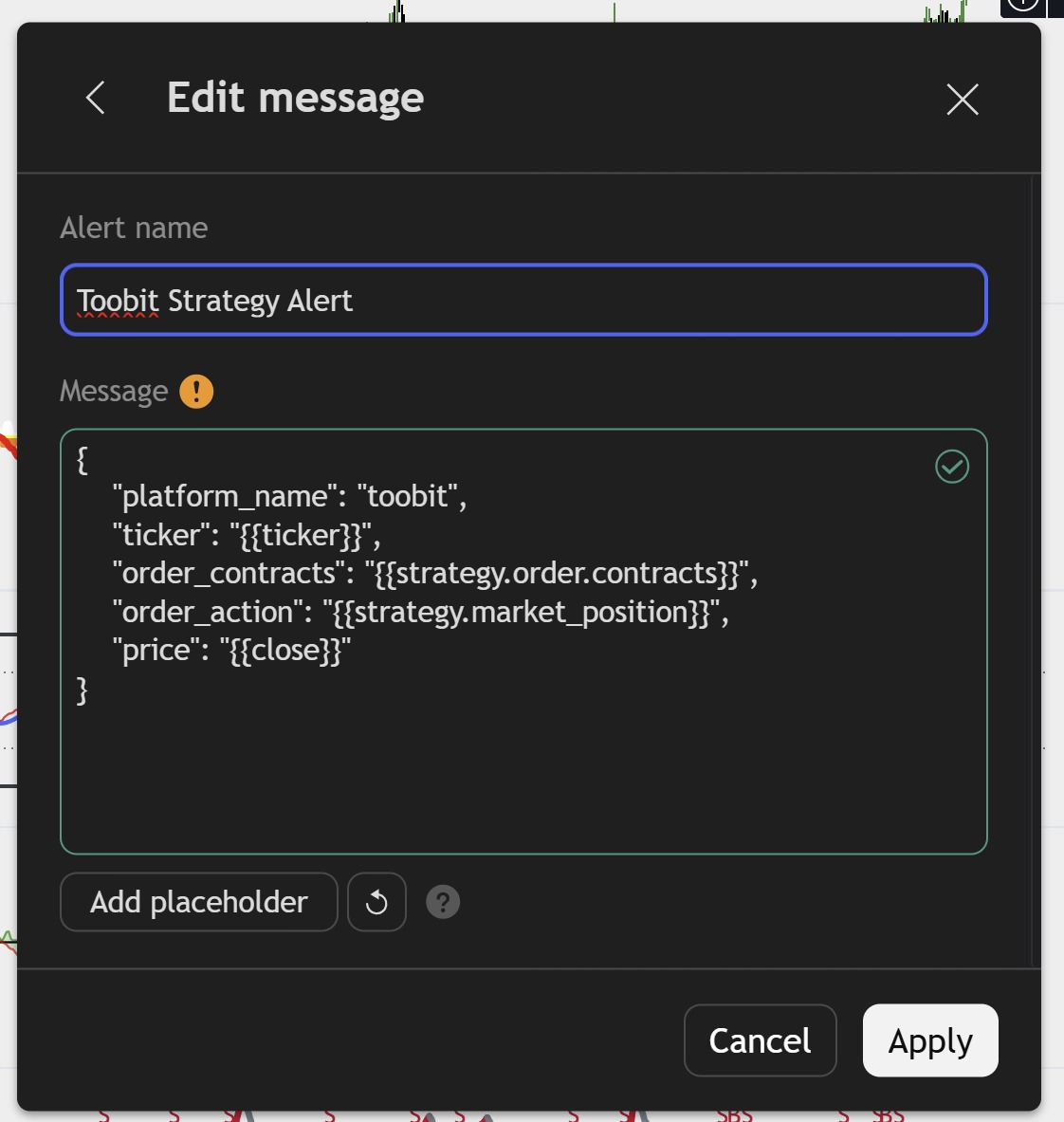
If you use a TradingView strategy, open the alert and place a valid AlgoWay JSON message in the **Message** field.
A basic Toobit strategy alert can use TradingView placeholders:
``` text
{"platform_name":"toobit","ticker":"{{ticker}}","order_contracts":"{{strategy.order.contracts}}","order_action":"{{strategy.market_position}}","price":"{{close}}"}
```
TradingView replaces the placeholders when the alert fires:
- `{{ticker}}` - chart ticker;
- `{{strategy.order.contracts}}` - strategy order size;
- `{{strategy.market_position}}` - strategy direction;
- `{{close}}` - current close price.
You can also include `trade_type` directly in the JSON. When it is present, that signal uses the specified mode.
 ## Step 7. Add the AlgoWay Webhook URL to TradingView
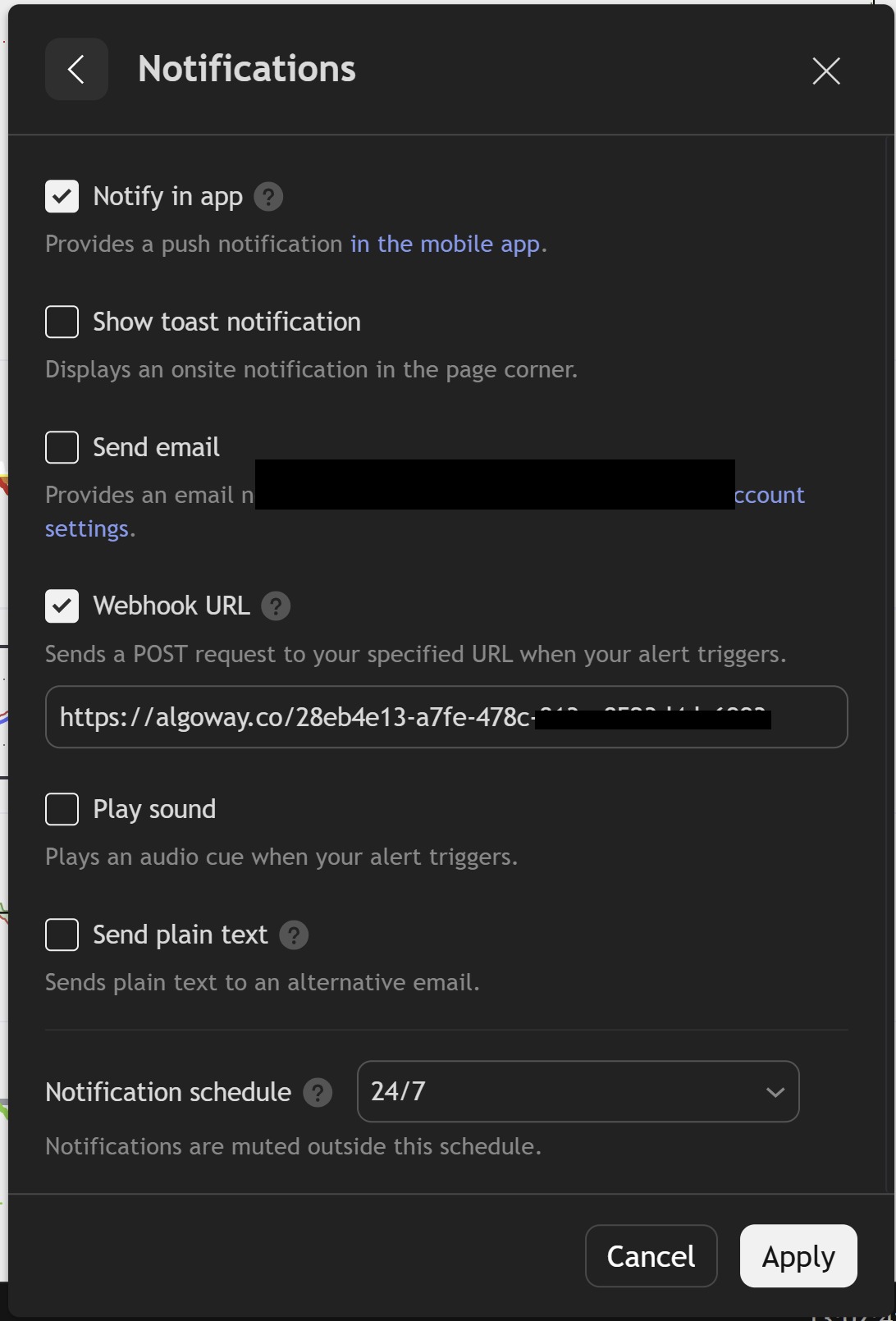
In the TradingView alert window, open **Notifications**, enable **Webhook URL**, and paste the unique AlgoWay Toobit webhook URL from **Trade Webhooks**.
Click **Apply** and save the alert. When the TradingView condition triggers, TradingView sends the JSON message to AlgoWay and AlgoWay routes the command to the connected Toobit account.
 ## Toobit Trading Modes in AlgoWay
The Toobit integration can work with four trading modes: **Hedge**, **Reverse**, **Opposite** and **Inverse**. The default mode can be selected in the Toobit connection settings and can also be passed directly in JSON with `trade_type`.
### Hedge / Dual Side Mode
**Hedge** keeps LONG and SHORT positions independent. A `buy` signal opens or increases LONG. A `sell` signal opens or increases SHORT.
Open or increase LONG:
``` text
{"platform_name":"toobit","ticker":"ARBUSDT.P","order_contracts":2,"order_action":"buy","trade_type":"hedge"}
```
Open or increase SHORT:
``` text
{"platform_name":"toobit","ticker":"ARBUSDT.P","order_contracts":2,"order_action":"sell","trade_type":"hedge"}
```
To close a specific side in Hedge mode, use `flat` together with `close_side`.
Close 1 contract from LONG:
``` text
{"platform_name":"toobit","ticker":"ARBUSDT.P","order_contracts":1,"order_action":"flat","trade_type":"hedge","close_side":"long"}
```
Close 50% of the current LONG position:
``` text
{"platform_name":"toobit","ticker":"ARBUSDT.P","order_contracts":50,"order_action":"flat","trade_type":"hedge","close_side":"long","order_size_type":"position_percent"}
```
### Reverse Mode
**Reverse** uses netting logic. An opposite signal first reduces the existing position. If the new size is equal to the current position, the position is closed. If the new size is larger, AlgoWay closes the old position and opens the remaining difference in the new direction.
Example: LONG 3 is open and SELL 2 arrives:
``` text
{"platform_name":"toobit","ticker":"ARBUSDT.P","order_contracts":2,"order_action":"sell","trade_type":"reverse"}
```
The result is LONG 1.
If LONG 3 is open and SELL 5 arrives:
``` text
{"platform_name":"toobit","ticker":"ARBUSDT.P","order_contracts":5,"order_action":"sell","trade_type":"reverse"}
```
The LONG 3 is closed and SHORT 2 is opened.
### Opposite Mode
**Opposite** fully closes the current position and then opens a new position using exactly the size of the new signal. The size of the existing position does not change the size of the new entry.
Example:
``` text
{"platform_name":"toobit","ticker":"ARBUSDT.P","order_contracts":2,"order_action":"buy","trade_type":"opposite"}
```
If the next signal is:
``` text
{"platform_name":"toobit","ticker":"ARBUSDT.P","order_contracts":1,"order_action":"sell","trade_type":"opposite"}
```
AlgoWay fully closes the existing position and opens SHORT 1.
`flat` is not used with Opposite mode. For a complete close, use `closeall`.
### Inverse Mode
**Inverse** reverses the direction of the incoming signal first and then applies Reverse logic.
A `buy` signal is executed as `sell`. A `sell` signal is executed as `buy`.
This signal:
``` text
{"platform_name":"toobit","ticker":"ARBUSDT.P","order_contracts":2,"order_action":"buy","trade_type":"inverse"}
```
opens SHORT 2 from a flat state.
This signal:
``` text
{"platform_name":"toobit","ticker":"ARBUSDT.P","order_contracts":2,"order_action":"sell","trade_type":"inverse"}
```
opens LONG 2 from a flat state.
`flat` and `closeall` are not inverted.
## Close All Toobit Positions for a Symbol
To fully close all open positions for the specified symbol and remove its pending orders, use `closeall`:
``` text
{"platform_name":"toobit","ticker":"ARBUSDT.P","order_contracts":0,"order_action":"closeall","trade_type":"hedge"}
```
`closeall` does not depend on `order_contracts`. The trading mode does not change the close-all operation.
## Buy / Sell and Long / Short
Toobit alerts can use either `buy` / `sell` or `long` / `short`.
``` text
{"platform_name":"toobit","ticker":"ARBUSDT.P","order_contracts":2,"order_action":"long","trade_type":"hedge"}
```
## Market Orders with Stop Loss and Take Profit
If `order_type` is not specified, the signal uses normal market execution.
Absolute Stop Loss and Take Profit prices:
``` text
{"platform_name":"toobit","ticker":"ARBUSDT.P","order_contracts":2,"order_action":"buy","trade_type":"hedge","sl_price":0.105,"tp_price":0.13}
```
Stop Loss and Take Profit in percent:
``` text
{"platform_name":"toobit","ticker":"ARBUSDT.P","order_contracts":2,"order_action":"buy","trade_type":"hedge","stop_loss":1,"take_profit":2,"sltp_type":"percent"}
```
Stop Loss and Take Profit in pips:
``` text
{"platform_name":"toobit","ticker":"ARBUSDT.P","order_contracts":2,"order_action":"buy","trade_type":"hedge","stop_loss":100,"take_profit":200,"sltp_type":"pips"}
```
## Toobit Limit Orders
For a Limit order, set `order_type` to `limit`. The `price` field is required.
``` text
{"platform_name":"toobit","ticker":"ARBUSDT.P","order_contracts":2,"order_action":"buy","trade_type":"hedge","order_type":"limit","price":0.09}
```
A Limit order can also include Stop Loss and Take Profit:
``` text
{"platform_name":"toobit","ticker":"ARBUSDT.P","order_contracts":2,"order_action":"buy","trade_type":"hedge","order_type":"limit","price":0.09,"stop_loss":1,"take_profit":2,"sltp_type":"percent"}
```
## Toobit Stop Entry Orders
For a conditional Stop entry, set `order_type` to `stop`. The `price` field is required.
``` text
{"platform_name":"toobit","ticker":"ARBUSDT.P","order_contracts":2,"order_action":"buy","trade_type":"hedge","order_type":"stop","price":0.14}
```
## Position Size as a Percentage of Account Equity
With `order_size_type` set to `balance_percent`, `order_contracts` becomes a percentage of account equity.
``` text
{"platform_name":"toobit","ticker":"ARBUSDT.P","order_contracts":1,"order_action":"buy","trade_type":"hedge","order_size_type":"balance_percent"}
```
In this example, `1` means 1% of account equity.
## Risk-Based Position Sizing
With `order_size_type` set to `risk_percent`, AlgoWay calculates the position size from the selected percentage of equity and the distance to the Stop Loss.
``` text
{"platform_name":"toobit","ticker":"ARBUSDT.P","order_contracts":0.5,"order_action":"buy","trade_type":"hedge","order_size_type":"risk_percent","stop_loss":2,"sltp_type":"percent"}
```
Here, `0.5` means a target risk of 0.5% of equity with a Stop Loss 2% away.
## Leverage
The leverage saved in the Toobit connection is used by default. You can override it for a specific signal by adding `leverage`:
``` text
{"platform_name":"toobit","ticker":"ARBUSDT.P","order_contracts":2,"order_action":"buy","trade_type":"hedge","leverage":5}
```
If `leverage` is not present in the alert, AlgoWay uses the leverage configured in the Toobit webhook.
## Cross and Isolated Margin
Choose **Cross** or **Isolated** in the Toobit connection settings. You do not need to send `mgn_mode` in TradingView JSON.
AlgoWay checks the current Toobit margin configuration and applies the webhook setting when possible. If changing the margin configuration would be unsafe because the symbol already has an open position or pending order, the operation is blocked instead of forcing a risky account-mode change.
## Trailing Stop
If your current Toobit handler version does not explicitly support trailing stops, do not add `trailing_pips` to Toobit alerts. Use fixed Stop Loss and Take Profit values unless your live Toobit setup confirms trailing-stop support.
## Supported Toobit Automation Features
The standard AlgoWay Toobit connection supports or is designed for:
- Market orders;
- Limit orders;
- Stop entry orders;
- Stop Loss and Take Profit;
- absolute-price SL/TP;
- percentage SL/TP;
- pips-based SL/TP;
- per-signal leverage;
- balance-percent position sizing;
- risk-percent position sizing;
- position-percent closing;
- Hedge mode;
- Reverse mode;
- Opposite mode;
- Inverse mode;
- Close All.
## Symbol Mapping
If the ticker sent by TradingView is different from the symbol expected by Toobit, use the optional **Symbol Mapping** field in the Toobit webhook.
Example:
``` text
BTCUSDT.P:BTCUSDT
```
This lets the TradingView alert keep using its chart ticker while AlgoWay sends the mapped symbol to Toobit.
## Common Toobit Connection Problems
### API Key or Secret Is Incorrect
Both values must belong to the same Toobit API key. If the secret key was copied incorrectly, create a new API key and save the new values again.
### Contracts Permission Is Missing
A read-only API key cannot place Futures orders. Edit or recreate the API key with **Read and write** access and **Enable Contracts** selected.
### AlgoWay IP Is Missing from the Toobit Allowlist
If the API key is restricted by trusted IPs, the AlgoWay server IP shown in your dashboard must be included in the Toobit API configuration.
### The API Was Just Created or Modified
After a new API key is created or edited, wait a short time and test again if the first request is rejected even though the settings are correct.
### TradingView JSON Is Invalid
The alert message must be valid JSON. Use double quotes and make sure the commas and brackets are correct.
### Wrong Trading Mode
Check the `trade_type` in the alert and the default Trade Type selected in the Toobit webhook. Hedge, Reverse, Opposite and Inverse intentionally produce different behavior when an opposite signal arrives.
### Limit or Stop Order Has No Price
Both `limit` and `stop` entry orders require the `price` field.
## Related AlgoWay Guides
- [How to create a webhook in TradingView](https://docs.algoway.trade/guide-to-creating-a-webhook-in-tradingview.html)
- [TradingView webhook alerts and automation basics](https://algoway.trade/blog/tradingview-free-webhook-alerts.html)
- [AlgoWay JSON schema for automated trading webhooks](https://algoway.trade/blog/json-schema-guide.html)
- [How to fix TradingView webhook Error 415](https://algoway.trade/blog/algoway-415.html)
- [TradingView to Binance webhook automation](https://docs.algoway.trade/algoway-binance-integration-guide.html)
- [TradingView to Bybit webhook automation](https://docs.algoway.trade/algoway-bybit-integration-guide.html)
- [AlgoWay webhook pricing guide](https://algoway.trade/blog/webhook-pricing-on-algoway-a-detailed-pricing-guide.html)
## Key Takeaway
To connect TradingView to Toobit, create a Toobit API key with read-write and Contracts permission, allow the AlgoWay server IP, save the API Key and Secret Key, create the TradingView-to-Toobit webhook from the AlgoWay Store, configure the Toobit connection, and paste the webhook URL and JSON message into TradingView.
## Frequently Asked Questions
### Do I need a VPS or to keep my computer on for automated trading?
Absolutely not. AlgoWay is a cloud-based service with centralized signal processing and order routing. You do not need a VPS, an always-on computer, or a locally running trading app. Your TradingView alerts continue to work even when your computer is shut down.
## Related TradingView Integration Guides
Explore step-by-step webhook setup guides for other supported trading platforms.
- [Connect TradingView to WEEX with webhook automation](https://docs.algoway.trade/algoway-weex-integration-guide.html)
- [Connect TradingView to Coinbase with webhook automation](https://docs.algoway.trade/coinbase-api.html)
- [Connect TradingView to Kraken with webhook automation](https://docs.algoway.trade/how-to-connect-tradingview-to-kraken.html)
- [Connect TradingView to Gate.io with webhook automation](https://docs.algoway.trade/algoway-gateio-integration-guide.html)
Published: October 1, 2026 Last updated: October 15, 2026