[Original HTML page](https://docs.algoway.trade/algoway-free-alerts-chrome-extension-guide.html)
datePublished: 2026-10-24
dateModified: 2026-10-26
# **TradingView Indicator to Webhook: No-Code Chrome Extension Guide**
**Indicator to Webhook** lets the AlgoWay Chrome extension detect trading signals from compatible TradingView indicator labels and lines, then send Entry, Stop Loss and Take Profit commands through an AlgoWay webhook. You do not need to edit Pine Script or configure TradingView's paid native webhook field for this mode.
**Free Alerts** is a separate mode for forwarding existing TradingView alert messages through Chrome. Both modes require an open TradingView chart tab. They do not guarantee uninterrupted monitoring when the browser is closed or inactive.
This guide covers the updated **Indicator to Webhook**, **Alert Log** and **Free Alerts** interface using actual extension screenshots. Start with a demo account and verify the execution result in AlgoWay and the destination platform before trading live.
Last updated: October 26, 2026 · Product: TradingView Webhook Free \| AlgoWay
**Contents**
- [How the extension works](https://docs.algoway.trade/algoway-free-alerts-chrome-extension-guide.html#overview)
- [What you need](https://docs.algoway.trade/algoway-free-alerts-chrome-extension-guide.html#before-you-start)
- [1. Install and connect](https://docs.algoway.trade/algoway-free-alerts-chrome-extension-guide.html#install)
- [2. Create the AlgoWay webhook](https://docs.algoway.trade/algoway-free-alerts-chrome-extension-guide.html#webhook)
- [3. Indicator to Webhook setup](https://docs.algoway.trade/algoway-free-alerts-chrome-extension-guide.html#indicator-to-webhook)
- [4. Understand monitor and trade status](https://docs.algoway.trade/algoway-free-alerts-chrome-extension-guide.html#trade-status)
- [5. Verify commands in Alert Log](https://docs.algoway.trade/algoway-free-alerts-chrome-extension-guide.html#alert-log)
- [6. Free Alerts setup](https://docs.algoway.trade/algoway-free-alerts-chrome-extension-guide.html#free-alerts)
- [Browser and trade-safety limitations](https://docs.algoway.trade/algoway-free-alerts-chrome-extension-guide.html#safety)
- [Troubleshooting](https://docs.algoway.trade/algoway-free-alerts-chrome-extension-guide.html#troubleshooting)
## How Indicator to Webhook and Free Alerts Work
| Feature | Indicator to Webhook | Free Alerts |
|--------------|-----------------------------------------------------------------------------------------------------------------------------------------------------------|---------------------------------------------------------------------------|
| Source | Detectable Entry / SL / TP levels from one compatible TradingView indicator. | Existing TradingView alert messages received in the open chart tab. |
| Sending | Creates trade commands for ENTRY, SL, take-profit events and optional breakeven management. | Forwards a triggered TradingView alert to the configured AlgoWay webhook. |
| Activation | Dedicated **ON/OFF** switch in Indicator to Webhook. | Separate **ON/OFF** switch in Free Alerts. |
| Relationship | **Independent modes:** Free Alerts can remain OFF while Indicator to Webhook is ON, and vice versa. The third tab, **Alert Log**, displays sent commands. | |
The path is **TradingView chart \>\> Chrome extension \>\> AlgoWay webhook \>\> configured destination**. The extension does not replace the broker connection or confirm a completed fill by itself.
## Before You Start
- Google Chrome with the AlgoWay Free Alerts extension installed.
- An open TradingView chart.
- An AlgoWay account, a configured destination platform and a webhook route created for **ChromeExtension**.
- For Indicator to Webhook, an indicator on the chart that exposes a readable trading setup. Not every indicator can supply reliable Entry, SL and TP information.
- A demo account or safe test environment and access to **Webhook Logs** on AlgoWay.
**Important:** a test message or an automatically detected entry can send a real trading command. Make sure the target account is a demo account before you test.
## Step 1. Install and Connect the Chrome Extension
1. Install TradingView Webhook Free | AlgoWay from the Chrome Web Store.
2. Open a TradingView chart in Chrome, select the correct symbol and timeframe, and leave that tab open.
3. Click the Chrome Extensions icon and open **AlgoWay Free Alerts**. Pinning the extension makes it easier to access.
4. The popup has three tabs, in order: **Indicator to Webhook**, **Alert Log** and **Free Alerts**.
5. Configure the appropriate mode below. Automatic connection is supported for open TradingView tabs; if data does not appear, see troubleshooting.
Neither mode requires you to paste a TradingView-native webhook notification URL into every alert. The extension sends the webhook from Chrome instead.
## Step 2. Create Your AlgoWay Webhook URL
1. Sign in to [AlgoWay](https://algoway.trade/) and open your webhook configuration.
2. Create an alert/webhook route using **ChromeExtension** as the source, and configure the account or trading platform that should receive the commands.
3. Copy the route's unique webhook URL. It follows the format `https://algoway.co/[your-webhook-uuid]`.
4. For indicator automation, paste it into **AlgoWay webhook URL** in Indicator to Webhook. For forwarding existing alert messages, use **Webhook UUID URL Here** in Free Alerts.
Use only the address generated for your account. A webhook URL can authorize trading commands and must not be shared publicly. Screenshots are UI examples, not webhook addresses to reuse.
## Step 3. Automate a TradingView Indicator Without Code
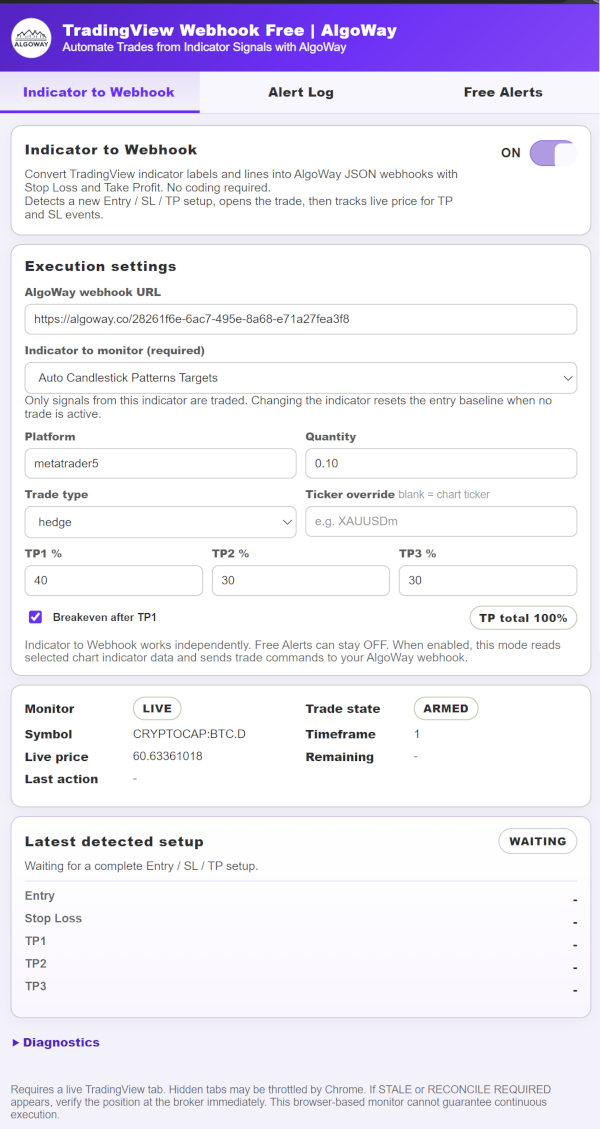
Screenshot 1. Indicator to Webhook — indicator selection, execution settings, live monitoring and detected Entry / SL / TP setup.
Indicator to Webhook watches for a new complete setup from **one selected compatible indicator**. It waits for bar confirmation, then uses the browser's live chart information for subsequent trade management.
1. Open the TradingView chart containing the indicator you want to use.
2. In the popup open **Indicator to Webhook** and choose **Indicator to monitor (required)**. The selector discovers readable indicators even when monitoring is OFF.
3. Paste or confirm the AlgoWay webhook URL, then fill in **Platform**, **Quantity** and **Trade type**.
4. Use **Ticker override** if the broker symbol differs from the chart symbol. If blank, the chart symbol is used.
5. Set **TP1 %**, **TP2 %** and **TP3 %** to distribute the position size. The displayed total must equal **100%**.
6. Enable **Breakeven after TP1** if you want the extension to request a stop adjustment after the first take profit.
7. After verifying the settings and demo destination, switch **Indicator to Webhook** to **ON**.
| Setting | What it controls |
|----------------------|-----------------------------------------------------------------------------------------------------------------------------------------|
| Indicator to monitor | The only study from which Indicator to Webhook will process trading setups. Select an indicator with reliable signals and price levels. |
| Platform | The destination identifier used in the generated webhook JSON, for example `metatrader5`. |
| Quantity | Initial trading size. Units depend on the destination platform; verify lot size or contract size before trading. |
| Trade type | The AlgoWay position-handling mode, such as `hedge`. Match it to your account and intended behavior. |
| Ticker override | Explicit destination symbol; useful when TradingView's ticker does not match the broker symbol. |
| TP1 / TP2 / TP3 % | Percentages of the original position to close at the successive profit targets. For example `40 / 30 / 30`. |
| Breakeven after TP1 | Requests a stop-loss move to breakeven after the TP1 event; actual handling depends on destination support and confirmation. |
**How the first scan works:** setups already present when Indicator to Webhook is enabled are treated as history. A newly confirmed setup is needed before an ENTRY command is generated; switching ON is not itself a trade signal. Switching indicators while no trade is active resets this entry baseline.
## Step 4. Read Monitor Status and the Latest Setup
The live panel separates the chart data from the current trade state:
| Indicator | Meaning |
|---------------------------|---------------------------------------------------------------------------------------------------------------------|
| **Monitor LIVE** | Fresh TradingView snapshots are reaching the extension. This does not guarantee that every broker order was filled. |
| **Starting / WAIT** | The monitor is not yet receiving sufficient chart data. |
| **Trade state ARMED** | Monitoring is enabled and waiting for a new trade setup. |
| **Trade state OPEN** | The extension is tracking an active trade; verify the corresponding position in the destination platform. |
| **Last action** | The most recent action handled by the monitor, for example ENTRY. |
| **Remaining** | The size remaining according to the monitor's local trade state. |
| **Latest detected setup** | Direction, Entry, Stop Loss and TP1/TP2/TP3 values reported or reconstructed from the selected indicator. |
The example screenshot shows **Auto Candlestick Patterns Targets** selected and **WAITING** for a complete Entry / SL / TP setup; it does not show an active trade.
Expand **Diagnostics** to inspect execution events, detected studies and recent chart changes when monitoring is not behaving as expected.
## Step 5. Read the Alert Log and Verify Execution
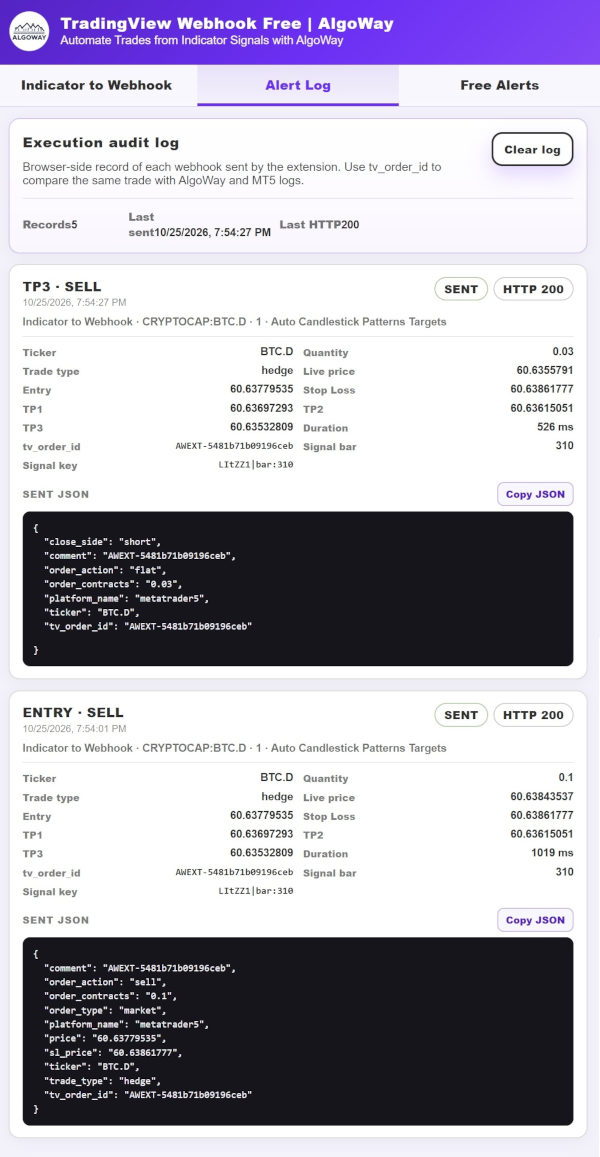
Screenshot 2. Alert Log — sent webhook records for ENTRY and take-profit events, with HTTP status and JSON payload.
Open **Alert Log** to inspect individual deliveries from both Free Alerts and Indicator to Webhook. For each record, check the action (**ENTRY**, **SL** or another event), direction, timestamp, ticker, quantity, price levels, HTTP status, duration and `tv_order_id`.
**Copy JSON** copies the request payload for support and comparison with the AlgoWay Webhook Logs. **Clear log** removes the browser's local audit history; it does not cancel or close a broker position.
The screenshot shows an ENTRY SELL and a later TP3 SELL event for the same `tv_order_id`. That shared identifier lets you correlate events for the tracked trade. The audit shows what the browser submitted and the returned HTTP status; always verify order execution at the destination.
## Step 6. Use Free Alerts to Forward Existing TradingView Alerts
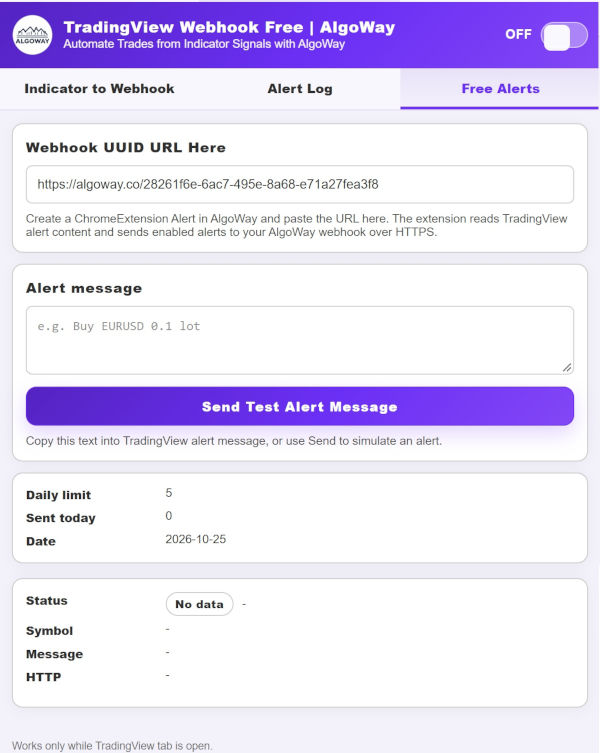
Screenshot 3. Free Alerts — webhook address, optional test message, daily limit and delivery status.
**Free Alerts is separate from Indicator to Webhook.** This mode forwards existing TradingView alert messages; it does not detect an Entry / SL / TP setup from an indicator on its own.
1. Open the **Free Alerts** tab and paste the AlgoWay webhook URL.
2. In TradingView, create an alert for the symbol or indicator condition you want to forward. Configure the alert's **Message** field with the trading instruction expected by your ChromeExtension route.
3. Turn the extension's main Free Alerts switch to **ON**. The chart must remain open for the extension to receive the alert event.
4. When the TradingView alert fires, check **Status**, **Symbol**, **Message** and **HTTP** in the popup.
### Test a Message Without Waiting for an Alert
The **Alert message** field on this screen is a manual test input. Enter a message supported by your route and click **Send Test Alert Message**. This sends the message directly to the webhook even if the automatic Free Alerts switch is OFF. It is not necessary to copy every live TradingView alert into this field.
Successful delivery is shown with an HTTP response. An HTTP `200` confirms a successful HTTP response from the webhook endpoint, **not necessarily a completed broker order**. Confirm execution in AlgoWay Webhook Logs and the destination platform.
**Free alert limit:** this version includes a daily cap of **5 sent Free Alerts**, including messages sent with the manual test button. Indicator to Webhook has separate processing logic.
## Browser Operation and Trading Safety
**Keep the TradingView tab open.** Indicator to Webhook reads chart data in the browser; it is not a continuously running server-side risk engine. Chrome may slow timers in hidden or background tabs, and the computer, browser or network can disconnect.
**STALE** means snapshots are no longer fresh (the configured threshold in this version is about five seconds). **RECONCILE REQUIRED** means the outcome of a command is uncertain. In either case, check the actual open position and orders at the broker immediately; do not assume SL/TP/BE management is continuing normally.
On initial entry Indicator to Webhook includes the detected `sl_price` in its webhook JSON where available. Browser-managed take-profit events and breakeven requests are still dependent on ongoing chart data and successful delivery. Do not rely exclusively on the browser for risk protection.
Updating the extension normally attempts to reconnect to already open charts. If the popup shows **RELOAD REQUIRED**, reload the TradingView tab before depending on further automatic processing. Reloading or reinstalling the extension does not prove that existing broker positions are synchronized with local state.
## Troubleshooting
| Problem | What to check |
|-----------------------------------------|----------------------------------------------------------------------------------------------------------------------------------------------------------------------|
| Indicator selector is empty | Open the chart tab in the foreground, confirm the indicator is loaded and wait for discovery. Some indicators do not expose readable study data. |
| Monitor stays at Starting | Confirm the TradingView chart is open, the correct tab is active and the bridge is connected. Check Diagnostics and reconnect/reload the chart only if necessary. |
| Monitor is LIVE but setup stays WAITING | The selected indicator has not produced a new complete setup after baseline synchronization. Existing setups are ignored to avoid historical entries. |
| Wrong symbol or quantity | Verify Platform, Quantity and Ticker override, plus the destination platform's instrument rules. |
| Free Alerts shows No data | Confirm the Free Alerts switch is ON and that a new TradingView alert actually fired. For manual testing, use Send Test Alert Message. |
| HTTP FAIL or unexpected status | Check URL, destination connection, AlgoWay Webhook Logs and broker logs. An HTTP error does not always prove that no execution occurred; reconcile before resending. |
| STALE or RECONCILE REQUIRED | Verify the position directly in the destination platform before making further changes or attempting recovery. |
| Free Alerts stops sending | Confirm the tab is open, the daily free limit has not been reached and the extension is enabled. |
For an alternative that uses email instead of Chrome-based indicator detection, read [Free TradingView Webhook Alerts Without a Paid Plan](https://algoway.trade/blog/tradingview-free-webhook-alerts.html).
See also [TradingView webhook setup](https://docs.algoway.trade/guide-to-creating-a-webhook-in-tradingview.html), [AlgoWay JSON reference](https://docs.algoway.trade/json-schema-guide.html), and [TradingView to MetaTrader 5](https://docs.algoway.trade/setting-up-access-for-tradingview-to-metatrader-5.html).
## Final Checklist
Before connecting live funds, confirm the Chrome extension is installed, TradingView is open, the ChromeExtension webhook points to the intended destination, the correct indicator and quantity are selected, TP allocations total 100%, and both entry and exit commands have been tested on a demo account. Monitor execution status in the extension, AlgoWay and your broker.
Published: October 24, 2026 Last updated: October 26, 2026