[Original HTML page](https://docs.algoway.trade/algoway-bybit-integration-guide.html)
datePublished: 2026-05-12T00:00:00+00:00
dateModified: 2026-09-24T00:00:00+04:00
# **How to Connect TradingView Alerts to Bybit with AlgoWay Webhook Automation**
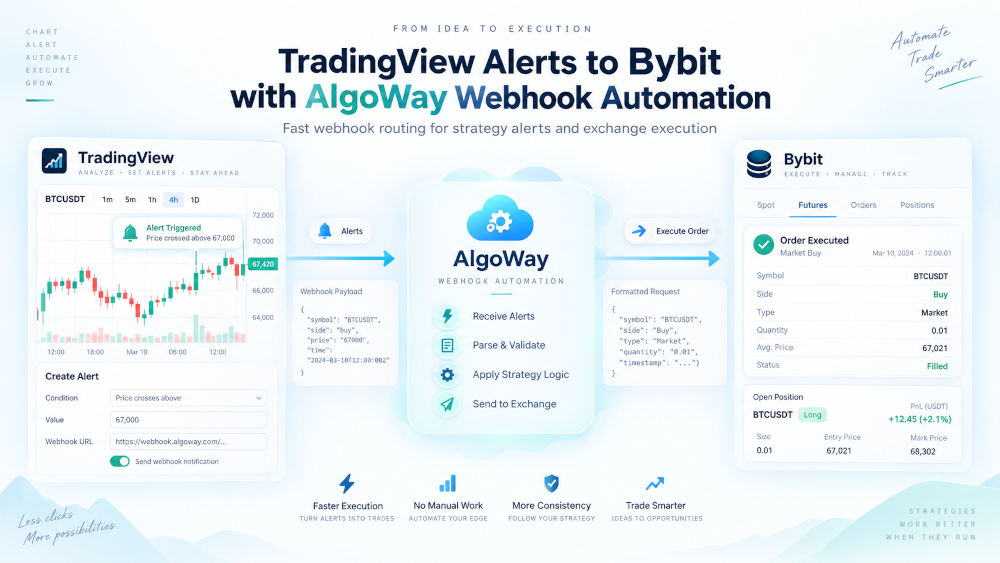 **AlgoWay shows you how to connect TradingView alerts to Bybit through webhook automation.** You create a Bybit webhook in AlgoWay, add your Bybit API key and secret, configure the required trading permissions, paste the AlgoWay webhook URL into TradingView, and send a structured JSON alert message.
This guide shows how to build a **TradingView to Bybit webhook** for automated crypto trading, Bybit Perpetual/Futures execution, Spot routing where enabled, and strategy alert automation without writing or hosting your own Bybit trading bot.
The basic route is:
``` text
TradingView alert -> AlgoWay webhook -> Bybit API -> Bybit order
```
This guide covers the complete TradingView-to-Bybit workflow, including API key creation, AlgoWay webhook setup, JSON alert configuration, testing and common execution problems.
## What AlgoWay Does in a Bybit Automation Setup
TradingView is the signal source. Bybit is the execution destination. AlgoWay is the webhook automation layer between them.
AlgoWay helps you:
- receive TradingView webhook alerts in real time;
- validate incoming JSON before routing the command;
- send the order to the selected Bybit webhook;
- work with Bybit Perpetual/Futures or Spot routes according to your webhook configuration;
- use TradingView strategy placeholders such as ticker, order size, market position, and close price;
- check received alerts and Bybit responses in AlgoWay logs;
- avoid maintaining your own webhook server and Bybit API client.
AlgoWay does not invent a trading strategy and does not promise profit. It turns a valid TradingView alert into a routed execution command for the Bybit account connected by the user.
## TradingView to Bybit: How the Webhook Flow Works
A TradingView alert can send a webhook request to an external URL. AlgoWay provides that URL for your Bybit webhook. When the alert fires, TradingView sends the JSON message, AlgoWay reads it, and the command is routed to Bybit through your API credentials.
1. **TradingView** triggers an alert from a strategy, indicator, or manual condition.
2. **TradingView webhook** sends the alert body to the AlgoWay webhook URL.
3. **AlgoWay** checks the JSON fields and selects the Bybit integration.
4. **Bybit** receives the API request for the selected market and account mode.
5. **AlgoWay logs** show what was received and how the execution route responded.
This makes AlgoWay a no-code **TradingView to Bybit connector** for traders who want automation without writing backend code.
## Before You Start
Prepare these items before creating the Bybit webhook:
- an active AlgoWay account;
- a Bybit account with API key access;
- a decision about market type: Perpetual/Futures or Spot;
- the required Bybit account mode, such as Unified Trading Account if your setup uses it;
- the required position mode, such as one-way or hedge mode;
- a TradingView alert source: strategy, indicator, or manual alert;
- a valid AlgoWay JSON message for the TradingView alert.
If this is a new strategy, begin with test size and confirm the full route before using meaningful volume.
## Step 1. Select System-Generated API Keys in Bybit
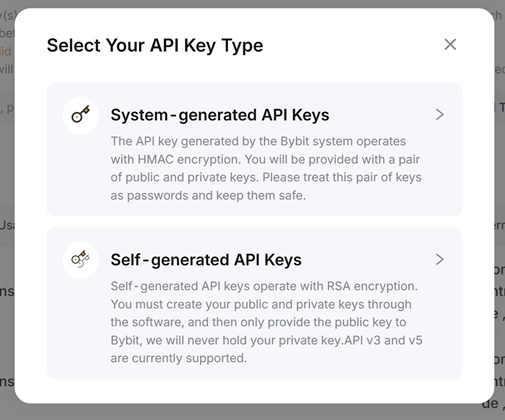
Start from the Bybit API management page and create a new API key. When Bybit asks for the API key type, select **System-generated API Keys**.
**Do not select Self-generated API Keys for this AlgoWay setup.** AlgoWay uses the standard Bybit **API Key** and **API Secret** pair.
 ## Step 2. Create a Dedicated Bybit API Key for AlgoWay
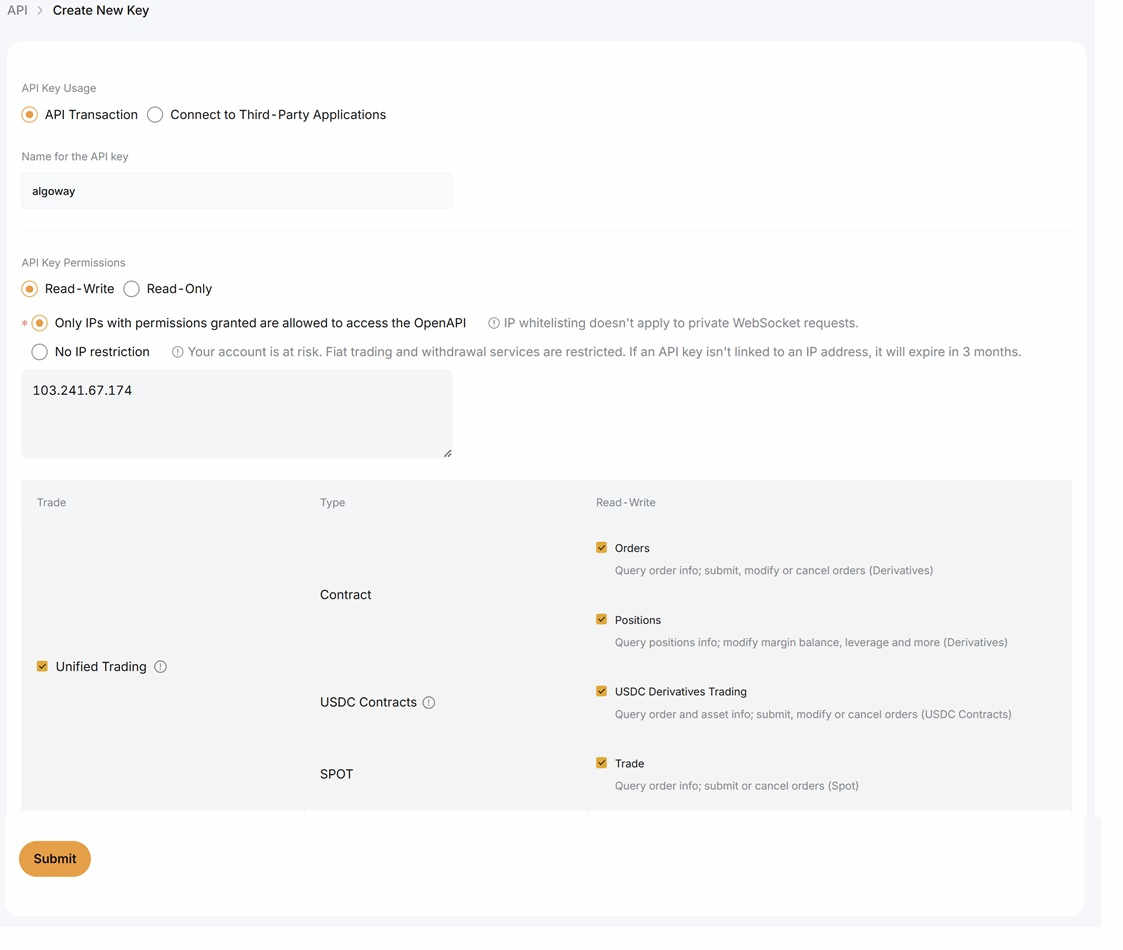
Create a dedicated API key for AlgoWay. A dedicated key makes the automation easier to audit, rotate, disable, or replace later.
1. Select **API Transaction**.
2. Enter a clear name, for example `algoway`.
3. Select **Read-Write**.
4. Select **Only IPs with permissions granted are allowed to access the OpenAPI**.
5. Enter the AlgoWay IP address shown in your AlgoWay dashboard.
Enable only the trading permissions required for your selected route:
- **Orders** — required to place and manage orders.
- **Positions** — required for position checks and management.
- **Trade** — required for trading actions.
- **Unified Trading** — required if you use Bybit Unified Trading Account features.
- **USDC Derivatives Trading** — required only if your setup uses USDC derivatives.
- **SPOT** — required only if you also plan to route spot orders.
After selecting the required permissions, click **Submit**.
 ## Step 3. Complete Security Verification and Save the API Secret
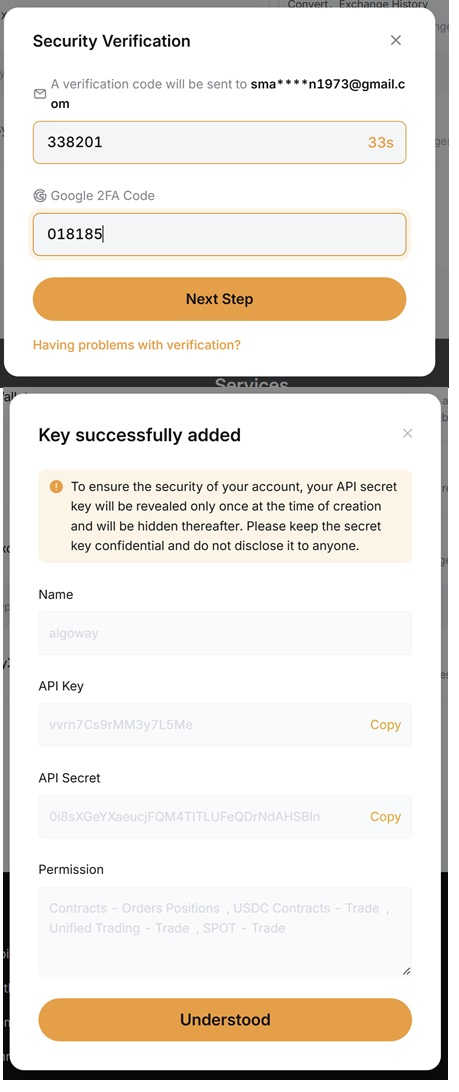
Bybit will ask for security verification. Complete the email verification and Google 2FA confirmation if required.
After the key is created, Bybit shows the **API Key** and **API Secret**. Copy both values immediately.
**The API Secret is shown only during key creation.** If you close the window without saving it, create a new key and update the AlgoWay webhook.
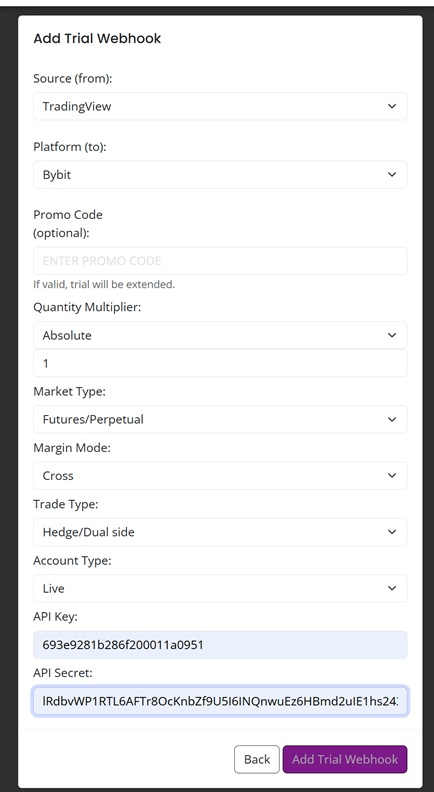
 ## Step 4. Add the Bybit Webhook in AlgoWay
After the API key is ready, log in to AlgoWay and create a Bybit webhook. This webhook receives TradingView alerts and sends the command to Bybit according to your settings.
1. Log in to your AlgoWay dashboard.
2. Click **Add Trial Webhook** or **Add Main Webhook**.
3. Select the webhook type.
4. Choose TradingView as the signal source.
5. Choose Bybit as the execution platform.
6. Fill in the Bybit webhook form.
Main Bybit webhook fields:
- **Source:** TradingView
- **Platform:** Bybit
- **Quantity Multiplier:** Absolute, unless your strategy uses another sizing model
- **Market Type:** Futures/Perpetual or the market type available for your route
- **Margin Mode:** Cross or Isolated
- **Trade Type:** Hedge/Dual side or one-way mode, according to your Bybit setup
- **Account Type:** Live or the available mode used by your integration
- **API Key:** paste your Bybit API key
- **API Secret:** paste your Bybit API secret
After saving, AlgoWay creates your Bybit webhook and shows the webhook URL in the dashboard.
 ## Step 5. Test the Bybit Webhook Before TradingView
Before connecting a live TradingView alert, test the Bybit webhook from AlgoWay. This confirms that the API key, IP restriction, permissions, market type, symbol, and quantity are correct.
A basic test payload may look like this:
``` text
{
"platform_name": "bybit",
"ticker": "BTCUSDT",
"order_contracts": 0.001,
"order_action": "buy"
}
```
After sending the test, check AlgoWay logs. If the command is rejected, inspect the Bybit response and verify the market type, permission set, quantity, symbol, and account mode.
## Step 6. Create a TradingView Strategy Alert for Bybit
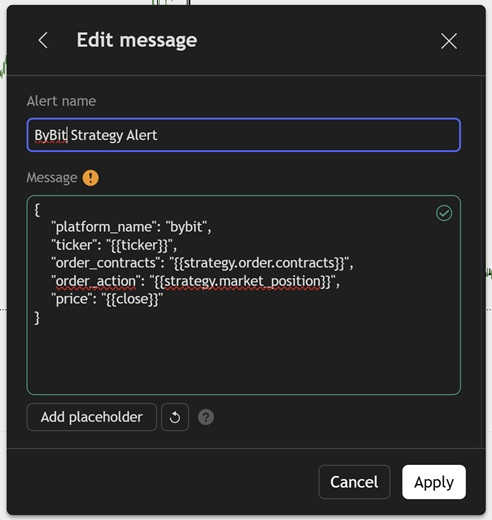
If you use a **TradingView Strategy**, paste structured JSON into the TradingView alert message box. AlgoWay expects valid JSON, not plain text.
``` text
{
"platform_name": "bybit",
"ticker": "{{ticker}}",
"order_contracts": "{{strategy.order.contracts}}",
"order_action": "{{strategy.market_position}}",
"price": "{{close}}"
}
```
TradingView replaces the placeholders when the alert fires:
- `{{ticker}}` — chart ticker;
- `{{strategy.order.contracts}}` — strategy order size;
- `{{strategy.market_position}}` — current strategy position;
- `{{close}}` — current close price.
 ## Step 7. Add the AlgoWay Webhook URL in TradingView
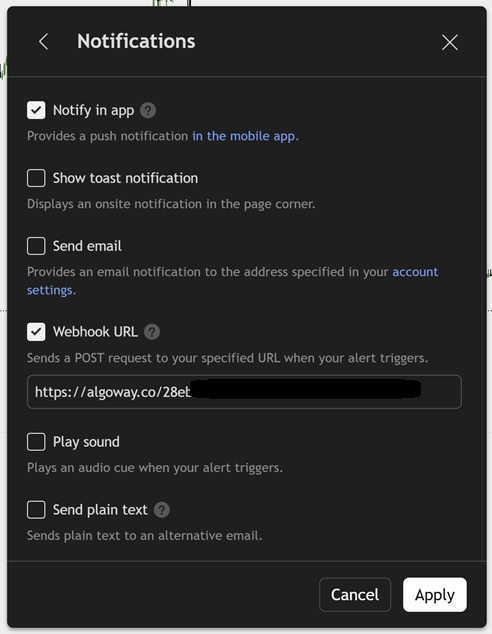
In the TradingView alert window, open the notifications section, enable **Webhook URL**, and paste your AlgoWay Bybit webhook URL.
Your webhook URL will use your unique webhook UUID:
``` text
https://algoway.co/your-webhook-uuid
```
Click **Apply** or **Create** to save the alert. When TradingView triggers the alert, it sends the JSON to AlgoWay, and AlgoWay routes the command to Bybit.
 ## Indicator Alerts and Manual Alerts
A TradingView strategy alert is not the only source. You can also use indicator alerts, custom Pine Script alerts, or manually prepared alert messages.
The final message must still be valid AlgoWay JSON. If your indicator outputs text instead of JSON, use AlgoWay tools:
- **Message Wizard** — builds a valid AlgoWay webhook message manually.
- **AlgoWay AI** — helps convert a text trading idea into structured JSON.
This is useful when an indicator says “long BTCUSDT” or “close short” and you need the alert body to become a structured Bybit automation command.
## Required JSON Fields for Bybit Webhook Automation
A basic Bybit webhook message for AlgoWay usually includes these fields:
| Field | Example | Purpose |
|-------------------|-----------|----------------------------------------------|
| `platform_name` | `bybit` | Tells AlgoWay to route the command to Bybit. |
| `ticker` | `BTCUSDT` | Defines the Bybit symbol. |
| `order_contracts` | `0.001` | Defines the order quantity. |
| `order_action` | `buy` | Defines the trade action. |
Additional fields may depend on your Bybit route and AlgoWay configuration. Test any new field before live use.
## Bybit Perpetual/Futures vs Spot Automation
### Bybit Perpetual and Futures
Perpetual and Futures automation is the main use case for many Bybit traders. It can involve leverage, margin mode, one-way or hedge mode, long and short positions, and account-specific trading rules.
Check that your Bybit account mode, AlgoWay webhook settings, and TradingView alert direction all match before using live size.
### Bybit Spot
Spot automation is usually simpler because it does not involve leverage or futures position mode. The symbol, available balance, and quantity still need to meet Bybit trading rules.
Use the market type that matches the account and symbol you want to trade.
For repeated entries, position-wide protection, and changes to existing stops, see [Bybit Full vs Partial TP/SL in AlgoWay](https://algoway.trade/blog/bybit-full-partial-tp-sl-algoway.html). It explains the route setting, modification requirements, and the Partial TP/SL order limit.
## Common Bybit Webhook Problems
### Wrong API Key Type
If the key type does not match the setup expected by AlgoWay, authentication can fail. Use system-generated API keys for this guide.
### IP Restriction Does Not Include AlgoWay
If Bybit is set to allow only specific IP addresses, the AlgoWay IP shown in your dashboard must be added to the API key settings.
### Missing Trading Permissions
If Orders, Positions, Trade, Unified Trading, USDC derivatives, or Spot permissions are missing for the selected route, Bybit can reject the request.
### Wrong Account or Market Type
Perpetual/Futures, Spot, Unified account settings, and position mode must match the webhook configuration. A mismatch can cause rejected orders.
### Invalid TradingView JSON
TradingView should send valid JSON. Use double quotes, avoid comments inside JSON, and check that all brackets and commas are correct.
### Quantity Too Small or Invalid
Bybit applies symbol-specific quantity and precision rules. If the order size is too small or has invalid precision, the exchange can reject it.
## Why Use AlgoWay Instead of Building Your Own Bybit Trading Bot?
You can build your own TradingView to Bybit bot. That means hosting a public webhook endpoint, writing a JSON parser, integrating the Bybit API, adding authentication checks, handling errors, building logs, and maintaining the server.
AlgoWay is designed for traders who want the automation route without that infrastructure. The dashboard creates the webhook, stores the Bybit integration settings, receives the TradingView alert, and routes the command to Bybit.
This gives you:
- a no-code TradingView to Bybit webhook bridge;
- Bybit automation from TradingView strategies and indicators;
- structured JSON routing;
- centralized webhook logs;
- less custom server maintenance;
- one AlgoWay dashboard for multiple trading destinations.
## Related AlgoWay Guides
These guides help complete the Bybit automation workflow:
- [How to create a webhook in TradingView](https://docs.algoway.trade/guide-to-creating-a-webhook-in-tradingview.html)
- [TradingView webhook alerts and automation basics](https://algoway.trade/blog/tradingview-free-webhook-alerts.html)
- [AlgoWay JSON schema for automated trading webhooks](https://algoway.trade/blog/json-schema-guide.html)
- [How to fix TradingView webhook Error 415](https://algoway.trade/blog/algoway-415.html)
- [TradingView to Binance webhook automation](https://docs.algoway.trade/algoway-binance-integration-guide.html)
- [AlgoWay webhook pricing guide](https://algoway.trade/blog/webhook-pricing-on-algoway-a-detailed-pricing-guide.html)
## Key Takeaway
To automate Bybit from TradingView, you need four things: a system-generated Bybit API key, the required trading permissions, an AlgoWay Bybit webhook, and a valid TradingView JSON alert. Once these parts are configured, AlgoWay can receive TradingView alerts and route the order command to Bybit.
**AlgoWay turns TradingView alerts into Bybit webhook automation without forcing you to run your own crypto trading bot server.**
## Frequently Asked Questions
### Do I need a VPS or to keep my computer on for automated trading?
Absolutely not. AlgoWay is a cloud-based service with centralized signal processing and order routing. You do not need a VPS, an always-on computer, or a locally running trading app. Your TradingView alerts continue to work even when your computer is shut down.
## Related TradingView Integration Guides
Explore step-by-step webhook setup guides for other supported trading platforms.
- [Connect TradingView to MEXC with webhook automation](https://docs.algoway.trade/mexc-api.html)
- [Connect TradingView to Binance with webhook automation](https://docs.algoway.trade/algoway-binance-integration-guide.html)
- [Connect TradingView to OKX with webhook automation](https://docs.algoway.trade/okx-api.html)
- [Connect TradingView to KuCoin with webhook automation](https://docs.algoway.trade/how-to-connect-tradingview-to-kucoin.html)
Published: May 12, 2026 Last updated: September 24, 2026