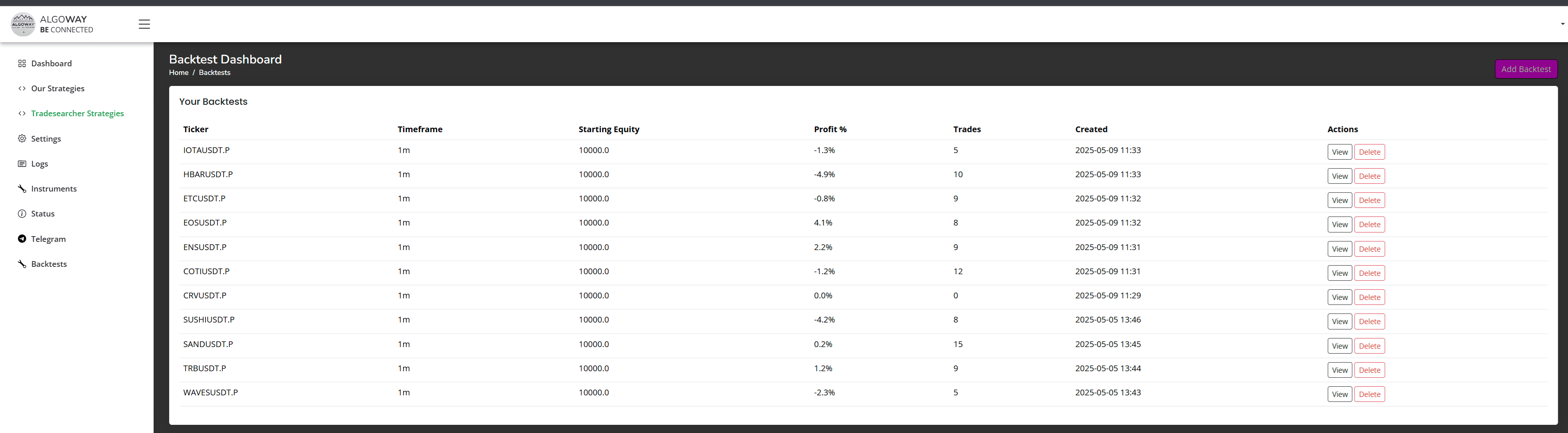
How to Backtest TradingView Strategies and Track Live Results with AlgoWay
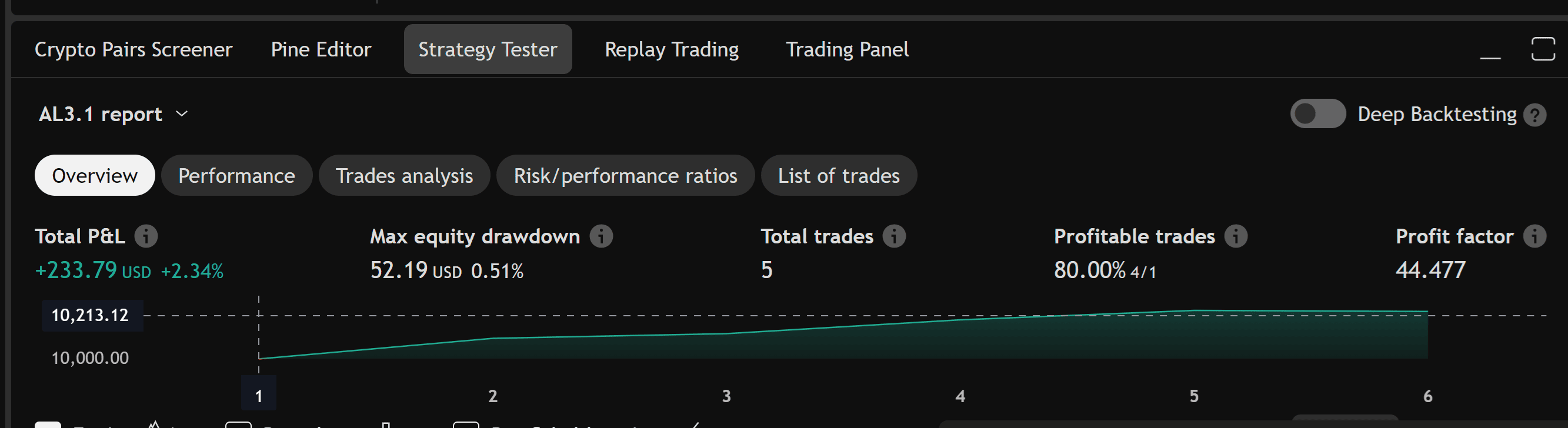
TradingView Strategy Tester is useful for the first backtest, but it is not the end of strategy validation. A strategy can look strong on the currently loaded chart, then change when the sample window shifts, when more bars load, when Deep Backtesting uses a different range, or when real webhook execution introduces slippage, commission and order-routing differences.
AlgoWay helps bridge the gap between TradingView backtesting and real automated trading. You can save a TradingView backtest snapshot, connect TradingView alerts through AlgoWay, and then track forward results from the moment automation starts. This lets you compare the historical Strategy Tester report with real signals, webhook payloads, broker execution and AlgoWay Trade Metrics.
This guide is written for traders searching for TradingView backtesting, TradingView Strategy Tester, TradingView forward testing, backtest TradingView strategy, TradingView webhook backtest, TradingView alerts performance tracking, and AlgoWay Trade Metrics.
The workflow is:
TradingView Strategy Tester → AlgoWay backtest snapshot → TradingView webhook alerts → AlgoWay Trade Metrics → broker/exchange execution review
Last updated: 2026-05-12 • Author: AlgoWay
Quick Answer: What AlgoWay Adds to TradingView Backtesting
AlgoWay does not replace TradingView Strategy Tester. It extends the workflow after TradingView gives you the first historical report.
| TradingView gives you | AlgoWay adds |
|---|---|
| Strategy Tester report on available chart or Deep Backtesting range | Saved baseline snapshot for later comparison |
| Historical trades generated by the Pine Script strategy | Forward tracking from real webhook alerts |
| Backtest assumptions inside TradingView | Real alert logs, execution status and Trade Metrics |
| Performance on a selected historical sample | Ongoing performance after automation starts |
Why TradingView Backtesting Alone Is Not Enough
TradingView strategies simulate trades on historical and realtime bars. That is the correct first step for testing a Pine Script strategy, but there are limits every automated trader must understand.
The first limit is historical intraday data. TradingView explains that the amount of historical intraday data loaded on the chart depends on the plan and is measured in bars, not in a fixed number of calendar days. For example, the chart may load thousands or tens of thousands of intraday bars depending on the subscription and symbol. When the loaded sample changes, Strategy Tester results can change too.
The second limit is execution realism. A backtest is not the same as webhook execution. The Strategy Tester can simulate fills, but live automation adds real-world details: webhook timing, broker rules, order size restrictions, spreads, commissions, slippage, market session, rejected orders and platform-specific execution behavior.
The third limit is continuity. Traders often take a screenshot of a good Strategy Tester report and then lose the ability to compare it with what actually happened after automation started. AlgoWay fixes that by turning a backtest snapshot into a baseline and then tracking new webhook-driven results from that point forward.
Chart Backtesting vs Deep Backtesting vs AlgoWay Tracking
There are three different concepts. Do not mix them.
| Method | Purpose | Limitation |
|---|---|---|
| TradingView chart Strategy Tester | Tests the strategy on bars loaded on the chart | Intraday history depends on loaded bar limits and plan |
| TradingView Deep Backtesting | Tests selected historical ranges using more stored data | TradingView documents a maximum calculation limit of up to 2 million bars |
| AlgoWay Trade Metrics | Tracks results after alerts begin flowing through AlgoWay | Requires correct webhook setup and consistent tracking rules |
TradingView is best for strategy design and historical simulation. AlgoWay is best for preserving the baseline and measuring what happens after TradingView alerts become automated trading signals.
What the Old Version of This Page Got Right
The original page had the correct idea: save the current TradingView result, then track future trades from that point onward. It also correctly warned that AlgoWay results may differ from TradingView because of rounding, commission and slippage differences.
The old page was too short and used an oversimplified statement about a fixed 11-day 1-minute window. The current version is more accurate: TradingView intraday history is controlled by bar limits and plan level, and Deep Backtesting is a separate TradingView feature with its own limits.
The AlgoWay Backtest-to-Forward-Test Workflow
A serious automated trading workflow should move through these stages:
- Backtest in TradingView. Use the Strategy Tester to test the Pine Script logic.
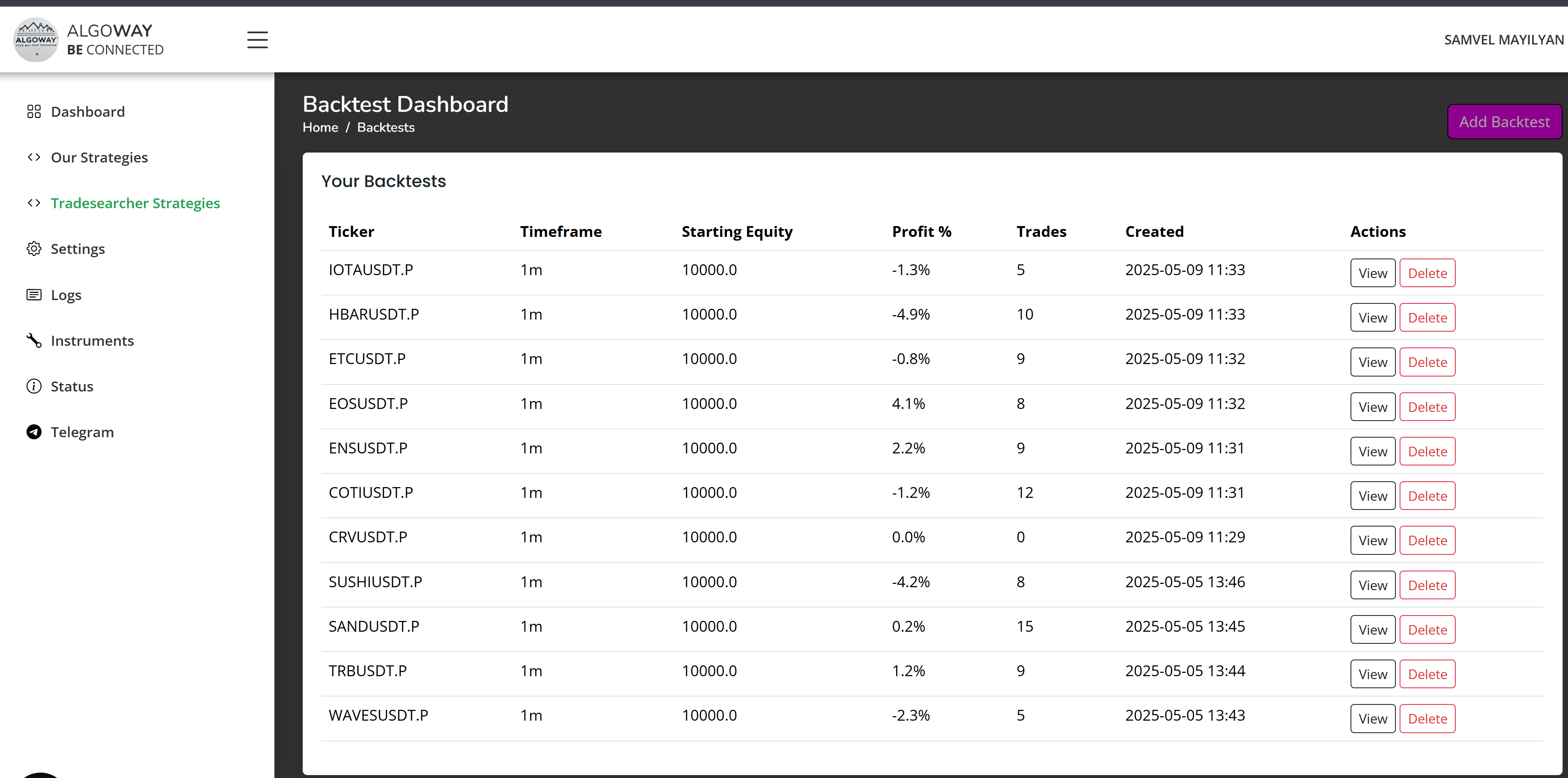
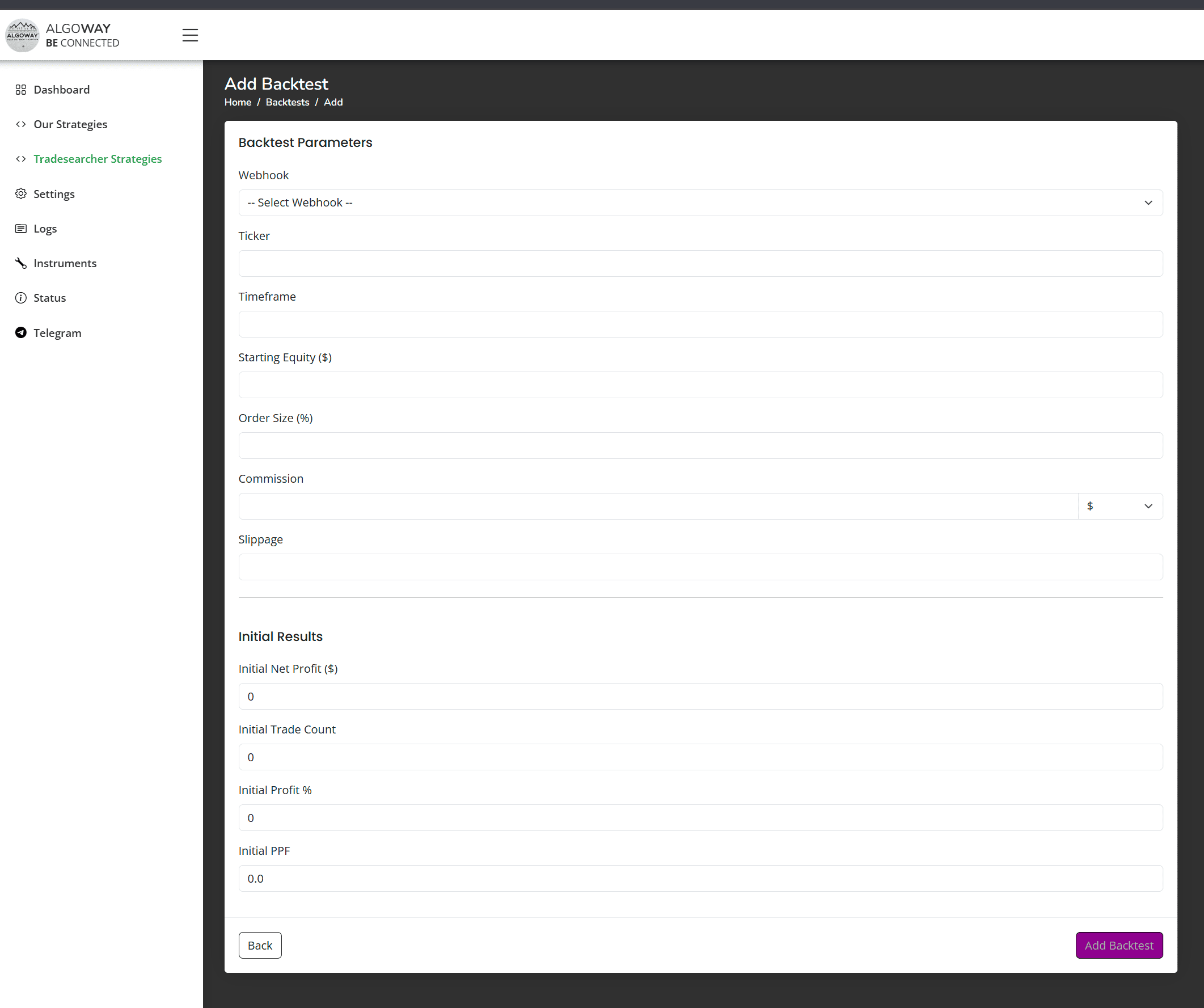
- Save the baseline in AlgoWay. Record the current result, equity, commission, slippage and relevant performance values.
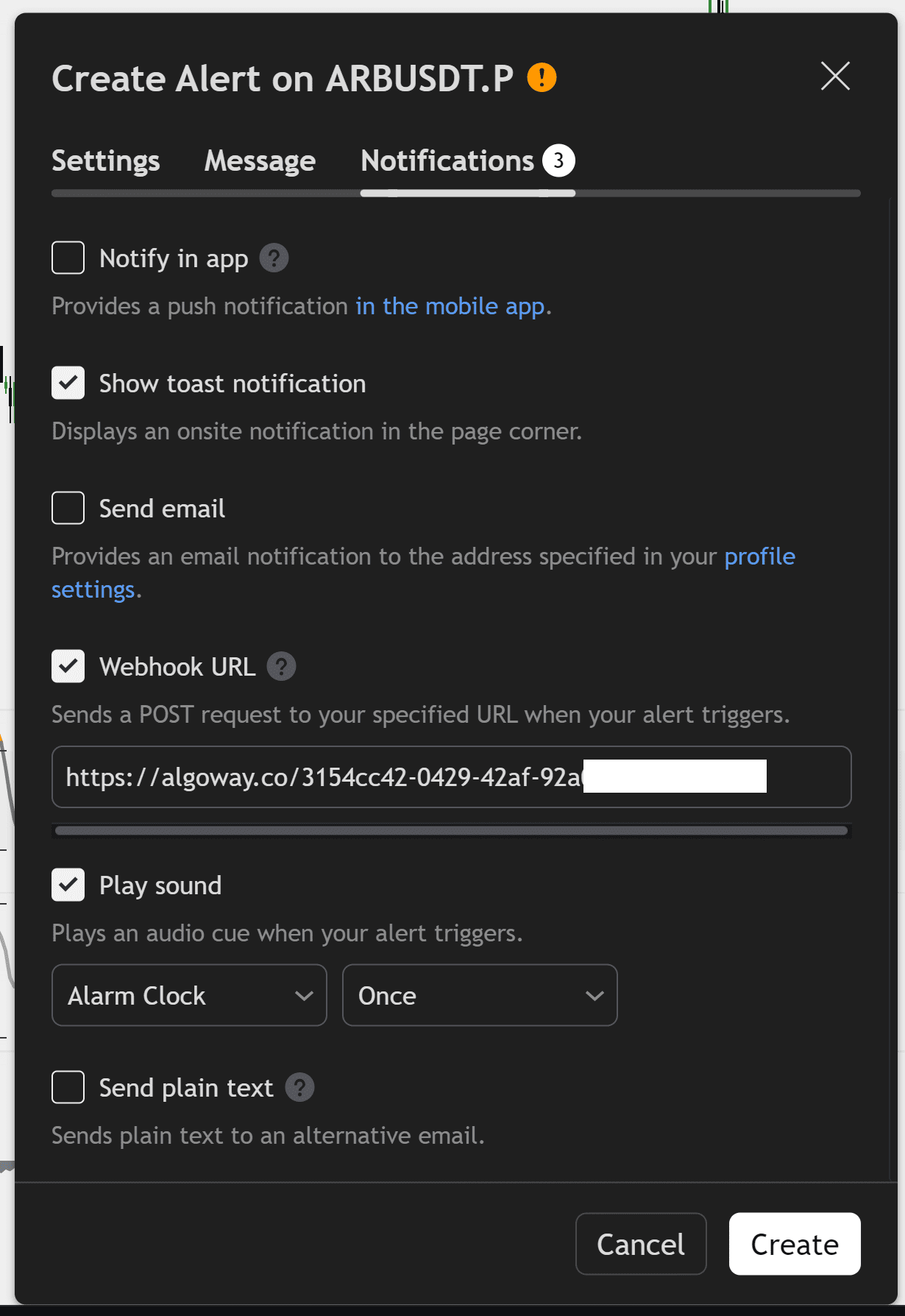
- Create the webhook alert. Send structured JSON from TradingView to AlgoWay.
- Track forward results. AlgoWay records new signals and metrics from the moment automation starts.
- Compare historical expectation with real execution. Review the gap between Strategy Tester and real routed alerts.
- Adjust only after enough data. Do not over-optimize based on one day or a few trades.
Step 1. Prepare Your TradingView Strategy Backtest
Start in TradingView and make sure the strategy report is meaningful before exporting or saving anything.
Check:
- symbol and timeframe;
- strategy settings;
- commission setting;
- slippage setting;
- position sizing;
- initial capital;
- date range if Deep Backtesting is used;
- whether the strategy repaints or uses future-looking logic;
- whether the same symbol name will be used in AlgoWay.
Do not save a baseline from a strategy that is still using placeholder costs or unrealistic sizing.
Step 2. Save the TradingView Result as an AlgoWay Baseline
AlgoWay backtesting is useful because it lets you preserve the current TradingView result and then continue tracking performance after that point.
Typical baseline values include:
- initial equity;
- net profit;
- number of trades;
- win rate;
- profit factor;
- maximum drawdown;
- commission model;
- slippage assumptions;
- symbol;
- timeframe;
- strategy version.
The baseline is your historical starting point. After webhook automation begins, AlgoWay can compare new alert-driven results against that baseline.
Step 3. Use the Correct TradingView Webhook JSON
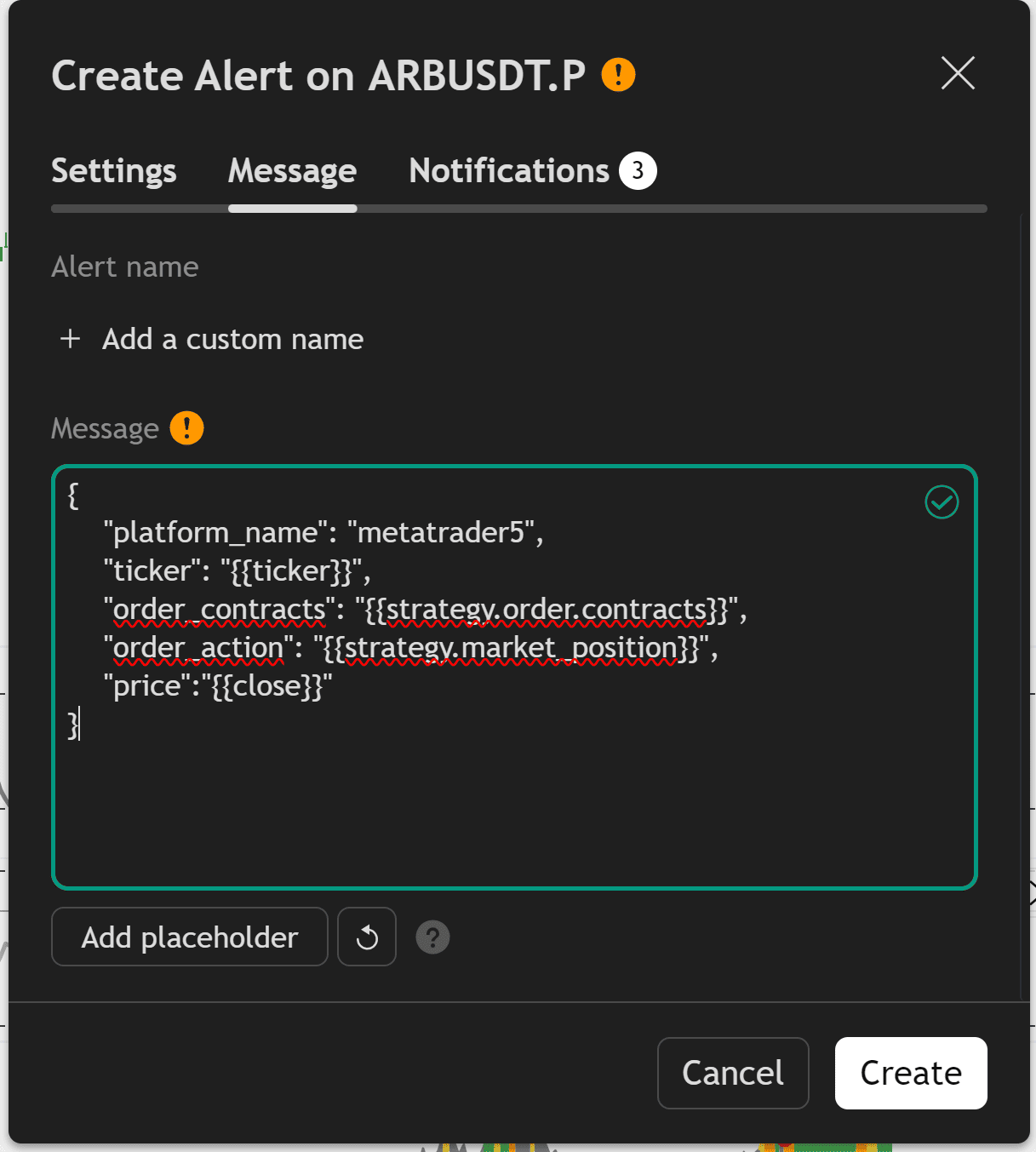
To track and automate results correctly, TradingView must send a structured JSON message to AlgoWay. Plain text alerts are not enough for reliable metrics and execution routing.
Recommended TradingView strategy alert JSON:
{
  "platform_name": "metatrader5",
  "ticker": "{{ticker}}",
  "order_contracts": "{{strategy.order.contracts}}",
  "order_action": "{{strategy.market_position}}",
  "price": "{{close}}"
}
Important fields:
| Field | Why it matters for metrics |
|---|---|
platform_name | Routes the signal to the correct AlgoWay destination. |
ticker | Must match the symbol used in the AlgoWay backtest or mapped destination. |
order_contracts | Defines strategy size and helps metrics follow position changes. |
order_action | Defines the strategy direction or state. |
price | Provides the TradingView alert price for later comparison. |
Use {{strategy.market_position}} when you want the alert to reflect the current strategy state. Use {{strategy.order.action}} only if your workflow specifically expects order action values from TradingView.
Step 4. Match the Ticker Exactly
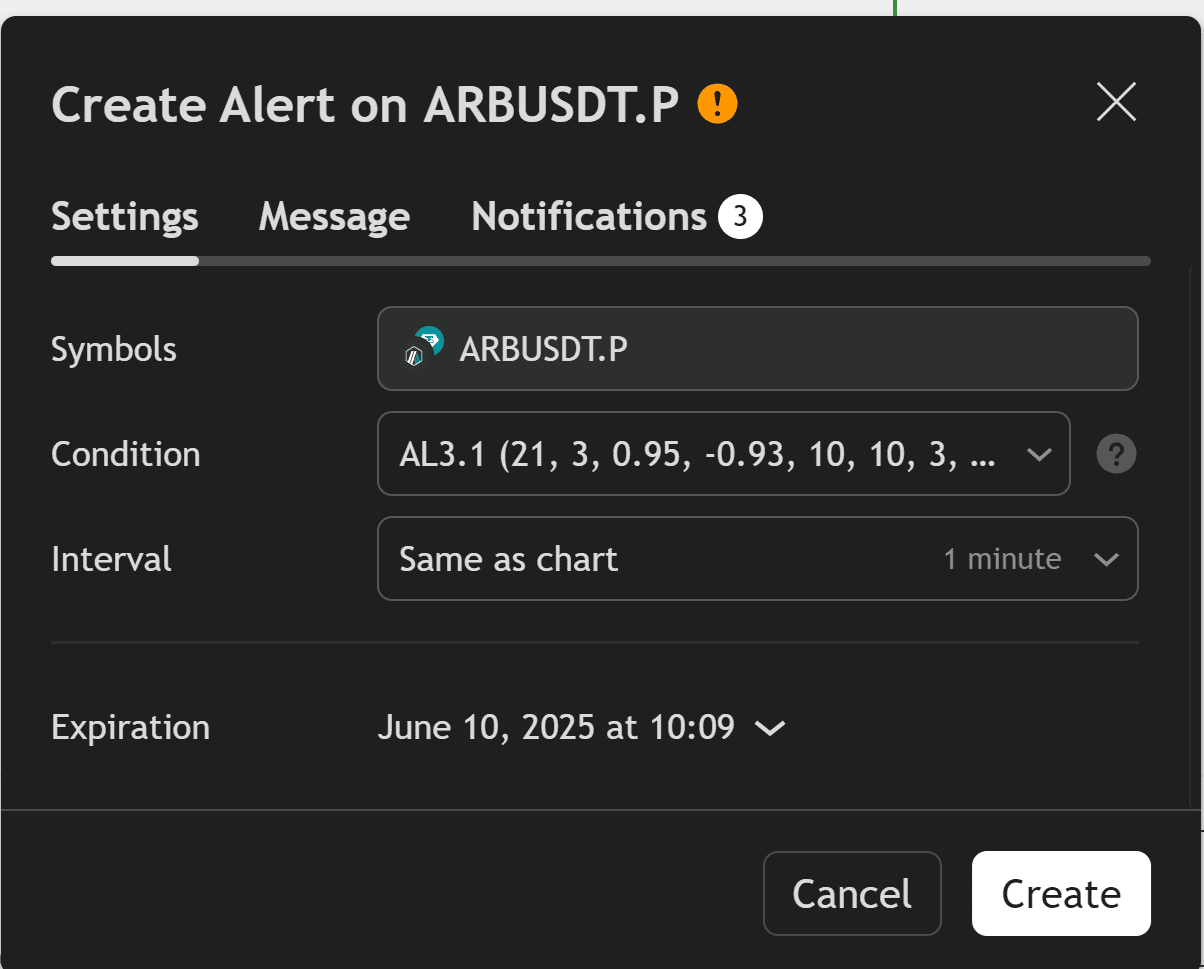
The ticker must be consistent. If TradingView sends EURUSD but your AlgoWay backtest or destination uses EURUSD.a, metrics can fail, symbol mapping can fail, or execution can go to the wrong instrument.
Before live tracking, confirm:
- TradingView chart symbol;
- AlgoWay backtest symbol;
- broker or exchange symbol;
- symbol mapping rules;
- case sensitivity and suffixes.
Step 5. Start Forward Tracking from the Snapshot
After the baseline is saved and TradingView alerts are connected, AlgoWay starts tracking new incoming signals from the webhook flow.
This turns the workflow into forward testing:
Historical TradingView report = baseline
New webhook alerts = forward data
AlgoWay Trade Metrics = combined performance tracking
This is especially important for short-term strategies, scalping systems and 1-minute strategies where the loaded chart sample can shift quickly.
Step 6. Compare TradingView and AlgoWay Results Correctly
AlgoWay results may differ from TradingView. That is normal. The goal is not to force a perfect match. The goal is to understand why the difference exists.
Common reasons for a difference:
- TradingView broker emulator assumptions;
- commission calculation differences;
- slippage assumptions;
- rounding;
- symbol mapping;
- market spread;
- order rejection;
- latency between alert and execution;
- broker minimum lot or quantity rules;
- SL/TP precision and stop-level restrictions.
A small difference can be normal. A large difference means the strategy, JSON, broker settings or execution route must be inspected.
TradingView Backtesting Limits You Should Understand
TradingView has several useful testing tools, but each one has limits.
Loaded Chart Bars
On intraday timeframes, the amount of historical data available on the chart depends on bar limits and plan level. This means a normal chart-based backtest may not represent the entire historical market sample.
Deep Backtesting
Deep Backtesting can use more historical data for a selected range, but it is not unlimited. TradingView documents a maximum historical calculation length of up to 2 million bars.
Bar Magnifier
Bar Magnifier can make backtest fills more realistic by using lower timeframe information inside a higher timeframe bar, but this is still a simulation feature and not a real broker execution log.
Forward Testing
Forward testing starts when your alerts begin running in real time. This is where AlgoWay Trade Metrics becomes important because it tracks actual webhook-driven behavior after the historical test.
Common Backtesting Mistakes
Mistake 1: Treating One Strategy Tester Result as Final Truth
A single historical report is not enough. Save it as a baseline, then compare it with forward data.
Mistake 2: Ignoring Commission and Slippage
A strategy that looks profitable without costs can fail when commission, spread and slippage are included.
Mistake 3: Changing Strategy Settings After Saving the Baseline
If you change Pine Script logic, timeframe, costs or sizing after saving the baseline, create a new baseline. Do not mix versions.
Mistake 4: Not Matching Tickers
Backtest symbols, alert tickers and broker symbols must be aligned.
Mistake 5: Confusing Backtesting with Live Automation
A backtest is a simulation. Webhook automation is execution. AlgoWay helps connect the two, but it does not make the simulation identical to live trading.
Safe Launch Checklist
Before treating a TradingView strategy as automated and trackable, confirm:
- the strategy is stable and does not repaint;
- commission and slippage are set in TradingView;
- the baseline is saved in AlgoWay;
- the TradingView alert uses valid JSON;
priceis included in the alert message;tickermatches the AlgoWay backtest and destination symbol;- the webhook URL is enabled in TradingView;
- AlgoWay receives alerts in logs;
- the destination platform accepts test orders;
- Trade Metrics are checked after the first real signals.
How AlgoWay Helps With Real Strategy Validation
AlgoWay gives the trader a way to move from “this strategy looked good in TradingView” to “this strategy is being tracked after real alerts.”
That matters because many strategies fail not during coding, but during the transition from simulation to execution:
- alert JSON is wrong;
- ticker does not match;
- order size is invalid;
- the broker rejects stops;
- execution differs by platform;
- the forward sample performs worse than the historical sample.
AlgoWay does not hide these problems. It gives you logs and metrics so you can see them.
Related AlgoWay Guides
- How to automate TradingView alerts to any broker with AlgoWay
- How to create a webhook in TradingView
- AlgoWay JSON schema guide
- How to fix AlgoWay webhook Error 415
- How to connect TradingView to MetaTrader 5 with AlgoWay EA
- AlgoWayWS-MT5 EA 2.10 guide
- Advanced risk management and trade automation
Final Summary
TradingView backtesting is the first stage. AlgoWay Trade Metrics is the next stage. Use TradingView Strategy Tester to build and evaluate the strategy, save the baseline in AlgoWay, then track real webhook-driven results after automation begins.
This gives you a clearer answer than a single backtest screenshot: how the strategy looked historically, how it behaves after alerts start, and where the difference between simulation and execution appears.