TradingView to MT5 Automation with Webhook Alerts | AlgoWay
Last updated: May 2026 · Platform: AlgoWay · Destination: MetaTrader 5 · Source: TradingView alerts
TradingView to MT5 Automation: Connect TradingView Alerts to MetaTrader 5 with AlgoWay
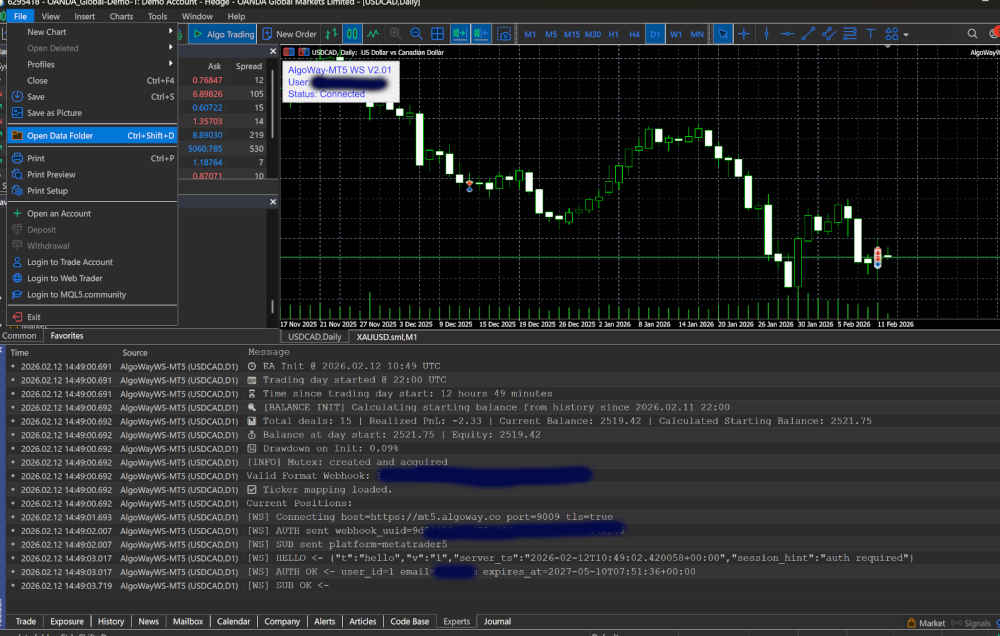
AlgoWay connects TradingView alerts to MetaTrader 5 by receiving a webhook alert from TradingView, validating the JSON message, and forwarding the trade command to the AlgoWayWS-MT5 Expert Advisor running inside MT5. This gives you a practical TradingView to MT5 automation workflow without manually copying alerts into MetaTrader 5.
Traders usually search for this setup as TradingView to MT5, TradingView webhook MT5, automate TradingView alerts, MT5 webhook trading, or TradingView alert to MetaTrader 5. The technical idea is the same: TradingView remains the signal source, AlgoWay receives the webhook, and MetaTrader 5 executes through an EA.
Quick Answer: How TradingView to MT5 Automation Works
TradingView can send an alert message to an external webhook URL. MetaTrader 5 does not receive that alert directly, so a bridge is required. In AlgoWay, the bridge is split into two parts: the AlgoWay webhook server and the AlgoWayWS-MT5 EA.
| Part | Role in the TradingView to MT5 workflow |
|---|---|
| TradingView alert | Sends the alert message from a strategy, indicator, price condition or custom Pine Script alert. |
| AlgoWay webhook URL | Receives the webhook request and reads the JSON trading command. |
| AlgoWay routing layer | Validates the command, selects the destination platform, and prepares the MT5 execution instruction. |
| AlgoWayWS-MT5 EA | Keeps a live WebSocket connection from MetaTrader 5 to AlgoWay and receives the command in real time. |
| MetaTrader 5 account | Executes the final market order, close command, pending order, Stop Loss, Take Profit or supported trade action. |
Why TradingView Needs a Bridge to Trade on MetaTrader 5
TradingView is excellent for charting, indicators, Pine Script strategies and alerts. MetaTrader 5 is where many forex, CFD, index, commodity and prop-firm accounts are actually executed. The gap is execution: a TradingView alert by itself does not open a trade inside MT5 unless another system receives the alert and sends the instruction to MetaTrader.
AlgoWay fills this gap with a webhook-to-WebSocket workflow. TradingView sends the alert to AlgoWay, AlgoWay validates the message, and the AlgoWayWS-MT5 EA receives the command inside your running MT5 terminal. This is why the MT5 terminal or Windows VPS must stay online while the automation is active.
Why Use AlgoWay for TradingView Webhook MT5 Automation?
A basic TradingView-to-MT5 bridge usually focuses only on one path: TradingView alert to MetaTrader. AlgoWay is built as a broader webhook automation layer. The same alert format can be used for MetaTrader 5, TradeLocker, Match-Trader, cTrader, DxTrade, Tradovate, Alpaca, Binance, Bybit, OKX, Gate.io and other supported destinations.
| Feature | Single MT5 bridge | AlgoWay |
|---|---|---|
| TradingView to MT5 execution | Usually supported | Supported through AlgoWayWS-MT5 EA |
| Webhook JSON routing | Often locked to one syntax | Structured JSON with platform routing |
| Multiple destination types | Usually limited to MetaTrader | MT5, prop platforms, crypto exchanges, stocks and futures routes |
| Logs and debugging | Usually EA-side only | Webhook-side processing plus MT5 Experts and Journal logs |
| Signal sources | Usually TradingView only | TradingView alerts, webhook requests, Telegram signals and other supported sources |
What Can Be Automated from TradingView to MT5?
The simplest alert opens a buy or sell order. A complete TradingView webhook message can also include position size, Stop Loss, Take Profit, trailing stop settings and supported execution options. The exact fields depend on your AlgoWay MT5 configuration and the current AlgoWayWS-MT5 EA documentation.
- Market orders: buy, sell, long or short actions from TradingView alerts.
- Close actions: flat or close commands when your TradingView strategy exits.
- Risk parameters: order size, Stop Loss, Take Profit and trailing settings when supported by the selected route.
- Strategy placeholders: dynamic values such as
{{ticker}},{{strategy.order.action}}and{{strategy.order.contracts}}. - Testing workflow: send a small demo alert, read AlgoWay processing, then confirm the MT5 Experts and Journal logs.
TradingView to MetaTrader 5 Workflow
- Create an AlgoWay webhook for the MetaTrader 5 destination.
- Install AlgoWayWS-MT5 EA inside the MetaTrader 5 terminal.
- Enter your AlgoWay webhook UUID in the EA inputs.
- Confirm that the EA WebSocket status is connected.
- Create a TradingView alert and enable Webhook URL.
- Paste your AlgoWay webhook URL and JSON message into TradingView.
- Trigger the alert and confirm execution in AlgoWay and MT5 logs.
Video Tutorial: How to Connect TradingView to MetaTrader 5
TradingView to MT5 WebSocket EA setup
Before You Start
Before installing the EA, make sure you have the required components for a TradingView alert to MetaTrader 5 automation workflow.
- MetaTrader 5 installed on Windows or Windows VPS
- An AlgoWay account
- An AlgoWay webhook UUID for your MT5 integration
- Permission to enable algorithmic trading in MT5
- Permission to enable DLL imports in MT5
- A TradingView alert that can send either webhook or email-based alerts, depending on your chosen AlgoWay setup
Required Microsoft Visual C++ Runtime
- x64 for 64-bit MT5: vc_redist.x64.exe
- x86 only for 32-bit MT5: vc_redist.x86.exe
Option A — Auto Installer for AlgoWayWS-MT5
The recommended installation method is the automatic installer. It places the EA, include files, and DLL into the correct MetaTrader 5 Data Folder.
Download the installer: AlgoWayWS-MT5-Setup.exe
Windows may warn about the download or installer
Sometimes Windows Defender or SmartScreen may flag the file as suspicious. If Windows blocks the download, click Keep or Allow so the file can be downloaded.
If a blue SmartScreen window appears when you launch the installer, click More info, then click Run anyway to allow the installer to start.
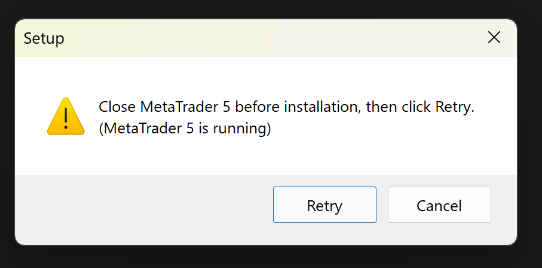
Close MetaTrader 5 before installing
Close MT5 before starting the installer. If MetaTrader 5 is open, some files can be locked and the installer may stop.
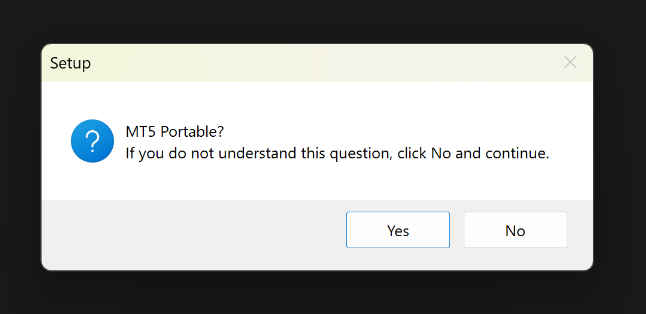
Portable mode question
If you do not intentionally use MT5 portable mode, click No. Portable mode is for advanced users running MT5 from a custom folder.
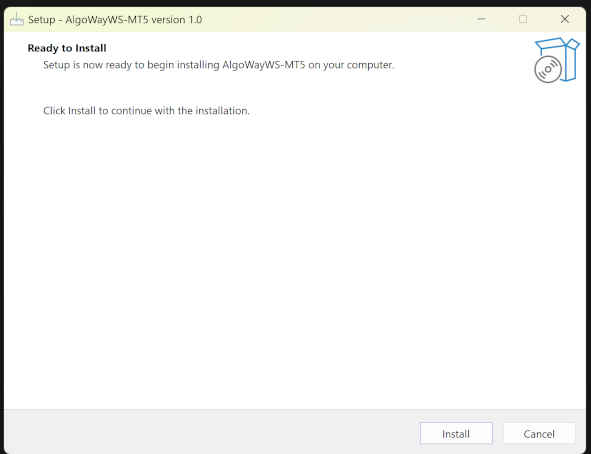
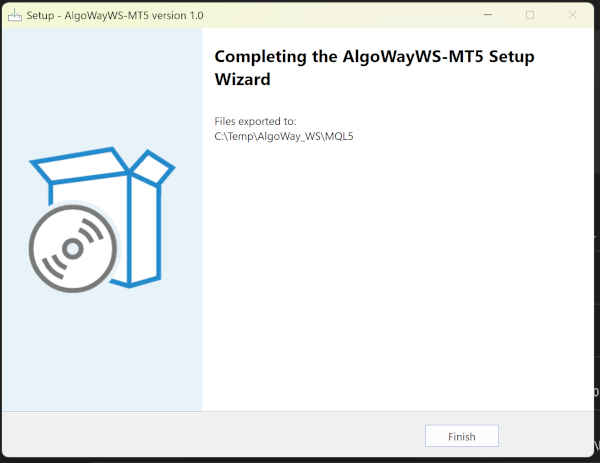
Install and finish setup
Continue the installation and click Finish when the setup is complete.
Option B — Manual Install
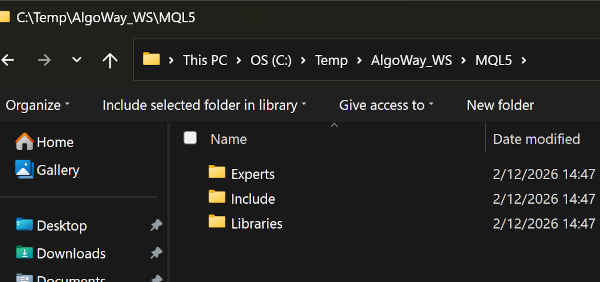
Use manual installation only if you cannot run the automatic installer. Manual install copies the same EA, include files, and WebSocket DLL into the MT5 Data Folder.
Download the manual installation package: EA_payload.zip
Open MT5 Data Folder
- Open MetaTrader 5
- Go to File → Open Data Folder
- Open the
MQL5directory
Copy files into the correct MT5 folders
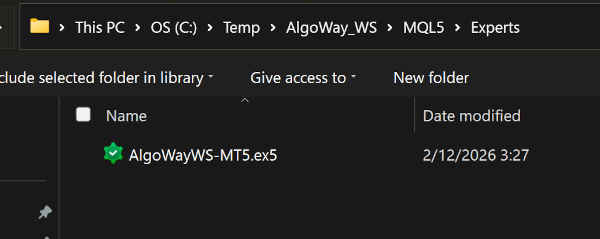
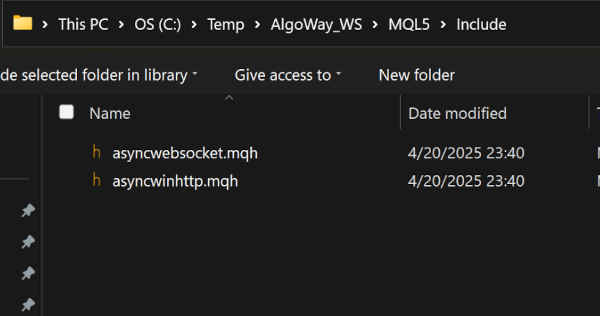
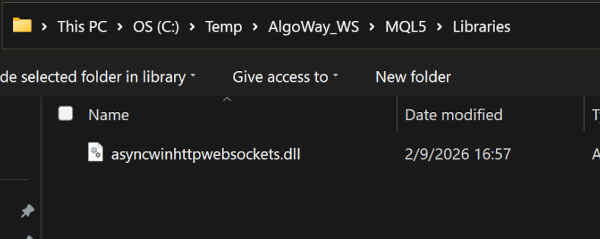
Copy each file into its exact folder:
- Experts →
AlgoWayWS-MT5.ex5 - Include →
asyncwinhttp.mqh,asyncwebsocket.mqh - Libraries →
asyncwinhttpwebsockets.dll
What Gets Installed
The AlgoWayWS-MT5 setup installs four files into your MetaTrader 5 Data Folder:
MQL5\Experts\AlgoWayWS-MT5.ex5MQL5\Include\asyncwinhttp.mqhMQL5\Include\asyncwebsocket.mqhMQL5\Libraries\asyncwinhttpwebsockets.dll
These files allow MT5 to load the Expert Advisor and maintain the WebSocket connection used by AlgoWay.
Required MT5 Options
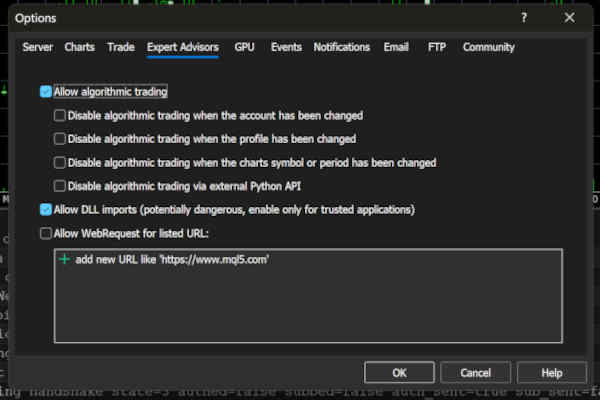
Before using the EA, open MT5 → Tools → Options → Expert Advisors.
Enable algorithmic trading and DLL imports
- Enable Allow algorithmic trading
- Enable Allow DLL imports
- Click OK
Activate the EA in MetaTrader 5
Attach AlgoWayWS-MT5 to a chart
- Open any chart in MetaTrader 5.
- Open Navigator → Expert Advisors.
- Drag AlgoWayWS-MT5 onto the chart.
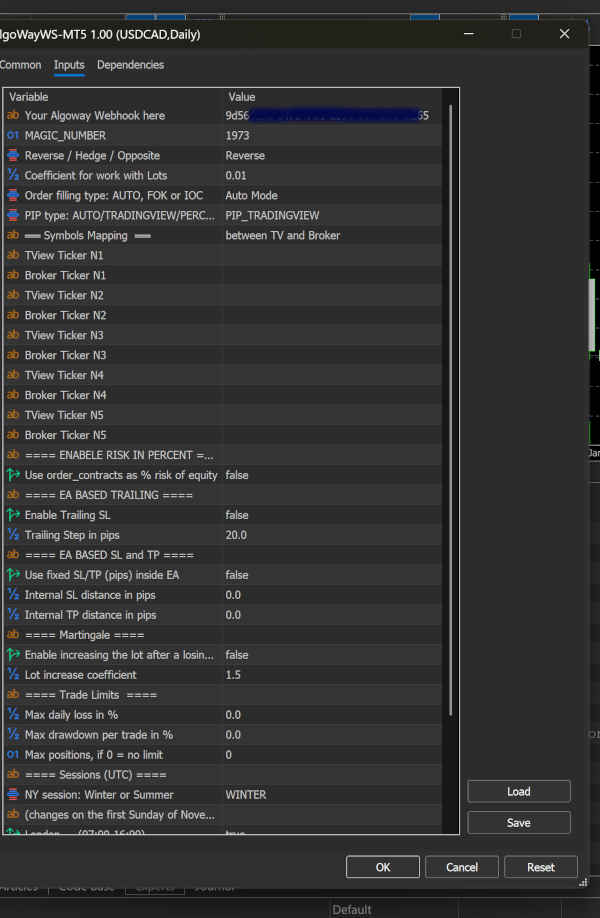
Enter your AlgoWay webhook UUID
In the EA Inputs tab, fill Your Algoway Webhook here with your AlgoWay webhook
UUID, then click OK.
Confirm the WebSocket Connection
After the EA is attached to the chart, confirm that the connection is active before sending real TradingView alerts.
- Open the MT5 Experts tab.
- Check the EA logs for WebSocket connection messages.
- Check the chart label/status for Connected.
- Confirm that the AlgoWay webhook UUID in the EA input is the same UUID used by your AlgoWay webhook.
When the EA shows connected status, AlgoWay can deliver TradingView webhook signals to your MetaTrader 5 terminal.
TradingView Webhook Message Example for MT5
After the MT5 EA is connected, your TradingView alert can send a JSON message to your AlgoWay webhook URL. A basic MT5 market order message can use this structure:
{
  "platform_name": "metatrader5",
  "ticker": "{{ticker}}",
  "order_action": "{{strategy.order.action}}",
  "order_contracts": "{{strategy.order.contracts}}"
}
AlgoWay receives the TradingView webhook, processes the JSON, and forwards the execution command to the connected AlgoWayWS-MT5 Expert Advisor.
Example with Stop Loss and Take Profit
If your MT5 route is configured to use Stop Loss and Take Profit values from the webhook, include them in the JSON message. Use the field format supported by your current AlgoWay MT5 documentation.
{
  "platform_name": "metatrader5",
  "ticker": "{{ticker}}",
  "order_action": "{{strategy.order.action}}",
  "order_contracts": "{{strategy.order.contracts}}",
  "stop_loss": "50",
  "take_profit": "100"
}
Strategy placeholders vs fixed values
| Value type | Example | When to use it |
|---|---|---|
| TradingView symbol | {{ticker}} |
Use when the alert should pass the chart symbol to AlgoWay. |
| Strategy action | {{strategy.order.action}} |
Use when a TradingView strategy controls buy, sell or close direction. |
| Strategy quantity | {{strategy.order.contracts}} |
Use when the order size comes from Strategy Tester logic. |
| Fixed size | "order_contracts": "0.10" |
Use when every alert should send the same MT5 lot size or quantity value. |
Create the TradingView Alert
- Open the TradingView chart or strategy you want to automate.
- Create a new alert from the alert panel.
- Set the condition, for example a strategy order event or an indicator alert condition.
- Enable Webhook URL and paste your AlgoWay webhook URL.
- Paste the JSON message into the alert message field.
- Save the alert and trigger a demo test before using live size.
For strategy-based automation, the most common condition is the strategy alert event that sends the JSON message whenever the strategy creates an order. For indicator-based automation, the message may use fixed values or custom Pine Script values generated by your indicator logic.
Safe Testing Checklist Before Live MT5 Automation
- Start with a demo account or very small test size.
- Confirm that the MT5 EA status is connected.
- Confirm that TradingView sends valid JSON.
- Confirm that the symbol name matches your MT5 broker symbol format.
- Check the AlgoWay webhook response and MT5 Experts log after each test.
- Test buy, sell and close behavior before using the setup for live execution.
Troubleshooting TradingView to MT5 Automation
EA does not appear in Navigator
- Restart MetaTrader 5.
- Confirm that
AlgoWayWS-MT5.ex5is insideMQL5\Experts. - If you used manual install, confirm that you copied the file into the correct MT5 Data Folder, not into the program installation folder.
EA does not connect
- Check that the webhook UUID was entered correctly.
- Check the MT5 Experts tab for connection logs.
- Confirm that internet access is available inside the VPS or Windows machine.
- Confirm that DLL imports are enabled for the EA.
DLL error appears in MT5
- Confirm that Allow DLL imports is enabled.
- Confirm that
asyncwinhttpwebsockets.dllis insideMQL5\Libraries. - Install Microsoft Visual C++ Redistributable if it is missing.
TradingView alert is sent but no trade opens
- Check that the EA status is Connected.
- Check the AlgoWay webhook settings.
- Check the JSON message sent by TradingView.
- Check the MT5 Experts and Journal tabs.
- Check whether the broker symbol requires a suffix or custom mapping.
TradingView sends the alert but JSON is rejected
- Validate that the alert message is valid JSON.
- Confirm that
platform_nameismetatrader5. - Confirm that required fields such as
ticker,order_actionandorder_contractsare present. - Do not mix strategy placeholders with indicator alerts unless the alert source actually provides those placeholders.
Full MT5 EA Documentation
This page focuses on installation, connection setup and the TradingView webhook workflow. For the full AlgoWay MT5 Expert Advisor documentation, including risk settings, trailing stop, mapping, sessions and advanced execution options, use:
Related AlgoWay Guides
- How to create a TradingView webhook alert for automated trading
- How to automate TradingView alerts to any broker with AlgoWay
- AlgoWay JSON schema guide for webhook trading
- Common MetaTrader 5 EA errors and fixes
- TradingView webhook free alternative with AlgoWay email alerts
FAQ: TradingView to MT5 with AlgoWay
Can TradingView connect directly to MetaTrader 5?
TradingView does not execute trades directly inside MetaTrader 5 by default. AlgoWay provides the webhook routing layer, and AlgoWayWS-MT5 provides the MT5-side WebSocket connection for execution.
Do I need to keep MetaTrader 5 open?
Yes. MetaTrader 5 must remain running with AlgoWayWS-MT5 attached to a chart so the EA can receive WebSocket messages and execute signals.
Do I need a Windows VPS for TradingView to MT5 automation?
A Windows VPS is commonly used because MetaTrader 5 and the AlgoWayWS-MT5 EA must stay online. You can run the setup on a local Windows machine, but a VPS is usually better for continuous automation.
Do I need to enable DLL imports?
Yes. AlgoWayWS-MT5 uses a WebSocket DLL, so Allow DLL imports must be enabled in MT5.
Can I use the installer instead of copying files manually?
Yes. The Auto Installer is the recommended method because it places the EA and required files into the correct MT5 folders automatically.
Where do I enter my AlgoWay webhook UUID?
Enter the UUID in the EA Inputs field named Your Algoway Webhook here when attaching AlgoWayWS-MT5
to a MetaTrader 5 chart.
Can the same TradingView strategy be connected to more than one broker or account?
Yes. AlgoWay is designed as a routing layer, so the same TradingView alert logic can be used with different supported destinations, depending on how your webhooks and integrations are configured.