How to Use AlgoWayWS-MT5 EA 2.10 for TradingView to MT5 Webhook Automation
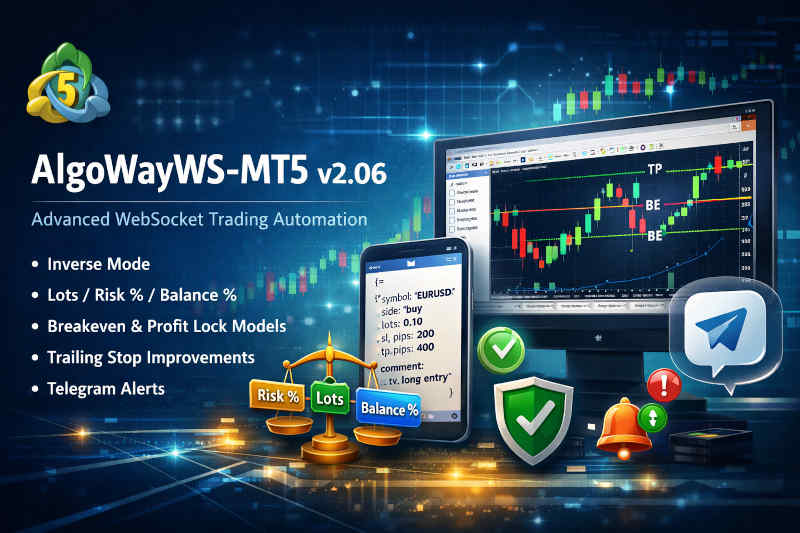
AlgoWayWS-MT5 EA is the MetaTrader 5 execution bridge for AlgoWay. It connects the AlgoWay platform to your MT5 terminal and lets structured signals from TradingView alerts, Telegram signals, manual webhook tests, or other supported sources become real MT5 trading actions.
This page is the current user-facing guide for the AlgoWayWS-MT5 EA 2.10 workflow. The file name still contains v206 because this URL is already indexed and used in internal links, but the content has been updated for the current platform direction: TradingView to MT5 webhook automation through AlgoWay and the AlgoWayWS-MT5 Expert Advisor.
The complete execution route is:
TradingView alert → AlgoWay webhook → AlgoWayWS-MT5 EA → MetaTrader 5 broker account
This guide explains what the EA does, how webhook JSON fields are interpreted, how trade modes work, how SL/TP and trailing rules are applied, and how to troubleshoot the most common MT5 execution problems.
Last updated: 2026-05-12 • Author: AlgoWay
Start Here: Current Setup and Support Guides
This page explains the EA behavior and JSON logic. For installation and platform setup, use the dedicated guides below.
| Need | Current guide |
|---|---|
| Install the current MT5 Expert Advisor | How to install an MT5 Expert Advisor for AlgoWay automation |
| Connect TradingView alerts to MT5 | How to connect TradingView to MetaTrader 5 with AlgoWay EA |
| Build a valid AlgoWay webhook message | AlgoWay JSON schema guide |
| Understand SL/TP, trailing and risk logic | Advanced risk management and trade automation |
| Choose Hedge, Reverse, Opposite or Inverse behavior | How AlgoWay handles opposite trading signals |
| Fix MetaTrader 5 EA errors | MetaTrader 5 common errors in AlgoWay |
Why AlgoWayWS-MT5 EA Exists
TradingView is powerful for charting, Pine Script strategies and alerts, but TradingView does not directly execute trades inside your MetaTrader 5 broker terminal. MetaTrader 5 can execute trades through Expert Advisors, but it needs a reliable way to receive the signal from outside.
AlgoWayWS-MT5 EA closes this gap:
- TradingView creates the signal;
- AlgoWay receives the webhook alert and validates the message;
- AlgoWayWS-MT5 EA keeps the MT5 terminal connected to AlgoWay;
- MetaTrader 5 executes the order through your broker account.
Competitors describe the same market need as a TradingView-to-MT5 bridge, webhook-to-EA connector, or alert automation layer. AlgoWay focuses this workflow around a dashboard, structured JSON, WebSocket EA delivery, logs, and multi-source signal routing.
What the EA Does and What It Does Not Do
The AlgoWayWS-MT5 EA is an executor. It receives commands routed by AlgoWay and performs trade actions in MetaTrader 5.
The EA can help with:
- opening BUY or SELL positions;
- closing positions with
flatcommands; - modifying SL/TP where supported by the message and current route;
- handling trade modes such as Reverse, Hedge, Opposite and Inverse;
- applying SL/TP, trailing, breakeven and profit lock rules;
- mapping TradingView tickers to exact MT5 broker symbols;
- respecting configured position size mode, session filters and limits;
- writing useful logs in MetaTrader 5.
The EA does not create the strategy. It does not guarantee profit. It does not fix a bad TradingView strategy, invalid signal logic, broker spread, slippage, closed market, insufficient margin or unsupported broker settings.
Runtime Conditions in MetaTrader 5
Before expecting the EA to execute orders, confirm these MT5 conditions:
- AlgoWayWS-MT5 EA is attached to a chart.
- MT5 Algo Trading is enabled.
- The EA is allowed to trade in its chart properties.
- DLL imports are enabled if required by the current WebSocket EA setup.
- The correct AlgoWay webhook UUID is entered in the EA inputs.
- The EA shows connected status in the MT5 Experts log or chart status.
- The broker symbol is visible in Market Watch and receiving quotes.
If MT5 returns Error 4752, the EA is probably blocked by algorithmic trading permissions. Read: How to fix MT5 Error 4752.
Connecting the EA to AlgoWay
The key connection value is the AlgoWay webhook UUID. It identifies which AlgoWay webhook route belongs to this MT5 terminal.
| EA input | Meaning | Example |
|---|---|---|
InputWebhook | AlgoWay webhook UUID from the dashboard | b7534616-6c8c-4582-8af4-7c143d323231 |
MAGIC_NUMBER | Magic number used by the EA to identify its positions | 1973 |
Use the UUID, not the full URL. If the EA is connected to the wrong webhook, valid TradingView alerts can reach AlgoWay but never reach the intended MT5 terminal.
Core TradingView to MT5 JSON Fields
A basic AlgoWay message for MetaTrader 5 contains four main fields:
| Field | Example | Purpose |
|---|---|---|
platform_name | metatrader5 | Tells AlgoWay to route the command to MetaTrader 5. |
ticker | EURUSD | Defines the trading symbol. It may need mapping to the broker symbol. |
order_contracts | 0.10 | Defines the size value before final sizing mode and coefficient logic. |
order_action | buy | Defines the action: buy, sell, flat, modify or mode-specific action. |
Basic market order:
{
  "platform_name": "metatrader5",
  "ticker": "EURUSD",
  "order_contracts": 0.10,
  "order_action": "buy"
}
TradingView Strategy Alert Example
For a TradingView strategy alert, use TradingView placeholders. TradingView replaces them when the alert fires.
{
  "platform_name": "metatrader5",
  "ticker": "{{ticker}}",
  "order_contracts": "{{strategy.order.contracts}}",
  "order_action": "{{strategy.market_position}}",
  "price": "{{close}}"
}
If this message reaches AlgoWay but MT5 does not trade, check the EA connection, symbol mapping, lot size, trade mode, broker session, margin and MT5 logs.
Supported Trade Actions
| Action | Meaning | Typical use |
|---|---|---|
buy | Open or process BUY-side command | Long entry |
sell | Open or process SELL-side command | Short entry |
long | Directional value treated as BUY where supported | TradingView strategy state mapping |
short | Directional value treated as SELL where supported | TradingView strategy state mapping |
flat | Close position logic | Exit signal or partial close workflow |
modify | Modify an existing position | Update SL/TP by identifier |
Trade Modes: Reverse, Hedge, Opposite and Inverse
The trade mode defines how the EA behaves when a new signal arrives while a position already exists on the same symbol.
| Mode | Behavior | Best use case |
|---|---|---|
| Reverse | One-side model. The EA closes the opposite side and opens or keeps the new side according to signal logic. | Simple TradingView strategy automation where one side should be active. |
| Hedge | BUY and SELL can exist at the same time if the account supports it. | Hedging systems and independent long/short logic. |
| Opposite | The latest signal controls direction. The current position can be closed and the opposite side opened. | Strategies that flip immediately from long to short or short to long. |
| Inverse | Incoming direction is inverted before execution logic. BUY becomes SELL, SELL becomes BUY. | Counter-signal workflows or inverse strategy execution. |
Detailed mode guide: How AlgoWay handles opposite trading signals.
Position Size Mode: Lots, Risk Percent and Balance Percent
The same order_contracts value can mean different things depending on the selected position size mode.
SIZE_LOTS
order_contracts is treated as lots before coefficient and broker validation.
{
  "platform_name": "metatrader5",
  "order_action": "buy",
  "ticker": "EURUSD",
  "order_contracts": "0.10"
}
SIZE_RISK_PERCENT
order_contracts is treated as percent risk of equity. This mode requires a usable Stop Loss because the EA needs stop distance to calculate position size.
{
  "platform_name": "metatrader5",
  "order_action": "buy",
  "ticker": "EURUSD",
  "order_contracts": "1.0",
  "stop_loss": "100"
}
SIZE_BALANCE_PERCENT
order_contracts is treated as percent of balance. This is not the same as risk-by-stop-loss mode.
{
  "platform_name": "metatrader5",
  "order_action": "buy",
  "ticker": "EURUSD",
  "order_contracts": "5.0",
  "stop_loss": "100"
}
Order Size Coefficient
OrderSizeCoefficient multiplies the final size derived from order_contracts.
1— keep the computed or provided size.0.5— use half the size.2— double the size.
Always test final lot size in a demo or small-volume environment before live trading. Wrong coefficient values can create invalid volume errors or oversized positions.
Symbol Mapping: TradingView Ticker vs MT5 Broker Symbol
TradingView and MT5 brokers often use different symbol names. Symbol mapping exists so AlgoWay can receive one ticker from TradingView and execute another exact broker symbol in MT5.
| TradingView ticker | MT5 broker symbol |
|---|---|
DE40 | GER40 |
XAUUSD | GOLD |
US30 | DJ30 |
EURUSD | EURUSD.a |
If the symbol is not found, the trade will not open. Always confirm the exact broker symbol in MT5 Market Watch.
SL/TP Model A: Levels from JSON
Model A means the alert message itself sends Stop Loss, Take Profit or trailing fields.
Exact SL/TP Prices
{
  "platform_name": "metatrader5",
  "order_action": "sell",
  "ticker": "XAUUSD",
  "order_contracts": "0.05",
  "sl_price": "2055.50",
  "tp_price": "2038.00"
}
Distance-Based SL/TP
{
  "platform_name": "metatrader5",
  "order_action": "buy",
  "ticker": "BTCUSDT.P",
  "order_contracts": "0.10",
  "stop_loss": "150",
  "take_profit": "300"
}
Priority rule: if sl_price or tp_price are set and non-zero, price levels should take priority. Otherwise distance fields such as stop_loss and take_profit are used.
SL/TP Model B: Levels from EA Inputs
Model B means the EA applies internal SL/TP values from Inputs.
UseInternalSLTPInternalSLPipsInternalTPPips
Hard rule: if internal SL/TP is enabled, the EA applies internal SL/TP values on entry and does not use SL/TP values from JSON for that entry.
PIP Calculation Mode
PipCalcMode controls how distance values are interpreted.
- PIP_AUTO — follows broker digits and point logic.
- PIP_TRADINGVIEW — Forex often uses 1 pip = 10 × Point; other symbols may use 1 pip = Point.
- PIP_PERCENT —
stop_lossandtake_profitare treated as percent of entry price.
Wrong pip interpretation is a common cause of invalid stops and MT5 Error 4756.
Trailing Stop from JSON and EA Inputs
Trailing can be enabled per trade with trailing_pips.
{
  "platform_name": "metatrader5",
  "order_action": "buy",
  "ticker": "GBPUSD",
  "order_contracts": "0.10",
  "stop_loss": "120",
  "trailing_pips": "80"
}
If trailing_pips is present, trailing is enabled for that trade. If it is absent, the EA can use global trailing settings if enabled.
Delayed Trailing Activation with trail_points
trail_points allows trailing stop to start only after the trade moves a specified number of pips into profit.
trail_points = 0— trailing starts immediately after the position opens.trail_points = 50— trailing starts only after 50 pips of profit.
{
  "platform_name": "metatrader5",
  "ticker": "SP500",
  "order_action": "buy",
  "order_contracts": "4",
  "trailing_pips": "20",
  "trail_points": "50"
}
In this example, the trailing step is 20 pips, but trailing starts only after the trade moves 50 pips in profit.
Breakeven
Breakeven logic moves Stop Loss to the entry area after the trade reaches a configured profit distance.
EnableBreakeven— enables breakeven logic.BreakevenAfterPips— defines when breakeven activates.
Breakeven is useful when a strategy should remove open risk after the market moves in the intended direction.
Profit Lock
Profit Lock is more advanced than basic breakeven. It can move Stop Loss so that a defined amount of profit is protected after the trade reaches a trigger.
EnableProfitLock— enables profit lock logic.ProfitLockDeltaTrigger— profit threshold that activates the feature.ProfitLockPips— profit distance the EA tries to protect after activation.
In simple terms: first the trade reaches the trigger, then the EA moves SL to protect the configured profit.
Partial Close with Close Size Mode
The EA can close positions by lots or by percentage of the initial position volume.
- CLOSE_LOTS —
order_contractsin aflatsignal is treated as lots. - CLOSE_INITIAL_PERCENT —
order_contractsin aflatsignal is treated as percent of the initial position.
{
  "platform_name": "metatrader5",
  "ticker": "SP500",
  "order_action": "flat",
  "order_contracts": "25"
}
If the initial position was 4.00 lots and Close size mode is CLOSE_INITIAL_PERCENT, this command closes 25% of the initial position, which is 1.00 lot.
close_side for Hedge Workflows
close_side is used with flat to close only one side where supported.
{
  "platform_name": "metatrader5",
  "order_action": "flat",
  "ticker": "EURUSD",
  "close_side": "long"
}
longorbuy— close BUY-side positions.shortorsell— close SELL-side positions.
If close_side is used with buy, sell or modify, treat it as invalid. It belongs to close/flat logic.
Modify Existing Positions
modify is used to update an existing position instead of opening a new one. The position must be identified by comment or tv_order_id depending on your route.
{
  "platform_name": "metatrader5",
  "order_action": "modify",
  "ticker": "ETHUSDT",
  "comment": "TV#12345",
  "stop_loss": "140",
  "take_profit": "280"
}
If no matching position is found, the modification cannot be applied.
Martingale
Martingale can increase lot size after a losing trade according to a multiplier. This is a high-risk feature and should be tested carefully before live use.
EnableMartingaleMartingaleMultiplier
Do not enable martingale just because it exists. Use it only if the trading system was designed and tested for this risk model.
Trade Limits, Sessions and Auto-Flat
The EA can block or close trades according to configured safety rules:
DailyLossLimitPercent— maximum daily loss in percent.MaxDrawdownPerTradePercent— maximum drawdown per trade in percent.MaxOpenPositions— maximum number of open positions.Trade_London,Trade_NewYork,Trade_Tokyo— session filters.DailyTimeWindowUTC— daily allowed trading window.AutoClose— no auto-close, close before end of day, or close before end of week.
If a signal is rejected by schedule or risk limits, the webhook is not necessarily broken. The EA followed the configured rules.
Telegram Notifications from the EA
Where configured, the EA can send Telegram notifications about disconnect or reconnect events.
EnableTelegramNotificationsTelegramChatIdTelegramBotToken
This is not the same as AI Telegram signal copying. This is EA-side notification logic. For Telegram as a signal source, use: AI Telegram signal copier in AlgoWay.
Wrapped Values
Some alerts may send wrapped values such as:
{
  "platform_name": "metatrader5",
  "order_action": "buy",
  "ticker": "EURUSD",
  "order_contracts": "0.10",
  "stop_loss": "stop_loss=100",
  "take_profit": "take_profit=200",
  "trailing_pips": "trailing_pips=80"
}
Wrapped values should be used only when the current route explicitly supports them. Clean numeric JSON values are easier to debug.
Common Problems and Where to Fix Them
| Problem | Likely layer | Guide |
|---|---|---|
| AlgoWay does not receive the alert | TradingView webhook / JSON | Webhook Error 415 guide |
| EA does not receive commands | Webhook UUID / EA connection | MT5 setup guide |
| MT5 says trading disabled | Algo Trading permission | Error 4752 guide |
| Order is rejected | Broker execution / request parameters | Error 4756 guide |
| Wrong symbol | Symbol mapping | Common MT5 errors guide |
| SL/TP rejected | Stop level, freeze level, points/pips | Risk management guide |
Safe Testing Procedure
When setting up a new MT5 automation route, test in layers:
- Confirm that the EA is connected in MT5.
- Send a simple market order with a very small valid lot.
- Check AlgoWay Webhook Logs.
- Check MT5 Experts and Journal logs.
- Add exact SL/TP prices.
- Add distance-based SL/TP.
- Add trailing stop.
- Add breakeven or profit lock.
- Test close/flat logic.
- Test partial close only after full close works correctly.
Why This v206 URL Still Exists
The URL contains v206 because it was created during an older documentation cycle. It is already indexed and may have internal or external links. Renaming it would waste that history. Instead, AlgoWay keeps the same URL and updates the content to match the current AlgoWayWS-MT5 EA 2.10 direction.
This allows the page to rank for broader search intent:
- TradingView to MT5 EA;
- MT5 webhook EA;
- TradingView alerts to MetaTrader 5;
- MT5 Expert Advisor JSON fields;
- MT5 EA trailing stop automation;
- MetaTrader 5 WebSocket EA;
- AlgoWayWS-MT5 EA guide.
Related AlgoWay Guides
- How to connect TradingView to MetaTrader 5 with AlgoWay EA
- How to install an MT5 Expert Advisor for AlgoWay automation
- AlgoWay JSON schema guide
- Advanced risk management and trade automation
- How AlgoWay handles opposite trading signals
- MetaTrader 5 common errors in AlgoWay
- How to fix MT5 Error 4752
- How to fix MT5 Error 4756
- How to fix AlgoWay webhook Error 415
- AI Telegram signal copier in AlgoWay
Final Summary
AlgoWayWS-MT5 EA 2.10 is the current MT5 execution component for AlgoWay automation. It receives commands from AlgoWay, executes them in MetaTrader 5, and supports structured behavior around trade modes, sizing, SL/TP, trailing, breakeven, profit lock, partial close, symbol mapping and error diagnostics.
If you want to automate TradingView alerts to MetaTrader 5, start with a clean AlgoWay webhook, install the current EA, confirm the WebSocket connection, send valid JSON, test a small market order, and only then enable advanced risk and management features.