How to Connect TradingView Alerts to Coinbase with AlgoWay Webhook Automation
AlgoWay lets you connect TradingView alerts to Coinbase through webhook automation. You create a Coinbase API key, enable View and Trade permissions, keep Transfer disabled, whitelist the AlgoWay IP address, create a Coinbase webhook in AlgoWay, paste the AlgoWay webhook URL into TradingView, and send a valid JSON alert message.
This guide is written for traders searching for how to connect TradingView to Coinbase, TradingView to Coinbase webhook, Coinbase automated trading, Coinbase trading bot, Coinbase API automation, TradingView crypto automation, and automated trading webhook for Coinbase.
The execution route is:
TradingView alert → AlgoWay webhook → Coinbase API key authentication → Coinbase order execution
TradingView creates the signal. AlgoWay receives and validates the webhook JSON. Coinbase receives the final trading request through the API credentials configured in AlgoWay.
Last updated: 2026-05-12 • Author: AlgoWay
Quick Answer: TradingView to Coinbase with AlgoWay
To automate Coinbase from TradingView, you need:
- a Coinbase account with the required trading access;
- a Coinbase API key created for the correct portfolio;
- View and Trade permissions enabled;
- Transfer permission disabled;
- the AlgoWay IP address added to the Coinbase IP whitelist;
- an AlgoWay Coinbase webhook;
- a TradingView alert with the AlgoWay webhook URL and valid JSON message.
After setup, a TradingView alert can be routed by AlgoWay to Coinbase as an automated trading command.
Why Automate Coinbase with TradingView Alerts?
TradingView is widely used for Pine Script strategies, indicators, alerts and backtesting. Coinbase provides crypto trading infrastructure and API access. AlgoWay connects these two parts with a webhook route.
This is useful when you want to:
- turn TradingView strategy alerts into Coinbase orders;
- automate crypto trading without running your own webhook server;
- use structured JSON instead of manual order entry;
- track received alerts and execution responses in AlgoWay logs;
- connect Coinbase with the same automation workflow used for other AlgoWay destinations;
- build a no-code TradingView to Coinbase trading bot workflow.
AlgoWay does not create a profitable strategy. It automates the execution route after your TradingView strategy, indicator or manual alert sends the command.
Prerequisites
Prepare the following before creating the Coinbase webhook:
- Coinbase account with the required trading access enabled;
- AlgoWay account with access to the Webhooks dashboard;
- TradingView strategy, indicator or manual alert;
- TradingView plan with webhook alert support;
- Coinbase portfolio you want to trade, such as Primary;
- AlgoWay IP address shown in your dashboard;
- valid AlgoWay JSON message for your selected Coinbase route.
Step 1. Create a Coinbase API Key
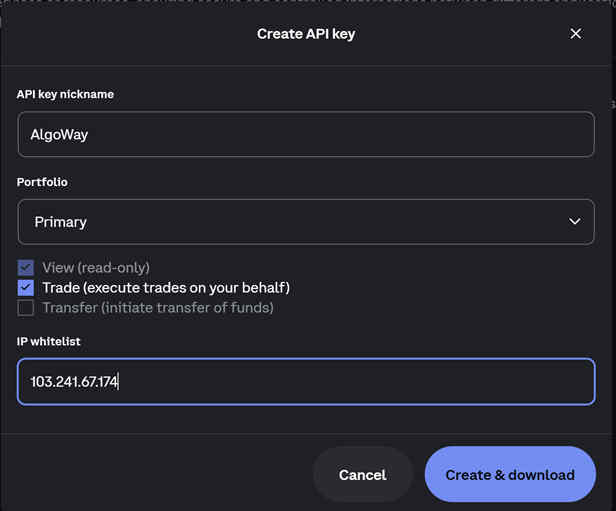
Open the Coinbase API key creation screen and create a dedicated key for AlgoWay. Use a clear nickname such as AlgoWay so you can identify this integration later.
- Open the Coinbase API key creation page.
- Set the API key nickname, for example
AlgoWay. - Select the portfolio you want to trade, for example Primary.
- Enable View permission.
- Enable Trade permission.
- Keep Transfer permission disabled.
- Add the AlgoWay IP address to the IP whitelist.
- Click Create & download.
Recommended Coinbase API Permissions
| Permission | Use it? | Purpose |
|---|---|---|
| View | Yes | Required for account, portfolio, product, balance and order status checks. |
| Trade | Yes | Required to place or manage trades through Coinbase. |
| Transfer | No | Not required for AlgoWay TradingView webhook automation. |
AlgoWay IP Whitelist
Add the AlgoWay server IP shown in your dashboard to the Coinbase IP whitelist. The screenshot example uses:
103.241.67.174
If your dashboard shows a different AlgoWay IP, use the IP shown in the dashboard. If the IP whitelist is missing or wrong, Coinbase can reject API requests from AlgoWay.
Step 2. Create a Coinbase Webhook in AlgoWay
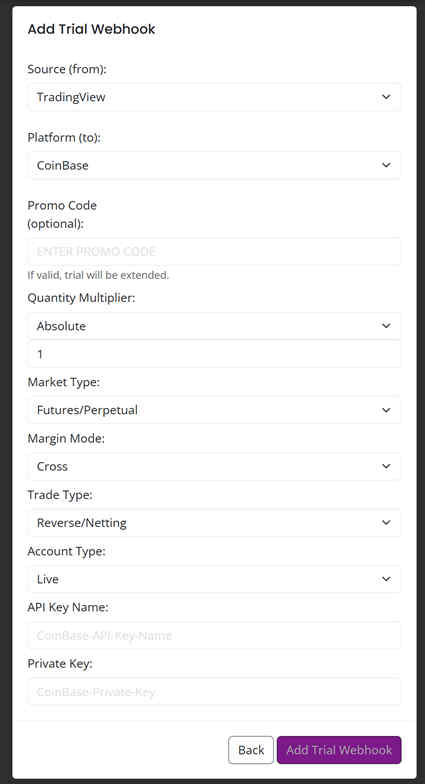
After creating the Coinbase API key, create a Coinbase webhook in AlgoWay. This webhook becomes the route between TradingView alerts and Coinbase execution.
- Open your AlgoWay Dashboard.
- Click Add Trial Webhook or Add Main Webhook.
- Select TradingView as the source.
- Select Coinbase as the platform.
- Choose the market and trade settings used by your AlgoWay route.
- Enter the Coinbase API Key Name.
- Paste the Coinbase Private Key.
- Save the webhook.
Main AlgoWay Coinbase Fields
| Field | Recommended value | Purpose |
|---|---|---|
| Source | TradingView | The signal source. |
| Platform | Coinbase | The execution destination. |
| Quantity Multiplier | Absolute or your route setting | Controls how incoming size is interpreted. |
| Market Type | Your selected Coinbase route | Must match the market type supported by your Coinbase account and AlgoWay route. |
| Trade Type | Reverse / Netting, Hedge or selected mode | Defines how opposite signals and open positions are handled. |
| API Key Name | Coinbase API key name | Used by AlgoWay for Coinbase API authentication. |
| Private Key | Coinbase private key | Used to sign Coinbase API requests. |
Step 3. Test the Coinbase Webhook in AlgoWay
Before connecting a live TradingView strategy alert, send a test webhook from AlgoWay.
- Open Webhook Logs in AlgoWay.
- Click Test Webhook.
- Select your Coinbase webhook.
- Enter a symbol, small quantity and action.
- Optionally enter SL/TP or other supported fields.
- Click Send.
- Check AlgoWay logs and Coinbase account activity.
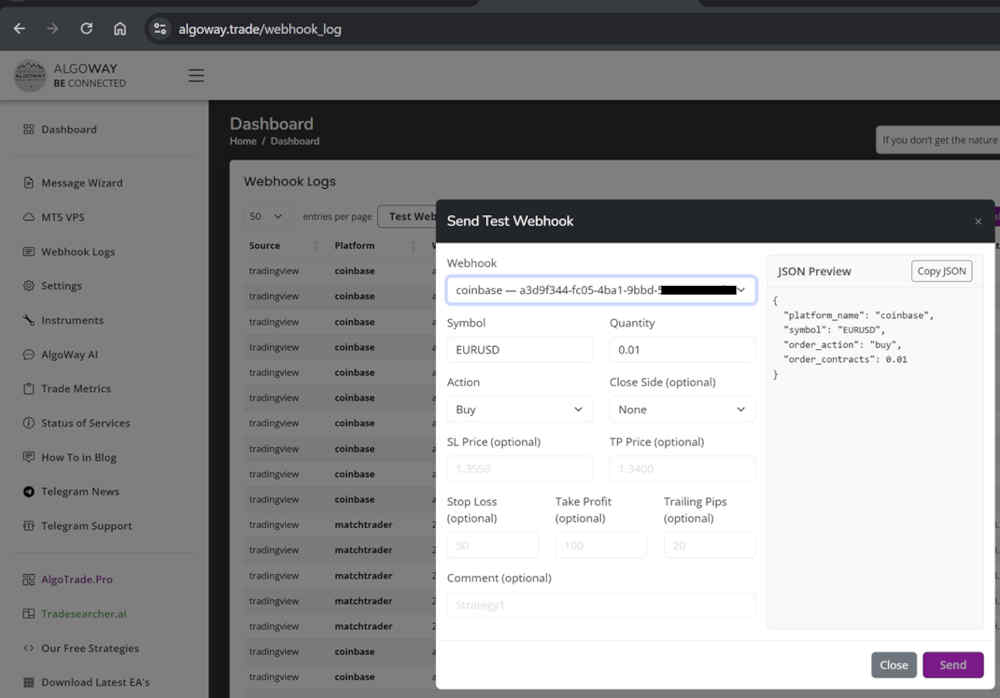
If the test fails, check API key name, private key, portfolio, permissions, IP whitelist, symbol, quantity and AlgoWay logs.
Step 4. Copy the AlgoWay Webhook URL
After the Coinbase webhook is saved and tested, copy the webhook URL from the AlgoWay dashboard.
- Open Dashboard → Your Webhooks.
- Find the webhook where Platform is Coinbase.
- Copy the webhook UUID or full webhook URL.
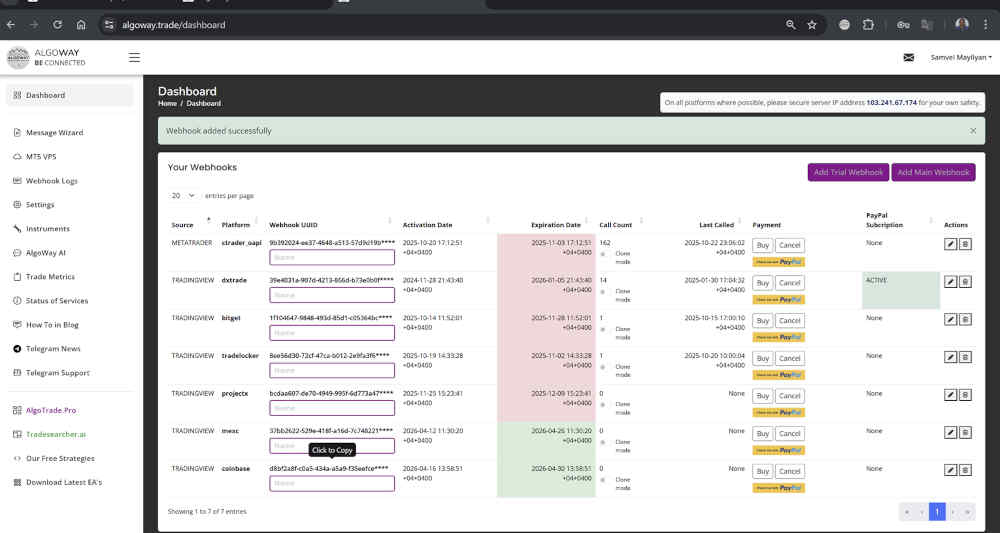
Webhook URL format:
https://algoway.co/your-webhook-uuid
Step 5. TradingView Webhook JSON for Coinbase
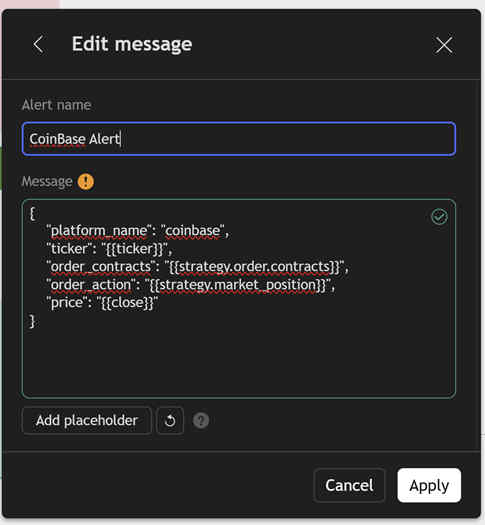
TradingView must send valid JSON. AlgoWay expects structured fields, not plain text.
Recommended TradingView strategy alert JSON:
{
  "platform_name": "coinbase",
  "ticker": "{{ticker}}",
  "order_contracts": "{{strategy.order.contracts}}",
  "order_action": "{{strategy.market_position}}",
  "price": "{{close}}"
}
TradingView replaces these placeholders when the alert fires:
{{ticker}}— chart ticker;{{strategy.order.contracts}}— strategy order size;{{strategy.market_position}}— strategy position state;{{close}}— close price at alert time.
Fixed Test JSON
For a controlled test, use a fixed symbol and small valid size:
{
  "platform_name": "coinbase",
  "ticker": "BTC-USD",
  "order_contracts": 0.001,
  "order_action": "buy"
}
Use a valid Coinbase product symbol and a quantity accepted by the selected market and account.
Coinbase Symbol and Product Notes
TradingView symbols and Coinbase product IDs may not always use the same format. For example, a TradingView chart ticker and a Coinbase product ID can differ by exchange prefix, separator or market naming.
Before live automation, confirm:
- the TradingView chart ticker;
- the Coinbase product ID accepted by the API;
- the portfolio selected for the API key;
- the market type selected in AlgoWay;
- minimum size and increment rules;
- whether the asset is tradable in your Coinbase account.
If AlgoWay receives the webhook but Coinbase rejects the order, symbol or product mismatch is one of the first checks.
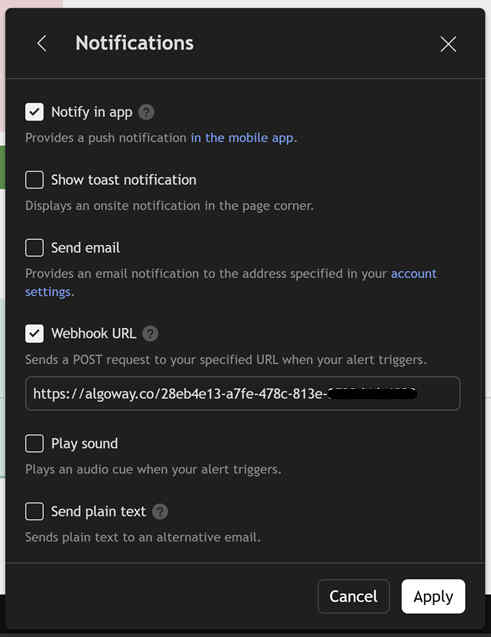
Step 6. Create the TradingView Alert
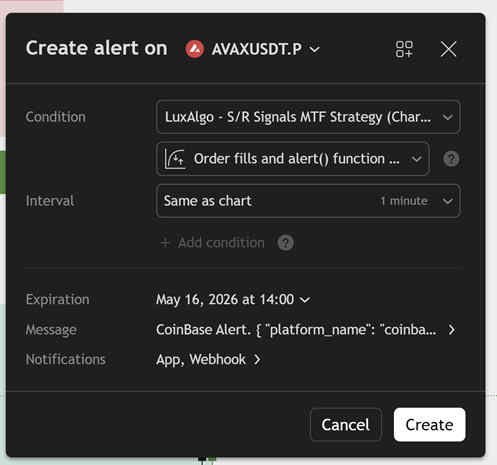
After the Coinbase webhook URL and JSON message are ready, create the TradingView alert.
- Open the TradingView chart you want to automate.
- Create or edit your strategy alert.
- Paste the Coinbase JSON message into the alert message field.
- Open Notifications.
- Enable Webhook URL.
- Paste the AlgoWay Coinbase webhook URL.
- Click Apply or Create.
Trade Type: Reverse, Hedge and Opposite Logic
Trade Type defines how AlgoWay handles a new signal when there is already an open position or order state. This setting matters when your TradingView strategy changes direction.
- Reverse / Netting: useful when the latest signal should control the current direction.
- Hedge: useful only if the destination route and account support separate long and short behavior.
- Opposite: useful when an opposite signal should close and open the other side.
Full guide: How AlgoWay handles opposite trading signals.
Verification and Logs
After the alert is created, test with small size.
- Trigger a small test alert first.
- Open Webhook Logs in AlgoWay.
- Verify the incoming JSON payload.
- Review the Coinbase response.
- Check your Coinbase account to confirm whether the order or position was processed correctly.
If the order is not created, do not immediately rewrite the strategy. First check API permissions, IP whitelist, webhook URL, JSON format, ticker/product format and the TradingView alert condition.
Common Coinbase Webhook Problems
Private Key Was Lost
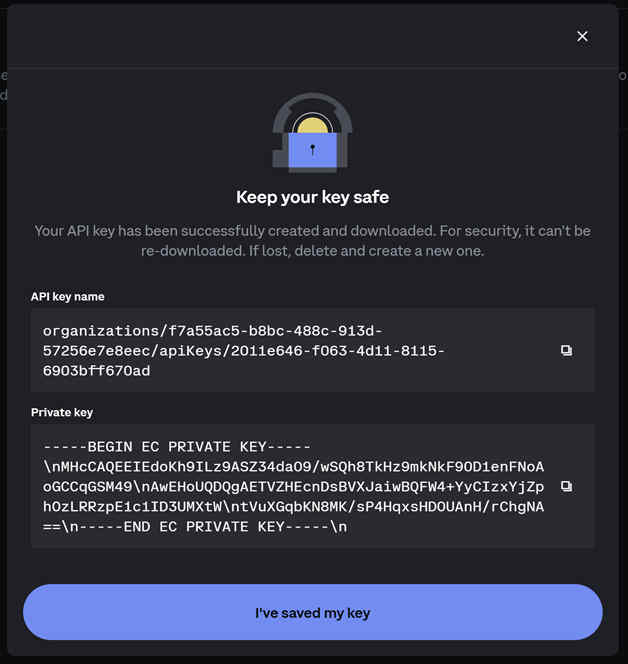
The private key cannot be downloaded again after creation. Delete the Coinbase API key and create a new one.
Wrong API Key Name
AlgoWay needs the Coinbase API key name exactly as created. If the key name is wrong, authentication can fail.
Wrong Private Key
The private key entered in AlgoWay must belong to the API key name used for this Coinbase connection.
Transfer Permission Enabled
Transfer permission is not required. Use View and Trade for this integration and keep Transfer disabled.
IP Whitelist Missing or Wrong
Add the AlgoWay IP address from your dashboard to the Coinbase IP whitelist. If the IP does not match, API requests can be rejected.
Wrong Portfolio
Coinbase API keys are associated with a selected portfolio. Make sure the portfolio has the assets and balances required for the automated route.
Invalid JSON
TradingView must send valid JSON. Broken commas, missing quotes or unsupported field names can stop automation before Coinbase execution.
Wrong Product Symbol
Check whether the TradingView ticker matches the Coinbase product ID accepted by the API and AlgoWay route.
Invalid Quantity
Coinbase can reject orders that do not satisfy product minimum size or increment rules. Test with a small valid quantity first.
Why Use AlgoWay Instead of Building a TradingView to Coinbase Bot?
You can build your own TradingView-to-Coinbase bot. That requires a public webhook endpoint, server hosting, JSON validation, Coinbase API authentication, product mapping, portfolio routing, order endpoint integration, logs, errors and ongoing monitoring.
AlgoWay gives you a ready automation route:
- TradingView webhook receiver;
- structured JSON workflow;
- Coinbase API credential routing;
- dashboard-based webhook setup;
- logs for payloads and execution responses;
- support for multiple brokers and exchanges;
- trade modes and risk-aware execution logic.
This makes AlgoWay a no-code TradingView to Coinbase webhook connector for traders who want crypto automation without maintaining their own API server.
Related AlgoWay Guides
- How to automate TradingView alerts to any broker with AlgoWay
- How to create a webhook in TradingView
- AlgoWay JSON schema guide
- How to fix AlgoWay webhook Error 415
- How to connect TradingView to BingX with AlgoWay
- How to connect TradingView to Bitget with AlgoWay
- How to connect TradingView to Binance with AlgoWay
- How to connect TradingView to Bybit with AlgoWay
- How to copy TradingView alerts to multiple accounts
Final Summary
To automate Coinbase from TradingView, create a Coinbase API key with View and Trade permissions, keep Transfer disabled, whitelist the AlgoWay IP address, create a Coinbase webhook in AlgoWay, test the webhook, and then send valid TradingView JSON to the AlgoWay webhook URL.
AlgoWay turns TradingView alerts into Coinbase webhook automation without forcing you to build and maintain your own crypto trading bot infrastructure.