TradingView to TradeLocker Webhook Automation
AlgoWay lets you automate TradeLocker orders from TradingView alerts through a webhook route. You create a TradeLocker webhook in AlgoWay, enter your TradeLocker broker URL, email, password, server and numeric Account ID, then paste the AlgoWay webhook URL and JSON message into TradingView.
This guide is written for traders searching for TradingView to TradeLocker, TradingView TradeLocker webhook, TradeLocker automated trading, TradeLocker trading bot, TradingView alerts to TradeLocker, webhook autotrade bot, webhook trading bot, TradeLocker prop firm automation and TradingView alert execution on TradeLocker.
The execution route is:
TradingView strategy or alert → AlgoWay webhook → TradeLocker connection → TradeLocker order executionTradingView creates the alert. AlgoWay receives the webhook message, validates the JSON, applies your webhook settings and sends the order to the TradeLocker account connected to that route.
Last updated: 2026-05-12 • Author: AlgoWay
Video Tutorial: How to Connect TradingView to TradeLocker
Quick Answer: TradingView to TradeLocker with AlgoWay
To connect TradingView alerts to TradeLocker, prepare your TradeLocker login details, create a TradeLocker webhook in AlgoWay, copy the AlgoWay webhook URL, create a TradingView alert, enable Webhook URL in TradingView and send a valid JSON message.
Minimum setup checklist:
- TradeLocker broker URL or platform URL;
- TradeLocker email;
- TradeLocker password;
- TradeLocker server name from the broker email;
- numeric TradeLocker Account ID;
- AlgoWay webhook with Source set to TradingView and Platform set to TradeLocker;
- Trade Type selected: Hedge or Reverse;
- TradingView alert with webhook URL enabled;
- valid JSON message for TradeLocker execution.
After this setup, a TradingView alert can open, close, reverse or manage a TradeLocker order through AlgoWay, depending on the JSON command you send.
What This Setup Solves
Many traders use TradingView for strategy logic, Pine Script indicators and alert creation, but their funded account or broker account runs on TradeLocker. The gap is execution. A normal TradingView alert can notify you, but it does not automatically place a TradeLocker order by itself.
AlgoWay acts as the execution bridge:
- TradingView remains the signal source;
- AlgoWay receives the webhook alert;
- AlgoWay validates the JSON payload;
- AlgoWay applies route settings such as platform, quantity multiplier and trade mode;
- TradeLocker receives the final order command;
- AlgoWay logs the incoming alert and execution response.
This is useful for automated TradingView strategies, manual TradingView price alerts, Pine Script alert conditions, prop firm TradeLocker accounts, copy-trading routes and traders who want one automation dashboard for TradeLocker plus other platforms.
TradeLocker TradingView Charts vs TradingView Webhook Automation
TradeLocker includes TradingView charting inside its own platform. That is useful for analysis inside TradeLocker, but it is not the same as taking an alert from your separate TradingView account and turning that alert into an automated TradeLocker order.
This page is about the second case:
Your TradingView account → webhook alert → AlgoWay → your TradeLocker accountThat distinction matters for SEO and for users. A trader may search “connect TradeLocker to TradingView” and find information about built-in charting. The real automation question is different: how to send TradingView webhook alerts to TradeLocker for order execution. AlgoWay handles that route.
Before You Start
Prepare the following before creating the webhook:
- AlgoWay account;
- TradeLocker account from your broker or prop firm;
- TradeLocker platform URL;
- email used for TradeLocker login;
- TradeLocker password;
- server name from the broker email;
- TradeLocker Account ID digits;
- TradingView strategy, indicator or manual alert condition;
- TradingView plan with webhook alert support;
- small test size for the first alert.
Step 1. Register on TradeLocker and Find Your Account ID
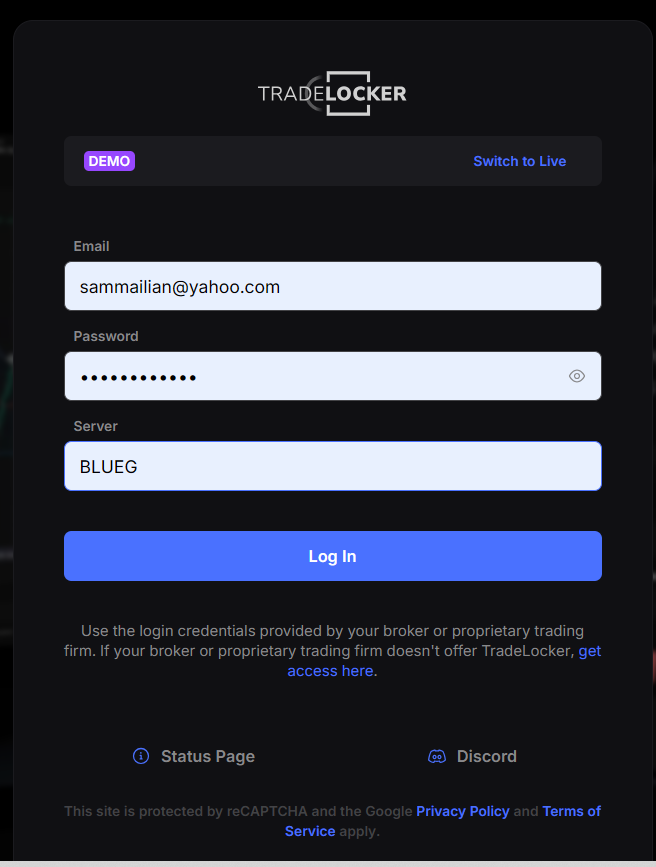
Register on the TradeLocker platform through your broker or prop firm. After registration, the broker normally sends an email with the information needed for login:
- email;
- password;
- TradeLocker platform server name.
Log in to the TradeLocker website using those details.
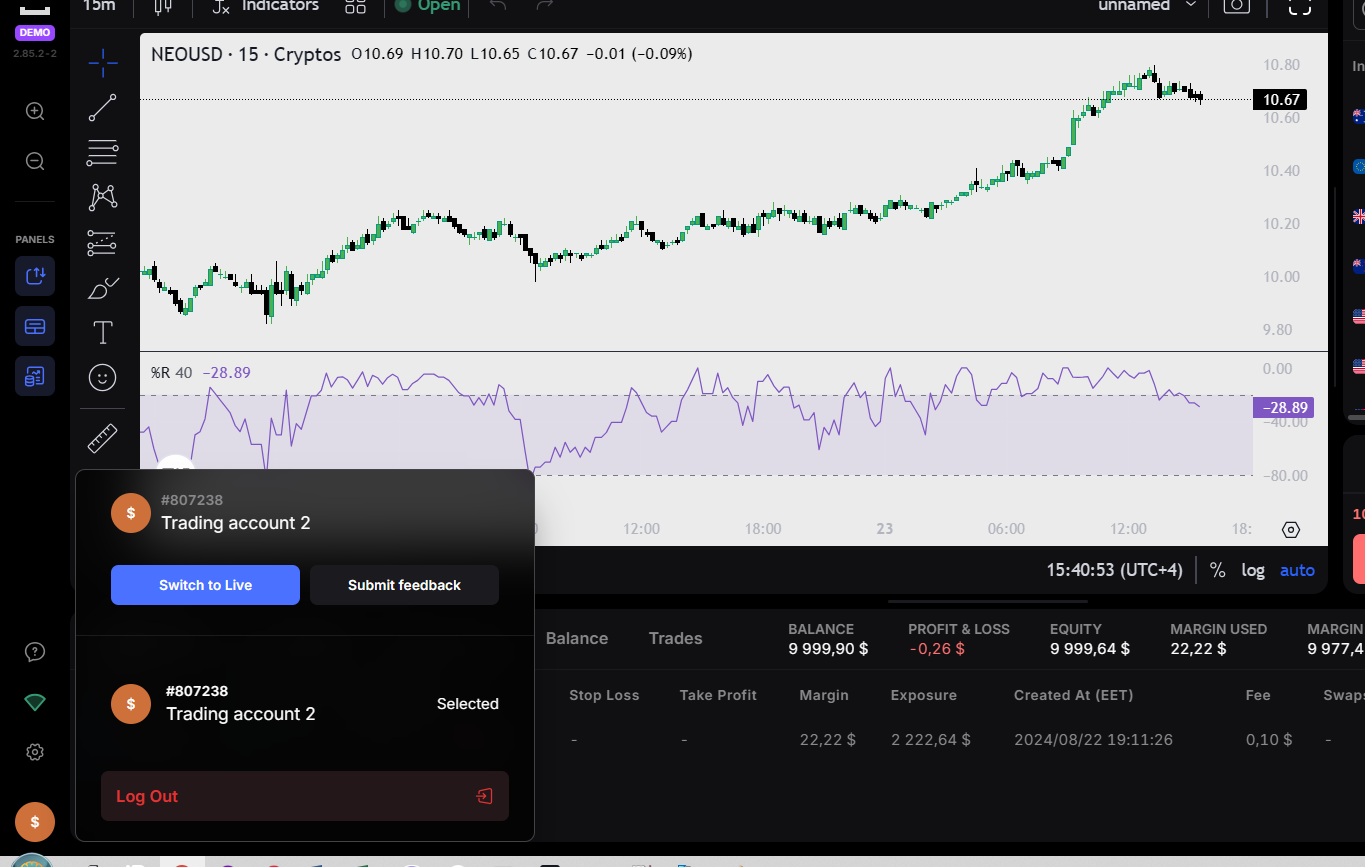
In the lower-left corner of the TradeLocker platform, click the dollar icon to view the account selector and Account ID.
Use only the digits of the Account ID in AlgoWay. If the interface shows text around the number, copy the number only.
Step 2. Create a TradeLocker Webhook in AlgoWay
Log in to AlgoWay and create a webhook route for TradeLocker execution.
- Open AlgoWay Dashboard.
- Click Add Webhook, Add Trial Webhook or Add Main Webhook.
- Set Source to TradingView.
- Set Platform to TradeLocker.
- Choose the quantity multiplier. For direct JSON quantity, use Absolute and
1. - Select Trade Type: Hedge or Reverse.
- Enter the TradeLocker platform URL.
- Enter the TradeLocker email.
- Enter the TradeLocker password.
- Enter the TradeLocker server name.
- Enter the numeric Account ID.
- Save the webhook.
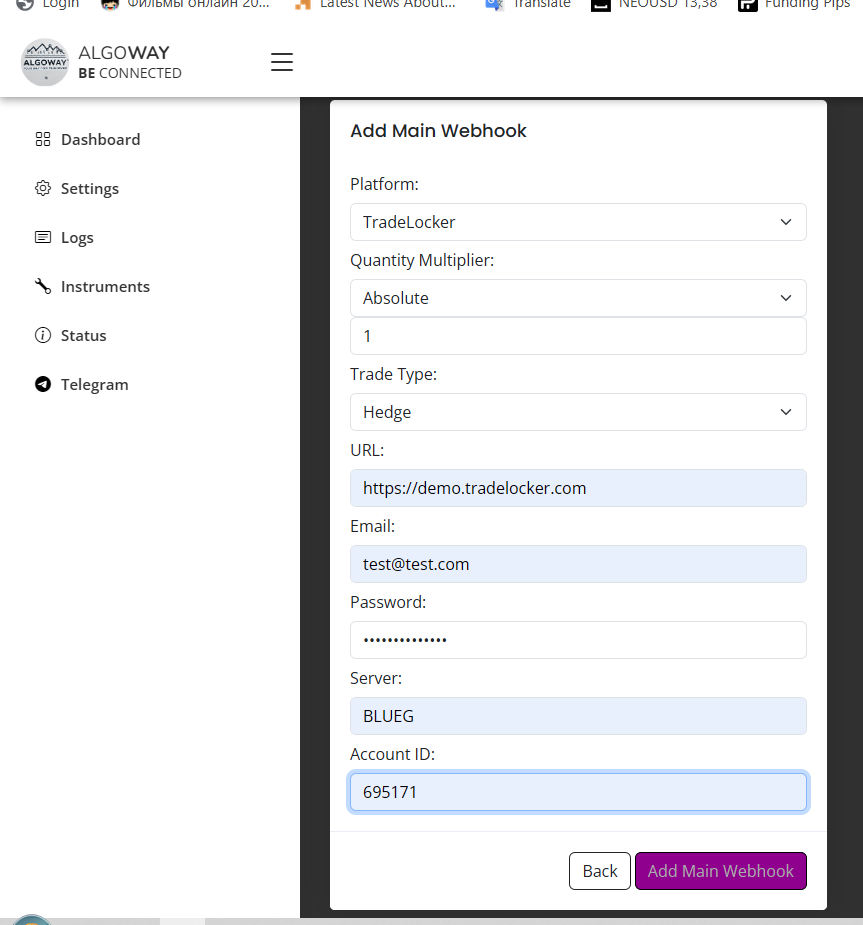
The main TradeLocker fields in AlgoWay are:
| Field | Example value | Purpose |
|---|---|---|
| Source | TradingView | The alert source that sends the webhook. |
| Platform | TradeLocker | The destination where the order should be executed. |
| Quantity Multiplier | Absolute → 1 | Uses the incoming order_contracts value directly. |
| Trade Type | Hedge or Reverse | Controls whether opposite signals open separate exposure or reverse the current position. |
| URL | TradeLocker platform URL | Defines the TradeLocker environment connected to the webhook. |
| Your TradeLocker login email | Used to connect AlgoWay to the TradeLocker account. | |
| Password | Your TradeLocker password | Used for the TradeLocker connection. |
| Server | Server name from broker email | Identifies the broker server for the account. |
| Account ID | Digits only | Selects the exact TradeLocker account to trade. |
Step 3. Copy the AlgoWay Webhook URL
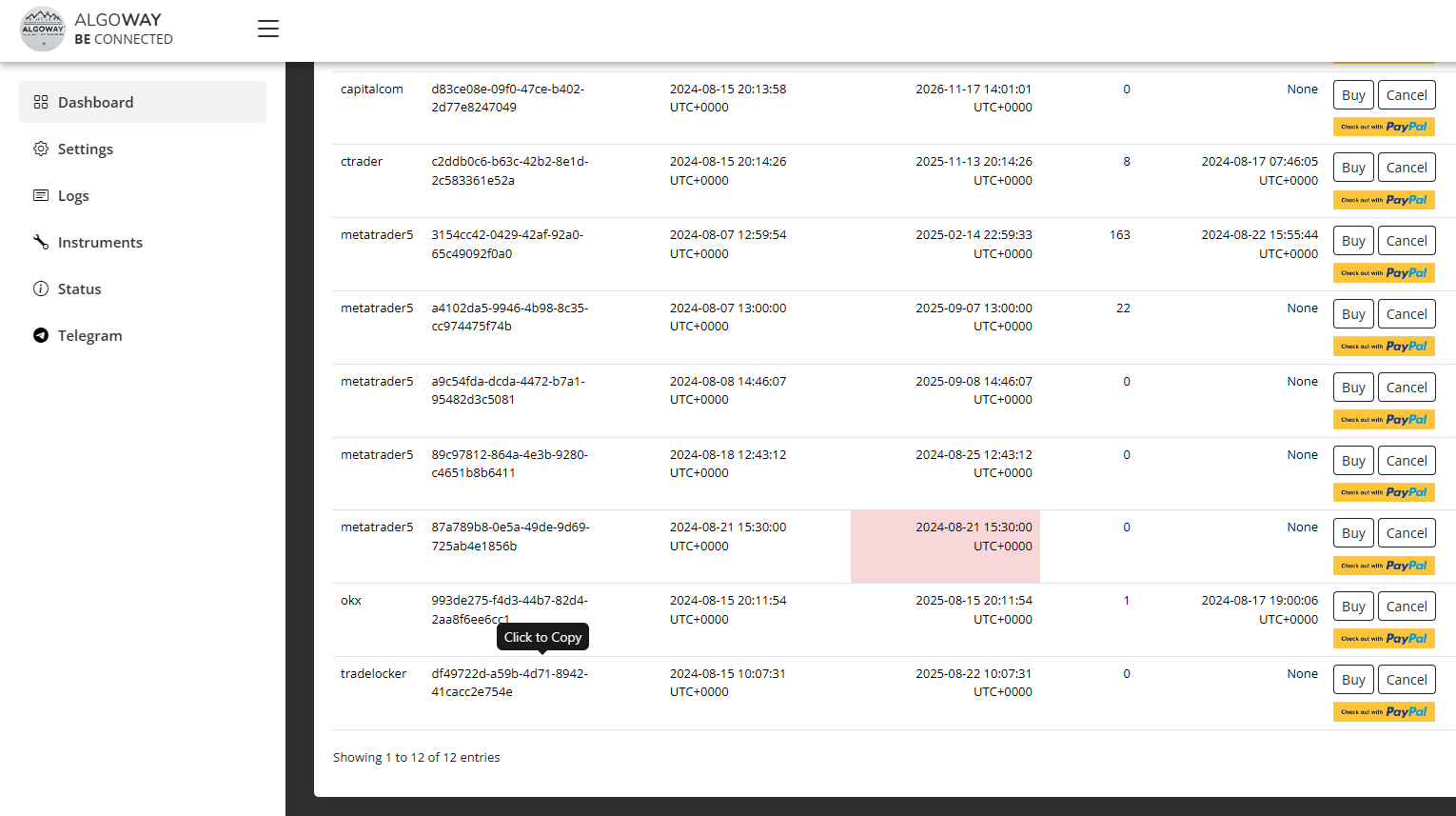
After saving the route, AlgoWay shows a webhook URL for that TradeLocker connection. This is the URL TradingView must call when the alert fires.
The route is specific to your AlgoWay webhook. A typical structure is:
https://algoway.co/your-webhook-uuidCopy the full URL and keep it ready for the TradingView alert window.
Step 4. Create a TradingView Alert for TradeLocker Execution
Open the TradingView chart you want to automate. The alert can come from a strategy, indicator, price level or custom Pine Script condition.
- Open the symbol and timeframe in TradingView.
- Click Alert.
- Select the condition that should trigger the order.
- Choose alert frequency. For strategy automation, Once Per Bar Close is often the cleanest starting point.
- Paste the JSON message into the Message field.
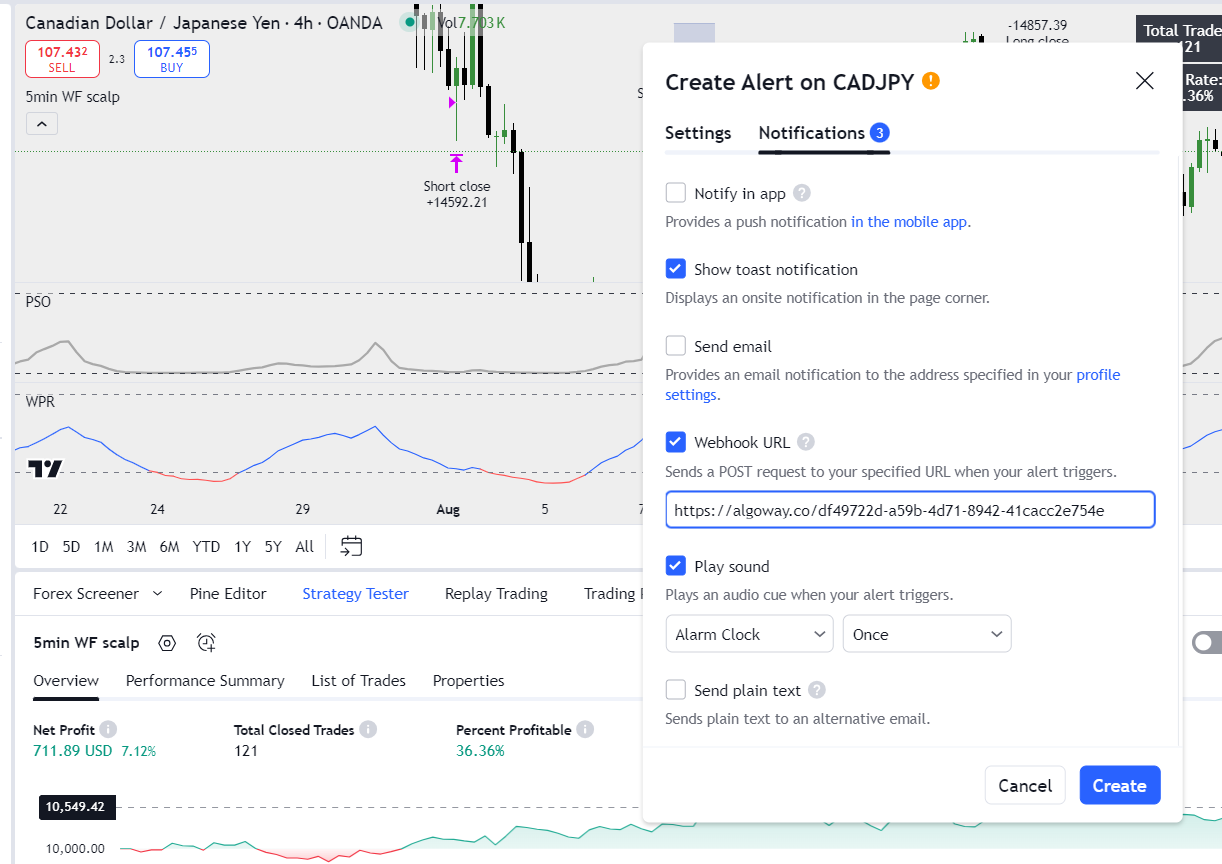
- Open the Notifications tab.
- Enable Webhook URL.
- Paste the AlgoWay webhook URL.
- Save the alert.
In TradingView, the webhook URL goes in the Notifications area. The trade command itself goes in the Message field as JSON.
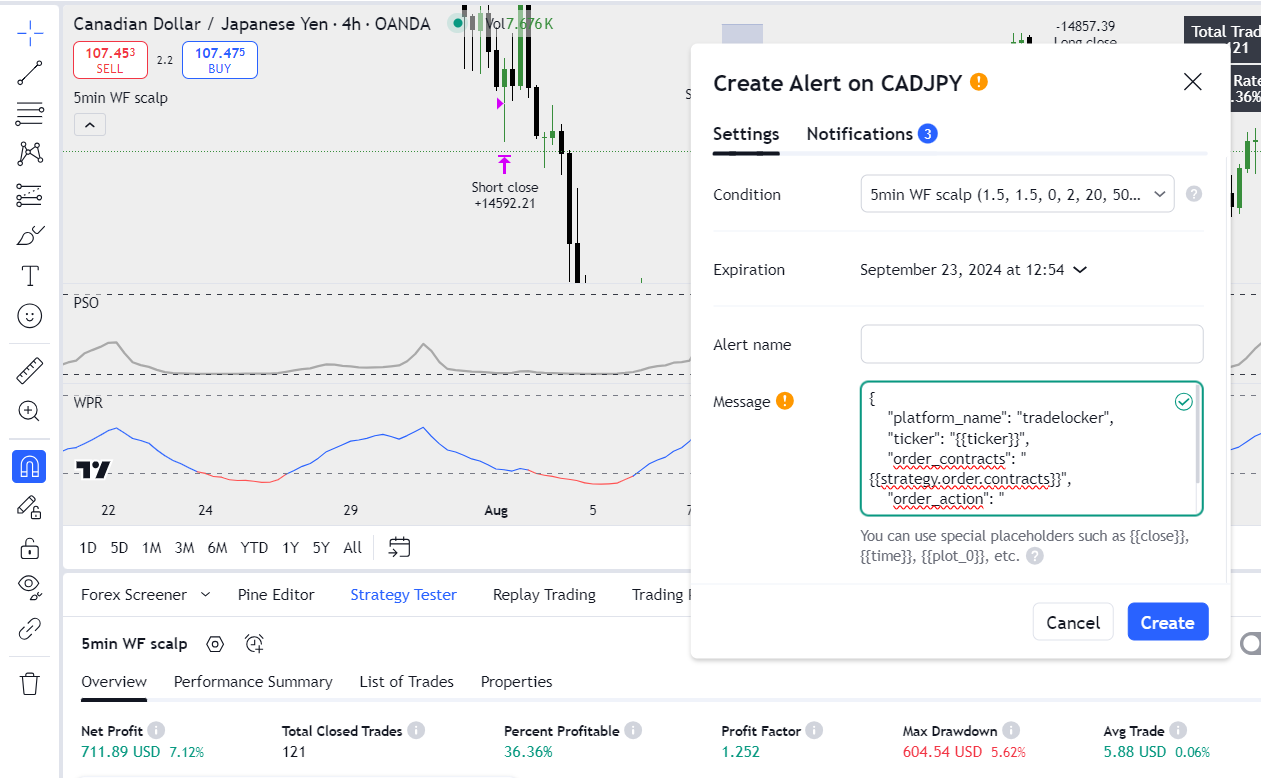
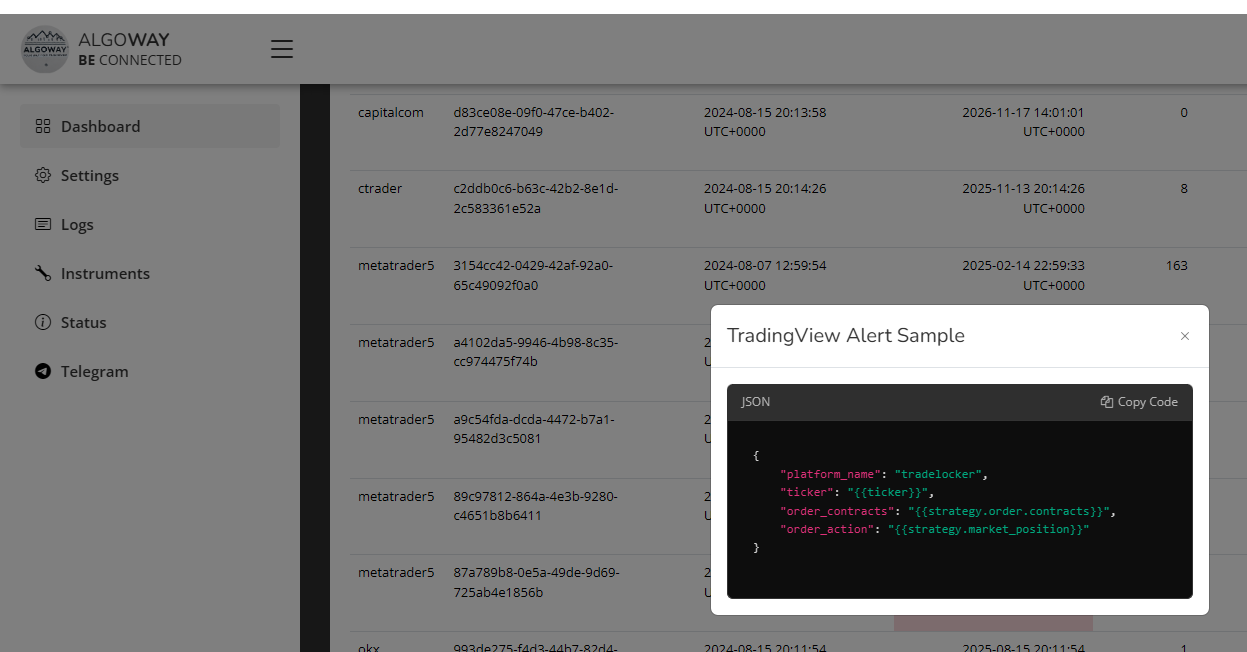
Copy the JSON format from the AlgoWay dashboard or use one of the examples below, then adapt the symbol, quantity and risk fields to your TradeLocker account.
TradingView to TradeLocker JSON Examples
AlgoWay expects a structured JSON payload. For TradeLocker, the key fields are platform name, symbol, action and quantity. Optional fields can define stop loss, take profit, pending order type, price and linking identifiers.
Basic strategy alert JSON
Use this when the TradingView strategy controls direction and quantity:
{
  "platform_name": "tradelocker",
  "ticker": "{{ticker}}",
  "order_action": "{{strategy.market_position}}",
  "order_contracts": "{{strategy.order.contracts}}",
  "price": "{{close}}"
}
This format is useful when the TradingView strategy sends long, short or flat through placeholders and AlgoWay maps the command through the TradeLocker webhook route.
Manual buy order with SL/TP
Use this when the alert is a manual condition or an indicator alert and you want to send a fixed buy command:
{
  "platform_name": "tradelocker",
  "ticker": "EURUSD",
  "order_action": "buy",
  "order_contracts": "0.01",
  "stop_loss": "50",
  "take_profit": "100"
}
Manual sell order with SL/TP
{
  "platform_name": "tradelocker",
  "ticker": "EURUSD",
  "order_action": "sell",
  "order_contracts": "0.01",
  "stop_loss": "50",
  "take_profit": "100"
}
Close or flat command
Use flat when the TradingView strategy exits and you want AlgoWay to close the relevant TradeLocker exposure according to the selected trade mode.
{
  "platform_name": "tradelocker",
  "ticker": "EURUSD",
  "order_action": "flat",
  "order_contracts": "0.01"
}
Limit or stop order example
If your AlgoWay route supports pending order logic for the selected destination, add order_type. For limit and stop, the price field is the requested entry price or activation price.
{
  "platform_name": "tradelocker",
  "ticker": "EURUSD",
  "order_action": "buy",
  "order_type": "limit",
  "price": "1.08000",
  "order_contracts": "0.01",
  "stop_loss": "50",
  "take_profit": "100"
}
Linked strategy command with tv_order_id
If you run more than one strategy on the same TradeLocker symbol, a linking ID helps keep commands separated by strategy logic.
{
  "platform_name": "tradelocker",
  "ticker": "EURUSD",
  "order_action": "buy",
  "order_contracts": "0.01",
  "tv_order_id": "LondonBreakout-001",
  "stop_loss": "50",
  "take_profit": "100"
}
Keep tv_order_id stable for the strategy route that should later modify or close the same logical trade.
Hedge and Reverse Trade Modes
AlgoWay TradeLocker webhooks can use different trade behavior depending on your strategy.
| Mode | Best use case | Behavior |
|---|---|---|
| Hedge | Strategies that may keep separate long and short logic | Allows separate exposure handling according to supported account behavior. |
| Reverse | Single-direction strategies that should flip exposure | Opposite signals are treated as a reversal workflow instead of independent exposure. |
For a simple TradingView strategy that moves between long, short and flat, Reverse mode is often easier to reason about. For systems where different signals must be isolated, use stable identifiers and choose the mode that matches the account behavior.
SL/TP, Quantity and Order Fields
A strong TradingView to TradeLocker automation page should not stop at “paste the webhook URL”. Real execution depends on symbol mapping, order size, action, risk fields and logs.
| JSON field | Example | Purpose |
|---|---|---|
platform_name |
tradelocker |
Tells AlgoWay which destination logic the alert belongs to. |
ticker |
EURUSD or {{ticker}} |
Symbol to trade on TradeLocker. |
order_action |
buy, sell, flat |
Trade direction or close command. |
order_contracts |
0.01 |
Trade size. Final behavior also depends on the AlgoWay quantity multiplier. |
stop_loss |
50 |
Stop loss distance or value according to the route configuration. |
take_profit |
100 |
Take profit distance or value according to the route configuration. |
sl_price |
1.07500 |
Absolute stop loss price when supported by the route. |
tp_price |
1.09000 |
Absolute take profit price when supported by the route. |
order_type |
market, limit, stop |
Defines market or pending order behavior. |
price |
{{close}} |
Price from TradingView, or pending order entry/activation price for non-market orders. |
tv_order_id |
Strategy-001 |
Links later modify or close commands to a specific strategy order. |
Full field reference: AlgoWay JSON Schema Guide.
Testing and Logs
After saving the TradingView alert, wait for the condition to trigger or create a controlled test alert. Then check AlgoWay logs.
Confirm the following:
- TradingView alert fired at the expected time;
- AlgoWay received the webhook call;
- JSON was parsed without an error;
platform_nameistradelocker;- symbol matches the TradeLocker instrument;
- order size is correct after the quantity multiplier;
- TradeLocker response appears in AlgoWay logs;
- the order appears in the correct TradeLocker account.
Start with a small size. Once the route is confirmed, add more advanced fields such as stop loss, take profit, absolute SL/TP prices, pending order type or strategy linking.
Common TradingView to TradeLocker Problems
1. Webhook fires but no TradeLocker order appears
Check the AlgoWay webhook logs first. If there is no incoming webhook entry, the TradingView alert did not reach the AlgoWay URL. If the webhook entry exists, check the parsed JSON and TradeLocker response.
2. Account ID is rejected
Use only the numeric Account ID from TradeLocker. Do not paste currency text, account label, broker name or extra spaces.
3. Wrong symbol
The TradingView ticker and the TradeLocker broker symbol may not always use the same naming format. If an order is rejected, check the exact symbol name in TradeLocker and adjust the JSON ticker.
4. Wrong quantity
Check both order_contracts in the JSON and the Quantity Multiplier in AlgoWay. If you want the incoming value to be used directly, start with Absolute and multiplier 1.
5. TradingView sends text instead of JSON
The alert message must be valid JSON. Check quotes, commas and braces. A missing comma or unescaped character can break the payload.
6. Strategy alert sends the wrong direction
Check which TradingView placeholder you use. For strategy automation, {{strategy.market_position}} and {{strategy.order.action}} may produce different behavior depending on how the Pine Script strategy is written.
7. Flat signal does not close what you expected
Check the selected trade mode and whether you use a stable tv_order_id. If multiple strategies trade the same symbol, separated identifiers help avoid closing the wrong logical setup.
Why Use AlgoWay for TradeLocker Automation?
Most TradingView to TradeLocker tutorials explain only one narrow step: paste a webhook URL and send an alert. AlgoWay is built around the full route: signal source, webhook receiver, JSON validation, platform connection, execution response and logs.
AlgoWay is useful when you want:
- TradingView alert automation for TradeLocker;
- webhook trading without building your own server;
- strategy and indicator alerts routed from one dashboard;
- SL/TP and absolute price fields in the alert payload;
- Hedge or Reverse behavior configured at route level;
- execution logs for debugging rejected orders;
- one account that can also support MT5, Match-Trader, DxTrade, cTrader, Binance, Bybit, OKX, Gate.io, Alpaca, Tradovate and other platforms.
Related guides:
- How to automate TradingView alerts to any broker with AlgoWay
- How to create a TradingView webhook alert
- AlgoWay JSON Schema Guide
- TradeLocker advanced SL/TP update
- TradingView to Match-Trader setup guide
FAQ
Can I connect TradingView alerts to TradeLocker?
Yes. AlgoWay provides a TradingView to TradeLocker webhook route. TradingView sends the alert to AlgoWay, and AlgoWay forwards the order command to the connected TradeLocker account.
Is TradeLocker already integrated with TradingView?
TradeLocker includes TradingView charting inside its platform. This guide is about a different workflow: sending alerts from your TradingView account to TradeLocker for automated order execution.
Do I need coding to automate TradingView alerts on TradeLocker?
No. You can create an AlgoWay webhook route, copy the webhook URL and paste JSON into a TradingView alert. Pine Script is useful for custom strategies, but the basic webhook setup does not require building your own server.
What JSON should I use for TradeLocker?
At minimum, use platform_name, ticker, order_action and order_contracts. You can also add stop_loss, take_profit, sl_price, tp_price, order_type, price and tv_order_id when supported by your route.
Can I use TradingView strategy placeholders?
Yes. You can use placeholders such as {{ticker}}, {{strategy.market_position}}, {{strategy.order.contracts}} and {{close}} inside the TradingView alert message.
Can AlgoWay send stop loss and take profit to TradeLocker?
Yes. AlgoWay supports stop loss and take profit fields in webhook JSON. Use distance fields such as stop_loss and take_profit, or absolute price fields such as sl_price and tp_price when your route supports them.
Can I use TradeLocker automation for prop firm accounts?
Yes, if your prop firm account is accessible through TradeLocker credentials and the account accepts the order behavior you configure. Use the exact server and numeric Account ID provided by the TradeLocker environment.
Where do I check errors?
Check AlgoWay webhook logs first. They show whether the alert arrived, whether the JSON was valid, and what response came back from the TradeLocker route.
Is there a free trial for TradingView to TradeLocker automation?
Yes. AlgoWay offers a 14-day free trial so you can test the TradingView to TradeLocker webhook route before using it as a main automation connection.