How to Buy AlgoWay Webhook Access via Buy Me a Coffee
This guide explains how to buy AlgoWay webhook access using Buy Me a Coffee as the payment method. The purchase flow is simple: log in to AlgoWay, open the webhook pricing page, generate a unique AlgoWay order code, complete payment on Buy Me a Coffee, include the generated code during checkout, and wait for AlgoWay to match the payment to your account.
This page is written for users searching for buy AlgoWay webhook, AlgoWay payment guide, Buy Me a Coffee AlgoWay, AlgoWay webhook subscription, webhook access payment, and how to activate AlgoWay webhook after payment.
The payment route is:
AlgoWay login → Webhook pricing page → Generate AlgoWay code → Buy Me a Coffee checkout → Payment matching → Webhook activation
Last updated: 2026-05-12 • Author: AlgoWay
Quick Answer: How to Buy AlgoWay Webhook Access
To buy AlgoWay webhook access through Buy Me a Coffee:
- Open AlgoWay and log in to your account.
- Open the webhook pricing page in your dashboard.
- Select the monthly or yearly webhook plan.
- Click Generate AlgoWay Code.
- Copy the generated code.
- Click Open BMC Payment.
- Complete Buy Me a Coffee checkout.
- Include the generated AlgoWay code during checkout.
- Wait for AlgoWay to match the payment and activate or extend webhook access.
The most important step is the code. Without the generated AlgoWay code, payment matching may be delayed because AlgoWay must identify which account and webhook the payment belongs to.
What You Are Buying
You are buying digital access to AlgoWay webhook automation. Depending on the selected plan, the purchase can activate or extend monthly or yearly webhook access.
AlgoWay webhook access can include:
- access to webhook creation and management inside AlgoWay;
- dashboard access for selected webhook routes;
- webhook logs and received payload tracking;
- platform routing for supported brokers, exchanges or trading platforms;
- access duration according to the selected monthly or yearly plan;
- continued use of AlgoWay automation infrastructure during the active period.
Buy Me a Coffee is used as the external checkout/payment page for this purchase flow. It is not just a random donation button. In this guide, it is part of the AlgoWay digital access payment process.
Why AlgoWay Uses Buy Me a Coffee
Buy Me a Coffee gives users an external payment option when they want to buy or support digital access. AlgoWay uses a generated code to connect the external payment with the correct AlgoWay account and webhook plan.
The generated code is needed because payment happens outside the AlgoWay dashboard. The code acts as the bridge between:
- your AlgoWay user account;
- the selected webhook or subscription target;
- the selected monthly or yearly plan;
- the external Buy Me a Coffee payment.
Before You Start
Prepare the following before payment:
- an AlgoWay account;
- access to the AlgoWay dashboard;
- the webhook plan you want to buy or extend;
- access to the Buy Me a Coffee payment page;
- a way to copy and paste the generated AlgoWay code;
- a payment method accepted by Buy Me a Coffee.
Step 1 — Open AlgoWay and Log In
Start from the public AlgoWay website and log in to your account:
The Buy Me a Coffee payment option is part of the authenticated AlgoWay user flow. This means the system expects you to be logged in before generating the order code.
Step 2 — Open the Webhook Pricing Page
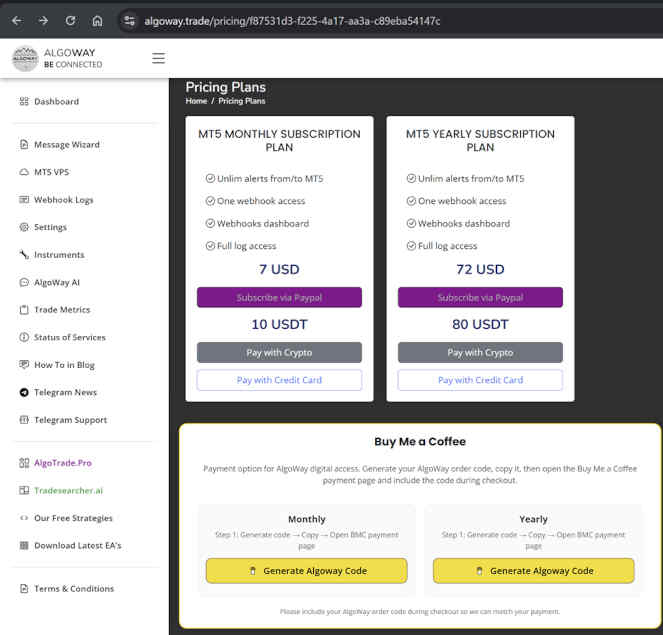
Inside the AlgoWay dashboard, open the webhook area and then the pricing section for the webhook access you want to buy or extend.
On the pricing page, AlgoWay can show options such as:
- monthly webhook plan;
- yearly webhook plan;
- available payment methods;
- the dedicated Buy Me a Coffee payment section.
Step 3 — Generate the AlgoWay Order Code
In the Buy Me a Coffee section, select the intended plan and click:
Generate AlgoWay Code
AlgoWay generates a unique code for that specific payment attempt. Copy this code before going to Buy Me a Coffee checkout.
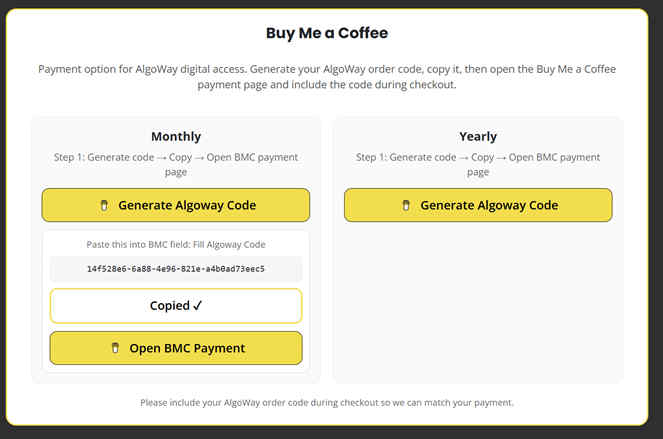
The generated code helps AlgoWay identify:
- which AlgoWay account requested payment;
- which webhook access should be activated or extended;
- whether the user selected monthly or yearly access;
- which Buy Me a Coffee payment belongs to the order.
Step 4 — Open the Buy Me a Coffee Payment Page
After generating the code, click:
Open BMC Payment
You will be redirected to the AlgoWay Buy Me a Coffee payment page.
Public payment page example:
AlgoWay Buy Me a Coffee payment page
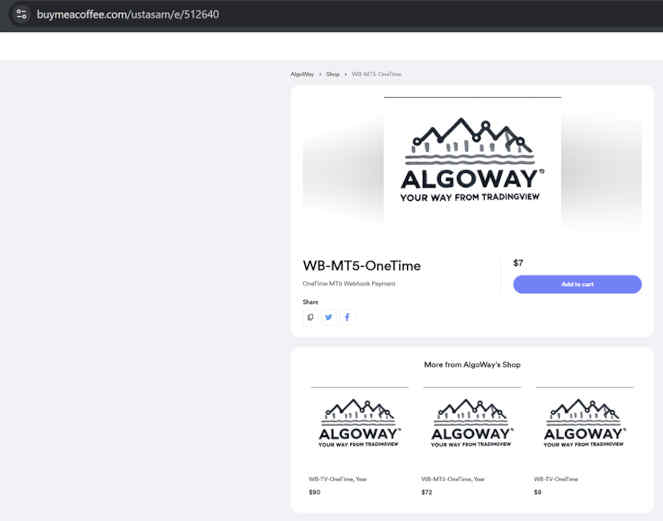
This is the external checkout page where you complete the payment.
Step 5 — Complete Payment and Include the AlgoWay Code
During checkout, include the generated AlgoWay code in the message, note, instruction or available checkout field used for payment matching.
This step is required because AlgoWay must match the external payment to the correct internal account and webhook plan.
Correct flow:
Generated AlgoWay code → included in Buy Me a Coffee checkout → matched to AlgoWay account → webhook access activated
If you complete payment without the code, activation may require manual review.
What Happens After Payment
After payment, AlgoWay uses the submitted code to match the payment to your account and selected webhook plan.
After matching succeeds, AlgoWay can:
- activate new webhook access;
- extend existing webhook access;
- apply the correct monthly or yearly access period;
- update dashboard status;
- make the webhook available for automation according to the selected plan.
After activation, return to the AlgoWay dashboard and check your webhook status, expiration date and available routes.
What This Payment Does Not Include
To avoid confusion, the Buy Me a Coffee payment for AlgoWay webhook access does not mean:
- a guaranteed profitable trading strategy;
- broker account funding;
- exchange fees or broker commissions;
- TradingView subscription fees;
- guaranteed order execution by brokers or exchanges;
- financial advice or managed account service.
You are paying for digital webhook access to the AlgoWay platform and its automation infrastructure according to the selected plan.
Common Payment and Activation Problems
Payment Was Completed Without AlgoWay Code
Activation may be delayed. Contact support with the Buy Me a Coffee payment details and your AlgoWay account email.
Wrong Code Was Entered
Payment matching may fail or go to manual review. Copy the code exactly from the AlgoWay pricing page.
User Was Not Logged In Before Code Generation
The payment code must be generated from the correct authenticated AlgoWay account. Log in first, then generate the code.
Wrong Plan Was Selected
If monthly or yearly access was selected incorrectly, contact support before using the webhook heavily.
Webhook Still Looks Inactive After Payment
Check whether the payment was completed, whether the code was included, and whether the dashboard status has updated. If needed, contact support with the payment reference and AlgoWay account email.
Buy Me a Coffee Checkout Did Not Complete
If the payment failed or was cancelled, return to AlgoWay, generate a fresh code if needed, and repeat the checkout process.
Security and Account Notes
- Use your own AlgoWay account when generating the code.
- Do not share your webhook URL publicly.
- Do not share your dashboard login.
- Keep payment screenshots or receipts until access is active.
- Use the exact code generated by AlgoWay for that payment attempt.
After Activation: What to Do Next
After webhook access is active, continue with the setup guide for your platform:
- How to create a TradingView webhook alert
- How to automate TradingView alerts to any broker with AlgoWay
- AlgoWay JSON schema guide
- TradingView to MetaTrader 5 with AlgoWay
- Install AlgoWayWS-MT5 EA
- TradingView to Binance with AlgoWay
- TradingView to Bybit with AlgoWay
- TradingView to Coinbase with AlgoWay
- TradingView to BingX with AlgoWay
- TradingView to Bitget with AlgoWay
- TradingView to Tradovate with AlgoWay
Final Summary
Buy Me a Coffee is an external payment option for AlgoWay digital webhook access. The correct flow is to log in to AlgoWay, select the plan, generate the AlgoWay order code, complete Buy Me a Coffee checkout, include the code, and let AlgoWay match the payment to the correct account and webhook access.
The generated code is the key part of the process. It connects the external payment to the internal AlgoWay account and plan.
Start here: AlgoWay Login